Connect Google Calendar and Groove to power AI-driven automation
- No-code AI automation
- Full audit trails and controls
- SOC 2 and GDPR compliant
- Easy visual workflow builder
- 9,000+ apps, 450+ AI tools
- Free tier available
How Zapier works
Zapier makes it easy to integrate Google Calendar with Groove - no code necessary. See how you can get setup in minutes.


Choose a trigger
A trigger is the event that starts your Zap—like a "New Calendar" from Google Calendar.
Add your action
An action happens after the trigger—such as "Add Note" in Groove.
You’re connected!
Zapier seamlessly connects Google Calendar and Groove, automating your workflow.
Supported triggers and actions
Zapier helps you create workflows that connect your apps to automate repetitive tasks. A trigger is an event that starts a workflow, and an action is an event a Zap performs.
- New Calendar
Triggers when a calendar is created.
Try ItTriggerPolling - CalendarRequired
- Search_term
Try ItTriggerPolling- CalendarRequired
- Expand Recurring Events
Try ItTriggerInstant- CalendarRequired
- Search_termRequired
- Trigger on newly created events only?
Try ItTriggerPolling

- CalendarRequired
Try ItTriggerPolling- CalendarRequired
- Time Before
- Time Before (Unit)
- Search_term
Try ItTriggerPolling- CalendarRequired
Try ItTriggerInstant- CalendarRequired
- EventRequired
- Attendee/sRequired
ActionWrite
For AI agents & developers
Use Google Calendar and Groove with AI agents and code
Beyond Zap workflows. Call Google Calendar and Groove actions directly from your AI client or your codebase, using the same 9,000+ app integrations Zapier already runs.
Connect via Zapier MCP
Expose Google Calendar and Groove actions as tools in any MCP client. Authenticate once, then call them in natural language.
Example actions on this page
Works with
Claude · ChatGPT · Cursor · any MCP-compatible client
Call from code with the Zapier SDK
Trigger Google Calendar and Groove actions from backend services, scripts, or agent code.
Install
# TypeScript / Node
npm install @zapier/zapier-sdk
Run an action
import { createZapierSdk } from '@zapier/zapier-sdk';

const zapier = createZapierSdk();
await zapier.runAction({ /* google-calendar / groove action */ });There is no Python package yet. SDK is TypeScript-only (@zapier/zapier-sdk). The MCP server URL is personal to your account; get it at zapier.com/mcp.
Zapier is the automation platform of choice for 87% of Forbes Cloud 100 companies in 2023




93%
Customers who say using Zapier has made them better at their job
25m
Customers have created over 25 million Zaps on the platform
6 mins
The average user takes less than 6 minutes to set up a Zap
Connect Google Calendar and Groove to integrate crucial parts of your business
With Zapier, you can integrate everything from basic data entry to end-to-end processes. Here are some of the business-critical workflows that people automate with Zapier.
Automate your lead management and improve conversions
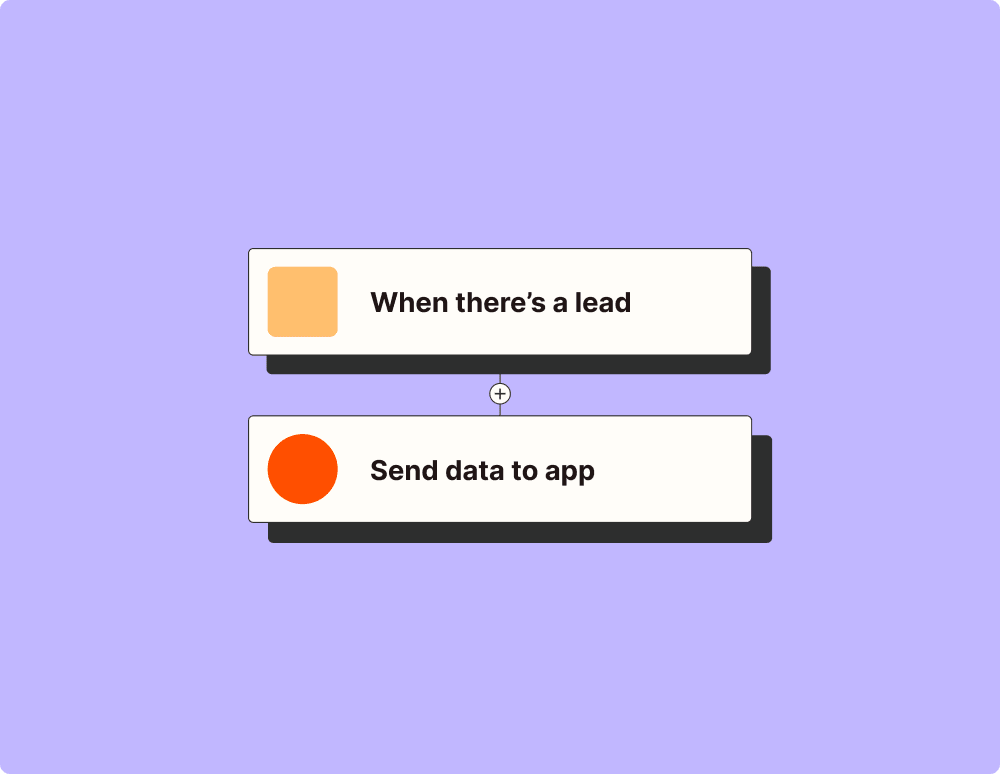
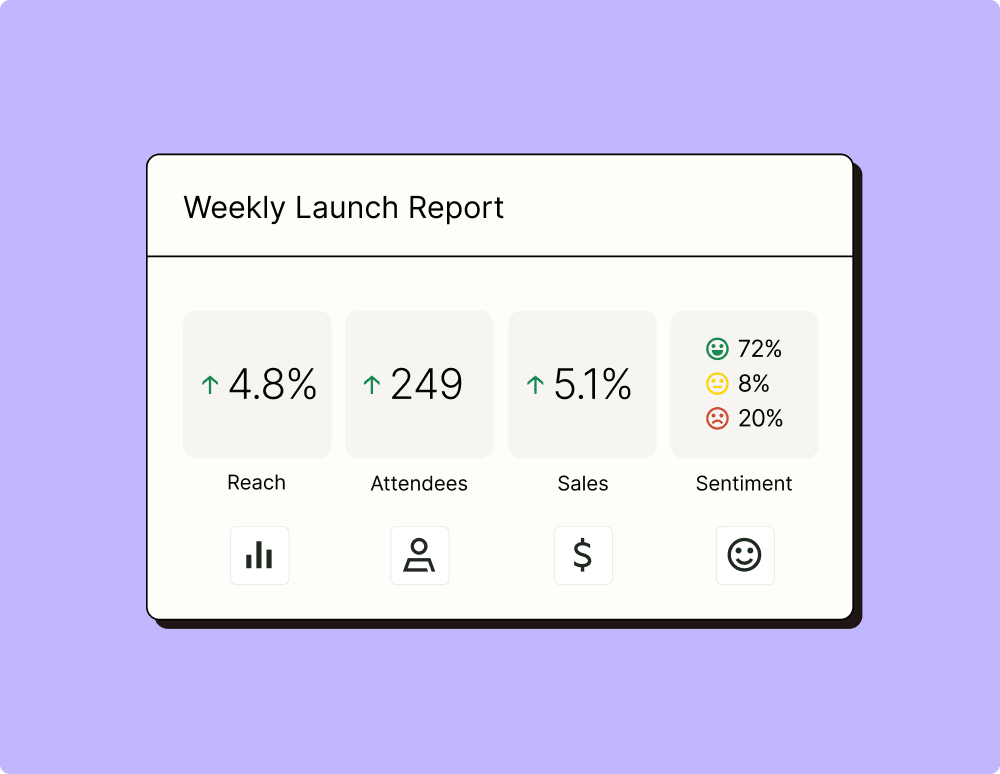
Create more impactful campaigns with automation
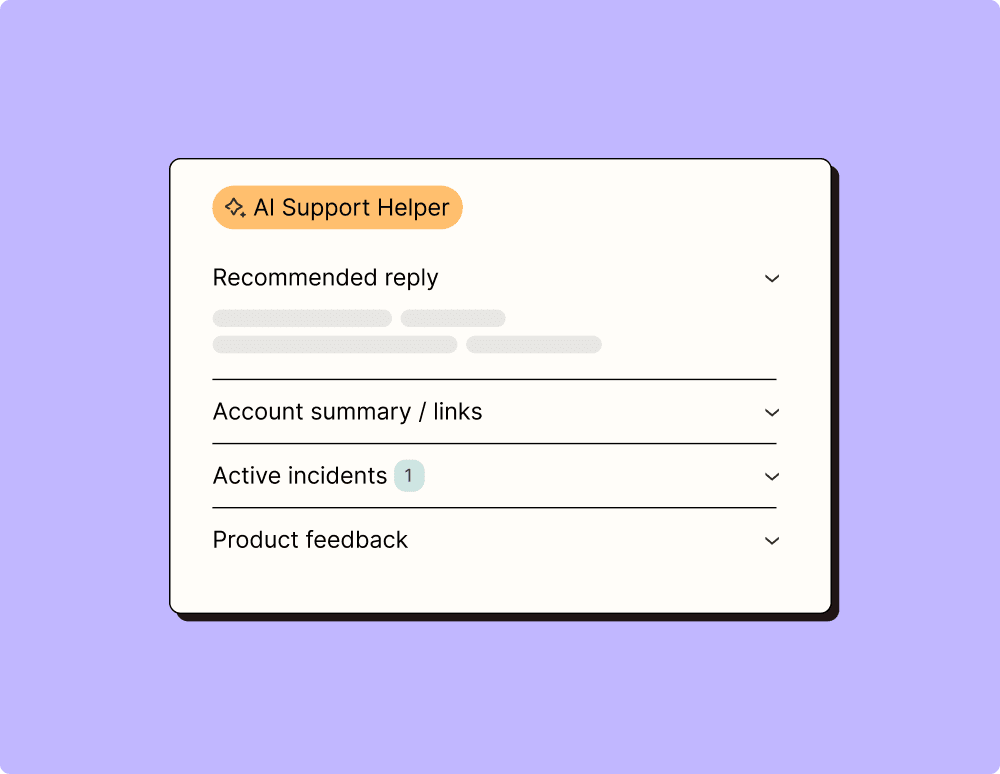
Provide world-class support with a little help from automation
Automate your way to actionable, up-to-date data
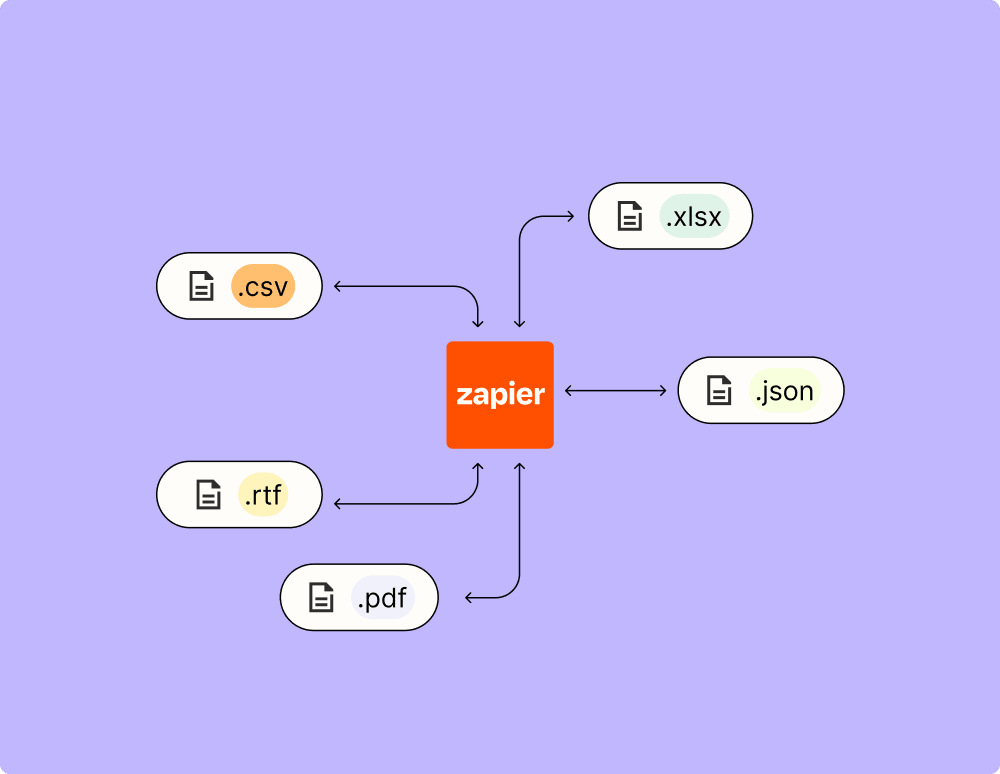
Resolve incidents faster with automation
Learn how to automate Google Calendar on the Zapier blog
Make work flow with AI

Frequently Asked Questions about Google Calendar + Groove integrations
New to automation with Zapier? You're not alone. Here are some answers to common questions about how Zapier works with Google Calendar and Groove
How can I set up a trigger in Google Calendar to create a Groove ticket?
To set up a trigger in Google Calendar to create a Groove ticket, you need to use our integration platform. First, select Google Calendar as your trigger app and choose an event like 'New Event' as the trigger. Then, connect your Google Calendar account. Next, choose Groove as the action app and select 'Create Ticket' as the action. This way, every time there’s a new event in Google Calendar, a ticket will be created in Groove.
Can I update an existing Groove ticket when an event is changed in Google Calendar?
Yes, you can update existing Groove tickets when an event is changed in Google Calendar. Set the trigger to 'Event Updated' in Google Calendar and then configure your action to 'Update Ticket' in Groove through our platform. This ensures that any updates made to your calendar events are reflected directly on the corresponding Groove tickets.
Is it possible to create calendar events from new tickets in Groove?
Absolutely! You can create new calendar events from tickets created in Groove. Start by setting Groove as the trigger app with 'New Ticket' as the trigger. Then, select Google Calendar for the action app and choose 'Create Detailed Event'. Connecting these will allow you to automatically generate calendar events every time new tickets are raised.
How do I configure reminders for events linked with my support tickets?
Configuring reminders for events linked with support tickets involves adding a step after creating or updating support tickets where you set up 'Event Start Reminder' within Google Calendar via our integration tool. This setup will notify you prior to events that have been automatically scheduled from your support activities.
Can we sync all-day events from Google Calendar into detailed notes on Groove?
Yes, syncing all-day events from Google Calendar into detailed notes on Groove is possible using our integration service. Choose 'All-day Event' from the trigger options in Google Calendar and use 'Add Note' or similar actions within Groove to keep track of these special calendar entries.
What happens if there are conflicts between scheduled events and existing support tasks?
If there are conflicts between scheduled events and existing support tasks, you can create notifications within our system using conditional logic features available during integration setup. This way, alerts can be configured so users are informed of overlapping commitments when they occur.
Are there automatic updates for changes made manually in either system?
Automatic updates for manual changes require setting specific triggers and actions for both systems involved – we ensure bidirectional sync options so changes made manually are captured by creating update triggers respectively for both Groove and Google Calendar within our service.


