Top companies trust Zapier to automate work that solves their unique business problems—no coding required.
How Zapier works
Zapier makes it easy to integrate StreamYard with Google Calendar - no code necessary. See how you can get setup in minutes.
100%
Help
StreamYard
StreamYard
1. Choose trigger event
Google Calendar
Google Calendar
2. Choose action
1. Select the event
Setup
Test
StreamYard
Choose a trigger event
Choose a trigger
A trigger is the event that starts your Zap—like a "New Registrant (All Webinars)" from StreamYard.
Add your action
An action happens after the trigger—such as "Add Attendee(s) to Event" in Google Calendar.
You’re connected!
Zapier seamlessly connects StreamYard and Google Calendar, automating your workflow.
Supported triggers and actions
Zapier helps you create workflows that connect your apps to automate repetitive tasks. A trigger is an event that starts a workflow, and an action is an event a Zap performs.
New Registrant (All Webinars)
Triggers when someone registers to any of your webinars.
Create a new record or update an existing record in your app.
Calendar
Required
Event
Required
Notify Attendees?
Action
This is an event a Zap performs.
Write
Create a new record or update an existing record in your app.
Calendar
Required
Describe Event
Required
Attendees
Action
This is an event a Zap performs.
Write
Create a new record or update an existing record in your app.
Calendar
Required
Event
Required
Attendee/s
Required
Action
This is an event a Zap performs.
Write
Create a new record or update an existing record in your app.
Api_docs_info
Stop on error
Required
HTTP Method
Required
URL
Required
Query string parameters
Additional request headers
Body
Action
This is an event a Zap performs.
Write
Create a new record or update an existing record in your app.
Calendar
Required
Expand Recurring Events
Search_term
Attendee email
Start Time Before
End Time After
Event Type
Action
This is an event a Zap performs.
Search
Find existing data in your app
Show Hidden Calendars
Show Deleted Calendars
Minimum Access Role
Action
This is an event a Zap performs.
Search
Find existing data in your app
Calendar
Required
Expand Recurring Events
Search_term
Attendee email
Start Time Before
End Time After
Event Type
Summary
Description
Location
Add Conferencing?
Start Date & Time
Required
End Date & Time
Required
Repeat Frequency
Repeat Until
Repeat How Many Times?
All day
Color
Use custom event colors?
Attendees
Visibility
Use Default Reminders?
Reminders
Minutes Before Reminders
Show me as Free or Busy
Guests Can Modify Event
Event Type
Action
This is an event a Zap performs.
Search or write
Find existing data in your app, or create a new record if no data is found
For AI agents & developers
Use StreamYard and Google Calendar with AI agents and code
Beyond Zap workflows. Call StreamYard and Google Calendar actions directly from your AI client or your codebase, using the same 9,000+ app integrations Zapier already runs.
No code
Connect via Zapier MCP
Expose StreamYard and Google Calendar actions as tools in any MCP client. Authenticate once, then call them in natural language.
Example actions on this page
Add Attendee(s) to Event
Works with
Claude · ChatGPT · Cursor · any MCP-compatible client
There is no Python package yet. SDK is TypeScript-only (@zapier/zapier-sdk). The MCP server URL is personal to your account; get it at zapier.com/mcp.
Zapier is the automation platform of choice for 87% of Forbes Cloud 100 companies in 2023
93%
Customers who say using Zapier has made them better at their job
25m
Customers have created over 25 million Zaps on the platform
6 mins
The average user takes less than 6 minutes to set up a Zap
Practical ways you can use StreamYard and Google Calendar
Sync webinar attendee status with a calendar event
Gain accurate attendance data for better insights. When a registrant's status changes in StreamYard for a specific webinar (e.g., from registered to attended on-demand), Zapier updates the corresponding event in Google Calendar. This automation allows you to overlay attendance patterns onto broader datasets for trend analysis.
Stay on top of your webinar activity. When a new registrant signs up for any webinar in StreamYard, Zapier adds the details to Google Calendar. This ensures you have a centralized calendar for tracking registration dates and webinar details, helping you avoid scheduling conflicts and enhancing registration follow-up management.
Learn how to automate Google Calendar on the Zapier blog
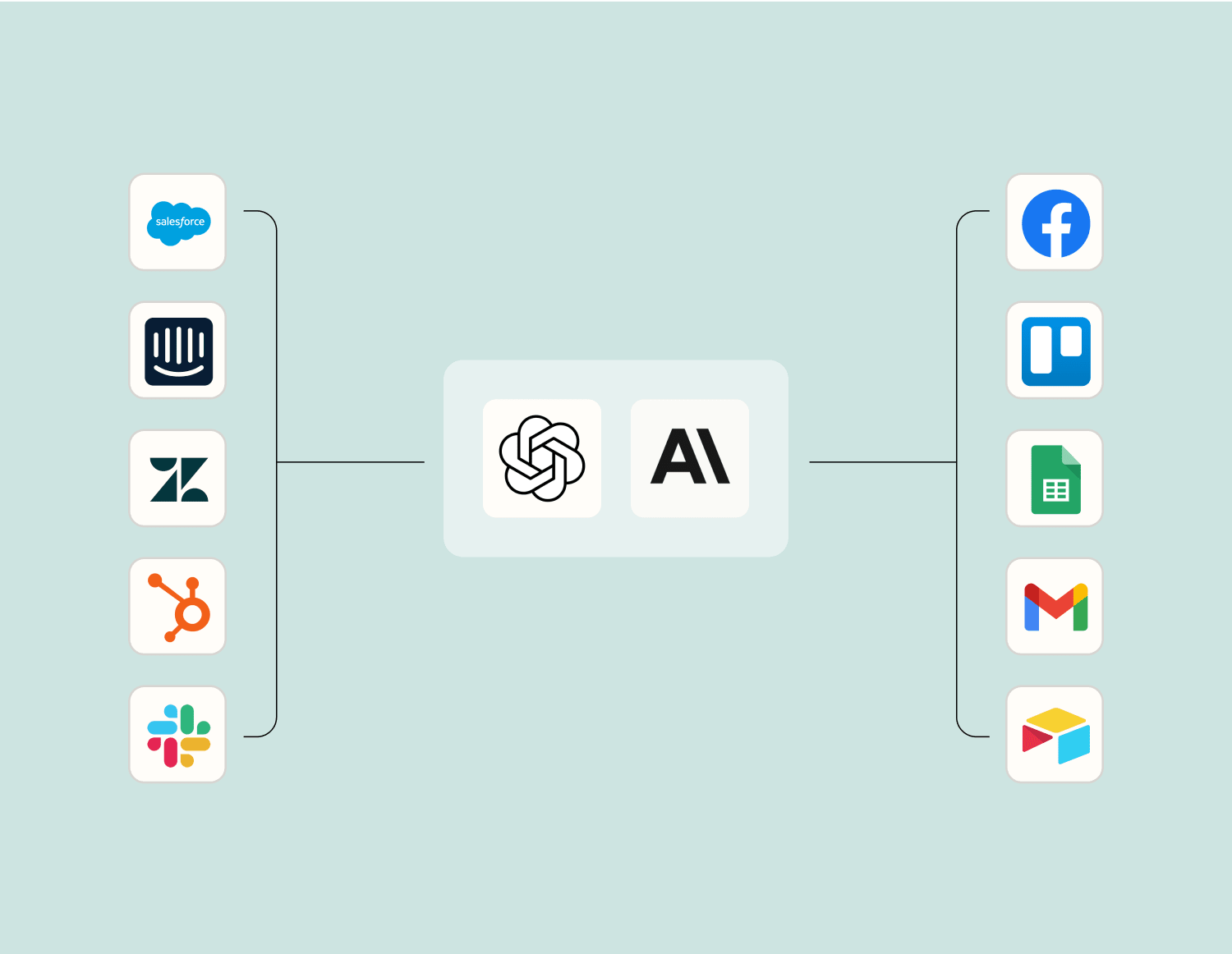
Make work flow with AI
Level up your StreamYard to Google Calendar integration with AI. Extract, summarize, and transform your integration data with leading AI models like OpenAI, Anthropic, and more.
Frequently Asked Questions about StreamYard + Google Calendar integrations
New to automation with Zapier? You're not alone. Here are some answers to common questions about how Zapier works with StreamYard and Google Calendar
How do I integrate StreamYard with Google Calendar?
You can integrate StreamYard with Google Calendar by setting up a Zap using our platform. The integration requires you to select StreamYard as the trigger app and choose a specific event, such as 'New Broadcast Scheduled', then select Google Calendar as the action app to create or update events based on your broadcast schedule.
Can I automatically create a Google Calendar event for a new StreamYard broadcast?
Yes, you can set up an automated workflow where scheduling a new broadcast in StreamYard triggers the creation of a corresponding event in Google Calendar. You'll need to configure this via our interface by choosing 'New Broadcast Scheduled' in StreamYard as the trigger and 'Create Detailed Event' in Google Calendar as the action.
Is it possible to update existing Google Calendar events when changes are made in StreamYard?
Absolutely! By configuring your integration settings on our platform, any changes made to your scheduled broadcasts on StreamYard can automatically update the related events on your Google Calendar. Use 'Update Event' as an action linked with broadcast updates.
Do I need technical skills to connect StreamYard with Google Calendar?
No technical skills are necessary to integrate StreamYard with Google Calendar using our service. Our user-friendly interface guides you through selecting triggers and actions between these apps without needing any coding expertise.
What specific actions can be triggered in Google Calendar from StreamYard?
When integrating StreamYard with Google Calendar, scheduling a new broadcast can trigger actions like creating a new calendar event, updating an existing event if changes occur, or even cancelling an event when a broadcast is deleted from your schedule.
Why is my scheduled broadcast not appearing on my Google Calendar?
Ensure that your integration setup is correctly configured by checking that the right triggers, such as 'New Broadcast Scheduled', and corresponding actions like 'Create Detailed Event', are chosen. Also verify that both accounts are properly connected through our platform.
Can I customize the details that appear in my Google Calendar from a StreamYard broadcast?
Yes, during the setup of your automation workflow between StreamYard and Google Calendar, you can map specific details such as title, description, start time, and any other information from your broadcasts into calendar events.
About StreamYard
StreamYard is a professional live streaming, recording and webinar studio right within your browser. Create live and on demand webinars with StreamYard On-Air.
Google Calendar lets you organize your schedule and share events with co-workers and friends. With Google's free online calendar, it's easy to keep track of your daily schedule.