Top companies trust Zapier to automate work that solves their unique business problems—no coding required.
How Zapier works
Zapier makes it easy to integrate Google Calendar with Sage Accounting - no code necessary. See how you can get setup in minutes.
100%
Help
Google Calendar
Google Calendar
1. Choose trigger event
Sage Accounting
Sage Accounting
2. Choose action
1. Select the event
Setup
Test
Google Calendar
Choose a trigger event
Choose a trigger
A trigger is the event that starts your Zap—like a "New Calendar" from Google Calendar.
Add your action
An action happens after the trigger—such as "Create Contact Payment" in Sage Accounting.
You’re connected!
Zapier seamlessly connects Google Calendar and Sage Accounting, automating your workflow.
Supported triggers and actions
Zapier helps you create workflows that connect your apps to automate repetitive tasks. A trigger is an event that starts a workflow, and an action is an event a Zap performs.
Create a new record or update an existing record in your app.
Payment Reference
Payment Date
Required
Total Payment Amount
Required
Action
This is an event a Zap performs.
Write
Create a new record or update an existing record in your app.
Business Name
Required
Notes
Action
This is an event a Zap performs.
Write
Create a new record or update an existing record in your app.
Description
Required
Item_code
Notes
Active
Action
This is an event a Zap performs.
Write
Create a new record or update an existing record in your app.
Create Sales Quote
Creates a new sales Quote.
Action
This is an event a Zap performs.
Write
Create a new record or update an existing record in your app.
Description
Required
Item_code
Notes
Active
Action
This is an event a Zap performs.
Write
Create a new record or update an existing record in your app.
Description
Item_code
Notes
Active
Action
This is an event a Zap performs.
Write
Create a new record or update an existing record in your app.
Date
Invoice_number_prefix
Invoice_number
Reference
Notes
Terms_and_conditions
Sent
Action
This is an event a Zap performs.
Write
Create a new record or update an existing record in your app.
Description
Item_code
Notes
Active
Action
This is an event a Zap performs.
Write
Create a new record or update an existing record in your app.
Business Name
Required
Reference
Notes
Credit Limit
Credit Term Days
Action
This is an event a Zap performs.
Write
Create a new record or update an existing record in your app.
Enter the Nominal Code or Ledger Account Diplay Name to return the Ledger Account ID
Required
Action
This is an event a Zap performs.
Search
Find existing data in your app
Invoice Reference
Required
Action
This is an event a Zap performs.
Search
Find existing data in your app
Product Code or Description
Required
Action
This is an event a Zap performs.
Search
Find existing data in your app
Quote Number or Reference
Required
Action
This is an event a Zap performs.
Search
Find existing data in your app
Name
Required
Action
This is an event a Zap performs.
Search
Find existing data in your app
Filter by Contact Name or Reference
Filter by Updated or Created Since the Given Date
Filter by From Date
Filter by To Date
Contact Name
Required
Contact Reference
Required
Payment Reference
Required
Payment Date
Required
Total Payment Amount
Required
Action
This is an event a Zap performs.
Search or write
Find existing data in your app, or create a new record if no data is found
Business Name or Reference to search for the Contact GUID
Required
Business Name
Required
Reference
Notes
Credit Limit
Credit Term Days
Action
This is an event a Zap performs.
Search or write
Find existing data in your app, or create a new record if no data is found
Invoice Number or Reference
Required
Date
Required
Invoice_number_prefix
Reference
Notes
Terms_and_conditions
Sent
Action
This is an event a Zap performs.
Search or write
Find existing data in your app, or create a new record if no data is found
Service Code or Description
Required
Description
Required
Item_code
Notes
Active
Action
This is an event a Zap performs.
Search or write
Find existing data in your app, or create a new record if no data is found
Business Name or Reference to search for the Contact GUID
Required
Business Name
Required
Reference
Notes
Credit Limit
Credit Term Days
Action
This is an event a Zap performs.
Search or write
Find existing data in your app, or create a new record if no data is found
For AI agents & developers
Use Google Calendar and Sage Accounting with AI agents and code
Beyond Zap workflows. Call Google Calendar and Sage Accounting actions directly from your AI client or your codebase, using the same 9,000+ app integrations Zapier already runs.
No code
Connect via Zapier MCP
Expose Google Calendar and Sage Accounting actions as tools in any MCP client. Authenticate once, then call them in natural language.
Example actions on this page
Add Attendee(s) to Event
Create Contact Payment
Works with
Claude · ChatGPT · Cursor · any MCP-compatible client
There is no Python package yet. SDK is TypeScript-only (@zapier/zapier-sdk). The MCP server URL is personal to your account; get it at zapier.com/mcp.
Zapier is the automation platform of choice for 87% of Forbes Cloud 100 companies in 2023
93%
Customers who say using Zapier has made them better at their job
25m
Customers have created over 25 million Zaps on the platform
6 mins
The average user takes less than 6 minutes to set up a Zap
Connect Google Calendar and Sage Accounting to integrate crucial parts of your business
With Zapier, you can integrate everything from basic data entry to end-to-end processes. Here are some of the business-critical workflows that people automate with Zapier.
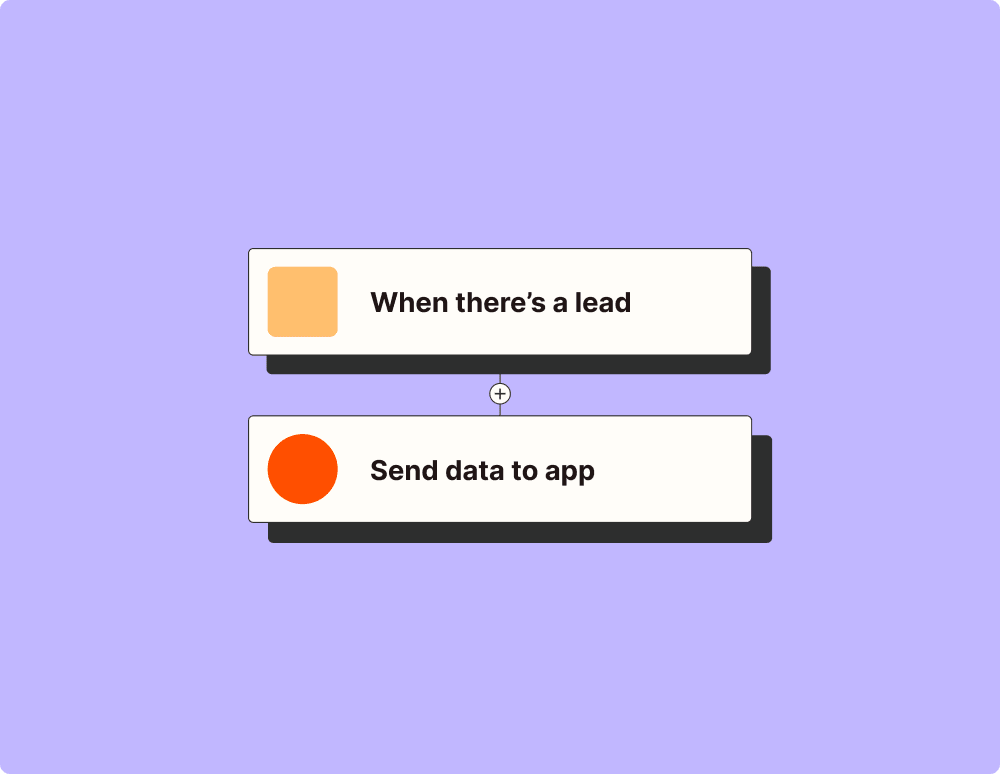
Automate your lead management and improve conversions
With Zapier, you can automate every part of your lead funnel and give yourself the best chance at converting leads. Automate everything from lead capture to outreach to reporting—and close more deals as a result.
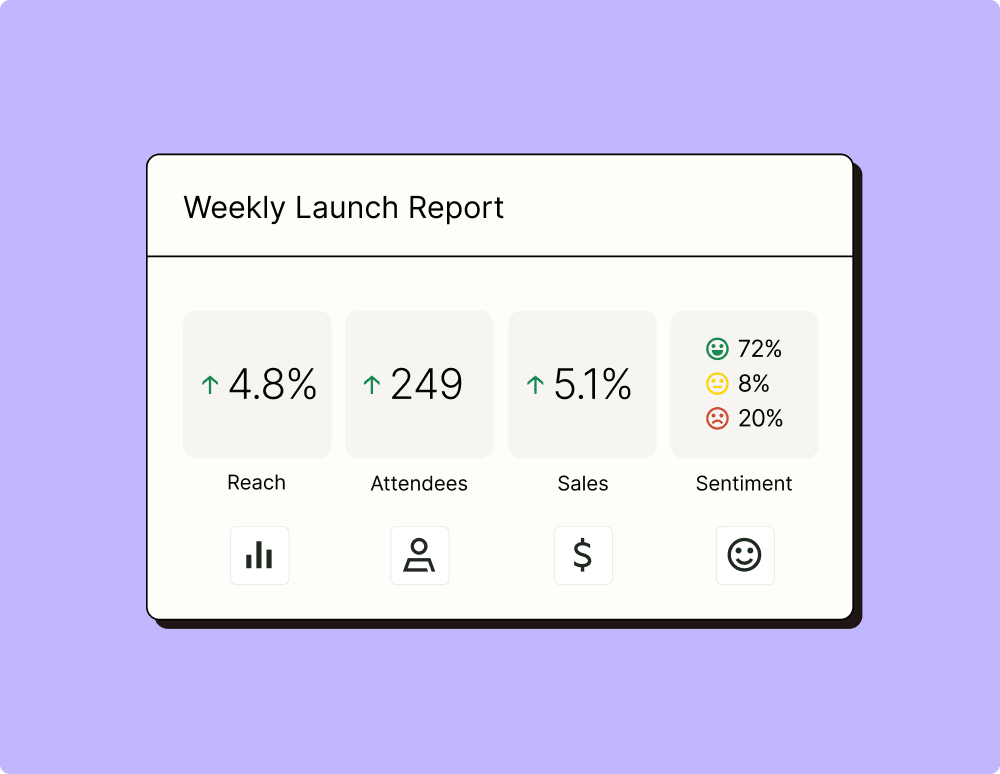
Create more impactful campaigns with automation
Measuring campaign performance across platforms can get chaotic. Plus, digging up the right metrics costs you precious time and effort. With Zapier, you can create a centralized view of your performance, skillfully manage your lists, and ensure your campaigns drive ROI across the business.
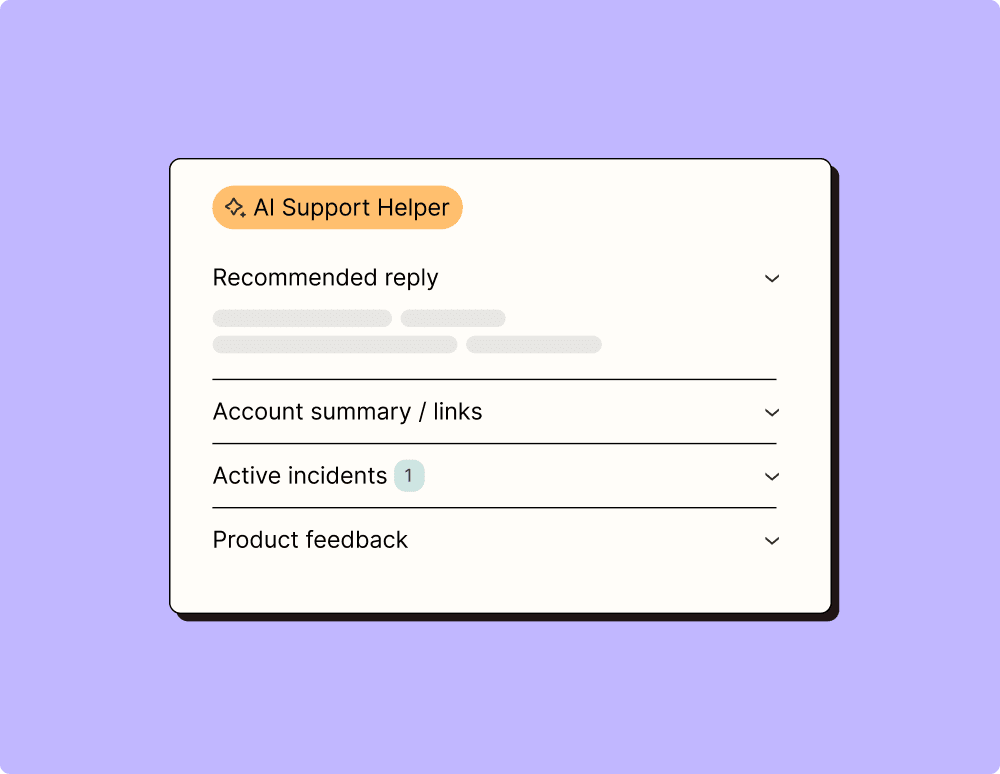
Provide world-class support with a little help from automation
Support reps can't be productive when they have to track down crucial information for every incident or ticket. With Zapier, you can automatically send your reps the context they need to resolve tickets quickly and create a seamless customer experience.
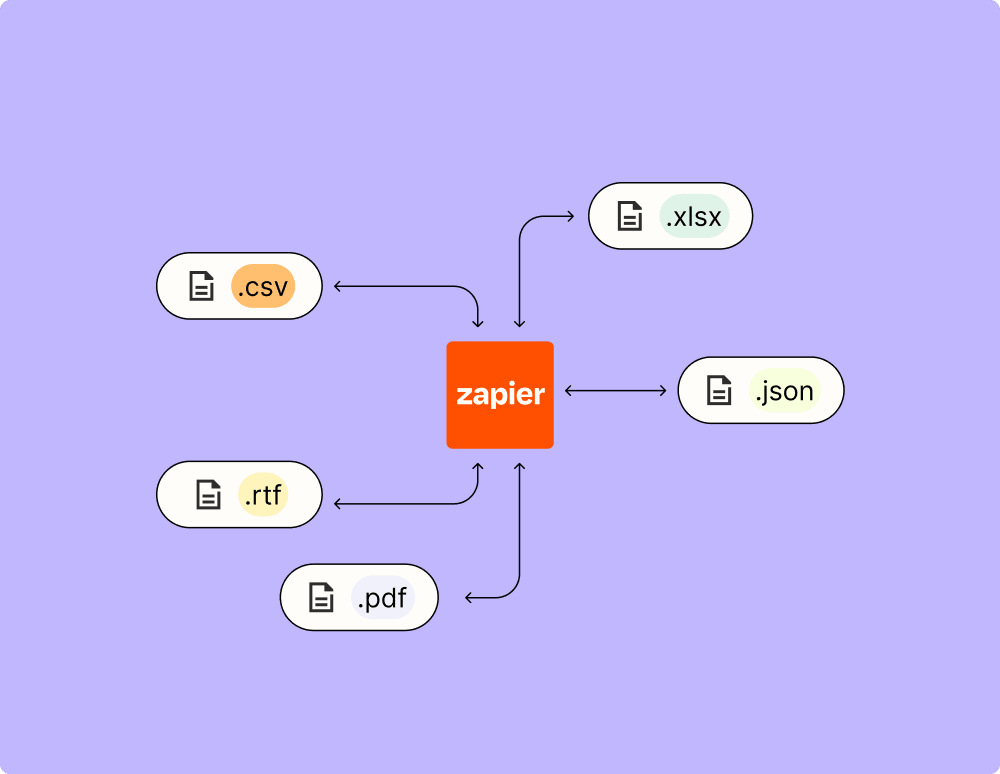
Automate your way to actionable, up-to-date data
The days of manually exporting and importing data are over. With Zapier, you can send data where it needs to go, in the format you need it—so you can centralize your data and unlock more insights.
Resolve incidents faster with automation
Your technical support team wants to focus on tech tickets rather than admin work. With Zapier, you can automate everything from ticket creation to routing to inter-team communication—eliminating friction from incident management and increasing speed to resolution.
Learn how to automate Google Calendar on the Zapier blog
Make work flow with AI
Level up your Google Calendar to Sage Accounting integration with AI. Extract, summarize, and transform your integration data with leading AI models like OpenAI, Anthropic, and more.
Frequently Asked Questions about Google Calendar + Sage Accounting integrations
New to automation with Zapier? You're not alone. Here are some answers to common questions about how Zapier works with Google Calendar and Sage Accounting
How do I set up the integration between Google Calendar and Sage Accounting?
To set up the integration, you need to create a Zap that connects Google Calendar with Sage Accounting. Start by creating a new Zap and select Google Calendar as your trigger app. Follow the prompts to authenticate your account and choose a trigger event, such as 'New Event' or 'Event Updated'. Next, select Sage Accounting as your action app and define your desired action, like 'Create Invoice' or 'Update Contact'. Finally, test your Zap to ensure everything is working correctly.
What triggers are available when integrating Google Calendar with Sage Accounting?
When setting up the integration, you can choose from several triggers in Google Calendar like 'New Event', 'Event Started', 'Event Updated', or 'Event Cancelled'. These triggers will prompt an action in Sage Accounting based on how you've configured your Zap.
What types of actions can be automated in Sage Accounting using Google Calendar events?
Using Google Calendar events, you can automate actions in Sage Accounting such as creating invoices upon event completion, updating customer records when a meeting is scheduled, or sending reminders for overdue payments when an event is cancelled.
Can I customize how data is transferred from Google Calendar to Sage Accounting?
Yes, our platform allows you to customize data transfers by mapping specific fields from Google Calendar events to corresponding fields in Sage Accounting. You can also use filtering options to control which events trigger actions in your accounting system.
How can I troubleshoot if my integration between Google Calendar and Sage Accounting does not work correctly?
If the integration isn't functioning as expected, first check the connected accounts in both Google Calendar and Sage Accounting to ensure they are authenticated correctly. Review the Zap settings for correct trigger-action configurations. Testing individual Zaps can help identify where any issues may lie.
Is it possible to use multiple calendars within one Zap for integrating with Sage Accounting?
You are able to choose specific calendars during setup within a single Zap; however, each calendar needs its own specific setup if you want different actions based on separate calendars. Ensure each relevant calendar has its corresponding trigger properly configured.
What should I do if duplicate entries appear in Sage Accounting after integrating with Google Calendar?
Duplicate entries might occur if similar triggers from multiple Zaps or misconfigurations simultaneously send data into Sage Accounting. Check each relevant Zap setup for overlapping triggers or inconsistencies that could cause duplicate data transfers and adjust accordingly.
About Google Calendar
Google Calendar lets you organize your schedule and share events with co-workers and friends. With Google's free online calendar, it's easy to keep track of your daily schedule.
Award winning accounting from the leader in financial accounting software. Manage invoicing, cash flow, tax, payments and more from any device through the cloud.