Top companies trust Zapier to automate work that solves their unique business problems—no coding required.
How Zapier works
Zapier makes it easy to integrate Google Drive with Tracker - no code necessary. See how you can get setup in minutes.
100%
Help
Google Drive
Google Drive
1. Choose trigger event
Tracker
Tracker
2. Choose action
1. Select the event
Setup
Test
Google Drive
Choose a trigger event
Choose a trigger
A trigger is the event that starts your Zap—like a "New File" from Google Drive.
Add your action
An action happens after the trigger—such as "Create Activity" in Tracker.
You’re connected!
Zapier seamlessly connects Google Drive and Tracker, automating your workflow.
Supported triggers and actions
Zapier helps you create workflows that connect your apps to automate repetitive tasks. A trigger is an event that starts a workflow, and an action is an event a Zap performs.
Create a new record or update an existing record in your app.
Invoice Date
Invoice Due Date
Name
Invoice Contact Name
Address Line 1
Address Line 2
Town/City
County/State
Post/Zip Code
Country
Purchase Order No
Invoice Status
Invoice Owner
Invoice Terms
Payment Date
Invoice Sub Total
Invoice Tax Total
Invoice Total
Invoice Note
Creation Date
Currency Code
Client Name
Invoice Item Id
Item Date
Item Code
Item Description
Item Units
Item Unit Value
Item Sub Value
Item Tax Rate
Item Total Value
Item Status
Item Invoice Order Id
Item Tax Amount
Action
This is an event a Zap performs.
Write
Create a new record or update an existing record in your app.
Contact Name
Client Name
Resource Name
Opportunity Name
Campaign Name
User Name
Project Name
Lead Name
Date
Time
Text
Required
Action
This is an event a Zap performs.
Write
Create a new record or update an existing record in your app.
Preferred Name
First Name
Last Name
Full Name
Required
Job Title
Address Line 1
Address Line 2
Town/City
County/State
Post/Zip Code
Country
Home Phone
Mobile/Cell
Work Phone
Other Phone
Email
Other Email
Date of Birth
Nationality
Ethnic Origin
Languages
Education
Notice Period
Interview Date
Interview Result
Interview Note
Summary
Date Resume Sent
Date Applied
Date Registered
Interviewed By
Source
Sort Code
Account No
Bank Name
Bank Reference
Last Update
Last Update By
Status
Creation Date
Employment History
Achievements
Associations
NI-SS Number
Marketing
Tag Text
Current Salary
Desired Salary
Current Pay Rate
Desired Pay Rate
Owner
Payroll Number
Agency Name
Available From Date
IBAN
Swift
Current Employer
Is Private Record
Department
Action
This is an event a Zap performs.
Write
Create a new record or update an existing record in your app.
Term
Required
Action
This is an event a Zap performs.
Search
Find existing data in your app
Term
Required
Action
This is an event a Zap performs.
Search
Find existing data in your app
For AI agents & developers
Use Google Drive and Tracker with AI agents and code
Beyond Zap workflows. Call Google Drive and Tracker actions directly from your AI client or your codebase, using the same 9,000+ app integrations Zapier already runs.
No code
Connect via Zapier MCP
Expose Google Drive and Tracker actions as tools in any MCP client. Authenticate once, then call them in natural language.
Example actions on this page
Copy File
Create Activity
Works with
Claude · ChatGPT · Cursor · any MCP-compatible client
There is no Python package yet. SDK is TypeScript-only (@zapier/zapier-sdk). The MCP server URL is personal to your account; get it at zapier.com/mcp.
Zapier is the automation platform of choice for 87% of Forbes Cloud 100 companies in 2023
93%
Customers who say using Zapier has made them better at their job
25m
Customers have created over 25 million Zaps on the platform
6 mins
The average user takes less than 6 minutes to set up a Zap
Connect Google Drive and Tracker to integrate crucial parts of your business
With Zapier, you can integrate everything from basic data entry to end-to-end processes. Here are some of the business-critical workflows that people automate with Zapier.
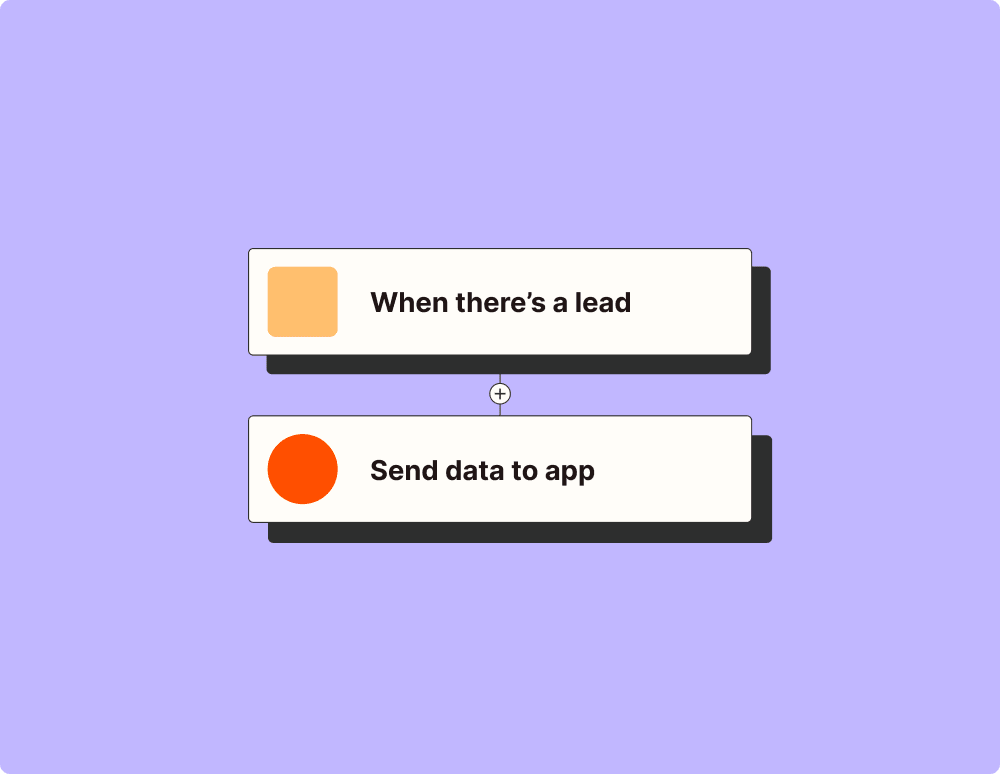
Automate your lead management and improve conversions
With Zapier, you can automate every part of your lead funnel and give yourself the best chance at converting leads. Automate everything from lead capture to outreach to reporting—and close more deals as a result.
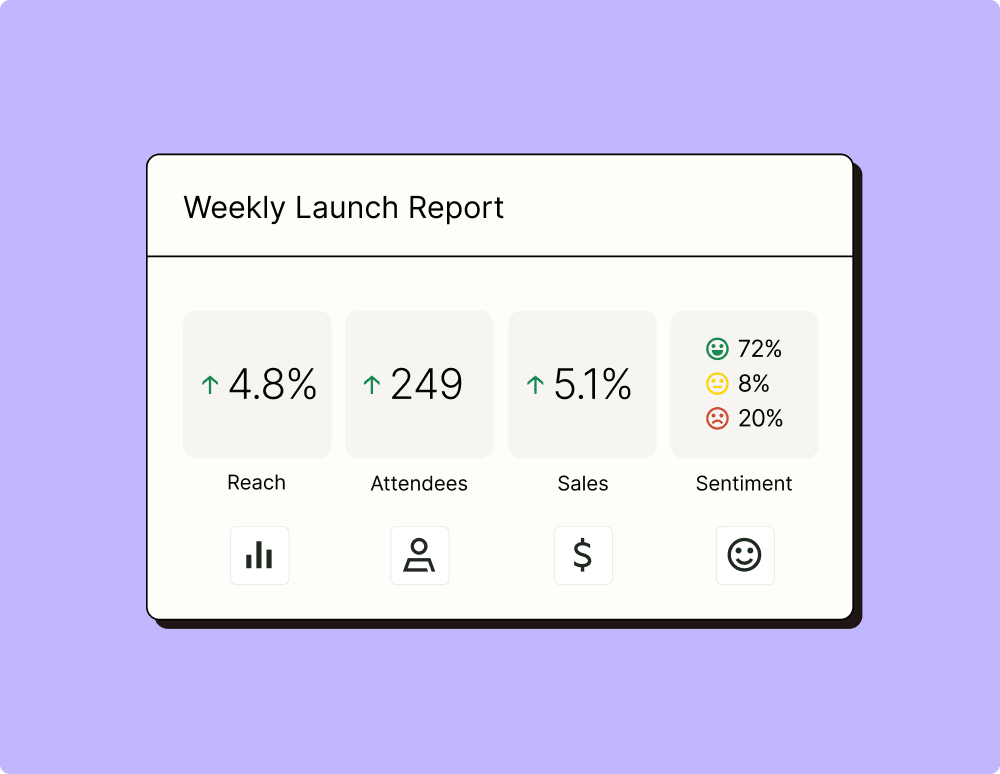
Create more impactful campaigns with automation
Measuring campaign performance across platforms can get chaotic. Plus, digging up the right metrics costs you precious time and effort. With Zapier, you can create a centralized view of your performance, skillfully manage your lists, and ensure your campaigns drive ROI across the business.
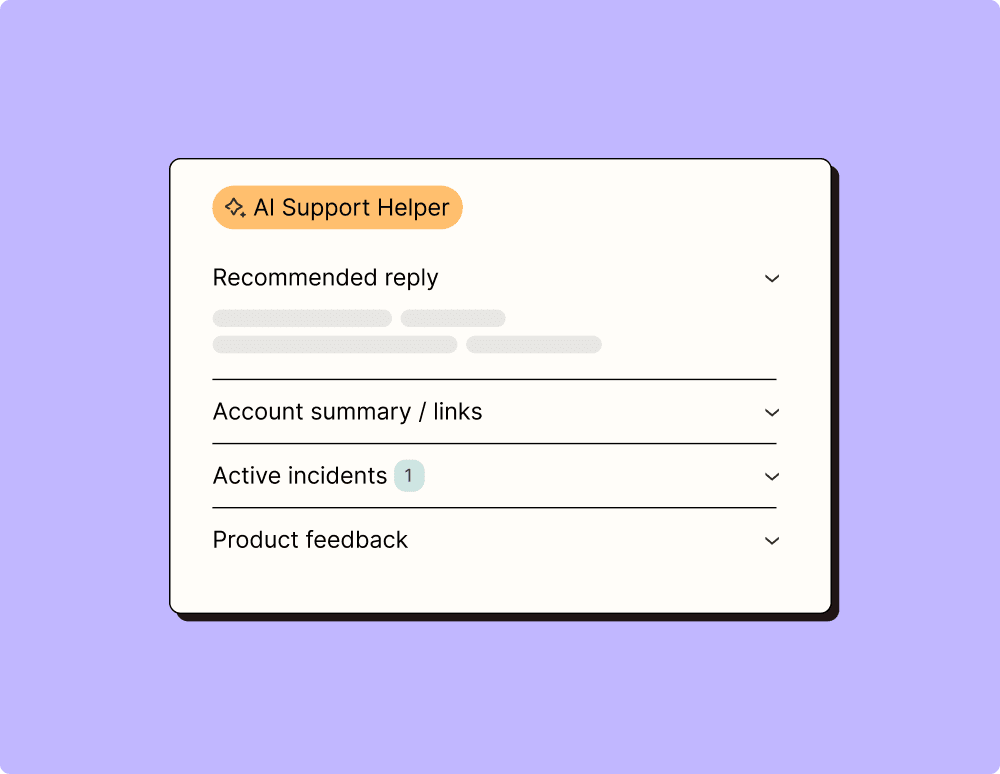
Provide world-class support with a little help from automation
Support reps can't be productive when they have to track down crucial information for every incident or ticket. With Zapier, you can automatically send your reps the context they need to resolve tickets quickly and create a seamless customer experience.
Automate your way to actionable, up-to-date data
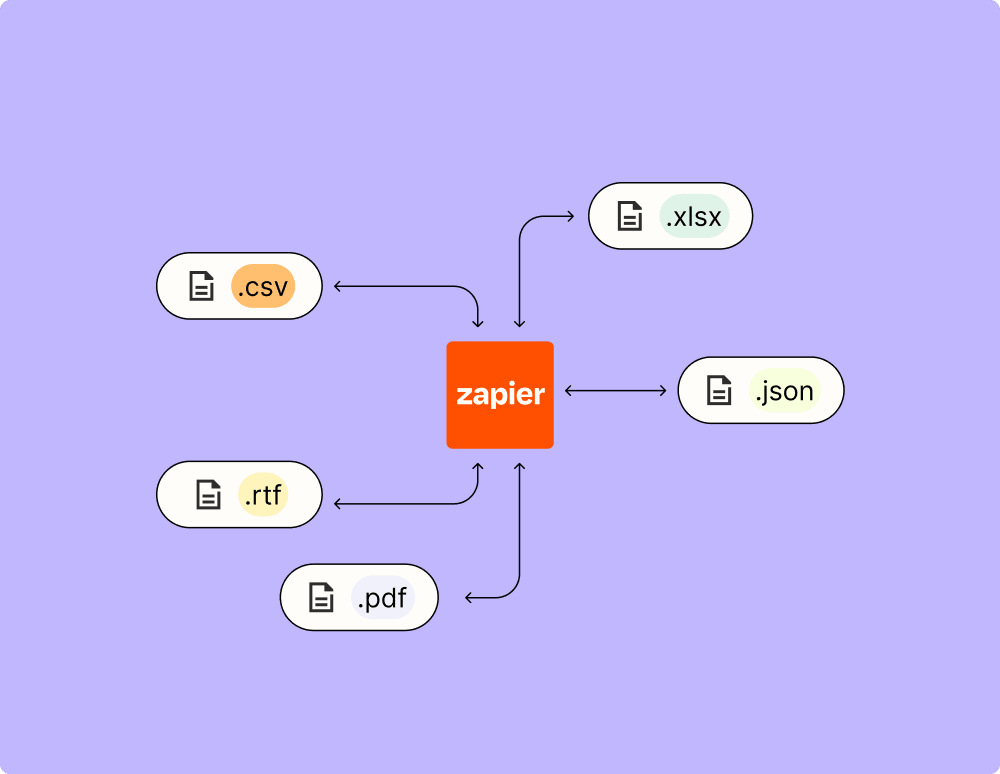
The days of manually exporting and importing data are over. With Zapier, you can send data where it needs to go, in the format you need it—so you can centralize your data and unlock more insights.
Resolve incidents faster with automation
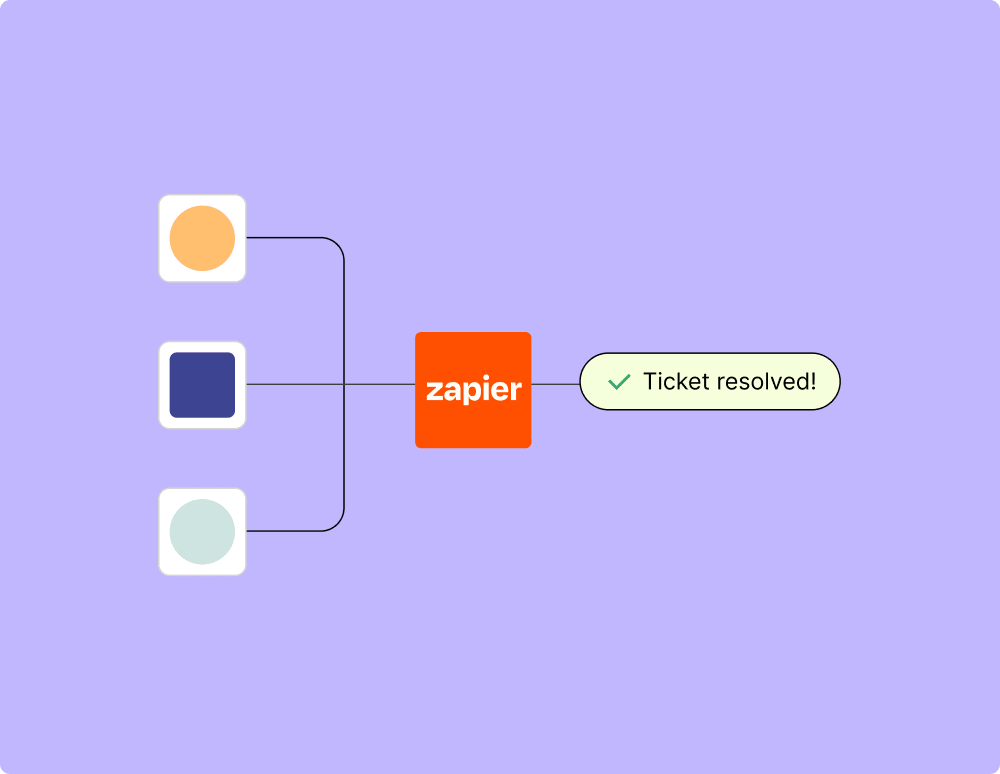
Your technical support team wants to focus on tech tickets rather than admin work. With Zapier, you can automate everything from ticket creation to routing to inter-team communication—eliminating friction from incident management and increasing speed to resolution.
Learn how to automate Google Drive on the Zapier blog
Make work flow with AI
Level up your Google Drive to Tracker integration with AI. Extract, summarize, and transform your integration data with leading AI models like OpenAI, Anthropic, and more.
Frequently Asked Questions about Google Drive + Tracker integrations
New to automation with Zapier? You're not alone. Here are some answers to common questions about how Zapier works with Google Drive and Tracker
How do I integrate Google Drive with Tracker using your services?
To integrate Google Drive with Tracker, you can use our platform to create a workflow that connects the two apps. First, select Google Drive as your trigger app and specify the trigger event like 'New File in Folder'. Then, choose Tracker as your action app and define what happens when the trigger event occurs, such as 'Create Record'. Our intuitive interface guides you through the connection process step by step.
What triggers can I set up with Google Drive and Tracker integration?
You can set up various triggers in Google Drive for integration with Tracker. Common triggers include 'New File', 'File Updated', or 'New Folder'. Each of these actions in Google Drive can prompt a subsequent action in Tracker, allowing for automated tracking and record-keeping.
Are there any prerequisites before starting the integration of Google Drive with Tracker?
Yes, before integrating Google Drive with Tracker, ensure that you have active accounts on both platforms. Additionally, you'll need permissions to access files on Google Drive and to create records or perform actions within Tracker. Having our platform account ready is also necessary as it facilitates integrating these apps seamlessly.
Can I customize actions in Tracker when a new file is added to Google Drive?
Absolutely! When you set up an integration between Google Drive and Tracker, you can customize actions such as 'Create Record', 'Update Entry', or even notify specific team members when a new file is added to a designated folder in Google Drive.
What are some common use cases for integrating Google Drive with Tracker?
Common use cases include automatically creating records in Tracker from newly added files in specific folders on Google Drive or updating entries based on changes made to existing files. This integration helps maintain organization and ensures that data across platforms is consistently updated.
How secure is the data transfer between Google Drive and Tracker on your platform?
We utilize secure API connections to ensure that data transferred between Google Drive and Tracker remains protected. Our platform complies with industry standards for data protection and privacy, ensuring that your information stays safe during automated processes.
Will changes made in one platform reflect automatically in the other after integration?
Yes, once you set up automatic triggers such as 'File Updated' from Google Drive, corresponding actions can be processed instantly within Tracker. This sync ensures all modifications are immediately reflected across both platforms without manual intervention.
About Google Drive
Google Drive is Google's file sync app that lets you store all of your files online alongside your Google Docs documents, and keep them synced with all of your devices.