Connect Gmail and HubSpot to power AI-driven automation
- No-code AI automation
- Full audit trails and controls
- SOC 2 and GDPR compliant
- Easy visual workflow builder
- 10,000+ apps, 450+ AI tools
- Free tier available
Launch your first automated workflow
Start with a template that brings Gmail and HubSpot together. Build enterprise-grade automation in minutes.
Our most popular template


Top companies trust Zapier to automate work that solves their unique business problems—no coding required.




















How Zapier works
Zapier makes it easy to integrate Gmail with HubSpot - no code necessary. See how you can get setup in minutes.


Choose a trigger
A trigger is the event that starts your Zap—like a "New Attachment" from Gmail.
Add your action
An action happens after the trigger—such as "Update Contact Subscription Preferences" in HubSpot.
You’re connected!
Zapier seamlessly connects Gmail and HubSpot, automating your workflow.
Supported triggers and actions
Zapier helps you create workflows that connect your apps to automate repetitive tasks. A trigger is an event that starts a workflow, and an action is an event a Zap performs.
- Label or mailbox
- Search keywords
Try ItTriggerPolling- Label or mailboxRequired
Try ItTriggerPolling- Label or mailbox
Try ItTriggerPolling- New Starred Email
Triggers when you receive a new email and star it within two days.
Try ItTriggerPolling
- New Label
Triggers when you add a new label.
Try ItTriggerPolling - Label or mailboxRequired
- Increase polling window
Try ItTriggerPolling- Search keywordsRequired
Try ItTriggerPolling- Label/Mailbox
Try ItTriggerPolling
For AI agents & developers
Use Gmail and HubSpot with AI agents and code
Beyond Zap workflows. Call Gmail and HubSpot actions directly from your AI client or your codebase, using the same 10,000+ app integrations Zapier already runs.
Connect via Zapier MCP
Expose Gmail and HubSpot actions as tools in any MCP client. Authenticate once, then call them in natural language.
Example actions on this page
Works with
Claude · ChatGPT · Cursor · any MCP-compatible client
Call from code with the Zapier SDK
Trigger Gmail and HubSpot actions from backend services, scripts, or agent code.
Install
# TypeScript / Node
npm install @zapier/zapier-sdk
Run an action
import { createZapierSdk } from '@zapier/zapier-sdk';

const zapier = createZapierSdk();
await zapier.runAction({ /* gmail / hubspot action */ });There is no Python package yet. SDK is TypeScript-only (@zapier/zapier-sdk). The MCP server URL is personal to your account; get it at zapier.com/mcp.
Zapier is the automation platform of choice for 87% of Forbes Cloud 100 companies in 2023



93%
Customers who say using Zapier has made them better at their job
25m
Customers have created over 25 million Zaps on the platform
6 mins
The average user takes less than 6 minutes to set up a Zap
Practical ways you can use Gmail and HubSpot

Create contacts in HubSpot for new emails
When you receive an email in Gmail, this automation uses Zapier to automatically create a new contact in HubSpot. This saves you the time needed to manually add each new email sender as a contact, ensuring your CRM stays up-to-date for better follow-up.
Business OwnerTrack emails from Gmail in HubSpot deals
Whenever a new labeled email appears in Gmail, Zapier copies that information into the appropriate HubSpot deal. Streamline your marketing workflows by keeping all critical client communications organized, so your team can focus on strategic initiatives rather than administrative tasks.
Marketing & Marketing OpsAdd Gmail leads to HubSpot for tracking
When a new email matching specific search criteria arrives in Gmail, Zapier creates a new contact in HubSpot. This automation ensures your sales pipeline is consistently updated, making it easier to track and follow up with potential leads.
Sales OpsLearn how to automate Gmail on the Zapier blog
Learn how to automate HubSpot on the Zapier blog
Make work flow with AI
Frequently Asked Questions about Gmail + HubSpot integrations
New to automation with Zapier? You're not alone. Here are some answers to common questions about how Zapier works with Gmail and HubSpot
How do I connect my Gmail account to HubSpot?
To connect your Gmail account to HubSpot, first, you need to navigate to your HubSpot account's settings. From there, select 'Integrations' and then 'Email Integrations.' Click on 'Connect personal email,' and choose Gmail from the options. Follow the prompts to sign in using your Google credentials, then authorize HubSpot to access your Gmail.
What triggers can I set up when connecting Gmail with HubSpot?
When integrating Gmail with HubSpot, you can create triggers based on various email activities such as receiving a new email matching specific criteria or sending out emails. These triggers can be used to automatically create tasks in HubSpot or log emails for tracking purposes.
Can I track email opens and clicks through this integration?
Yes, by integrating Gmail with HubSpot, you can track when recipients open your emails or click on links within them. This is done through the use of tracking pixels included in emails sent from your connected Gmail account.
Is it possible to sync my contact lists between Gmail and HubSpot?
You can sync contacts between Gmail and HubSpot by exporting contacts from Gmail as a CSV file and then importing them into HubSpot. Alternatively, if set up properly, contact synchronization can happen automatically within the integration settings.
How does email logging work with this integration?
With our integration between Gmail and HubSpot, email logging allows you to automatically capture every interaction over email with a specific contact directly in their contact record on HubSpot. This process ensures all communication is tracked without manual intervention.
Are there any limitations when using the filter function for incoming emails?
When using filters for incoming emails through our integration, while most filtering rules are supported, some complex filters might not behave as expected due to limitations in how data is processed between services. It's important to test filters thoroughly after setting them up.
Can I automate follow-up tasks based on specific emails received or sent via this integration?
Absolutely! Our integration allows you to automate follow-up tasks based on certain conditions met by received or sent emails. For example, if an important client sends an email requesting information, an automatic task creation feature can remind you or a team member about the necessary follow-up action.
My AI agent already connects to my apps. Why add Zapier?
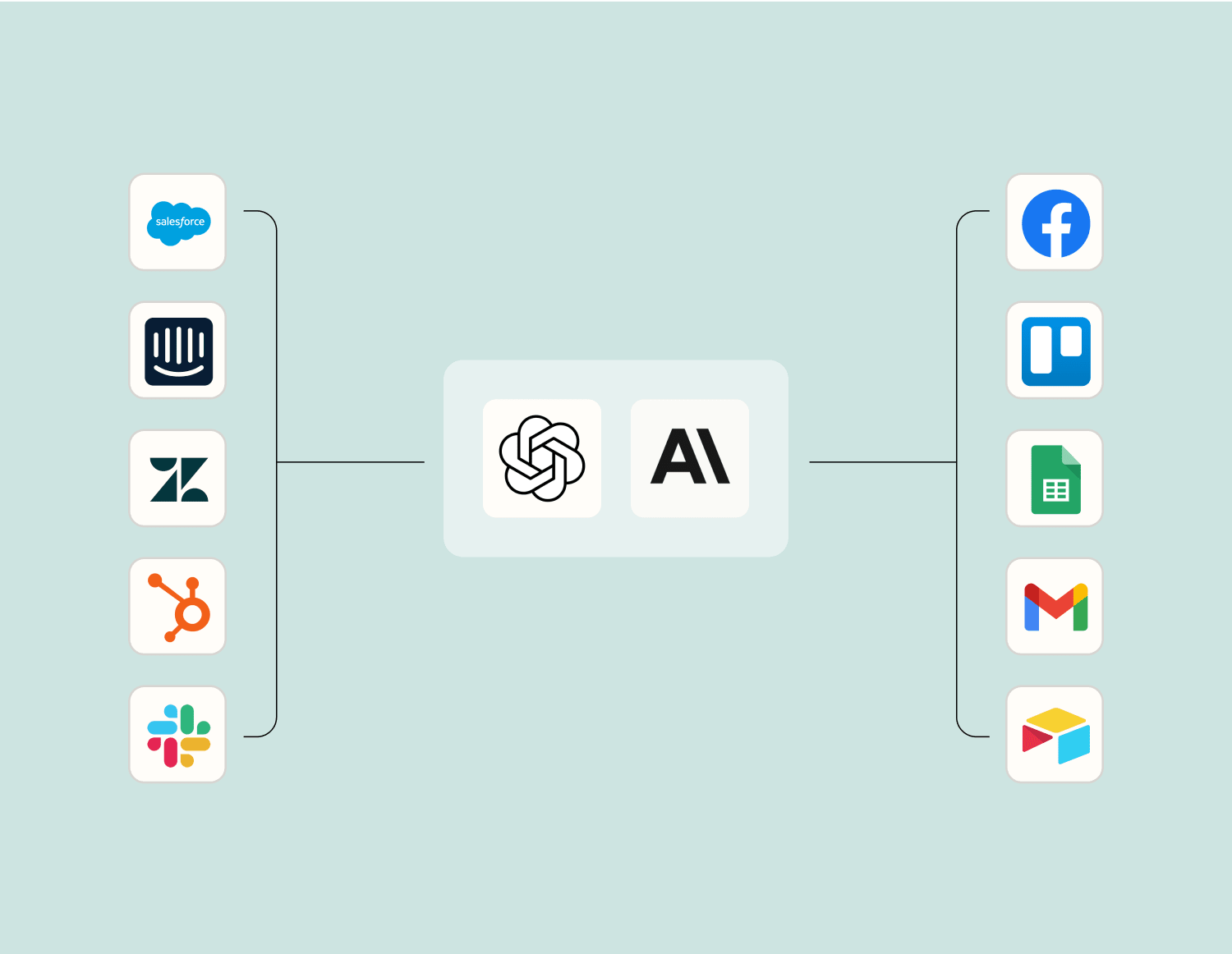
Your AI agent’s built-in or native connectors cover a limited set of popular apps. Zapier reaches 10,000+ apps and 90,000+ triggers and actions. Zapier also adds what your AI agent can’t: one place to manage logins and credentials, so you never paste an API key; automations that keep running after the chat closes, with fixes you can review when a run hits a snag; and the freedom to switch agent interfaces without starting over.
Can’t my AI agent already run tasks on a schedule?
Most popular AI agents can run scheduled tasks. And for simple recurring jobs, that might be all you need. Automations that run on Zapier can run on a schedule too, but they can also start the moment something happens in your apps—like when a new lead/ticket comes in or you get an email reply. Zapier also uses AI only in the steps that need judgment, so routine steps like posting to Slack or updating Salesforce don’t burn model tokens.
Why not have my AI agent write me a script?
You can, and the first version will probably work. The trouble comes later: a script needs somewhere to run, a way to hear about events, and someone to keep it going. If an API changes or a login expires, your script can quietly stop until you notice. It also holds your keys, often in a repo, where a leak can expose your accounts. With Zapier, your agent builds the automation, and you publish it. Zapier hosts it, handles your logins and credentials, and records every run. If a run fails, Zapier diagnoses what went wrong and prepares a fix you can review. Or you can decide which fixes Zapier can apply for you.