Connect Cal.com and Webflow to power AI-driven automation
- No-code AI automation
- Full audit trails and controls
- SOC 2 and GDPR compliant
- Easy visual workflow builder
- 9,000+ apps, 450+ AI tools
- Free tier available
How Zapier works
Zapier makes it easy to integrate Cal.com with Webflow - no code necessary. See how you can get setup in minutes.


Choose a trigger
A trigger is the event that starts your Zap—like a "Booking Cancelled" from Cal.com.
Add your action
An action happens after the trigger—such as "Create Item" in Webflow.
You’re connected!
Zapier seamlessly connects Cal.com and Webflow, automating your workflow.
Supported triggers and actions
Zapier helps you create workflows that connect your apps to automate repetitive tasks. A trigger is an event that starts a workflow, and an action is an event a Zap performs.
- Booking Cancelled
Triggers when a booking is cancelled.
Try ItTriggerInstant - Booking Rescheduled
Triggers when a booking is rescheduled.
Try ItTriggerInstant - Out of Office Created
Triggers when a new Out Of Office entry is created.
Try ItTriggerInstant - SiteRequired
Try ItTriggerInstant
- Booking Created
Triggers when a new booking is created.
Try ItTriggerInstant - Meeting Ended
Triggers after meeting ends.
Try ItTriggerInstant - Help_text
- SiteRequired
- FormRequired
Try ItTriggerInstant- SiteRequired
Try ItTriggerInstant
For AI agents & developers
Use Cal.com and Webflow with AI agents and code
Beyond Zap workflows. Call Cal.com and Webflow actions directly from your AI client or your codebase, using the same 9,000+ app integrations Zapier already runs.
Connect via Zapier MCP
Expose Cal.com and Webflow actions as tools in any MCP client. Authenticate once, then call them in natural language.
Example actions on this page
Works with
Claude · ChatGPT · Cursor · any MCP-compatible client
Call from code with the Zapier SDK
Trigger Cal.com and Webflow actions from backend services, scripts, or agent code.
Install
# TypeScript / Node
npm install @zapier/zapier-sdk
Run an action
import { createZapierSdk } from '@zapier/zapier-sdk';

const zapier = createZapierSdk();
await zapier.runAction({ /* calcom / webflow action */ });There is no Python package yet. SDK is TypeScript-only (@zapier/zapier-sdk). The MCP server URL is personal to your account; get it at zapier.com/mcp.
Zapier is the automation platform of choice for 87% of Forbes Cloud 100 companies in 2023




93%
Customers who say using Zapier has made them better at their job
25m
Customers have created over 25 million Zaps on the platform
6 mins
The average user takes less than 6 minutes to set up a Zap
Connect Cal.com and Webflow to integrate crucial parts of your business
With Zapier, you can integrate everything from basic data entry to end-to-end processes. Here are some of the business-critical workflows that people automate with Zapier.
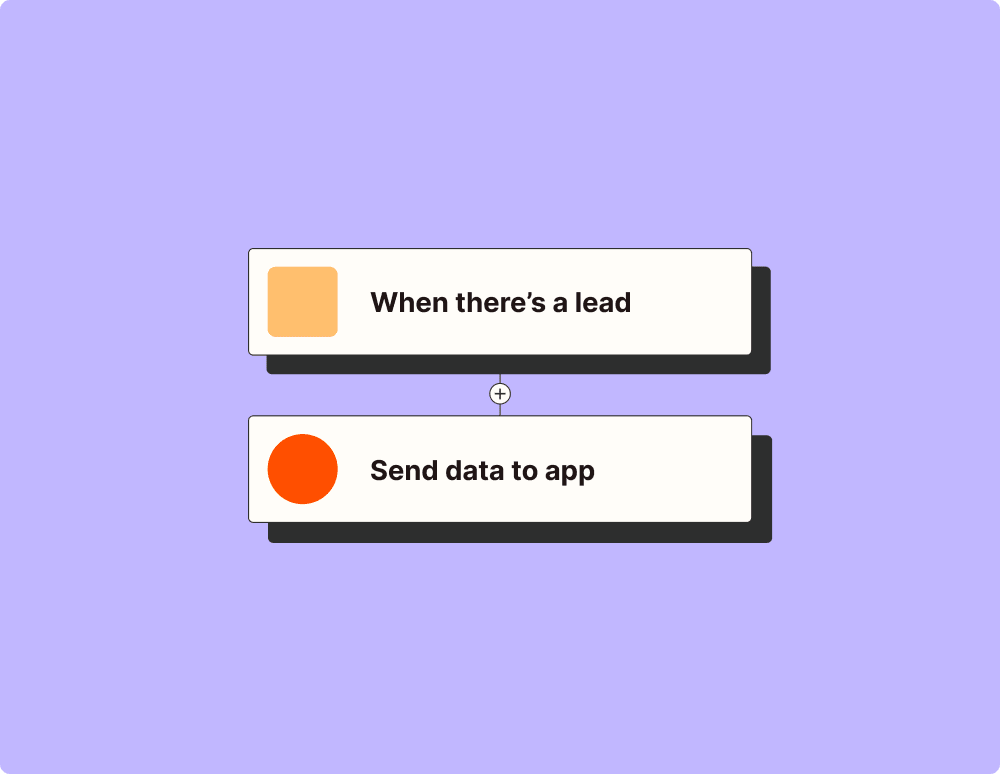
Automate your lead management and improve conversions
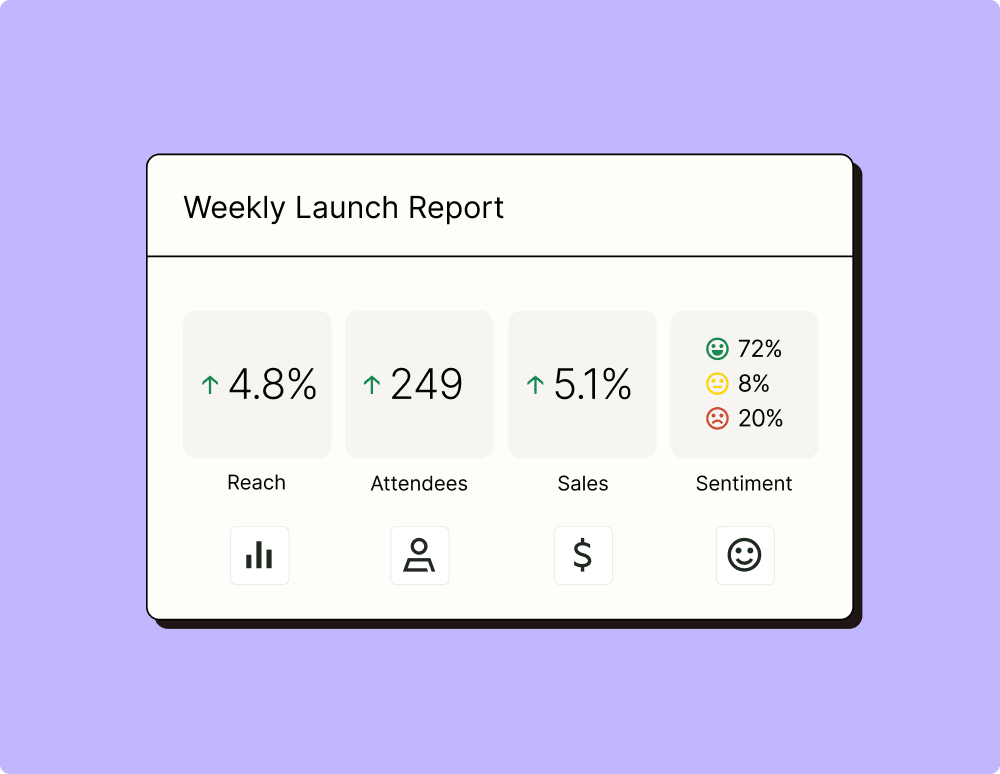
Create more impactful campaigns with automation
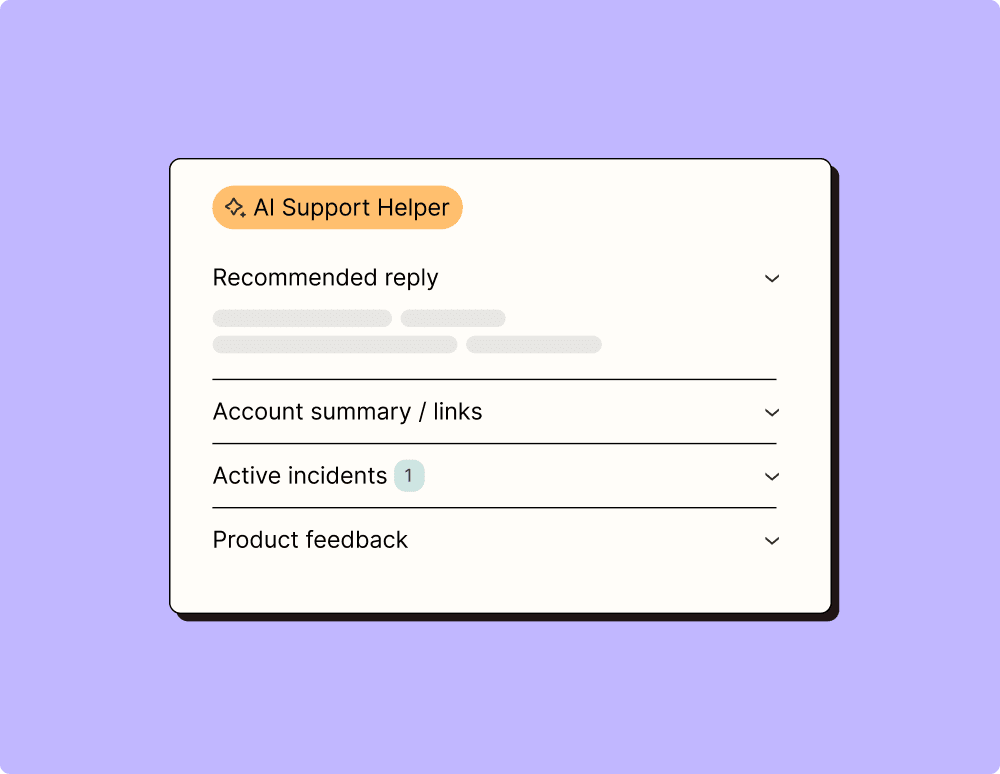
Provide world-class support with a little help from automation
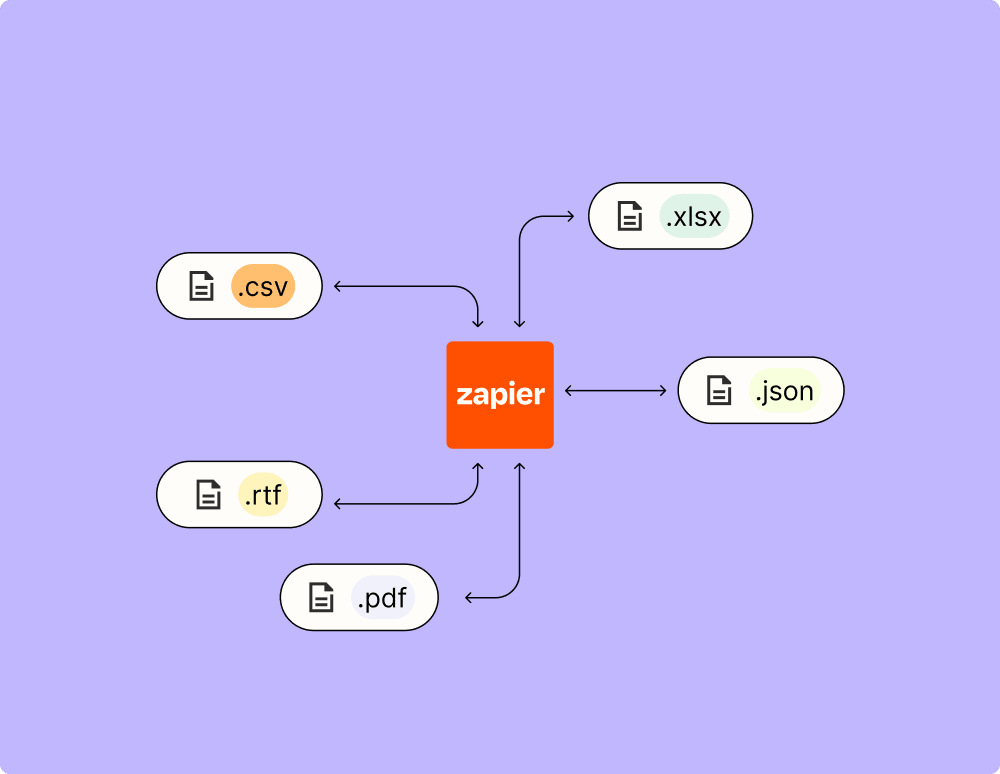
Automate your way to actionable, up-to-date data
Resolve incidents faster with automation
Learn how to automate Webflow on the Zapier blog
Make work flow with AI

Frequently Asked Questions about Cal.com + Webflow integrations
New to automation with Zapier? You're not alone. Here are some answers to common questions about how Zapier works with Cal.com and Webflow
What is Cal.com and Webflow integration?
Cal.com and Webflow integration involves connecting your Cal.com scheduling platform with your Webflow website. This allows visitors to book appointments directly from your site, using triggers and actions that streamline the booking process.
How do I set up a trigger for new bookings made on Cal.com in Webflow?
To set up a trigger for new bookings, you need to create an integration where a booking event in Cal.com initiates an action in Webflow. This could include updating appointment details or sending confirmation emails automatically.
Can I use the integration to update my Webflow CMS dynamically?
Yes, you can use this integration to dynamically update your Webflow CMS. For example, when a booking is confirmed in Cal.com, it can automatically trigger an action that updates relevant content or availability status on your website.
What are some common actions I can perform with this integration?
Common actions include automatically creating CMS items in Webflow when a new appointment is scheduled or canceled through Cal.com. It can also send customized notifications based on the triggers configured.
Is it possible to embed a Cal.com booking page directly on my Webflow site?
Yes, you can embed your Cal.com booking page directly into your Webflow site using an embed code provided by Cal.com, allowing visitors to schedule without leaving your website.
How do I ensure data consistency between Cal.com and Webflow after a booking change?
We recommend setting up actions that automatically synchronize data changes. For instance, if an appointment is rescheduled or canceled on Cal.com, these changes can trigger updates on corresponding entries within your Webflow site.
Can the integration handle real-time updates between both platforms?
Real-time synchronization is possible by setting triggers to instantly push updates whenever there are changes in bookings or availability settings from either platform.