We independently review every app we recommend in our best apps lists. When you click some of the links on this page, we may earn a commission. Learn more.
Managing projects in a small business setting might seem simple—there are fewer people involved and fewer processes, preferences, and work styles to navigate. But big businesses often have a dedicated project manager for marketing, another for sales, and another for product development. The small business project manager, on the other hand, oversees multiple departments and wears more hats than can comfortably fit on a human head.
It's important to find project management software that can help you maximize output while juggling everything else on your plate. To that end, I considered nearly 60 project management systems to find tools that have a feature set specifically designed to work for small businesses. After extensive testing, I narrowed it down to the eight apps below.
The best project management tools for small teams
Asana for ultimate project flexibility
Trello for Kanban
Paymo for managing projects across multiple clients
Wrike for spreadsheet lovers
Nifty for Notion lovers
Hive for customized project views
Any.do for individual and team project management
Quire for simple project and task management
What makes the best project management software for small business?
How we evaluate and test apps
Our best apps roundups are written by humans who've spent much of their careers using, testing, and writing about software. Unless explicitly stated, we spend dozens of hours researching and testing apps, using each app as it's intended to be used and evaluating it against the criteria we set for the category. We're never paid for placement in our articles from any app or for links to any site—we value the trust readers put in us to offer authentic evaluations of the categories and apps we review. For more details on our process, read the full rundown of how we select apps to feature on the Zapier blog.
Despite all the hype about popular project methodologies (Scrum, Lean, Agile—you name it), there's no real one-size-fits-all solution. Every team is different: workflows, resources, and workday demands differ greatly from one company to the next. So how did I pick the best small business project management software?
I started by ensuring that each app met some basic criteria I felt were indispensable.
Collaboration for teams and/or clients. Successful projects don't happen in a vortex. All apps that made the list offer some level of in-app collaboration, like built-in chat or file sharing, or a trusted integration with a tool like Slack.
Integration possibilities. Your project management workflows are at the heart of your company, so all of the apps need to integrate with the other apps in your tech stack.
Customizable views. While there are a number of capable tools focused specifically on Agile and Scrum methodologies, I didn't consider those for this list because your project management app should work for every team in your business. That means customizable views and support for multiple project management methodologies.
Project management-first apps. There are many software options that include project or task management as an add-on or ancillary feature, but for this article, I only considered apps that were primarily focused on project management.
Robust team roles and permissions. The more people you involve in a project, the more important it is to set customizable project permissions. Some people may simply need view-only access, while others need full admin rights.
In addition to those dealbreakers, I asked myself a number of questions while testing the apps:
Is there an active development team behind the software, keeping it up to date and bug-free?
Is the interface intuitive, or do you need to spend a significant amount of time reading through tutorials just to utilize basic features?
Does the app offer some flexibility so that you can create your own project management methodology, or does it try to force you into an inflexible flow?
I've been testing these apps for a number of years, but I started from scratch as if I'd never used them before. For each app, I went through the signup and onboarding process, created a project, chose a methodology (Gantt, Kanban, Scrum, etc.), and created a new task, including adding a due date, attaching files and links, assigning the task, and more.
After the first round of testing, I eliminated any apps that weren't user-friendly or were clearly geared toward bigger enterprises. Then I went back in and spent some more time in the top apps: toggling between view options and project management methodologies, adding a new user to the app and editing permissions, toggling between additional settings like filtering for my own tasks versus all tasks, deeply customizing views (e.g., changing the Kanban column labels), and testing out any AI or other unique features.
The eight apps below are the result of all that testing.
The best small business project management software at a glance
Best for | Standout feature | Pricing | |
|---|---|---|---|
Ultimate project flexibility | Simple options with just enough customization | Free for up to 2 team members; from $10.99/user/month | |
Kanban (and beyond) | Visual drag-and-drop interface | Free for up to 10 collaborators; from $5/user/month | |
Managing projects across multiple clients | Centralizes every aspect of client management | Free for unlimited invoices and tasks; from $5.90/user/month | |
Spreadsheet lovers | Top-notch table view | Free for unlimited tasks and users; from $10/user/month | |
Notion lovers | Streamlined features that just work | Free for unlimited users and 2 active projects; from $7/user/month | |
Customized views | Tons of customizable views | Free for unlimited tasks and up to 10 members; from $5/user/month | |
Individual and team project management | My Day daily agenda builder | Free for personal task management; from $4.99/user/month | |
Simple project management | Peekaboo task snoozing | Free for up to 4 projects and 10 members; from $7.65/user/month |
Best project management software for ultimate project flexibility
Asana (Web, iOS, Android)

Asana pros:
User-friendly interface
Focused My tasks page
Simple, flexible view options
Asana cons:
Fewer user permissions controls
Pricier upgrade than most
In a cluttered world of modern project management software, Asana stands out as a profoundly effective tool that supports multiple project management styles, giving you full control over how you want to visualize and organize your work.
Its interface is intuitive and well-designed, with an easy hierarchy of elements. On the far left is the navigation sidebar, where you can access the various projects, stats, message inbox, and your personal task list. The main area displays a list of tasks, their due dates, and who each task is assigned to. Each task can be assigned to multiple projects in case of overlap and can have an infinite number of subtasks.
Where Asana shines most is in its flexibility: there's no right or wrong way to create your project, project sections, or tasks. The default view is the list format, which is clean and easy to scan for due dates and assignees. But you can also switch to a board, timeline, calendar, Gantt chart, workflow, workload, or dashboard layout.
Asana allows you to create task and project templates (or start from one of several pre-built project templates), but its default setup is completely open-ended: the only required part of any task is a title. After that, you're free to add a description, organizational tags, custom fields (available with paid plans), due dates, assignees, and more. Still, with all the possibilities for adding information to your tasks, Asana's interface is relatively clean. This helps to keep the focus off the project management tool and on the work itself.
And Asana's AI was among the most useful AI project management I tested, allowing you to pose simple prompts like "Find blockers in this project" or "Update all overdue tasks to next week" to the conversational chatbot and get results quickly and accurately. You can also create AI teammates from pre-built agent templates, or build your own with no code required.
For even more flexibility, use Asana's Zapier integrations to connect Asana with your favorite apps, like Gmail and Slack, so updates flow to and from Asana automatically. For inspiration, take a look at some of the most popular ways to automate Asana, or get started with a pre-built workflow.
Asana price: Free for 2 team members, unlimited projects and tasks, 3 project views, and basic features; from $10.99/user/month (billed annually) for the Starter plan that includes additional features like Asana AI, advanced reporting, custom fields, timeline and Gantt views, and more.
Best small business project management software for Kanban (and beyond)
Trello (Web, macOS, Windows, iOS, Android)

Trello pros:
Visual drag-and-drop interface
Endlessly flexible Kanban boards
Intuitive, useful automation
Trello cons:
Less in-depth features than some
Trello is a simple, visual way to organize your projects with Kanban boards. And, unlike most project management software, Trello doesn't have the same learning curve: your team will be able to quickly get up and running thanks to its intuitive, drag-and-drop interface.
Start by creating a new board from scratch or choosing a template from hundreds of options across marketing, sales, design, team management, the list goes on. Each Kanban board can be set up to mimic the standard Agile format: the backlog, in-progress, and completed lists. Or, you might get imaginative and use the boards as ideation or collaboration tools, where team ideas are compiled, then sorted and approved as needed. Cards (i.e., tasks) can include checklists, due dates, labels, attachments, images, comments, and custom fields. As you start completing tasks, simply drag the cards to the appropriate list. You can keep track of all comments and tasks that mention you—or that you're watching—from the activity menu.
Trello's new user experience makes navigation more intuitive and adds features like Inbox (for pulling together tasks from places like Slack, email, and Microsoft Teams, to create a universal to-do list) and Planner (a left-hand calendar view that makes for quick drag-and-drop scheduling and time blocking).
Plus, Trello offers one of the best free plans on the market, with unlimited tasks and Power-Ups, 10 collaborators and boards per workspace, and 250 automation command runs per month.
Trello is the epitome of Kanban simplicity and has gained a positive reputation for that reason. But therein also lies its greatest weakness: if you have complex tasks with multiple dependencies, for example, Trello's features fall short. (Yes, there are workarounds, but they're not built in and can be complicated to configure.)
To help augment Trello's project management for small business, use Trello's Zapier integrations to connect Trello with your favorite apps, like Google Calendar and Slack, so no tasks fall through the cracks. Here's some inspiration for how to integrate Trello with your other tools, or you can get started with a template.
Trello price: The free plan includes up to 10 collaborators and 10 boards per workspace, unlimited Power-Ups, and 250 automation command runs per month; upgrade for $5/user/month (billed annually) to the Standard plan, which includes unlimited boards and collaborators, custom fields, advanced checklists, and 1,000 command runs per month.
Debating between Trello and Asana? Find out how these two project management apps stack up in our showdown: Trello vs. Asana.
Best project management tool for managing client projects
Paymo (Web, macOS, Windows, Linux, iOS, Android)

Paymo pros:
Centralizes every aspect of client management
Customizable user roles
User-friendly interface
Paymo cons:
Kanban board isn't easily customizable
Fewer native integrations
If you need a project management system to manage projects, invoices, and billing across multiple clients, Paymo is a great option.
With its billing-centric format, projects are set up per client, and you can decide whether the project is billable based on hourly rates or a flat fee (or not at all). Since a timer is built into the interface, you can track the time spent on each task and project, and Paymo will automatically create the invoice based on that information.
Each project houses its associated tasks and subtasks, with five options for how to view work: list, table, Kanban board, Gantt chart, or calendar. You can also use Paymo's filter to sort all of your tasks for every client and project by status, due dates, priorities, and more. Within each project, you can view timesheets, communicate with teammates, and save all related files for the project.
If the majority of your projects are services for clients that require billing and invoicing, Paymo stands out as an affordable but robust enough option to handle task lists for multiple team members.
While the app only offers a handful of native integrations, you can use Paymo's Zapier integrations to connect it with thousands of other tools, like your accounting or calendar apps, and fully automate your project management workflows.
Paymo price: The free plan includes unlimited invoices and tasks, 1 user, 2 projects, and 1 client; upgrade for $5.90/user/month for the Solo plan that includes 5 projects and 3 clients, plus additional view options.
If you're looking for a Paymo alternative to offer your clients more direct, hands-on access to your project management software, give ActiveCollab a look. The app has many of the same features as Paymo—including built-in time and expense tracking, invoices, and estimates—plus a Client+ add-on that gives you tons of extra customizability around permissions for "client" users. Bonsai is another capable project manager focused on client management. The app offers a client portal, custom user permissions, and built-in billable details. I didn't include it in this list primarily because it doesn't offer a free plan, whereas Paymo does.
Best project management software for spreadsheet lovers
Wrike (Web, macOS, Windows, iOS, Android)

Wrike pros:
Top-notch table (spreadsheet) view
Flexible, freeform task details
In-depth email integration
Wrike cons:
Less useful board view
If you've always been a spreadsheet lover, Wrike does the best job of bringing together the familiarity of your good ol' spreadsheet with more advanced features—and a few other views for team members who may not love the spreadsheet vibe.
Wrike's email integration is different from the Gmail or Outlook integrations in the app directory. Once set up within your profile, any message you send to wrike@wrike.com will automatically populate in Wrike. You can create a new Wrike task, assign a task, add attachments, schedule a task, update the task status, designate task priority, add a comment, or add a task to a subfolder or several folders—all via email.
While you can accomplish a lot without ever leaving your inbox, you'll eventually log in to Wrike and manage projects from there. You can add multiple custom fields to each task (e.g., numerical priority level, currency, percentage). Once each task is set up, your Table view is basically a supercharged spreadsheet.
For a development project, you might care more about priority levels and progress percentage, making the corresponding columns more prominent than others; for marketing, due dates might be most important. In either case, your team members will always know what information is required with every task assigned to them.
Plus, the freeform task detail view works more like its own doc than a simple text box, meaning you can create a fully fleshed-out brief right within the Wrike task. And with the Blueprints feature, you can save templates for recurring work.
Want to do even more with Wrike? Wrike's Zapier integrations let you automate your work and connect with thousands of other apps. Learn more about how to automate Wrike.
Wrike price: The free plan includes unlimited tasks and users; upgrade for $10/user/month (billed annually) to the Team plan that includes Gantt charts, automations, shareable dashboards, and more for up to 15 users.
Read more: Wrike vs. Asana
Best project management software for Notion lovers
Nifty (Web, macOS, Windows, iOS, Android)

Nifty pros:
Streamlined features that just work
Tons of useful view options
Strong user role controls
Nifty cons:
Kanban customization is less intuitive than some
If you're looking for a streamlined project management solution that's far from basic, give Nifty a try. It doesn't skimp on features—it comes with plenty of customizable views, user permissions and controls, and even time tracking. But the defining characteristic of Nifty's project management is that it just works.
If you love Notion but want something built more specifically for project management, Nifty offers a similar vibe. A number of project templates across several departments and use cases means you can get up and running in no time at all. (Or you can import projects and tasks from your existing project management tool.) The streamlined project dashboard is among the most useful I saw, giving everyone a high-level view of the project outline, members, and recent activity. Click on Roadmap (to the right of the Dashboard tab) to get more details on project milestones, scheduling, and percent completion.
Kanban, list, calendar, swimlane, timeline, report, and roadmap views are clean and useful—you can set the default view for each project in settings and toggle between them in the top-right corner of the Tasks tab.
Another thing I love about Nifty is the communication and collaboration features, which make it easy to keep all conversations about a project or task together. Instead of switching to Slack or email, team members can comment on individual tasks and talk about the project as a whole in Discussions. Nifty also offers super granular controls over user permissions, including the option to create your own completely custom roles.
Nifty offers over a dozen native integrations, and it also connects to Zapier—which means you can unlock powerful automations to, for example, automatically pull your emails into Nifty Discussions or create tasks based on form submissions.
Nifty price: Free for unlimited users and 2 active projects; upgrade for $7/user/month (paid annually) to the Personal plan for 2 guests and clients per seat, up to 40 projects, and more advanced features like custom fields and time and budget tracking.
If you need a more robust tool but still love that customizable Notion-feel, monday.com is worth a look. I didn't include monday on this list because the feature set includes a lot more than most small businesses need and may be overwhelming. But if you're looking for those broader work management features and tons of flexibility, monday is a user-friendly option.
Best project management software for customized views
Hive (Web, macOS, Windows, iOS, Android)
Hive pros:
Lots of view options
Supremely navigable interface
Add-ons and integrations to extend feature set
Hive cons:
Less proven in the space
Hive is a great option for a simple, yet scalable, project manager. The interface is super easy to navigate and among the more minimalist options when it comes to design.
Hive's conversational AI assistant—called Buzz—offers what have become the standard AI tasks in project managers: summarizing and answering questions about projects, generating task descriptions and subtasks, and helping you brainstorm ideas.
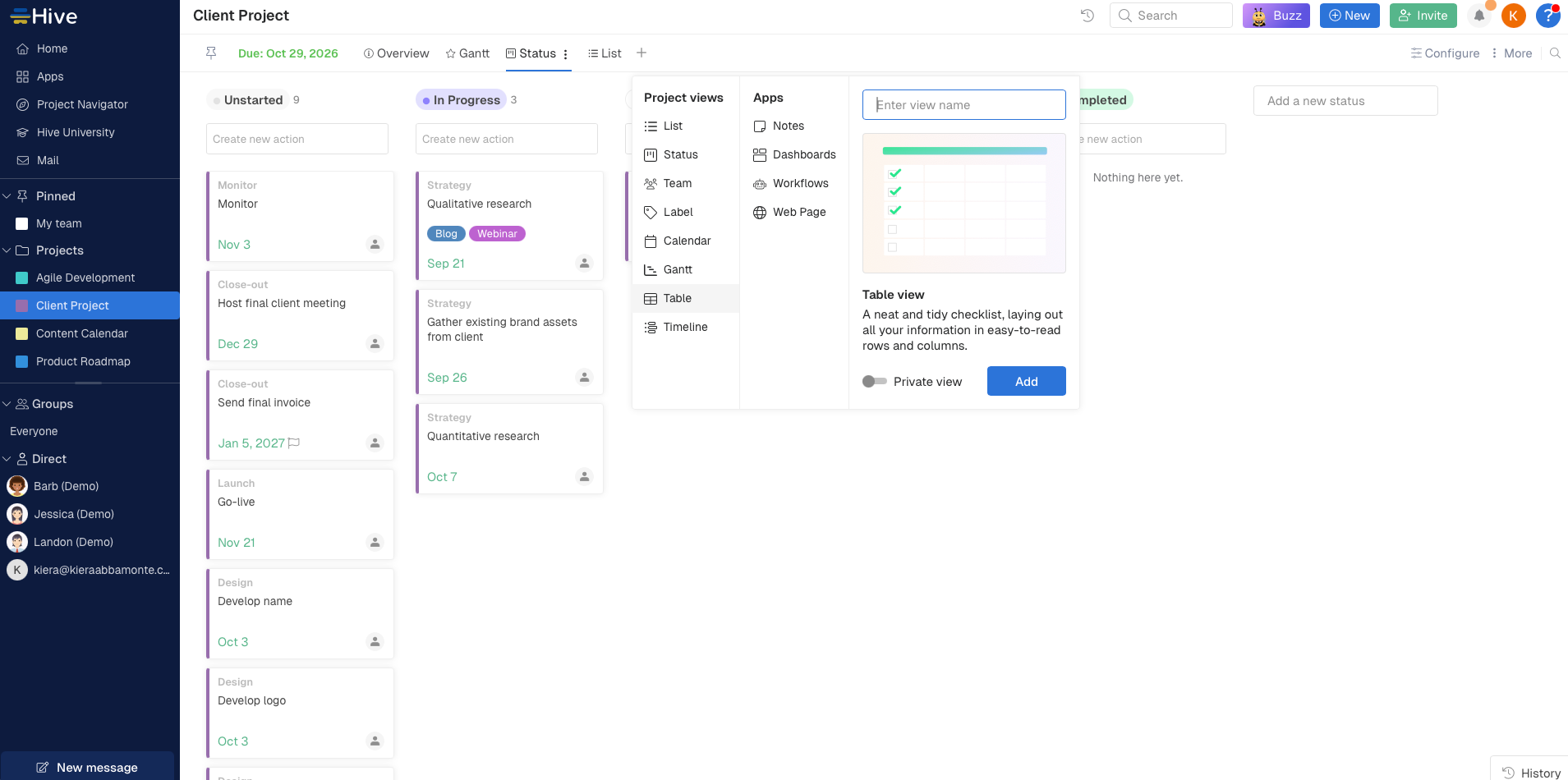
But what really stands out here is how customizable Hive is. The app offers several great view options (including three options for Kanban, plus list, table, Gantt, calendar, and timeline views). You can toggle between any number of views, pin your favorite(s) to the top of each project, and set any of them to private by opening the three-dot menu next to the view and hitting Make private. For the early adopters in the crowd, it's a similar vibe to early ClickUp.
That's not where the customization ends, though. Similar to Trello's Power-Ups, Hive offers tons of add-ons to extend the feature set. You can add on timesheets, for example, or modules to support proofing and approvals. That customization, combined with support for over 1,000 integrations (including Zapier), makes it easy to build exactly the project management setup you need, with none of the features you don't.
You can do even more when you connect Hive with Zapier, automating tasks like creating new projects based on form submissions or triggering Hive workflows based on Google Drive files.
Hive price: Free for unlimited tasks, 10 projects, and up to 10 members; upgrade for $5/user/month (billed annually) to the Starter plan to add unlimited usage of advanced views (like Gantt, calendar, and table) and features like recurring tasks and dependencies.
If you're looking for a customizable project manager that offers a more advanced and broader feature set, ClickUp is worth a look. Previously my top pick for customizable views, ClickUp has expanded beyond the project management use case—now offering team chat, inbox, screen recording, forms, and more. It's a lot more than a small business probably needs today—and from my testing, the interface and navigation have suffered for it. That said, if your team needs that breadth, it's a solid option.
Best project and task management software for individuals and small teams
Any.do (Web, iOS, Android)
Any.do pros:
Integrated task and project management
Simple and easy to use
Helpful, focused My Day feature
Any.do cons:
Limited feature set
Any.do has historically been better known for individual task management, but the company also offers Any.do Workspace: a full-on project manager designed for teams.
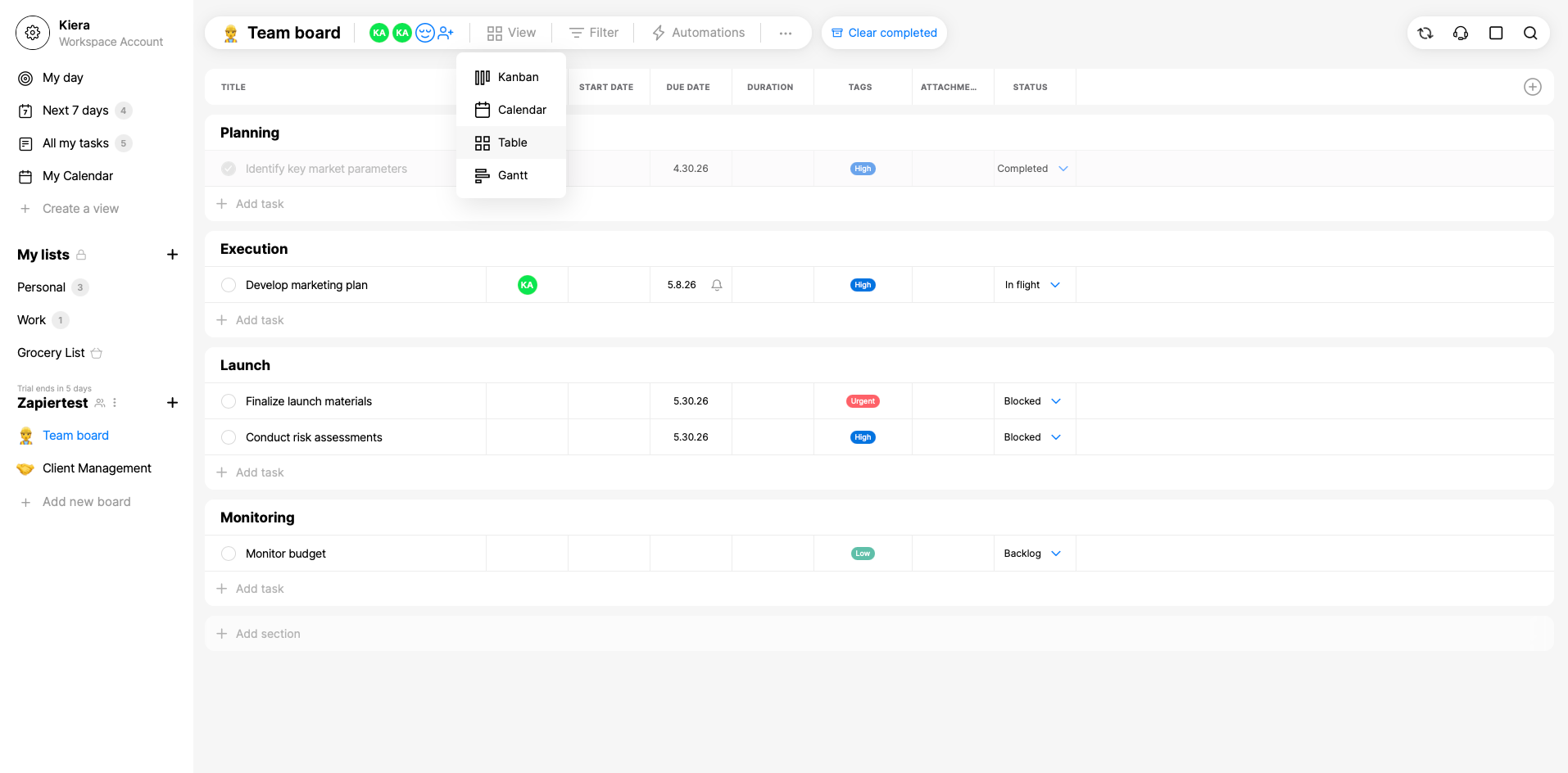
It's not the most robust or in-depth project management app on the market, but it covers the core features teams need—like chat, file sharing, a handful of view options (Kanban, calendar, table, and Gantt), and simple if/then automation—while maintaining the simplicity and productivity focus of Any.do's task manager.
Capable collaboration features combine with focused individual productivity tools to create a simple, intuitive, and low-touch project management solution. My favorite productivity feature is My Day, which helps you quickly see upcoming tasks and build out an agenda for the day.
While the app only includes fewer than 20 native integrations, Zapier is one of them, which means you can connect Any.do with thousands of other apps to build workflows that automatically send information to and from Any.do. Learn more about how to automate Any.do with Zapier.
Any.do price: Free for personal task management and individual features; upgrade to the Teams plan for $4.99/user/month (billed annually) to get a collaborative workspace with unlimited project boards and team members, plus more advanced project management features.
Best simple project manager
Quire (Web, iOS, Android)

Quire pros:
Simple, clean views
Customizable project tabs
Freeform task details
Quire cons:
Less intuitive navigation
More upfront setup
Quire is a super simple and stripped-down app that offers a number of clean, customizable views (including tree, board, table, timeline, schedule, panorama, and calendar). As with many of the apps on this list, you can quickly toggle between views and pin your favorites as tabs along the top of each project for easy access.
The app overall is more freeform and less prescriptive than many other project management apps today. The task details screen, for example, is basically like a small Notion doc, with slash commands you can use to add anything from rich text to charts, tables, code blocks, and checkboxes.
Also on the expanded task details screen, you can scroll down to add time entries and mark them as billable (or not) with a simple toggle. As a frequent user of Gmail's Snooze feature, I loved Quire's Peekaboo, which lets you snooze a task—it disappears and reemerges in the timeframe you select.
With that freedom comes some additional setup time, but if you know exactly what you want from your project management workflow—and what you don't—that trade-off may be worth it. Quire also offers a handful of ready-to-use templates to get you started.
Quire includes fewer than 30 native integrations, but you can connect Quire with Zapier to automate workflows across thousands of other apps, so your tasks are always where you need them, when you need them.
Quire price: Free for up to 4 projects, 10 members, and nested list and Kanban views; upgrade for $7.65/user/month to the Professional plan to add additional view options, up to 100 projects, and features like time tracking, task dependencies, Peekaboo, and more.
Which project management software for small business should you use?
As you select a project management app, ask yourself a few questions: Do you value flexibility or structure? Do you need detailed metrics on your projects? What type of data do you need to store about your projects?
If you want one default pick, start with Asana—it's the most flexible option on this list and works well across different teams, workflows, and project types without forcing you into a specific system.
Beyond that, the right choice depends on how you actually work. Choose Trello if you want something simple and highly visual with minimal setup. Choose Paymo if you manage client work and need built-in time tracking and invoicing. Choose Wrike if you think in spreadsheets and want that level of structure. Choose Nifty if you like the feel of Notion but want a more focused project tool. Choose Hive if customization is your top priority. Choose Any.do if you need a lightweight tool that balances personal and team tasks. And Choose Quire if you want a simple, flexible system and don't mind setting things up yourself.
Each app on this list offers a free version that lets you test it out. I suggest you pick the one that seems the most suited to you and give it a try. If it doesn't work for you, move along to the next tool.
Just remember that the best methodology is the one that gives you the structure and mental support you need to get your projects out the door efficiently, with quality output.
Related reading:
This article was originally published in April 2019 and has also had contributions from Emily Esposito. The most recent update was in May 2026.