
Dropbox is a simple cloud storage app that's easy to use, especially when it comes to sharing files. All you have to do is copy a file-sharing link and share it as you normally would. Then anyone with the link can view and download the file.
But with one simple tweak, you can make it so that the file automatically downloads once the link is clicked—the recipient doesn't even have to log in to Dropbox. Here's how to do it.
Table of contents:
How to create and share a direct download link in Dropbox
Go to dropbox.com or open the desktop app.
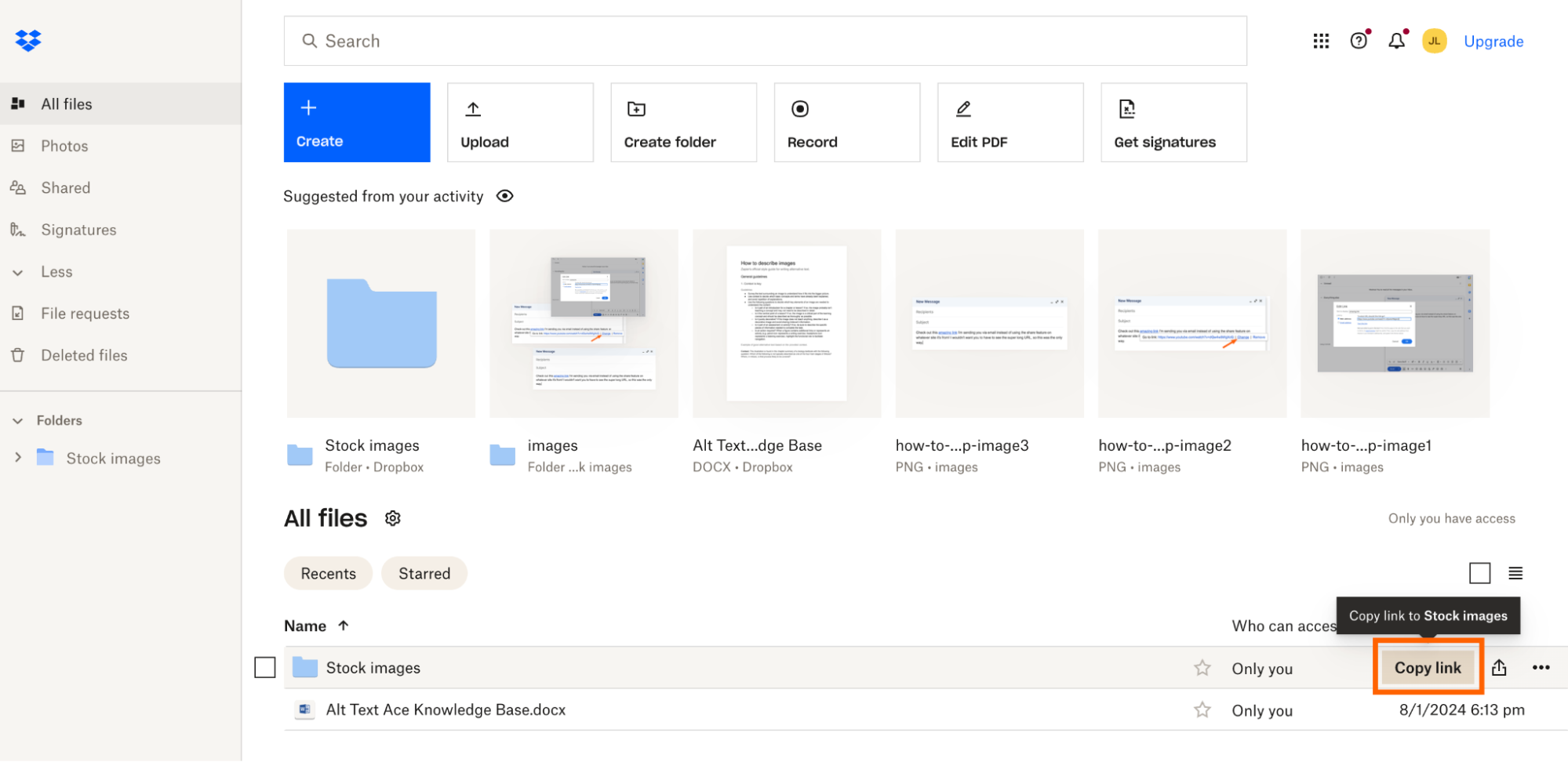
On the web app, hover over the file you want to share, and click the Copy link button that appears when you hover over it. Alternatively, right-click the file, and select Copy link.
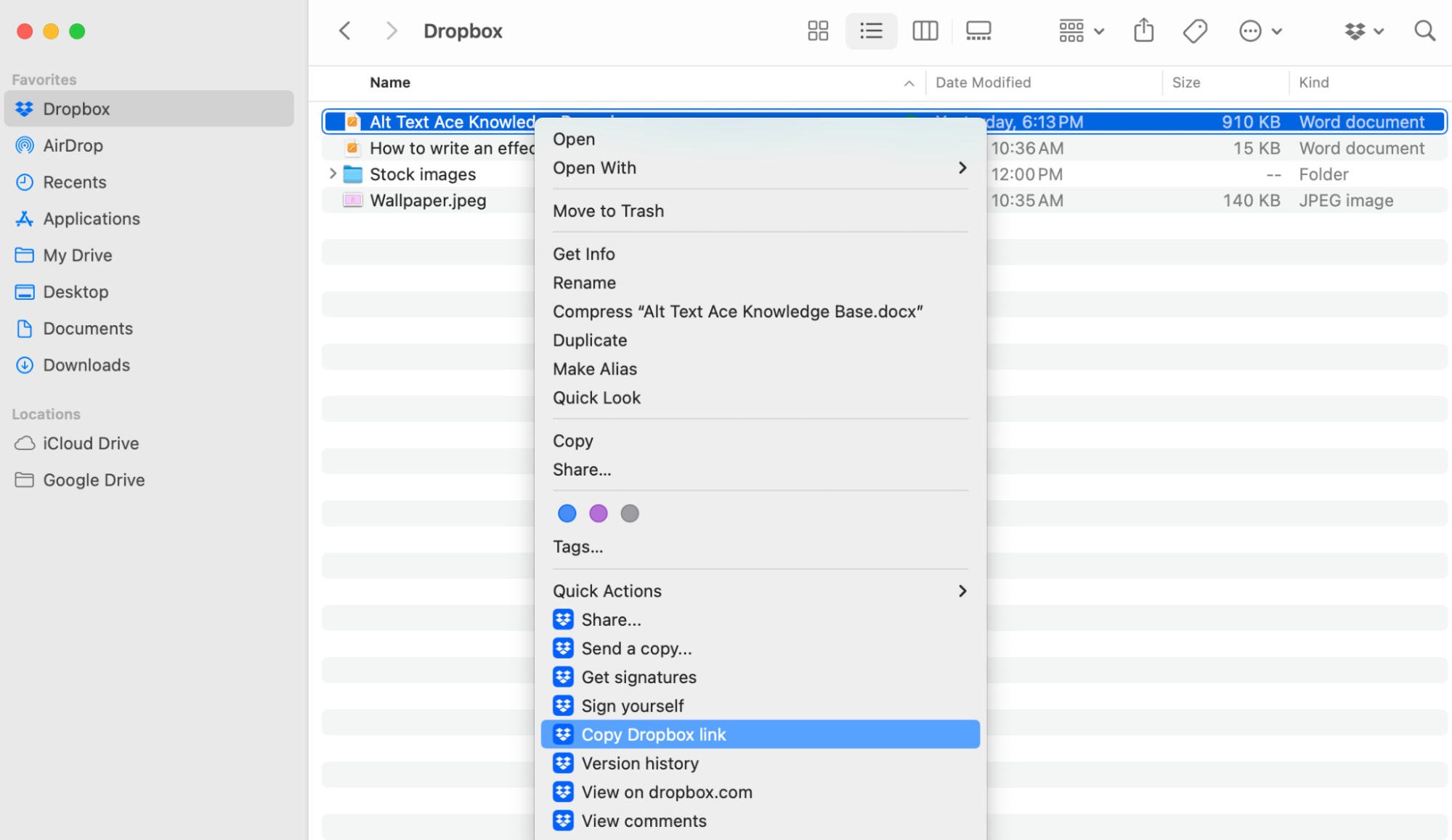
If you're viewing Dropbox files through your Finder or File Explorer window, right-click the file, and select Copy Dropbox link.
Paste the link somewhere you can edit it (another browser tab works fine). You should have a link that looks something like this:
https://www.dropbox.com/scl/fi/svmal51kp1qbf0rhnhhq6/Wallpaper.jpeg?rlkey=ubr8jiwyu90w1gzcfowxvx8a3&dl=0.Replace
dl=0withdl=1in the query parameters of the URL. For example,https://www.dropbox.com/scl/fi/svmal51kp1qbf0rhnhhq6/Wallpaper.jpeg?rlkey=ubr8jiwyu90w1gzcfowxvx8a3&dl=1.Share the link as you normally would.


That's it. Once someone clicks the link, the shared file will automatically download to their device.
How to unshare a Dropbox direct download link
If you no longer want anyone with the link to be able to access the previously shared file, here's how to unshare it. Note: You can modify the sharing settings only from the web app.
Go to dropbox.com.
Right-click the file you want to unshare, and click Manage permissions from the dropdown.

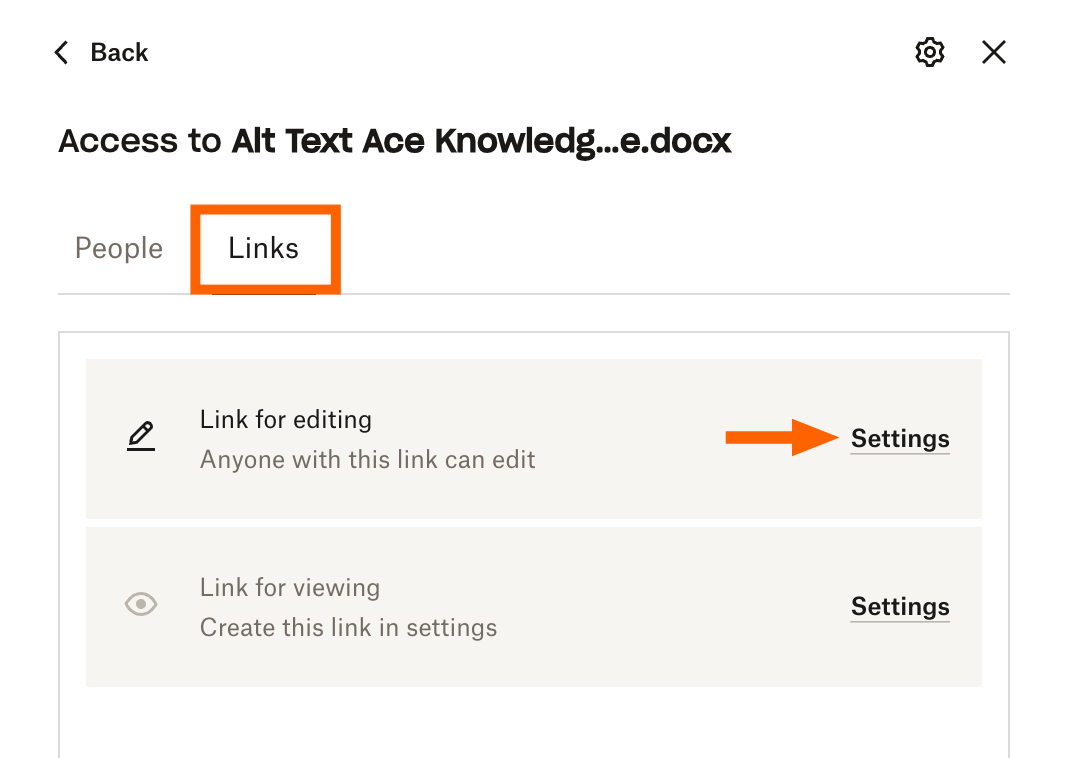
In the popup that appears, click Settings next to Link for editing. (If you shared a view-only link and you want to unshare it, click Settings next to Link for viewing.)
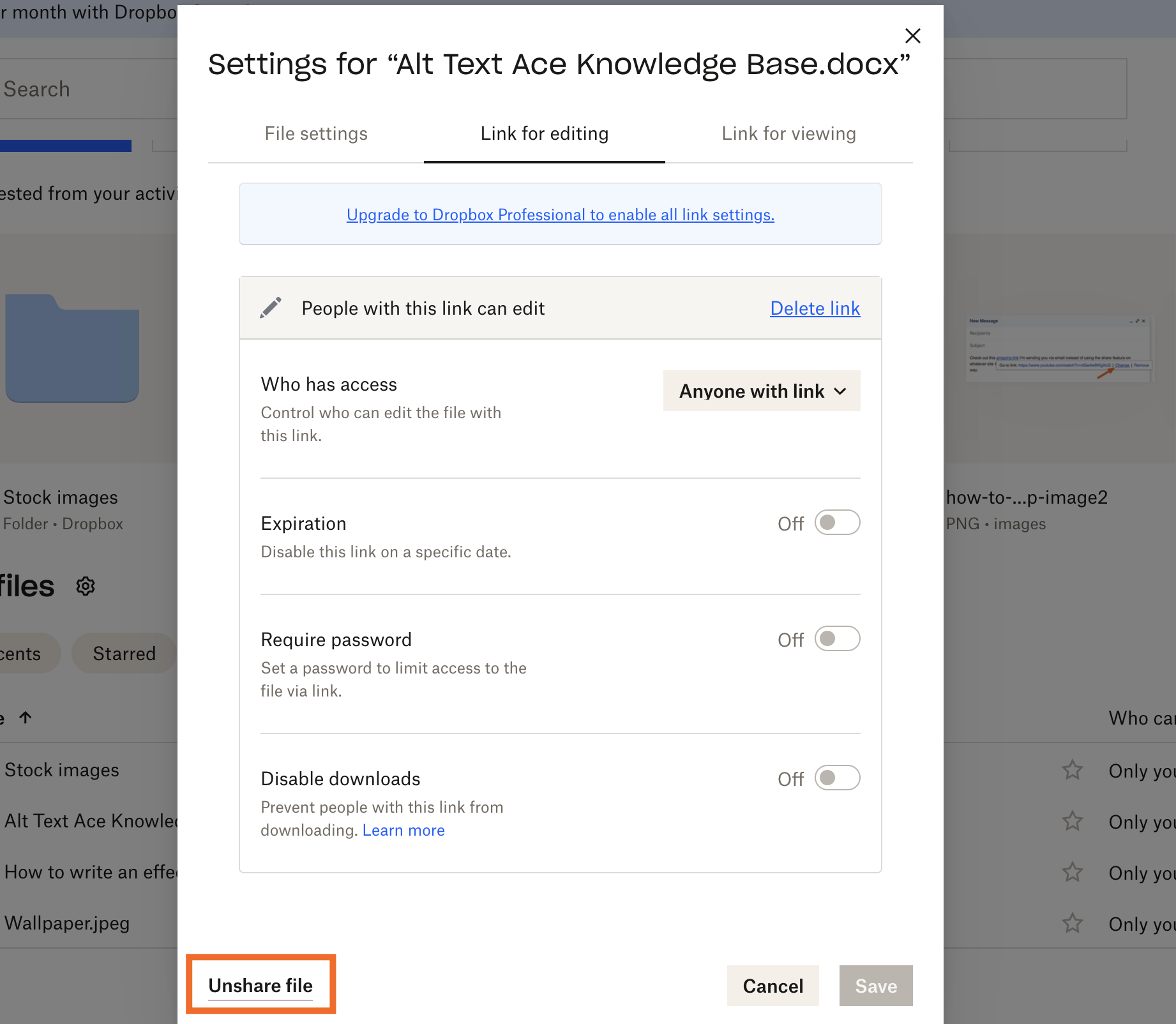
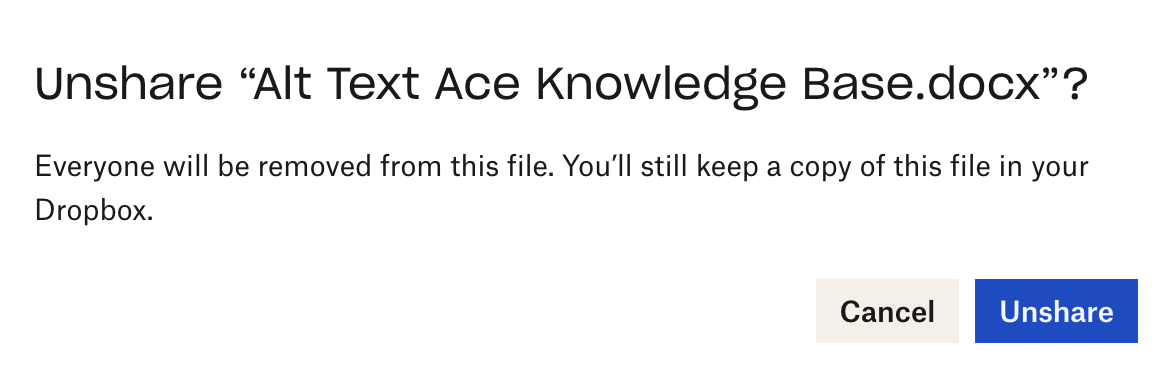
Click Unshare file.
Click Unshare to confirm.


Now if someone tries to click the Dropbox direct download link, they'll get an error message, complete with a sad-but-adorable French bulldog.

Learn how to see who has access to a Dropbox folder—and how to remove anyone who shouldn't have access.
Use Zapier to automatically generate a direct download link in Dropbox
When you're managing content across teams or clients, manually creating direct download links in Dropbox slows everything down. With Zapier, you can connect Dropbox with thousands of other apps so you can orchestrate multi-step workflows to automate the process.
For example, when a new file is added to Dropbox, you can automatically share it via email or in your team chat app—complete with a ready-to-use direct-download URL. Here are a few pre-made workflows to get you started (they're already set up to include a direct download link).
Send emails via Gmail with new files added to Dropbox


Send Microsoft Outlook emails for new files in a Dropbox folder

Get notified in Slack when new files are added to Dropbox

Zapier is the most connected AI orchestration platform—integrating with thousands of apps from partners like Google, Salesforce, and Microsoft. Use forms, data tables, and logic to build secure, automated, AI-powered systems for your business-critical workflows across your organization's technology stack. Learn more.
Related reading:
This article was originally published in January 2022 by Matthew Guay. The most recent update was in December 2025.



