I have a Gmail account from 2005—back when it was invite-only and flexed two entire gigabytes of storage. Gmail introduced innovative features like labels and threaded conversations, making it easy to find that one JibJab eCard buried under a hundred RE: RE: FWD: RE: follow-ups. Trust me, it was cutting-edge stuff at the time.
Two decades later, I've evolved into someone who cringes at the mere thought of a consolidated inbox. Between my personal, work, and side hustle email—not to mention the handful of burners for free trials and newsletters I'm not quite ready to commit to—I have more Gmail accounts than fingers to count them on.
If you, too, have an email empire, here's a step-by-step guide on how to manage multiple Gmail accounts.
Table of contents:
How to manage multiple Gmail accounts within Gmail (browser and mobile app)
Google makes it relatively easy to manage multiple Gmail accounts without too much hassle. You can even sign in to multiple accounts simultaneously and switch between them without needing to log out. Here's how to do it.
Go to gmail.com (or open the mobile app) and sign in with your primary Gmail account.
Click your profile photo or initial icon (top-right corner) to open the profile switcher dropdown menu.
Click Add account (or Add another account if you're already signed in to more than one).

In the new window that appears, enter the email address and password of your secondary (or tertiary or quaternary) Gmail account.
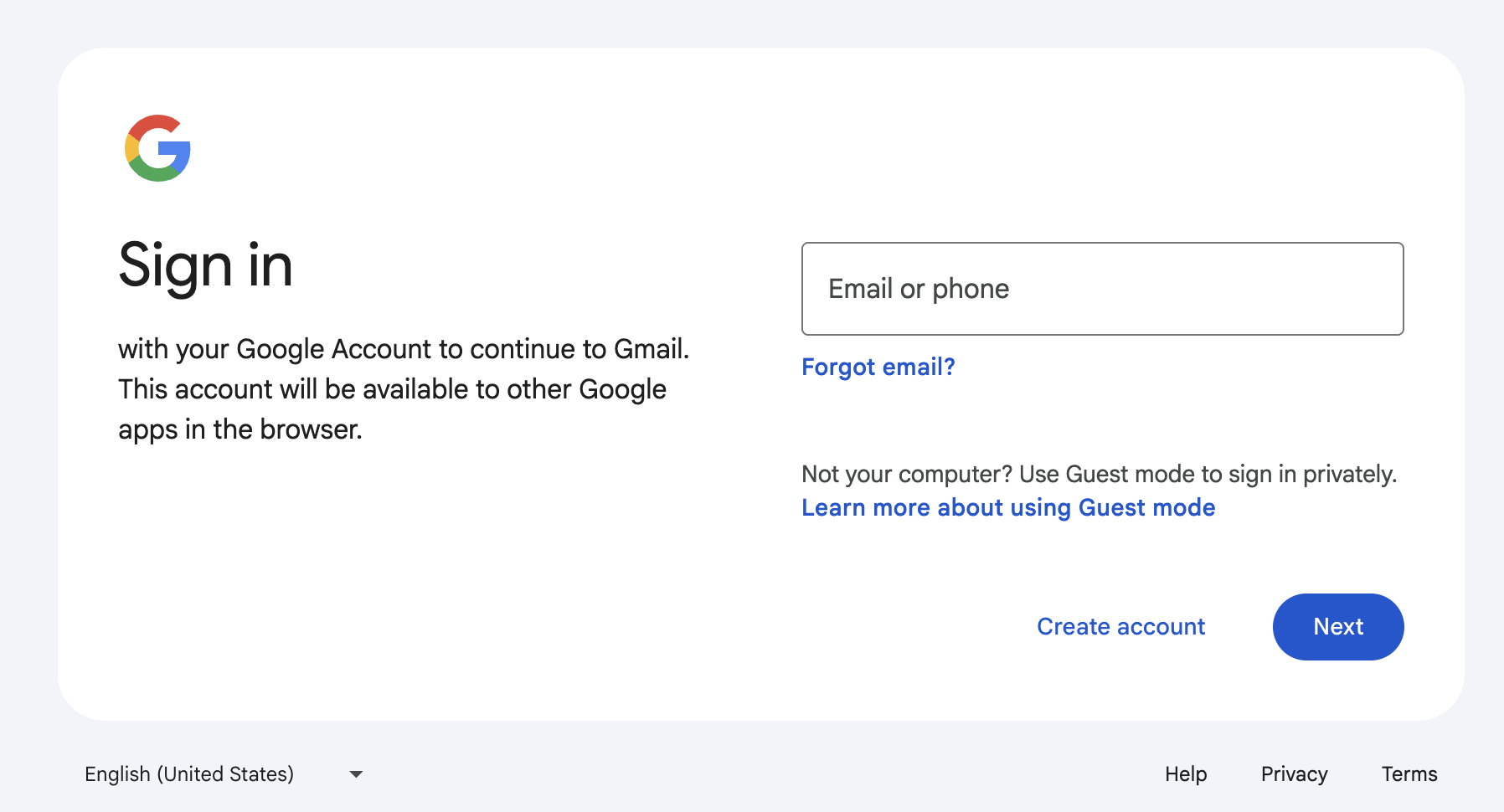
If you're doing this from the Gmail app, you'll have to choose the account type (Google) and then follow the instructions to add a new Gmail account.


Once signed in, this new account will appear in the same profile switcher dropdown menu. Congratulations—you're now officially a multi-account manager.
You might be thinking, "Will I have to go through this every time?" Nope! Gmail remembers all your accounts, so switching between them is seamless—unless, of course, you forget your password. But that's a problem for another day.
How to switch Gmail accounts
Now that you've added all your Gmail accounts, here's how to switch between accounts. (The same method works for both Gmail in your browser and the mobile app.)
Click your profile picture or initial icon.
From the list of all your logged-in Gmail accounts, click the one you want to switch to.
Gmail will load that inbox without needing your login credentials again. Now, you can ignore important emails in any account.
On the mobile app, Gmail defaults to displaying only the inbox of the account you've toggled to. But you can also consolidate all your inboxes together into one unified view, if you hate yourself.
Tap the hamburger menu in the top-left corner.
Tap All inboxes.

5 other ways to manage multiple Gmail accounts
While the built-in Gmail account switcher works for most users, you might find it limiting if you have a bunch of accounts to juggle. Here are five other ways to help you manage multiple Gmail accounts more efficiently.
1. Use a dedicated email client

Pros of email clients:
Centralized access to all emails from a single unified inbox
Offline email management and local storage
Cons of email clients:
Requires installation and configuration
Notifications can become overwhelming without proper filtering
If you're tired of navigating between browsers or phone apps, it might be time to consider a dedicated email client. Platforms like Microsoft Outlook, Apple Mail, or Spark let you integrate multiple Gmail accounts, so you can experience the pleasure of reading emails from several different sources in a unified inbox.
Configuration is pretty standard across the board:
Download your chosen email client.
Open the app and find the option to add an account.
Add your Gmail accounts using the IMAP configuration.
If you're in the market for an email client (and let's face it, if you're reading this, you probably should be), check out these roundups for expert recommendations:
Native Gmail desktop app, when, Google?
2. Maintain multiple Chrome profiles

Pros of multiple Chrome profiles:
Keeps each account's browsing history, extensions, saved passwords, and bookmarks separate
No risk of sending work emails from your account that's dedicated to questionable online purchases
Cons of multiple Chrome profiles:
Only available if you use Chrome as your browser
Switching profiles isn't as smooth as switching accounts in Gmail itself
If you're the type of person who avoids mixing business with pleasure, using multiple Chrome profiles is the way to go. Think of Chrome profiles as different little browser personas, each with its own set of bookmarks, history, extensions, and, yes, Gmail accounts.
You can set up a dedicated Chrome profile for work that has all your professional emails, tools, and LinkedIn tabs open while keeping a separate profile for personal stuff. This way, you won't accidentally send fantasy football trash talk from your work account or, worse, stumble upon a spreadsheet during your personal time. It's the best way to keep your digital spaces clean and organized without crossing any professional boundaries.
Note: It's easy to confuse Chrome profiles with Gmail accounts, but they're not the same thing. Chrome profiles are like separate containers for your online activities, and you can sign in to any Gmail account within any Chrome profile. The benefit here is keeping everything—not just email—separate and organized.
Here's how to set up multiple Chrome profiles:
Open Google Chrome and click on your profile icon in the top-right corner.
Click Add Chrome Profile to create a new profile.
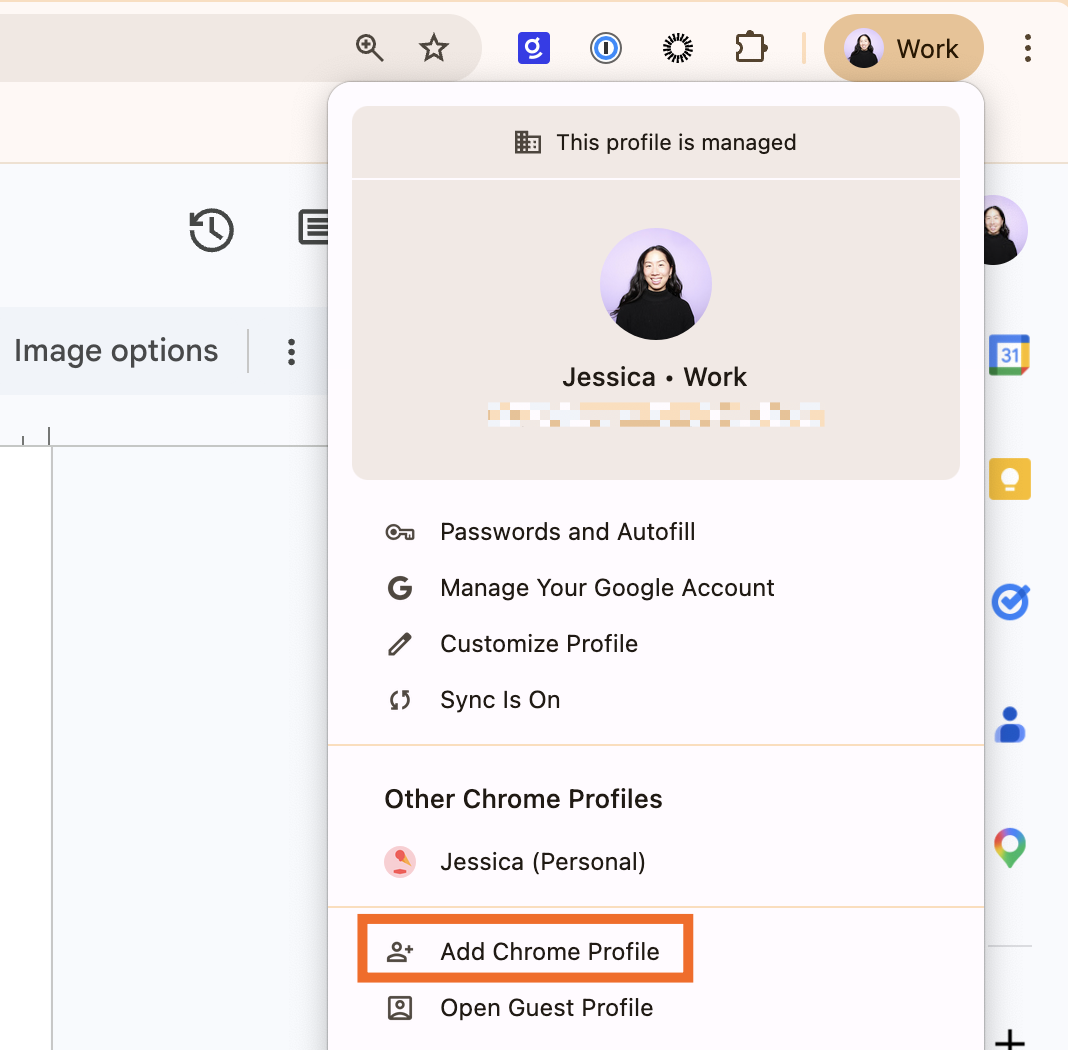
Sign in with the Gmail account you want to use with that profile.
Give your second Chrome profile a name (e.g., "Work account").
Repeat for each Gmail account you want to manage separately.

Now, whenever you want to switch between accounts, click the profile picture near the toolbar, and select the account you want to switch to. Chrome will open a new window featuring a session that's tied to the chosen account.
3. Consolidate your Google accounts

Pros of consolidating your Google accounts:
Receive all your emails in one inbox
Saves time if you frequently access one account more than the others
Cons of consolidating your Google accounts:
May not be an option if one of your accounts is a work or school Google Workspace account
Forwarding consolidates incoming mail only—it doesn't truly merge accounts or migrate existing data like contacts or Google Drive files
Maybe you're more of a "less is more" kind of person. If so, you can consolidate Gmail accounts. Unfortunately, there's no quick way to merge all your Gmail accounts, but if you've got some patience and a little time on your hands, there's a workaround.
This is ideal if you have a main email address you'd like to use for everything. You can forward emails from other Gmail accounts to this primary address and send emails from your other addresses without leaving your main account.
I'll go over the very basic steps, but it would be behoovey if you read Zapier's exhaustive guide on how to merge Gmail accounts before proceeding with this option.
Log in to the secondary Gmail account you want to forward emails from.
Click the Settings icon (it looks like a gear), and then click See all settings.
Click the Forwarding and Pop/IMAP tab.
Click Add a forwarding address.
Enter your primary Gmail address, and click Next.
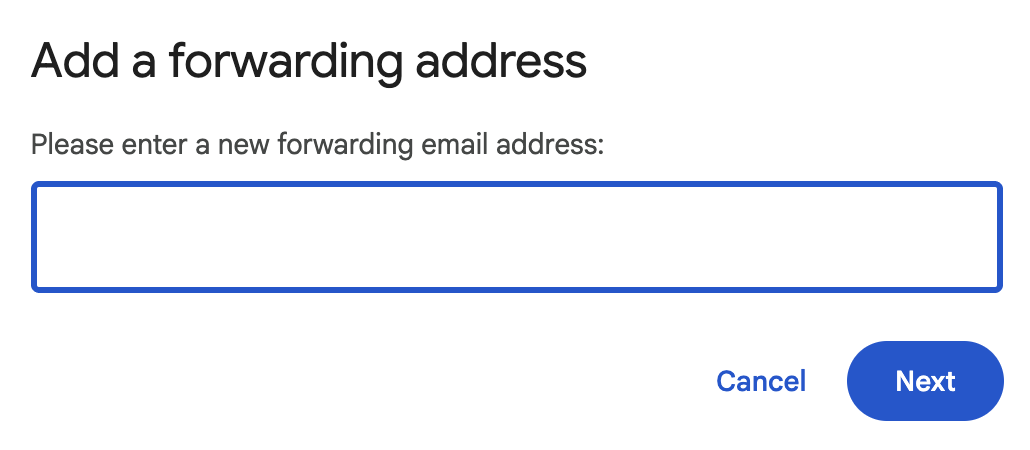
Gmail will send a confirmation email to your primary account. Follow the verification steps.
Go back to the secondary account's settings, refresh the page, enter your primary address in the field next to Forward a copy of incoming mail to, and choose what happens to the original copy in the secondary account: keep it in the inbox, mark it as read, archive it, or delete it.
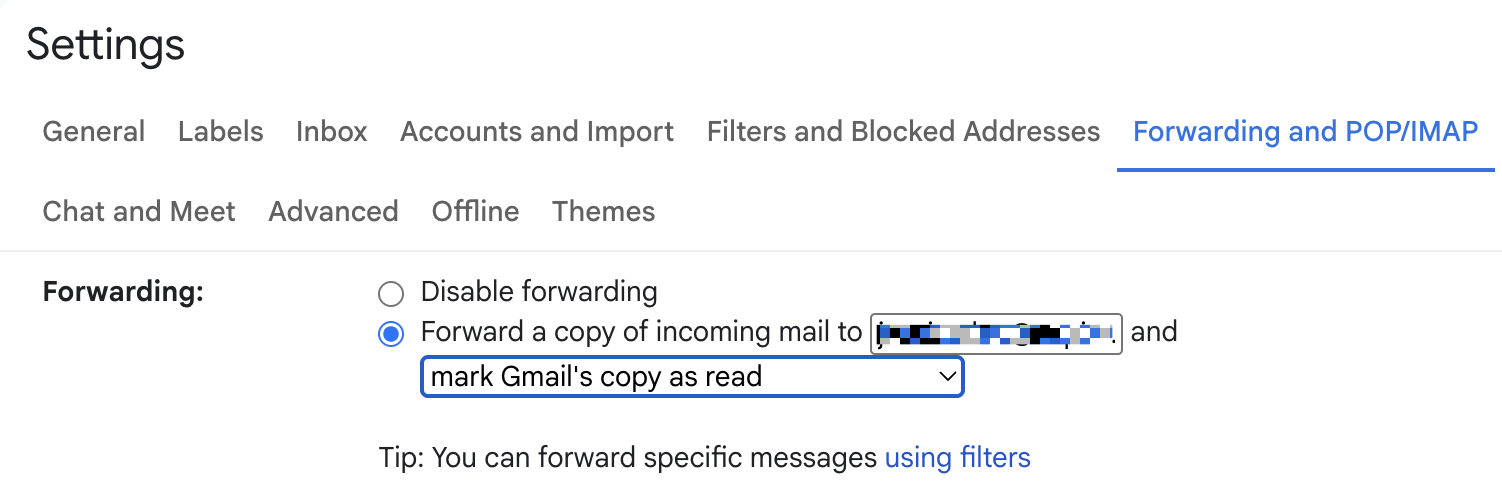
Click Save Changes.


Repeat the above steps for each additional account you want to consolidate.
From there, you can organize incoming emails with labels and filters for each account to keep everything tidy. After that, move important emails, contacts, and calendar events from the Google accounts to your primary account.
Once you've transferred all the important data, close any accounts you no longer need. But remember, this step is irreversible, like a bad tattoo (something I'm very familiar with).
4. Use a browser extension

Pros of browser extensions:
Time-saving with quick previews and notifications
Less resource-intensive than using multiple browser tabs
Cons of browser extensions:
Some extensions or features may require a paid subscription
Dependent on third-party developers
If you're the type of person who likes to solve problems by adding more problems (I see you, and I respect your chaotic energy), then Chrome browser extensions might be your jam. They allow you to juggle multiple Gmail accounts from one interface.
Here are some popular extensions for managing multiple Gmail accounts:
Checker Plus for Gmail: Add this extension, log in to all of your Gmail accounts, and view and reply to emails sent to any of your accounts by clicking on the extension's icon. You can compose emails from the extension, too.
DragApp: While not strictly for managing multiple Gmail accounts, DragApp turns your Gmail inbox into a Kanban board. This can be helpful for organizing emails across different accounts if you use those accounts for different purposes (like work and personal).
5. Change your default account

Pros of changing your default account:
Makes managing a primary account more straightforward
Lower chance of sending emails from the wrong account
Cons of changing your default account:
Doesn't provide a true solution for managing multiple accounts—just makes access easier
Assert dominance over your digital existence by changing your default Gmail account. Since Google uses the first account you log in to as the default, this will ensure your go-to account is prioritized.
The process is very simple as long as you're not a commitmentphobe:
Click on your profile icon in the top-right corner of the screen.
In the dropdown menu, click Sign out of all accounts.
Sign back in to the Gmail account you want to be the default. Then, sign in to your other accounts.
Now, every time you open Gmail, your preferred account will be the chosen one, the Harry Potter of your email ecosystem, if you will.
The best way to manage multiple Google accounts
This is where I say, "It depends." What a cop-out, right? But really, it does. There's no one-size-fits-all approach when it comes to managing multiple Gmail accounts—it boils down to your specific needs and preferences. Here's a quick recap:
Use Gmail's built-in account switcher if you have a couple of accounts and don't mind switching between them manually.
Use a dedicated email client if you want all your emails in one place.
Create multiple Chrome profiles if you need to keep browsing data and extensions separate.
Consolidate your accounts if you prefer to manage everything from a single inbox.
Use a browser extension if you live in Chrome, and all you need is something to streamline your Gmail access.
Change your default account if you find yourself constantly returning to a specific Gmail account.
Automate your Gmail accounts with Zapier
Once you're managing all of your Gmail accounts like a pro, you should automate them all, too. With Zapier's Gmail integration, you can connect it with thousands of other apps and create an intelligent, AI-powered email management system.
For example, you can automatically send personalized follow-up Gmail emails to new lead form submissions. At the same time, Zapier can add those new leads to your CRM, use AI to analyze their submission and tag them as high or low priority based on pre-defined criteria, and tag the right sales rep for further action. Learn more about how to automate Gmail, or get started with one of these pre-made workflows.
Save new Gmail emails matching certain traits to a Google Spreadsheet


Get email notifications or send follow-ups to new Typeform respondents

Send emails via Gmail when Google Sheets rows are updated
Zapier is the most connected AI orchestration platform—integrating with thousands of apps from partners like Google, Salesforce, and Microsoft. Use forms, data tables, and logic to build secure, automated, AI-powered systems for your business-critical workflows across your organization's technology stack. Learn more.
How to manage multiple Gmail accounts: FAQs
We've covered a lot of ground about managing multiple Gmail accounts, but you may still have questions, and I may have some answers.
Can I access multiple Gmail accounts at the same time?
Yes, Gmail lets you sign in to multiple accounts and switch between them without logging in and out.
How many Gmail accounts can you have?
There's no strict cap on the number of Gmail accounts you can create. The real limit is your ability to remember all those passwords.
Additionally, Google may implement verification processes—like phone number verification—to prevent abuse. So, feel free to create multiple accounts as needed, but be mindful of Google's policies and any verification requirements along the way.
How do I change my default Gmail account for easier access?
Here's how to set up your default Gmail account.
Sign out of all accounts.
Sign in with the Gmail account you want as your default.
Add your other accounts.
Related reading:
This article was originally published in March 2019 by Jessica Greene. The most recent update, with contributions from Jessica Lau, was in April 2026.