
As a full-time remote worker, it's shocking how often I schedule a Google Calendar event and completely forget to include a Zoom meeting link.
With the number of meetings I attend, you'd think it'd be second nature. But every so often, I see that calendar notification ping and—crap—time to whip up a Zoom link for a meeting starting in five seconds.
If you're like me and are looking for the quickest and easiest way to streamline meeting scheduling, here's how to create a Zoom meeting link and share it in a few easy steps.
Table of contents:
How to create a Zoom meeting link for a current meeting (desktop and web)
How to create a Zoom meeting link for a current meeting (mobile)
How to create a Zoom meeting link for a future meeting (web)
How to create a Zoom meeting link for a future meeting (desktop)
How to create a Zoom meeting link for a current meeting on desktop and the web
Assuming you're already in a Zoom meeting, here's how to create a Zoom meeting link for it.
In the Zoom control bar, click the up arrow (
∧) next to Participants.Click Copy invite link to copy the link to your clipboard (or use your keyboard shortcut:
shift+command+Ion Mac orShift+Alt+Ion a PC).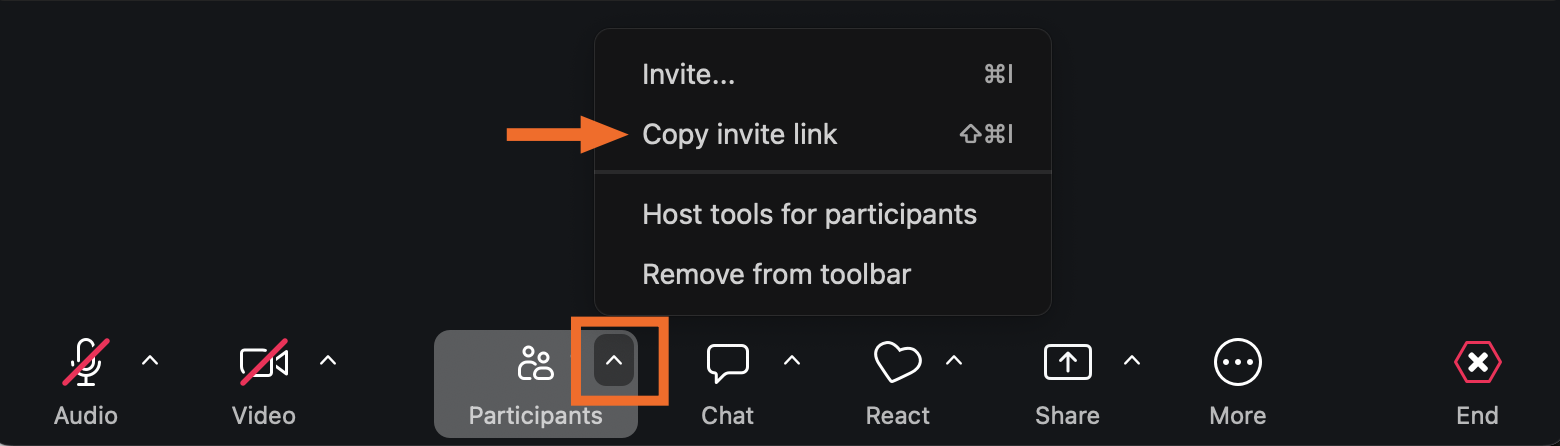
You can also click Invite, and select invitees from your meeting list.
If you copied the Zoom meeting link, paste it as you normally would to share.

How to create a Zoom meeting link for a current meeting on mobile
If you're joining Zoom from your phone, the steps to create a Zoom meeting link for an in-progress meeting are a little different.
Tap the More icon (
...) in the Zoom control bar.Tap Participants.
Tap the Share icon (it looks like a person with a
+sign).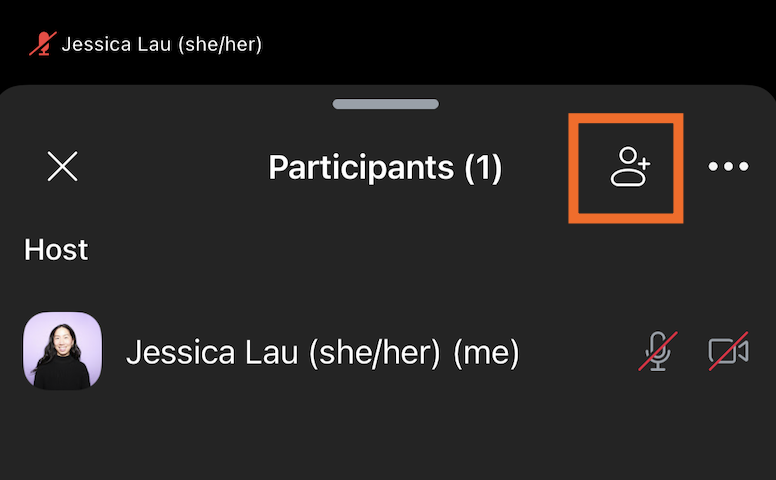
Tap Copy invite link. Or tap Invite contacts to invite attendees from your contact lists directly.
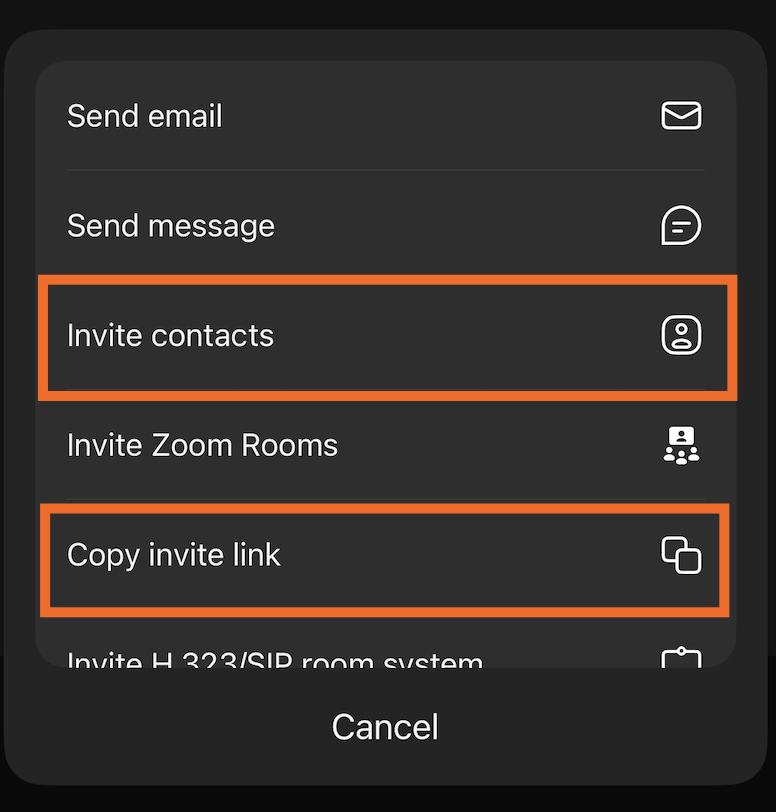
Paste and share the Zoom meeting link.


How to create a Zoom meeting link for a future meeting via Zoom web portal
If you're in the 3% of people who proactively remember to create and share Zoom meeting links before the meeting starts, congrats—I hope you brag about it in your family newsletter. For the rest of us aspiring to be this on top of things, here's how to create a Zoom meeting link for a new meeting from the Zoom web portal.
Schedule your Zoom meeting as you normally would.
Once you've set up your meeting, Zoom will automatically display your meeting details (if not, click Meetings in the left side panel, and open the meeting you want to get the link to).
Click the Copy link icon next to Invite Link.
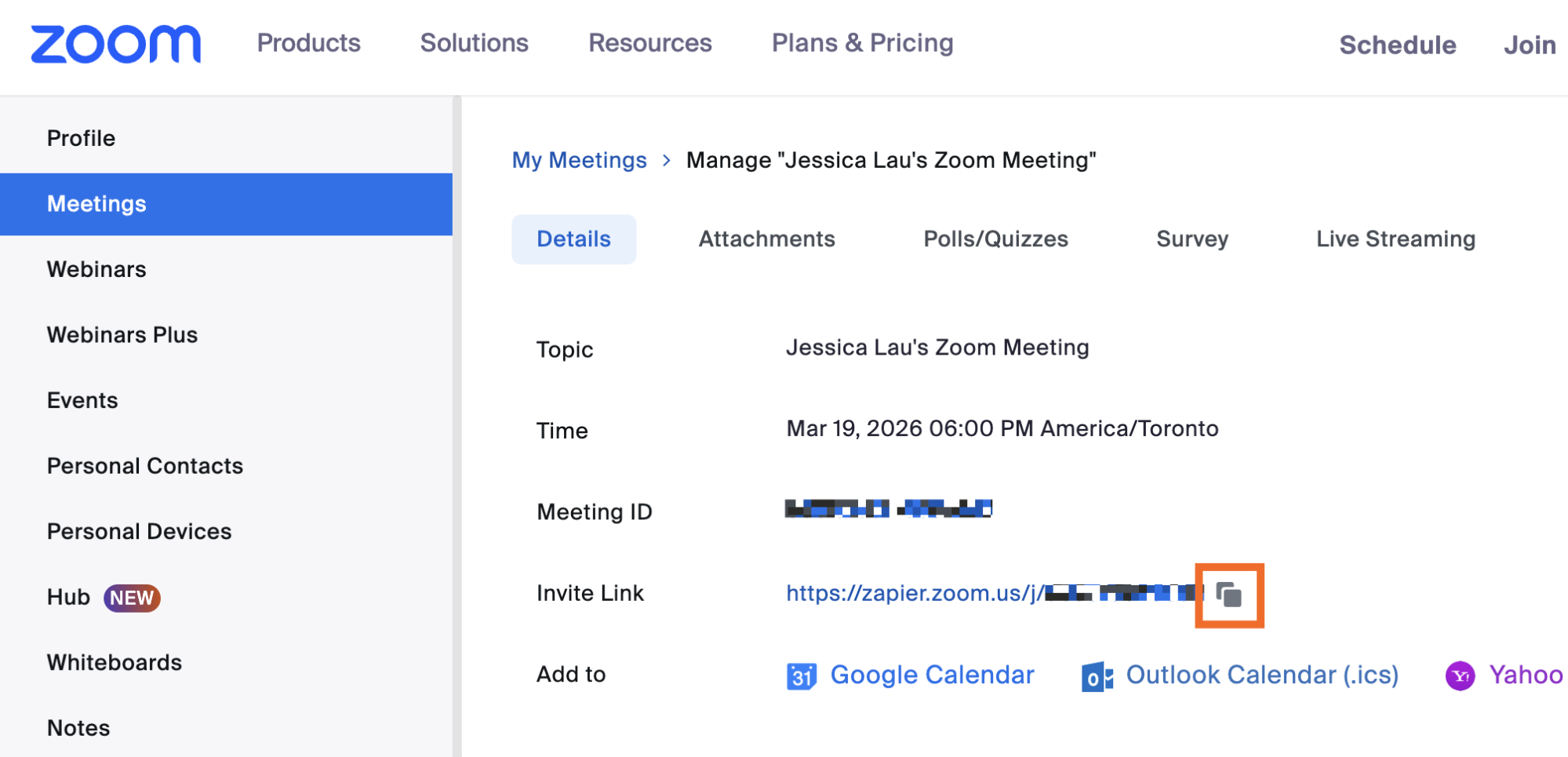
Paste the Zoom meeting link to share it as you normally would.

How to create a Zoom meeting link for a future meeting via Zoom desktop app
Let's say you previously scheduled a meeting and now you want to find and share the meeting link via the desktop app. Here's how to do it.
Schedule your Zoom meeting as you normally would.
Open then the Zoom desktop app.
Find the Zoom meeting you want to share a link to.
The way to create and share your Zoom meeting link differs based on the type of meeting (I'm as confused about this as you are).
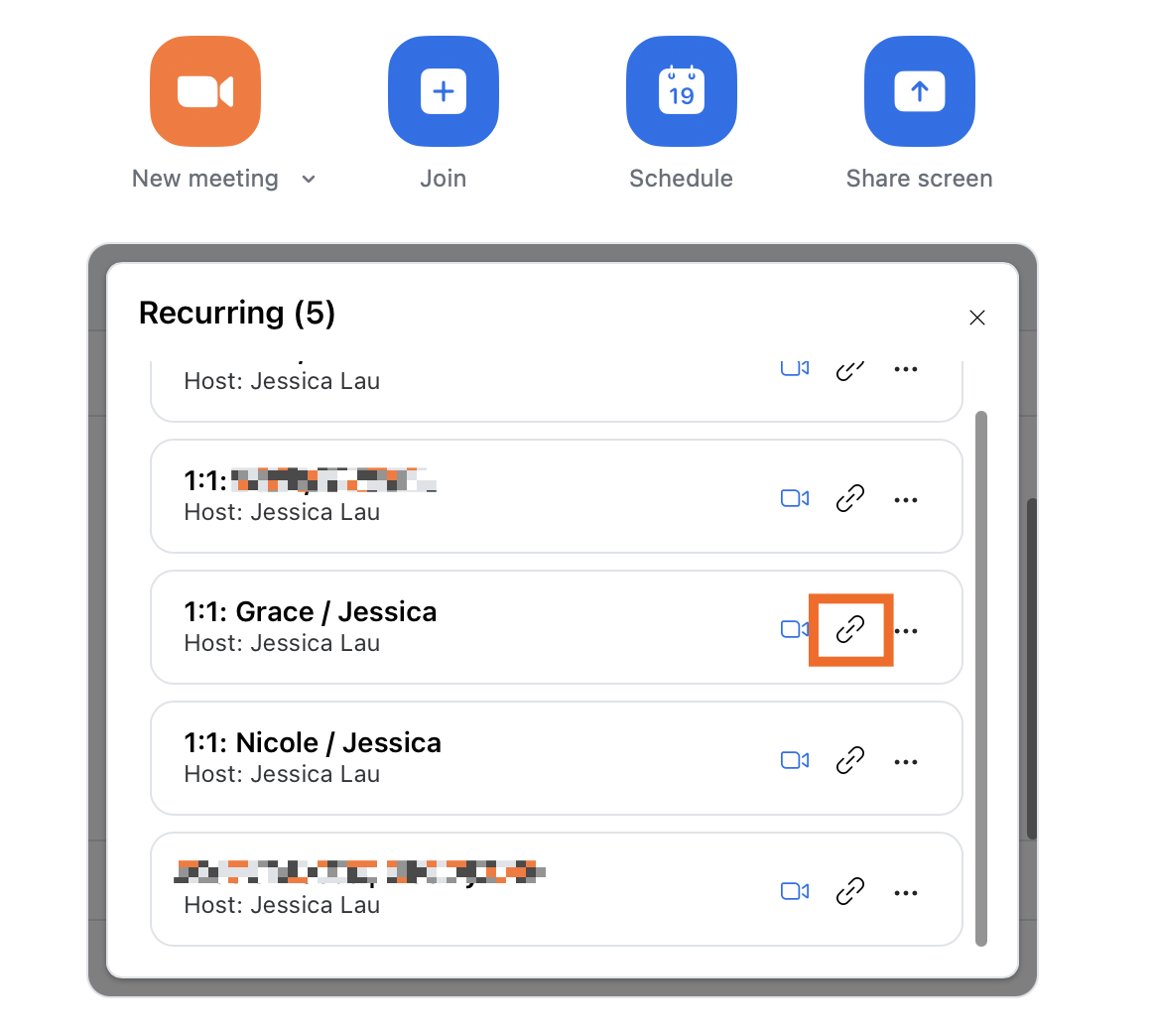
Recurring Zoom meetings: Click the link icon next to the meeting you want to create a meeting link for.
Non-recurring Zoom meetings: Click the ellipsis (
...) next to the meeting, and then click Copy invitation.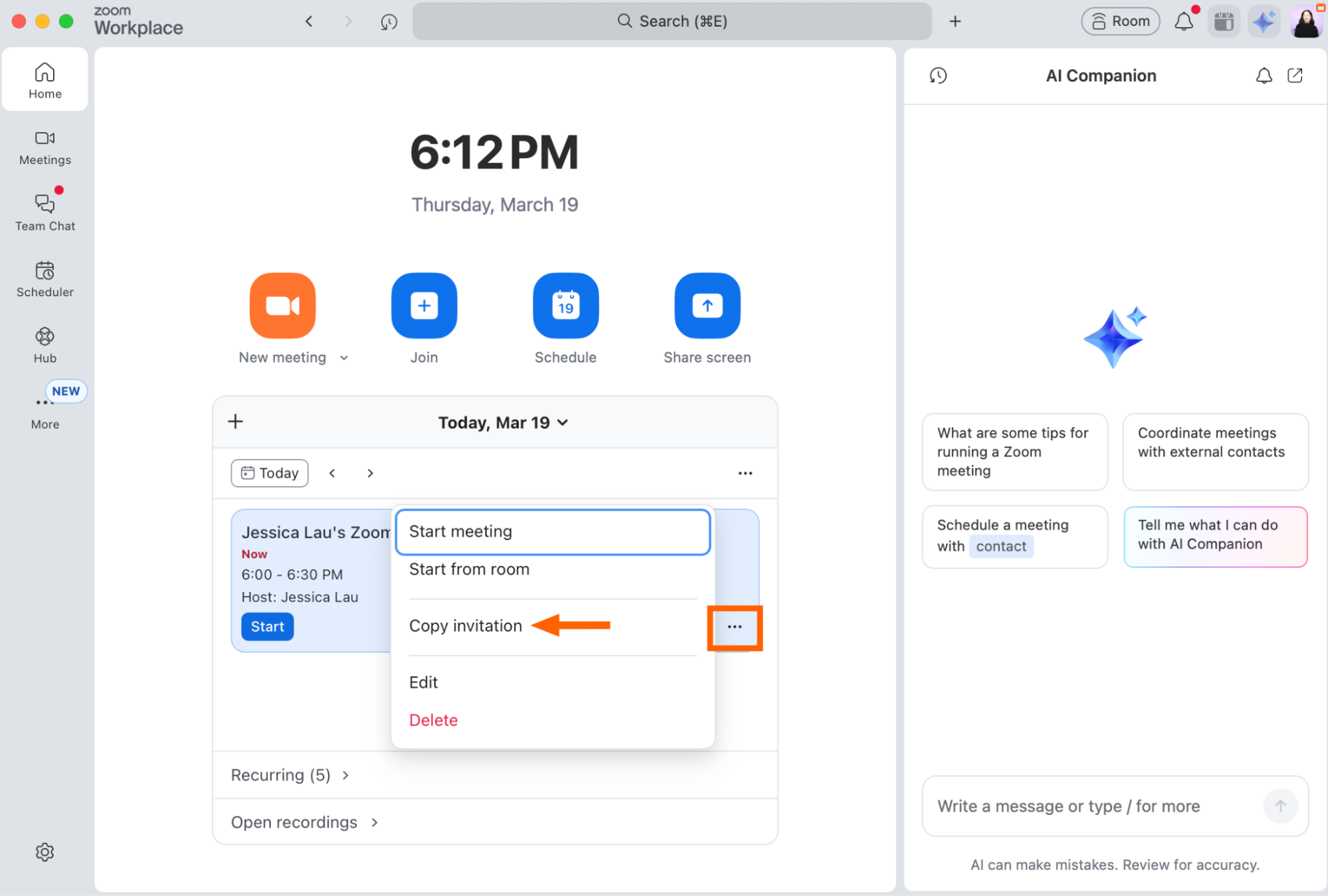
If you copied the meeting link for a recurring Zoom meeting, you can paste and share as you normally would. If you copied the meeting invitation, you can still paste and share, but it'll share all the invitation details (meeting name, topic, ID, etc.), not just the link.


How to create a Zoom meeting link: FAQ
Below, I've answered some common questions about Zoom meeting links. Who would have guessed there were so many rules?
How long does a Zoom link last?
A non-recurring Zoom link lasts 30 days after the scheduled date, while a recurring link lasts 365 days after the most recent meeting.
Can you join a Zoom meeting without a link?
Yes! You can join a Zoom meeting without a link by clicking Join in the Zoom desktop app, and then entering the meeting ID the host provides.

How do you create a Zoom meeting link in a Google Calendar event?
You can copy/paste a Zoom meeting link into the description of an event, or you can make Zoom the default meeting app in Google Calendar and automatically include an invite whenever you need it.
Zapier can also help: set up an automated workflow so a Zoom link is automatically created for new Google Calendar events. Here's a pre-made workflow template you can use.
Create Zoom meetings for new Google Calendar events


Zapier is the most connected AI orchestration platform—integrating with thousands of apps from partners like Google, Salesforce, and Microsoft. Use forms, data tables, and logic to build secure, automated, AI-powered systems for your business-critical workflows across your organization's technology stack. Learn more.
Automate Zoom with Zapier
Manually creating and sharing a Zoom meeting link is one of the thousands of meeting-related tasks you forgot to do. Because life. With Zapier, you can connect Zoom with thousands of other apps so you can orchestrate intelligent, multi-step meeting workflows that free you up to do other very important things—like choosing which virtual background lets you feel like you're not living in the chaos of the real world.
For example, you can automatically create a Zoom meeting link and add it to Calendly bookings. Or you could automatically upload new Zoom recordings from client calls to a meeting transcript app like tl;dv, then use AI to analyze the transcript and draft a personalized follow-up email, complete with any noted action items from the meeting. Discover more ways to automate Zoom, or try one of these pre-made templates.


Related reading:
This article was originally published in July 2023 with contributions from Shea Stevens and Allisa Boulette. The most recent update was in March 2026.



