Google Meet is baked into just about everything Google makes—including Google Calendar, where it's the default video conferencing option on every event you create.
If Meet isn't your thing, though, you're not stuck with it. Here's how to add Zoom to Google Calendar (and make it the default meeting option).
Table of contents:
How to add Zoom to Google Calendar
To get started, you'll need to install the Zoom Google Calendar plugin. Here's how.
Go to calendar.google.com, and log in.
Click the Get Add-ons icon (
+) in the right side panel.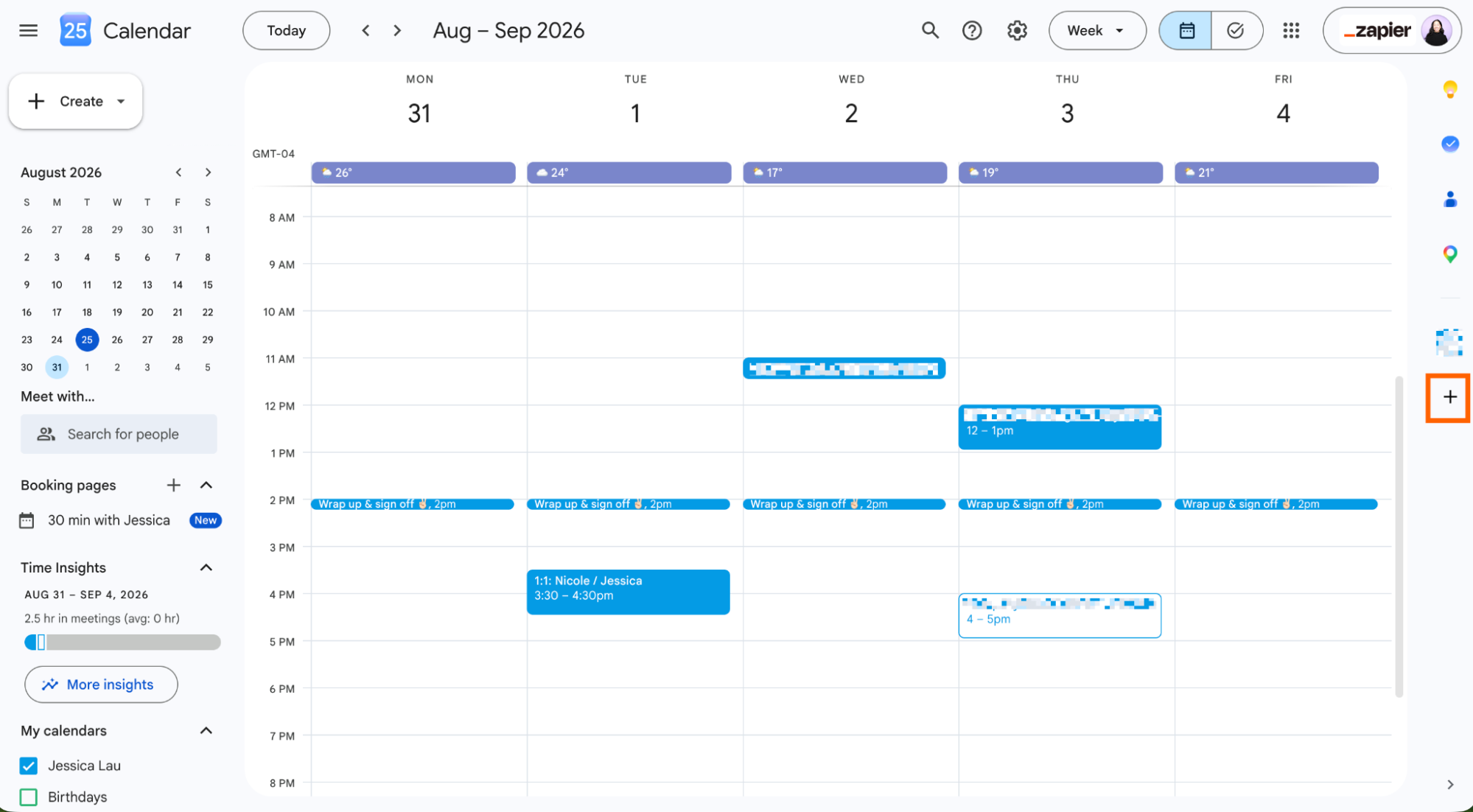
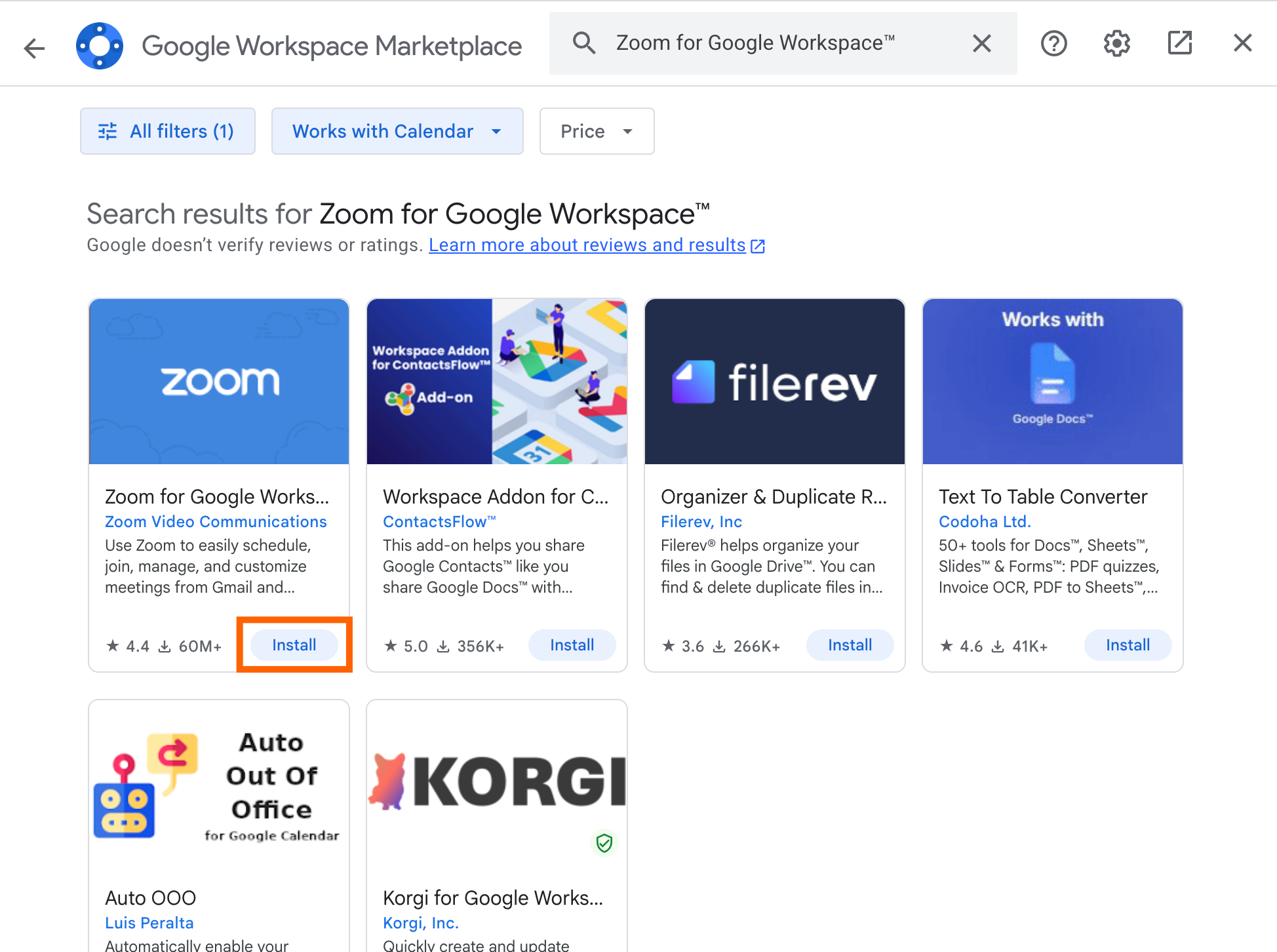
In the Google Workspace Marketplace popup that appears, search "Zoom for Google Workspace."
Click Install in the Zoom for Google Workspace card.
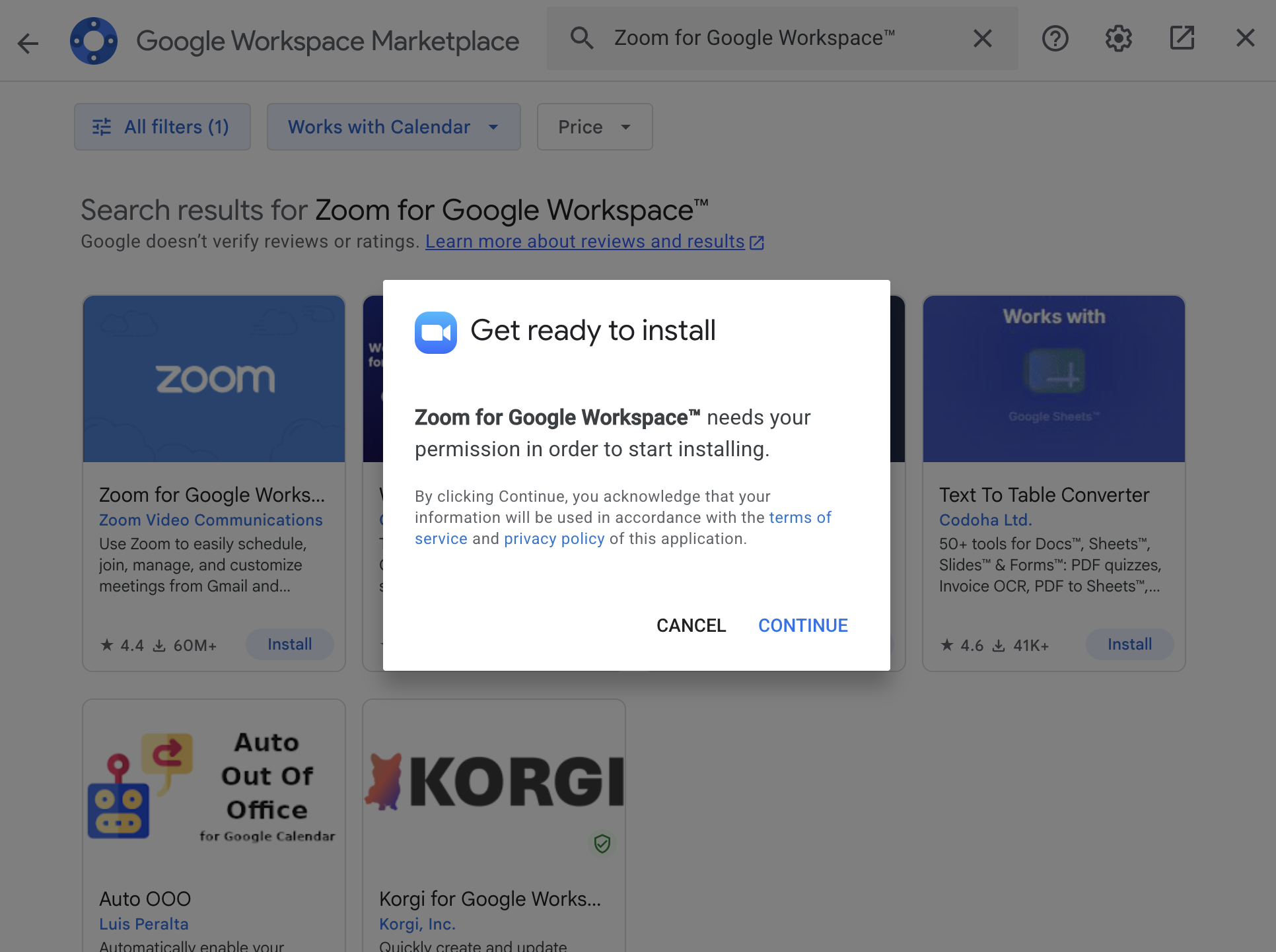
Click Continue, and follow the prompts to install. (If you're a Google Workplace admin, you can install Zoom for your entire domain.)
Click Done, and then close out of the Google Workspace Marketplace popover.
Now, schedule a Google Calendar meeting as you normally would. While you're creating the event, click Add Google Meet video conferencing, and select Zoom Meeting.


The first time you add a Zoom meeting, you'll be prompted to log in to your Zoom account. But once you do, you'll be all set moving forward.
The Zoom meeting details, including the meeting link, phone number, and meeting agenda, will automatically populate in the calendar event.

How to make Zoom the default in Google Calendar
Making Zoom the default video conferencing app in Google Calendar requires a Google Workspace admin account (there's no way to do this for personal Gmail accounts).
First, you need to remove Google Meet as the default for Google Calendar events.
Go to admin.google.com.
Click the menu (
≡), and select Apps > Google Workspace > Google Meet.Click the dropdown, and select OFF for everyone.

Click Save.

Now you can make Zoom the default meeting space.
Go to admin.google.com.
Click the menu (
≡), and select Apps > Google Workspace > Calendar.Click Sharing Settings, and then select Video Conferencing.
Check the box next to Automatically add video calls to events users create.
Click Save.
The video conferencing button in Google Calendar will change to Add video conferencing. When you click it, it'll automatically populate Zoom meeting details (again, assuming Zoom is the only video conferencing app installed).

It would be nice if this were possible without disabling Meet entirely, but this method works, so give it a shot if you're tired of switching from one service to another depending on who makes the appointment.
Automate Google Calendar and Zoom with Zapier
If you use Google Calendar and Zoom as core parts of your work, Zapier can connect them to each other and to the rest of your tech stack, so you can orchestrate end-to-end meeting-related workflows across 9,000+ apps. For example, whenever a new form submission comes through, Zapier can automatically schedule a meeting in Google Calendar (complete with Zoom link), generate a meeting prep doc based on contact details, and share it with you in Slack.
You can also install Zapier into ChatGPT, Claude, or any other AI assistant so you can access and take action in Google Calendar, Zoom, and all your other apps, directly from the chat window.
Learn more about how to automate Google Calendar and how to automate Zoom.
Related reading:
This article was originally published in October 2020 by Justin Pot. The most recent update was in August 2026.