I've been using ChatGPT since it launched, and now, it barely resembles the tool I started with. At this point it's less of a chatbot and more of a full work assistant—one I can use for everything from research to writing to running tasks across my other apps.
If you're eager to put ChatGPT to work but not sure where to start, you're in the right place. Here's everything you need to know about how to use ChatGPT.
In this tutorial, we're focusing on the specific steps of how to use ChatGPT. If you're curious to learn more about what's going on under the hood, check out our article, How does ChatGPT work?
Table of contents:
What is ChatGPT?
ChatGPT is a chatbot app built by OpenAI that can process text, image, and audio inputs (depending on the AI model you use).
In practice, this means it can do things like:
Hold a voice or text-based conversation with you, answering questions about almost any topic
Generate text for any occasion—for example, poetry, blog posts, and emails
Execute longer, multi-step tasks across apps—for example, researching a topic and producing a presentation on it
Search the internet for current information
Create charts and graphs based on your inputs
Translate natural language or design mockups to code
Interact with your computer and take basic actions on your behalf
And practically anything else you'd imagine a multimodal chatbot trained on the entirety of the internet might be able to do.
How to use ChatGPT
Here's a summary of how to get started with ChatGPT (the steps are practically the same across the web, desktop, and mobile app):
Go to chat.com or the mobile app, and log in or sign up (it's free).
Choose which mode you want to work in: Chat or Work.
If you're on a paid plan, choose the AI model that you want to use.
Enter your text, image, or audio prompt on the ChatGPT home page.
Once ChatGPT spits out a response, you have a handful of options:
Edit your original prompt.
Enter or say a new prompt.
Review the sources.
Copy the response.
Regenerate the response.
Rate the response.
Branch a new chat.
Share the response.
Now let's take a closer look at the finer details of using ChatGPT.
1. Create your OpenAI account
To get started with ChatGPT, you first need to create an OpenAI account (it's free). To do this, go to chat.com, and click Sign up. You can use an email address, or you can sign in with your Google or Microsoft account. If you use an email address, you'll be required to do a phone verification to confirm that you're really a human and not, ironically, a bot.
Already have an OpenAI account? Click Log in to start chatting.
If you're having trouble signing up or logging in, your best bet is to reload your page. For specific login issues, check out OpenAI's troubleshooting tips.
2. Choose your mode
By default, ChatGPT conversations start in Chat mode (good for quick questions and conversations). But if you plan to use it for longer, more involved tasks like research and creating documents, click Work at the top of the conversation.

3. Choose your AI model
If you're on a paid tier, you can choose which AI model you want to power your ChatGPT. Click the model dropdown in your conversation window, and then select the model you want to use.

4. Ask ChatGPT a question
You can prompt ChatGPT in a few ways.

Type your ChatGPT prompt (text query) in the message bar of the home page, and hit Enter or click the up-facing arrow.
Use ChatGPT search to explicitly tell ChatGPT to search the web to inform its response (otherwise, it might rely only on the data it was trained on). To do so, click the plus (
+) icon in the message bar, select Web search, and enter your prompt.Use deep research in ChatGPT to get it to comb through hundreds of online sources and files to give you a comprehensive response, complete with cited sources to verify its claims. To do this, click the plus (
+) icon, select Deep research, and enter your prompt.Turn your data into interactive charts or graphs. Click the plus (
+) icon, select Visualize, and enter your prompt.Search or take actions across apps. If you're on a Business or Enterprise plan, and have apps connected (like Google Drive or Slack), click the plus (+) icon, and select Company knowledge. ChatGPT will search across your connections and output cited answers grounded in your own data.
Talk to ChatGPT by pressing the Voice Mode icon in the message bar or by pressing the microphone icon to enter your prompt using speech-to-text.
Upload an image or file by dragging and dropping it from your computer into the message bar. You can also click the plus (
+) icon, select Add photos & files, and then choose your file.
5. Interact with ChatGPT's responses
In a matter of seconds, ChatGPT will spit out a reply, and you can read or listen to the response. Apart from that, you have a number of other options.

Edit your original prompt. Hover over the prompt and click the Edit message icon that appears (it looks like a pencil). Edit your prompt, and then hit Enter.
Enter (or say) a new prompt. Ask ChatGPT to modify its response. ChatGPT will refer back to whatever you were discussing before and use that to inform its response, so you don't have to repeat yourself.
Review the sources. Hover over any source pill in the answer to learn more about the source used to inform ChatGPT's response. Click it if you want to go directly to the source.
Copy the response. If you like ChatGPT's answer and want to share it somewhere else, click the Copy icon beneath the response you want to copy. Once you do this, the icon will turn into a checkmark to indicate that it's been successfully copied.
Get a new response. If the response isn't quite what you're looking for, and you want to use the same prompt, click Try again.
Rate the response. Since ChatGPT doesn't have the ability to interpret your headshaking, it can't determine if the response it generated is good or bad on its own. Instead, it relies on humans to provide that data to help it learn. Click the Rate response icon, which looks like a thumbs up or down, to let it know if the response was helpful or unhelpful.
Branch a new chat. If you want to take your conversation in a different direction without overwriting your original thread, click More actions (
...) beneath the response, and select Branch in new chat. This will open a new chat tab that picks up from that exact point.Share your conversation. Click Share at the top of your chat window to generate a unique URL you can copy and send. That'll allow others to see your entire chat. If you want to share only a specific response, click the Share icon beneath the response you want to share, and paste the link as you normally would. Note: If you're on an Enterprise account, only members of your workspace can access the conversation.
How to customize ChatGPT
If you find yourself prompting ChatGPT with the same instructions every time you interact with it—like "Write the response in Python" or "Keep the tone casual"—you don't have to. Here's how to customize ChatGPT on a free or paid plan.
How to use custom instructions in ChatGPT
For users on a free plan, you can set up custom instructions in ChatGPT. This lets you program ChatGPT with instructions you want it to always keep in mind when generating a response. Here's how to set it up.
Click on your profile, and then click Personalization.
In the popup that appears, click the toggle next to Enable customizations.
Enter any relevant details to help ChatGPT tailor its responses. For example, if you know your writing style, enter those details under Custom instructions.
Click Save.

Unless you explicitly tell it otherwise in a prompt or you disable custom instructions, ChatGPT will automatically keep your custom instructions in mind every time it generates a response.
Note: If you need ChatGPT to juggle different roles, you can create different ChatGPT projects and assign custom instructions within each one.
How to create a custom GPT
If you're on a paid tier, you can use natural language to create a custom ChatGPT (also known as a GPT)—each programmed with its own set of instructions—or use prebuilt ones, such as Data Analyst. Note: If you're on a free plan, you can use GPTs, but you can't create them.

Here's the short version of how to create a custom GPT (for more details, check out our beginner's guide).
With ChatGPT open, click GPTs in the side panel.
Click Create in the top-right corner.
Enter your instructions in the message bar of the Create page. Chat with the GPT builder until you get the results you want.
Click Configure to add advanced customizations to your AI assistant. For example, you can change your GPT's name, further refine the instructions, upload knowledge files, and set up actions.
Click Create, and select how you want to share your custom GPT.
Click Update.
You can also interact with these GPTs from any conversation—just enter @[GPTname] followed by your prompt in the message bar of an existing GPT chat.
How to use ChatGPT Voice
Instead of typing in your prompt, you can actually talk out loud with ChatGPT. Here's how ChatGPT's voice mode works on the web app (it works pretty much the same in the mobile app).
With a ChatGPT conversation open, click the Voice icon, which looks like sound bars, in the message box.
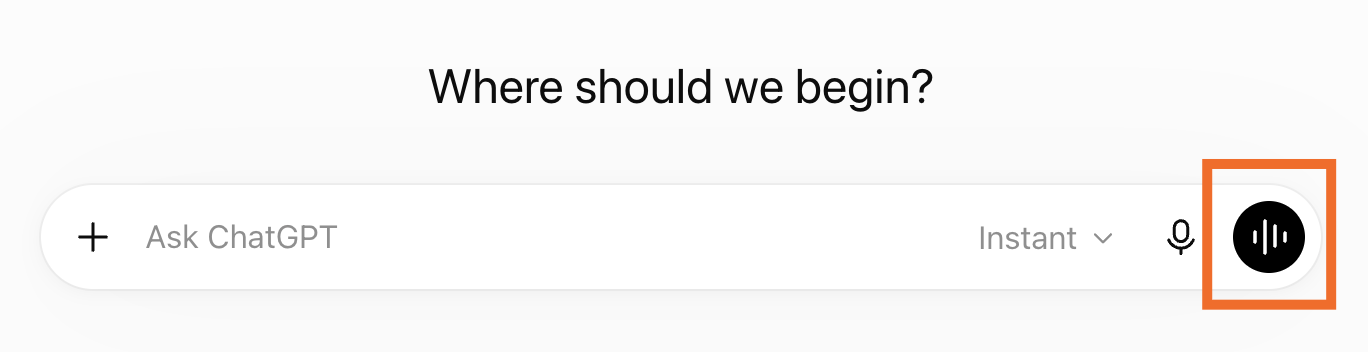
Once a Zen-inducing circle appears on your screen, that's your cue to kick off your conversation.
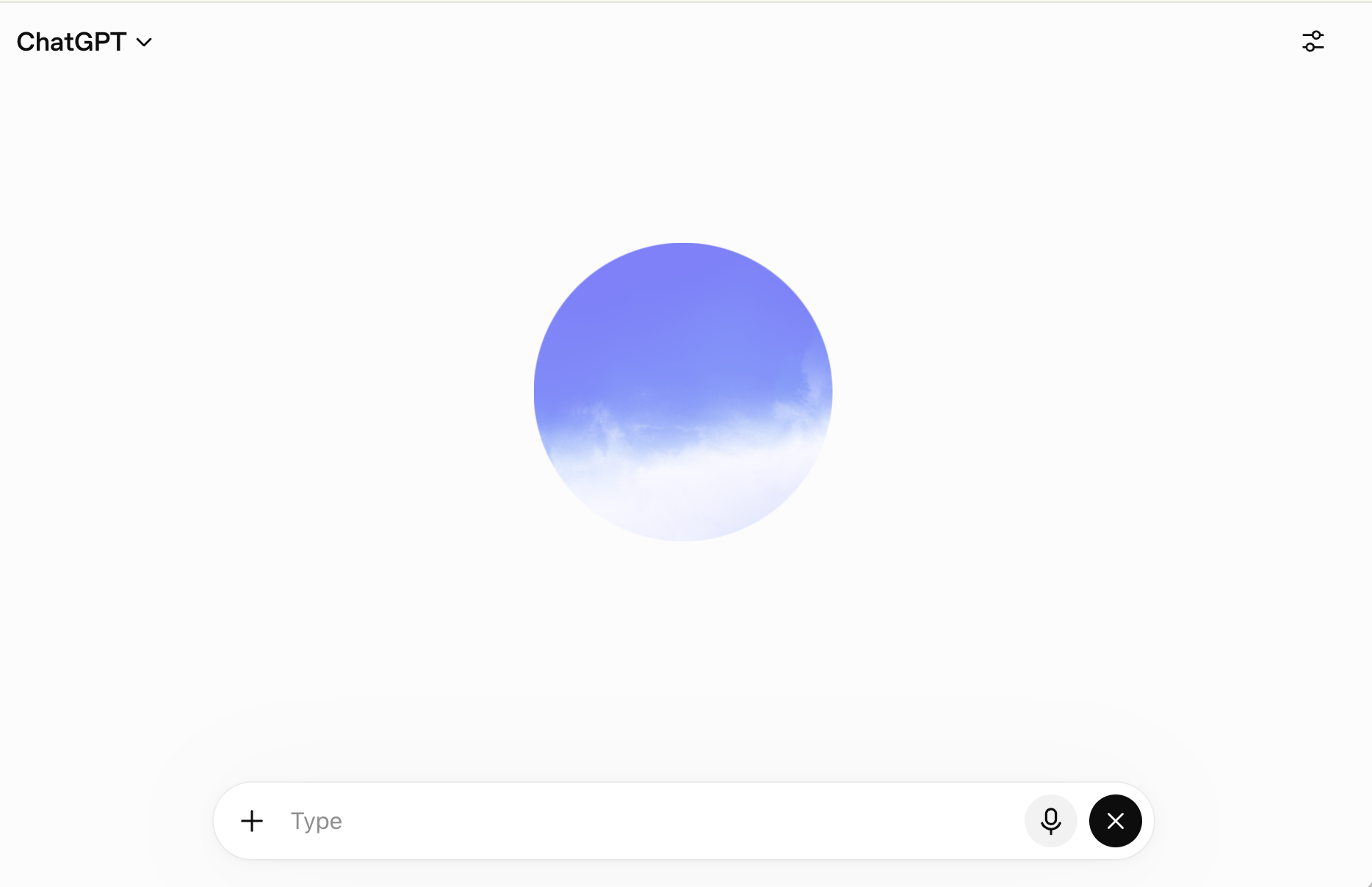
Once you've finished speaking, ChatGPT will respond out loud (no need to hit send). Need to pause ChatGPT? Interrupt it the way you naturally would in a conversation.
To end the conversation, click the Voice icon again (it'll appear as an X during a live voice chat).


When you're done chatting, a text version of your entire conversation will appear and is automatically saved in your chat history.
If you want to change the default voice or model, open your settings, click Voice in the side panel, and take your pick.

For the model, there are three options:
Live: The default and best option for most conversations because back-and-forths feel natural. It can also use web search, memory, and show visual results mid-conversation.
Advanced: This is a good option if you're using the mobile app and need video or screen sharing during your chat.
Standard: This gives a turn-by-turn experience that transcribes your speech before generating a response. (With Live and Advanced, the transcript appears only after your chat ends.) This works best if you're in a noisy environment or want more deliberate, text-style exchanges rather than a live conversation.
How to upload images to ChatGPT
You can also add an image to your chat and discuss it with ChatGPT.
How to upload images to ChatGPT from the web app
Click the plus icon in the message bar, and then select Add photos & files. You can also drag and drop the files from your computer into the message bar. Or you can add an image directly from Google Drive or OneDrive—you'll have to first connect your app, if it's not already.
Select the image(s) you want to add.
Enter your accompanying prompt.
Hit Enter.
How to upload images to ChatGPT from the desktop app
Click the plus icon (
+) in the message bar.Upload a photo from your computer, or drag and drop the files from your computer into the message bar.
Enter your accompanying prompt.
Hit Enter.
How to upload images to ChatGPT from the mobile app
Tap the plus icon (
+) in the message bar.Select how you want to add your image: You can upload an image from your phone or take a photo.
If there's a specific part of the image you want to discuss, tap Comment, tap the part you want to ask about, and then enter your prompt.
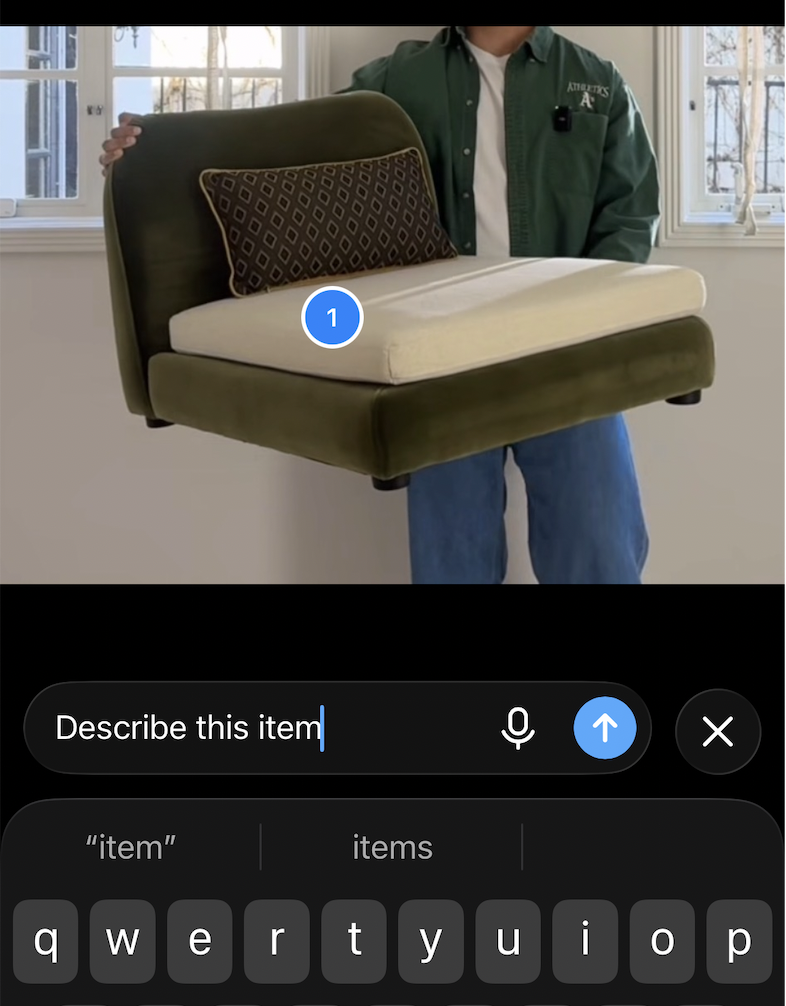
Tap Send.



How to use ChatGPT Work (previously ChatGPT Agent)
Rather than answering a question in a single response, ChatGPT Work (previously ChatGPT Agent) is an AI agent built to take on longer, more involved tasks—researching, working across your apps, and handing you a finished deliverable on the other end. I use it via the desktop app, but it works similarly across the web and mobile apps.
Note: Work is currently available only on paid plans (ChatGPT Plus or higher).
Click Work at the top of a new chat.
Describe the task or deliverable you want ChatGPT to complete.
Optionally, connect any apps you want Work to pull from or act on—like Google Drive or Gmail—via the plugins menu.
Follow ChatGPT's progress in the chat, answer any questions it asks, and redirect it at any point.
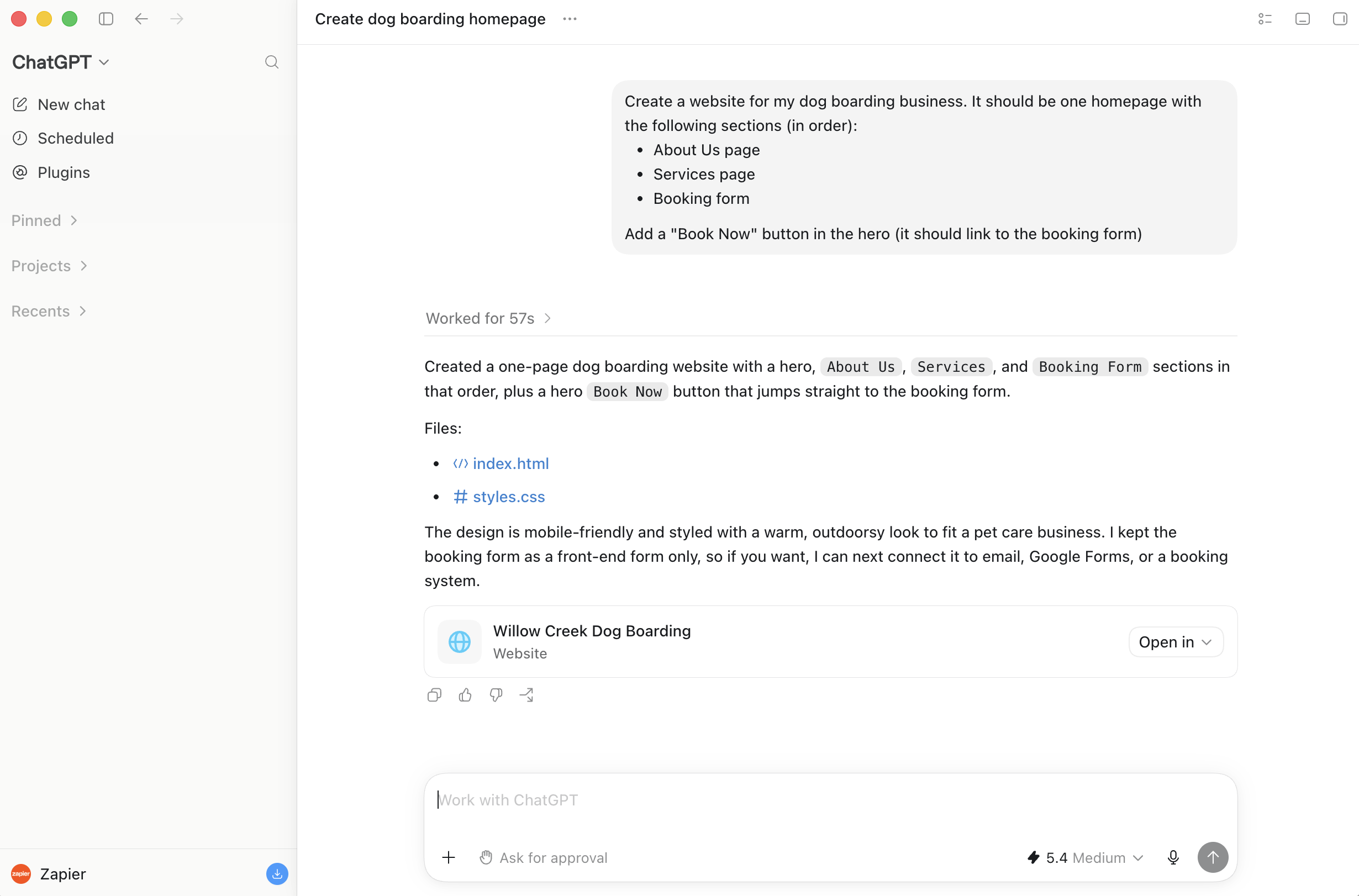
When it's done, review the result and ask for changes or follow-up work in the same chat.

Here's the (seriously impressive) website it created for me based on a simple prompt—complete with interactive buttons that actually work.

How to use ChatGPT's non-chat features
Not every feature in ChatGPT is directly related to actually chatting with the chatbot. Here's how to use ChatGPT's chat-adjacent features so you can get more out of your right-hand bot. Note: Some features may be available only on select plans.
How to use Projects in ChatGPT
Projects in ChatGPT offer a way to keep related chats, memories, custom instructions, and other reference material in neatly contained groups. This way, you can jump between projects and have ChatGPT simultaneously context switch with you.
In the ChatGPT side panel, click New project.
Enter a name for your project, pick an icon and color (to make it easier to spot in the sidebar), and click Create project.
From here, you have a few options within your project:
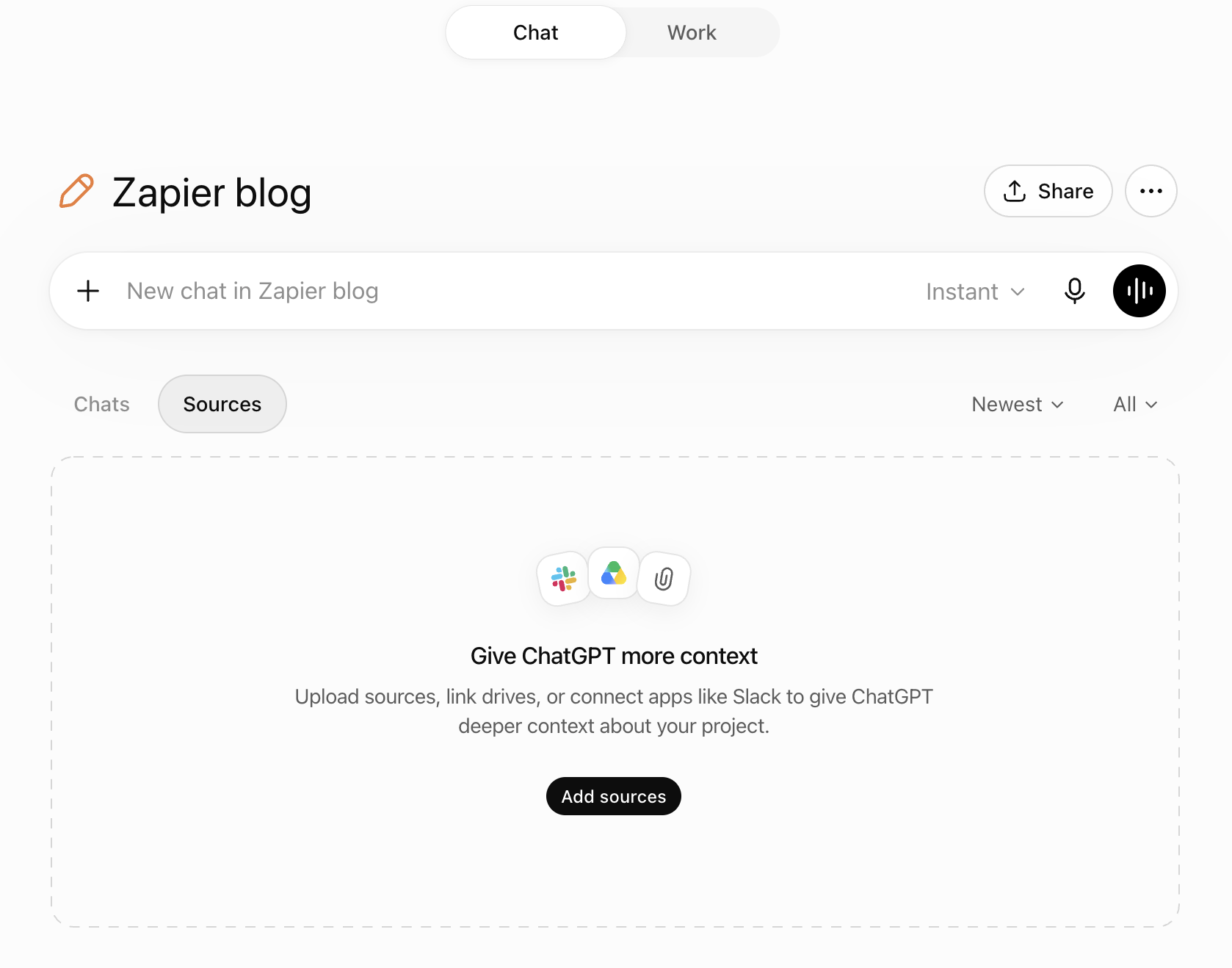
Start chatting. Enter your prompt in the message box and chat with ChatGPT as you normally would.
Add knowledge sources. Click Sources, and then select Add source to upload any files you want ChatGPT to reference for that project. You can also drag and drop files into the window.
Add custom instructions. Click the three-dot menu (
...) in the upper-right corner of your project, select Project settings, and enter instructions to guide how ChatGPT responds within that project.

To view any project's chat history, click the three-dot menu (...) next to the name of the project in the side panel, and then select Project home. Your chats will appear in the Chats tab of the open project.

How to share a project in ChatGPT
If you want to collaborate with others on a project, you can either share an individual chat with them or share the entire project.
Click the three-dot menu (
...) next to the name of the project in the side panel.Click Share project.
Invite people to collaborate via email or link. If you share by email, you can also set their access level to either edit or chat only.
Click Invite (if sharing by email) or Copy link, and share as you normally would.

How to use ChatGPT scheduled tasks
To get even more out of your AI assistant, use ChatGPT to complete scheduled tasks. Here's a quick overview of how to set up a task. (For more details, check out how to use ChatGPT scheduled tasks.)
Start a new chat or set up your task from an existing one.
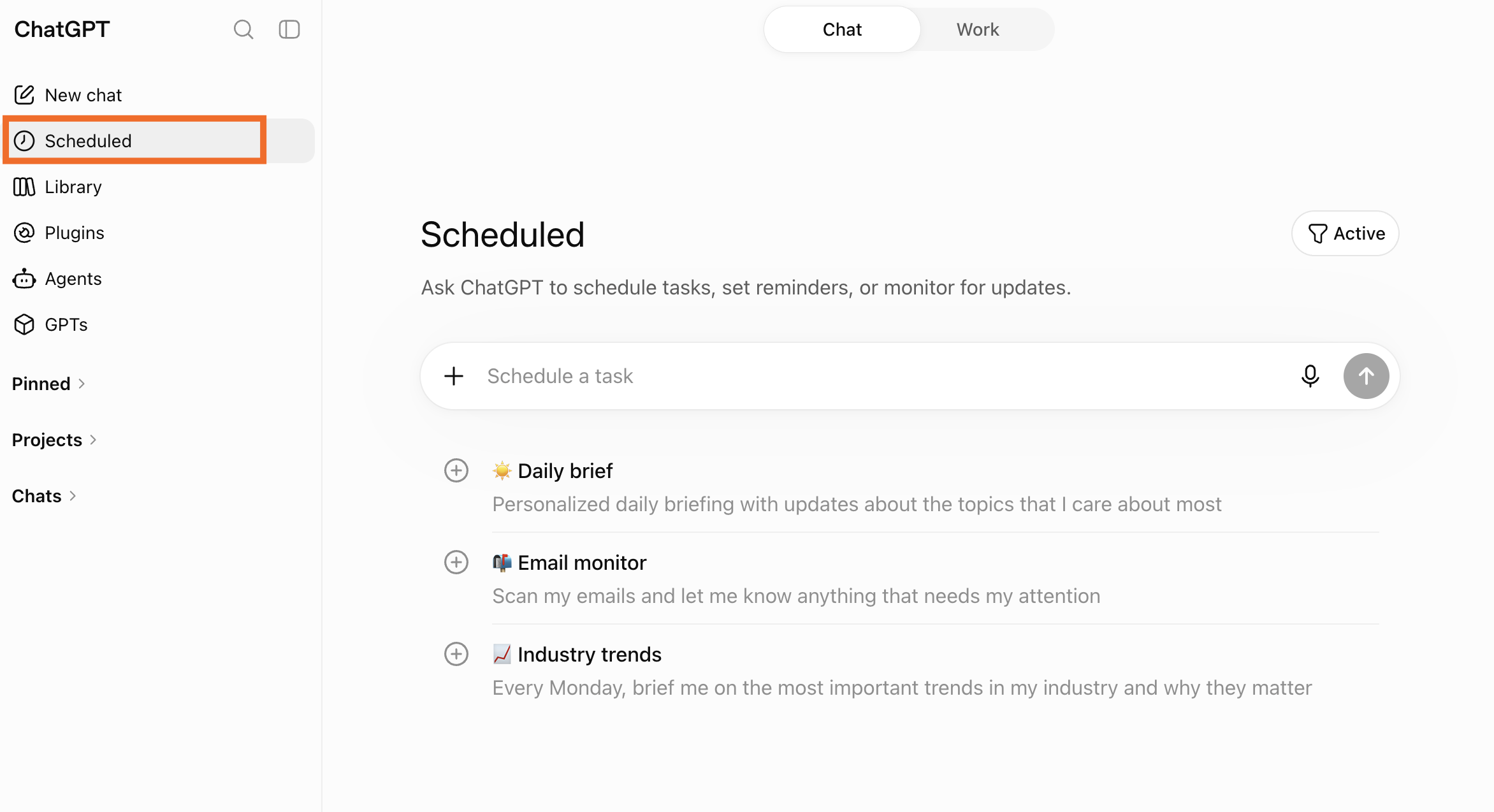
Describe the task you want ChatGPT to complete and when.
ChatGPT will confirm the scheduled task in your chat.
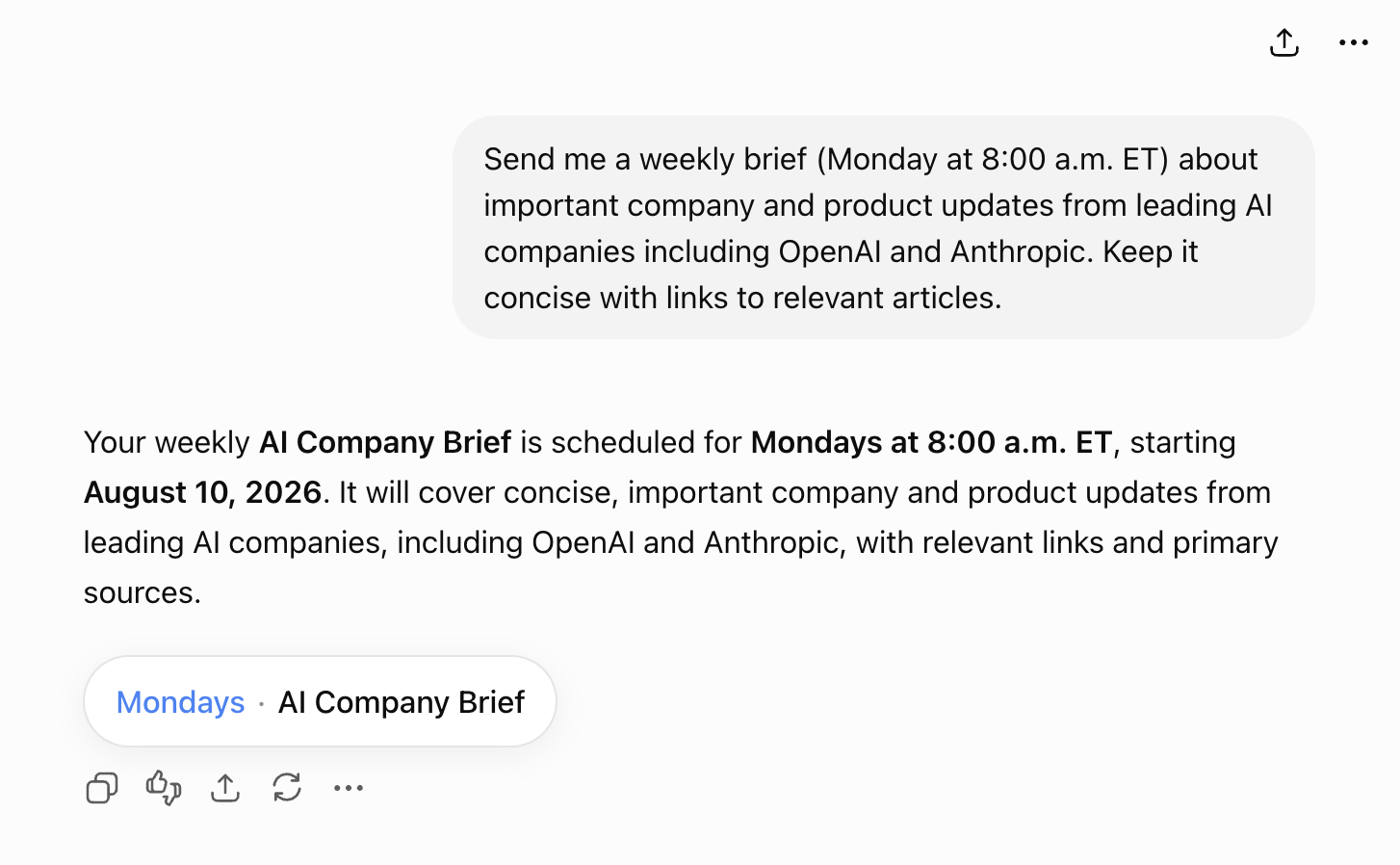
Click the scheduled task pill (beneath the confirmation message) to edit the task prompt and frequency. Or, click the Edit icon (it looks like a pencil) next to your task name on the Scheduled home page, and edit your task settings from there.
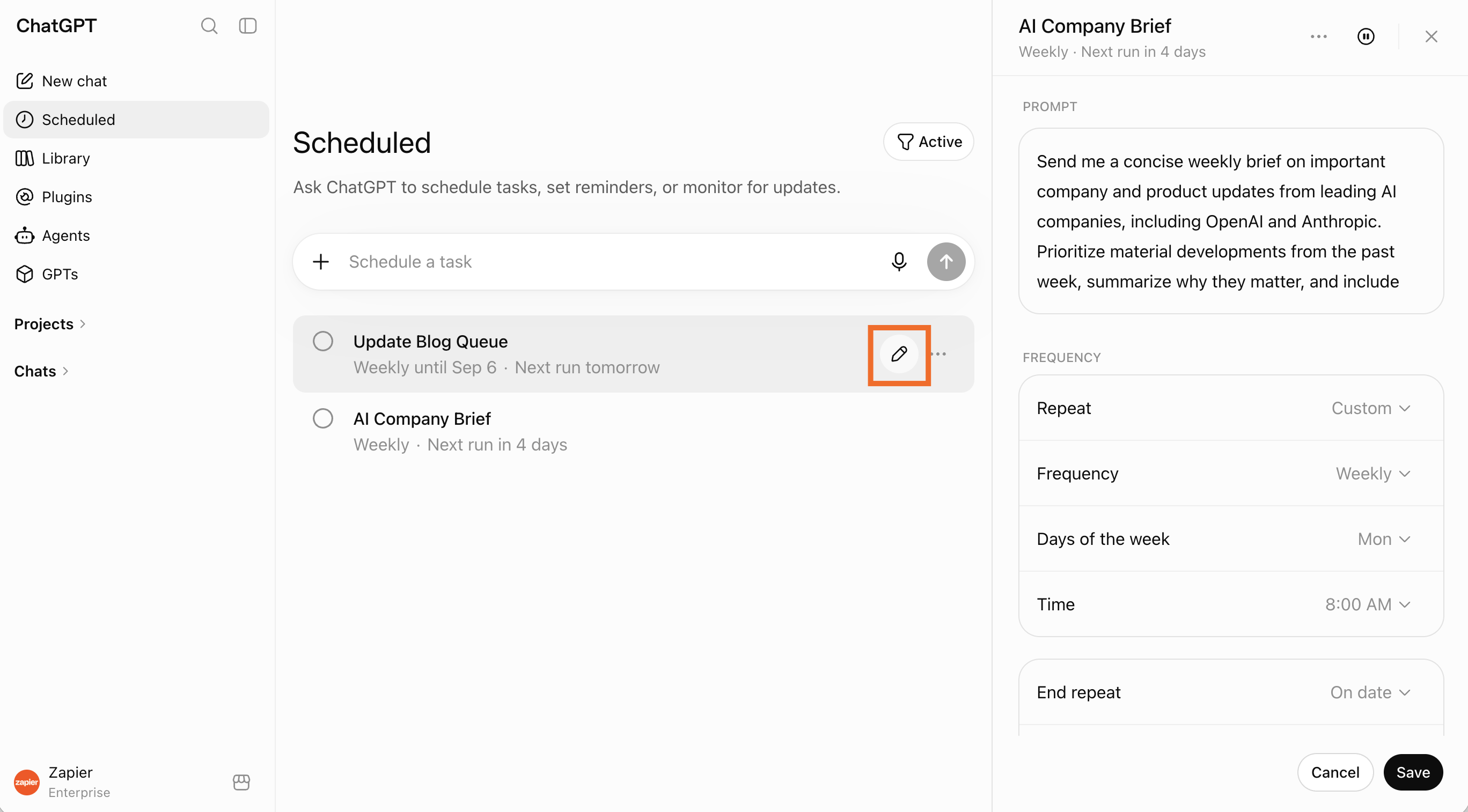
Click Save.


ChatGPT will run scheduled tasks regardless of whether you're online, and it'll notify you via push notification and email once the task is complete. To change how you're notified, open your ChatGPT settings, click Notifications, and select your preferred notification methods.
Can ChatGPT refuse to answer my prompts?
For its part, OpenAI has expressed its commitment to keeping AI "safe and broadly beneficial." To do this, they've introduced various safeguards, including the ability for ChatGPT to reject inappropriate, offensive, or illegal content.
Here's a sample of what ChatGPT told me when I asked, "What prompts won't you respond to?"
Requests to help commit serious harm, such as instructions for making bombs, planning terrorist attacks, or evading law enforcement after violent crimes.
Non-consensual sexual content, including requests to generate or facilitate it.
Instructions for cybercrime, such as creating malware, stealing passwords, or hacking into accounts without authorization.
Fraud and deception, like phishing emails, fake documents, or scams.
Dangerous advice that could realistically cause serious harm, such as telling someone how to poison a person or misuse hazardous chemicals.
Requests that violate privacy, such as helping identify anonymous private individuals from limited information, doxxing, or exposing sensitive personal data.
Copyright-infringing requests, such as reproducing books or articles beyond what's permitted.
Some medical, legal, or financial requests if they ask me to make decisions that should be left to a qualified professional or if I can't provide reliable guidance. I'll usually offer general information instead.
Defamatory or fabricated claims about real people presented as fact.
To be clear, this isn't a complete list of rejection-worthy prompts. But if you're ever wondering about ChatGPT's limits, like "Can ChatGPT remember my passwords?" (it can't), just ask it yourself. But take it with a grain of salt.
How to manage your data in ChatGPT
There are a number of ways to manage your data in ChatGPT. The steps vary depending on what you want to do and the device you're using. If there's a specific thing you want to do, feel free to jump ahead.
How to delete your ChatGPT conversations from the mobile app
How to archive your ChatGPT conversations from the mobile app
How to manage ChatGPT's memory
ChatGPT's memory functionality works similarly to custom instructions, with one key difference: you don't have to manually tell ChatGPT what you want it to know or how to respond. Instead, ChatGPT automatically picks up on details and preferences to tailor its responses.
Here's how to manage ChatGPT's memory.
Click on your profile, and then click Personalization.
Scroll down to Memory summary and click Manage.
From here, you have a few options:
Edit a specific memory. Highlight any text in the summary to correct a specific memory and describe how you want to modify it. You can also enter a prompt (without highlighting text) to make broader changes.
Delete all memories. Click the three-dot menu (
...) and select Delete and turn memory off to get ChatGPT to forget everything it's learned about you.Turn memory off without deleting. If you want ChatGPT to only temporarily forget what it knows about you when generating its responses, go back to your personalization settings, and click the toggle next to Enable memory.
Note: Turning memory off and deleting past conversations in your chat history doesn't clear your memories. The only way to clear your memories is by deleting them or telling ChatGPT conversationally to forget memories. Even so, OpenAI may retain a log of forgotten memories for up to 30 days for safety and debugging purposes.
You can also see which memories informed a specific response during a chat. To do this, click the three-dot menu (...) beneath a response, and select View sources.

Since ChatGPT doesn't always rely on its memories to inform its responses—sometimes it just uses its training data—you may not see any sources listed.
How to use temporary chats
If you'd like to have the occasional conversation without ChatGPT or GPTs using or creating memories, use a temporary chat instead. It's worth noting that if you have custom instructions on, ChatGPT will still follow those directives.
Start a new chat.
Click the Temporary chat icon (it looks like a speech bubble) in the top-right corner.
The message bar will turn black to make it obvious that the feature is enabled.
To return to your normal chat, click the Temporary chat icon again.

While temporary conversations don't appear in your chat history, OpenAI may keep a copy for up to 30 days for safety purposes. It may also use information from previous conversations to inform its responses—usually when discussing sensitive topics.
How to turn off model training
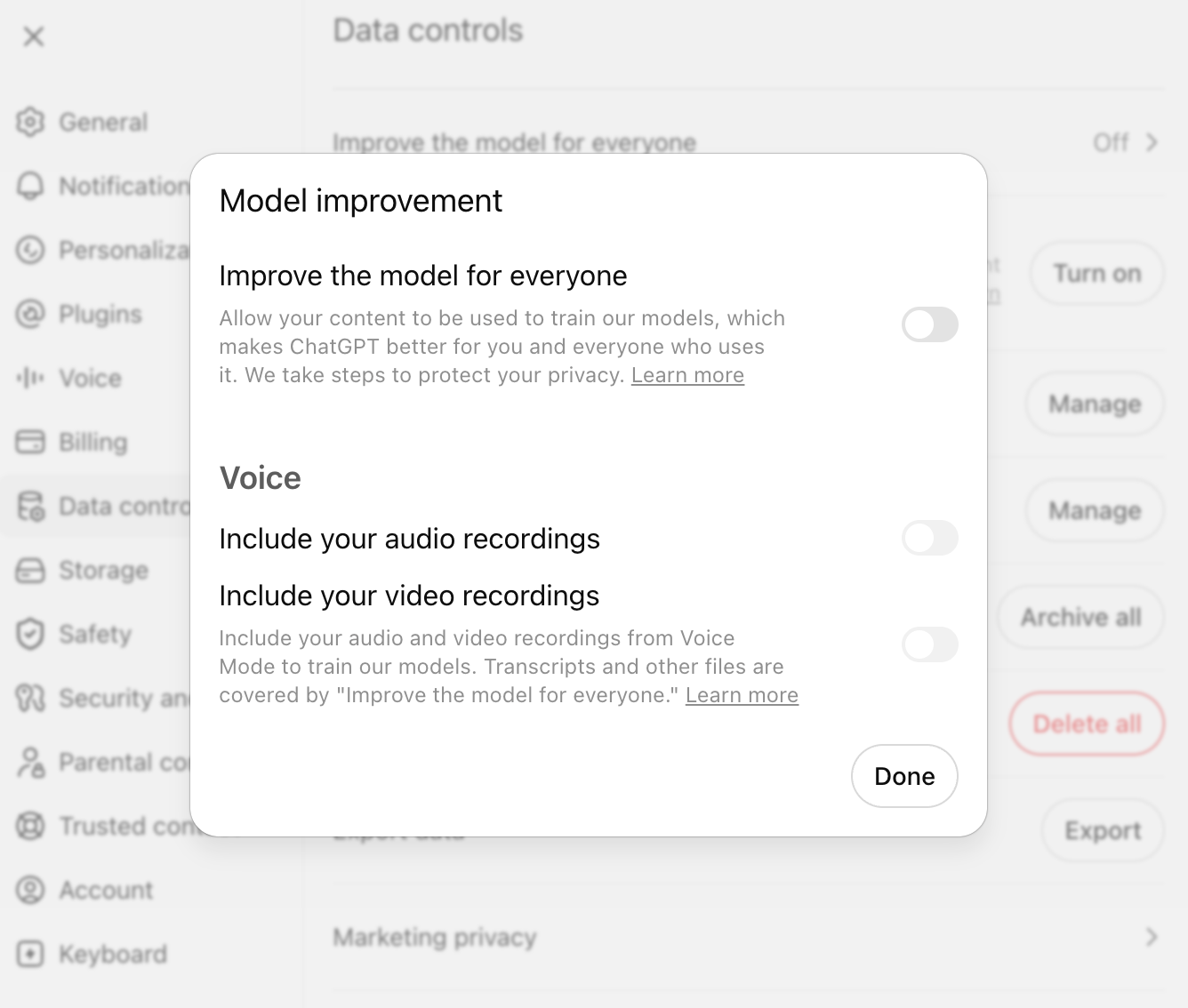
By default, your conversations and memories can be used as training data to improve OpenAI's models. If you want to turn this setting off, here's how to do it in the web and mobile app.
Click on your profile, and then click Settings.
Click Data controls.
Click Improve the model for everyone.
Click the toggle next to Improve the model for everyone. You can also choose if you want to include your audio and video recordings.
Click Done.

How to delete your ChatGPT conversations from a desktop
Here's how to delete all your past conversations in one fell swoop using the web app.
Click on your profile, and then click Settings.
Click Data controls.
Click Delete all next to Delete all chats.
Click Confirm deletion. (There's no undo button.)
Want to delete specific conversations instead?
In the ChatGPT side panel, hover over the name of the conversation you want to delete.
Click the three-dot menu (
...).Click Delete.
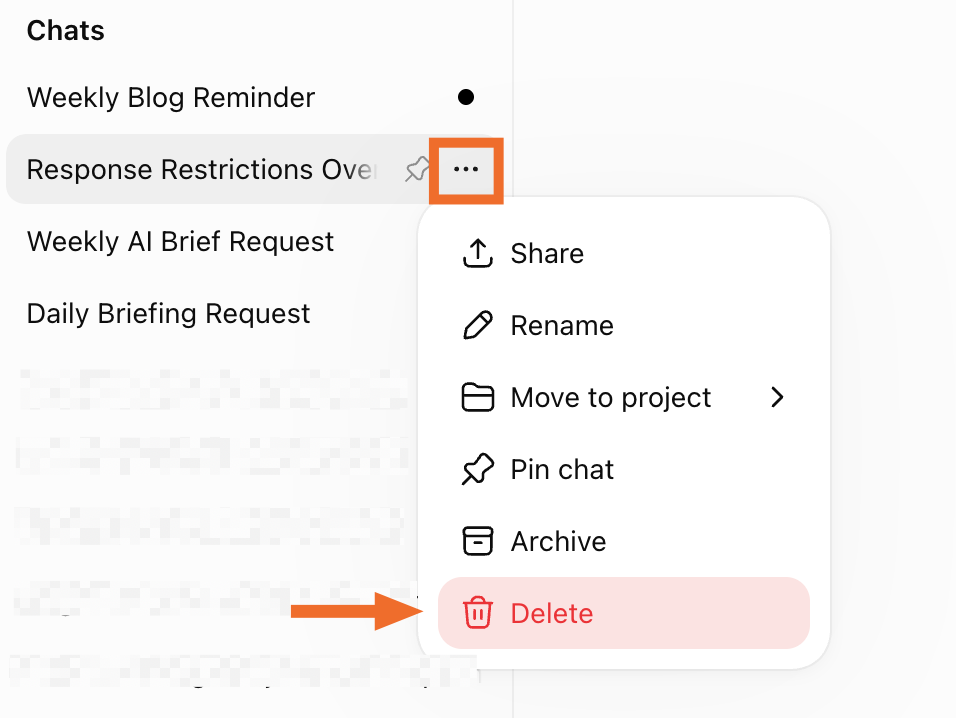
In the popup that appears, click Delete to confirm.

How to archive your ChatGPT conversations from a desktop
Let's say you want your side panel to display only specific conversations—but you don't necessarily want to delete your other ones. You can archive less relevant chats in a separate place that you can revive later on.
In the side panel, hover over the name of the conversation you want to archive.
Click the three-dot menu (
...).Click Archive.
You can also archive all your conversations at once.
Click on your profile, and then click Settings.
Click Data controls.
Next to Archive all chats, click Archive all.
Click Confirm archive to confirm.
To view or restore an archived chat, go back to your Settings.
Next to Archived chats, click Manage.
From here, you have three options:
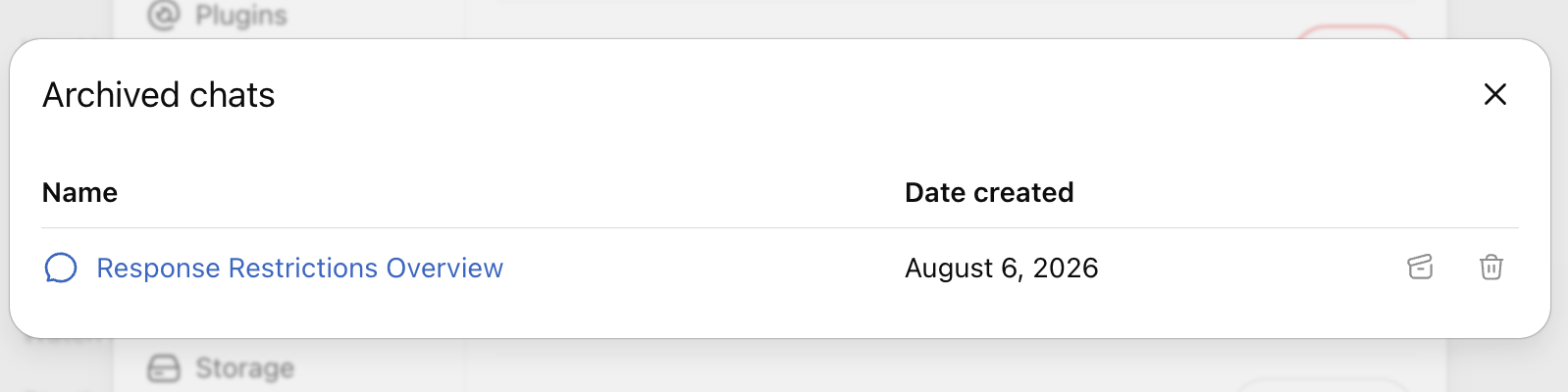
View. Click the name of the conversation to view it. You'll have the option to unarchive it directly from the conversation, if you want.
Unarchive. Click the Unarchive conversation icon, which looks like an upward-facing arrow.
Delete. Click the Delete icon, which looks like a garbage can.

How to delete your ChatGPT conversations from the mobile app
Here's how to delete all your past conversations at once using the mobile app.
Open the side panel and tap the cog icon.
Tap Data Controls.
Tap Delete all chats (iOS) or Clear chat history (Android).
Tap Confirm.
Here's how to delete specific conversations from the mobile app.
In the ChatGPT side panel, tap and hold the name of the conversation you want to delete.
Tap Delete.
Tap Delete again to confirm.
How to archive your ChatGPT conversations from the mobile app
Here's how to archive individual conversations in ChatGPT.
In the side panel, tap and hold the name of the conversation you want to archive.
Tap Archive.
Tap Archive again to confirm.
And here's how to archive all your conversations at once.
Open the side panel and tap the cog icon.
Tap Data Controls.
Tap Archive all chats (iOS) or Archive chat history (Android).
Here's how to view or restore an archived chat.
Open the side panel and tap the cog icon.
Tap Archived Chats.
Tap the conversation you want to view or restore, and tap View or Unarchive. Alternatively, tap Delete to permanently remove it.
Build agentic workflows with ChatGPT and Zapier
ChatGPT is a powerful starting point for AI-assisted work—and more teams are building with it every day. But the more AI connects to your business tools, the more important it becomes to control what it can access and to keep that access secure.
Zapier is built for exactly that. Every connection runs through Zapier's governed infrastructure: your credentials never touch the model, and you decide exactly which apps and actions AI can reach. Install Zapier MCP into ChatGPT and you can ask ChatGPT to take action across 9,000+ apps—for example, it can pull data from your CRM or update a spreadsheet—all without leaving the chat window. Learn more about how to automate ChatGPT with Zapier.
Build automations from wherever you work. Describe the outcome you want, and Zapier connects your tools, runs the steps, and stays on the job after you close the chat. Combine AI with reliable, deterministic automation across 9,000+ apps. Get started for free.
How to use ChatGPT: FAQ
In case several thousand words about ChatGPT wasn't enough for you, here are answers to some other questions I see a lot.
What models does ChatGPT use?
The model picker in ChatGPT has been simplified—instead of named model versions, you now choose by capability level: Instant, Medium, High, and Extra High (Pro plans only). If you're curious about the underlying models powering each tier, check out our breakdown of OpenAI models. OpenAI updates them frequently enough that any specific version I name here will probably be out of date by the time you read this.
Is ChatGPT free?
You can create an OpenAI account for free to use ChatGPT. But there are limitations. For example, you're limited on the number of images you can create every day you may not have access to the more powerful reasoning tiers.
What's the difference between a free and paid ChatGPT subscription?
There are three paid tiers for individual users: Go ($8/month), Plus ($20/month), and Pro ($100/month). For a comparison of each, check out these articles:
There are also two paid tiers for teams: Businesses ($20/user/month) and Enterprises (custom).
What happened to canvas in ChatGPT?
ChatGPT Canvas—the split-screen editor that let you work on a document or code alongside your chat—was removed from ChatGPT in 2026.
If you're looking for a similar experience, ChatGPT Work is the closest alternative: it handles longer, document-style tasks and produces finished deliverables you can review and iterate on.
Can I search my ChatGPT history?
Yes—you can search across chats, projects, images, and documents from one place.
Click the Search icon at the top of the side panel. Or use your keyboard shortcut:
command+K(Mac) orCtrl+K(Windows).In the popup that appears, enter your search term in the search bar.
ChatGPT will list any conversations or files that contain your search term.
Click any of the results and ChatGPT will jump to that conversation or display your files.
Can ChatGPT create images?
It can. ChatGPT's image generation capabilities are baked in—all you have to do is enter an AI art prompt, and it'll take care of the rest.
Does ChatGPT have access to the internet?
Yes—no matter which model you're running, ChatGPT can search the internet for current information.
How accurate is ChatGPT?
ChatGPT's been known to produce completely made-up answers. When this happens, it's called a "hallucination." It's a lot less common now that the models are more advanced, but it can definitely still happen.
ChatGPT will often cite the sources it used to inform its response—this way, you can easily fact-check what it said. If it doesn't automatically provide sources, you can also prompt ChatGPT to tell you where it got its information from.
Does ChatGPT remember previous conversations?
ChatGPT can "remember" details from the current conversation you're having with it—this is what gives the impression that you're having a real conversation.
By default, ChatGPT also automatically picks up on details and preferences from previous conversations to tailor its responses. But you can turn off this setting. Learn how to manage your data in ChatGPT.
Related reading:
This article was originally published in August 2023. The most recent update was in August 2026.