My laptop and phone are filled with apps dedicated to getting me to do specific things: there's a news app that compiles a customized daily reading list; there's a language learning app that prompts me to do daily French lessons; there's even one that's sole purpose is to remind me when to switch my aligners.
But all of those apps are reminding me to do something—I want an app that just does the things itself. Of course, ChatGPT—which is required by AI law to add at least one new feature every hour—has become that app.
I'll be honest: the functionality isn't fully up to snuff yet. Even so, if you have simple tasks you want to delegate to an AI assistant on a schedule, tasks in ChatGPT is worth checking out. Here's everything you need to know about how to use ChatGPT scheduled tasks.
Table of contents:
What are ChatGPT Scheduled Tasks?
Scheduled Tasks is a feature in ChatGPT that allows you to schedule actions for ChatGPT to perform in the future or at regular intervals. Here are a few examples of actions you can ask ChatGPT to create scheduled tasks for:
Send monthly reminders to submit invoices
Provide weekly summaries about industry-specific news
Check for cheap flights to a specific location
More impressively, when you pair Scheduled Tasks with ChatGPT connectors, ChatGPT can take actions in other apps. In practice, that means Scheduled Tasks can:
Update invoice templates and draft (or send) them to your clients via Gmail
Review Slack updates and create a daily digest of updates personalized to what matters most to you
Analyze weekly themes in customer feedback and turn them into prioritize product ideas
Note: Event-based tasks are set up differently than standard Scheduled Tasks in ChatGPT (more on that in a bit).
How to use ChatGPT Scheduled Tasks
Using Scheduled Tasks is just as straightforward as any other interaction with ChatGPT. Here's how to create a new task and manage it.
Go to chat.com.
In the side panel, click Scheduled.
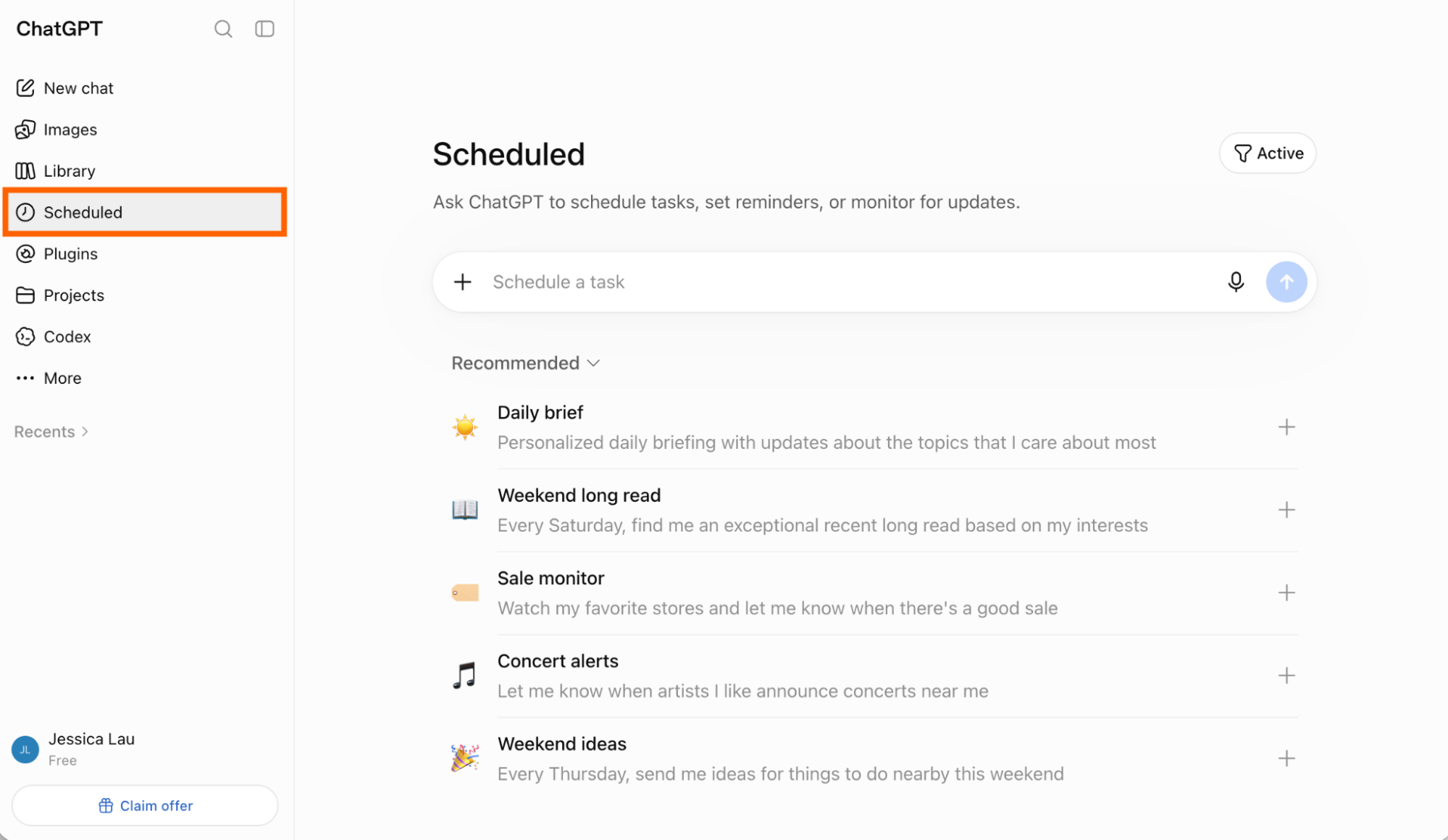
In the prompt box, describe the task you want ChatGPT to complete and when, and press Enter. (If it's your first time scheduling a task, you can also use one of ChatGPT's recommended tasks.)
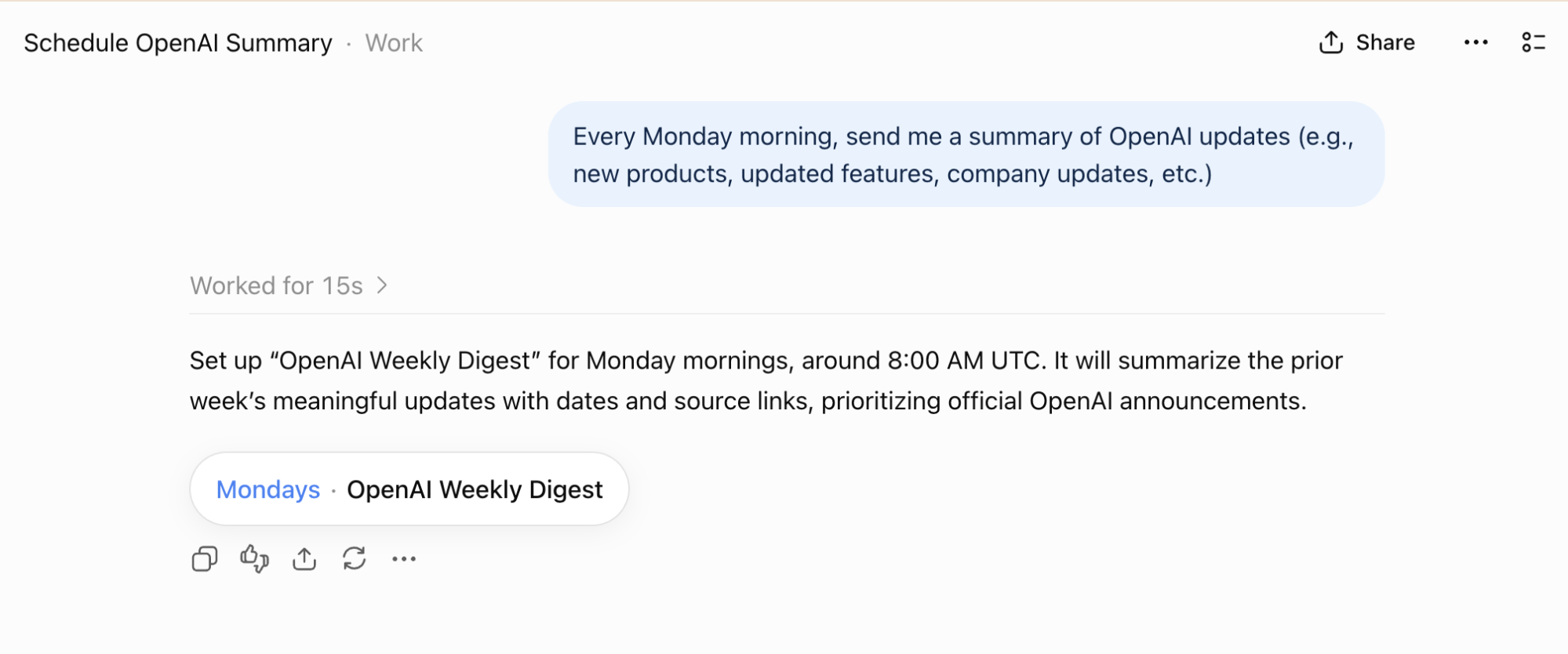
ChatGPT will display a confirmation of the scheduled task in your chat.
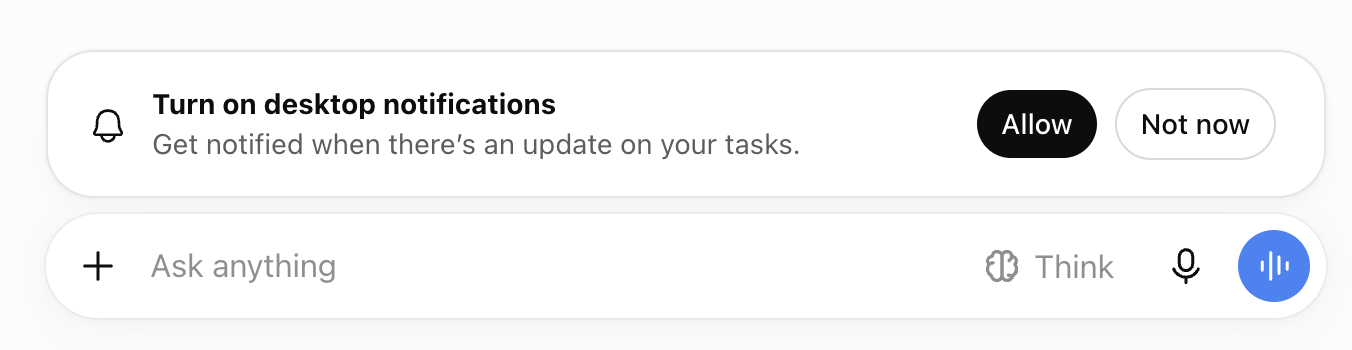
A popup may appear asking you to turn on desktop notifications. If you want to enable them, click Allow. (You may also need to adjust your browser settings to allow notifications.)


That's it. ChatGPT will run scheduled tasks regardless of whether you're online, and it'll notify you via push notification and email once the task is complete.
Note: You can schedule between three and 15 active tasks, depending on your ChatGPT subscription.
How to use event-triggered tasks in ChatGPT
While Scheduled Tasks run on a clock, event-triggered tasks run only when something happens. It's less of a "Remind me every Monday" and more of a "When X happens, do Y." If you're on a ChatGPT Plus plan or higher, here's how to use them.
(Note: If you're on an Enterprise, Education, or Healthcare plan, your workspace admin may limit your ability to create event-triggered tasks.)
Before you can get started, be sure to connect ChatGPT with your other apps. (Here's a step-by-step guide on how to do that.)
Open ChatGPT Work and describe the event-triggered task you want ChatGPT to complete.
Review the Trigger, Condition, and Prompt fields, and edit as needed.
From there, you can edit, pause, and delete event-triggered tasks the same way you do Scheduled Tasks.
Event-triggered tasks in ChatGPT is a fairly new feature, so it's still a little glitchy (I recommend trialing a few tasks and monitoring closely). There are also some limitations to be aware of. In particular:
Tasks can run up to 30 times per hour, so they're only suitable for moderate-volume tasks. For example, if you're a publishing platform and field only a handful of collaboration requests daily, you're in the clear. But if your inbox is filled with hundreds of pitches a day, ChatGPT tasks aren't for you.
Tasks currently support only Gmail, Slack, or GitHub activity. That covers some common use cases, but if your go-to apps aren't on that list, you're out of luck.
If those limitations are dealbreakers, Zapier is built for exactly this kind of workflow—and it connects to 9,000+ apps, so it works across your entire tech stack. For example, whenever a new Airtable entry is logged, Zapier can analyze it for urgency, create a ticket in Asana, and notify the correct team in Slack—all without manual intervention (unless you say so).
AI by Zapier lets you add AI steps wherever you need them, but the rest of the workflow runs deterministically, so you're not burning tokens on every task like you would on ChatGPT. More importantly, every connection runs through a single governed layer, so you can see what your workflows are doing, set permissions for each one, and revoke access from one place.
Build automations from wherever you work. Describe the outcome you want, and Zapier connects your tools, runs the steps, and stays on the job after you close the chat. Combine AI with reliable, deterministic automation across 9,000+ apps. Get started for free.
How to manage ChatGPT Scheduled Tasks
Need to edit, pause, or delete your tasks? Here's how to manage scheduled tasks in ChatGPT.
How to edit ChatGPT Scheduled Tasks
There are a few ways to edit or pause a scheduled task in ChatGPT.
How to edit ChatGPT Scheduled Tasks from the Scheduled page
Click Scheduled in the side panel.
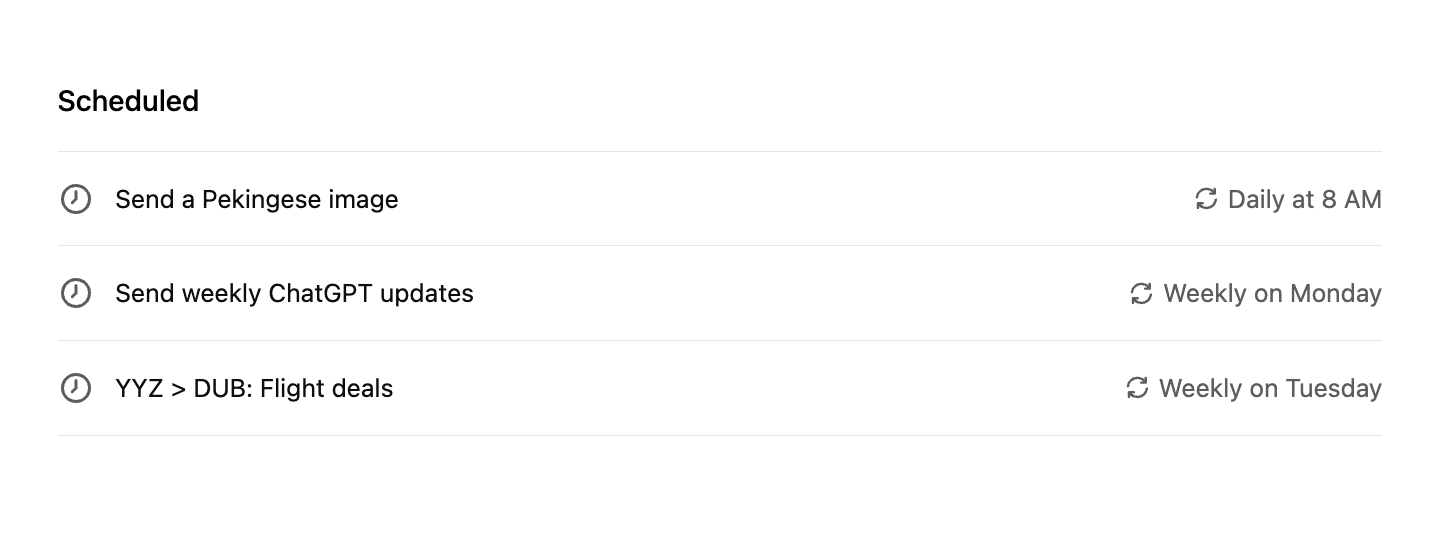
Hover over the scheduled task you want to edit. From here, you have a couple options:
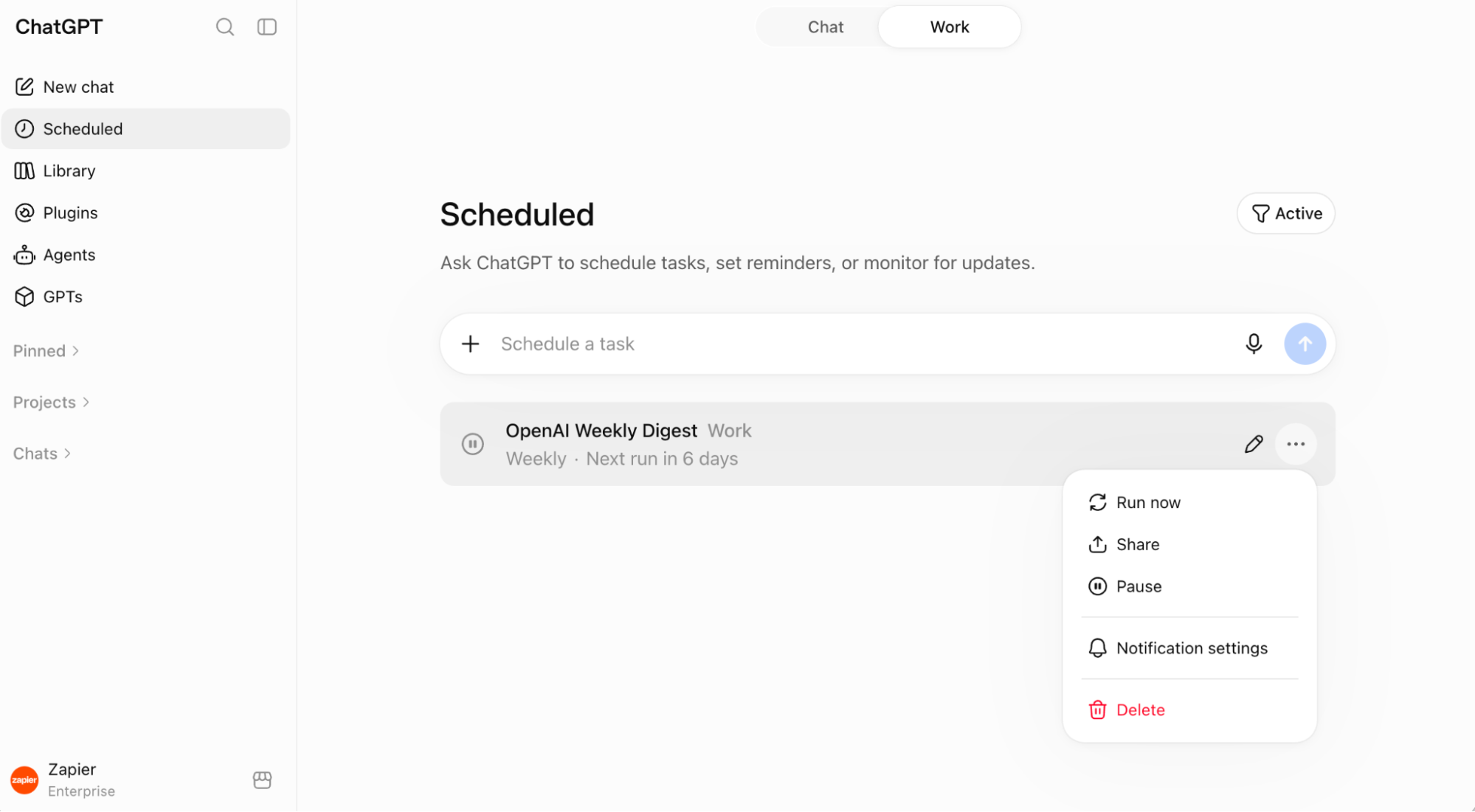
Edit your task. Click the pencil icon to edit your task, including the task name, instructions, and schedule. After you've made your edits, click Save.
Pause or delete your task. Click the ellipsis (
...), and then select Pause or Delete. You can also pause or delete your task from the task editing window.


How to edit ChatGPT Scheduled Tasks directly from a chat
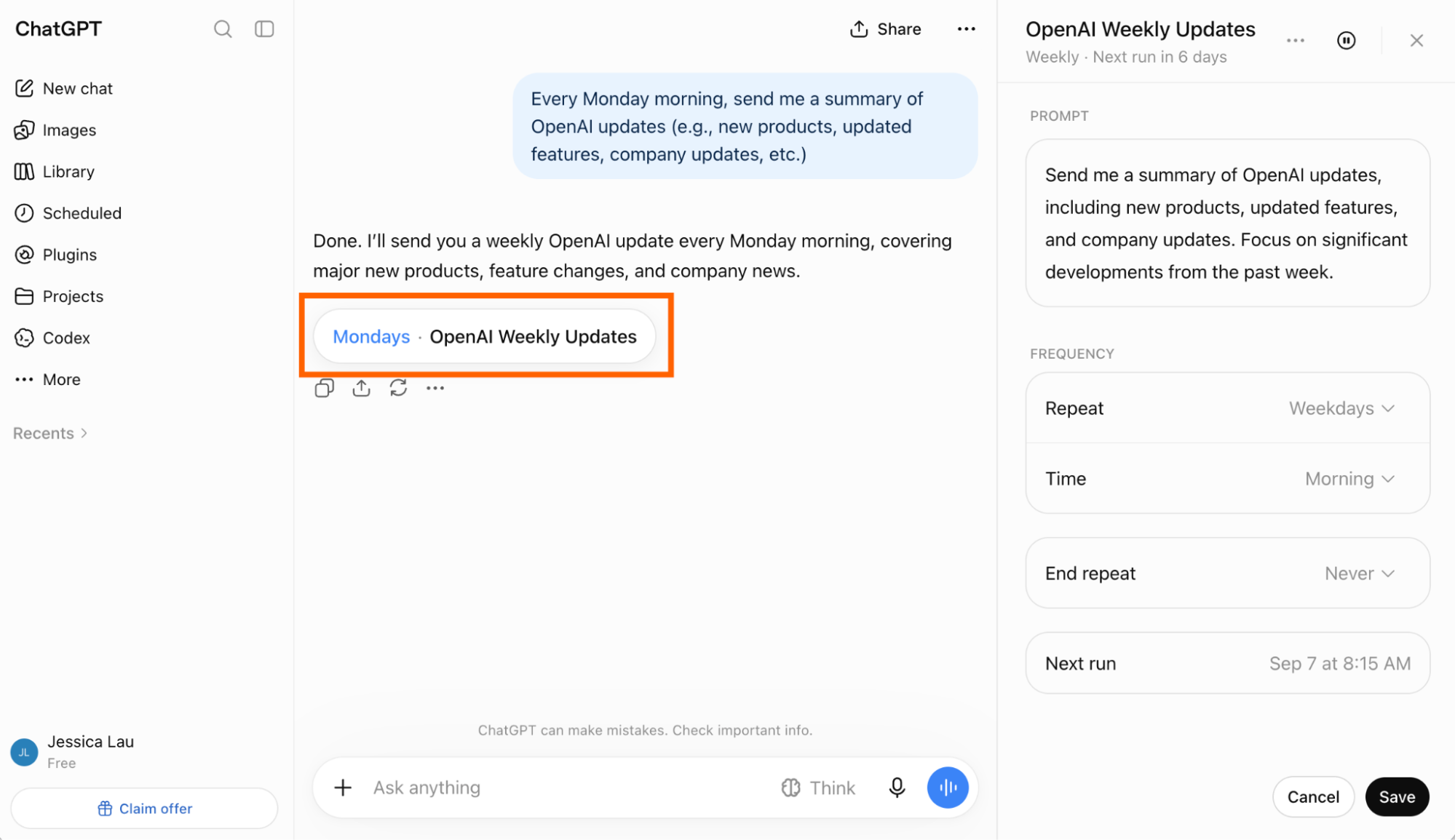
If you've just scheduled a task in ChatGPT, you can edit it directly from the chat.
Click the scheduled task pill (beneath the confirmation message).
In the right side panel, edit the task prompt and frequency as desired.
Click Save.

How to manage notifications for ChatGPT scheduled tasks
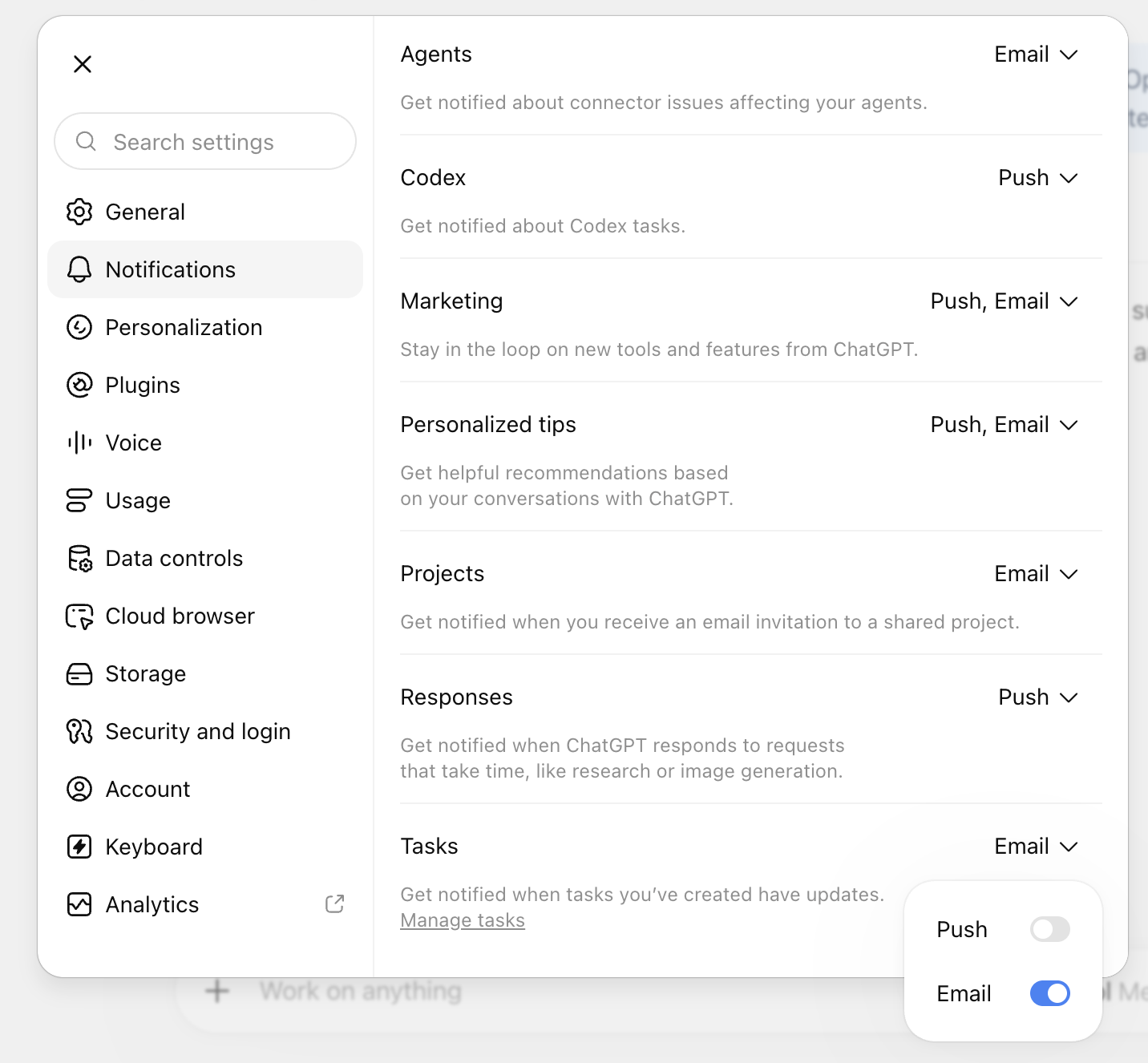
By default, ChatGPT notifies you via push notification and email once a task is complete. But you can change this.
Click your profile icon, and then click Settings.
Click Notifications.
Click the dropdown next to Tasks and select your preferred notification method. To turn notifications off altogether, deselect all methods.

Here's what it looks like when ChatGPT notifies you about a completed task via email.

ChatGPT can also send you mobile notifications, but you can't choose that as a notification method from the web or desktop app. You have to first create the task in the mobile app and enable mobile notifications.
Related reading:
This article was originally published in February 2025. The most recent update was in September 2026.