
ChatGPT was born, and named, to chat. It's scarily good at it, but if you're using it for real work, you want to actually do something from the chat window: update a record based on ChatGPT's research, send a message with the genius idea it beat you to the punch on, or just log the output somewhere so you don't lose it.
There are a lot of ways to connect ChatGPT to other apps. But the terminology is a mess, the options overlap, and it's not always obvious which approach is the right one for what you're trying to do. After many hours of research, clicking, and getting unnecessarily frustrated at naming conventions, I'm here to share everything you need to know.
Table of contents:
What are ChatGPT connectors?
A ChatGPT connector is a native integration that gives ChatGPT access to an external service—things like Google Workspace, GitHub, Dropbox, or other tools you already use. Connectors handle the authentication and expose operations ChatGPT can use to search your files, retrieve content, and take actions inside those apps.
If you're here because the interface, help docs, and various outdated blog posts sent you down a rabbit hole of figuring out which feature you were supposed to be using (just me?): OpenAI originally called these "connectors," then renamed them "apps" in late 2025, and more recently folded them into a "plugin" directly. So they're technically called "plugins" now, but you'll still hear "connectors" a lot (including at certain dinner parties if that's your vibe), so I'll use the terms interchangeably throughout this article.
ChatGPT connectors vs. ChatGPT plugins vs. MCP servers vs. add-ons
To help clarify all that a little more:
ChatGPT connectors is a broad term that now refers to basically anything that connects ChatGPT to another service.
ChatGPT plugins is the official name for the installable bundles that you can access from ChatGPT to connect to other services. They can include one or more AI skills, MCP servers, or apps. A plugin is the package everything comes in.
MCP servers are the protocol layer underneath. MCP (Model Context Protocol) is an open standard that lets AI tools communicate with external services. Official connectors usually run on MCP, but you can also connect ChatGPT to third-party or self-hosted MCP servers that aren't part of OpenAI's native catalog (I'll show you how in a bit). If you've heard "ChatGPT MCP" in your travels, this is what that refers to.
Add-ons are a different thing entirely. ChatGPT for Google Sheets, for example, is a Google Workspace Marketplace add-on that puts a ChatGPT sidebar inside Google Sheets.
You don't need to have all of this memorized before you start. The more useful question is: what's the best way to get ChatGPT connected to the apps you actually use?
What can you do with ChatGPT connectors?
What you can do with a ChatGPT connector is completely dependent on the capabilities the plugin supports. But generally you're looking at two main categories:
Read (search): When ChatGPT has access to your other apps, it can read what's inside those apps. That means you don't need to copy/paste customer data (please don't) or upload a bunch of documents every time you want a context-based answer to a question. ChatGPT is pretty good at figuring out what it should be reading based on your prompt, so you don't even need to be overly prescriptive.
Write (take action): ChatGPT connectors can actually take action in your other apps. They can, for example, create records in your CRM, draft (and even send) messages, create tickets or tasks, and whatever else is allowed by the specific connector.
Combined with the research power of ChatGPT on its own, that means you can do pretty complex things. For example, a sales rep working in ChatGPT could ask it to look at call transcripts from their top five leads and pull out the most common objections. Then it could summarize them, create a document, and send the doc to the entire team. All without leaving the chat window.
How to use ChatGPT plugins
Here's how to access ChatGPT plugins and add them to your workflows.
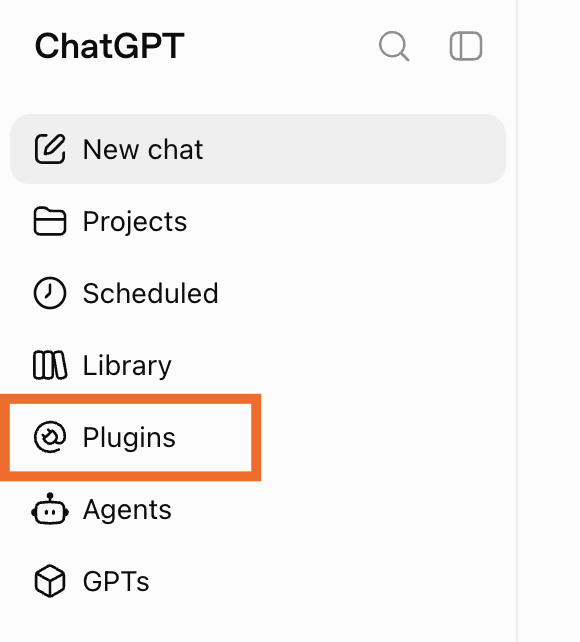
Click Plugins in the sidebar.
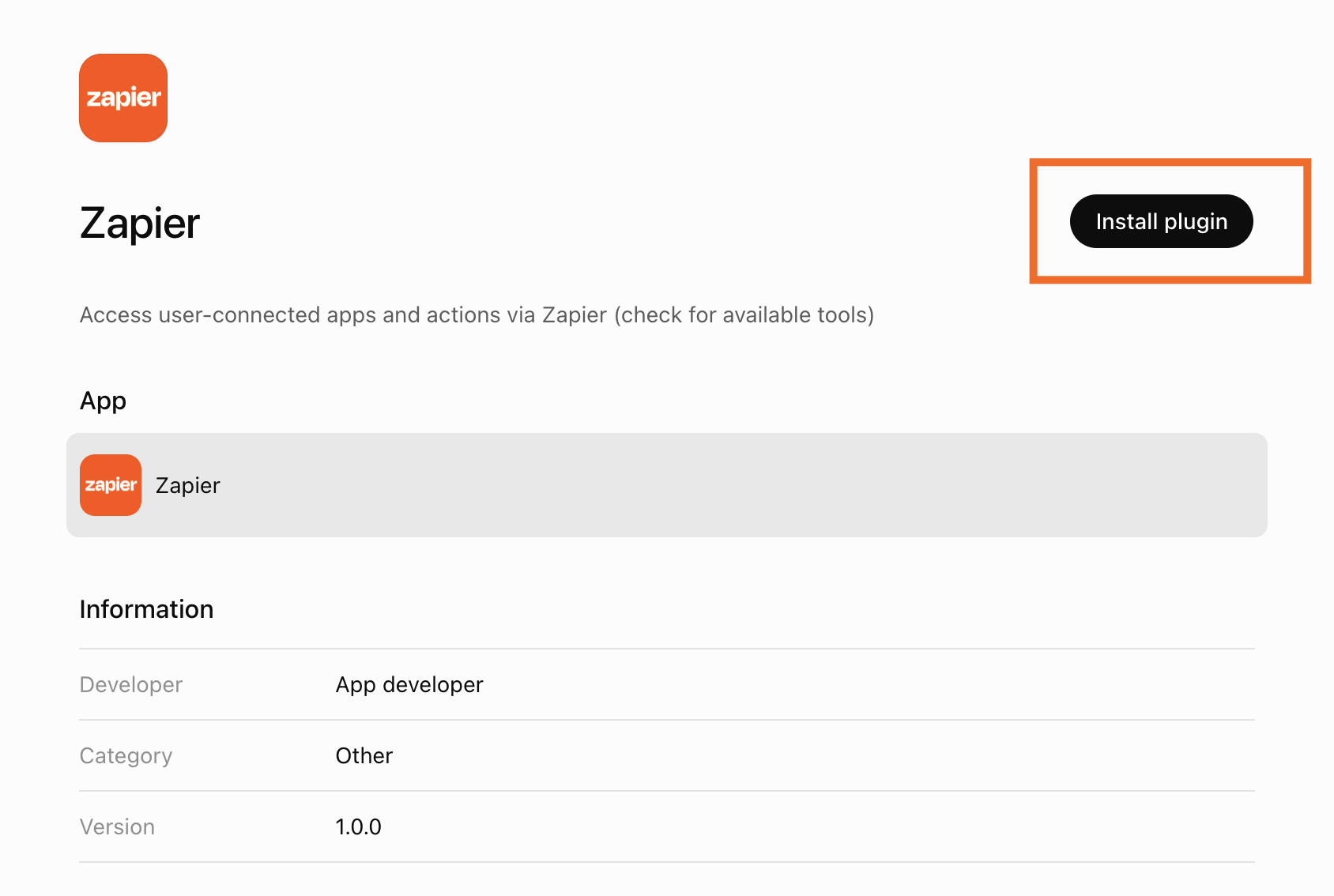
Search for and select the plugin you're looking for, and click Install plugin.
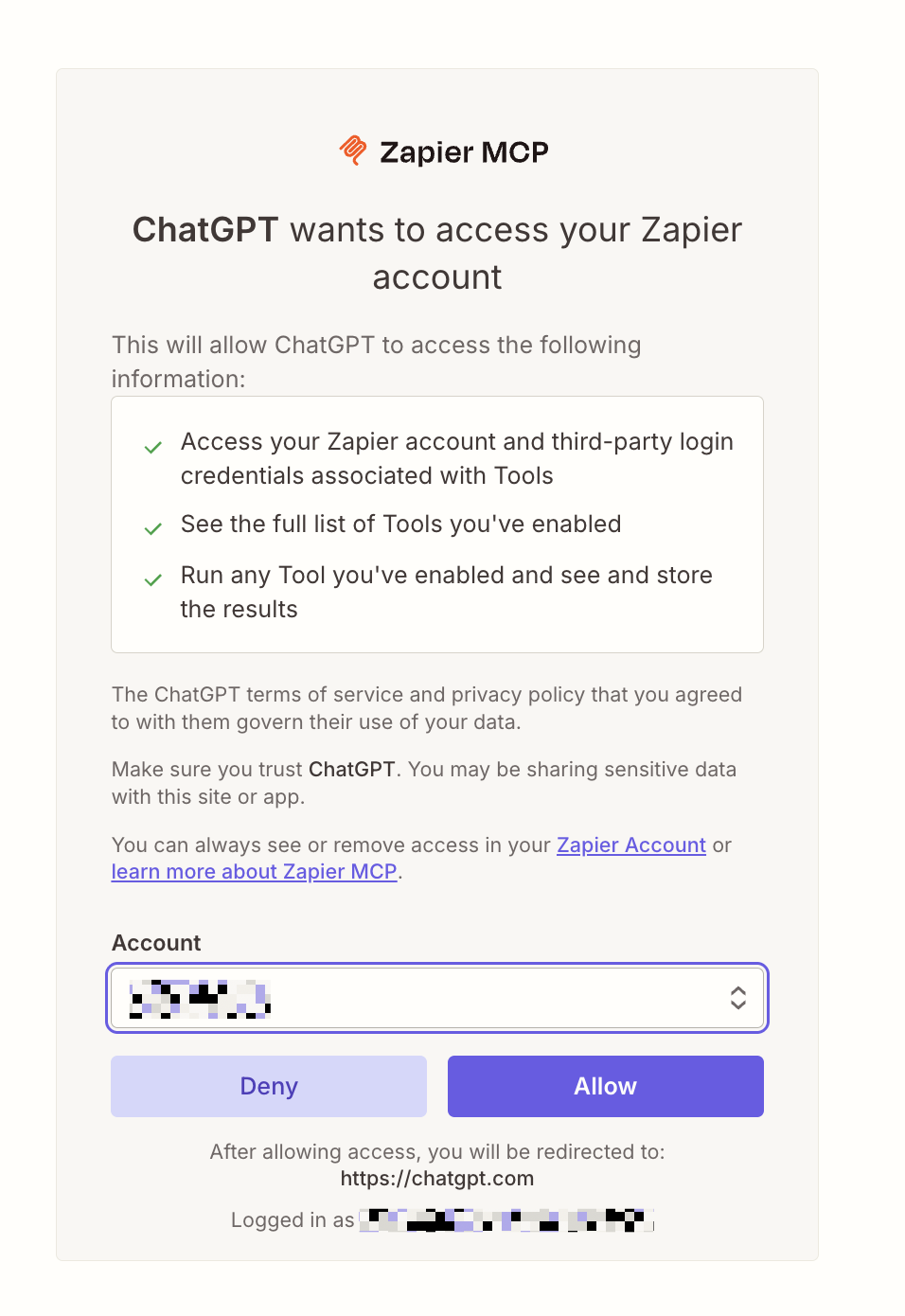
Follow the authorization flow. You'll be prompted to sign in to the service and approve what ChatGPT can access.
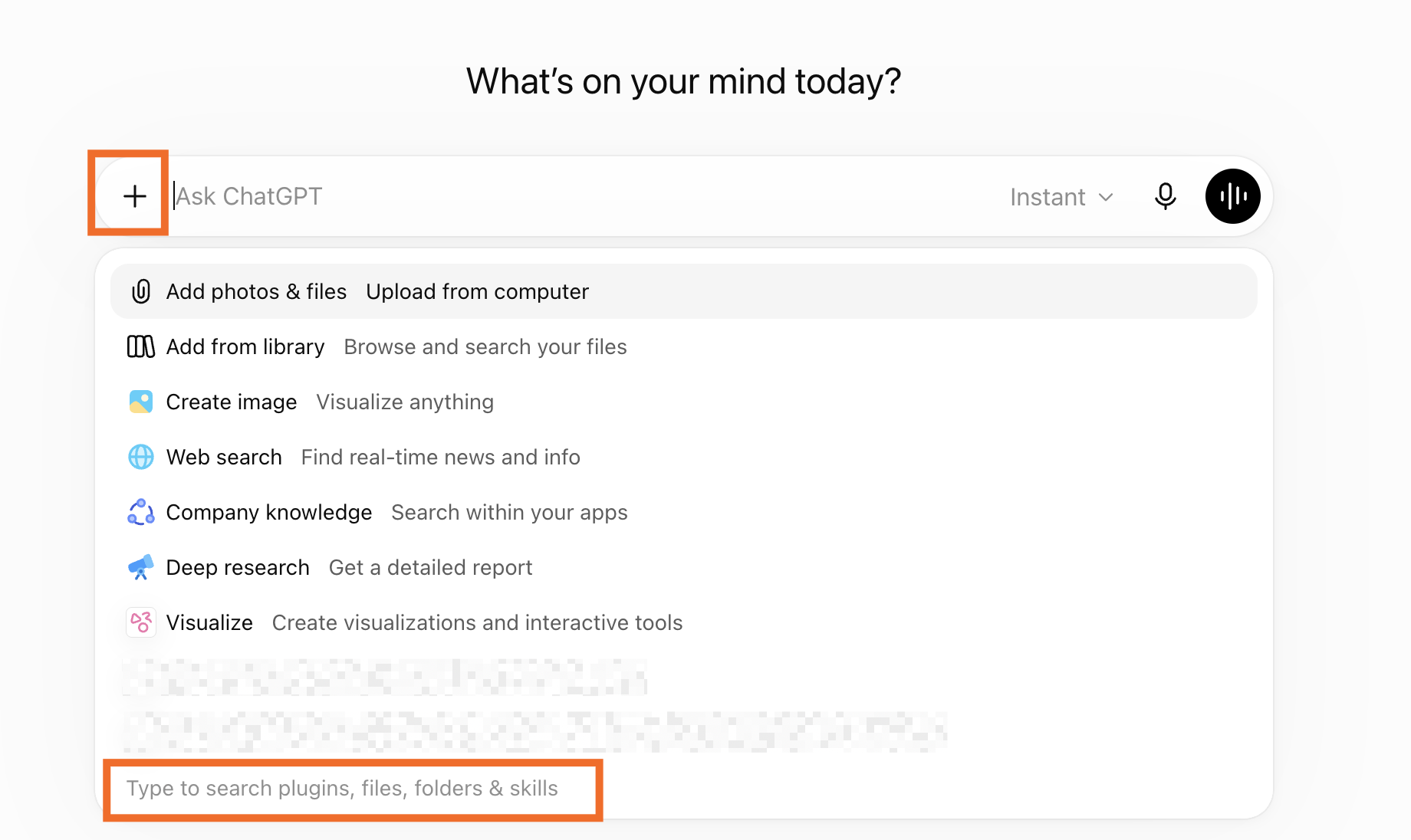
Once you're connected, click the plus sign (+) next to the chat field, and browse or search for available connectors. Or you can just tell the chat that you want to use a specific plugin (sometimes it will figure it out on its own).


The connector only has the permissions you approve, and you can disconnect it at any time from your settings.
How to remove ChatGPT plugins
You can disconnect a ChatGPT connector from your settings (Profile icon > Settings > Plugins > Plugin name > three dots > Disconnect), but you can also remove it directly from your plugin library.
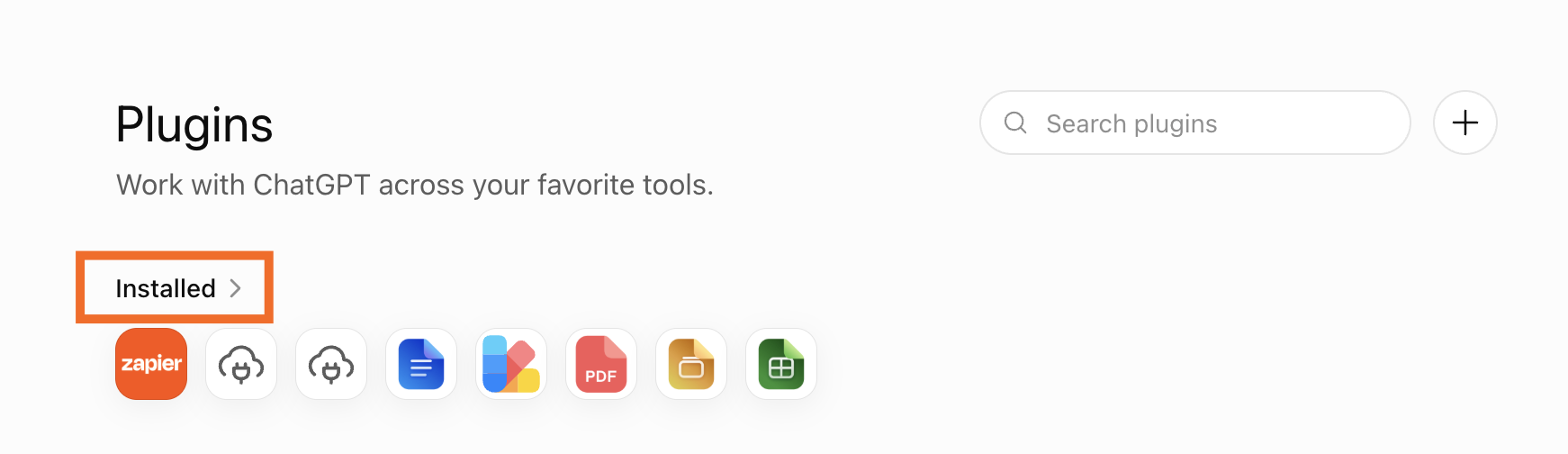
In ChatGPT, click Plugins in the sidebar.
Under Installed, click the icon of the plugin you want to remove.
Click the three dots, and then select Uninstall.
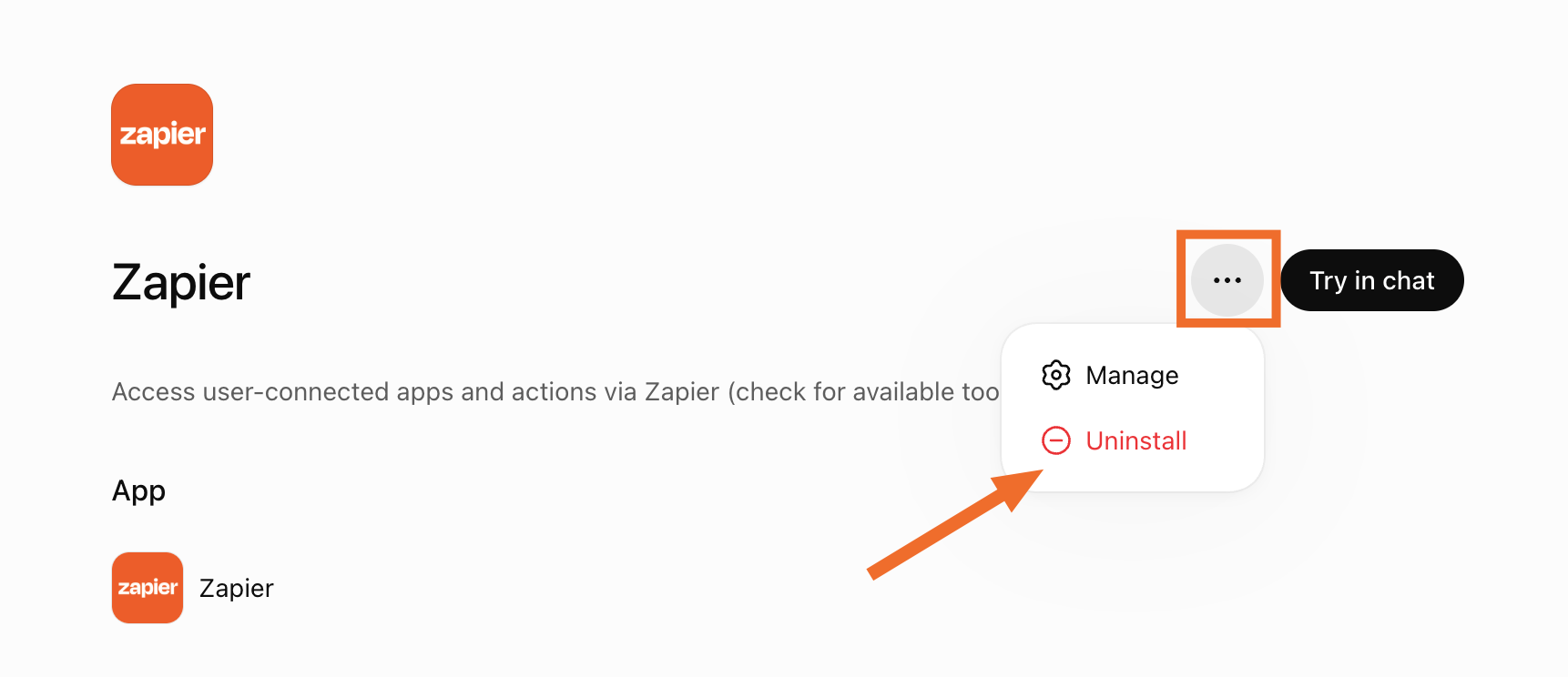


That's it—if you change your mind, you can always reinstall it.
How to add ChatGPT custom connectors or MCP servers
If ChatGPT doesn't have the plugin you're looking for, you can add it yourself—you just need to turn on Developer mode first. Make sure you trust the people who built the custom connector (even if it's you) because you don't get the built-in guardrails of a native plugin.
In ChatGPT, go to Settings > Plugins > Developer mode.
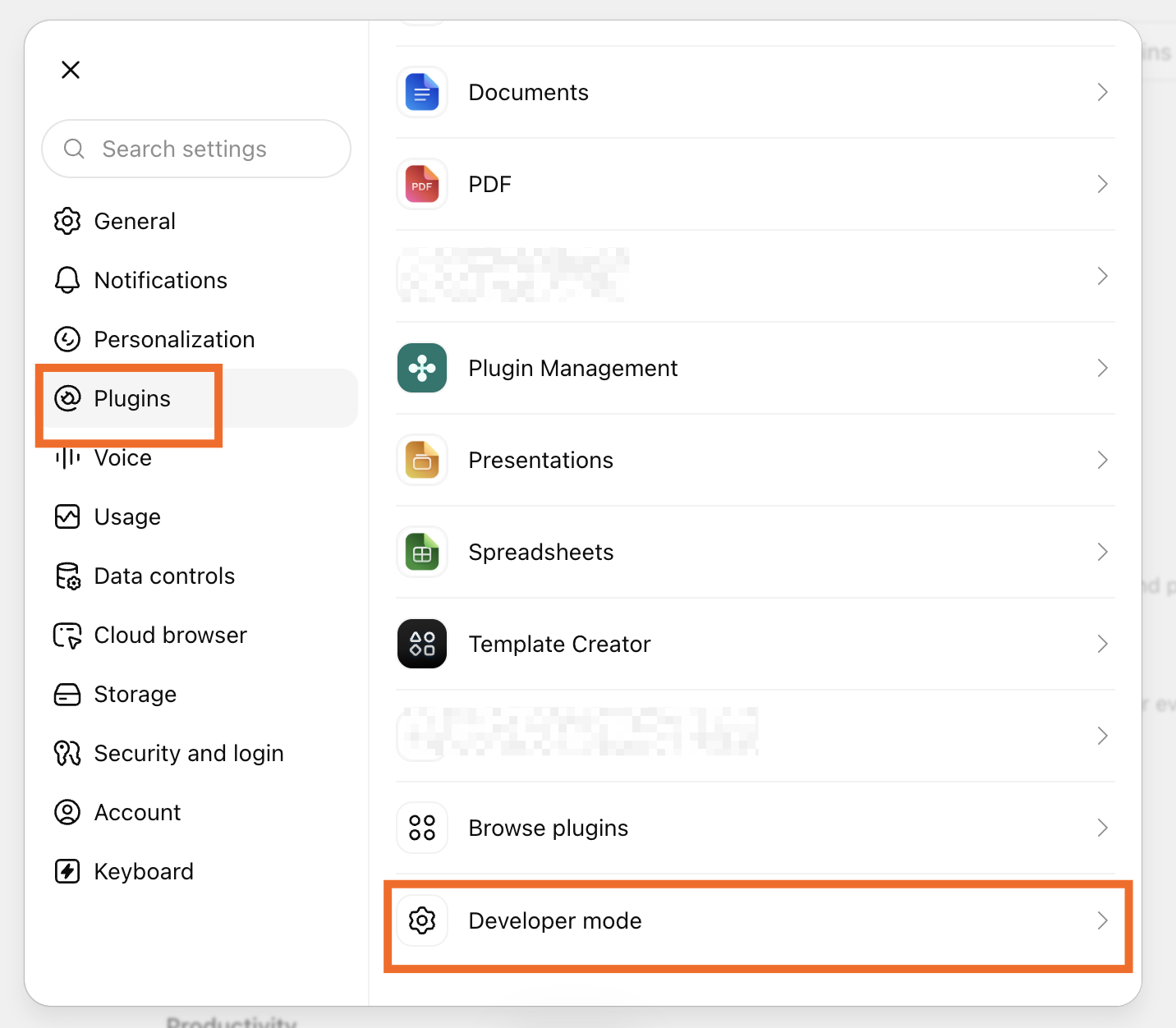
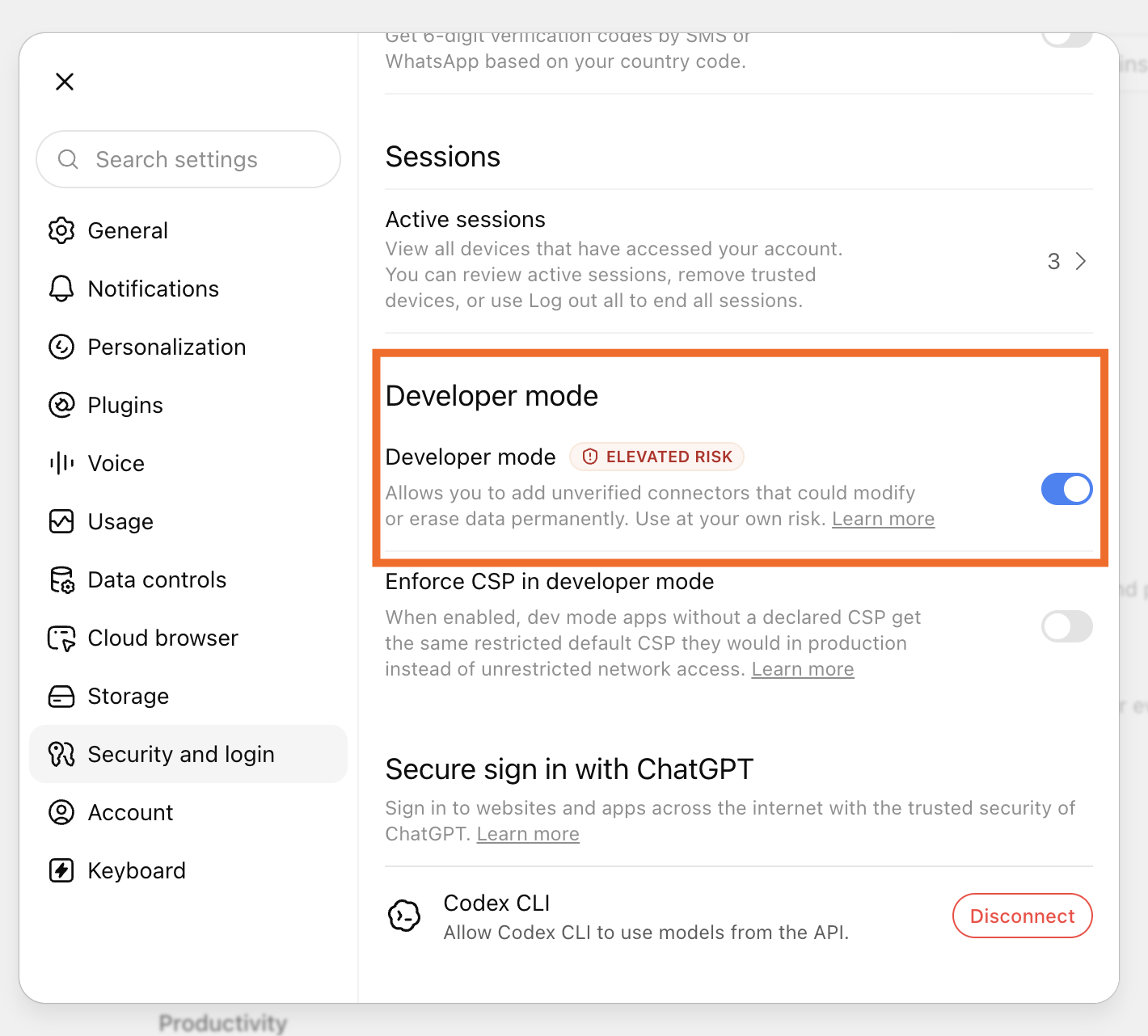
Make sure the Developer mode toggle is set to on.
In ChatGPT, click Plugins in the sidebar.
Click the plus sign (+) next to the search bar.
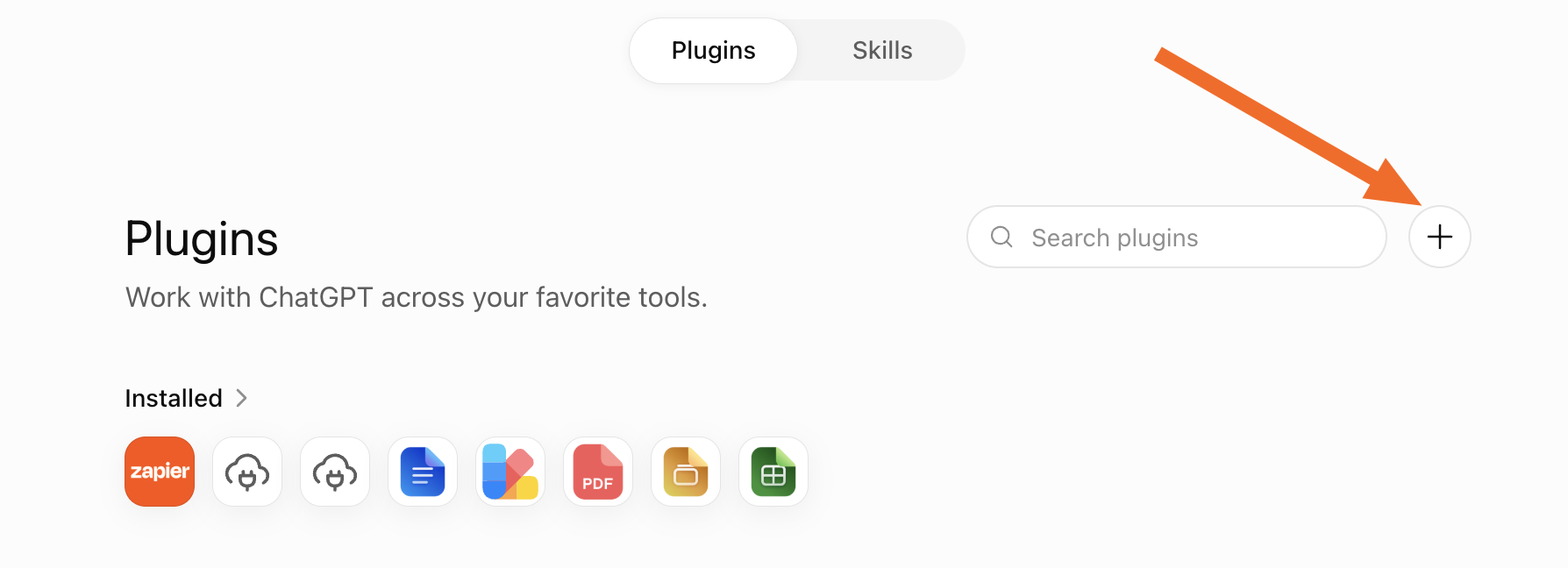
Enter the information for your connector. In most cases, you'll need to refer to the documentation of the app you're connecting to do this.
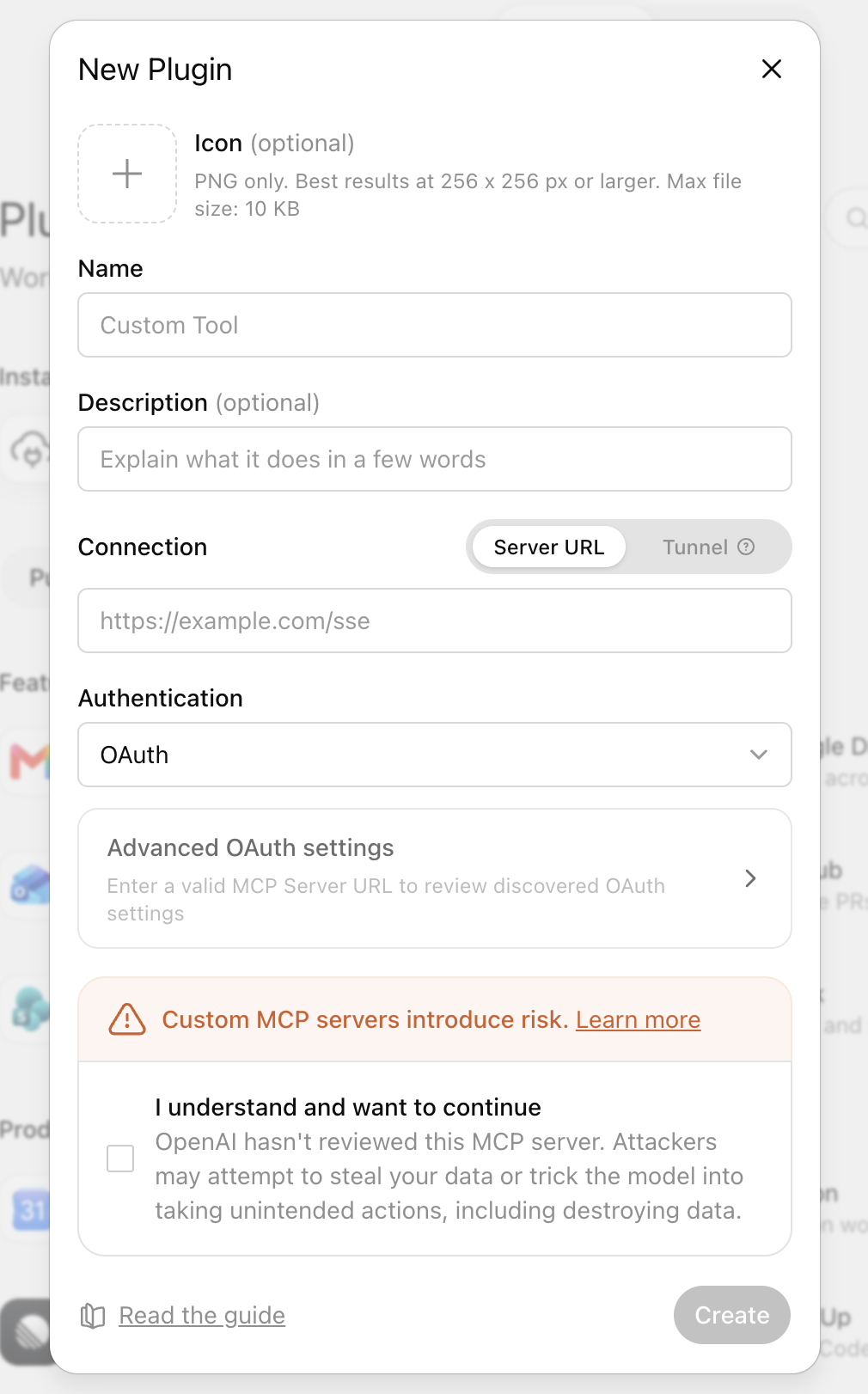
Click Create and follow the OAuth authorization flow—you'll be prompted to sign in to the service and approve what ChatGPT can access.
Once connected, enable the connector in a chat by clicking the + icon.


Connect ChatGPT to 9,000+ apps with Zapier
Native ChatGPT connectors work great if you're only connecting a few apps. Zapier, on the other hand, connects to 9,000+ apps—with a single install—and it gives you two fundamentally different ways to bring them into your workflows.
Build deterministic workflows and add AI only when you need it
Zapier's automation platform lets you build workflows that run in the background, 24/7, without you being there. The model is trigger → action: something happens in one app, and Zapier automatically does something else in another app as a result.
But that's only the basic version. You can include filters, formatters, delays, and conditional paths (none of which count against your Zapier task usage) and add dozens of steps to create complex systems connecting your entire tech stack.
What makes this powerful for ChatGPT specifically is that you can drop AI steps into those otherwise deterministic workflows—pulling in ChatGPT's models only when you actually need reasoning or generation. The rest of the workflow runs without burning tokens on tasks that don't require it.

If you only need standard AI, it just costs 1 task, like any other step on Zapier—that will pull in slightly older models from OpenAI and other providers; you don't even need a ChatGPT account to make it work. Or you can choose advanced or premium models, or even bring your own key, so you're connecting to the exact model you want.
And because the workflow is pre-configured, it runs automatically every time the trigger fires—no prompt required.
Access 9,000+ directly from ChatGPT using Zapier MCP
Zapier MCP is a ChatGPT connector that gives you governed access to 9,000+ apps directly from your ChatGPT chat window.
Some examples of what this might look like:
You could run weekly pipeline reviews straight from ChatGPT: it can pull your Salesforce data, calculate a weighted forecast, and push the summary to Google Sheets and Slack.
ChatGPT can summarize what happened in Slack while you were OOO, surface action items, and draft replies without you having to scroll through every thread. For anything it can't respond to, it can push a task to your to-do list to tackle later.
ChatGPT can pull your meeting transcripts and call notes, draft a polished summary with decisions and next steps, and drop it in your inbox ready to send to clients.
ChatGPT asks Zapier to perform the action; Zapier runs it and returns the result.

You can select exactly which apps you want to allow ChatGPT to access, and which actions you want to allow it to run. And when you change your mind, you can revoke access all from one place.

Native ChatGPT connectors vs. Zapier
Sometimes, a native ChatGPT connector will be your best bet. For example, if you want ChatGPT to explain formulas and analyze data while you're working in a spreadsheet, the native ChatGPT for Google Sheets add-on is purpose-built for that.
But if you're trying to connect ChatGPT to your entire tech stack, Zapier is the secure setup you want. The most obvious benefit is breadth. OpenAI's native catalog currently has about 1,500 connectors. There's also some fluff in there—for example, developers can create dozens of individual plugins as opposed to one unified one, which ends up inflating the plugin count for ChatGPT. Zapier, on the other hand, covers 9,000+ unique apps. Not only does that mean there will be no gaps in coverage, but it also means you can manage access in one governed location. Instead of installing thousands of native connectors, you install one—and then manage everything from there.
Plus, with Zapier, you're not locked into ChatGPT. If someone on your team wants to switch to Claude, or Gemini, or whatever model is most useful for a given task next month, Zapier MCP works across all of them. Native ChatGPT connectors, by definition, only work in ChatGPT.
And with AI by Zapier, you get something native connectors can't give you at all: the ability to blend AI into deterministic automation. You're not spending tokens on steps that don't need reasoning or triggering a full AI conversation when you just need a row added to a table. You have a workflow that uses AI precisely where it adds value—and runs without it everywhere else. That kind of precision isn't possible with native connectors, which are conversational by design.
ChatGPT connectors FAQ
Not gonna lie—even I still have questions about ChatGPT connectors. But here are the ones I know the answers to.
Are ChatGPT plugins safe?
The short answer: yes. Native connectors use OAuth, which means ChatGPT gets scoped access to a service—it can only do what you've authorized, it can't access content you don't already have permission to see, and actions require your confirmation before anything changes externally. Just keep in mind that anyone can build a ChatGPT plugin (though they're vetted by OpenAI). If you use Zapier MCP, you get that governed, OAuth-managed authentication across 9,000+ apps.
How many connectors does ChatGPT have?
OpenAI's native catalog currently has about 1,500 services—primarily major productivity and collaboration tools like Google Workspace, Microsoft 365, GitHub, Dropbox, Slack, and Box. There's also some fluff in there—sometimes developers create dozens of bespoke plugins as opposed to one unified one, which ends up inflating the plugin count for ChatGPT. For anything outside of the native plugins, you'll need a third-party MCP server or a tool like Zapier, which covers 9,000+ apps.
What's the difference between a ChatGPT connector and Zapier MCP?
A ChatGPT connector is an integration that lives inside ChatGPT's native ecosystem. Zapier MCP is a separate MCP server you connect to ChatGPT—it gives ChatGPT access to Zapier's 9,000+ integrations with Zapier managing the authentication and governance layer. The experience inside ChatGPT looks similar; the underlying architecture and app coverage are very different.
Related reading:


