My first few attempts at mapping out my content production pipeline looked less like a workflow and more like a conspiracy theorist's corkboard. That's what I get for skipping the process mapping stage.
The best process mapping tools are the difference between a workflow that runs on its own and a team that spends three hours in a Slack huddle arguing about handoffs. They go far beyond traditional whiteboard tools to apps that use AI to visualize and even enact workflows directly.
I tested the top process mapping tools, comparing the AI-driven automation features alongside traditional whiteboards. Based on that experience, along with a lot of supporting research, these are my picks for the best process mapping apps.
The best process mapping tools
Lucidchart for technical depth
Miro for team brainstorming
Whimsical for speed and focus
FigJam for designers
Microsoft Visio for Microsoft shops
draw.io for free, offline use
Canva for visual presentations
Process Street for checklist completion
What makes the best process mapping tool?
How we evaluate and test apps
Our best apps roundups are written by humans who've spent much of their careers using, testing, and writing about software. Unless explicitly stated, we spend dozens of hours researching and testing apps, using each app as it's intended to be used and evaluating it against the criteria we set for the category. We're never paid for placement in our articles from any app or for links to any site—we value the trust readers put in us to offer authentic evaluations of the categories and apps we review. For more details on our process, read the full rundown of how we select apps to feature on the Zapier blog.
A quick search for business process mapping tools leaves you swamped by hundreds of options, from simple sketchpads to rigid enterprise compliance software. You might even stumble across highly specific Six Sigma process mapping tools (which are great if you're an operational Black Belt, but total overkill if you just want to figure out your team's PTO approval workflow).
Turns out, there are about as many ways to map a process as there are processes worth mapping. So to narrow it down, I focused on four non-negotiable features:
Collaboration: No one maps processes just for fun. And if you do, I have questions. A great tool has real-time cursors, easy ways to share information, and comment threads so stakeholders can actually weigh in on the process map.
Templates: There are people who can stare at a blank canvas and feel possibility. I stare at a blank canvas and feel my blood sugar drop. The best process mapping apps offer pre-built, industry-standard shapes (like Business Process Model and Notation, or BPMN, and flowcharts) to get you moving faster.
Integration: Your process map needs to live where your work lives. If the tool doesn't connect to your existing stack, it's just another silo.
Ease of use: If it takes a training seminar to figure out how to draw an arrow, it's off the list. Effective process mapping software, especially flowchart and diagramming tools, should include simple, drag-and-drop editors that get out of your way.
After testing all the top options I could find and mapping processes until I was blinking in flowcharts, these are my picks for the best process mapping software.
The best process mapping software at a glance
| Best for | Standout feature | Pricing |
|---|---|---|---|
Technical depth | Dynamic data linking and AI-powered diagram generation | Free plan available; paid plans start at $9/month for 1 person | |
Team brainstorming | Infinite collaborative canvas with deep project stack integrations | Free plan available; paid plans start at $8/member/month (billed annually) | |
Speed and focus | Rapid diagramming using fast keyboard shortcuts and predictive drawing | Free plan available; paid plans start at $10/editor/month (billed annually) | |
Designers | Seamless, native integration with your Figma design libraries | Free plan available; paid plans start at $16/full seat/month (billed annually) | |
Microsoft shops | Professional-grade BPMN modeling embedded natively in Microsoft 365 | Limited version included in Microsoft 365 commercial plans; premium plans start at $5/user/month (billed annually) | |
Free, offline use | Free diagramming with highly secure local file storage | Completely free | |
Visual presentations | Extensive template library for designing highly visual, presentation-ready diagrams | Free plan available; paid plans start at $12/month for 1 person (billed annually) | |
Checklist completion | Conditional logic that helps you create dynamic, executable team checklists | Contact Process Street |
1. Best process mapping tool for technical depth
Lucidchart

Lucidchart pros:
AI diagramming that links directly to live data
Extensive shape libraries for complex, enterprise-level modeling
Lucidchart cons:
The sheer volume of features can feel overwhelming for casual users
The interface is slightly more clinical than more lightweight whiteboards
For pure technical muscle, Lucidchart is a heavyweight champion. If you're trying to document a massive microservices architecture or build an ERD that doesn't look like spaghetti, this is your tool. The technical depth here is unmatched, which is why it's a staple for IT project leads.
As an AI process mapping tool, Lucid AI lets you auto-generate flowcharts, mind maps, and ERDs by typing a prompt. You can even import a dataset from Excel or Google Sheets, and the AI will dynamically recommend field mappings for you.
Another major pro is Lucidchart's conditional formatting. You can set rules that automatically change a shape's color or style based on its associated data—if a process step doesn't have an assignee, the box turns bright red. Lucidchart instantly highlights exactly where the bottlenecks or missing links are hiding.
Overall, Lucid's more about creating single sources of truth than casual brainstorming. If your organization demands strict BPMN standards and layered, detailed diagrams, Lucidchart won't let you down. It will, however, occasionally make you wish for a tool with fewer menus.
Lucidchart pricing: Free plan available; paid plans start at $9/month for one person to access features like unlimited editable documents and unlimited objects per document
2. Best process mapping tool for team brainstorming
Miro

Miro pros:
Infinite, wildly flexible canvas perfect for real-time collaboration
Huge template library spanning virtually every use case imaginable
Miro cons:
Can get incredibly messy if you don't enforce board organization
Navigating massive boards can be a memory hog on older machines
AI features are credit-based
Miro is, hands down, the best collaborative whiteboard platform for real-time process mapping and brainstorming. When you're starting a project and the process is still muddy, you can open Miro and see your teammates' cursors flying around, dropping sticky notes, grouping ideas, and connecting shapes. It's incredibly intuitive, so anyone on your team can jump in and start mapping without a tutorial.
Miro's Talktrack lets you record an interactive video or audio walkthrough right on the canvas instead of scheduling another quick sync to explain the massive board you just built. Teammates can watch your cursor move around the board as you talk them through the logic asynchronously.
Miro's also packed with integrations so you can pull in Jira cards, Asana tasks, or even timelines from your favorite Gantt chart software directly onto the canvas. Just be warned: with an infinite canvas, you need to set some ground rules, or you'll quickly zoom out to find your diagrams lost in a sea of abandoned sticky notes.
Connect Zapier with Miro to automate the busywork around your boards. You can automatically create new boards when you open a project in your CRM, sync Miro cards to a project management tool like Trello or ClickUp, or spin up a templated Miro board on a set schedule for teams running recurring workshops. Learn more about how to automate Miro.
Miro pricing: Free plan available; paid plans start at $8/member/month (billed annually) for features like unlimited boards and visitors, plus private boards
3. Best process mapping tool for speed and focus
Whimsical

Whimsical pros:
Keyboard shortcuts for building diagrams at the speed of thought
Built-in AI actions for instant flowchart and mind map generation
Whimsical cons:
Limited customization (you can't tweak every single color or pixel)
Not meant for highly complex, data-linked enterprise models
Strictly metered AI usage
Whimsical is exactly what it sounds like—delightful. It's fast, clean, and blessedly uninterested in letting you ruin your diagram with 75 unnecessary design choices.
The keyboard shortcuts allow you to build out a workflow almost as fast as you can type. Whimsical AI generates flowcharts and sequence diagrams from text inputs, turning a quick brainstorm into a structured visual in seconds.
Beyond diagrams, Whimsical features a built-in Docs tool that's your very own calm, distraction-free writing space. You can embed your live flowcharts and wireframes directly into these documents, and whenever you update the original diagram, it automatically syncs—perfect for creating clean, readable standard operating procedures (SOPs) without toggling between five different apps to keep your visuals up to date.
Whimsical is a great go-to when you need to explain a workflow to a stakeholder in five minutes and don't want them getting distracted by inconsistent font sizes or poorly aligned arrows. It just works, and it looks good doing it.
Whimsical pricing: Free plan available; paid plans start at $10/editor/month (billed annually) for features like unlimited team boards and up to six private teams
4. Best process mapping tool for designers
FigJam

FigJam pros:
Seamless, native integration with Figma
Fun, lightweight interface with great interactive elements
FigJam cons:
Can be overkill if you don't already use the Figma ecosystem
Lacks the rigid organizational structures of dedicated BPM tools
If your team lives in Figma, FigJam makes a lot of sense. Bringing another process mapping tool into the mix is just adding one more app to the pile, like buying a seventh tote bag because the first six are "for different things."
FigJam feels light and collaborative in a way that works especially well for product and design teams. You can drop in components straight from your Figma design libraries, sketch user flows, workshop ideas, and generally keep planning closer to the actual design work.
The vibe is distinctly casual—you can leave stamps on people's ideas or send virtual high-fives—but don't let the playfulness fool you. It's robust enough to handle complex workflow mapping, especially when bridging the gap between product managers and design teams.
FigJam is also very effective for running live workshops thanks to its built-in meeting tools. You can fire up an on-screen timer to keep brainstorming sessions moving, run anonymous voting to finalize decisions, and even play preset background music directly within the app so everyone can vibe to the same lo-fi track while they work—not that lo-fi can always save a planning meeting from being boring, but you get the idea.
Zapier connects FigJam to your broader project ecosystem by automating the steps that happen around your brainstorming sessions. You can automatically create a new FigJam board when you start a project in Linear or Notion, or log completed planning sessions to a Google Sheet for tracking. It keeps FigJam from becoming a siloed creative space and ties it into your actual delivery pipeline.
FigJam pricing: Limited free plan available; paid plans start at $3/collab seat/month, $12/dev seat/month, and $16/full seat/month (billed annually) for core designers for features like unlimited files and projects, as well as team-wide design libraries—most process mapping users will only need a collab seat
5. Best process mapping tool for Microsoft shops
Microsoft Visio
Microsoft Visio pros:
Deep, native integration with the Microsoft 365 ecosystem
Professional-grade capabilities for rigid business process modeling
Microsoft Visio cons:
Steep learning curve with a slightly dated interface
Collaboration features lag behind modern cloud-native whiteboards
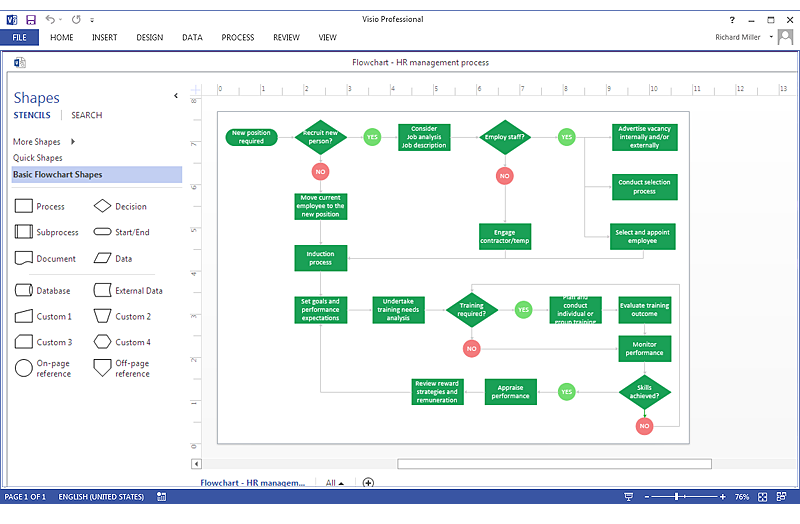
Visio is the granddaddy of diagramming. It's been around forever, and there's a reason for that. If your company runs heavily on Microsoft, as so many do, Visio is a logical choice.
It's geared toward professional-grade, in-depth business process modeling. If you're building out strict compliance workflows, looking for an organizational chart tool, or making detailed IT network maps, Visio has the precise shapes and connectors you need.
Visio isn't the chicest tool on this list—it lacks Miro's real-time, chaotic joy or Whimsical's sleek speed. But it's an absolute workhorse. If you need a diagram that will be scrutinized by auditors or embedded into formal corporate documentation, Visio is a great option.
Visio's deep integration with Power Automate (available on Plan 2) elevates it from a simple drawing tool to an operational powerhouse. Once you've painstakingly mapped out a business workflow, you can export the Visio diagram directly to Power Automate to execute it automatically.
To nab the desktop app and gain offline access, you'll need to spring for the Visio Plan 2. And if you prefer a one-time purchase, you can opt for perpetual licenses starting at $309.99.
Microsoft Visio pricing: Limited version included in Microsoft 365 commercial plans; Visio Plan 1 starts at an additional $5/user/month, billed annually
6. Best process mapping tool for free, offline use
draw.io
draw.io pros:
Completely free for standalone use, and works entirely offline
Doesn't force you to store data on their servers
draw.io cons:
The interface feels a bit dated compared to some competitors
Lacks any AI features and real-time collaboration flair
Sometimes, you just don't want another subscription. Sometimes you're on a plane without Wi-Fi, or you're mapping out highly sensitive internal processes, and your security team will throw a fit if you use a cloud-based tool. draw.io is an excellent, offline-ready option to avoid hiccups or security issues.
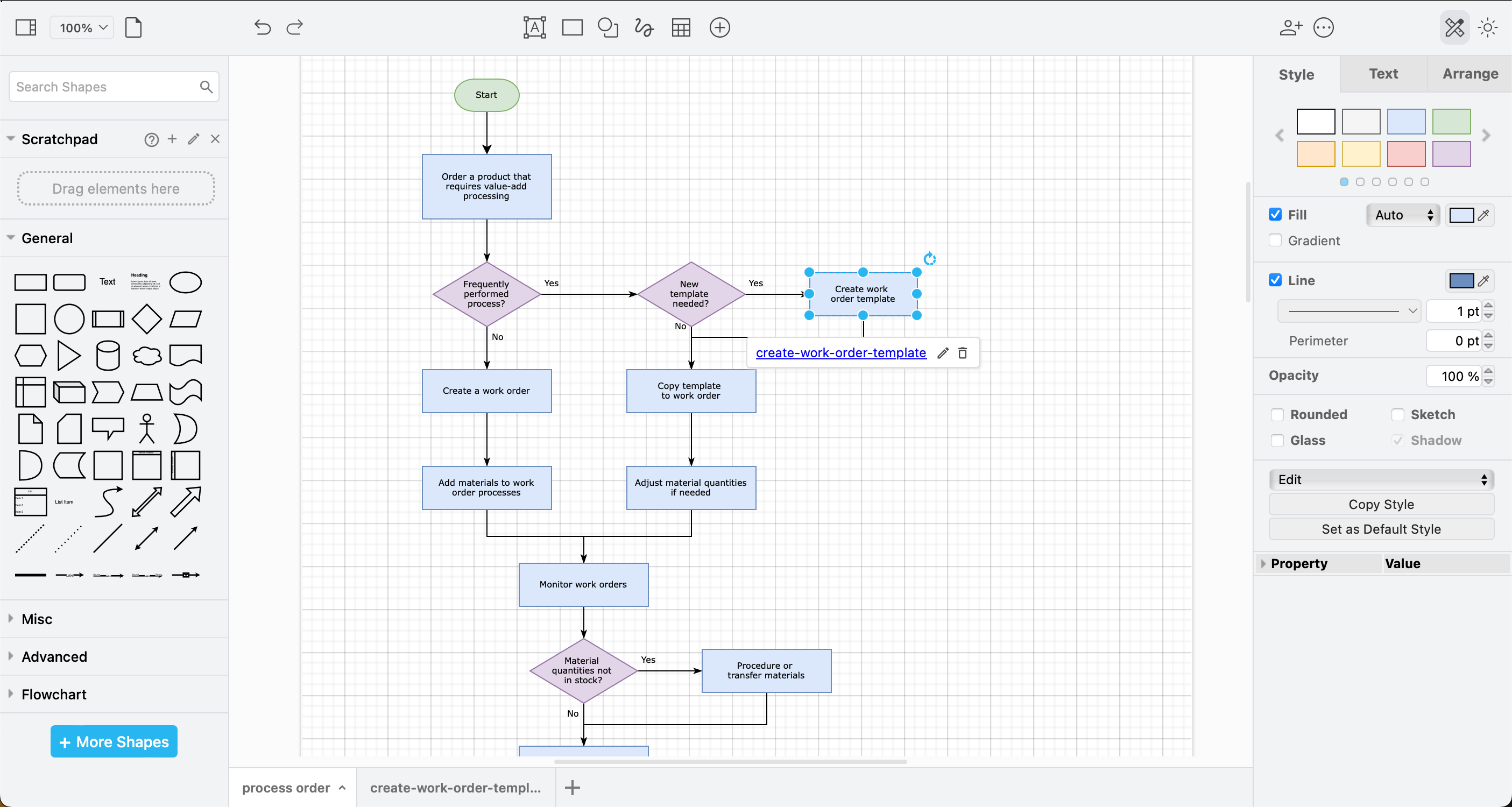
It's the best free, source-available tool for basic diagramming. It's got a strict simplicity and a strong respect for your privacy. You can save your files directly to your hard drive, Google Drive, or GitHub.
You won't find AI generation or virtual high-fives here—draw.io is a utilitarian tool that gives you gridlines, shapes, and arrows. But when you need a reliable, zero-cost way to get a process out of your head and onto a screen, it's undefeated. It's source-available rather than fully open-source; its license restricts building competing Atlassian integrations, so you should check compliance before forking the codebase internally.
If you find yourself repeatedly building the same weird, ultra-specific diagrams, you'll love the draw.io scratchpad feature. It's a shape library where you can save your custom shapes, drag them back in next time, and spare yourself the ritual humiliation of rebuilding the same diagram fragment over and over.
You won't find any flashy features, and the interface does feel a little dated. But for a zero-cost tool, it does a lot. Especially if privacy matters to your team or you need local file control.
draw.io pricing: Completely free as a standalone web and desktop tool; enterprise integrations via the Atlassian Marketplace (Confluence, Jira) are paid and represent the product's primary commercial revenue stream
7. Best process mapping tool for visual presentations
Canva
Canva pros:
Unmatched design capabilities for making maps look presentation-ready
Massive library of gorgeous, ready-made templates
Canva cons:
Not ideal for complex, multi-layered technical process mapping
Can be frustrating to keep lines and shapes cleanly connected when moving large groups
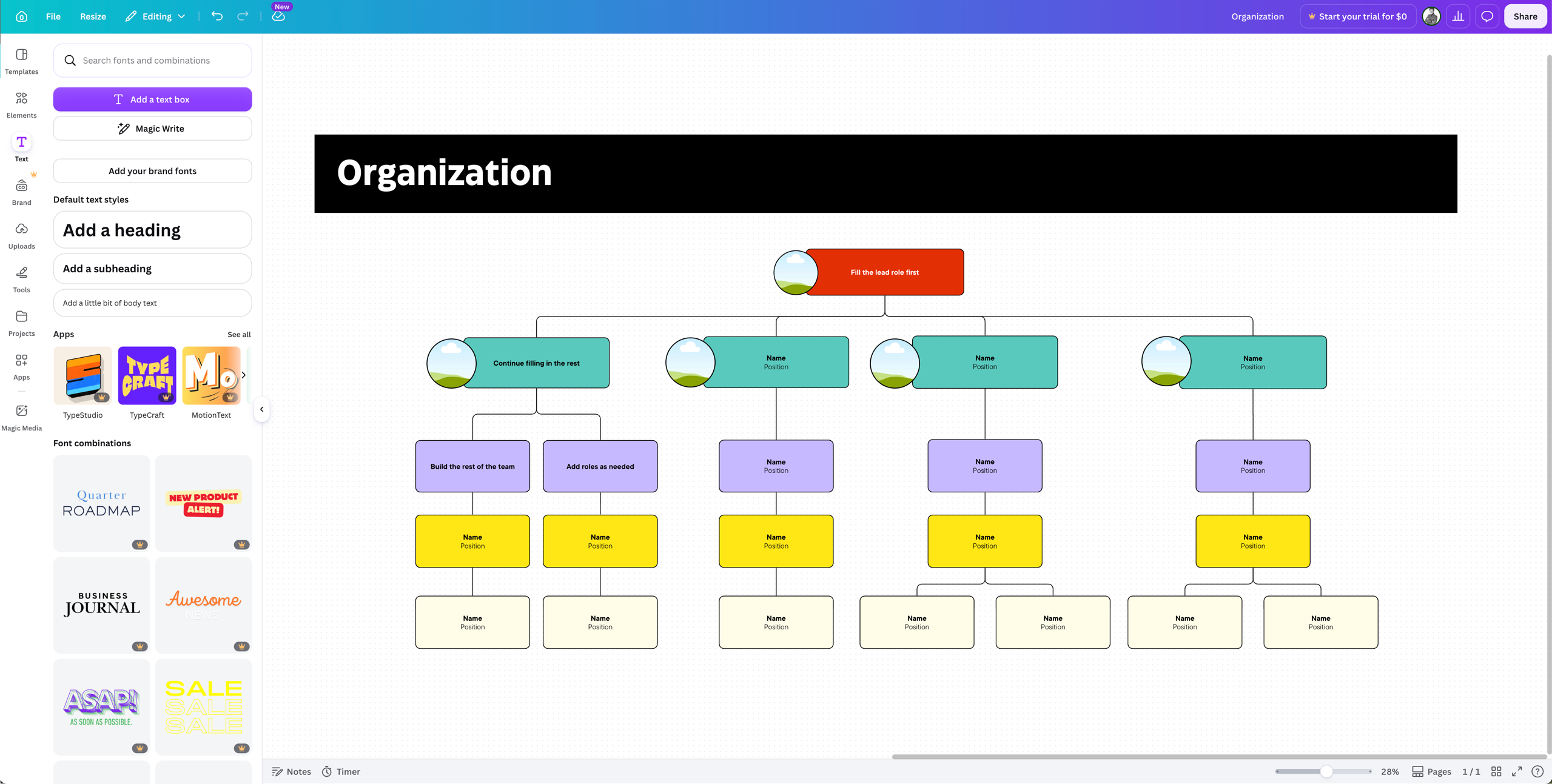
You probably know Canva for social media graphics or slide decks, but its whiteboard and diagramming features are surprisingly robust. If you're mapping a process that needs to be presented to the C-suite or shared in a company-wide all-hands, Canva is a good bet.
Many process maps look incredibly boring. Canva fixes that. You can apply brand colors, custom illustrations, and slick formatting to make a flowchart pop. If you're building high-level overviews, onboarding docs, or anything leadership has to look at without squinting, Canva makes your workflows look professionally designed.
To make live collaboration a little less chaotic, Canva's Whiteboard includes fantastic built-in workshop tools. You can trigger an on-screen timer—complete with focus music—to keep your team on track during brainstorming sprints. Once time is up, teammates can drop quick emoji reactions on their favorite sticky notes to vote for the best ideas.
The main limitation is technical precision. Once diagrams get large or intricate, Canva's connectors and snap-to-grid features aren't as powerful as a tool like Lucidchart. It's not the tool I'd choose for a gnarly 50-step API integration with dozens of dependencies and enough branching logic to make me need a lie-down. (Not that I'd ever map out a 50-step API integration in the first place. That's why Zapier exists.)
Zapier's Canva integration lets you automate design operations at scale. You can automatically generate a new Canva design from a template when a form is submitted or a campaign is kicked off in your project management tool—useful for operations teams producing recurring process documentation or onboarding materials. Check out more ways to automate Canva.
Canva pricing: Free plan available; paid plans start at $12/month (billed annually) for one person to access premium tools and more than 3 million templates
8. Best process mapping tool for checklist completion
Process Street
Process Street pros:
Turns mapped workflows into actionable, trackable checklists
Incredible conditional logic to customize workflows on the fly
Process Street cons:
Lacks the freeform visual canvas of a traditional whiteboarding tool
Can be overkill for simple, one-off tasks
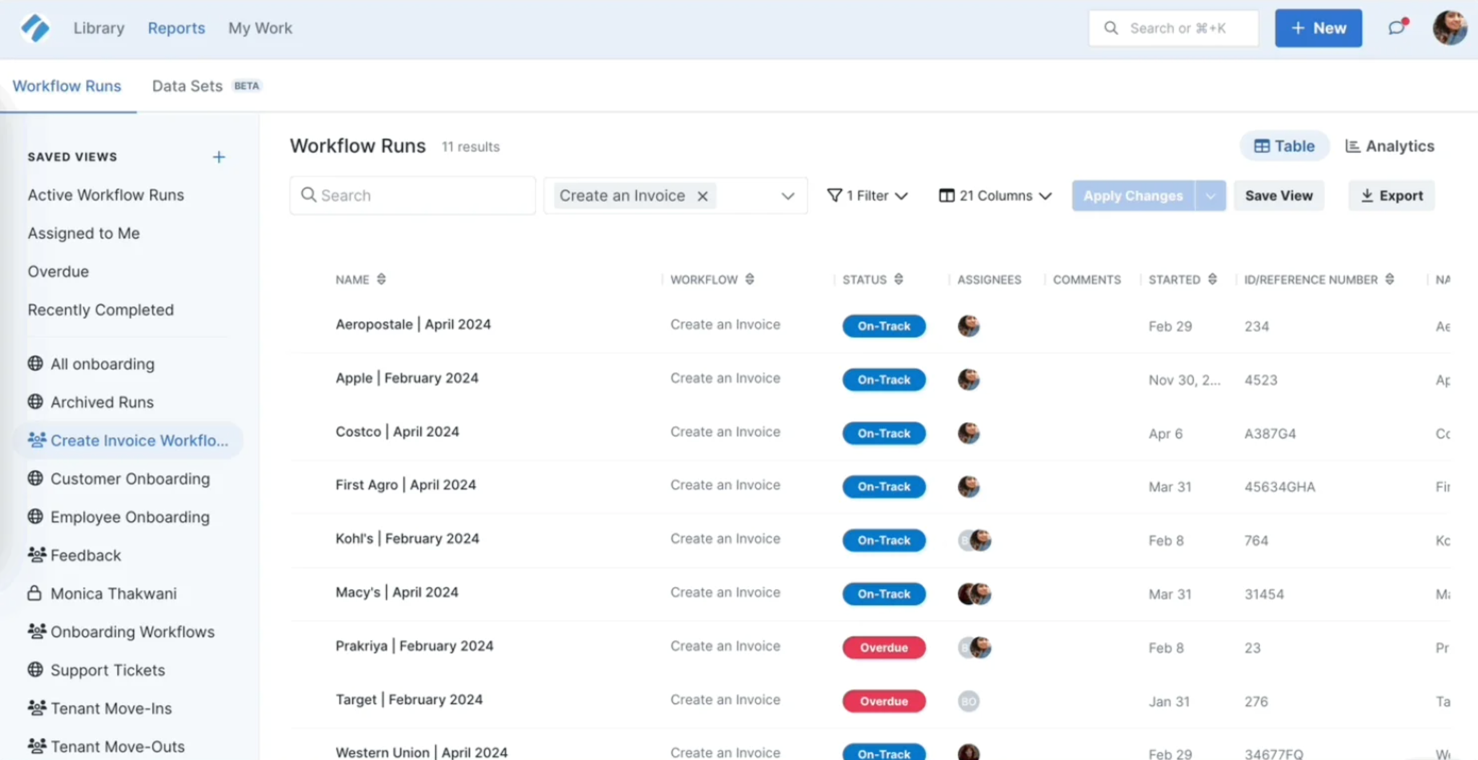
Process Street is a little different from the others because it leans more toward process execution than visual mapping. It turns your process into a living checklist that's easy for your team to follow step by step.
The conditional logic is stellar. You can build a workflow that dynamically adapts to the user's inputs. For example, if someone checks "Yes" to "Is this client in the EU?", the workflow automatically adds steps for GDPR compliance.
Process Street is a great tool for recurring tasks—employee onboarding, content publishing, client provisioning—where you need a strict audit trail to prove that every step was completed correctly. The conditional logic is one of its best features. If someone answers a question one way, the workflow changes accordingly. That's useful for compliance-heavy or variable processes where not every path looks the same.
The platform also features automated approval workflows. If a specific step requires a manager's sign-off, like approving a budget or an offer letter, the workflow automatically pauses and notifies the decision-maker. They can review the data and approve or reject it from a single interface, eliminating time-consuming bottlenecks.
Zapier and Process Street are a natural pairing, too. Zapier handles data routing, while Process Street handles human execution. You can automatically kick off a Process Street workflow run when a trigger fires in another app, like a new hire being added to your HRIS. You can also push data the other way, creating records in your CRM or sending notifications when a Process Street checklist is completed or a specific step is approved.
Process Street pricing: Contact Process Street's sales team for pricing details
Automate your process the easy way with Zapier
The right tool really depends on the phase of the work you're in. If you're in the messy discovery phase, grab a tool like Miro or FigJam to brainstorm without boundaries. If you're moving into strict documentation, Lucidchart or Visio will lock things down.
Related reading: