
In a perfect world, all the software we use at work would be part of the same unified ecosystem. But—surprise!—this isn't a perfect world, and that means some of us (myself included) have to use Google Workspace for some tasks and Microsoft 365 for others. You might even find yourself with two distinct schedules: one in Google Calendar and one in Microsoft Outlook. Managing one calendar is exhausting enough—two is a hard no.
To solve (a very small part of) the problem, you can sync Google Calendar with Outlook, which will let you keep both calendars updated in real time whenever one is changed. Or, if you're biting the bullet and migrating to Microsoft 365 for good, you can export your Google Calendar data into Outlook. Here's how.
Table of contents:
How to add Google Calendar to Outlook
Before we dive in, be sure to sign in to your Google and Outlook accounts. (Sorry, no step-by-step guide on how to remember your passwords.) Once you're set up, follow these instructions to add Google Calendar to Outlook.
Go to calendar.google.com.
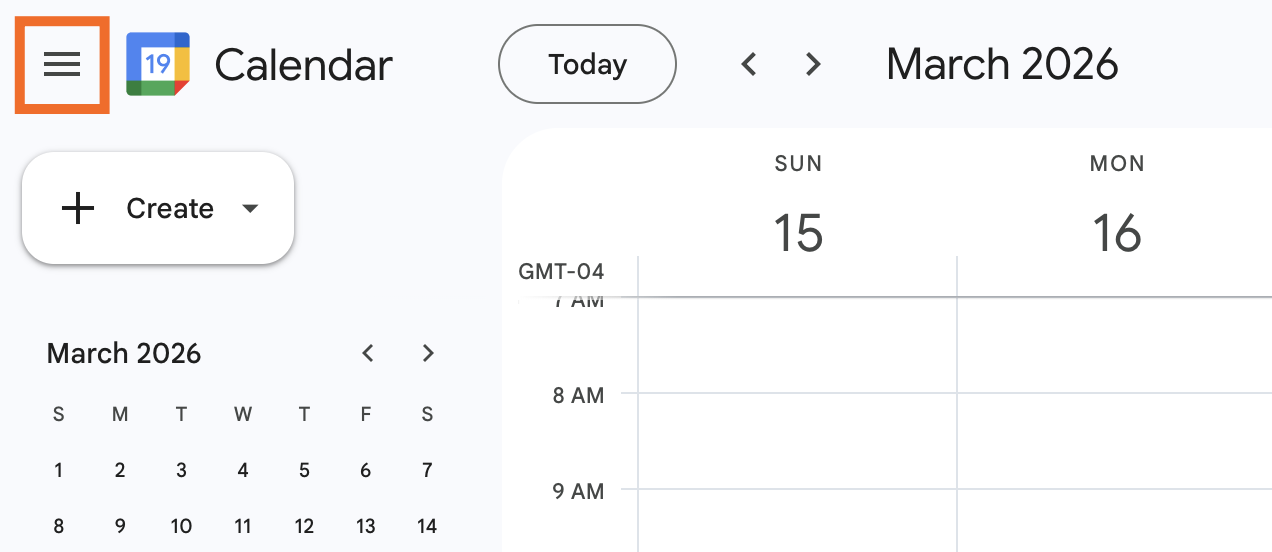
If the left-side panel isn't already visible, click the Main menu icon (it looks like a hamburger) in the top-left corner.
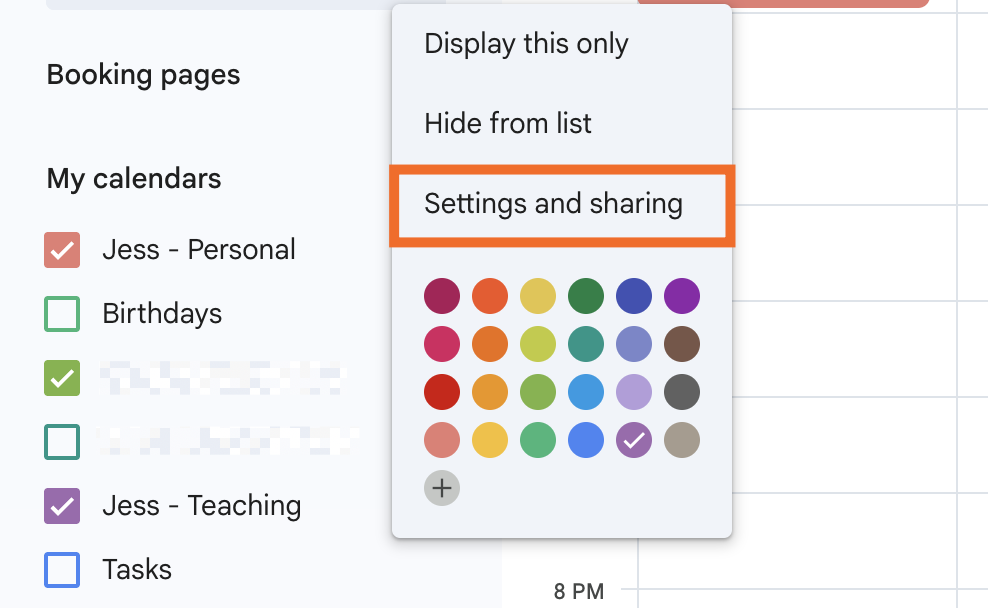
Under My Calendars, click the Options icon (it looks like three dots stacked vertically) next to the calendar you want to sync, and then select Settings and sharing.
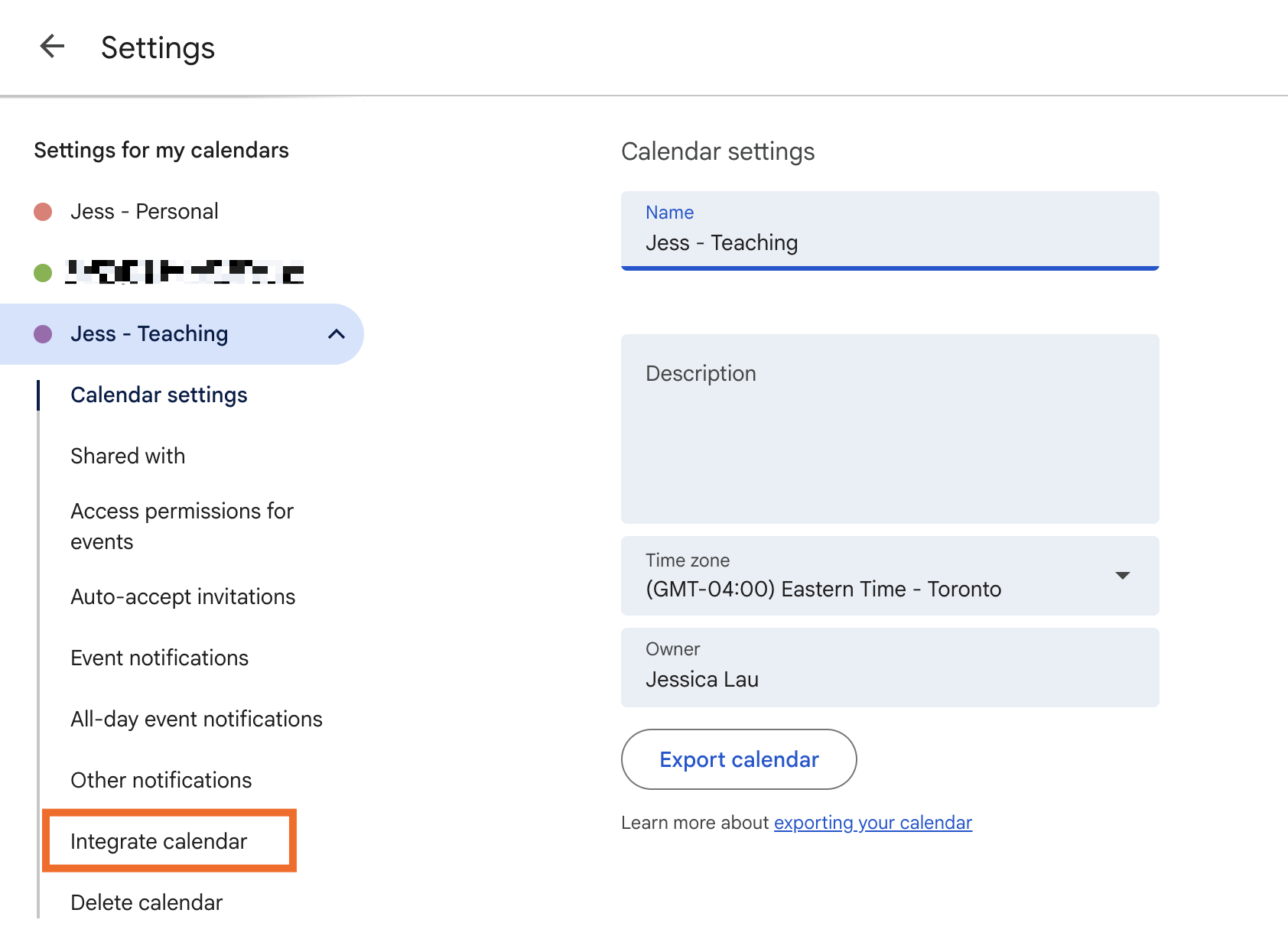
From your specified calendar's settings, click Integrate calendar in the side panel.
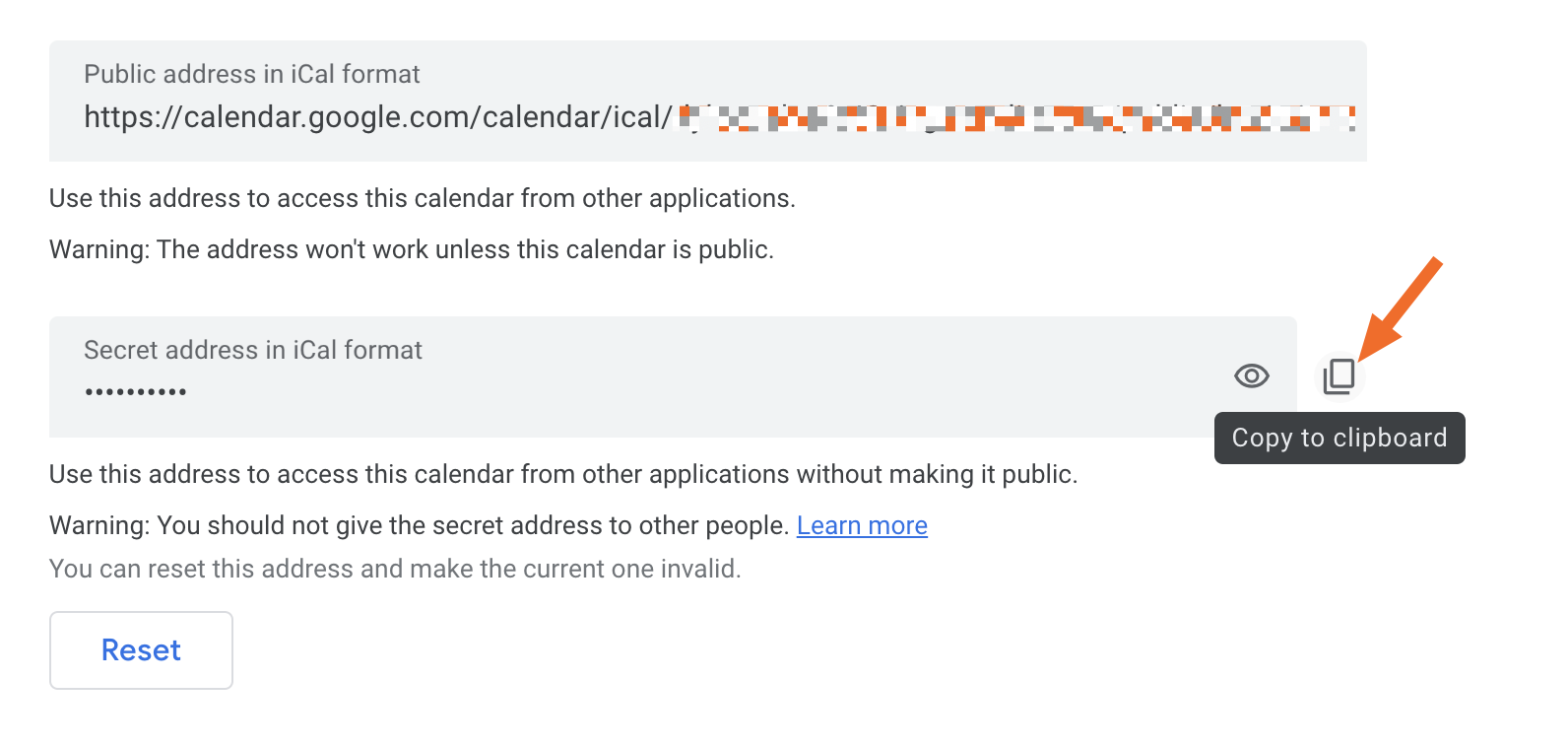
If your calendar is publicly available, copy the URL in the Public address in iCal format section. If it's private, click the Copy to clipboard icon in the Secret address in iCal format section instead.
Go to outlook.cloud.microsoft/calendar if you're using Outlook in your browser. (You can also use the Outlook desktop app—it'll sync with Google Calendar either way.)
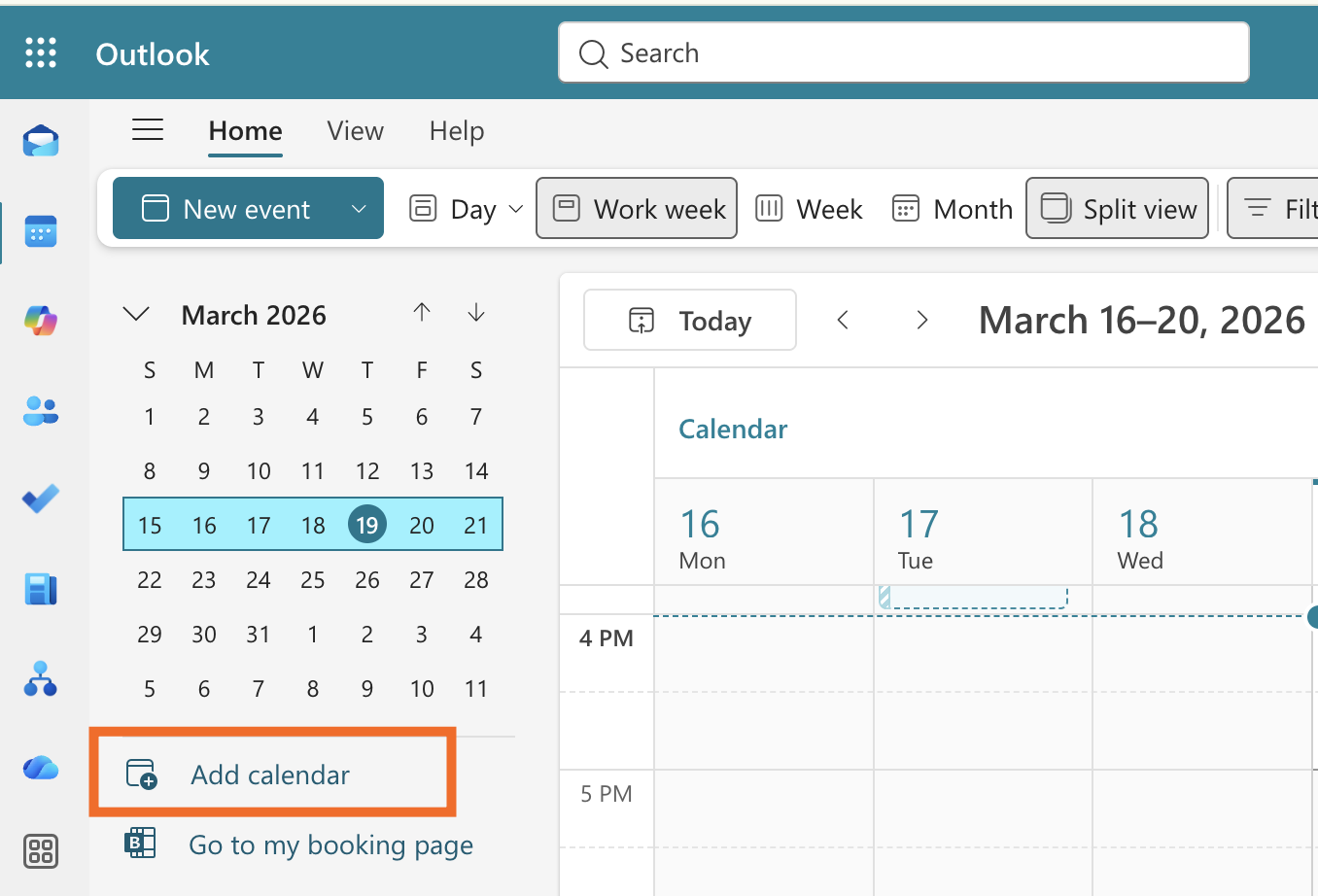
Click Add calendar.
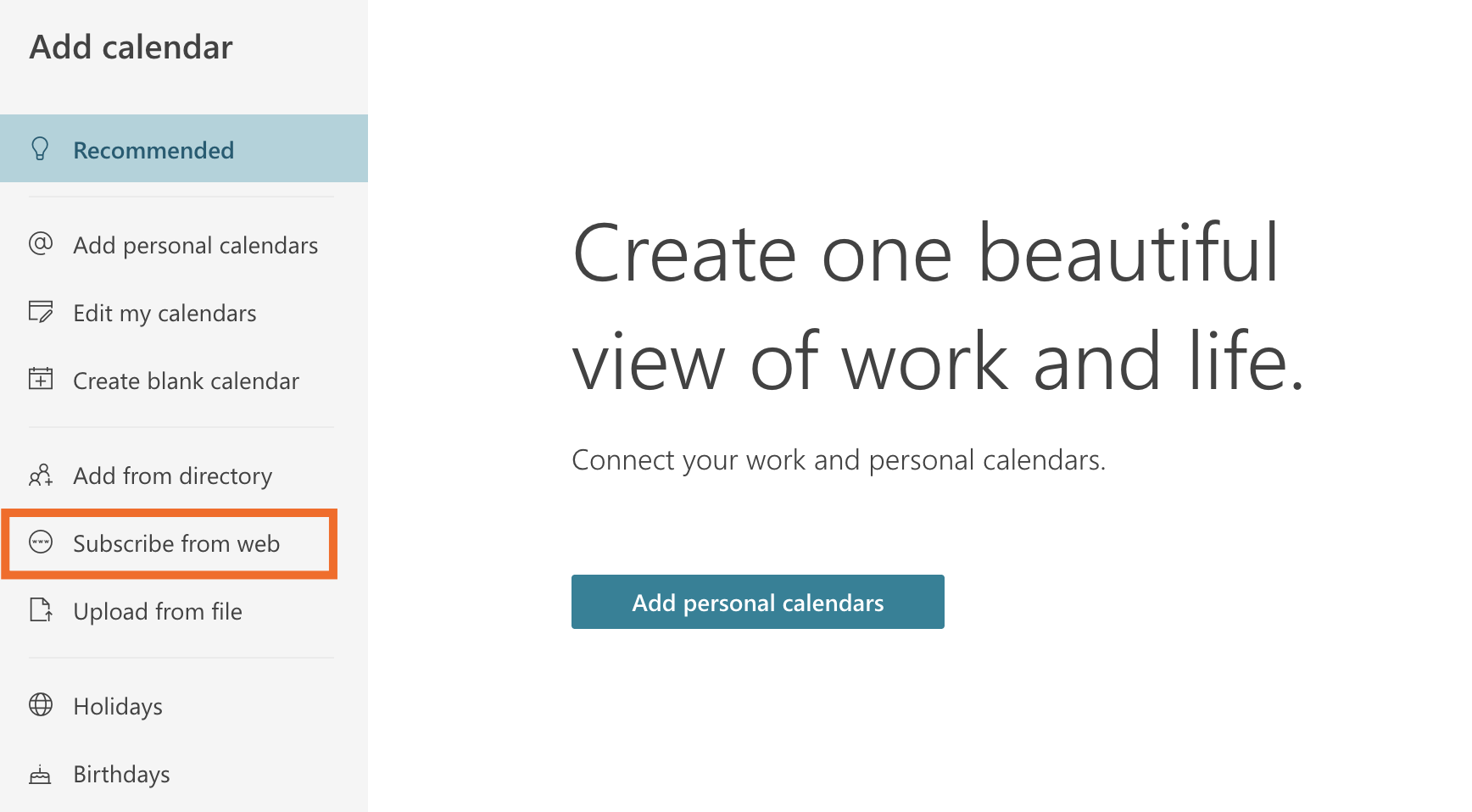
In the pop-up that appears, click Subscribe from web.
Paste the iCal URL you copied from Google Calendar.
Enter a calendar title, pick a calendar color, and, optionally, a charm. (This makes it easier to quickly identify your different calendars.) Then select the Outlook Calendar you want to add your Google Calendar to.
Click Import.


For some reason, Outlook thinks you want to keep adding calendars, so the pop-up remains open. Close it, and then you'll see a side-by-side view of your Outlook Calendar and Google Calendar.

Now, whenever you add an event to Google Calendar, it'll appear in Outlook. This sync only works one way, though. If you want changes you make in Outlook to apply to your Google Calendar, use the two-way sync option.
How to import Google Calendar to Outlook
This next method is for anyone who's ready to permanently switch to Outlook (even if under duress). You'll be importing a snapshot of your Google Calendar data into Outlook without actually syncing the two apps. Here's how to import Google Calendar to Outlook.
Go to calendar.google.com.
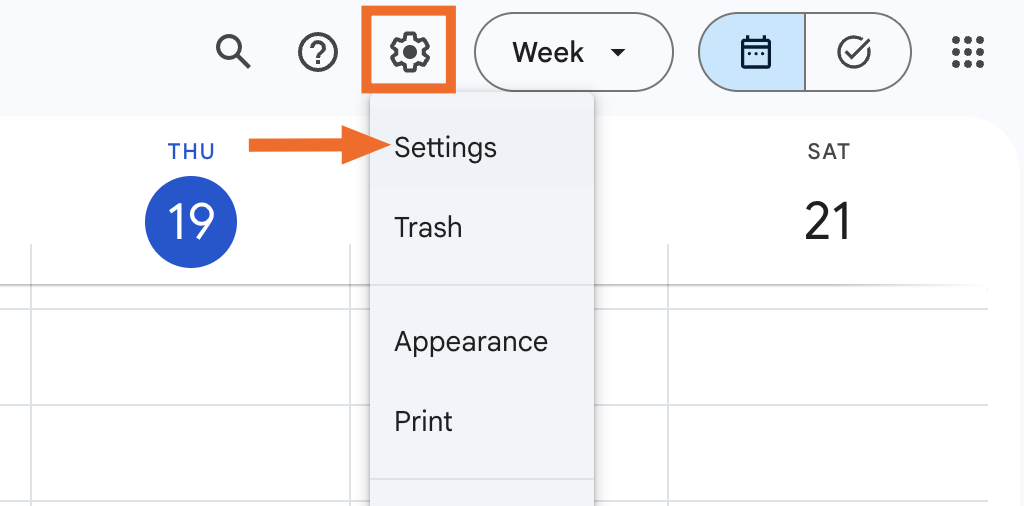
Click the gear icon in the top right, and select Settings.
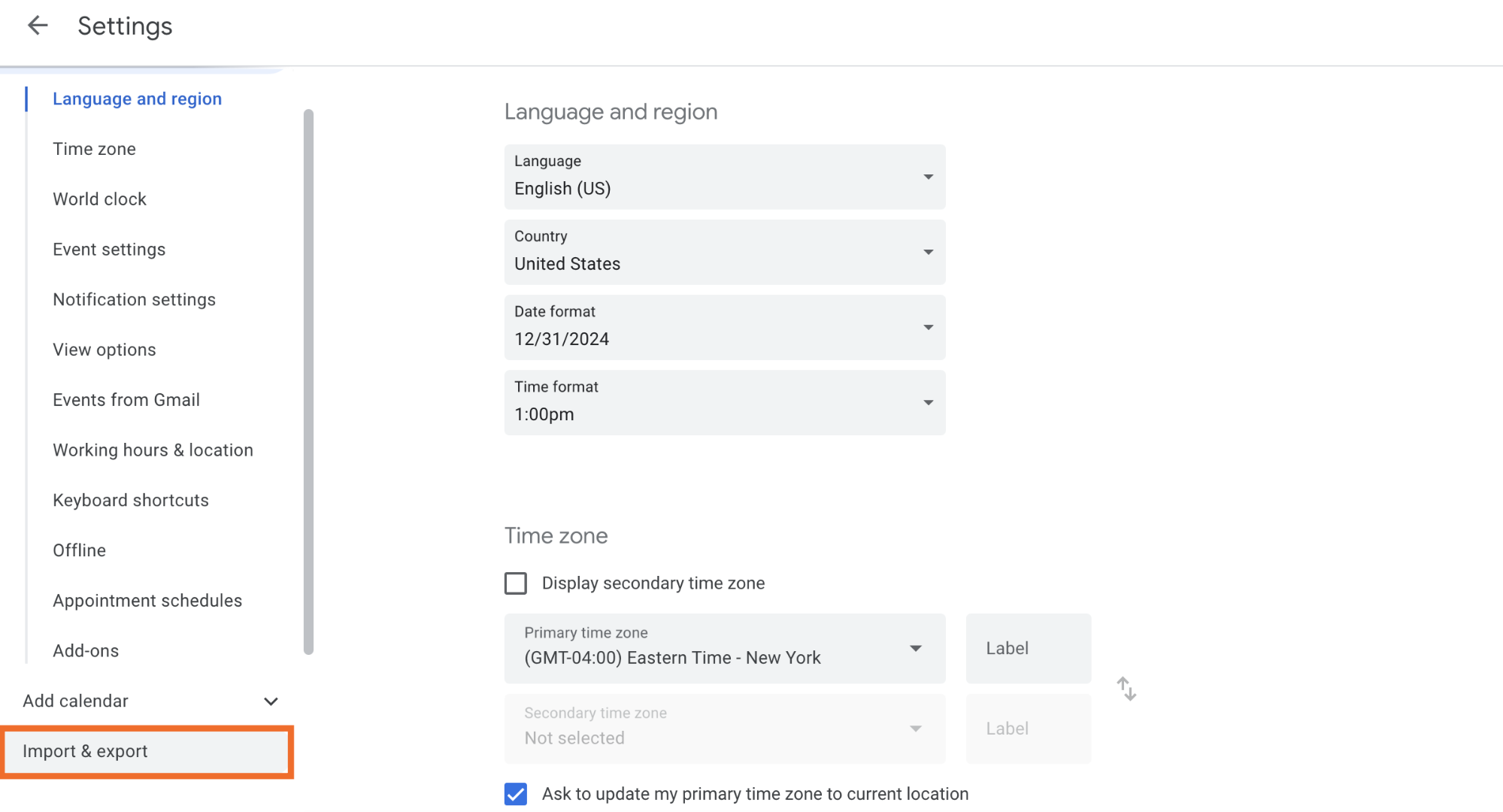
In the side panel, click Import & export.
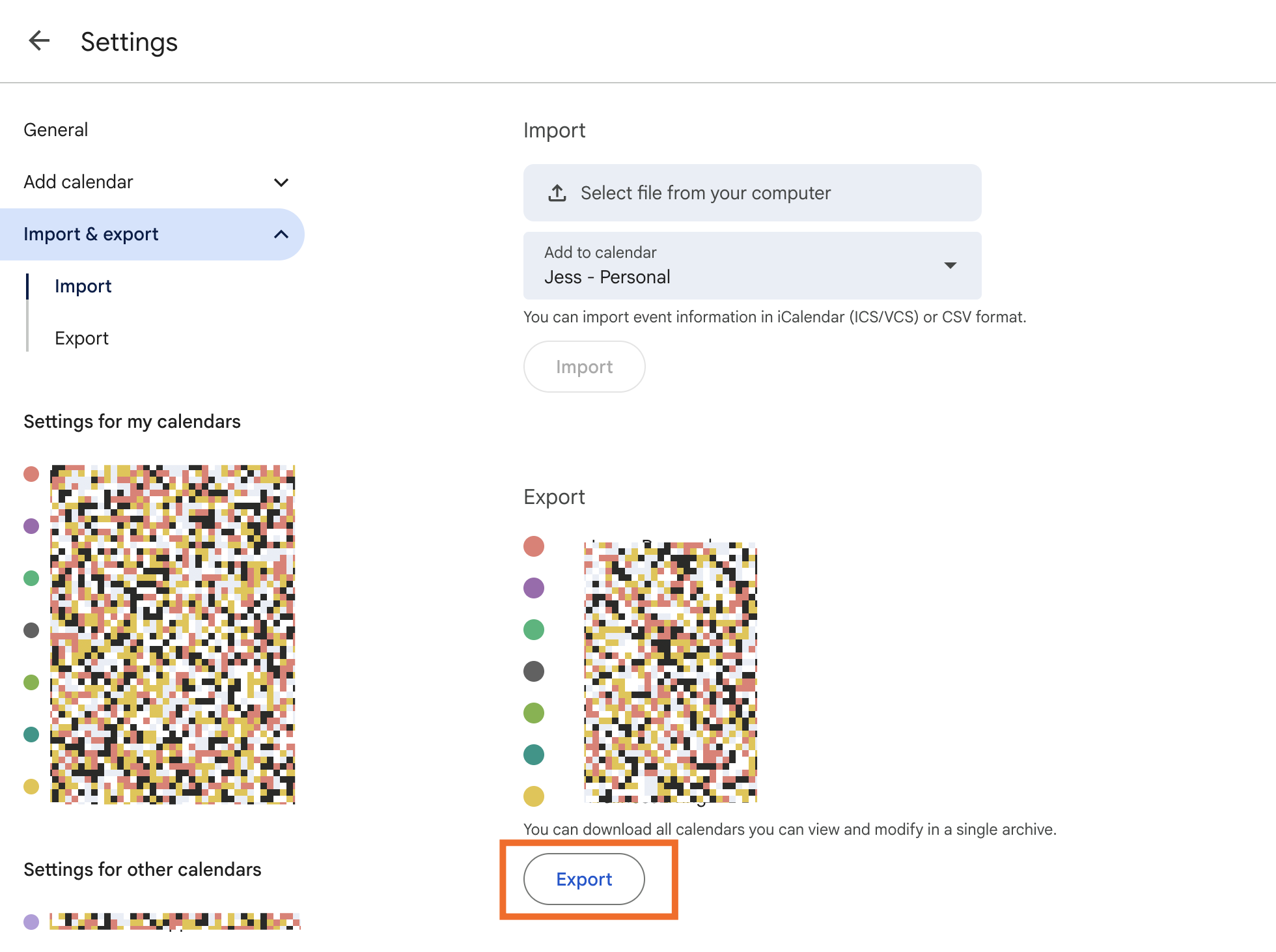
Click Export from the main page. This will download a .zip file containing data for all your Google calendars.
From your Downloads folder (or wherever you exported your calendar to), find your exported calendar, and unzip it.
Click Add calendar.
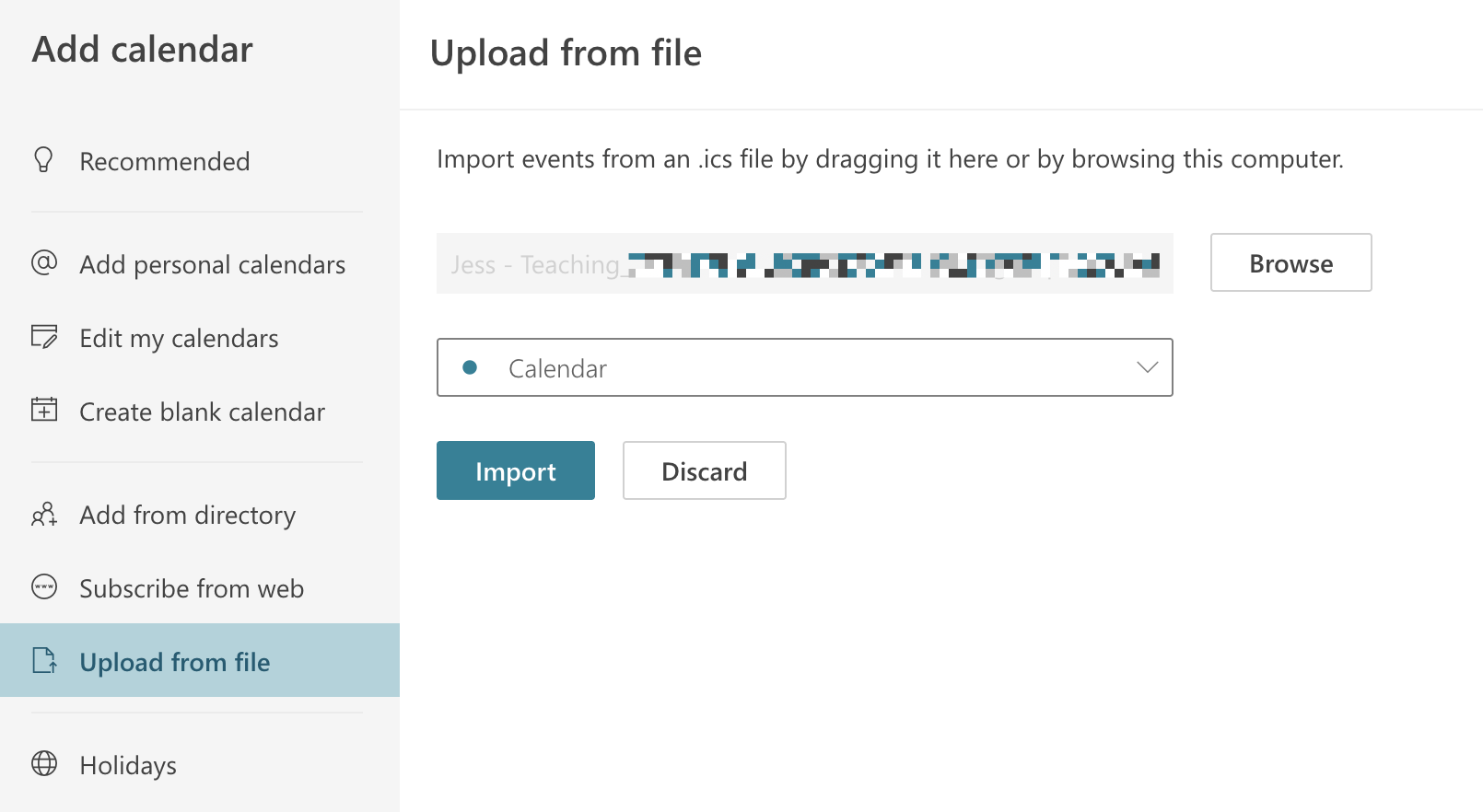
In the pop-up that appears, click Upload from file.
Click Browse, and then select the calendar you want to import (it'll be a .ics file.)
Select the Outlook calendar you want to import your Google Calendar file into.
Click Import.


Your Outlook calendar will be filled in with the events from your imported Google Calendar. Just remember that the two aren't synced, so any changes you make after importing won't be carried over between them.
How to sync Google Calendar with Outlook (two-way) using Google Workspace Sync
If you want a two-way sync option where most of the setup is handled for you, Google offers a tool called Google Workspace Sync for Microsoft Outlook. This tool makes it easy to sync Gmail, Google Contacts, and Google Calendar with Outlook. But there's a catch: it's only available for paid Google Workspace users. This means you can't use it to sync with a free Google account.
If you are a Workspace user, you can download Google Workspace Sync and install it on your PC (it won't work for Mac users, unfortunately). Here's a quick guide:
Close Microsoft Outlook.
Download the .exe file from the Google Workspace Sync download page.
When the download is complete, run the .exe file, and sign in to your Google account when prompted.
Open the Google Workspace Sync for Microsoft Outlook application, and import your data from an existing Outlook profile (if needed).
Start Microsoft Outlook, and select your new Google Workspace profile. Your data will begin syncing.
You now have a true two-way sync set up between Google Calendar and Microsoft Outlook. Every new appointment added to Google Calendar will show up in Outlook, and every appointment you add to a relevant calendar in Outlook will show up in Google Calendar (which means one less tab to switch between).
How to sync Google Calendar and Outlook using Zapier
If none of the above methods speak to you, you can also sync Google Calendar and Outlook using Zapier's Google Calendar and Outlook integrations. This way, you can automatically add every new appointment from a Google Calendar to an Outlook calendar. Use this pre-made workflow template to help you kickstart the process.
Add Microsoft Outlook events from new Google Calendar events


It also works the other way around, meaning you can copy all new Outlook events to a Google Calendar.
Build automations from wherever you work. Describe the outcome you want, and Zapier connects your tools, runs the steps, and stays on the job after you close the chat. Combine AI with reliable, deterministic automation across 9,000+ apps. Get started for free.
Beyond syncing your calendars, you can also use Zapier to build intelligent, AI-powered workflows that span thousands of apps. For example, once new events are added and synced across your calendars, you can have AI automatically generate and populate meeting agendas, and then notify other meeting attendees in Slack to review and fill in the agenda. Discover other popular ways to automate Microsoft Outlook and Google Calendar.
Related reading:
This article was originally published in July 2019 with contributions from Justin Pot and Dylan Reber. The most recent update was in March 2026.



