If you run a YouTube channel or (like me) consume a ton of videos yourself, you may have wanted a transcript at some point—and discovered how tedious the manual process can be.
Typically, you have to navigate to your transcription app, copy-paste a video link or upload a file, then twiddle your thumbs until you get the notification that your transcription is ready.
Instead of all that needless context switching, try automation. You can build a Zap—that's what we call an automated workflow—that does all the work for you. Want to learn how? Keep scrolling.
Zapier is the most connected AI orchestration platform—integrating with thousands of apps from partners like Google, Salesforce, and Microsoft. Use forms, data tables, and logic to build secure, automated, AI-powered systems for your business-critical workflows across your organization's technology stack. Learn more.
Skip ahead
To get started with a Zap template—what we call our pre-made workflows—just click on the button. It only takes a few minutes to set up. You can read more about setting up Zaps here.
The benefits of YouTube video transcripts
If you manage a YouTube channel (or intend to), having a transcript lets you easily repurpose your video content into written assets, like blog posts or social media snippets. That's particularly valuable if you don't have an up-to-date script you can later reference or feed to your AI tools for content repurposing.
And if you're just watching videos? Creating transcripts from published videos you want to learn from is a huge work hack. Let's say you're an analyst engaged in intensive research. You probably don't have 17 free hours to watch all the latest content on why the price of silver is surging. (And if you do, please share your time management secrets with me.) You can grab transcripts from YouTube, but that's a very manual process.
And as of now, you can't just give ChatGPT or Claude a YouTube link and ask it to summarize a video for you. It can't watch or listen to a video. It may pull metadata and related content to try to give you a relevant response, but…the accuracy won't be great.
Gemini has a native YouTube extension and can therefore "fetch" the actual transcript if a video has one, or just pull the auto-generated captions produced by YouTube. Still, Gemini will likely sample or compress the data it gets, so it can respond to you as quickly and efficiently as possible. In other words, you still might not get the most accurate answers.
Having a transcript—grounded in exactly what was said in the video—enables you to ask super detailed questions about a video to any AI assistant and get back reliable answers.
How to automatically generate transcripts from a video file
You can automatically generate a transcript whenever you upload an edited video to a Google Drive folder. (This works with other cloud storage apps, too, but I'll show you how to do it here with Google Drive.)
You'll need two Zaps for this:
Zap 1 watches for new video files in a Google Drive folder, then sends them to Rev for transcription.
Zap 2 watches for a new completed transcription order, then creates a new Google Doc.
Zap 1
To get started, click into the first Zap template below. Or go straight to the Zap editor and begin from scratch.
Create automated transcription orders in Rev for new Google Drive files


Set up your trigger. If you're using the Zap template, this will be done for you. If not, pick Google Drive as your trigger app and for your trigger event, New File in Folder. Then connect your Google Drive account and click Continue.

In the Configure tab, choose which folder to monitor, like a YouTube upload queue. Add a video to the folder to help you test this step. When ready, click Continue.
In the Test tab, test your trigger and select a test file. Then click Continue.
Next, add a new action step by clicking the plus sign (+) under your Google Drive step. If you started with a template, this will have already been done for you. If you started from scratch, search for and choose Rev as your action app, select Create Automated Transcription Order as your action event, and connect your Rev account. (You can choose other transcription apps, too, but I'll use Rev as an example.) Then click Continue.
In the Configure tab, you'll need to map your video file—for this workflow specifically, the web content link—from your trigger step to the Media URL field. To map data, click the plus sign (+) in the field or type a forward slash (/). A modal will open where you can select the data you need.

Pro tip: If you ever want on-demand support while mapping fields or setting up other components of your Zap, you can always ask Zapier Copilot for help, our built-in AI assistant. Click the Copilot icon in the bottom-left corner of the Zap editor to begin a conversation.

Click Continue, then click Test step. This will place an automated transcription order in Rev. If you go to your Rev account and see the transcript, or get an email notification that an order was successfully placed, you were successful! Just remember to publish your Zap.
Zap 2
Now, let's create the second Zap. Click into the Zap template below, or go straight to the Zap editor.
Upload new Rev automated transcripts to Google Docs

Set up your trigger. If you're using the Zap template, this will be done for you. If not, pick Rev as your trigger app and for your trigger event, New Automated Transcript. Then connect your Rev account and click Continue.

There's nothing to configure with this step—just click Test trigger to find recent automated transcripts. (You should see a record of the most recent order you placed. If the video was particularly long, though, you may need to wait until it finishes transcribing.)

Click on a record, then Continue with selected record.
For your second action, search for and select Google Docs as your action app and Upload Document as your action event. (You can also choose whichever app you prefer for file storage.) If you're using the Zap template, this will already be done for you. Connect your account and click Continue.
In the Configure tab, click into the File field and map the transcript file from your previous Rev step. To do this, just click the plus sign (+) or type a forward slash (/) and map to the Public Content Link. If you'd like, you can map the transcription file name to the Specify Document Name field. I recommend creating a dedicated Google Drive folder where your transcription files will live, to keep everything organized.

When you're done, click Continue. Click Test step to make sure your file gets properly created and is sent to the correct folder, then turn on and publish your Zap.
And there you have it—an easy, two-Zap solution for handling transcriptions.
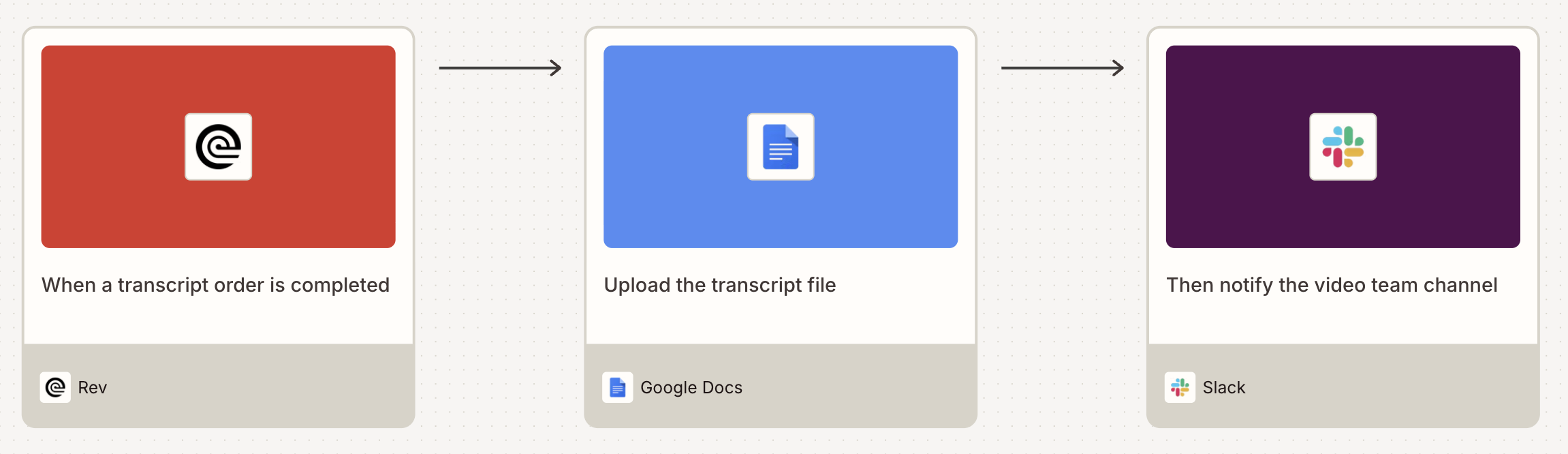
Pro tip: Delegate more work to automation by adding additional steps to this Zap—like a Slack action that sends you a notification when transcripts get stored. Try it in the Zap editor.

How to automatically generate transcripts from a YouTube video
Now let's set up a workflow that creates transcripts from published YouTube videos.
You'll need two Zaps for this one as well:
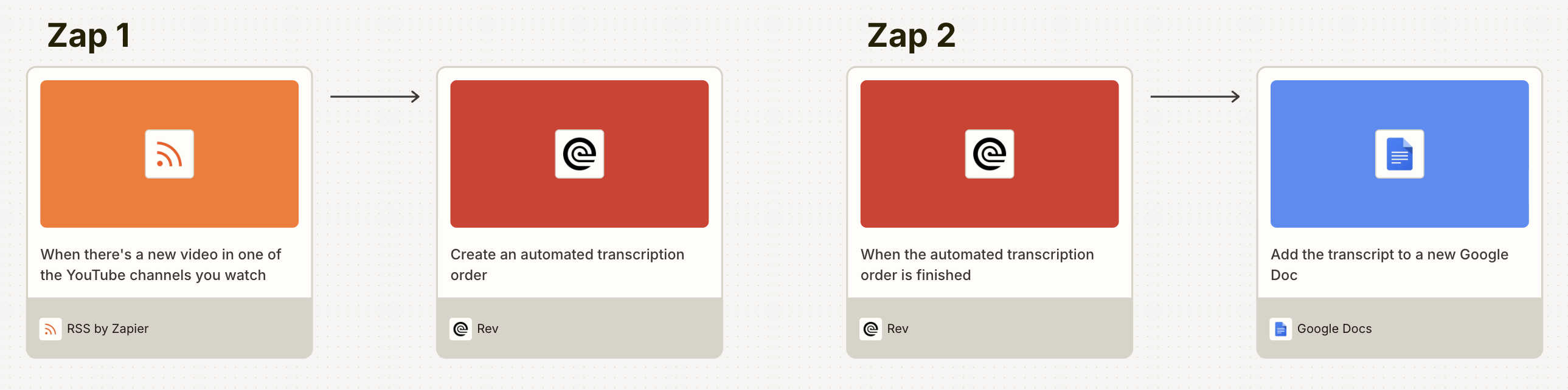
Zap 1 watches for new video files in a YouTube channel, then sends it to Rev for transcription.
Zap 2 watches for a new completed transcription order, then creates a new Google Doc.
To get started, click into the first Zap template below. Or go straight to the Zap editor and begin from scratch.
Create automated transcription orders in Rev for new YouTube videos

Pro tip: Want transcripts for new videos from all the YouTube channels you monitor? In your first Zap, replace your trigger event with RSS by Zapier (New Items in Multiple Feeds).

Zap 1
First, set up the trigger. If you're using the Zap template, this will be done for you. If not, pick YouTube as your trigger app and for your trigger event, New Video in Channel. Then connect your YouTube account and click Continue.

When configuring this step, you'll need to enter the ID of the YouTube channel you want to monitor. To find the ID, go to the YouTube channel, click More to expand the channel's description, click Share, then click Copy channel ID. Back in the Zap editor, enter that in the Channel field.

Click Continue, then Test trigger. This should find new records from your channel of choice. Select one and click Continue with selected record.
If you're building without the Zap template, add your next action, choosing Rev as the app and Create Automated Transcription Order as the action event.
In the Configure tab, you'll need to map your video file—for this workflow specifically, the YouTube URL—from your trigger step to the Media URL field. To map data, click the plus sign (+) in the field or type a forward slash (/). A modal will open where you can select the data you need.

When you're done, click Continue, then test the step. This will place an automated transcription order in Rev. If you go to your Rev account and see the transcript, or get an email notification that an order was successfully placed, you were successful! Just remember to publish your Zap.
Zap 2
Now, let's create the second Zap. Click into the Zap template below, or go straight to the Zap editor.
Upload new Rev automated transcripts to Google Docs
Set up your trigger. If you're using the Zap template, this will be done for you. If not, pick Rev as your trigger app and for your trigger event, New Automated Transcript. Then connect your Rev account and click Continue.

There's nothing to configure with this step—just click Test trigger to find recent automated transcripts. (You should see a record of the most recent order you placed. If the video was particularly long, though, you may need to wait until it finishes transcribing.)

Click on a record, then Continue with selected record.
For your second action, search for and select Google Docs as your action app and Upload Document as your action event. If you're using the Zap template, this will already be done for you. Then connect your account and click Continue.
In the Configure tab, click into the File field and map the transcript file from your previous Rev step. To do this, just click the plus sign (+) or type a forward slash (/) and map to the Public Content Link. If you'd like, you can map the transcription file name to the Specify Document Name field. I recommend creating a dedicated Google Drive folder where your transcription files will live, to keep everything organized.
When you're done, click Continue. Click Test step to make sure your file gets properly created and is sent to the correct folder, then turn on and publish your Zap.
Other ways to automatically generate transcripts
Beyond traditional Zaps, you have two other powerful options for generating transcripts: Zapier Agents and Zapier MCP.

Zapier Agents are AI-powered assistants you can chat with to accomplish tasks or run work in the background. You could build an agent that you instruct to transcribe YouTube videos and have it handle the entire process—from pulling the video to generating the transcript to saving it wherever you need it. Learn how to build an agent in our feature guide.

Zapier MCP lets you access more than 30,000 Zapier actions directly from AI tools like ChatGPT and Claude. If you're already using AI assistants for your work, you can equip them with actions and ask them to generate a YouTube transcript without ever leaving your chat window. Learn how to set up Zapier MCP in our feature guide.
When should you pick either choice? Pick Agents if you want a dedicated AI assistant for transcription that your whole team can access and easily build onto. Choose Zapier MCP if you prefer working inside your existing AI tool and want transcription as an on-demand capability alongside your other tasks. And stick with traditional Zaps if you want fully automated, deterministic workflows.
Take the hassle out of video transcription with Zapier
Whether you're a video content creator or just use YouTube for research and learning, these automated workflows turn transcription from a tedious chore into a hands-off process. Ready to get started? Jump into the Zap editor and build your transcription workflow today.