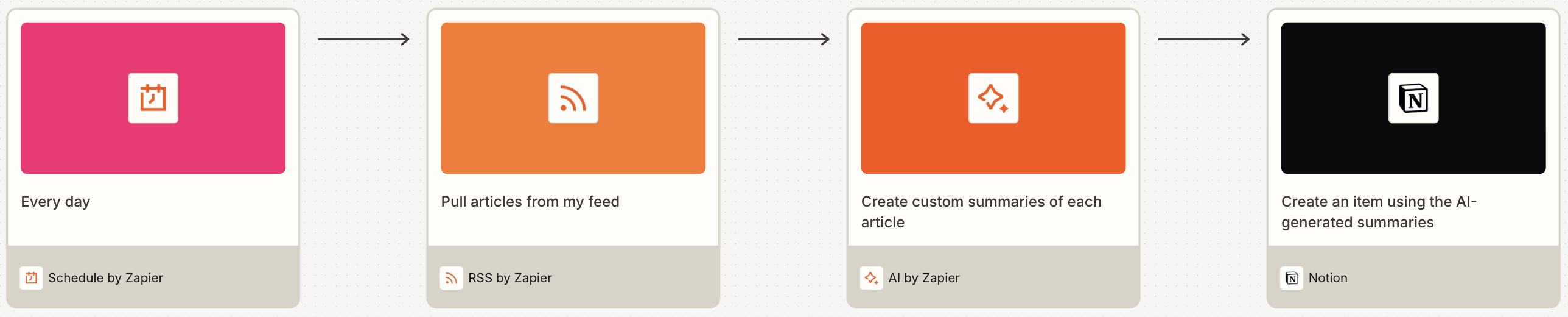
It's easy for tasks to slip through the cracks when you're managing projects across different platforms. Even if you're a Notion user—one of our favorite project management apps—you can't fully streamline the way you work without bringing all your apps together under one roof.
That's where Zapier comes in. With our Zaps (what we call our automated workflows) you can connect Notion to the rest of your tech stack and automate your project management. From sending team notifications for new projects to tracking incomplete tasks, here's how to use our Notion integration to power your work—automatically.
You'll need a Zapier account to use the workflows in this piece. If you don't have an account yet, it's free to get started.
Table of contents
How the Zapier Notion integration works
The Notion integration has six available triggers (events that kick off a Zap) plus 27 actions (events your Zap performs after the trigger). Of those 27, 12 are search steps—a type of action that looks up existing data in an app.
Here are some of the most popular triggers and actions:
Trigger — New Data Source Item
Trigger — Updated Content in Data Source Item
Trigger — Updated Content in Page
Action — Create Data Source Item
Action — Update Data Source Item
Action — Create Page
Search Action — Find or Create Database Item
Search Action — Find Page (By Title)
Search Action — Find Data Source Items
Of course, those just scratch the surface. If you have a specific workflow in mind, check out our Notion integration page for the complete list of triggers and actions.
Pro tip: Wondering what types of Notion workflows you can build on Zapier? Ask Zapier Copilot, our built-in AI assistant. Copilot can help you brainstorm, build, and troubleshoot your cross-product workflows—all you have to do is prompt it in natural language.

How to connect Zapier to your Notion workspace
Check your Notion account permissions
Before you try to connect Zapier to your Notion account, make sure you're an admin in your workspace. You can check this by clicking on Settings & Members in the left-hand navigation window.

Click on the Members tab, where you can see whether you have admin-level access in your workspace.

If you don't, reach out to your workspace owner, who can change your access level.
Connect Notion to Zapier
Whenever you're ready to connect Notion in the Zapier editor, search for and select Notion as your app, then select the trigger, action, or search. Click Continue.

You'll then be prompted to connect your Notion account. Click + Connect a new account. Zapier will prompt you to grant access to your workspace. Click Select pages.

For each app you connect, Zapier will ask for a general set of permissions which allows you to be flexible with your Zaps. The only actions Zapier takes on your app accounts are those a given Zap needs to accomplish what you've set up.
Select the Notion pages you want Zapier to access, then click Allow access.

You've now connected your Notion account to Zapier!
Zapier will also appear in your list of connections within your Notion settings. Click on the My Connections tab to see the list of apps you've connected to your workspace.

Popular ways to use Notion with Zapier
Notion combines the best of your favorite productivity tools into one app, but sometimes you still need information from outside apps. Zapier can help you turn your Notion workspace into a central hub for your most important information. Here are a few ideas to start automating:
To get started with a Zap template—what we call our pre-made workflows—just click on the button. It only takes a few minutes to set up. You can read more about setting up Zaps here.
Keep up with your calendar
It can be tough to keep up with the daily demands of project deadlines, meetings, client calls, or anything else that relies on a calendar. Luckily, Notion allows you to visualize database items in a calendar or a timeline.
If you're already using another calendar app to manage important dates, you can use a Zap to automatically send those calendar events to Notion. Get started with these workflows:
Add new Microsoft Outlook calendar events to Notion databases


Add new Google Calendar events to databases in Notion


Want to set aside time on your calendar to tackle your Notion items? Blocking out your work calendar allows you to fully focus on specific projects and tasks. (Plus, your team will know not to book meetings during that time.)
With these Zaps, any time a new item is added to your Notion workspace, Zapier will automatically create detailed (or simple) events in your calendar, so you can stay on top of your most important work.
Add new Microsoft Outlook calendar events to Notion databases
Generate detailed events in Google Calendar from new Notion database items
Quick add events to Google Calendar when new items are added to Notion databases
Notion uses the YYYY-MM-DD format for dates in Zaps. If your calendar app doesn't use that format, you can add a Formatter step to change the date format to use in Notion.
Read more: Learn step-by-step how to integrate Notion and Google Calendar.
Stay on top of changes in Notion
When you're working collaboratively in a shared workspace, it's important for your team to know when something major has changed in your project plan.
Instead of relying on a human to notify the team—or trying to spot the change on your own—these Zaps will automatically notify you in a team chat app whenever there's a new database item in Notion.

Send channel messages in Discord with new database items in Notion


If you're working with external stakeholders, they'll also need to be notified of major changes. Instead of giving them access to your workspace, you can use an automated workflow to draft an email for you.
Produce draft emails in Gmail with new items in Notion databases

Send emails in Microsoft Outlook for new items in Notion databases
Track tasks and projects
There is no shortage of project management and task apps to choose from. However, the one-size-fits-most approach of these tools might not jive with what you need to track work.
Notion allows you to customize and track your to-dos according to your style, whether it's a list of checkboxes or you need multiple deadlines for a single task. But if your team manages projects in another app, you can create an automated workflow to add new tasks to your Notion workspace.
Get started with the Zaps below:
Save new tasks in Google Tasks in Notion databases

Save new incomplete Todoist tasks in Notion databases


Need to track tasks that occur regularly? Relying on your memory to manually create a record for every daily progress log or weekly standup note is unnecessary. Our built-in tool Schedule by Zapier can auto-create an item in Notion for you, at whatever cadence you'd like.

Pro tip: Supercharge this workflow by adding a data source and an AI by Zapier step, so you can create a super detailed Notion item that fits your workflow needs. Learn more in our AI by Zapier feature guide.

Turn casual asks into Notion tasks
Do people ask you to do things in your team chat app or via email? If so, you'll want an easy way to send those requests straight to Notion—without the hassle of copying and pasting.
These Zaps can help. Any time you add a reaction to a message in Slack or receive an email you've labeled as "to-do," Zapier will send the contents of the message straight to Notion. If you want to organize that information more effectively, you can even add an AI step to extract the request and log it according to a template.
Create Notion tasks using ChatGPT conversations generated from new Slack reactions

Create AI-generated tasks in Notion from new Microsoft Outlook emails with ChatGPT
Create items in Notion databases with new inbound emails

Organize customer information
Whether you're trying to organize form submissions, spreadsheets, or invite attendees, it can be helpful to have that information in the same space where you do most of your planning. These Zaps will automatically create Notion database items for you, so you can keep tabs on your customers, without wasting time manually importing information.
Generate items in Notion databases with new triggers of Zapier Chrome extension

Save new items in RSS feeds as database items in Notion

Add items to databases in Notion with new Slack reactions
Send items to databases in Notion from new or updated Google Sheets rows


Log online research and articles
Whether you're tracking brand mentions online, your published articles, or you just want to save interesting articles in one place, Notion is a great tool for logging your favorite links. Skip the copy-and-paste routine with these Zaps, which will automatically create Notion database items for you.
Generate items in Notion databases with new triggers of Zapier Chrome extension
Save new items in RSS feeds as database items in Notion
Pro tip: With Zapier Agents, you can build an AI assistant that conducts research for you, then updates your Notion database accordingly. To see it for yourself, try our hackathon event notifier agent template below.

Take your productivity to the next level with Notion and Zapier
This is just the start of all that you can do with Notion and Zapier. Zapier supports thousands of apps, so you can automate almost any task at work. Create your Zap now and see what you can do.
Zapier is the most connected AI orchestration platform—integrating with thousands of apps from partners like Google, Salesforce, and Microsoft. Use forms, data tables, and logic to build secure, automated, AI-powered systems for your business-critical workflows across your organization's technology stack. Learn more.
Related reading:
This article was originally published in May 2021 and was most recently updated in December 2025 by Steph Spector.