
By the time you're reading this, I'll probably be on my much-anticipated trip to Dublin that I planned exclusively in Notion. I use Notion for almost everything, but I especially love it for planning trips. For one thing, it allows for multi-select properties, which means I can assign multiple tags to properties like locations and food categories. For another (and most importantly), Notion's interface is pretty.
Now, with the latest advancements to Notion AI, I have a third reason for sticking with Notion: its AI makes it that much faster to plan my trips and quickly pull information that I've buried deep within a painfully detailed itinerary.
Whether you use Notion to organize your life, manage projects, or as a CRM, here's how to use Notion AI to speed up all your workflows.
Table of contents:
What is Notion AI?
Notion AI is a collection of AI features embedded into Notion's workspace, including an AI assistant you can chat with to get answers about—and take actions in—your docs. It also offers a text generator that you can prompt to do things like create, edit, summarize, and translate content—even within databases.
Notion also offers a Q&A-style chat in the AI sidebar so you can ask about what's in your workspace from a dedicated tab.
Notion AI agents can act in your workspace
For a long time, Notion AI was a pretty lightweight chatbot that helped you write and answer questions about your pages. That's still there, but the same AI chat is also where you can ask Notion Agent to do work in the workspace. It can build a database from a short description, adjust views and filters, reorganize a messy notes page into sections, or pull answers from connected tools when your workspace has AI connectors enabled.
Notion Agent can take multi-step actions using your pages, databases, and (when connected) apps like Slack, with the same permissions as your account and changes you can undo. Teams on Business and Enterprise can also use Custom Agents, shared automations that run on schedules or triggers inside Notion and connected tools, with access scoped page by page.
Notion AI features
Here's a quick look at what Notion AI can actually do, before we get into how to use it.
Write and edit. Notion AI can generate new content, improve existing writing, fix grammar and spelling, change tone, translate, or make content shorter or longer. It's available inline on any block.
Answer questions about your workspace. Ask in chat, and Notion AI will pull from your pages, databases, version history, and comments. It can also search the web when answering questions (workspace owners can turn this off in the settings). On the Business plan with connectors enabled, it can also pull from connected apps like Slack, Jira, Google Drive, and Salesforce.
Build and edit databases. Describe what you need in plain language, and Notion AI will create the database, add properties (including relations to other databases), and set up views and filters. You can also ask it to query an existing database: "what tasks are still blocked?" or "what did we ship last quarter?" without sorting through rows manually. And if you have formula properties, Notion AI can write or edit those, too.
Work with files. Upload a PDF or CSV and ask questions about it, or have Notion AI turn it into a structured page or database.
AI autofill. Set up a database property that Notion AI populates automatically with summaries, status labels, or key points. This is helpful for recurring work where you're otherwise filling in the same field over and over.
AI image generation. If you're on a Business or Enterprise plan, you can generate or edit images directly inside Notion using a text prompt.
AI blocks. Power an entire block with a persistent AI prompt: define what you want it to show, and refresh it on demand. This feature is good for things like auto-generated summaries, status callouts, or recurring data snapshots.
AI meeting notes. Transcribe your meetings and generate a summary, decisions, and action items.
Enterprise search and research mode. Enterprise search lets you find answers across Notion and connected tools in one query. Research mode goes deeper, using workspace context plus the web to generate detailed reports.
Custom agents (add-on). Shared automations that run on a schedule or trigger—like weekly reports, ticket triage, and status updates—without someone manually prompting them each time.
Use cases for Notion AI
Now that you know how to open Notion AI, here's how it shows up in real work. Inline actions are still great for polishing a paragraph, but chat is where you'll lean when the job is structural (databases, summaries across pages, or pulling signal from a lot of rows at once). You can use Notion AI to do things like:
Brainstorm ideas
Edit existing content
Summarize content
Analyze large text-based data sets
Ask questions (about your content or from the web, depending on your settings)
Autopopulate properties
Create new pages or databases from a prompt
Since there are endless possibilities for Notion AI—more than I could list here—I'll share a few examples of each category in action.
Brainstorm ideas
When you write for a living (like I do), you're bound to run into writer's block. Notion AI can help you get the creative juices flowing. For example, you can ask it to come up with a list of email subject lines, article ideas for a specific topic, a list of the best hiking trails in a specific national park—the list goes on.
Here's an example of Notion AI's response when I prompted it to write an email promoting an article about how to use Notion AI.

Once Notion AI spits out the first draft, you can choose from one of the suggested AI actions, including Insert below or Accept. Or you can enter a specific prompt in the chat bar.
Edit existing content
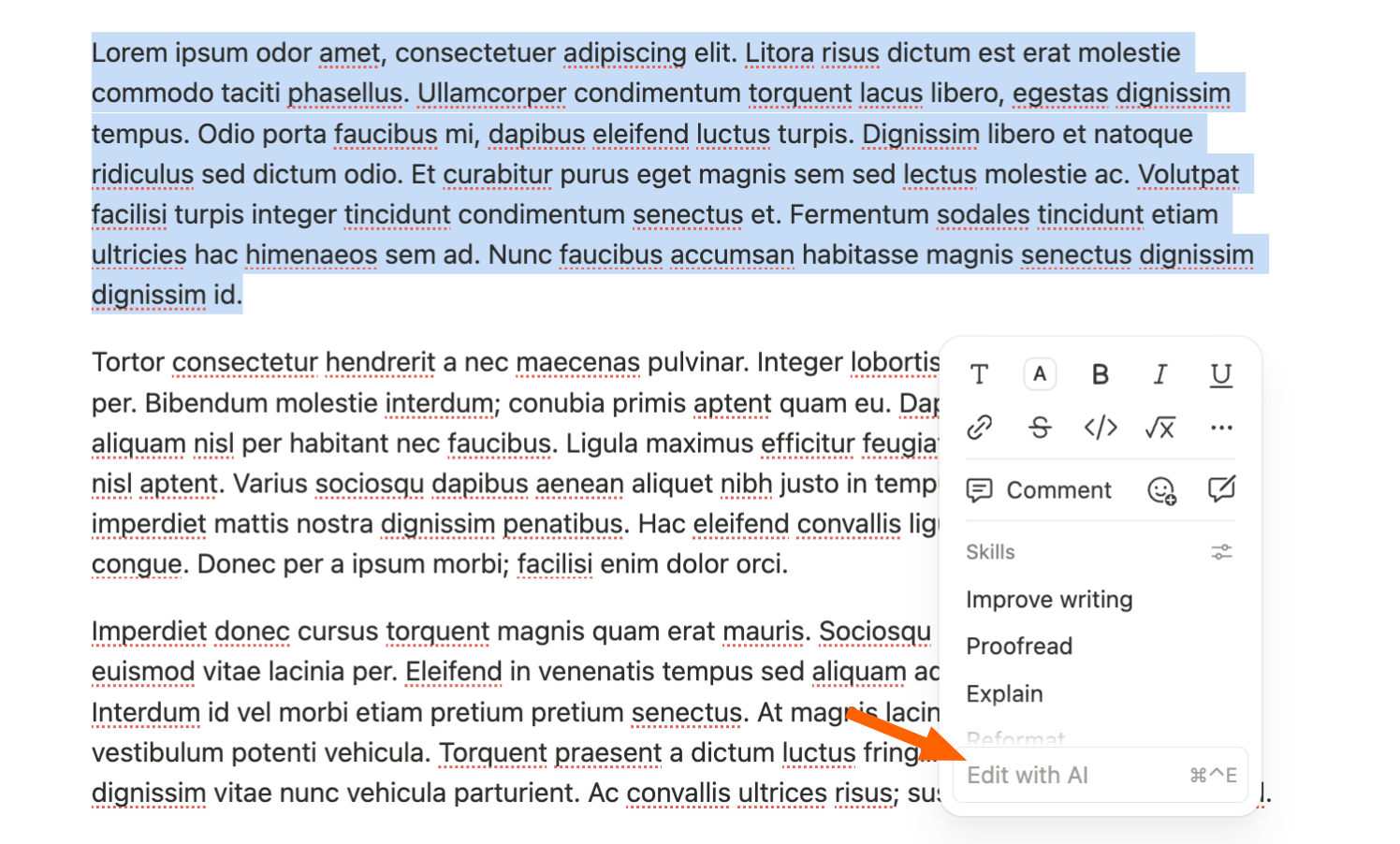
You can use Notion AI to edit existing content within your pages. Here are some of the pre-loaded AI actions you can apply to any content block: Improve writing, Proofread, Explain, and Reformat.

For bigger reshapes (like turning rough notes into an agenda, decisions, and action items), switch to chat and @-mention the page so the model isn't working from a single block in isolation.
Similarly, if you want it to apply your brand voice consistently, you'll get better results from the chat bar, where you can @-mention a style guide page directly in your prompt.
Summarize content
Let's say you use Notion to capture your team's meeting notes. You could review your notes, line by line, to draw the key points and compile a list of action items to share with everyone. Or you can prompt Notion AI to do the heavy lifting for you.
If your team uses Notion's meeting notes feature, you can also @-mention those pages for recap-style questions ("what did we decide?" or "what are my action items from that meeting?").
If you want to take things further, you can ask Notion AI to turn your key points into a high-level summary.
Analyze large text-based data sets
Notion AI can also scan through your pages to provide a different kind of summary. For example, if you store customer feedback in a Notion database, you can prompt the AI to reference that database and do things like generate an overall audience sentiment or count how many times a specific pain point was mentioned.
Ask questions (about your content)
You can ask the AI questions about the content contained within your workspaces (as shown in the example below). But the AI's knowledge isn't limited to just these sources. Since Notion AI uses multiple large language models (LLMs)—and lets you switch models on the Business plan—it can also answer questions beyond your workspace using its general knowledge of the world.

When connectors are on, those answers can draw from Slack, Drive, and other linked tools—not only Notion pages—so be specific about source if you want something auditable.
Autofill database properties
AI Autofill speeds up the process of updating your databases with important information, including summaries, key points, and item labels. Chat can also complement autofill when you want one-off reasoning across many rows ("flag anything blocked more than two weeks") without setting up a new property first.
For example, if you use Notion AI to track all your projects, you can use the AI custom autofill option to generate a summary of each page's content (as shown in the example below). Or, you can have it automatically assign each item with a specific status like draft, in progress, or complete using a Select property type.

The way to use AI Autofill varies depending on the type of property you want it to update. For step-by-step instructions, check out Notion's guide to using Autofill.
It's worth noting that the results from custom autofill prompts can vary. You'll get better outputs with more specific prompts ("assign 'in progress' only if the task has an owner and no blockers" vs. "assign a status").
Notion AI pricing: Is it worth it?
You can try Notion AI on any plan—including Free—but "try" is doing real work there. Free and Plus users ($10/seat/month, billed annually) get a limited enough trial to poke around, but not enough to build anything into your workflow.
To actually unlock Notion AI, you need a Business plan, which runs $20/seat/month billed annually. That's not nothing, especially if you're an individual or a small team evaluating every tool line by line.
The Business plan also includes premium integrations with apps like Slack and GitHub. Once those tools are connected, your Agent can answer questions across your tech stack instead of just your Notion pages. If Notion is already where your work lives, it could be worth it to add useful AI features to the thing you're already using all day, rather than a standalone app.
On the other hand, if you're a light Notion user, or you already pay for a separate AI assistant you're happy with, the Business plan's cost is a lot to absorb.
How to use Notion AI
Here's a summary of how to use Notion AI.
Go to notion.com, and log in or sign up.
Interact with Notion AI on the web in one of two ways:
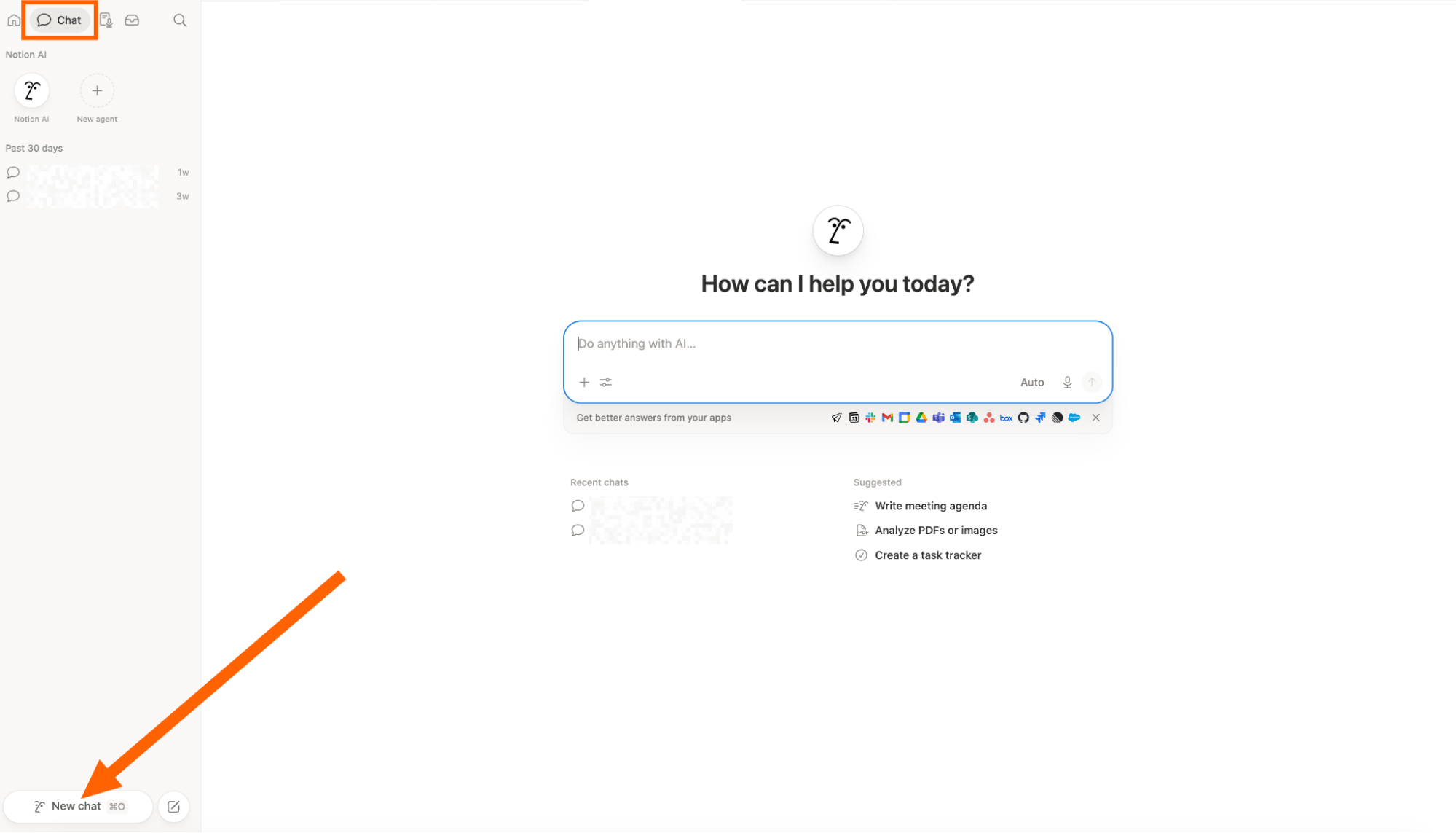
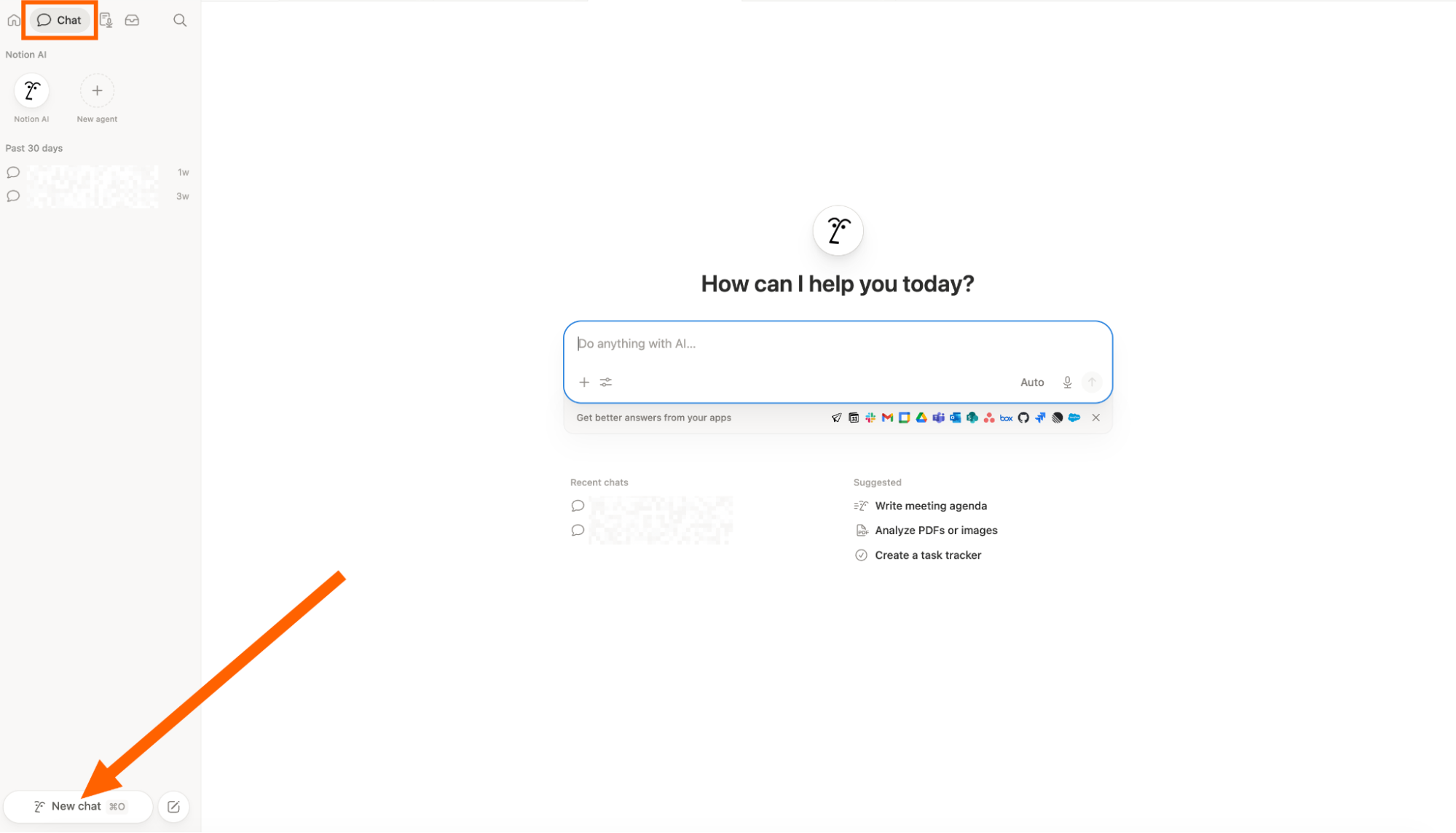
Click the speech bubble icon for Notion AI in the sidebar, then click New Chat.
From one of your pages, click the menu icon (it looks like a 2x3 grid of dots) next to the block you want Notion AI to help you with, and click Ask AI. Enter your prompt, or choose from one of the suggested AI actions.
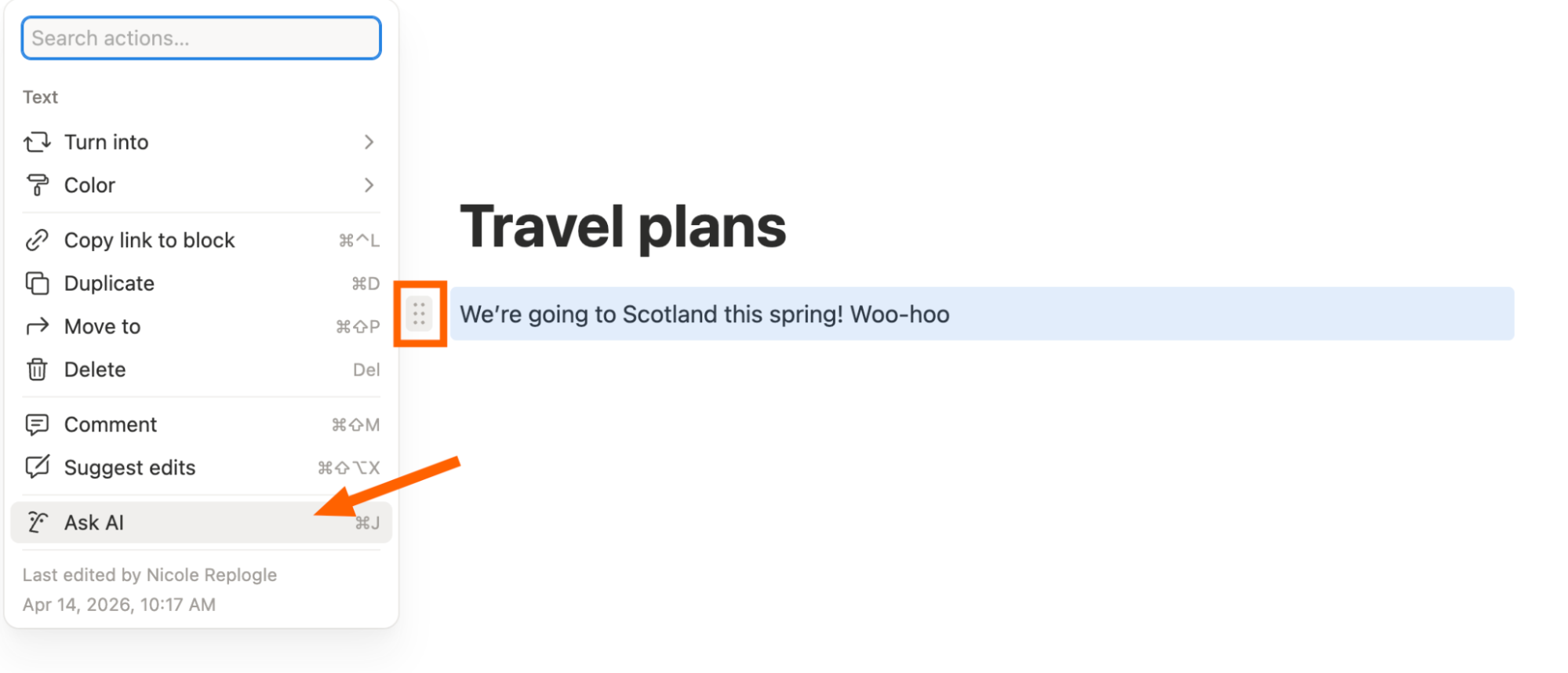

Now let's take a closer look at the finer details of using Notion AI.
1. Get access to Notion AI
Notion AI is included in the Business plan ($20/seat/month, billed annually) and Enterprise plans. If you're on Free or Plus, you get a limited trial—a complimentary set of AI responses to test it out before committing.
To upgrade to Business:
Go to notion.com and log in.
Click your username in the top left of the sidebar, then click Settings.
Click Upgrade plan.
Select Business and follow the upgrade prompts.
2. Trigger Notion AI
You can access Notion AI in a number of ways.
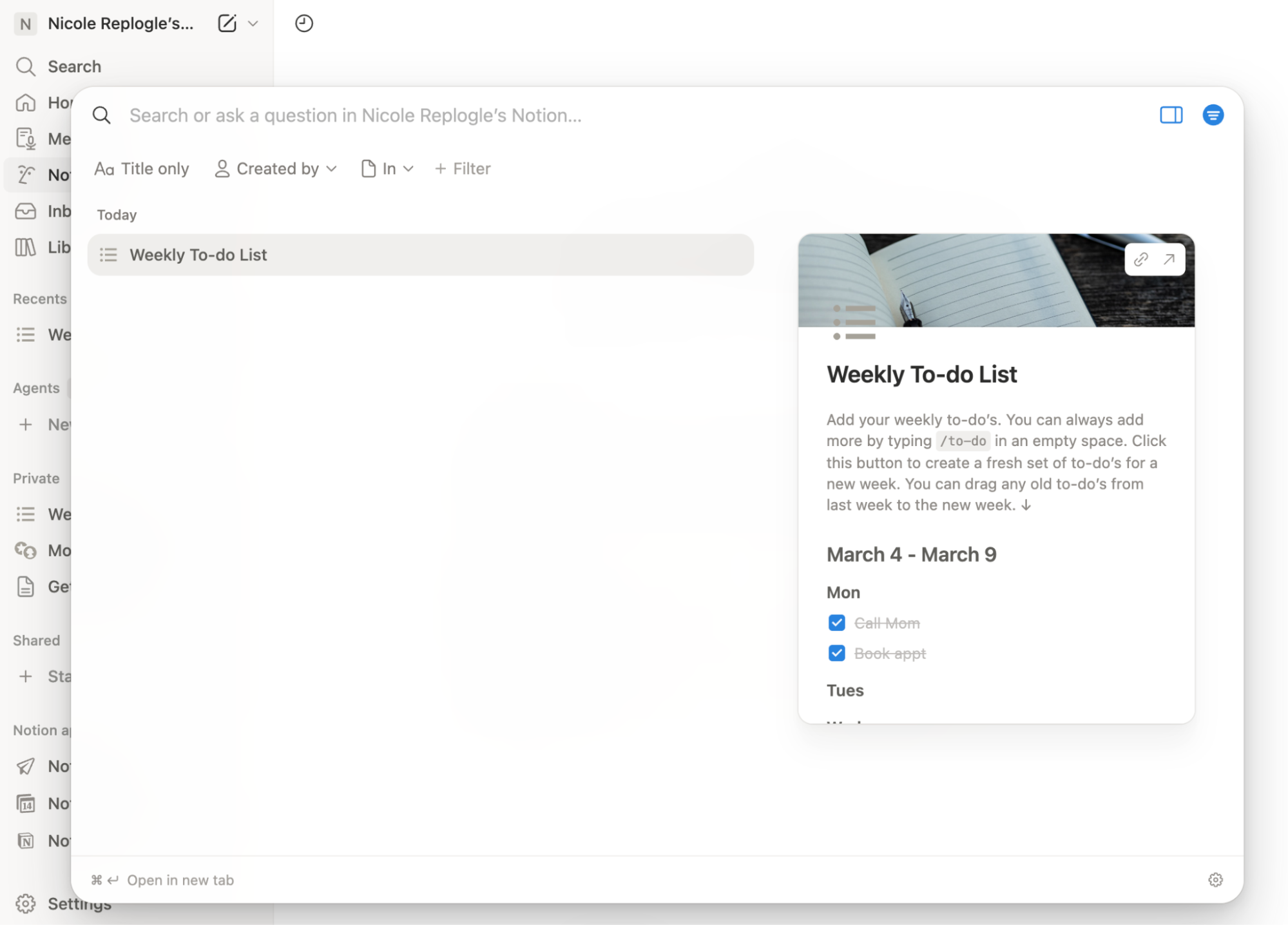
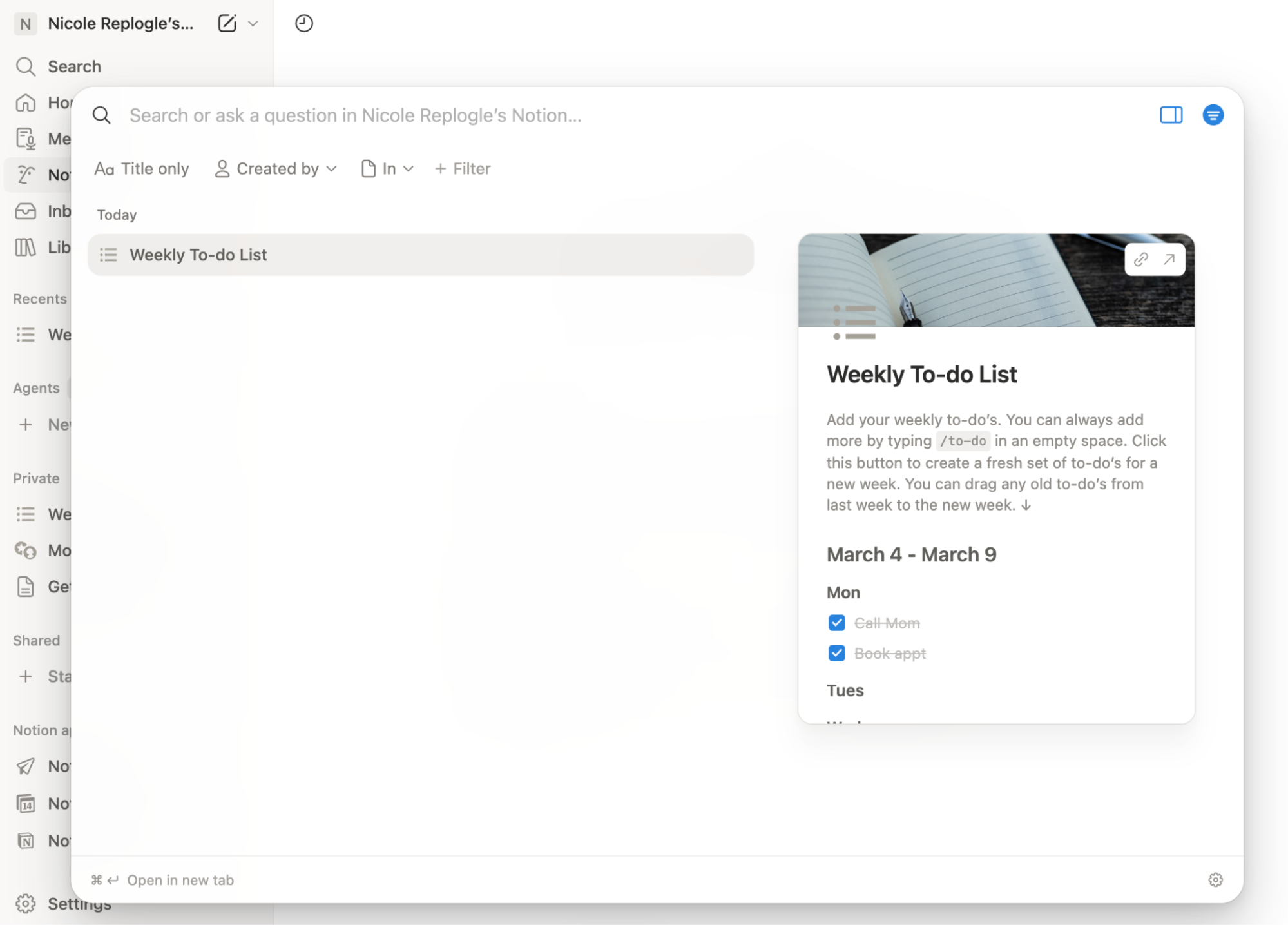
Use the Search bar. Click Search in the sidebar, and enter your question in the search bar for Notion AI to answer.
Use the Q&A feature. Click the speech bubble icon for Notion AI in the sidebar, then click New Chat. Choose from one of the suggested AI actions or enter a prompt in the message bar.
Open a Notion AI chat from your page. Click the AI icon on the bottom-right corner of any Notion page to start a new Notion AI chat.

Use the slash command. Type
/aito select an AI action. Or, hit the space bar on a new line to start prompting Notion AI. If you want Notion AI to edit your content, you need to first highlight the text or block you want it to edit, and then either choose one of the suggested AI actions, or enter a specific prompt.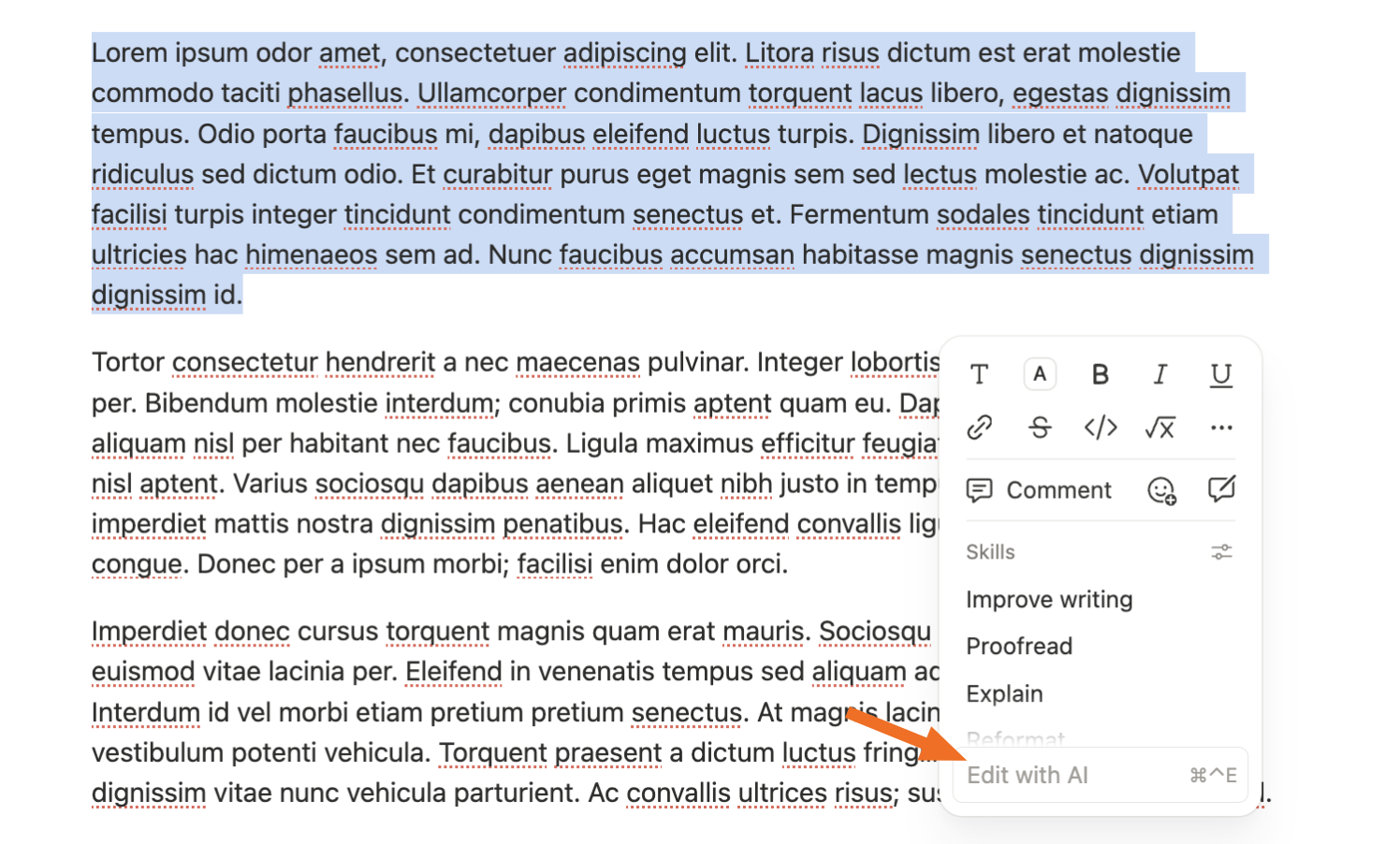
Use your keyboard shortcuts. Press
shift + command + J(Mac) orCtrl + Shift + J(Windows) to open the Notion AI chat from anywhere in your workspace—web or desktop app. You can customize this shortcut in Settings > Preferences.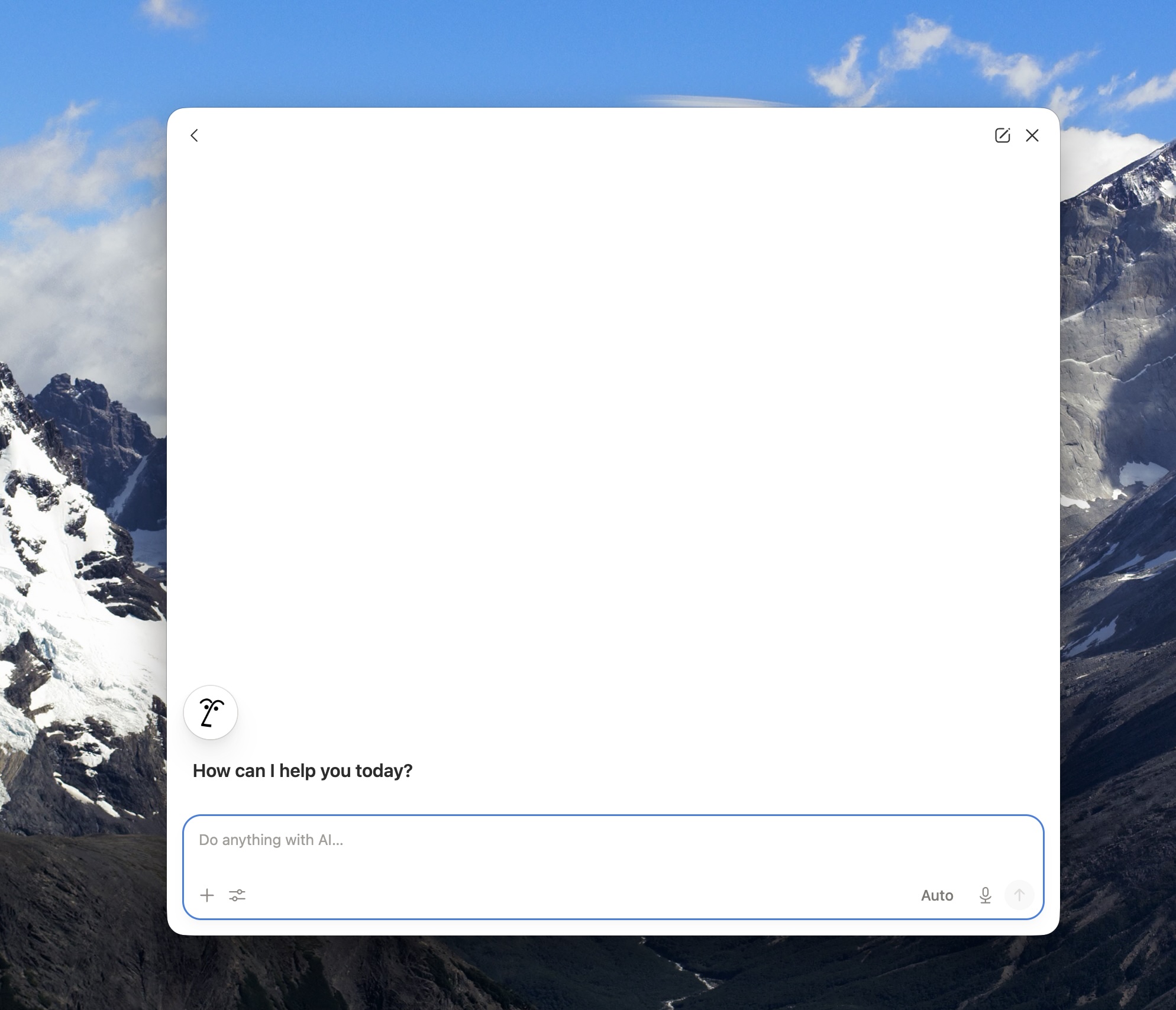


3. Interact with Notion AI's response
Once you're in that chat, you're not limited to single-shot answers. Ask for outcomes ("build a project tracker with status, owner, due date, and a board view") or comparisons ("what shipped last week versus the week before?") and let Notion propose concrete edits.
If your workspace uses connectors, use the filter tool to say which source you mean or pick it from the context controls in the chat bar so the model isn't guessing. You can also choose whether to let Notion have web access in the chat's filter tool.

Click Personalize to give it a name, pick its appearance, and set up Instructions—a persistent page where you can define tone, formatting rules, and context that applies to every interaction. You can even save reusable skills for recurring tasks like proofreading to a specific standard. Set it up once, reference it automatically.

It's not obvious that you can revisit past Q&A chats, but you can. Click the speech bubble icon in the sidebar to access Notion AI, then select a conversation from your chat history.

Automate Notion
Notion AI is a powerful tool for organizing and querying what's already in Notion and your other connected apps. But it won't replace everything you do in other apps overnight.
When you connect Notion with Zapier, you can build workflows that go way beyond what Notion's native integrations handle. Think automatically routing new form submissions or support tickets into a Notion database, or syncing data from your CRM so your project tracker stays current without anyone doing it manually. Basically, if you're already using Notion AI to think through your work, Zapier handles the grunt work of getting the right information into Notion in the first place.
Learn more about how to automate Notion, or get started with one of these workflows.
Add new Google Calendar events to databases in Notion
Build automations from wherever you work. Describe the outcome you want, and Zapier connects your tools, runs the steps, and stays on the job after you close the chat. Combine AI with reliable, deterministic automation across 9,000+ apps. Get started for free.
Related reading:
This article was originally published in March 2023 by Ellie Huizenga, with contributions from Jessica Lau. The most recent update was in April 2026.


