Google has two apps you can use to upload and share photos: Google Drive and Google Photos. That might seem like one too many, especially since they pull from the same storage.
But the goal of each app is different. For everyday photos and videos you take on your phone, Google Photos is fantastic at organizing and editing them, backing them up, and making it easy to find what you're looking for. For professional-quality photos, videos, and project files from apps like Lightroom or Photoshop, Google Drive is the best place to store them and share them with coworkers or clients—without accidentally compressing anything in the process.
Those are the basics, but there's a bit more to it than that. I use both services almost daily, and I'm a particularly heavy user of Google Photos (I've been an enthusiastic early adopter of its recent AI features). For this comparison, I tested how each app handles full-resolution uploads, search, editing, and sharing. I'll explain what each app does best, when it makes sense to pick one, and when you're better off splitting your files between both.
Table of contents:
Google Drive vs. Google Photos at a glance
Here are the essential differences between the two apps, but keep reading for the full breakdown.
Google Drive | Google Photos | |
|---|---|---|
Storage and pricing | Storage is shared with Photos and Gmail; 15 GB free, then paid plans from $1.99/month for 100 GB | Storage is shared with Drive and Gmail; 15 GB free, then paid plans from $1.99/month for 100 GB |
Image quality | ⭐⭐⭐⭐⭐ Stores every file exactly as you upload it, in any format | ⭐⭐⭐⭐ Can keep originals, but it's designed to compress to 16 MP and 1080p with Storage saver |
Backup | ⭐⭐⭐ Drive for desktop backs up computer folders in the background; no automatic phone backup | ⭐⭐⭐⭐ Backs up your phone automatically; computer backup only works while a browser tab is open |
Organization | ⭐⭐⭐ Folders you create and manage yourself | ⭐⭐⭐⭐⭐ Automatic timeline by date, plus albums and Face Groups for people and pets |
Search | ⭐⭐ Finds text inside images, but doesn't recognize the objects in a photo | ⭐⭐⭐⭐⭐ Recognizes objects, people, and pets; Ask Photos answers text-based questions about your photos |
Editing and AI | ⭐ No built-in image editor; Gemini in Drive (AI Pro and up) summarizes files, not photos | ⭐⭐⭐⭐⭐ Built-in image editor; AI editing features include Magic Eraser, Remix, and Help me edit |
Sharing | ⭐⭐⭐⭐⭐ Share files or folders with view, comment, or edit permissions | ⭐⭐⭐⭐ Share albums by link with anyone, and revoke access at any time |
Automation | ⭐⭐⭐⭐⭐ Connects to thousands of apps through Zapier | ⭐ No Zapier integration; Google restricted third-party access to Google Photos in 2025 |
Google Drive treats photos like any other file
Google Drive is a cloud storage service, meaning you can upload any kind of file to it. That includes photos and videos. You can upload any photo, or even a folder full of photos, to Google Drive using the Upload button, or by simply dragging the files to your Google Drive window.

Photos look like any other file in your Google Drive: you can organize them in folders, share them with anyone, and add comments. It's a great way to quickly send high-resolution photos, videos, and other files to coworkers or clients, and your recipients don't need a Google account for access.
Google Drive is also usually the best way to back up photos stored on your computer, since it has a desktop app that runs in the background and saves backups automatically. Google Photos can back up photos from your computer too, but it'll only work if you go to photos.google.com and keep the browser tab open.
However, you can't do much with Google Drive beyond storage and sharing. You can open photos in third-party apps and edit them there, but there's no built-in way to touch up your images. You can download photos and move them between folders—and that's about it.

Image search is another weak area for Google Drive. The odd thing here is that it's actually fantastic at optical character recognition: if you need to find a receipt from last month's brunch, just search "avocado toast" (or whatever you ordered) and you'll find it right away. But object recognition doesn't work the same way. If you upload a photo of a cat, Google Drive simply cannot find it if you search "cat."
Google Drive integrates with Zapier, which means you can do things like automatically save photo attachments you receive in Gmail to Google Drive or get new Slack notifications whenever someone adds a photo to your Google Drive. Learn more about how Zapier works.
Google Photos is built around your photo collection
Google Photos is all about organizing a massive photo collection. Install the Google Photos app on your phone, turn on backup, and every image you take will be uploaded to the Google cloud.
You can browse your photos on the web app or on the Google Photos app on your phone, and any changes made in one place sync to the other almost immediately. Images are sorted by date, making it easy to scroll through the years.

You can also sort photos into albums, if you want, and share those albums with a link. Recipients don't need Google Photos to view them, but if they have it, the album shows up right in their app. You can revoke access at any time.
One Google Photos feature I really love is the AI-driven search. You can type pretty much anything and get accurate results. Here's what happens when I search for "tacos":

On the mobile app, there's also Ask Photos, a Gemini-powered search that pulls from your photos to answer questions. Basically, you just search for information instead of photos. In my tests, the answers weren't particularly comprehensive, but if you're wondering when you last went to an aquarium or what you ate on a recent vacation, Ask Photos can give you an overview.

There's also built-in facial recognition. If you're like me, this will be your most-used feature: it's an incredibly efficient way to find photos of yourself, your family, or your favorite cat (pets get facial recognition, too).

Google Photos is now an AI photo editor
Google Photos originally offered a very basic set of photo editing tools, including filters, light and color adjustments, rotating, and cropping. Those tools are still there, but Google has added a lot of AI on top with its Gemini integration.
The biggest change is Help me edit. Instead of fiddling with sliders, you can describe what you want, like "get rid of the people in the background" or "remove the reflection on the window," and Gemini makes the edit.

You can also use Magic Eraser, which uses AI to remove unwanted people or objects from your photo. Just highlight the things you want to remove, or let Google suggest them, and click Erase. I have a pretty good success rate with this one, though it depends a lot on how busy the background is behind whatever you're removing.

There's also a suite of features that remixes your photos and videos with various AI filters and effects. You can turn your video into a watercolor, reimagine yourself as a collectible figurine, or create a digital birthday card.

All of the AI features I've mentioned so far are only available on the mobile app. If you're using Google Photos in the browser, there are only a few AI capabilities. You'll get suggestions for filters to apply to your photo, along with a one-click Enhance feature that optimizes your brightness, contrast, and saturation levels. But that's about it. For anything else, you'll need to grab your phone.

Google Photos can compress photos; Google Drive doesn't
Google Drive and Google Photos share the same storage. Every Google account gets 15 GB for free, split across Drive, Photos, and Gmail. Paid plans start at $1.99/month for 100 GB of storage. While the storage is the same either way, there's one difference worth knowing about: compression.
Google Photos lets you save compressed versions of your photos and videos with an option called "Storage saver." You can also choose to save the originals, with no compression applied. If you choose Storage saver, your photos will be resized to a maximum of 16 MP, which Google says is good enough for printing up to 24 x 16 inches, and they may be converted into JPGs if they were originally a different image format. Videos higher than 1080p are resized to 1080p.

Google Drive, on the other hand, doesn't do anything to your files. You can upload a RAW file, a layered Photoshop document, or a 4K video, and it'll be exactly the same whenever you download it. That makes it a better option if you're shooting on a dedicated camera, or if you edit in Lightroom or Photoshop, since Google Drive can handle the unusual file types and high-resolution images you'll be storing.
How to move photos from Google Drive to Google Photos
If you use a personal Google account, you can import photos from Google Drive directly into Google Photos. Here's how it works:
Open Google Photos on the web, click the + sign in the top-right corner, and select Import photos.
Select Google Drive.
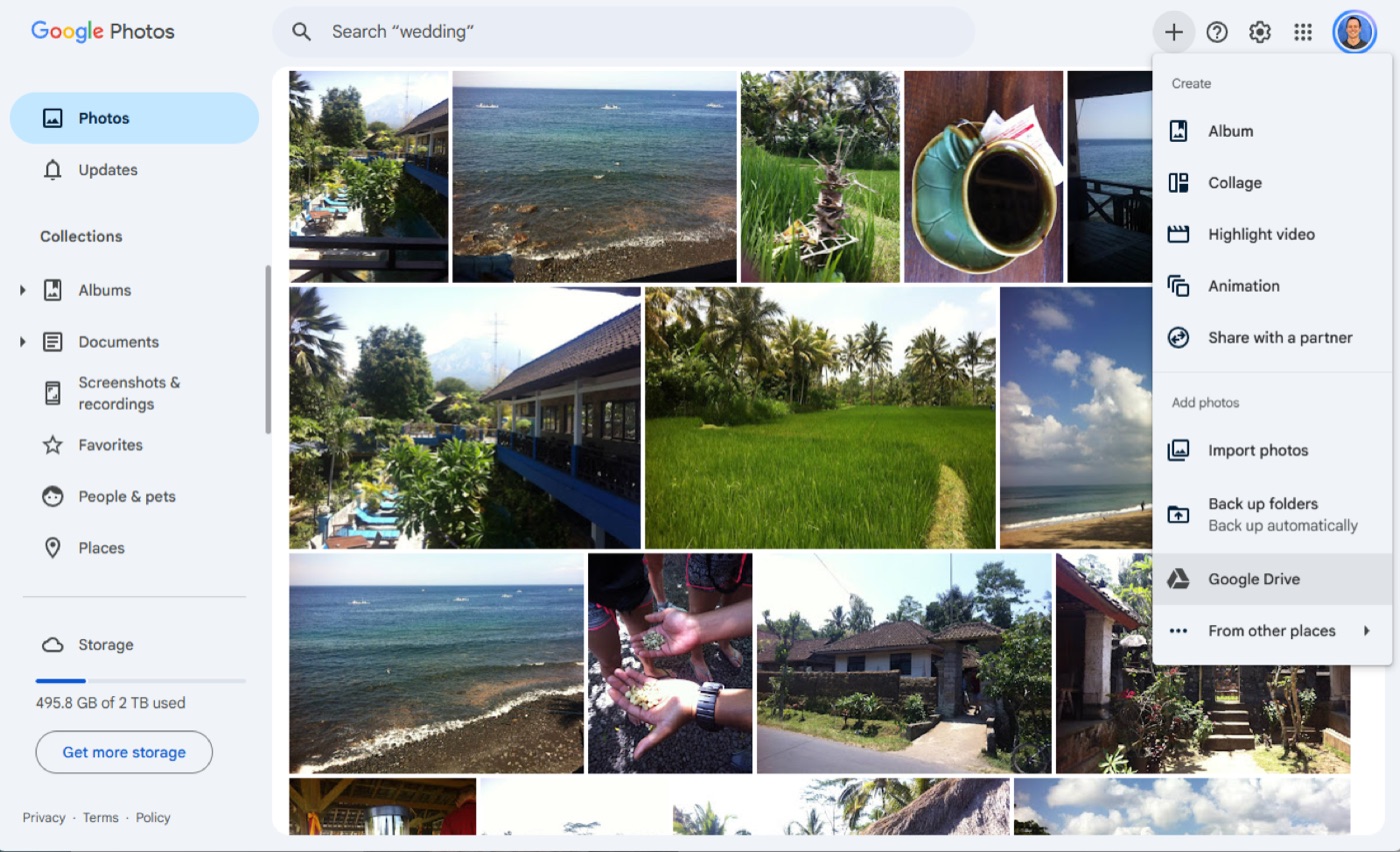
Choose the photos you want to move, then click Upload.

Keep in mind that this creates a copy. The originals stay in Google Drive, so you may want to delete them since both versions count against your storage.
If you use a work or school account, the direct import isn't available. Instead, select the photos in Google Drive, click the three dots in the top menu bar, and click Download. Then drag the downloaded files into Google Photos.

How to move photos from Google Photos to Google Drive
There's no direct way to migrate photos from Google Photos to Google Drive, so your best bet is to download them and upload them manually.
Select the photos you want to move, click the three dots in the top-right toolbar, then click Download.
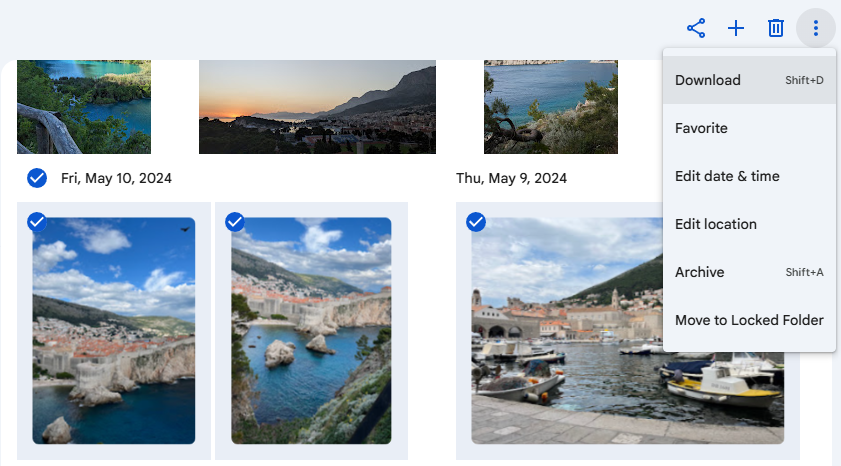
The images will download in a ZIP folder, which you can open on your computer.
Head to Google Drive and create a folder for the images (assuming you want a dedicated folder).
Drag the photos from your computer to the Google Drive window.
Delete the photos from Google Photos, assuming you don't want them in both places. Just remember that if you delete them here, they'll also be deleted from your phone and any other synced devices.

If you're moving your entire library, rather than just a handful of photos or albums, consider using Google Takeout instead. Select Google Photos, choose to add the export to Google Drive, and Google will save it there as compressed archive files. You'll need to unzip them to browse individual photos, so it's a little cumbersome, but it's the best way to copy your whole library at once.
Should I use Google Photos or Google Drive?
Not sure which app to use? Both work great, but here's the best way to think about it if you're choosing between them.
Use Google Drive if you:
Take photos on a dedicated camera (or edit in Lightroom or Photoshop) and want a place to store your original files
Send large batches of images and videos to clients or coworkers
Keep photos on your computer and want them backed up automatically
Want to automate photo workflows with Zapier
Use Google Photos if you:
Mostly take photos on your phone
Want to find any photo by searching for what's in it
Want AI tools to edit and remix your photos
Share albums with friends and family
Since both apps draw from the same storage, you don't have to pick just one. You can back up your phone to Google Photos and keep your camera originals in Google Drive.
Related reading:
This article was originally published in September 2020 by Justin Pot. The most recent update was in November 2026.