There's an intersection by my house where seven roads converge into one chaotic circle, all without the guidance of a single traffic light. It's a test of survival skills disguised as traffic engineering, where your only option is to white-knuckle your way through and hope you make it out unscathed.
Transferring files from Dropbox to Google Drive is a lot like that traffic circle. It's a multi-step process that can feel overwhelmingly impossible to navigate and may end with you stuck in the middle, screaming. But unlike that rotary (or roundabout, for you non-New Englanders), moving files from Dropbox to Google Drive doesn't have to be a disaster.
In this article, I'll walk you through four tried-and-true methods to make the switch as smooth as possible.
Table of contents:
How to transfer files from Dropbox to Google Drive: 4 methods
There isn't a one-size-fits-all solution when it comes to cloud migration. Depending on your needs—be it speed, convenience, or technical control—you've got a few options. Let's explore four approaches to getting those Dropbox files into Google Drive.
1. Dragging and dropping from Dropbox to Google Drive
For the simplest, no-frills option, dragging and dropping files from Dropbox to Google Drive is the best choice. It's not the fastest method, but it's easy to understand, works well for small to medium migrations, and doesn't require any technical wizardry.
Here's how to do it.
If you haven't already, install the Dropbox desktop application. Once installed, follow the prompt to log in to your account.
Open the Dropbox folder in File Explorer (Windows) or Finder (Mac).
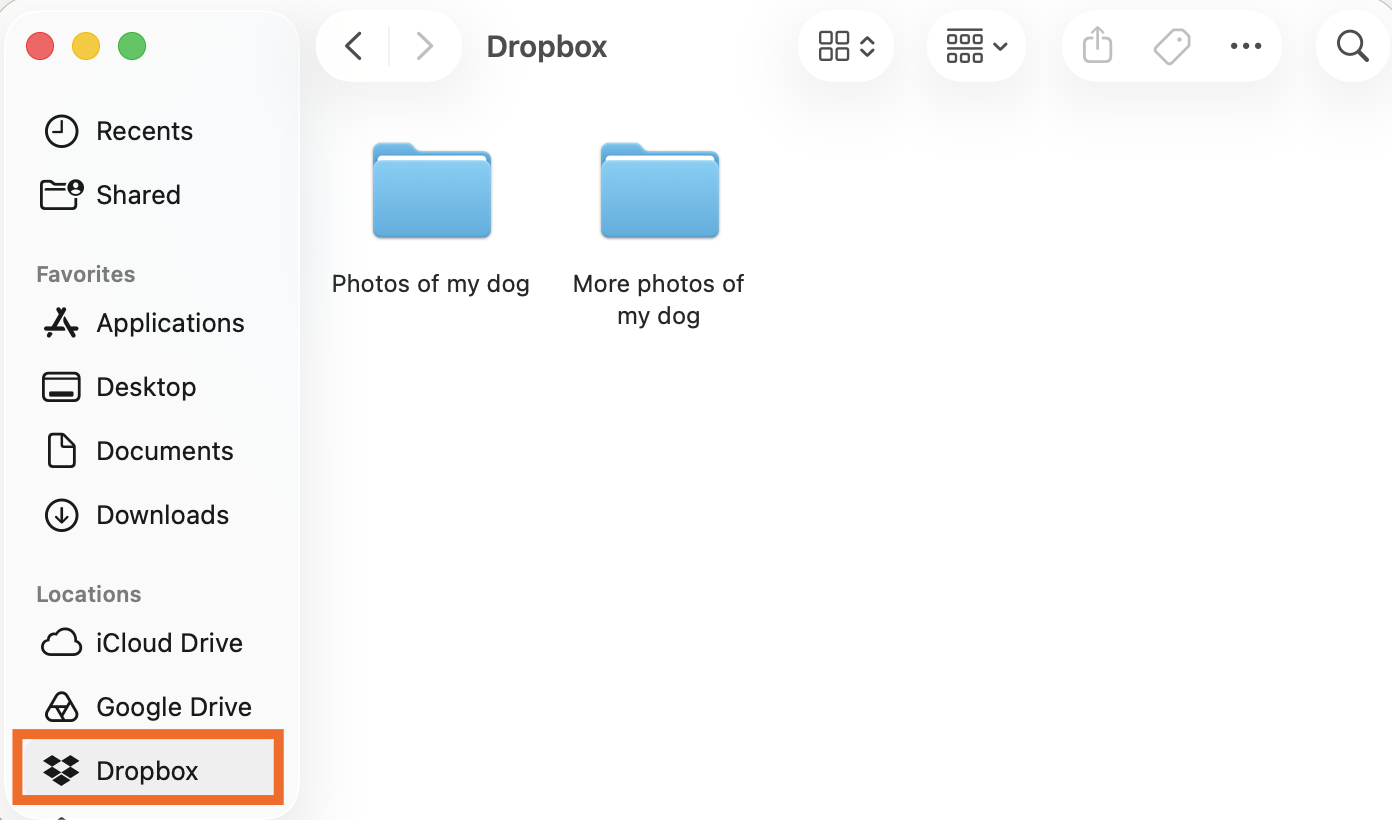
Open Google Drive in your browser, and log in to your account.
In File Explorer or Finder, select the Dropbox files you want to transfer to Google Drive.
Drag and drop the selected files directly from the Dropbox folder into your Google Drive browser window.


If you have the Drive desktop app installed, you can also transfer files directly between the two local folders. Open each in a separate File Explorer or Finder window, and then drag and drop files from one window to the other.
2. Downloading and uploading manually
The manual download-and-upload method, or, as I like to call it, "the way my dad would do it," is exactly what it sounds like—downloading all your files from Dropbox and uploading them to Google Drive. This is the most straightforward approach and doesn't require any special tools or technical know-how.
But if you've got a ridiculous amount of data to transfer, prepare to feel your soul leave your body about halfway through.
Here's how to download files from Dropbox.
Log in to Dropbox in your browser. By default, it'll open All files on your home page. (If not, navigate to it in the left sidebar.)
If you plan to transfer everything you have uploaded to Dropbox, tick the checkbox at the top of the file list. Otherwise, tick the box next to each file or folder you want to download.
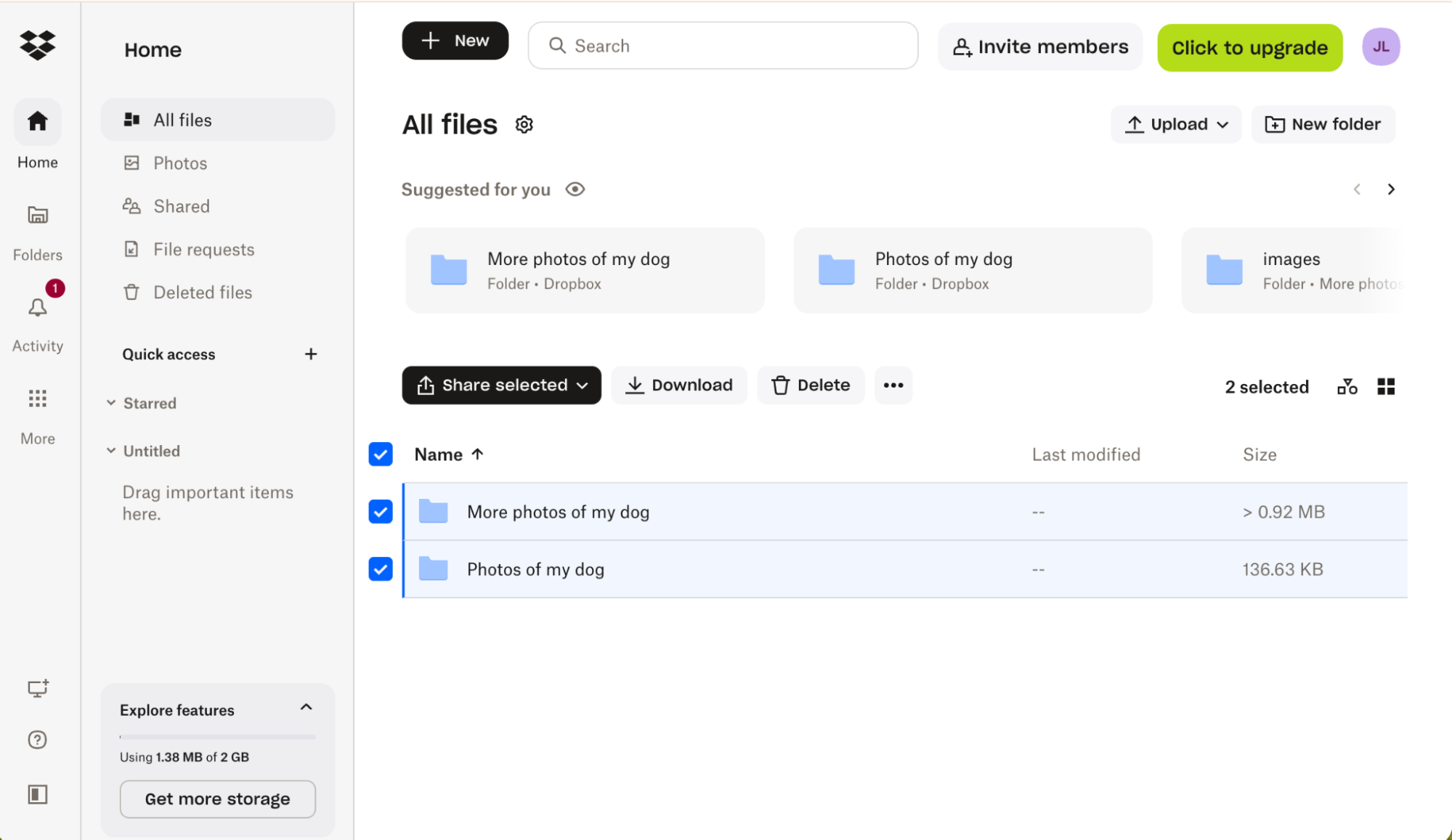
Click the Download button that appears at the top of the file list. Dropbox will compress your selection into a ZIP file and download it to your computer. (Dropbox caps downloads at 250 GB and folders can't contain more than 10,000 files, so you may need to split your file downloads into smaller batches.)

Now you're ready to upload those Dropbox files to Google Drive. (Hold off until after everything's uploaded to Google Drive before you unzip any compressed files. Trust me.)
Log in to Google Drive, and head to the location you want to house the files.
Click + New (top left corner), and select File upload.
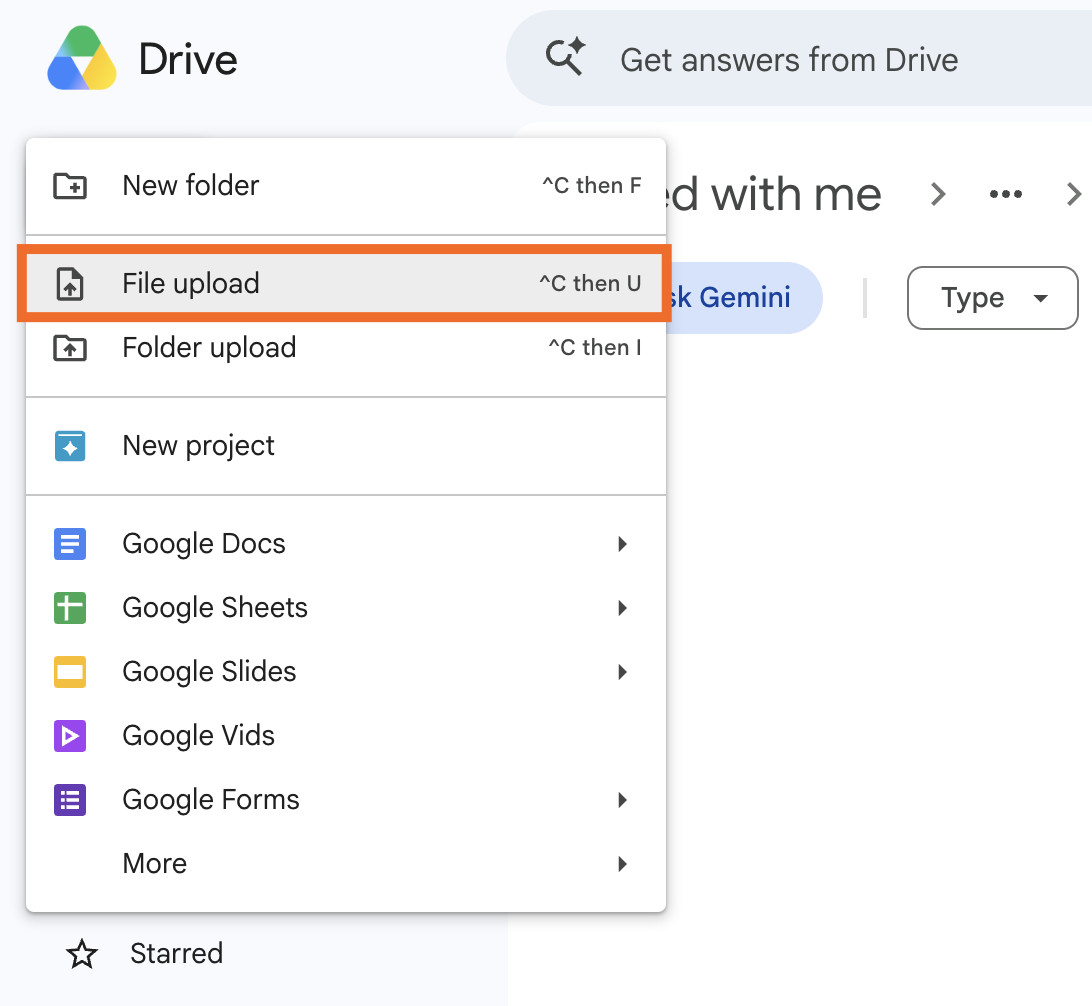
Select the file(s) you downloaded from Dropbox, and click Open. Alternatively, you can drag and drop them from your computer into Google Drive.

If your files downloaded as a ZIP, here's how to uncompress them in Google Drive.
Right-click on the uploaded ZIP file in Google Drive.
Hover over Open with and select ZIP Extractor. If prompted, authorize ZIP Extractor to access your Google Drive.
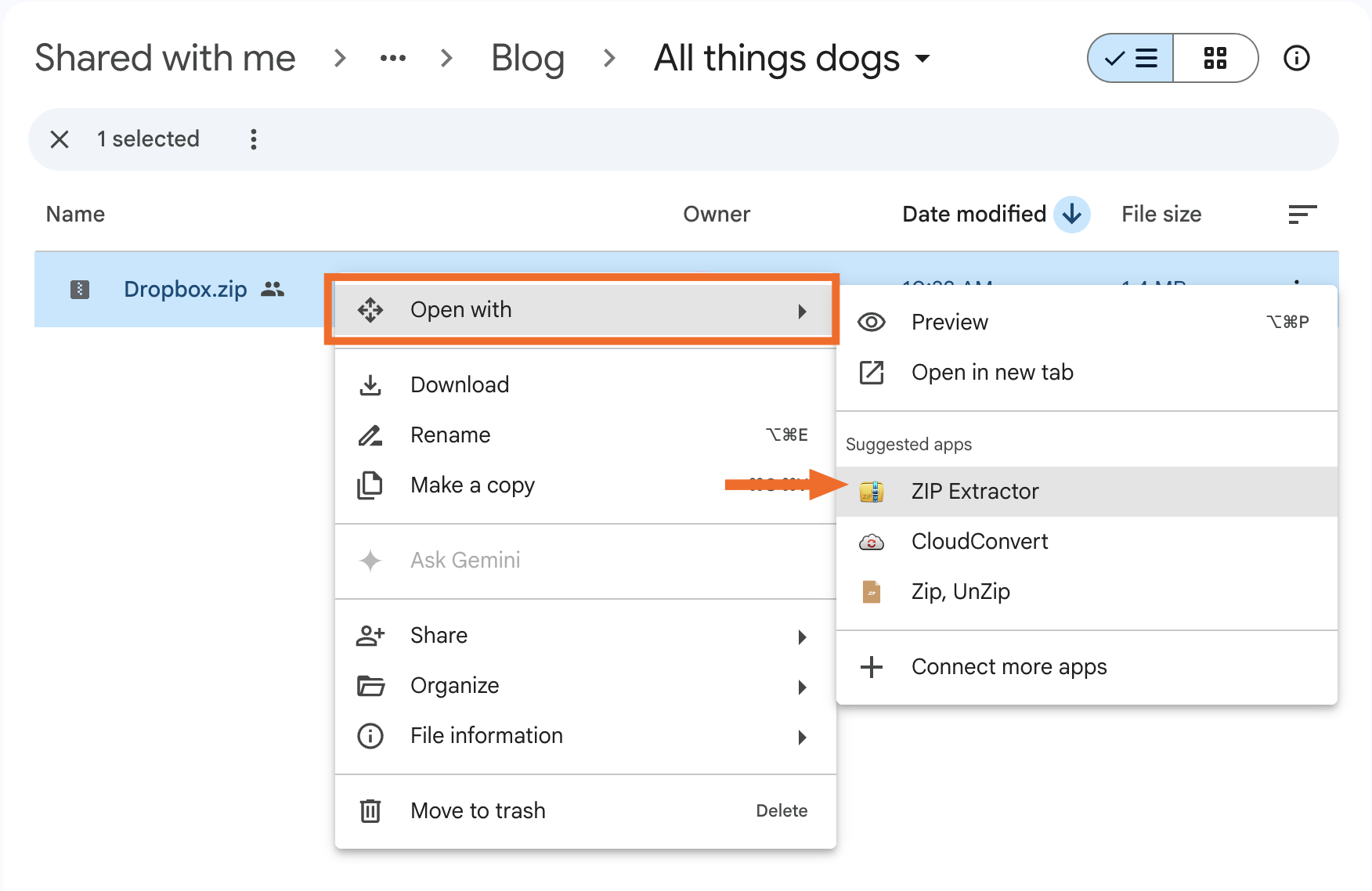
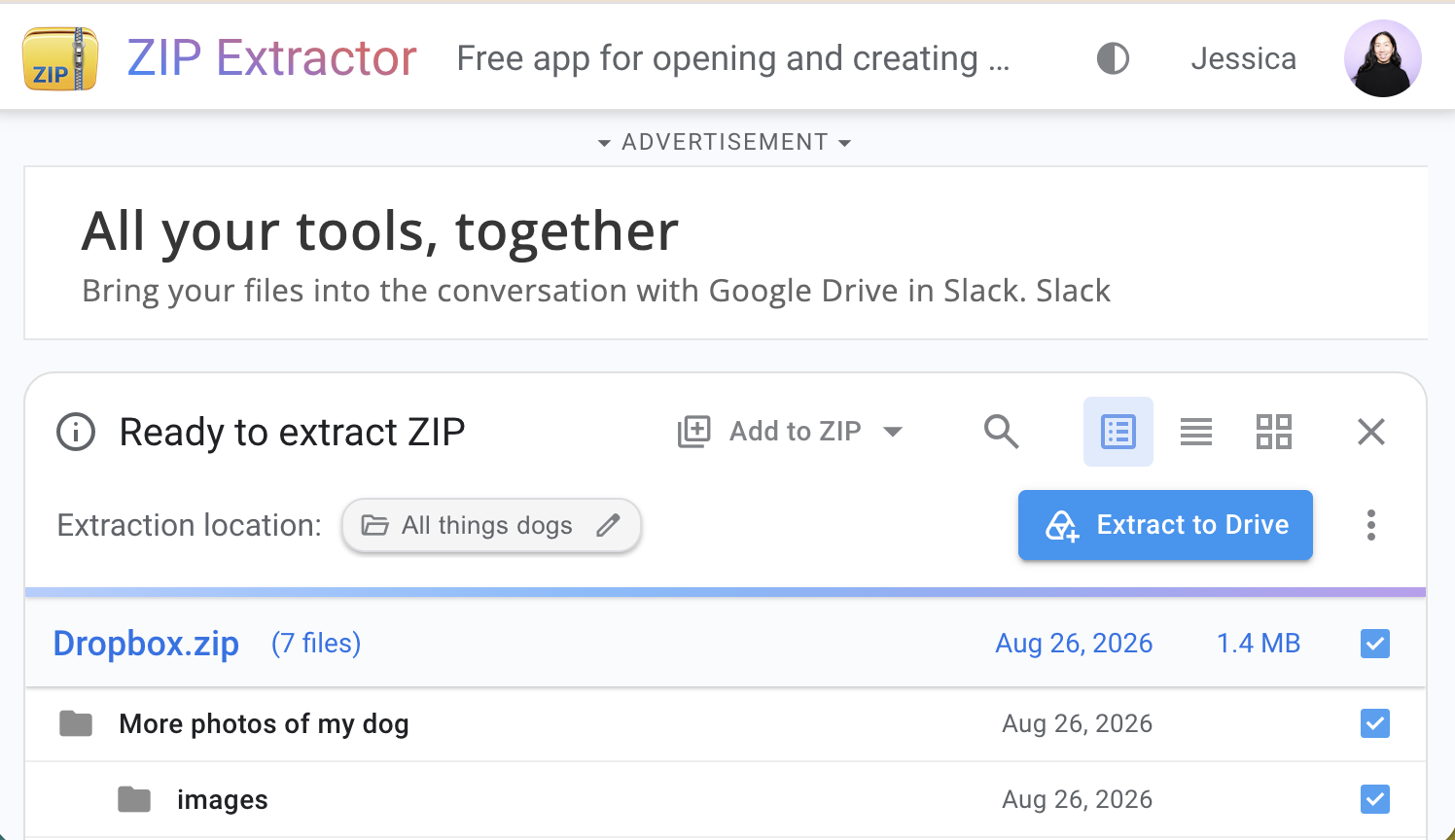
ZIP Extractor will display the contents of the ZIP file. Uncheck any files you don't want to upload. Optionally, click the folder next to Extraction location to specify where you want to upload the files to.
Click Extract to Drive.
Click View files in Drive (or just toggle back to Google Drive via your browser tab).
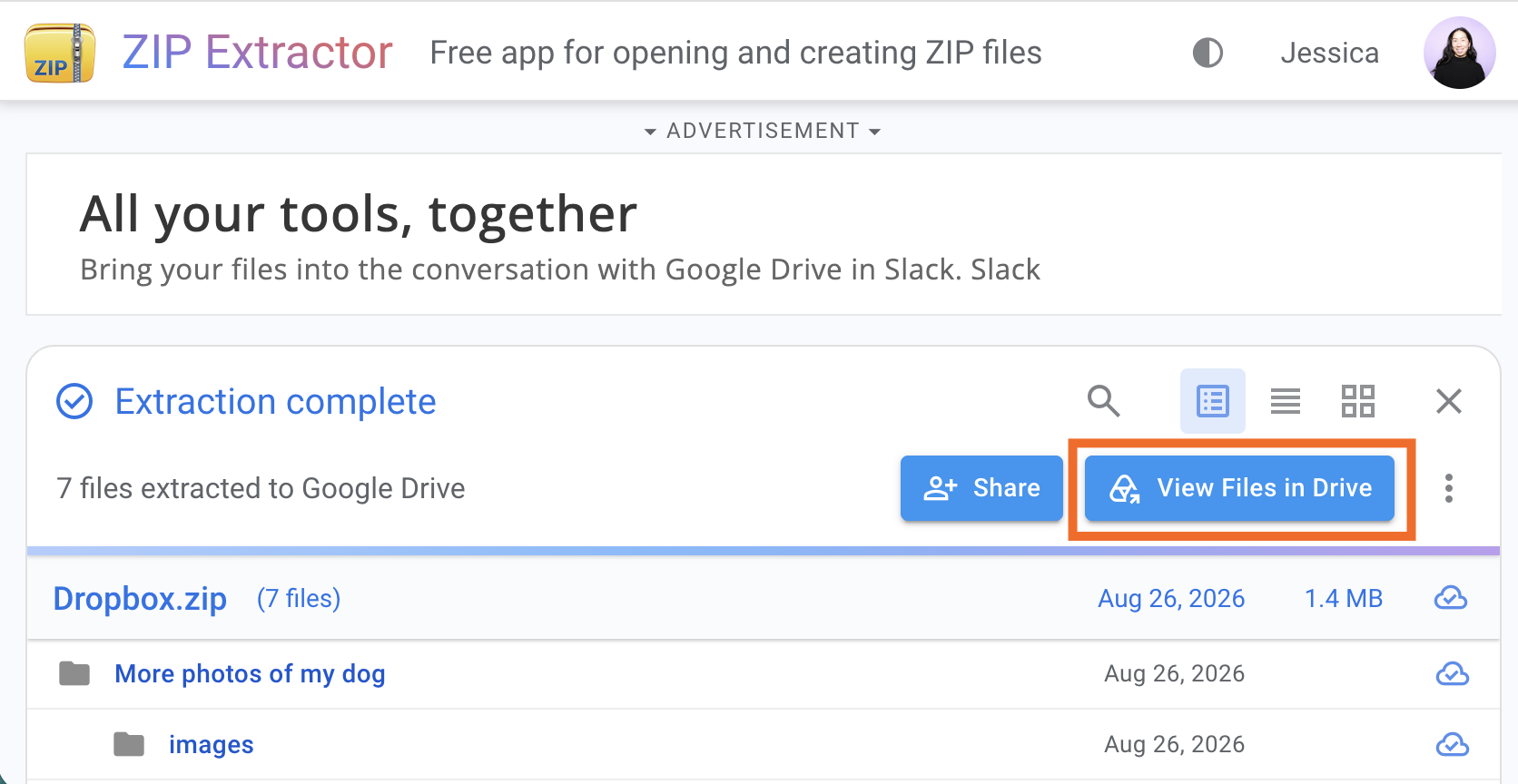


The unzipped files will be in a new folder with the same name as the original ZIP file, plus "(Unzipped files)."

I'm not saying this method sucks, but ... ok, yes, that's exactly what I'm saying. Sure, it'll work if you're only moving a few files, but if you're dealing with a 2TB collection of not-pirated movies, it's like choosing to cross the country in a Fiat when airplanes exist. In that case, you might want to consider one of the other methods mentioned.
3. Using a cloud-based migration service
For those who like to delegate (hi, me), cloud-based migration services can make this whole ordeal feel like someone else's problem. These tools simplify the process of moving your data from Dropbox to Google Drive compared to manually downloading and uploading files.
Here are some popular third-party tools for transferring files from Dropbox to Google Drive:
MultCloud: Free for a certain amount of data transfer, making it a good option for smaller migrations or testing the waters.
Cloudiway: Very strong for enterprise migrations, with lots of features for managing users and permissions. Might be overkill if you're just moving personal files.
CloudFuze: Handles lots of data, good security, and advanced features like delta sync (only updating changed files). Can be more expensive, though.
Movebot: Simple to use with a focus on speed. Pricing is based on data volume, making it a good option if you have a one-time move.
cloudHQ: Known for reliable syncing and backups. Can do one-time migrations, too, and has a free tier. Might be more complex to set up than some others.
Once you've chosen a service, the process is generally the same across all of them:
Sign up and connect your Dropbox and Google accounts via OAuth.
Select the files and folders you want to transfer from Dropbox and choose a destination in Google Drive.
Start the transfer. Depending on the service and the amount of data, this could take minutes, hours, or even days.
Before you get too excited, remember that these services often come with a price tag. Some offer free tiers for smaller migrations, but if you've got a hefty amount of data to move, prepare to pony up. It's up to you to decide if the convenience is worth the cost.
4. Using a command-line tool
For the tech nerds (and control freaks) among us, command-line tools like Rclone offer granular control over the migration process. It's not the most user-friendly method, but if you're comfortable with a terminal prompt, it can be a quick and efficient way to migrate your data. Plus, you'll feel like Matthew Broderick in "WarGames" (minus the Cold War stakes).
Essentially, Rclone lets you treat cloud storage apps like Dropbox and Google Drive as if they were disks on your computer. You can transfer files between them just like you would move files between folders.
Rclone gives you three transfer commands to choose from:
rclone copy: This copies files from Dropbox to Google Drive, leaving originals in Dropbox untouched. This is the safest bet since you can always fall back to the originals.rclone move. This moves files from Dropbox to Google Drive and deletes them from Dropbox after transfer.rclone sync. This makes the destination identical to the source, permanently deleting any files in Google Drive that don't exist in Dropbox.
Here's how to transfer files from Dropbox to Google Drive using Rclone.
Download Rclone and follow the installation instructions for your operating system.
Open your command-line interface (Command Prompt on Windows or Terminal on MacOS), type
rclone configand press enter.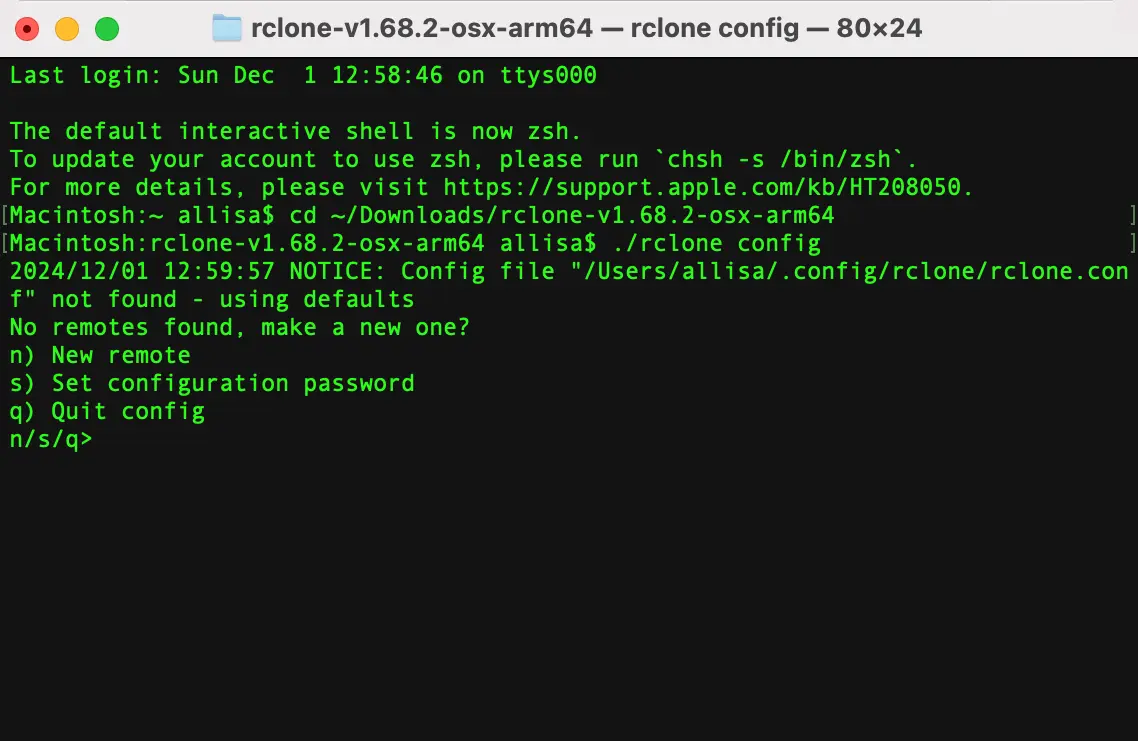
Follow the on-screen prompts to create a new remote for Dropbox. You'll need to authorize Rclone to access your Dropbox account.
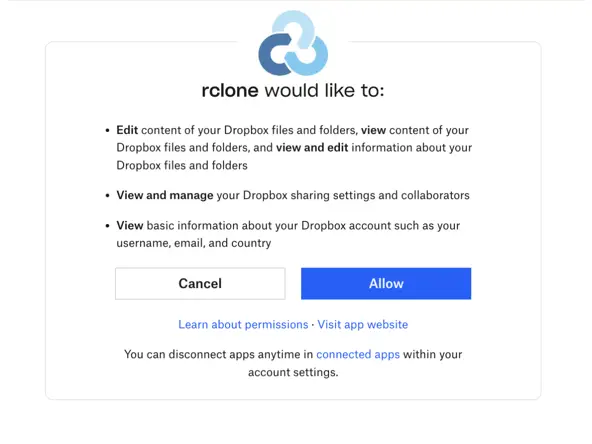
Repeat the process to create a new remote for Google Drive.
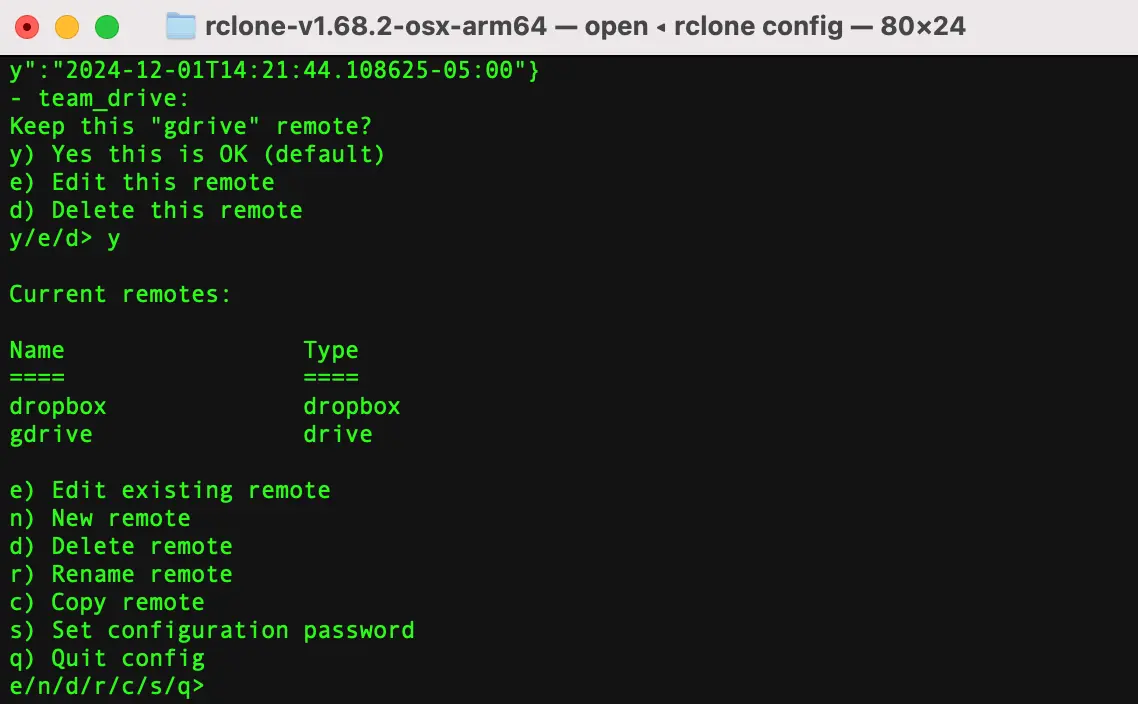
Run your chosen command using this structure:
rclone [command] [source]: [destination]:


Replace
[command]withcopy,move, orsync.Replace
[source]with the name of your Dropbox remote.Replace
[destination]with the name of your Google Drive remote.
For example, to copy files from a Dropbox remote named "dropbox" to a Google Drive remote named "gdrive," you would use: rclone copy dropbox: gdrive: To copy a specific folder:
rclone copy dropbox:Documents gdrive:Documents
For even more control, use Rclone flags to customize the migration process. For instance, the --ignore-existing flag skips files that already exist in Google Drive, and the --progress shows a progress bar during the migration. Here's an example command with Rclone flags: rclone copy dropbox:Documents gdrive:Documents --ignore-existing --progress
When the migration is complete, give yourself a pat on the back. You've just outsmarted two tech giants by making them talk to each other.
However, if you get stuck, Rclone's website has tons of helpful resources, including pages for Dropbox and Google Drive migrations.
The best way to transfer files from Dropbox to Google Drive
The best method for transferring files from Dropbox to Google Drive depends on how much data you're moving and how hands-on you want to be. Here's a breakdown to help you choose your own adventure.
Best for | Cost | Technical level | |
|---|---|---|---|
Small to medium migrations | Free | Low | |
Moving a few files without extra tools | Free | Low | |
Large migrations and complex organizational moves | Varies | Low | |
Tech-savvy users who need granular control | Free | High |
And, if you're my old boss, there's always the option to print everything out and store it in a physical filing cabinet.
Automate Dropbox and Google Drive with Zapier
Once your migration wraps up, you might still have to juggle both Dropbox and Google Drive. Zapier lets you automate the chaos between the two services, keeping your workflows smooth no matter where you stash your files.
With Zapier, you can connect Dropbox to Google Drive (along with an absurdly massive array of other apps) to automate just about any task you can imagine. You can get started with one of these pre-made workflows that connect the two apps, or build from scratch to make them work with all your other apps, too.


Move new Dropbox files to Google Drive folders automatically
You can also install Zapier into your AI assistant (like ChatGPT or Claude) and get it to securely access and act on Dropbox and Drive files across 9,000+ apps—all without leaving your chat window. Every connection is OAuth-managed, so your credentials stay secure and you control exactly what your AI can access.
Learn more about how to automate Dropbox and Google Drive.
Dropbox to Google Drive FAQs
Let's wrap this up with a few common questions that might be bouncing around in that file-cabinet-you-call-a-brain of yours.
What's the fastest way to transfer files from Dropbox to Google Drive?
The fastest hands-off method is using a cloud-based migration service like MultCloud or Movebot. They transfer files directly between the two clouds without touching your local machine.
If you want a free option, the Dropbox desktop app drag-and-drop is the quickest for small to medium libraries and takes just a few minutes to set up.
How do I sync my Dropbox folder with Google Drive?
If you want to keep your Dropbox and Google Drive folders in sync, you've got a couple of options. An easy one is to use Zapier to create automated workflows that keep specific folders in sync. Just be careful not to create an infinite loop that disrupts the space-time continuum.
How do I transfer files from Dropbox to Google Drive without downloading?
If you don't want the hassle of downloading your files locally before uploading them to Google Drive, you can use a cloud-based migration service like MultCloud or Cloudiway.
These services allow you to transfer your files directly from one cloud storage provider to another without ever having to download them to your computer.
Can I transfer files from Dropbox to Google Drive for free?
Yes. The drag-and-drop method (using the Dropbox desktop app) and the manual download and upload method are both free. Rclone is also free. Most cloud-based migration services offer a free tier for smaller transfers, but charge for larger data volumes.
How long does it take to transfer files from Dropbox to Google Drive?
It depends on the method and how much data you're moving.
Drag-and-drop is fast for small libraries (a few GB can transfer in minutes).
Manual download and upload is slower because files pass through your local machine first.
Cloud-based migration services vary by provider and data volume but can handle large transfers in the background without tying up your computer.
Rclone speed depends on your internet connection and any rate limits Dropbox or Google Drive impose.
Is Google Drive better than Dropbox?
Honestly, it's like comparing apples to slightly different apples. Dropbox and Google Drive both have their pros and cons—what works best for you will depend on your specific needs and preferences.
Google Drive offers more free storage space and integrates seamlessly with other Google apps, while Dropbox has a more user-friendly interface and faster file syncing. It's really a matter of personal preference.
But if you're looking for an expert opinion (and clearly you are, since you're still reading this), check out Zapier's full-length face-off between Dropbox and Google Drive.
Related reading:
This article was originally published in January 2025. The most recent update, with contributions from Jessica Lau, was in August 2026.