Wrangling leads can feel truly overwhelming. You know every lead is valuable, but they're coming from a million places at once—and if you don't have superhuman reaction times, most of them will slip through your fingers.
Your Facebook page is one of those fast-moving lead sources. When a prospective customer clicks on your ad and fills out a lead form, it's crucial to jump on that opportunity right away (when their interest is at its peak). But if you're a normal person, you don't have time to check Facebook dozens of times a day.
Thankfully, there's a better way. Here's how to instantly know when someone fills out your Facebook Lead Ad with customized, automatic notifications.
Skip ahead
How to get your leads out of Facebook Lead Ads
Facebook Lead Ads are great for getting contact info from prospects interested in what you're selling. But once you have some new leads, you need to move them out of Facebook into tools like your CRM or email marketing platform. The default way to get the data out of Facebook is to open your Facebook Page, click the Ads Manager tab on the left-hand side, select the All Tools menu, and then click Instant Forms.

You'll see a list of all active and inactive forms. Click Download to get a CSV or XLS file of all new leads since your last download.

Of course, you could open your Facebook Page several times a day and re-download the latest spreadsheet file with new leads. But at best, you'll have a few hours' delay between when someone fills out your ad and when you reach out.
The better option is to set up custom notifications for new Facebook Lead Ads that let you know whenever a new lead comes in, automatically. With a Zap—what we call our automated workflows—you can tell Zapier to watch your Facebook Lead Ad for new submissions. When new leads come in, your Zap will instantly let you know via SMS, email, push notification, or chat message. The next time someone fills out your Facebook Lead Ad, you'll know right away—without downloading a spreadsheet file again.
Best of all, with multi-step Zaps, you can both add the lead to an app like your CRM and send an instant notification automatically.
How to get instant Facebook Lead Ads notifications
First, you need to decide how you'd like to get notified about Facebook Lead Ads. Want updates on your phone? Zapier can send you an SMS or push notification as soon as someone fills out your Facebook Lead Ad. Then you can tap their phone number and call them back immediately.
Want to see more details about your lead? You can get an email notification instead, with all your lead's details.
Need to share the lead with your team? Your Zap can send the lead to a team chat app like Slack, so anyone on your team can grab the follow-up.
To get started setting up your custom notifications, you'll need to create a new Zap. There are two easy ways to do it:
With a Zap template. Below you'll find pre-made Zap templates. To get started, click the template button—then connect your Facebook account and select your page and ad.
From your Zapier dashboard. Already a Zapier power user? Click + Create in your dashboard (or click that link) to make a new Zap, then choose Facebook Lead Ads as the trigger app.
Now, how would you like to get your notifications?
Via SMS
The quickest way to get notified of every new lead is via SMS. Someone fills out your form and, moments later, your phone buzzes with their contact details. Tap their phone number, and you'll be on the phone with that lead before they've even stopped browsing Facebook.
If you'd like to start with a template, click on the Zap template below to go to the Zap editor. You'll need to create a Zapier account if you don't already have one. Then, follow the directions below to set up your Zap.
Send SMS messages for new leads from Facebook Lead Ads


First, set up your trigger (the event that starts the Zap). In this template, Facebook Lead Ads should already be selected as the trigger app, and New Lead should be the trigger event.

Next, connect your Facebook Messenger account if you haven't already. You'll be prompted to sign in with your Facebook account (choose the one you use to manage your business Facebook Page). Once your account is connected, click Continue.
Then choose the Facebook page you want to use for this Zap from the dropdown. Zapier will monitor this page for incoming leads. If you'd like, you can also select a specific form. Click Continue when you're done.

Zapier will look for recently submitted forms in your Facebook Lead Ads account. If you don't have any form submissions yet, you can use Facebook's testing tool to create a fake lead to work with while you set up the rest of your Zap. If everything looks right, click Continue with selected record.

Now it's time to set up your action step. The template should pre-fill the event app as SMS by Zapier and the event action as Send SMS.

You'll be prompted to choose your SMS by Zapier account from the dropdown, or connect a new account if needed. If you click + Connect a new account, a dialogue window will appear prompting you to submit your phone number and confirmation preferences. You'll receive a PIN by text or call, which you'll submit and then click Yes, Continue to SMS by Zapier.

Once you've connected the phone number you want to use to receive notifications, click Continue to continue customizing your action step.
The optional From Number field lets you enter the phone number you want to receive texts from. You might want to save this number as a contact in your phone, so you can instantly recognize every new notification.

You can also customize the contents of the notification. Click the + sign in the Message field to map information from your Facebook Lead Ad form to your action step.
In this example, we've included the lead's full name and email address. You can also include any text you want to—in this case, we've added a reminder that this is a new lead.

Click Continue, then Test step. Check your phone to make sure the automated text looks right.

If so, your Zap is ready to use. Click Publish to turn your Zap on. Now you'll get an SMS message every time your ad is filled out.
Outside the U.S. or U.K.? You'll need to use an app like Twilio or ClickSend SMS to get SMS messages from Zapier.
Get Twilio SMS messages with new Facebook Lead Ads leads

Send new Facebook Lead Ads leads a text message via ClickSend SMS

Via email
Have a detailed Facebook Lead Ad with several form fields? You might not be able to fit it all in a text message. Instead, have Zapier email you a detailed message with everything you want to know about your leads.
Follow the same instructions above to set up Facebook Lead Ads as your trigger app. Next, select Gmail or Email by Zapier as your action app and Send Email as your Event.
Choose your email account from the dropdown menu or click + Connect a new account if you've never connected your Gmail to Zapier before. Then click Continue.

Now it's time to set up your email notification. Enter the email address you want notifications to go to in the To field. Optionally, you can customize the Cc, Bcc, From, and Reply email addresses for the email.

Enter text for your email subject line in the Subject field. When you click the + sign in any of these fields, you can insert data pulled from the Facebook Lead Ads account you connected in your trigger step.

Then you can add text for the body of your email. In this example, we're including a short message and some data from the lead form itself.

You can customize the rest of the fields to set up your email exactly the way you want it. When you're happy with all the fields, click Continue and Test step to send a test email. If everything looks right, your Zap is ready to use! Click Publish to turn it on.

If you want to automate your follow-up, you can also have Zapier email your lead directly—just select their email address from your previous Facebook step in the To field instead of writing your own.
Send emails in Gmail for new leads in Facebook Lead Ads


Dispatch emails in Microsoft Outlook with new leads in Facebook Lead Ads

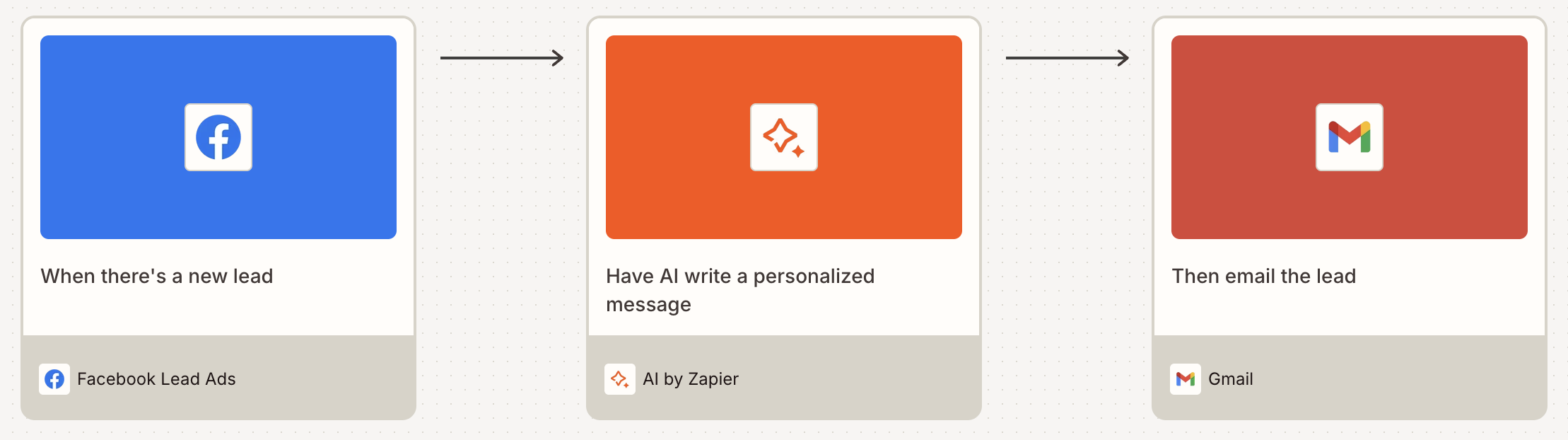
Pro tip: If you plan to automate your follow-up, try adding an AI by Zapier step between your trigger and action to send a personalized, AI-generated greeting in your preferred style. Or use our automated email reply drafts agent, available as a customizable template. Learn more about AI by Zapier and Zapier Agents.

Via push notification
Outside the U.S. and want a free option? Download the push notification app Pushbullet on your phone. Select Pushbullet as your action app and Send a Note for your action event, then fill in the details you want in your notification. You'll then be notified whenever you get a new lead, and you can look back at your older leads in Pushbullet anytime you need to follow up.
Get a Pushbullet notification for new Facebook Lead Ads leads

Via team chat
If you're working with a team, you might not need to reach out to every new lead yourself. So instead of only you getting notified about new lead form submissions, you can have Zapier share the lead's info in your team chat app. That way, anyone who sees the notification can jump on a call for the fastest possible follow-up.
Get Slack messages with new Facebook Lead Ads leads

Get Slack channel notifications for new Facebook Lead Ads
Send messages in Microsoft Teams when new leads are created in Facebook Lead Ads

Thanks to automation, you don't have to constantly refresh Facebook Lead Ads every day to download the latest spreadsheet of leads. With your new automated Facebook Lead Ads notifications, you'll know as soon as anyone's interested.
Related reading:
This article was originally published in October 2018 by Matt Guay, with later updates made by Ellie Huizenga and Nicole Replogle. It was most recently updated in February 2026 by Hannah Herman.