Slack is a great way to coordinate your team, cross-collaborate on projects, and find information about your business in real-time. It is, essentially, where most of the work happens.
That's not to say that Slack isn't distracting at times. Between daily requests from team members that can get lost in the noise to important company announcements that take time to carefully read, Slack can be a lot. But if you set up the right Zaps—automated workflows—you can make Slack a more productive place.
Here, I'll walk through a few ways to automate Slack, from automatically notifying your sales team in Slack when new leads come through to using AI to set up Slack assistants that can respond to company-specific questions. You don't have to wire them up yourself, either. Add Zapier to the AI assistant you already use, describe what should happen in Slack, and your agent builds the Zap. Zapier runs it from there, even after the chat is closed. Prefer to build in Zapier directly? Build from wherever you like to work, and the Zap runs the same way.
Build automations from wherever you work. Describe the outcome you want, and Zapier connects your tools, runs the steps, and stays on the job after you close the chat. Combine AI with reliable, deterministic automation across 9,000+ apps. Get started for free.
Table of contents:
Build Slack automations from your AI assistant
Say you want every new lead to show up in #new-leads. Getting there from your AI assistant takes four steps:
Connect Zapier with your AI assistant. Add Zapier as a connector or custom MCP server in your AI assistant, like Claude, ChatGPT, or Cursor. Then connect the apps you use, such as Slack, Google Sheets, Stripe, and Google Calendar. You set it up once, and the same connections work in any AI tool you try.
Describe the job. Say what should happen in plain language: "When someone fills out our website contact form, post their name, email, and what they're interested in to #new-leads."
Your agent builds the Zap. A Zap is an automated workflow that runs on its own. Your agent drafts it, deploys it to Zapier, and shows you what it built.
Zapier runs it. The Zap starts when something happens in your apps, like a new form entry or a calendar event, and keeps going whether or not your laptop is open.
Because Zapier connects to 9,000+ apps, the same setup that posts to Slack can also reach the CRM, spreadsheet, and task manager around it.
Why automate Slack with Zapier
Your AI assistant can post to Slack when you ask. Building the job on Zapier gets you a few things a chat can't:
It starts when something happens. A scheduled task inside an AI tool runs at a set time. A Zap starts the moment a lead submits a form, a Stripe payment fails, or a calendar event is about to begin, so the right message lands in Slack right when it matters. (You can run Zaps on a schedule too, if that's what a job needs.)
It reaches your whole stack. Zapier connects to 9,000+ apps. It can log every message from a channel to Google Sheets, turn a saved Slack message into an Asana task, or push an alert into Slack from a tool that has no Slack integration by using a webhook.
It runs the same way every time. Your lead alert has the same fields, in the same channel, on Monday as it does on Friday. Zaps use AI only for the steps that need judgment, like summarizing an email or deciding which teammate should reply, and run everything else as regular steps, which are faster and cheaper. Zapier calls this fluid determinism: AI where the work needs judgment, plain steps everywhere else.
It fixes itself. If someone renames the #new-leads channel or your Stripe connection needs reauthorizing, Zapier finds the problem and proposes a fix you can approve, or applies fixes on its own if you let it. Over time, Zapier can also turn repeated AI steps, like reformatting the same email summary, into regular ones, so your Zaps get cheaper and steadier the longer they run.
Your agent gets access, not your keys. Zapier manages the connections to your Slack workspace, Gmail, Google Calendar, and the rest, so you never paste a Slack token or API key into a chat. Switch from one AI tool to another and your connections stay put, and everything you build shows up in one place in Zapier.
Why not just have your agent write a script that posts to Slack? You can, and the first version will probably work. Then the bot token sits in a file on someone's laptop, nobody remembers where the script runs, and it goes quiet when a token is revoked or a channel is archived. With Zapier, your agent builds the Zap, Zapier hosts it and starts it from real triggers (an app event, a webhook, or a schedule), and keeps your connections working.
Slack automations to ask your agent to build
Not sure what to ask for? Try one of these in Claude, ChatGPT, or Cursor with Zapier connected.
Track leads and sales. "When someone submits our website contact form, post their name, email, and what they're interested in to #new-leads. Also post in #wins when a Stripe payment over $500 comes in."
Answer questions with AI. "When someone asks a question in #ask-finance, draft a reply from our expense policy doc and post it in the thread. If the policy doesn't cover it, tag me instead."
Triage shared email. "When a new email arrives in our support inbox, post a two-line summary in #support. If it's a billing question, send it to #finance instead." This one is a good example of a Zap that uses AI only where judgment is needed, in the summary and the routing, with everything else as regular steps.
Keep a message archive. "Save every message posted in #announcements to a Google Sheet, with the author, the date, and a link back to the message."
Turn requests into tasks. "When I react to a Slack message with the checkmark emoji, create a task in Asana with the message text and a link to the thread."
Protect your focus time. "When a focus block starts on my Google Calendar, set my Slack status to 'Heads down' and clear it when the block ends."
Pipe in data from any tool. "When our internal billing tool sends a webhook, post the customer name and amount in #sales."
7 ways to automate Slack with Zap templates
Zap templates are pre-made Zaps you set up in Zapier itself. When you click "Try it," the template opens in Zapier, not in your AI assistant, and you can customize it and turn it on from there. (If you'd rather have your agent build the Zap, use the prompts above.)
Below are seven ways to automate Slack with Zap templates.
To get started with a Zap template—what we call our pre-made workflows—just click on the button. It only takes a few minutes to set up. You can read more about setting up Zaps here.
Track leads and sales
If you're in sales, marketing, or growth, there's nothing better than seeing a new lead roll in or a fresh Stripe payment hit your dashboard—especially when it pops into Slack in real time. Automating lead and sale notifications helps keep your team in the loop without constantly checking forms, social media management tools, or payment dashboards.
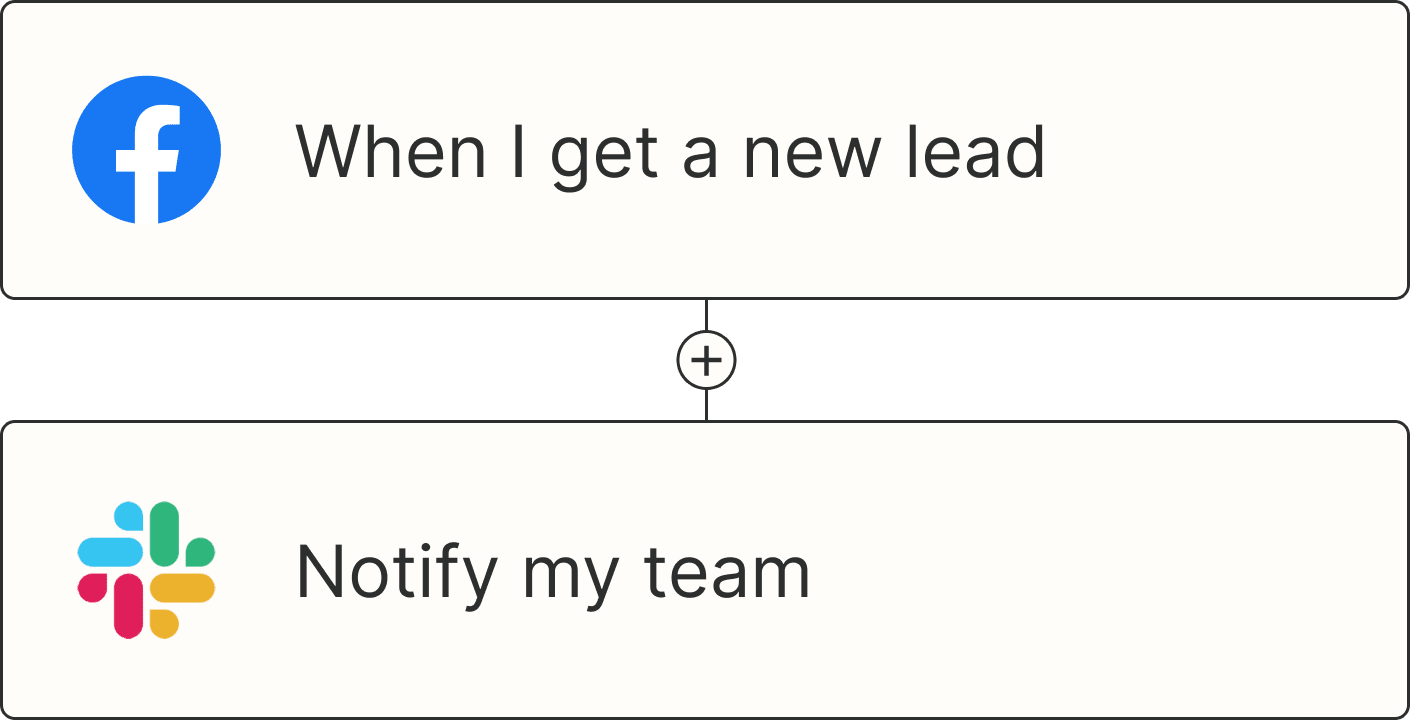
You might set up a Zap that sends a message to your #new-leads channel every time someone fills out a form on your website or clicks on a Facebook ad. You can even include key details like their name, email, and what they're interested in, so your team can reach out right away without digging through tools to find the context.
Get Slack channel notifications for new Facebook Lead Ads


Share new Google Forms responses in Slack channels

Trigger custom actions in Slack for each new entry in Typeform

Send channel messages in Slack for new form submissions in HubSpot

You can also connect tools like Stripe to keep tabs on (and, of course, celebrate) new payments. Use these Zaps to keep your team aligned and motivated, or alert the right people of any failed payments.

Pro tip: If you're getting a lot of leads and making plenty of sales (congrats!), spamming your Slack channel with every new activity may not be the best idea. Use a filter step to limit notifications to high-value leads or purchases over a certain amount. Or, a digest step can bundle all leads or sales into a single daily summary, so your team can stay focused on doing their best work without constant interruptions.

Related: Your Slack automations will look a lot nicer if you learn how to format Slack messages in Zapier
Create Slack reply bots and assistants with AI
It's no secret that an inordinate amount of daily communication takes place in Slack.
Pulling the power of AI into your Slack workspace can help streamline that communication. With these Zaps, you can create ChatGPT- or OpenAI-powered assistants that can answer questions across a range of topics—directly inside Slack. From accounting bots that answer company-specific topics to a simple explainer bot that can break down complex messages, these workflows will do wonders for your productivity.

Get a response from GPT-3 whenever a prompt is posted in a particular Slack channel

See incoming emails and coordinate as a team
Slack users don't need email for internal coordination, but the outside world still uses it to contact your team. Sharing an inbox can be confusing, however—who's supposed to respond to which emails? Slack is a great place to decide. Here are a couple of automations that can notify your team when a new email comes in.
Set these up and you can discuss who should respond to emails, meaning your customers will never get multiple responses—or be left in the dark—again.

Send Slack messages from new Microsoft Outlook emails

Send Slack notifications for new emails matching Gmail search queries
Get new Zapier Email Parser emails in Slack messages

Once you've set up notifications from email to Slack, you can refine your workflows by adding steps like:
A filter step that only notifies Slack when emails meet specific criteria—like containing certain keywords, coming from VIP contacts, or having attachments. That way, your team only sees the messages that matter.
Formatter steps to clean up email subjects, shorten message previews, or extract key info (like names or ticket numbers) before posting to Slack.
An AI step can generate a quick summary of the email, flag action items, or even suggest which team member should respond based on the message content.
Paths can route notifications based on sender or topic—for example, send product feedback to
#productand billing inquiries to#finance.
These small upgrades keep your Slack notifications clear, focused, and actionable—so your team spends less time sorting through messages and more time replying to the right ones.
Streamline your internal communication
Need to log your messages somewhere more permanent than Slack itself? Slack's free plan only lets you view and search the last 90 days of messages, but there's a workaround.
You can create your own log of all messages in Google Sheets. That way, you can gather data quickly from a specific Slack channel or create an organized, easily shareable record. Just set up this simple automation, and every message will be saved, giving you a personal archive. Or if you want to manually choose which message gets saved across all your channels, use a New Reaction Added trigger and pick an emoji to use to start the Zap.

Add new Slack reactions to a Google Sheets document
You can also use Zaps to automate things inside Slack. You might want to copy announcements from one channel to another to keep your team up to date about things like company news and HR updates. Or, maybe you'd like to set up an automation that notifies your team when new channels are created in Slack—or send automated welcome messages to new users as soon as they're added. These simple Zaps let you keep your team in the loop without any manual copying and pasting across channels.
Send Slack channel messages for new public messages posted anywhere
Turn new Slack messages into Wordsmith narratives and post them to a Slack channel (Chatbot)
Notify your team whenever a new Slack channel is added
Send direct messages to new Slack users on Slack instantly
Send saved items to your to-do list and vice versa
People ask you to do stuff on Slack. Then you forget about it. You can save messages that include a request, but there's a better way to turn your saved messages into to-do tasks. You can send Slack messages you save (or react to) over to your to-do list app. Here are a few Zaps for that:
Add items to databases in Notion with new Slack reactions


Create Google Tasks items from new saved Slack messages


These are just a few examples. You might also want to flip that workflow on its head and get notified when a new task or project has been added to your project management app. Perhaps you want to know when you're needed on a project or celebrate when your team completes their tasks. Here are a couple of Zaps for those scenarios:

You could create a similar workflow using any of the 9,000+ apps supported by Zapier, including a bunch of task management apps.
Connect your calendar
Your Slack status lets co-workers know whether they can expect to reach you—if you remember to change it. If you never do, don't worry: We've got a few Zaps for the job.
Update your Slack status when new Google Calendar events begin

Create new status updates in Slack with Microsoft Outlook calendar events
If using your status is too subtle, you can also send a message to your team when an event starts. This is also a great way to make sure your entire team knows when a meeting is about to begin.
Send Slack channel messages for new Google Calendar events
Post new Google Calendar events to a Slack channel

Do you ever set aside time in your schedule to tackle specific tasks? Instead of manually updating your Slack status, set up this Zap to do the heavy lifting for you. Or use a Zap to send yourself (or your team) a reminder message in Slack when it's time to focus.

Post weekly exchange rate notifications from mallabe Currencies to Slack

Send daily exchange rate notifications using mallabe Currencies to Slack
Send monthly Slack notifications of WooRank website reviews

Here are more ways to automatically update your Slack status using Zaps.
Push data to and from Slack with webhooks
Are none of the above automations quite right for you and the apps you use? Then you might want to try using webhooks. When you want to send information to Slack from a tool you use that doesn't integrate with Zapier, you can use webhooks to push that data. That means you can still get notified in Slack for things happening in your favorite apps.
Here are just a few ideas to get you started:

Send private Slack messages when new webhooks come in
Keep your Slack automations running
Your agent can build the automations above, and Zapier keeps them running long after the chat is closed. If someone renames a channel or your Stripe connection needs reauthorizing, Zapier finds the problem and proposes a fix you can approve, or applies fixes on its own if you let it.
The same setup that posts to Slack reaches the rest of your stack, too. See what else you can do with Slack and Zapier across 9,000+ apps.
Related reading:
This article was originally published in March 2020 and was most recently updated in November 2026 by Nicole Replogle.