
QR codes are practically wallpapering the world, from your local cafe's menu to that vaguely condescending flyer at your health club. And they're pretty powerful marketing tools.
Whether you're planning to promote a puppy rescue or just trying to Rickroll folks for a marketing stunt, you're in the right spot. By the end of this guide, you'll be cranking out QR codes left and right.
Table of contents:
What is a QR code?
A QR code is a type of barcode that stores data in a grid of black and white squares. The "QR" stands for quick response. Here's what a typical QR code looks like:

You've very likely scanned one before at a restaurant, on a concert ticket, or on a package left at your doorstep. You just point your smartphone's camera at it, tap the link that pops up, and you'll be brought directly to a website without having to type in a long URL.
Think of it as a digital teleportation device for would-be customers. Need to share your website? Make a QR code. Want to get customers to sign up for your newsletter? Make a QR code. Want to ditch your paper menus? You guessed it: make a QR code.
QR code vs. barcode: What's the difference?
QR codes and barcodes both encode data into a scannable image. But that's about where the similarities end. Here's an overview of their differences.
| Barcode | QR code |
|---|---|---|
Structure | 1D (vertical lines) | 2D (square grid) |
Data capacity | ~8-25 characters | Up to ~9,000+ characters |
Scan method | Dedicated reader, specific angle | Smartphone camera, any orientation |
Best for | Inventory, retail POS, and shipping | Getting users from a physical thing to a digital destination (e.g., website, form, or Wi-Fi network) |
How to create a QR code in Canva
If you're feeling particularly creative or need to embed a QR code in a larger visual, you can use Canva to create QR codes. It's great for posters, business cards, flyers, or any other asset you might want to print out and share.
Go to canva.com and log in. If you don't have an account, sign up for free.
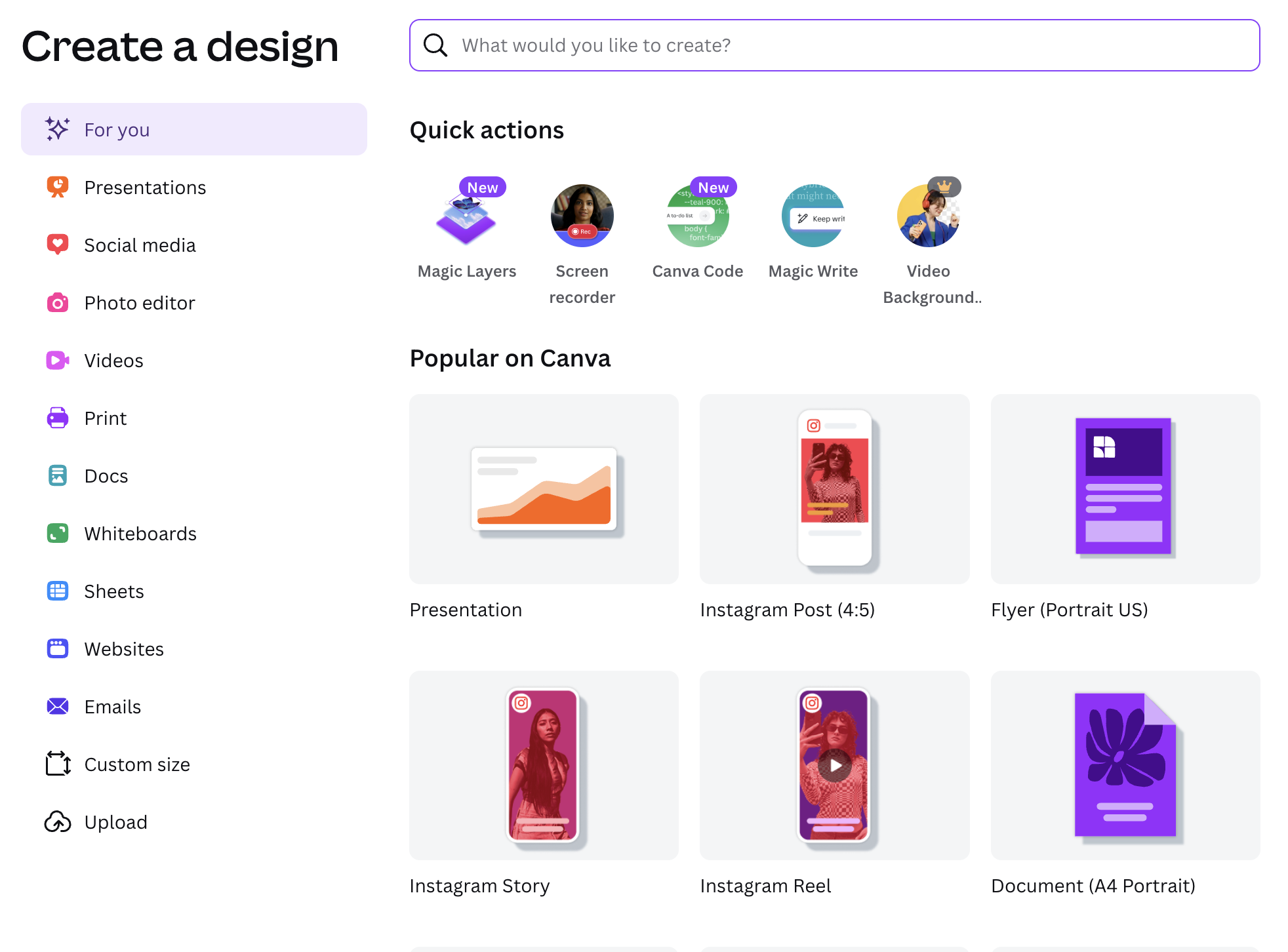
Click the Create a design button on the top right of your dashboard, and choose the dimensions for your design. You can select a preset size like "Poster" or "Flyer," or create a custom size by clicking Custom dimensions.
Once in your design, go to the left-side panel, and click Elements.
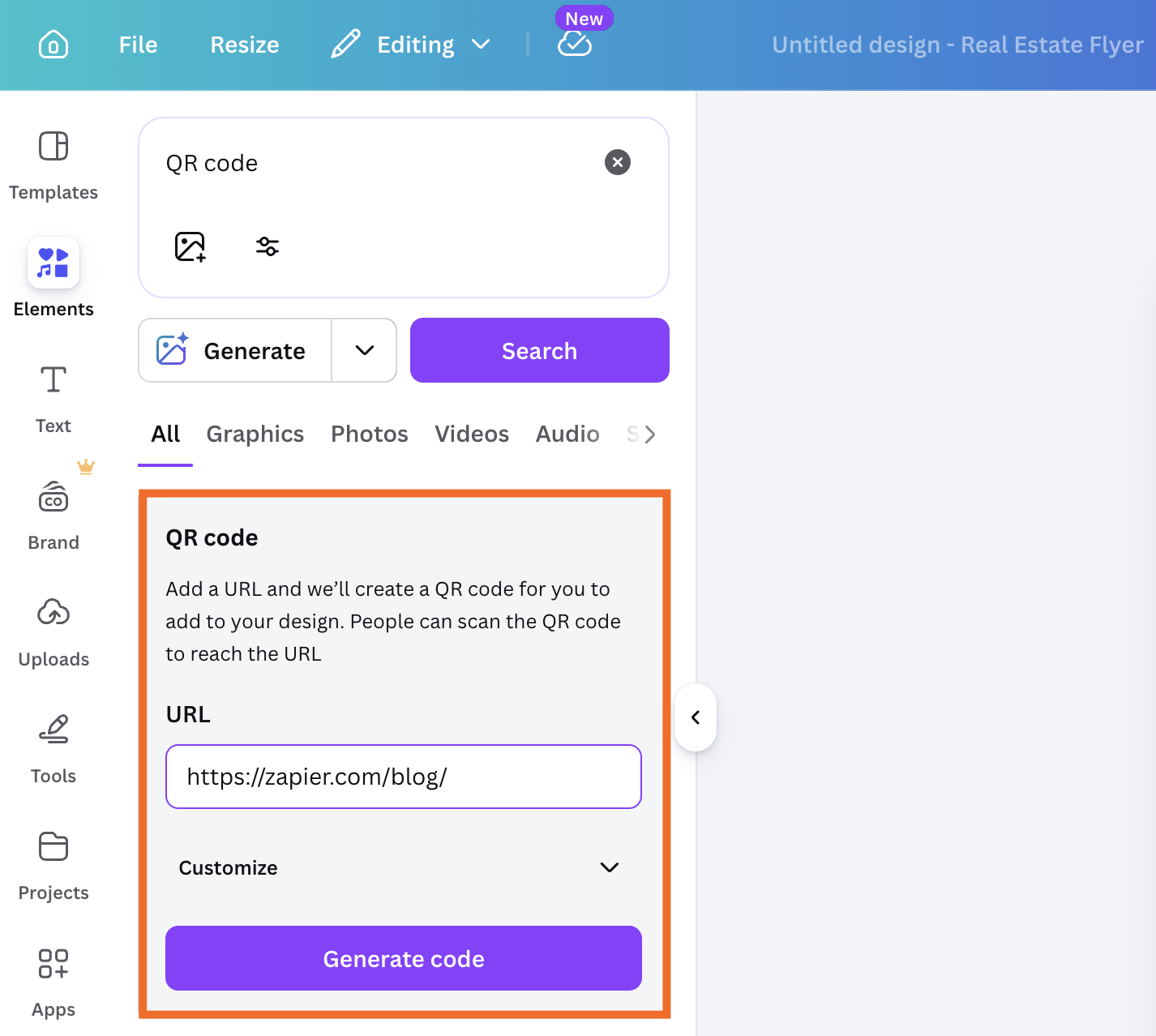
In the search bar within the Elements tab, type "QR Code" to get to the QR code app.
A window will appear asking for the URL you want to link to with the QR code. Enter the desired URL, and click Generate.
The QR code will be generated and appear in your design area. Drag and drop it to your desired location in the design. (You can resize it by clicking and dragging the corners.)
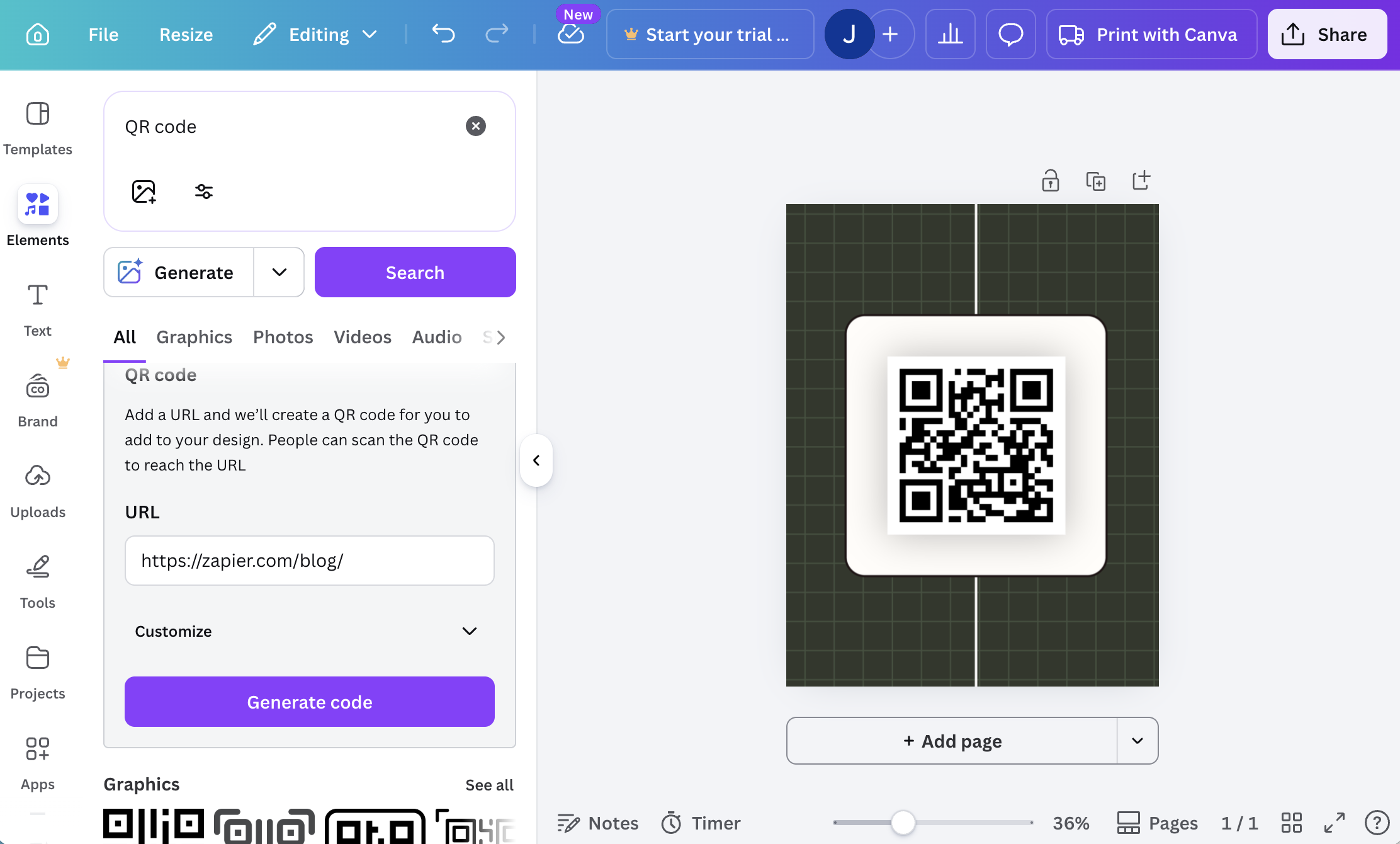
You can now spice things up with text, images, and shapes to complement your lovely new QR code.


How to create a QR code in Adobe Express
Adobe Express also offers a free QR code generator that's equally easy to use and doesn't require an account.
Go to the Adobe Express QR code creator.
Copy and paste your URL into the URL field.
Click Generate QR code.
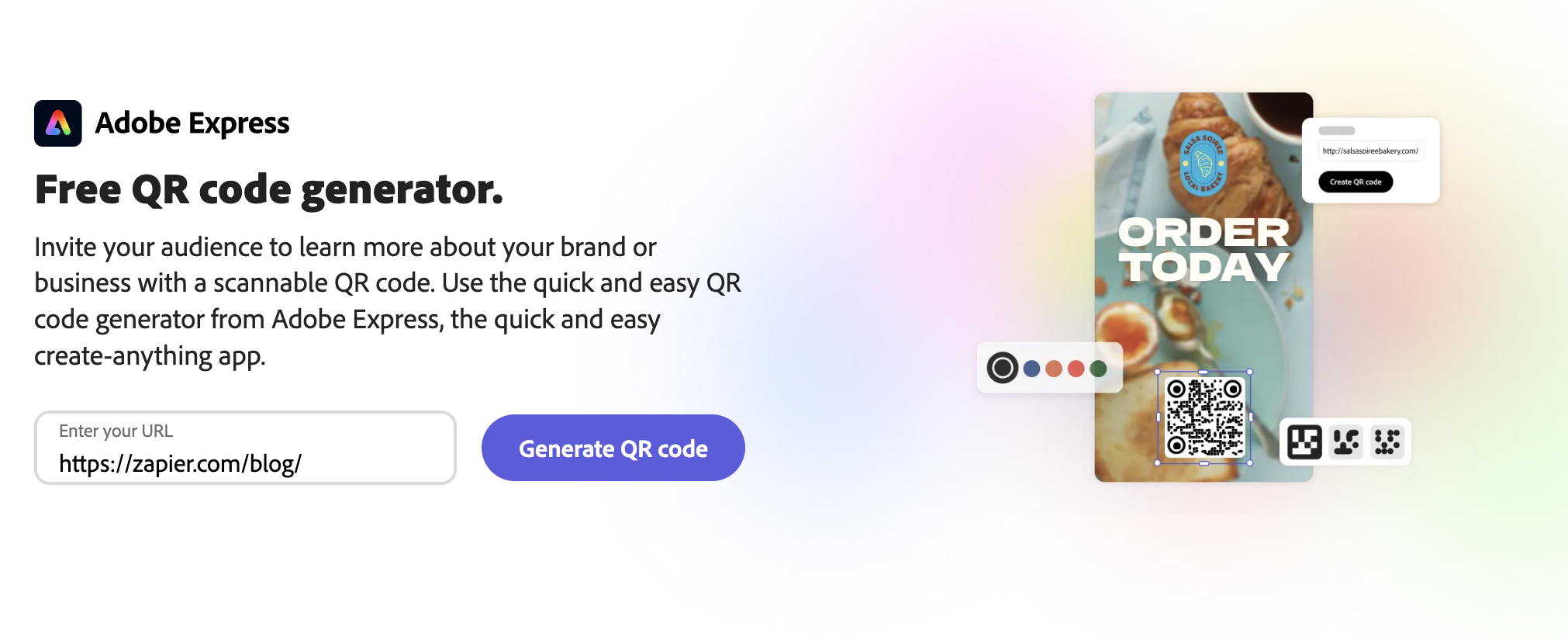
Optionally, you can slightly modify your QR code by changing the style and color.
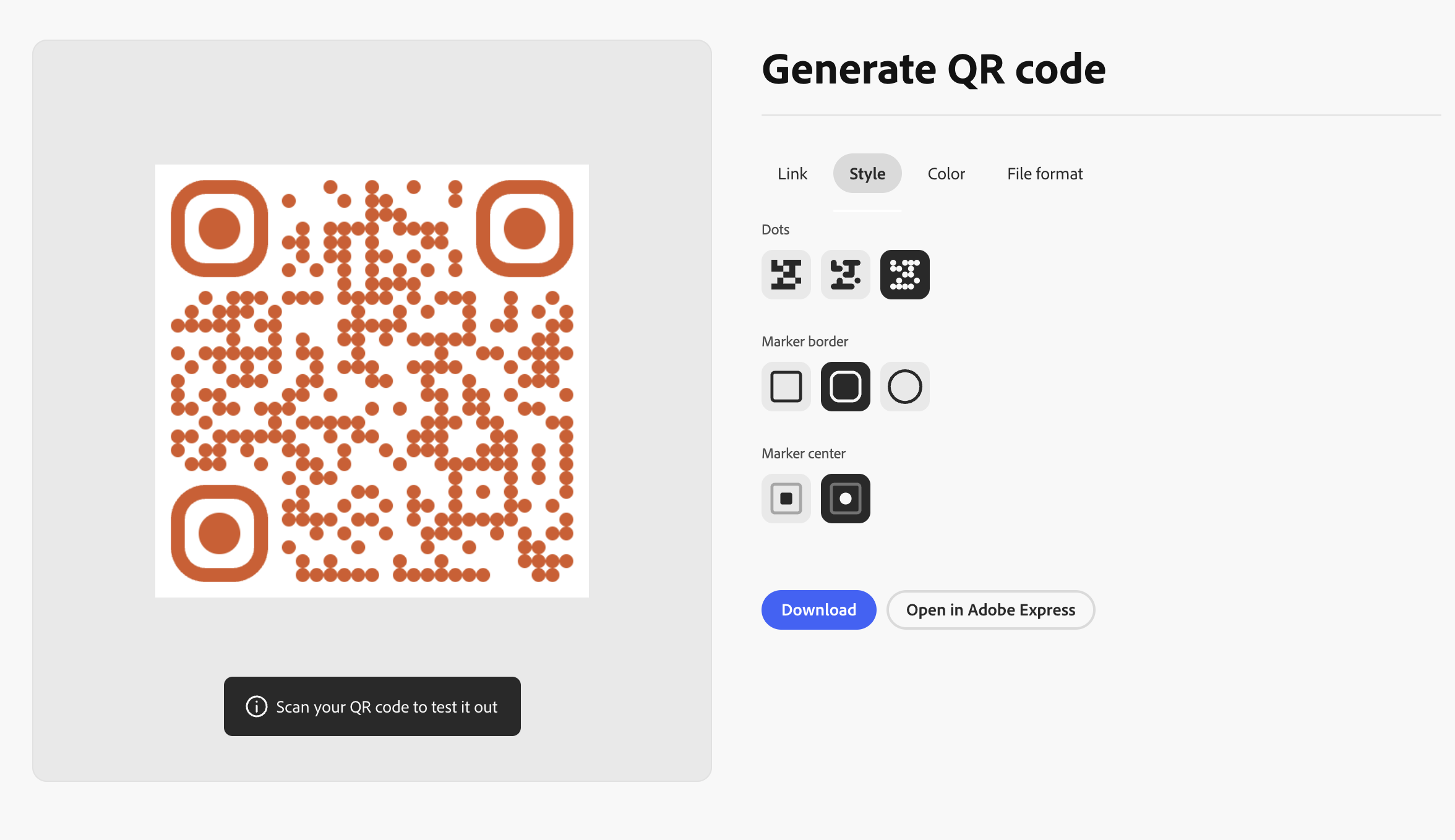
Click Download to download the file to your computer. Or click Open in Adobe Express to use it in another design.


How to create a QR code on Chrome (desktop)
You can also create a QR code right from your Chrome browser.
Open Chrome, and navigate to the web page you want to link to with your QR code.
Click the three dots menu (
⋮) in the top-right corner of your browser.Click Cast, Save, and Share, and select Create QR Code.
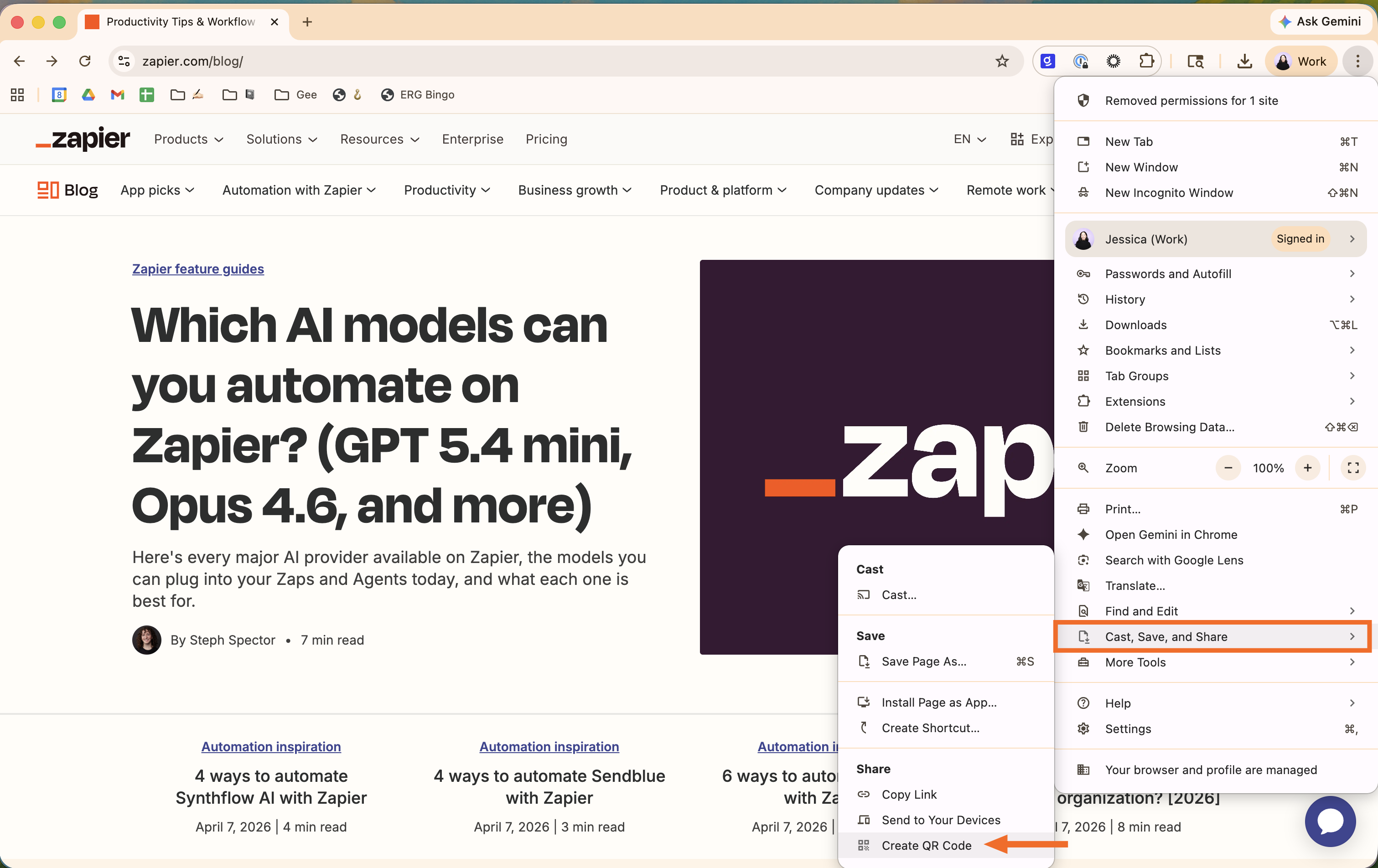
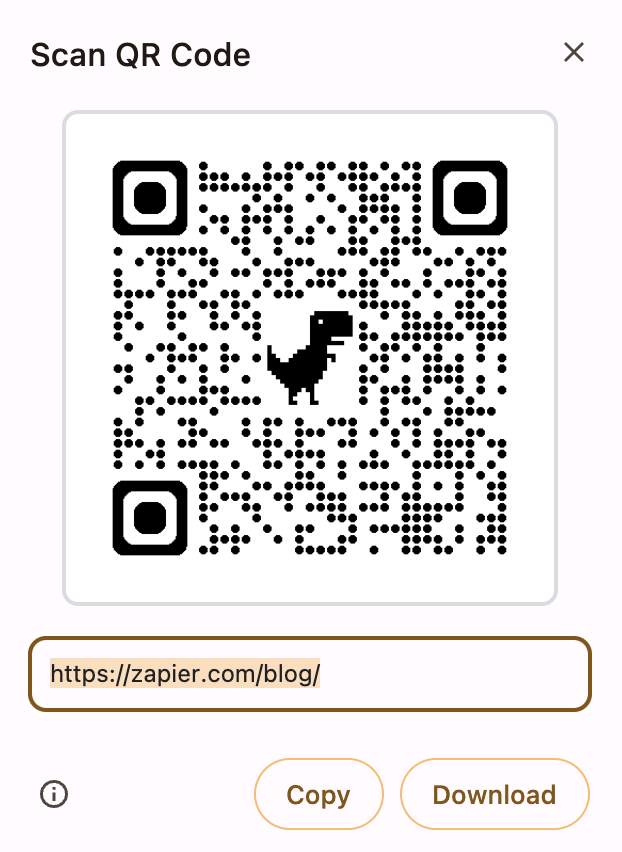
A pop-up will appear with a QR code that you can copy (and paste to share as you normally would) or download to your computer.


How to create a QR code on Chrome (mobile)
For those instances where you need a QR code on the go—say you want to share your LinkedIn profile at a networking event—you can also create a QR code on Chrome on your iPhone or Android.
How to create a QR code on Chrome: iPhone
Open Google Chrome, and navigate to the web page you want to link to with your QR code.
Tap the Share icon in the address bar.
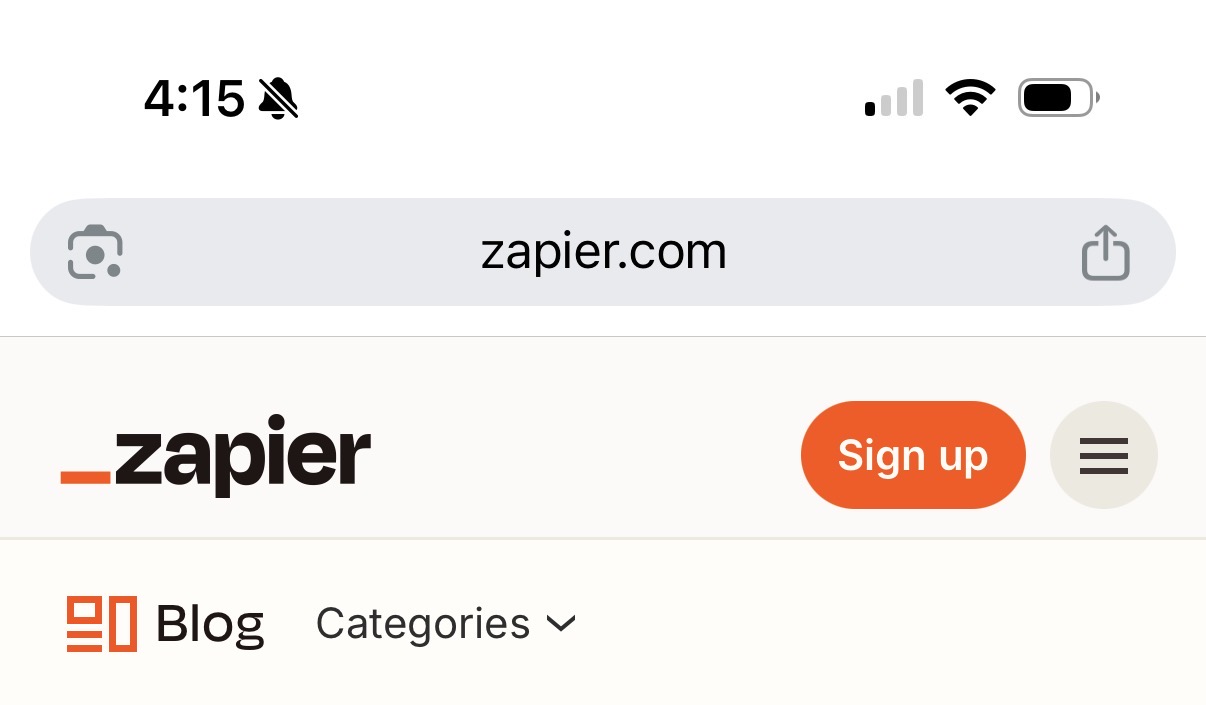
Tap Create a QR Code. (If you don't see this option, first click View More to expand your menu.)
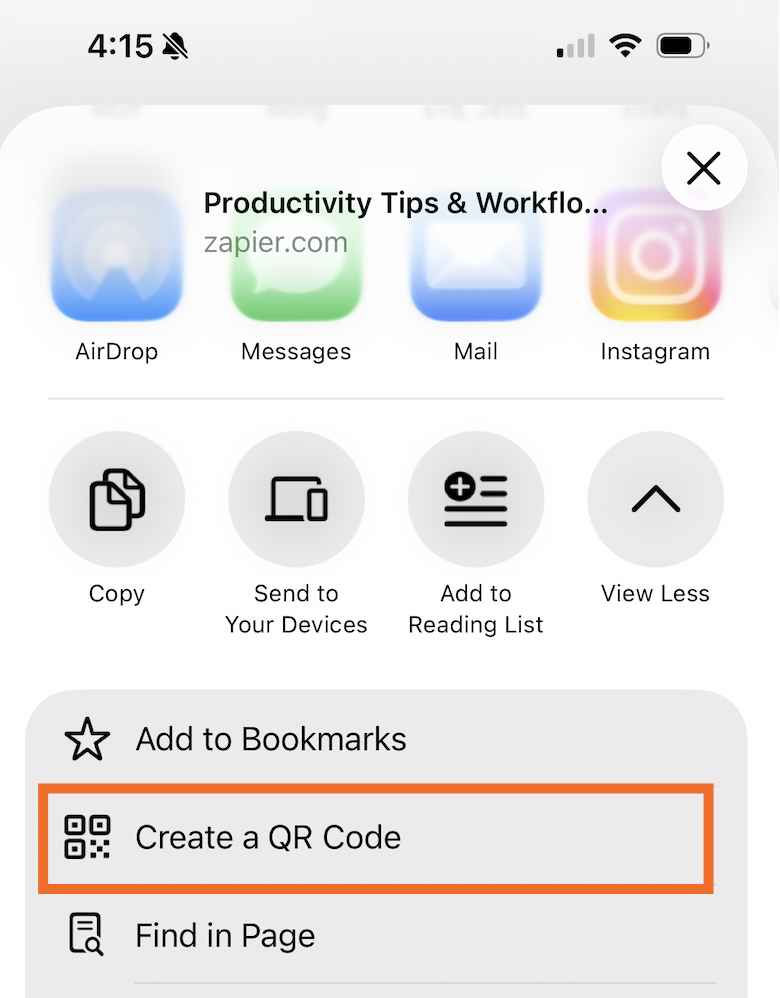
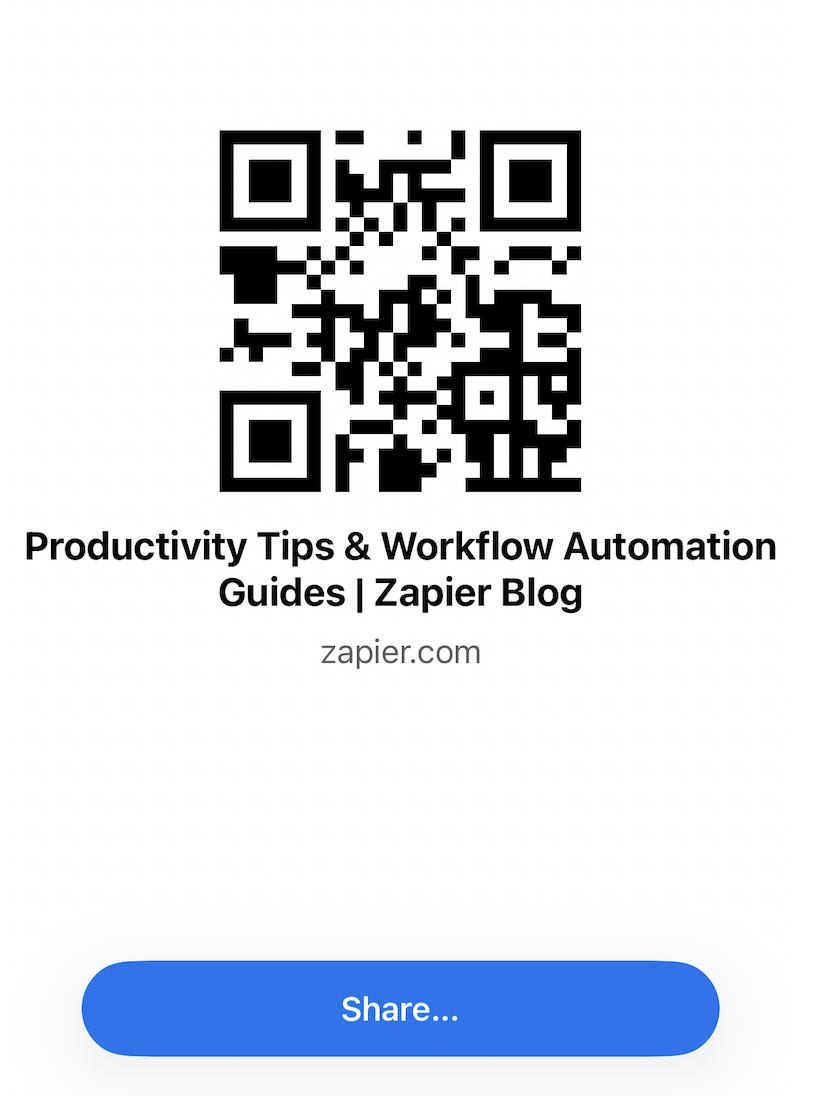
The QR code will appear on your screen. Tap Share and share it however you want.


How to create a QR code on Chrome: Android
The process is very similar if you have an Android.
Go to the URL you want to create a QR code for.
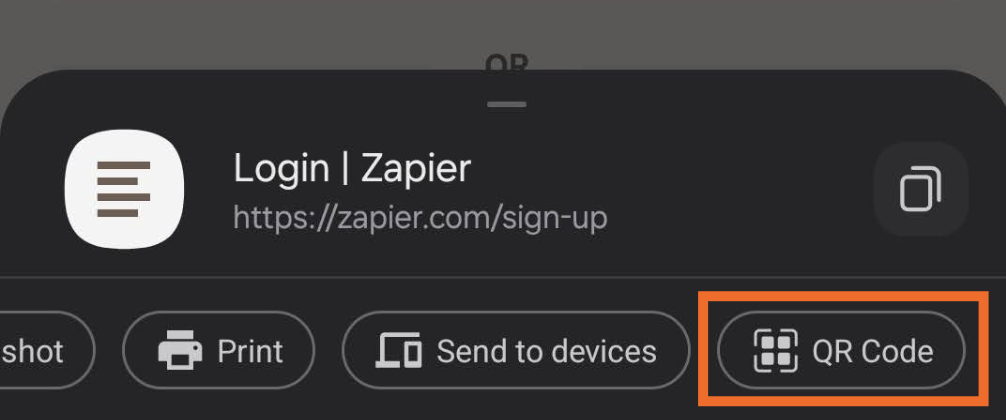
Tap the three dots in the address bar, and tap Share.
Tap QR Code.

How to create a QR code using a free online generator
Creating a QR code is as easy as ordering a yoga mat you know you'll never actually use—a few clicks, and voilà, it's done. But sometimes you want to spice things up a little. If you need some customization, here are a few QR code generators I'd recommend:
Uniqode lets you make dynamic QR codes for various campaigns.
QRCode Monkey includes custom color schemes and logo integration.
QR-Code-Generator is a Bitly-powered QR code generator with performance-tracking features.
QR code best practices
Now that you're a full-fledged QR code creator, let's touch on some QR code best practices.
Put QR codes where people can easily see and scan them. A business card, storefront window, or product label—these are all easily visible and scannable spots to place a QR code. Avoid tucking them into corners or putting them on surfaces where glare or distance makes scanning a pain.
Make sure the landing page is mobile-friendly. Your QR code is getting scanned on a phone. If the page it links to isn't mobile-friendly or doesn't load quickly, people will bail. Fix this first before deploying your QR code.
Customize the code with your branding. Most purpose-built QR code generators let you customize your QR code for free. At a minimum, add your logo and brand colors to make your code look intentional instead of like an afterthought.
Add UTM parameters so you can track performance. Append UTM parameters to the destination URL before generating the code—that way, you can see exactly how many scans you're getting, when they're happening, and which placements are pulling their weight. You can also use Zapier's UTM builder to automatically generate your URL and store it in Zapier Tables (or another database of your choice). From there, Zapier can send your URL to thousands of other apps—like Slack for a manual review or your campaign management tool—as part of a fully-automated URL management system.
Automate QR codes with Zapier
Creating one QR code is easy. Creating dozens—each with a unique URL, tracking parameters, and a destination that actually makes sense—gets tedious fast. With Zapier, you can build an AI-powered workflow to manage your QR code workflows across thousands of apps.
Here's an example of what that could look like in practice: say you run events and need to generate a unique QR code for every new registrant—one that links to a personalized landing page with their name, session picks, and a custom welcome message. You can automatically store registration form submissions in Zapier Tables, use AI to personalize the landing page copy, create a QR code, and attach it to an email to the attendee. Learn more about how to automate workflows using QR codes, or get started with one of these pre-made templates.
Create static qr codes in QRTIGER QR Code for new submissions in Jotform


Generate ME-QR QR Codes for new Google Drive files in a folder


Build automations from wherever you work. Describe the outcome you want, and Zapier connects your tools, runs the steps, and stays on the job after you close the chat. Combine AI with reliable, deterministic automation across 9,000+ apps. Get started for free.
Related reading:
This article was originally published in August 2023 with contributions from Michael Kern and Abigail Sims. The most recent update was in April 2026.



