I know the best approach to a calm, focused workday is to dive into my deepest work with as few distractions as possible. But we live on Slack at Zapier, so calm, focused, and distraction-free are hard to come by.
Slack to-do lists give you a one-click way to corral chats into an organized to-do list without leaving the app. But beyond Slack's dedicated to-do list feature, here are a few other ways to create and manage a to-do list in Slack.
Table of contents:
1. How to use Slack to-dos
The most obvious solution is to use Slack's built-in To-do feature. (If this is your first time hearing about it, that's because it's new and Slack's still rolling it out to users.)
Slack To-dos replaced Later in the sidebar, which is where you used to be able to find all your saved messages. Just so everything didn't magically go poof!, Slack kept your old saved messages:
Saved items with reminders were automatically added to your To-dos (in the sidebar).
Saved items without reminders were automatically moved to Saved (in the side panel).
Now, when you want to add a message to your to-do list, simply hover over the message, and click the Add to-do icon (it looks like a checkmark within a circle) in the floating toolbar.

You're not limited to adding only messages to your to-do list. You can also add items directly from your to-do list. Click To-dos, and select Add To-do at the top. Enter your task item, along with a reminder (if that's helpful for you), and click Add.

You can also view and manage (edit, delete, mark complete, or set reminders) from your Slack to-do list.

2. How to use Slack lists
On paper, Slack lists sound as if they function just like Slack To-dos. But, in reality, they work a lot like project management apps—like Asana or Trello.
There are two main ways to create and manage a list:
From a Slack message. Hover over the message you want to add to a list, and click More actions (
⋮). Click Organize, and select Add to list.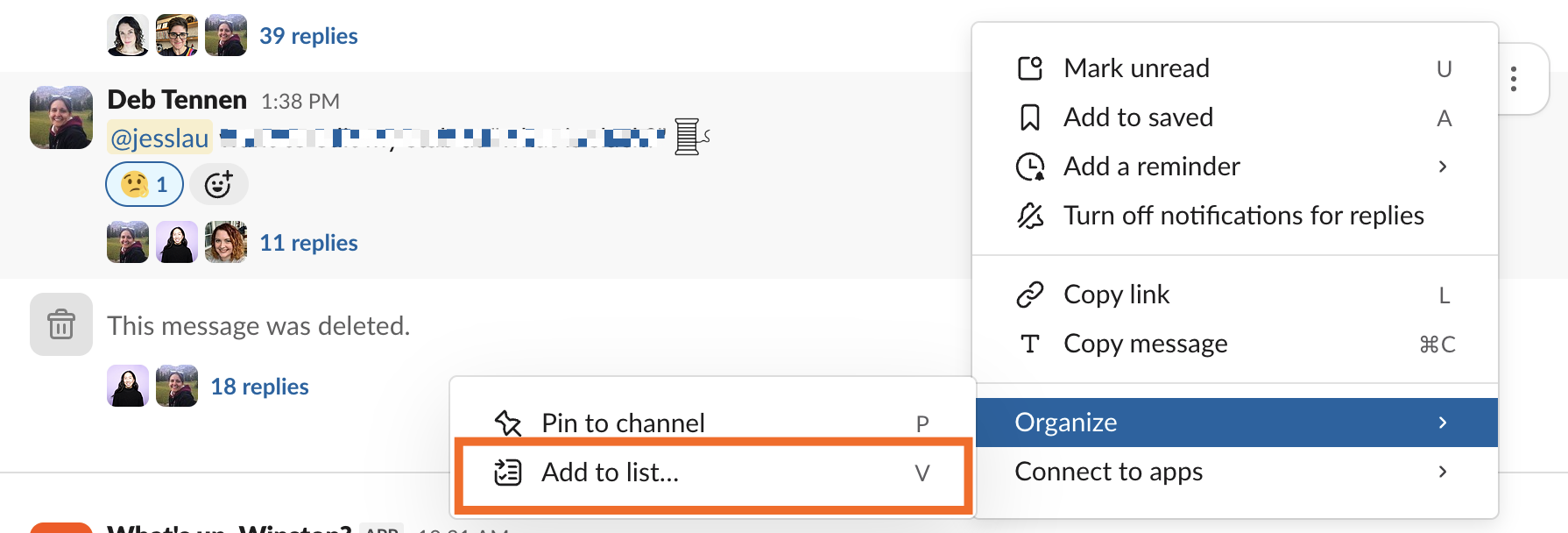
From your files. Click Files in the sidebar, and select Lists in the side panel. Click New (top-right corner), and choose how you want to create a list: from scratch, from a template, or by importing a CSV.
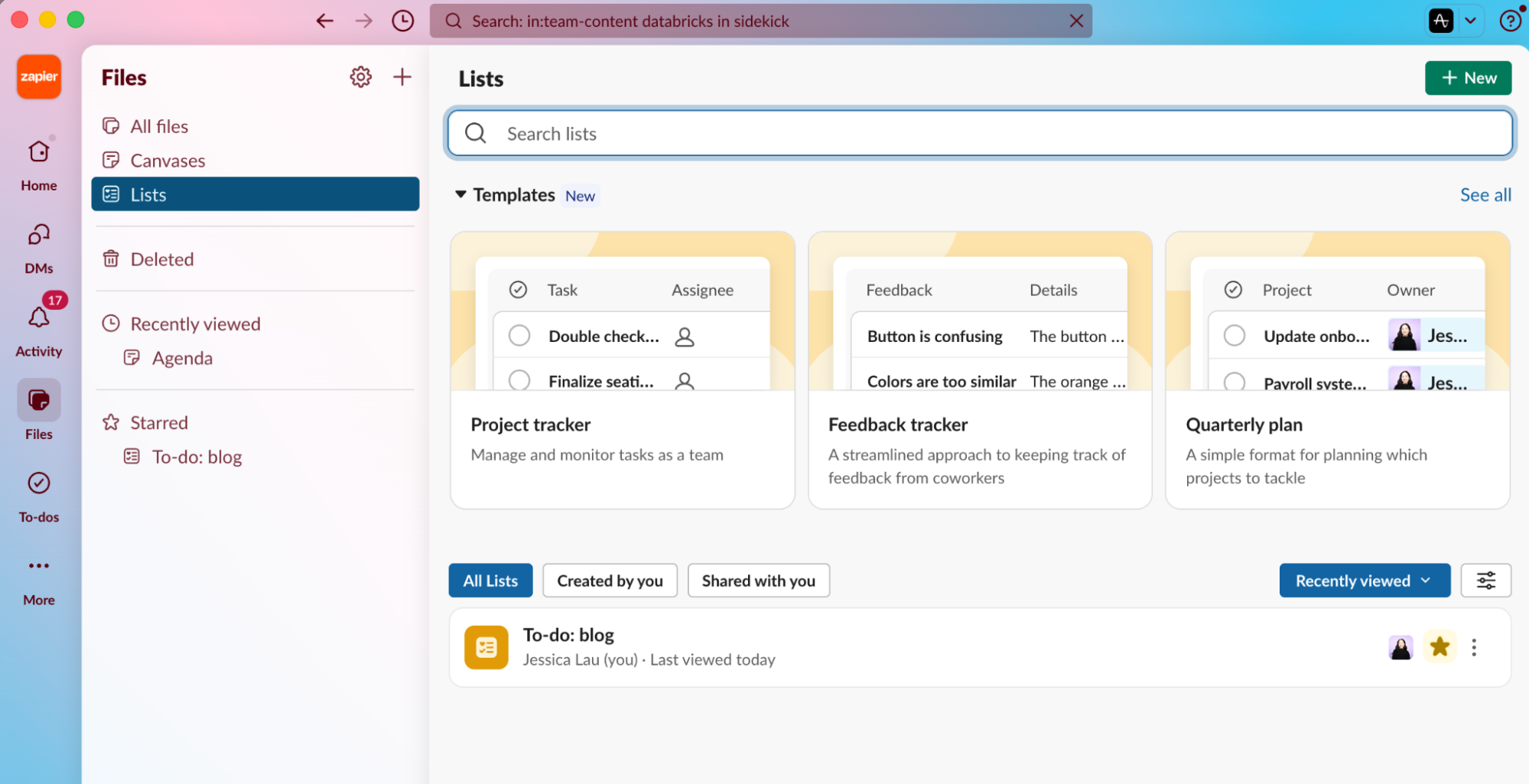


Once you have your list created, you can do all the usual stuff you'd expect in a basic project management tool: assign due dates, add subtasks, set customizable fields, and view your lists as a table or Kanban.
Slack lists are pretty barebones in my opinion, and the fact that they're hidden within Files means I tend to forget I made a list in the first place, but they offer a simple way to collaborate on items with your team (and more importantly, wrangle related Slack threads into some semblance of order).
3. How to use Slack Canvas
It's at this point that one begins to wonder why Slack would create multiple separate features that all seemingly boil down to the same functionality: organize your thoughts and to-dos. But here we are.
If Slack lists are for managing simple projects, Slack Canvas is for managing…complex ones or for organizing frequently referenced resources. (Again, I'd argue you could use Slack lists for the former and Saved for the latter. And for the need-to-know files, pin them. But I digress.)
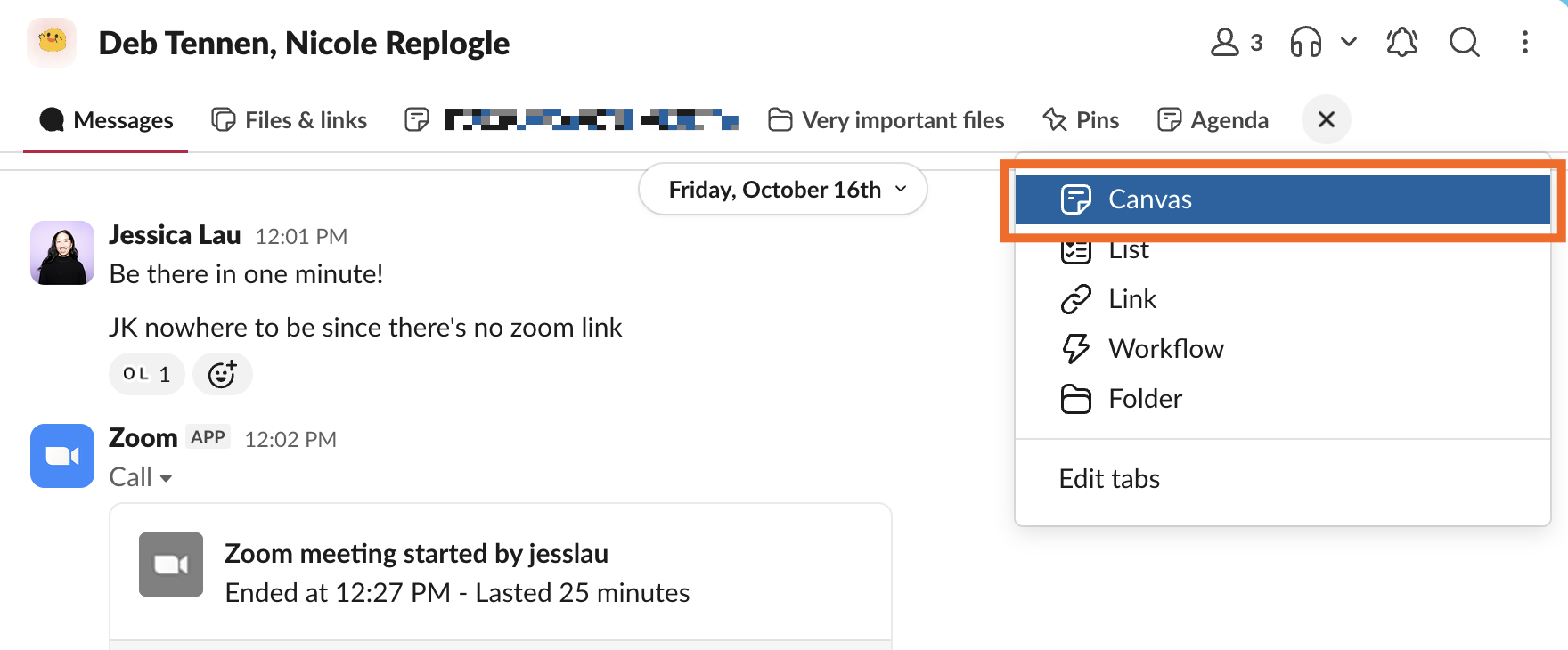
Click Canvas above any conversation. If you don't see it, first click the Add new tab icon (
+).
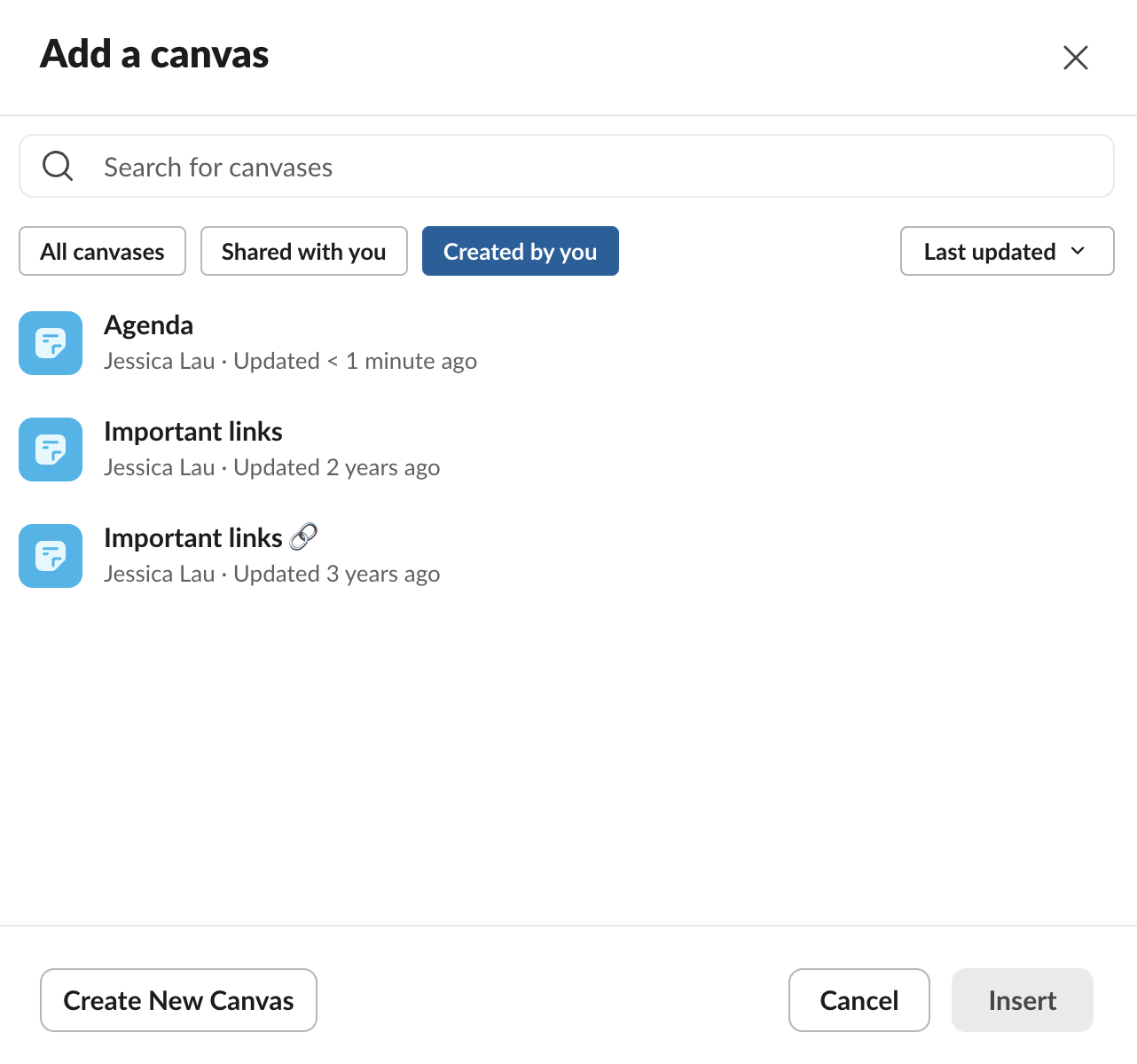
Click Create New Canvas or click an existing canvas to add to your chat.
To create a to-do list, enter
/check listor click the Check list icon in the floating toolbar (at the bottom).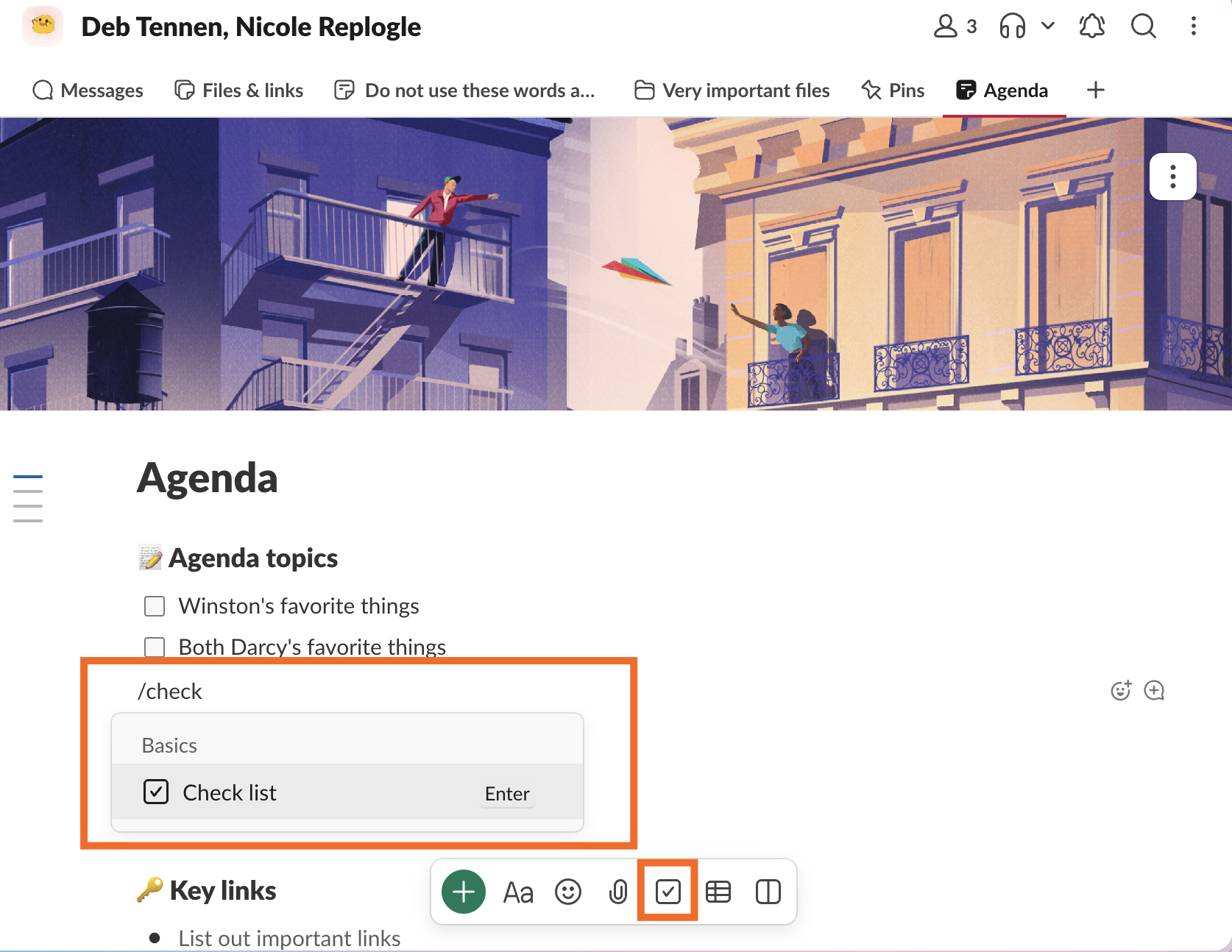


Checklists in a Slack Canvas act less like true to-do list items in a task management app with reminders and assignees, but they still get the job done—as long as you remember to check your canvas.
4. How to use Slack reminders
Sometimes you don't need to create a to-do list item; you just need something to give you a quick nudge when the time comes. That's where Slack slash commands come in.
Just type /remind in any channel or DM to set up a reminder for yourself or someone else. Reminders are attached to your to-dos, For example, you might write /remind @jesslau "update meeting notes for 11/30 meeting" on November 24. I recommend adding quotation marks around the reminder message to prevent Slack from confusing any dates or numbers for when to send the reminder.
To check your running list of reminders, open your to-do list, and filter by Upcoming reminders. If you want to edit or delete a reminder, hover over the one you want to change, and choose any option from the floating toolbar that appears.

5. How to use Slack integrations to create to-do lists
If you already use a dedicated to-do list app or project manager, you can probably use Slack's native integrations to send Slack messages to that app with a couple of clicks.
After you've connected your account to Slack, most of the integrations above let you add tasks to your project manager using a slash command, like /trello or /asana.

If Slack doesn't natively connect to one of your apps, use Zapier to connect Slack with thousands more. This way, you can automate your entire task management workflow straight from Slack. Slack also has an MCP server, so you can access your Slack tasks directly from your AI assistant like ChatGPT or Claude. Or you can extend that reach to 9,000+ apps with Zapier, so you can securely access and take action in Slack and the rest of your tech stack directly from your chat window. Learn more about how to automate Slack.
Build automations from wherever you work. Describe the outcome you want, and Zapier connects your tools, runs the steps, and stays on the job after you close the chat. Combine AI with reliable, deterministic automation across 9,000+ apps. Get started for free.
Related reading:
This article was originally published in August 2024 by Nicole Replogle. The most recent update was in October 2026.