Manual work might (eventually) get the job done, but it rarely scales. Whether it's following up with leads, sharing updates, or wrangling data across teams, as your processes grow more complex, so does the need for workflows that scale with you.
That's where Zapier comes in. You can start by automating individual tasks with simple workflows—what we call Zaps—and grow into running entire systems across apps, teams, and data. And with built-in governance features, you can stay in control of what connects, who builds, and how AI is used.
You can build every Zap in this list two ways: start from a ready-made template, or add Zapier to your AI tool and describe what you want in a prompt. In each section below, you'll find the templates along with prompts you can paste into Claude, ChatGPT, Cursor, or whatever AI tool you use.
Keep scrolling for the most popular ways teams are using Zapier to cut back on manual work and streamline their day-to-day.
To use the templates and prompts in this article: For the templates, just click the button to try it, and you'll be brought to the Zapier editor. For the prompts, connect Zapier to your AI tool first, then connect the apps you want to automate. Paste a prompt, swap in your own apps, and your agent will draft the Zap. Either way, once it's live, the Zap runs on its own.
1. Post on your social channels from an RSS feed
Instead of manually sharing your blog posts or interesting articles you've found online, use these Zap workflows to share items from an RSS feed directly to social media.


Share new RSS items as company updates in LinkedIn

Or build it from your AI agent:
"Build a Zap: When there's a new item in my RSS feed, post it to my Facebook Page."
"Build a Zap: When there's a new item in my RSS feed, add it to my Buffer queue."
"Build a Zap: When there's a new item in my RSS feed, share it as a company update on LinkedIn."
2. Save form responses in a spreadsheet
Forms are a great way to collect all sorts of data from your customers and internal teams. Once someone has filled out your form, you can easily analyze and share your form data by dropping it into a Google Sheet—or another database app of your choice.
Collect new Typeform responses as rows on Google Sheets


Create rows in Google Sheets for new Gravity Forms submissions


Create records in Zapier Tables for every new submission in Jotform


Spreadsheets are great for storing information, but they're not built for acting on it quickly. For a more dynamic automated system, try Zapier Tables. With it, you can store data, trigger automations, and connect all your organization's apps and workflows to your spreadsheet data.
Or build it from your AI agent:
"Build a Zap: When someone submits my Typeform, add their answers as a new row in my Google Sheet."
"Build a Zap: When there's a new Gravity Forms submission, create a row in my Google Sheet."
"Build a Zap: When someone submits a form on my Webflow site, add the submission to my Excel spreadsheet."
"Build a Zap: When there's a new Jotform submission, create a record in my Zapier Table."
3. Automatically respond to forms
Analyzing form responses is important, but don't leave your customers hanging while you're working at getting back to them. Use a Zap to send an automated reply to form responses. That way, customers know you've not only heard from them but are busy working on solving their issue.
Send emails for new Google Forms responses in a spreadsheet


Get email notifications or send follow-ups to new Typeform respondents


Or build it from your AI agent:
"Build a Zap: When a new response is added to my Google Forms spreadsheet, send an email to the respondent confirming we got it."
"Build a Zap: When someone submits my Typeform, send them a follow-up from Gmail, and email me a notification."
"Build a Zap: When someone submits a Gravity Form, add them as a subscriber in Mailchimp."
4. Track and respond to leads
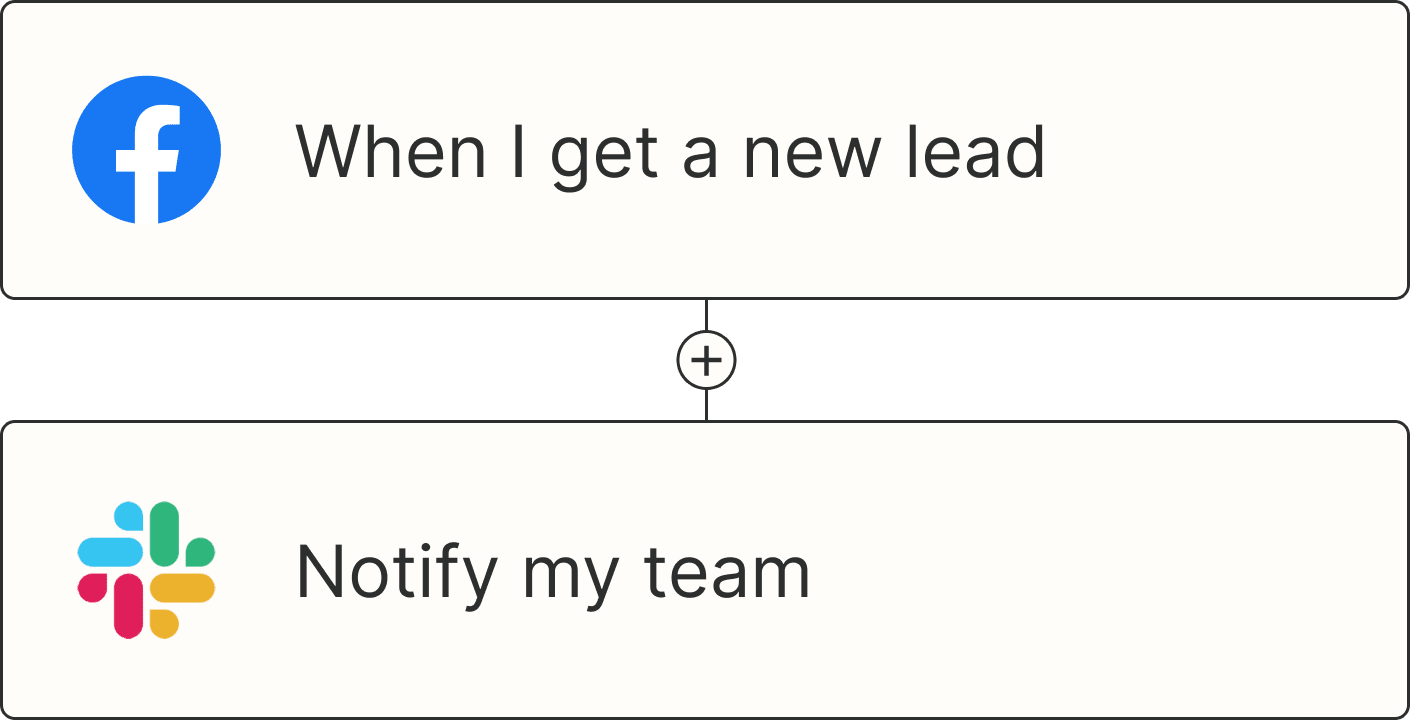
As your business scales, tracking and following up with leads can get tricky. Make sure you don't miss out on any leads by automatically connecting your lead management app to your spreadsheet or email tool with one of these Zap workflows.
Add new Facebook Lead Ads leads to rows on Google Sheets

Send emails in Gmail for new leads in Facebook Lead Ads
Need a helping hand writing follow-up emails at scale? With Zapier, you can drop AI directly into your workflows to generate personalized responses automatically. For example, this Zap uses AI by Zapier to write custom emails for new LinkedIn Ads leads—and sends them via Gmail, instantly.
Write new LinkedIn Ads leads emails with AI and send in Gmail


AI by Zapier is a built-in tool that connects to all major AI models—and lets you swap between them anytime without rebuilding your Zap, so you have AI model flexibility baked right into your workflows.
Or build it from your AI agent:
"Build a Zap: When a new lead comes in from Facebook Lead Ads, add them as a row in my Google Sheet."
"Build a Zap: When a new lead comes in from Facebook Lead Ads, send them an email from Gmail."
"Build a Zap: When a new lead comes in from Facebook Lead Ads, email me the lead's details."
"Build a Zap: When a new lead comes in from LinkedIn Ads, use AI to write a personalized follow-up email based on their details, and send it from Gmail."
Your agent uses AI only for the writing step. Every other step runs the same way every time.
5. Create tasks and to-dos
To-dos can come from almost anywhere—your notes app, your calendar, or a form response. Keep your task list up to date by connecting your to-do app to your other business-critical tools.


Add new Google Calendar events to databases in Notion


Create Trello cards from new Google Forms responses
Create new Asana tasks from new Google Calendar events

Or build it from your AI agent:
"Build a Zap: When I create a new note in Evernote, create a card in Trello."
"Build a Zap: When a new event is added to my Google Calendar, add it to my Notion database."
"Build a Zap: When someone submits my Google Form, create a Trello card with their answers."
"Build a Zap: When a new event is added to my Google Calendar, create a task in Asana."
6. Use webhooks
Want to automate an app that doesn't yet integrate with Zapier? Webhooks are one way that apps can send automated messages or information to other apps. Use Zapier's built-in webhooks tool to send information to or from almost any app.
Add info to a Google Sheet from new Webhook POST requests


Tip: Need to make authenticated API calls, but don't want credentials sitting in plaintext in your Zap? Try API by Zapier. It's a built-in tool like Webhooks by Zapier, but it stores your API keys or OAuth credentials securely in a Zapier connection, so they're never exposed in your workflow. Learn more in our feature guide.
Or build it from your AI agent:
"Build a Zap: Create a Zap that catches a webhook POST request and adds the data to a row in my Google Sheet. Give me the webhook URL when you're done."
"Build a Zap: When my Zap catches a webhook, send a message to a Slack channel with the data."
"Build a Zap: When my Zap catches a webhook, send the data on to another webhook URL."
"Build a Zap: When there's a new Facebook Lead Ads lead, POST it to this webhook URL: [your endpoint]."
Tell your agent whether the Zap should catch a webhook or send one. A draft can be test-run before you publish it.
7. Get notifications and reminders about everything in Slack
For many teams, Slack is information central. Streamline sharing with your team by sending notifications from other apps to Slack.
Send Slack channel messages for new Google Calendar events
Get email notifications for new rows in a Google Sheets spreadsheet
Want an AI-powered bot to answer general employee questions in Slack? By integrating AI by Zapier with Slack, you can create AI-powered assistants that live inside Slack. They can even draw from your own company files and knowledge sources so they're ready to answer questions on everything from HR policies to content guidelines, accounting, and more. It's a fast, scalable way to help your team without making them switch tools or wait for a response.
Or build it from your AI agent:
"Build a Zap: When a new event is added to my Google Calendar, post it in a Slack channel."
"Build a Zap: When there's a new Google Forms response, share it in a Slack channel."
"Build a Zap: When a new row is added to my Google Sheet, email me the details."
"Build a Zap: When someone submits my Typeform, send me a Slack notification with their answers."
"Build a Zap: Build me an AI assistant in Slack that answers employee questions about HR policies using [knowledge base]."
8. Track events and tasks with your calendar
If you rely on Google Calendar to stay on schedule but use a different app to track everything you need to work on, these workflows are for you. Keep tabs on everything coming up without manually adding events to your calendar.
Add new Google Calendar events to databases in Notion

Create Google Calendar events from new Trello cards
Do you use AI transcription tools to capture next steps? Meetings can be a goldmine for that kind of information—but only if you're adding them to your project management tools. With Zapier, you can automatically extract action items and notes from tools like Fathom or Fireflies.ai, then turn them into tasks or updates in your favorite project management tools.
Whether you want to send follow-ups to Notion or create action items in Asana, these Zap workflows help you bridge the gap between what was said and what needs to get done.
Create Notion database items for new Fireflies.ai meetings.

Create tasks in Asana for every new action item in Fathom

Or build it from your AI agent:
"Build a Zap: When a new event is added to my Google Calendar, add it to my Notion database."
"Build a Zap: When a task in Todoist is still incomplete, add it to my Google Calendar."
"Build a Zap: When I create a new card in Trello, create an event for it in my Google Calendar."
"Build a Zap: When a meeting ends in Fireflies.ai, create an item for it in my Notion database."
"Build a Zap: When Fathom finds a new action item in a meeting, create a task for it in Asana."
The calendar steps run as plain automation. Your agent adds AI only where it has to read a transcript.
9. Save email attachments to the cloud
Don't let the files and photos people send you over email get lost in your inbox. Instead, save those attachments to your favorite cloud storage service so you'll always know where they are.


Or build it from your AI agent:
"Build a Zap: When I get a new email with an attachment in Gmail, save the file to my Google Drive."
"Build a Zap: When I get a new email with an attachment in Gmail, save it to Dropbox."
"Build a Zap: When an email arrives at my Zapier email address with an attachment, save it to Google Drive."
10. Turn your emails into to-dos
With the daily flood of email, your inbox isn't the best place for your tasks. Yet many emails are actionable. Never let an email task get buried—instead, let Zapier send it to the proper place so you remember to take action.
Create Todoist tasks for starred Gmail messages [Business Gmail Accounts Only]
Create Trello cards from new starred Gmail emails [Business Gmail Accounts Only]
Add new Gmail emails that match searches to Airtable as records

Or build it from your AI agent:
"Build a Zap: When I star an email in Gmail, create a task in Todoist."
"Build a Zap: When I star an email in Gmail, create a card in Trello."
"Build a Zap: When a new Gmail email matches my search [insert search parameters], add it as a record in Airtable."
11. Get an automatic summary of anything with Digest
Sometimes you don't need to know about new things exactly when they happen—instead, you need to know all of the things that happened over a time period. Perhaps you'd like an email with all of today's headlines each evening, or a list of everything your team's completed this week on Friday afternoons. Zapier's Digest tool can correlate the info for you and send it right when you need it.
Get a digest of new Xero sales invoices sent to your Gmail on a daily, weekly, or monthly schedule

Get Slack notifications for Reddit mentions and get an email summary of mentions daily, weekly, or monthly

Want to go one step further? Use AI to generate a smart summary of your emails and send it to Slack—so you get just the highlights, and none of the noise.
Or build it from your AI agent:
"Build a Zap: Every week, send me a Gmail summary of all the new sales invoices in Xero."
"Build a Zap: When someone mentions my brand on Reddit, send a Slack notification, and email me a summary of all mentions once a week."
"Build a Zap: Every evening, read my day's emails with AI, write a short summary of the highlights, and post it in Slack."
Tell your agent "every Friday" or "every evening," and it sets up the schedule.
12. Automatically send survey thank yous
Personalized responses are time-consuming to create from scratch. Instead, these workflows reach out and thank individuals for their input almost instantly.
Get email notifications or send follow-ups to new Typeform respondents
Send email via Gmail for new SurveyMonkey responses

Send email via Gmail for new Google Forms submissions
Or build it from your AI agent:
"Build a Zap: When someone submits my Typeform, send them a thank-you email from Gmail, and email me a notification."
"Build a Zap: When someone responds to my SurveyMonkey survey, send them a thank-you from Gmail."
"Build a Zap: When someone submits my Google Form, send them a thank-you email from Gmail."
13. Triage and organize your inbox with AI
You log in on Monday morning, and your inbox is a wall of unread messages. You wish you had a quick way to sort it all out—and you do. Connect Zapier to your AI tool (like Claude or ChatGPT) and connect your email app, enabling search actions. Then connect any other apps you use to manage tasks, send messages, or update your CRM. From there, you can ask your AI to read your emails, categorize them by the action they require, and route them accordingly.
Try these prompts:
"Build a Zap: Every morning, read my unread Gmail messages. Sort them into 'needs a reply,' 'needs a task,' and 'FYI,' and show me the list before you do anything."
"Build a Zap: On Friday afternoons, for every email in my inbox that needs a task, create a task in Asana with the subject as the title and a link to the email."
"Build a Zap: Every Monday at 8 a.m., triage my inbox this way and send me a summary in Slack. Only label emails. Don't send or delete anything."
14. Track what's happening in the news and online
Staying on top of topics that matter to you—whether that's an industry you follow, a hobby, or your own company's name—usually means a lot of manual searching. Instead, you can use Zapier MCP from the AI agent to get the job done, automatically.
Try these prompts:
"Build a Zap: Search the web every morning for new mentions of my company name and my competitor's name, and email me the top five links."
"Build a Zap: Every weekday at 7 a.m., check Google News for stories about my industry, and add anything new to a Google Sheet with the headline, source, and link."
"Build a Zap: Check for new mentions of my brand on Reddit once a day and post anything new in a Slack channel."
Your agent builds it. Zapier keeps it running.
The Zaps above are just the beginning. Once one is live, the same approach works for anything you find yourself doing by hand: describe it to your agent, and it turns the work into a Zap that runs on its own.
Zapier connects your agent to your whole stack, across 10,000+ apps, and manages the logins so you never paste an API key. Your Zaps start the moment something happens, like a new lead or an email reply, or on a schedule, like daily or weekly. They use AI only where the work needs judgment, so they run the same way every time. If one breaks, Zapier finds the problem and proposes the fix. And you decide what your AI can touch: every Zap your agent builds, in Claude, ChatGPT, or Cursor, shows up in one place in Zapier, with every run.
Ready to try it? Add Zapier to your AI tool, pick a prompt from this list, and get one job done. Prefer to start from a template? Click any Zap template above and start building in the editor.
This article was originally published in March 2017. The most recent update was in November 2026.