Bots have a terrible reputation on most social media platforms, but on Discord I'm actually happy to encounter them. A Discord bot automates key tasks from within a server: you can program it to do simple things like sending welcome messages to new members or more complex things like moderating interactions and hosting giveaways.
While you can create Discord bots from scratch, there are also millions of pre-made bots available. In this guide, I'll show you how to add bots to Discord on desktop and mobile without any code.
Table of contents:
How to add bots to Discord server on desktop
The simplest way to add bots to Discord is to invite them to your server from an online bot list like top.gg, discord.bots.gg, or discordbotlist.com. Yes, you have to "invite" the bot, but that really just means adding it. Here's how it's done. (I'm using top.gg as the example, but it'll work pretty much the same with any Discord bot list you use.)
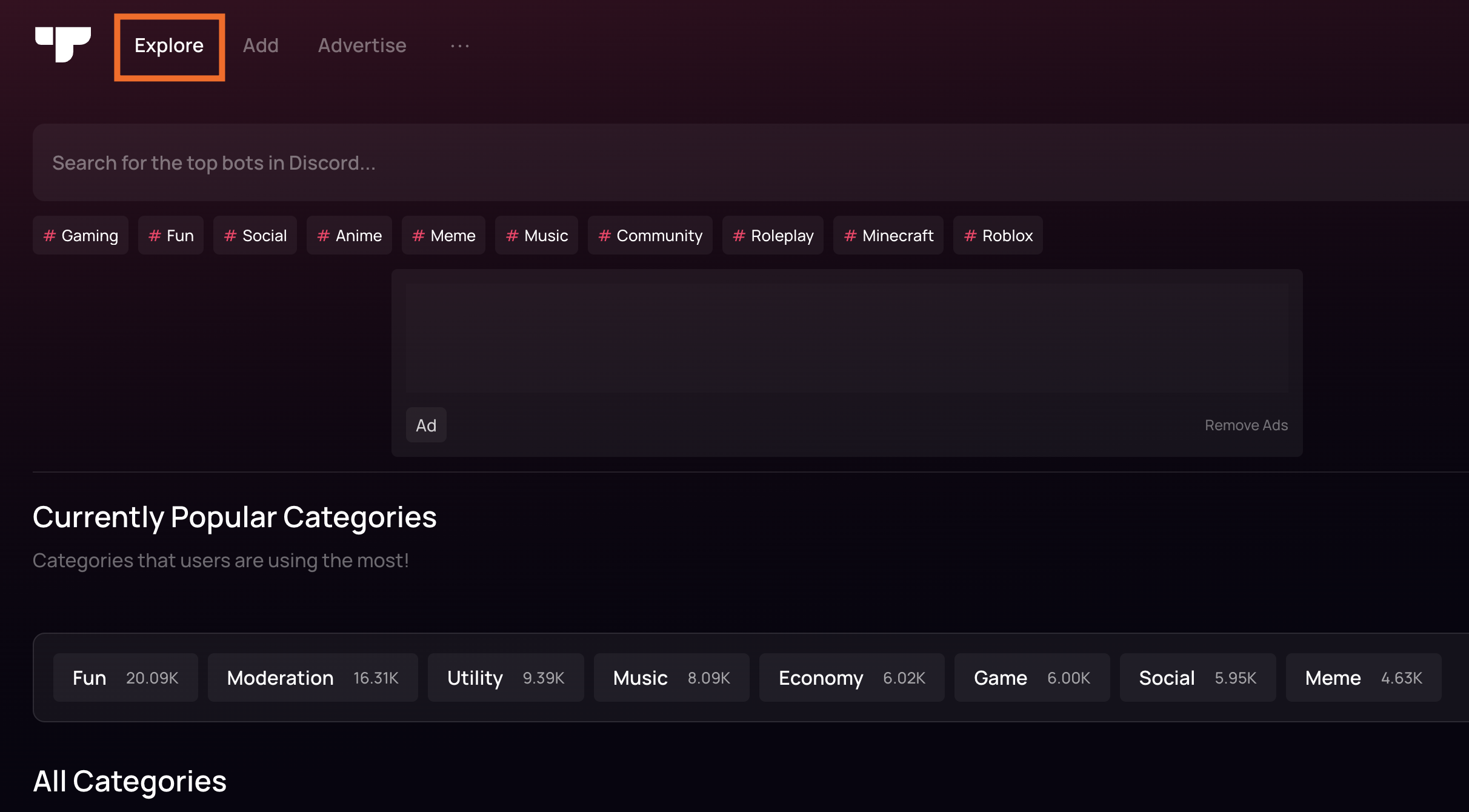
Go to top.gg, and search for the bot you want to add. If you want to browse, you can filter by bot category (like Role Management or Gaming) under the Explore tab.
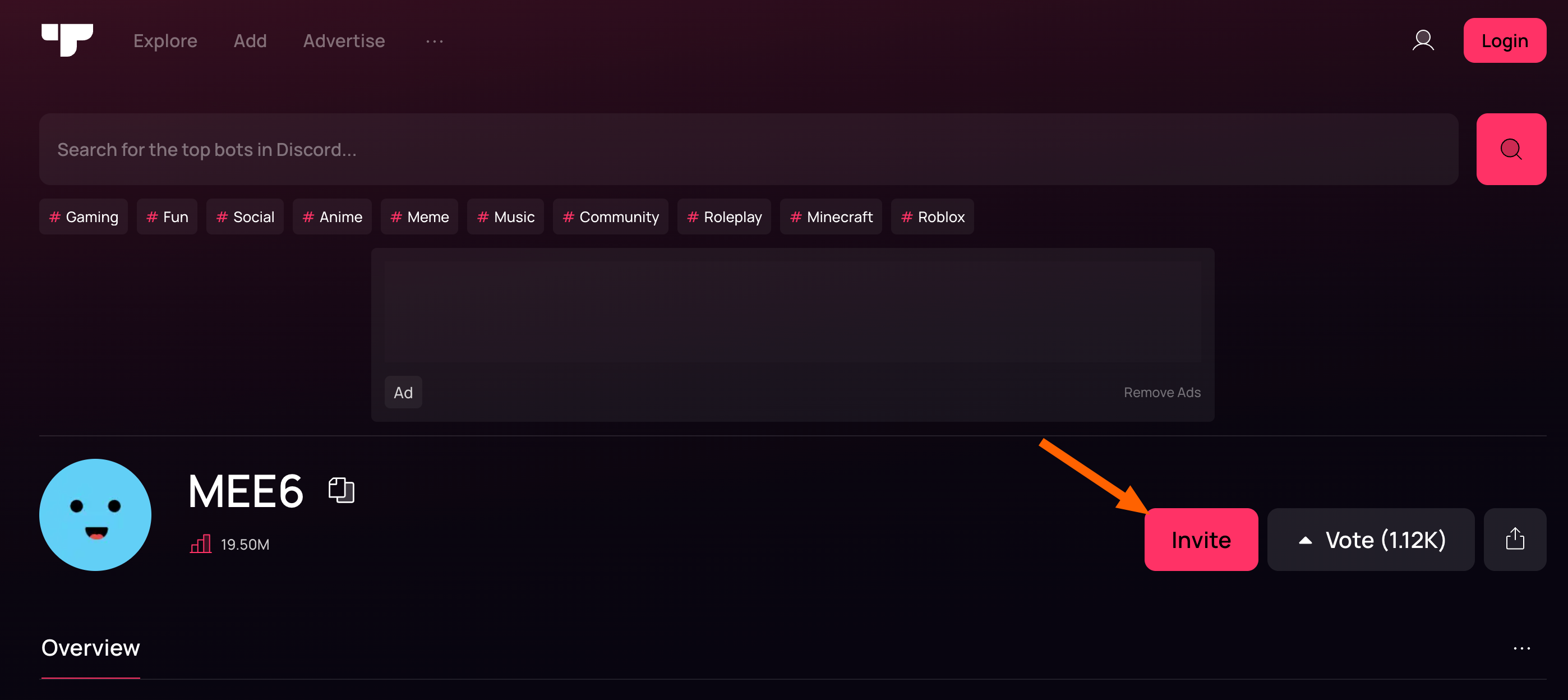
Click Invite. (You'll be asked to sign in via Discord.)
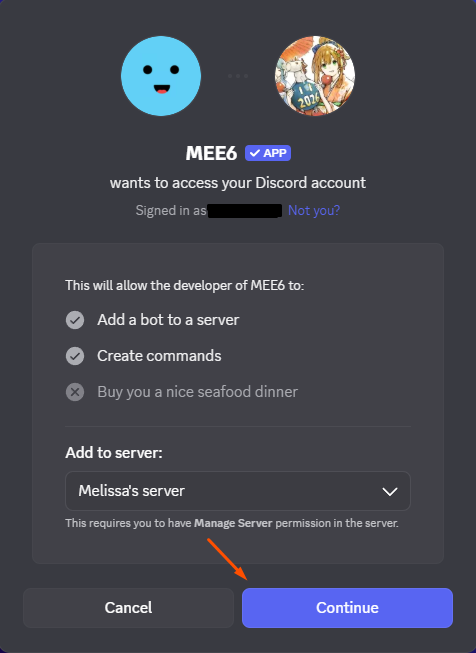
Select the server you want to add the bot to, and click Continue.
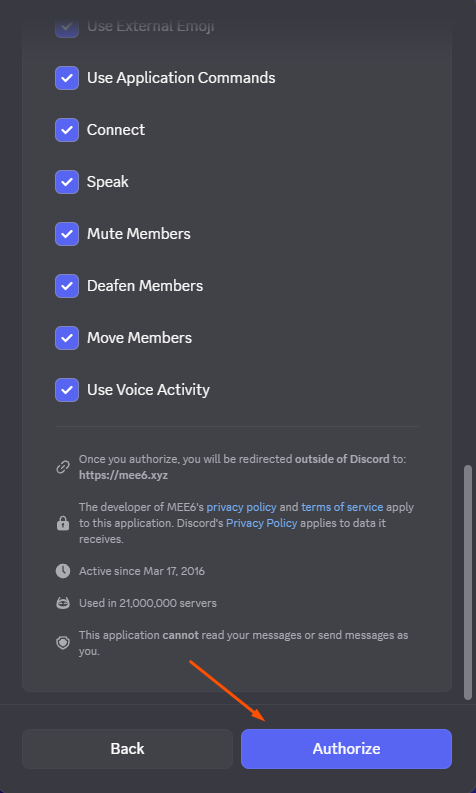
Choose which permissions you want the bot to have, then click Authorize. If you have two-factor authorization enabled, Discord will also ask for a code.
Open Discord, and select the server you added the bot to. You should see a welcome message confirming that it's been added. Your bot may also send an initial message.
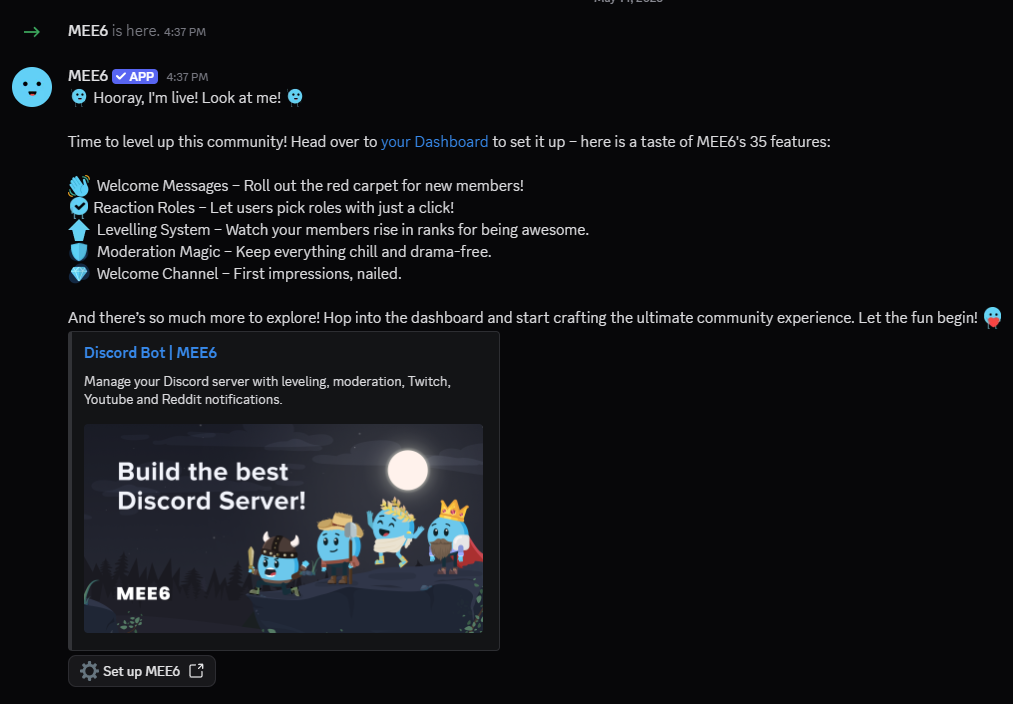
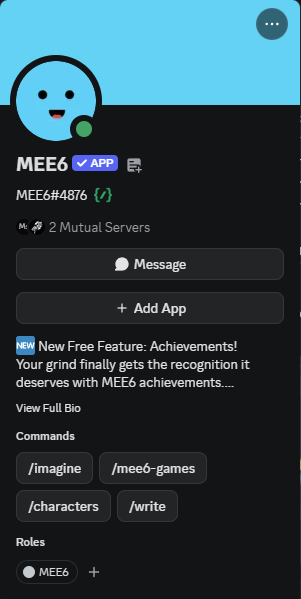
Click the bot's name (MEE6, in this case) to see more information and commands you can use to interact with it.
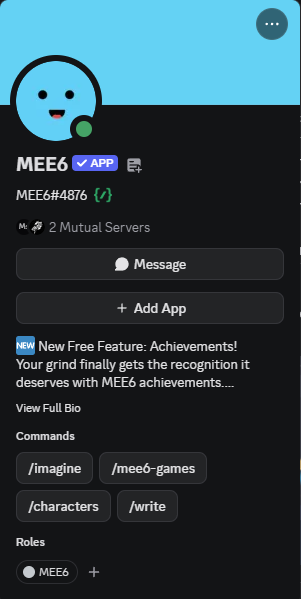


With that, you now have a working Discord bot in your server. If these steps didn't work, you probably don't have server management permissions. If you're a member of someone else's server, you'll need to request access in order to invite bots.
How to add bots to Discord server on mobile
Adding bots to Discord from an iOS or Android device works pretty much the same as doing it on desktop. You'll just tap instead of clicking.
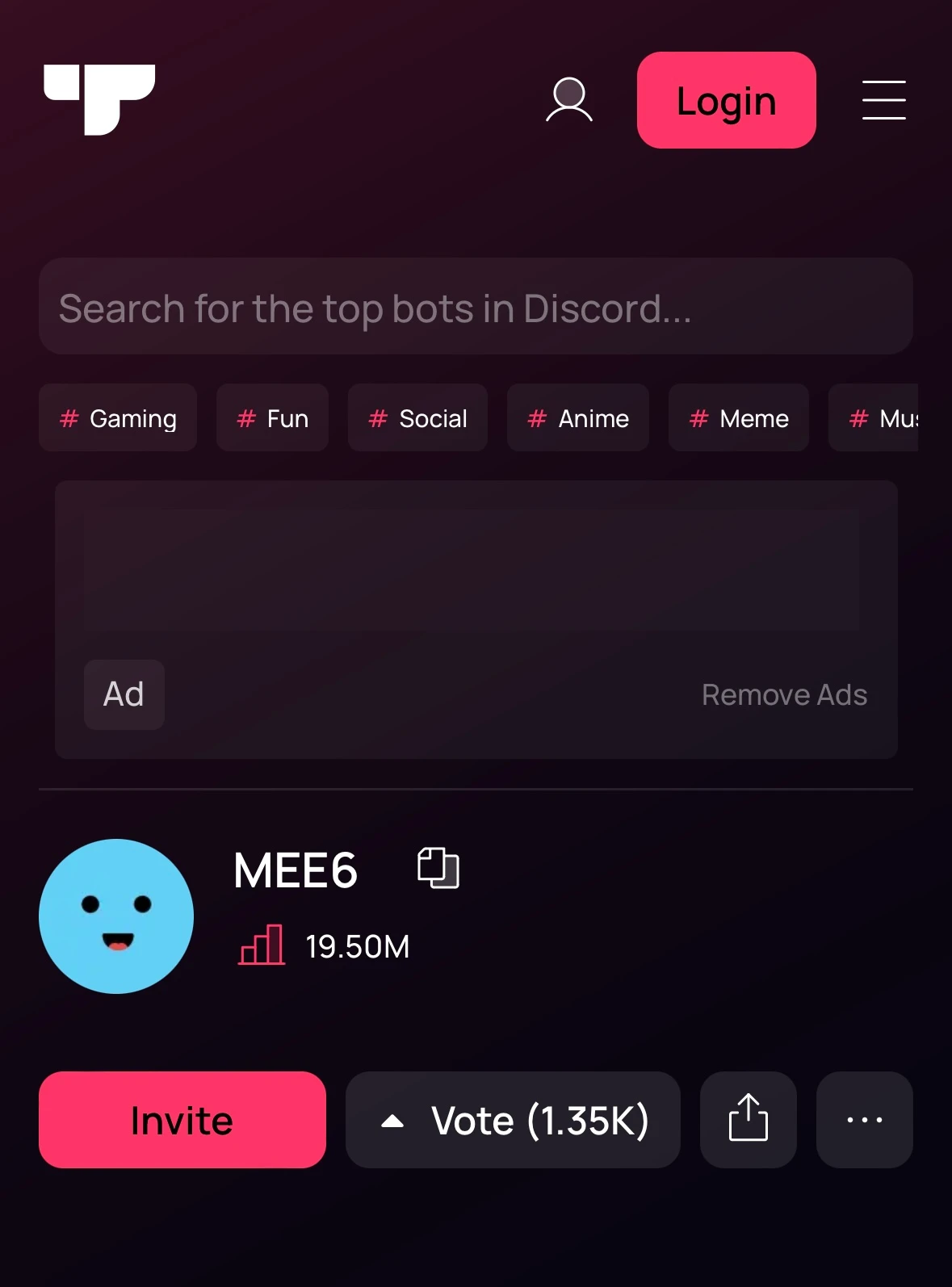
Go to top.gg, and choose the bot you want to add.
Tap Invite, then sign in via Discord when prompted.
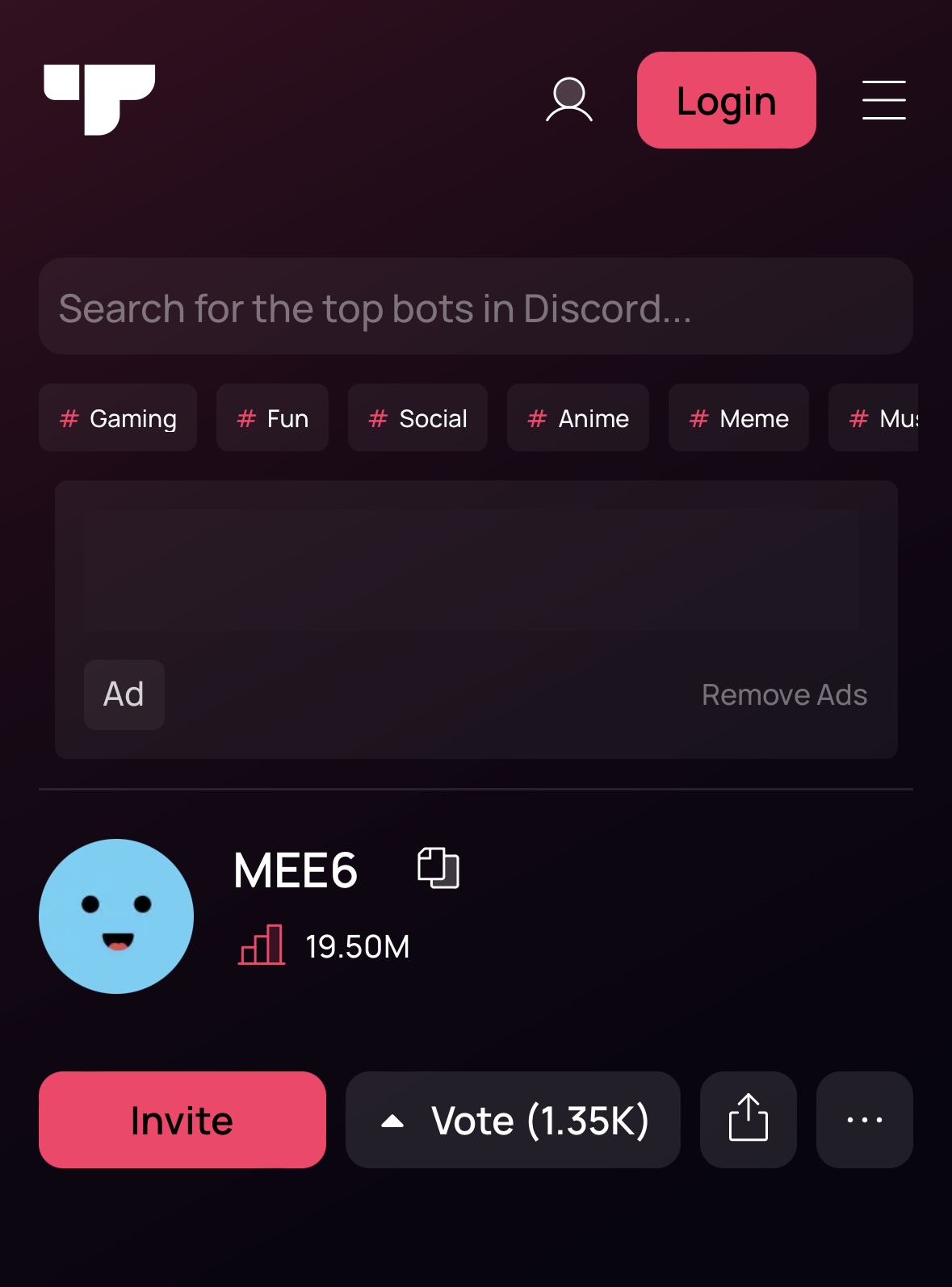
Choose a server to add the bot to, and tap Continue.
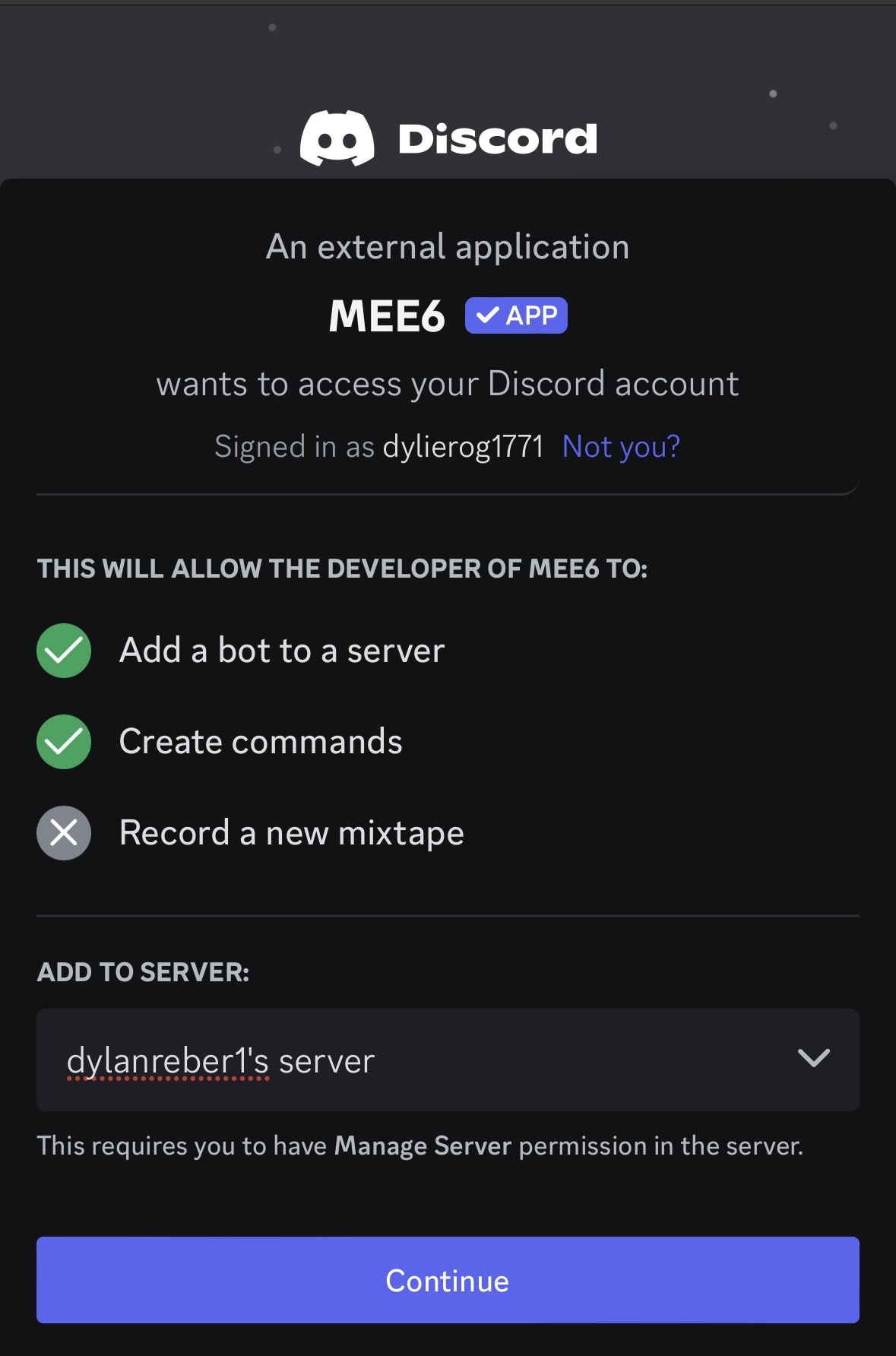
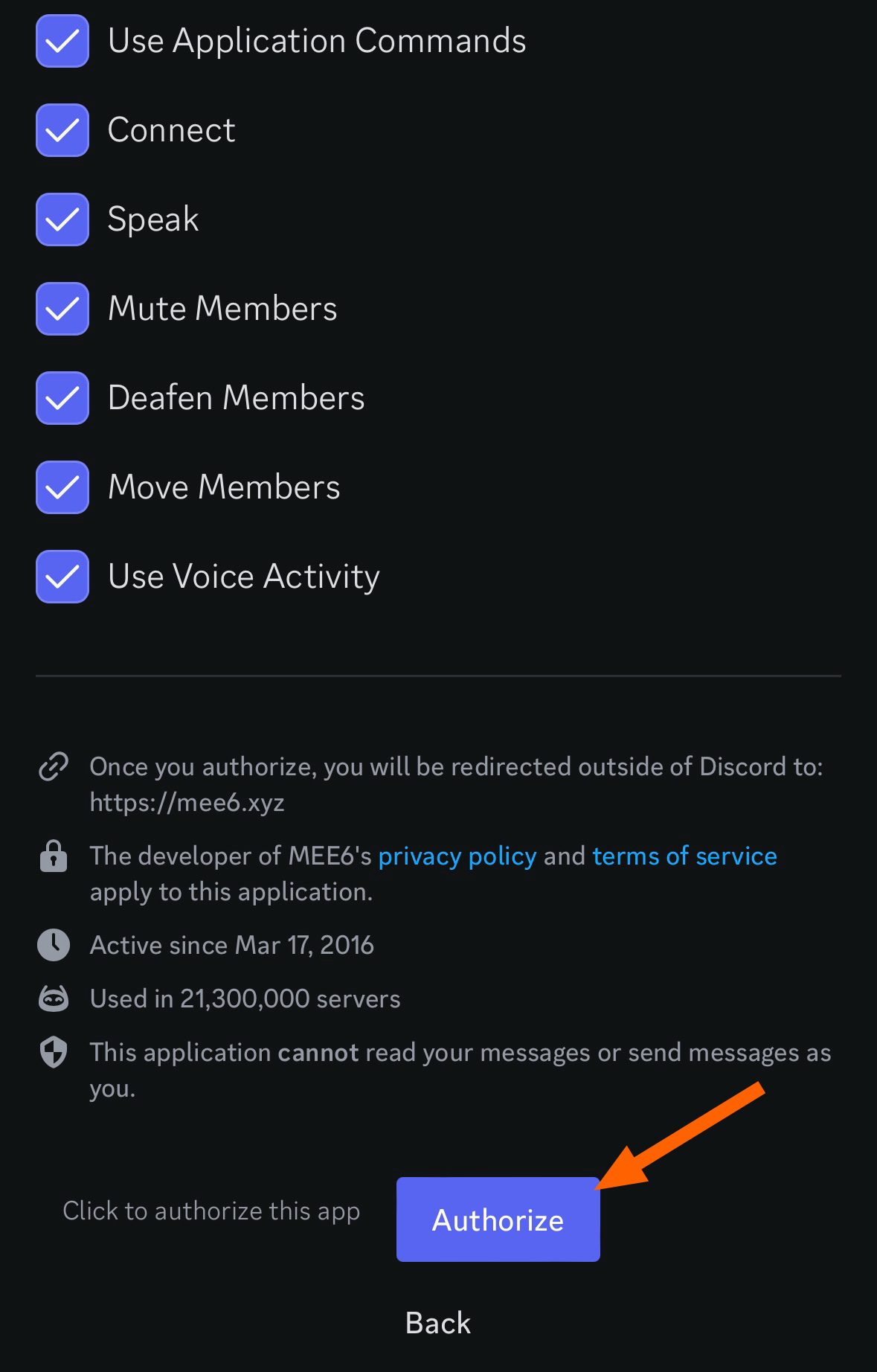
Select the permissions you want the bot to have, then tap Authorize.
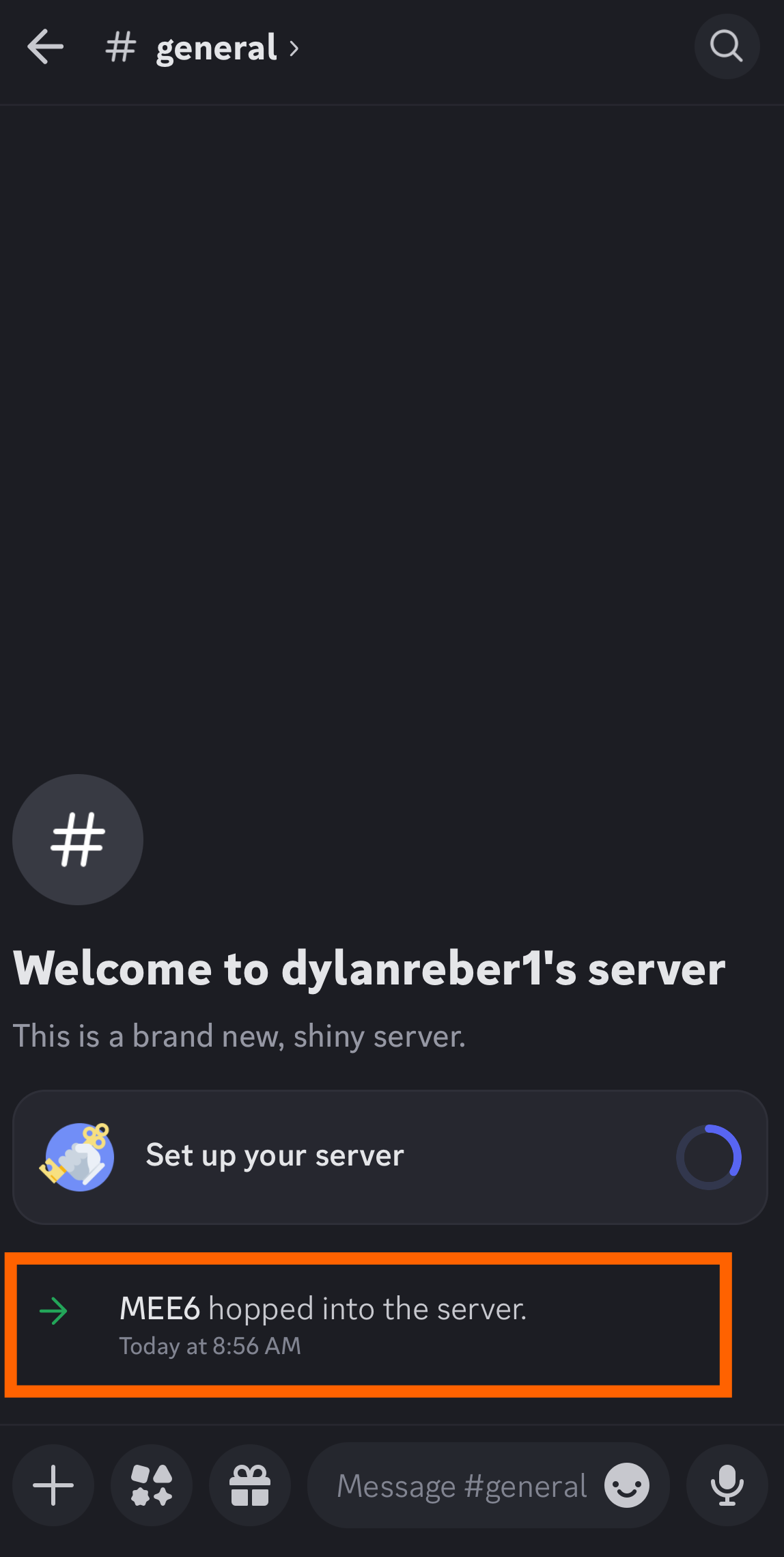
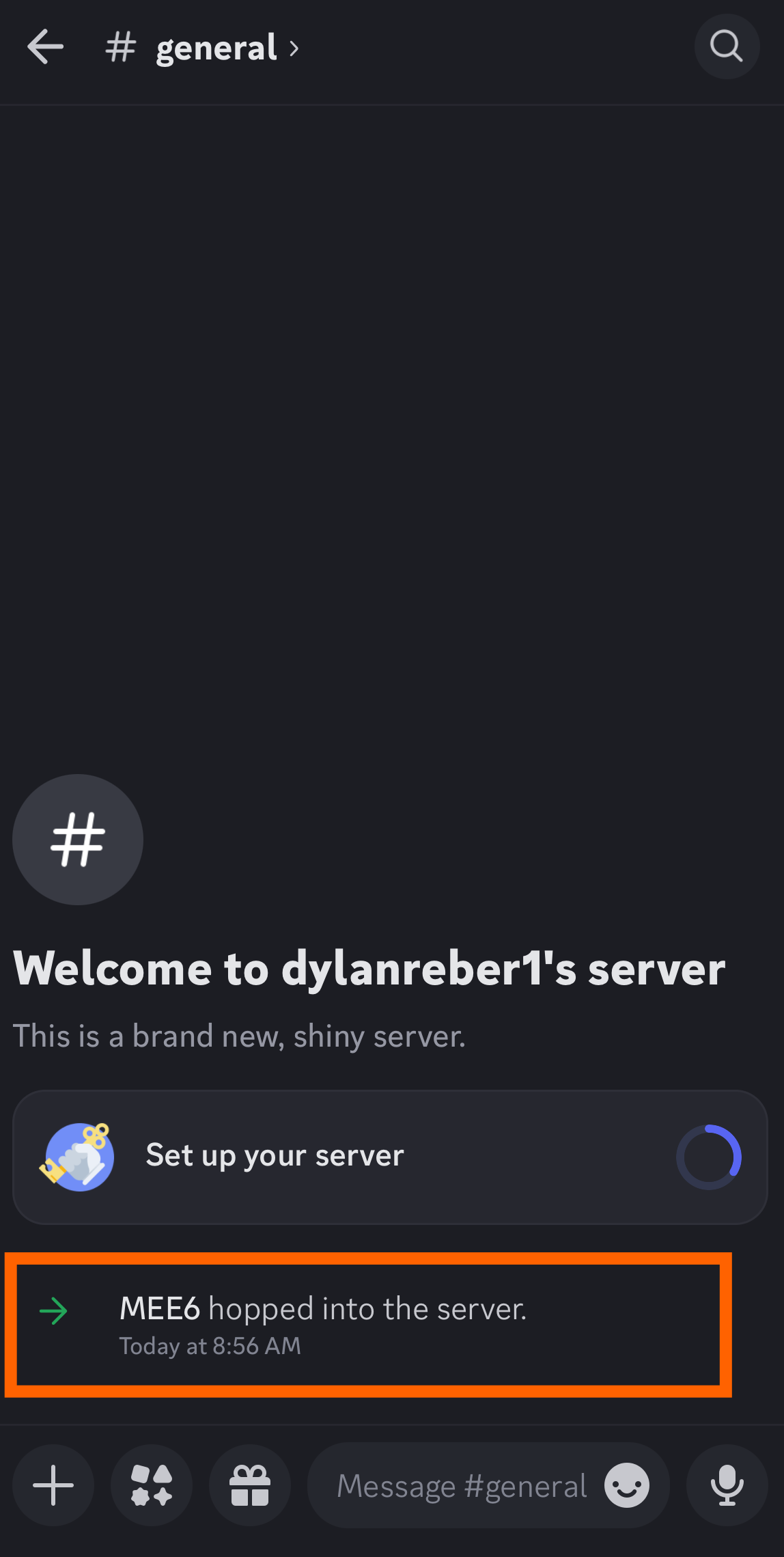
Open the Discord app, and go to the server you added the bot to. You'll see a message confirming that it's been added.
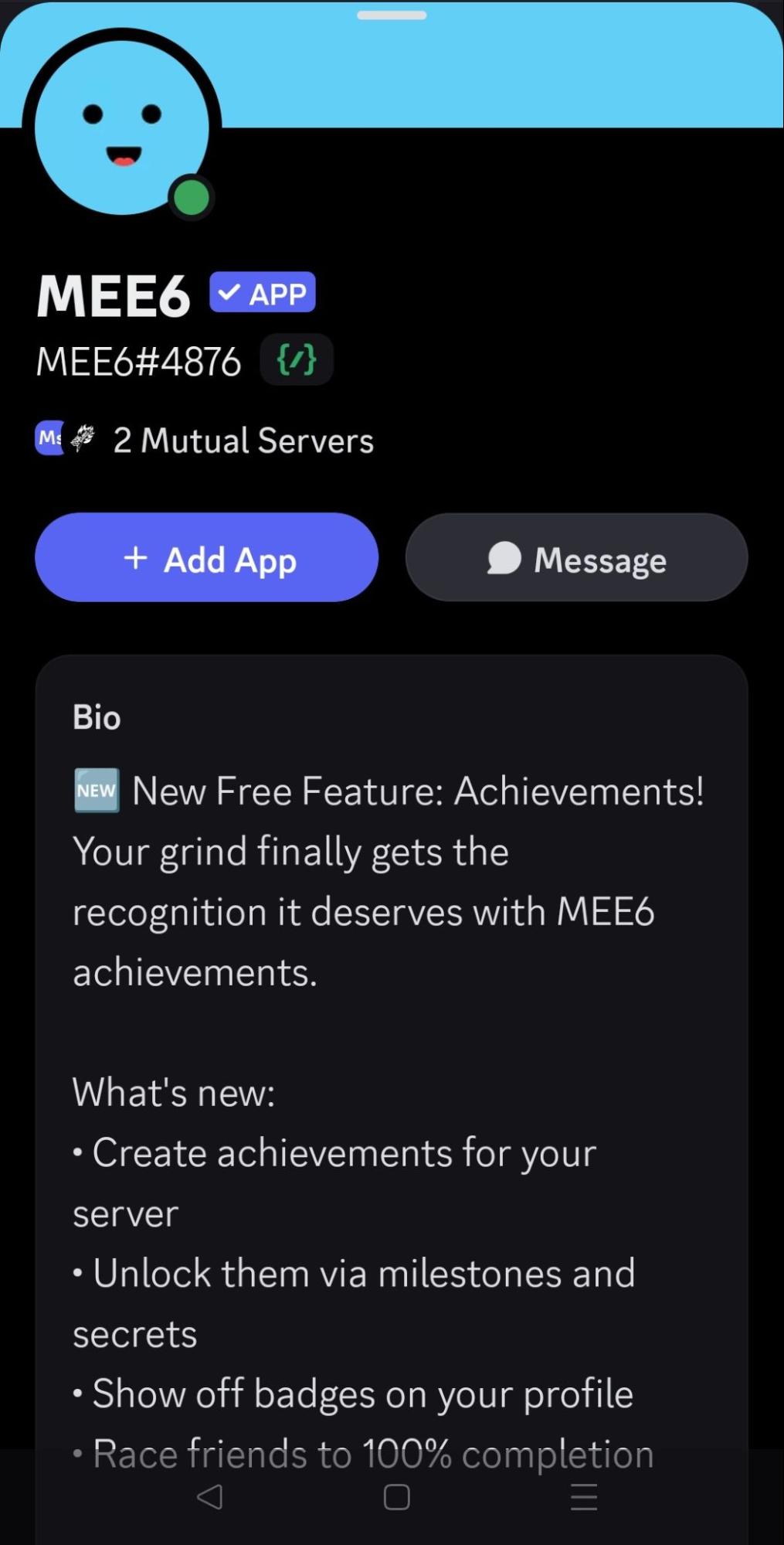
Tap the bot's name to see more information and commands you can use to interact with it.



How to add bots to Discord through the Discover tab
Some bots are unique to Discord's Discover tab, which lets you explore servers and add bots right in the Discord app. All desktop users can find the Discover tab by clicking the compass icon at the very bottom of their server list.

Since the Discover tab is an experimental feature for mobile users, you may or may not find it in your Discord app. If you have it, you'll see a similar Discover option at the very bottom of the interface, between Home and Notifications. Once you find the Discover tab, follow these steps to add an app:
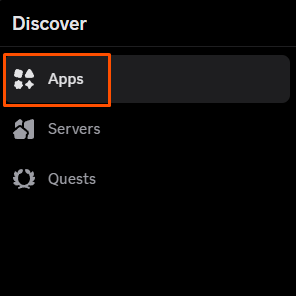
Click Apps in the upper-right corner, just to the right of your server icons.
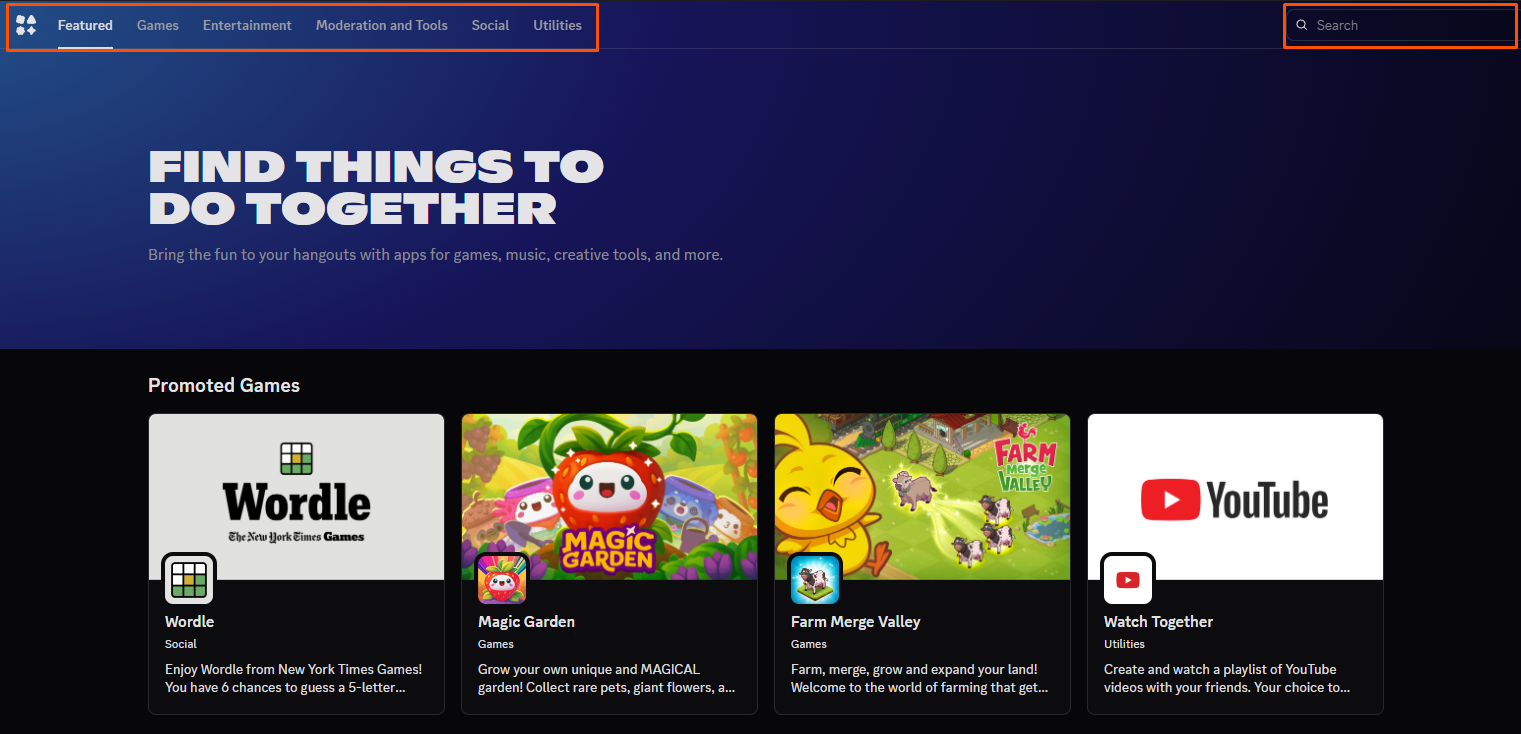
You'll see featured apps like Wordle on the main page. Here, you can also choose a category at the top of the page or enter text into the search box.
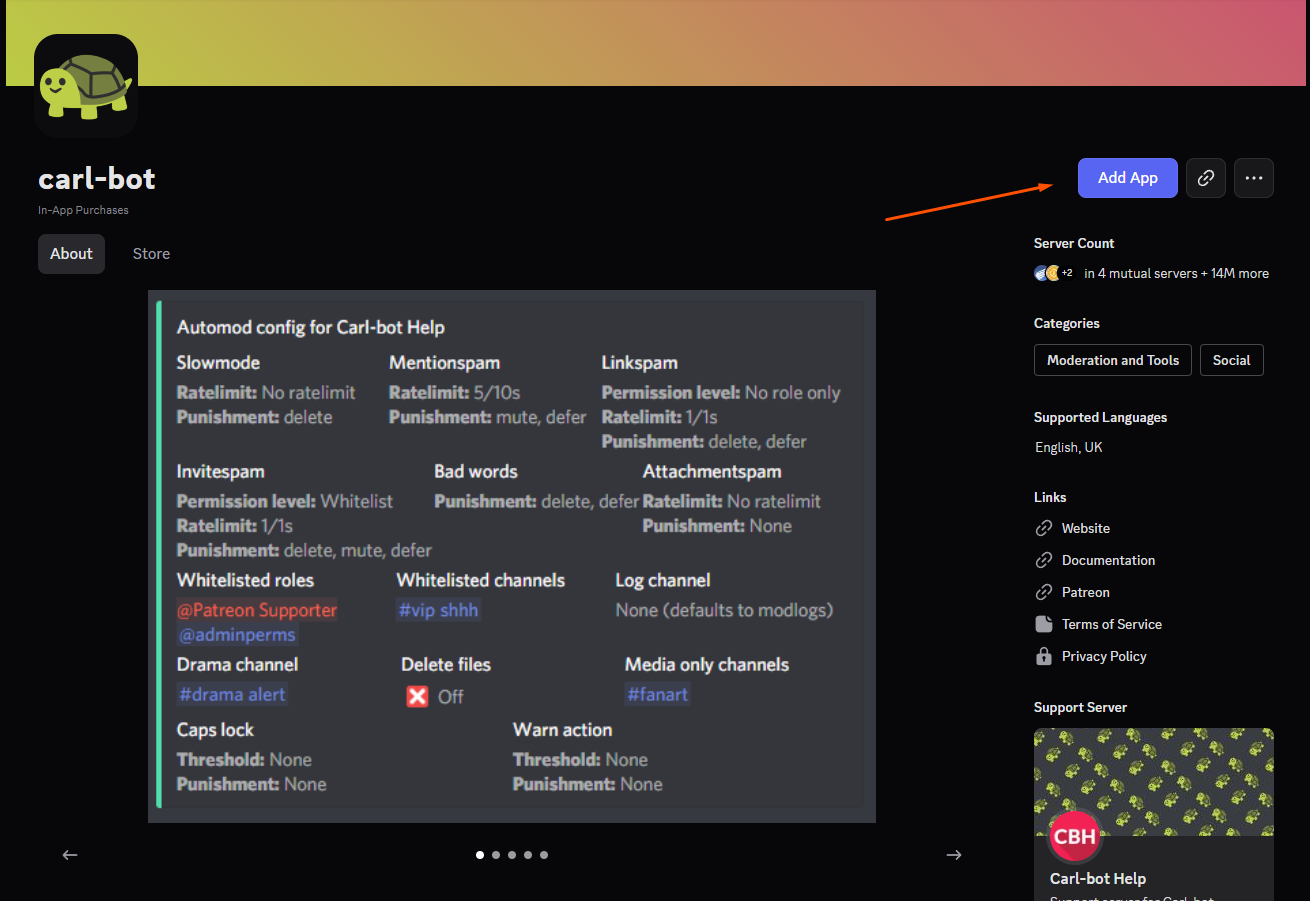
After you find a bot you want to add to your server, click Add App on the bot's app page.
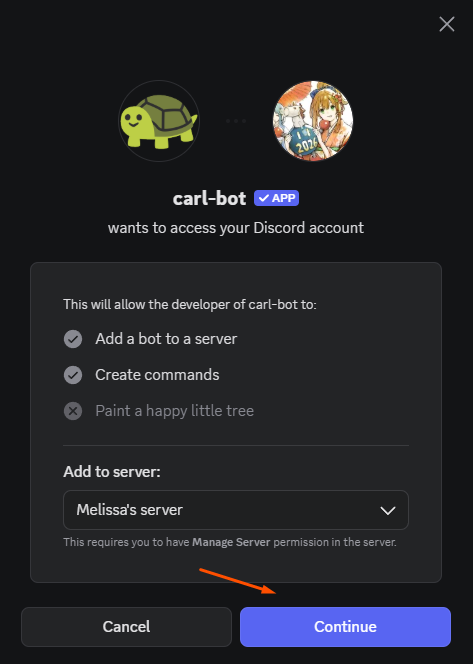
Choose the server you want to add the bot to, then click Continue.
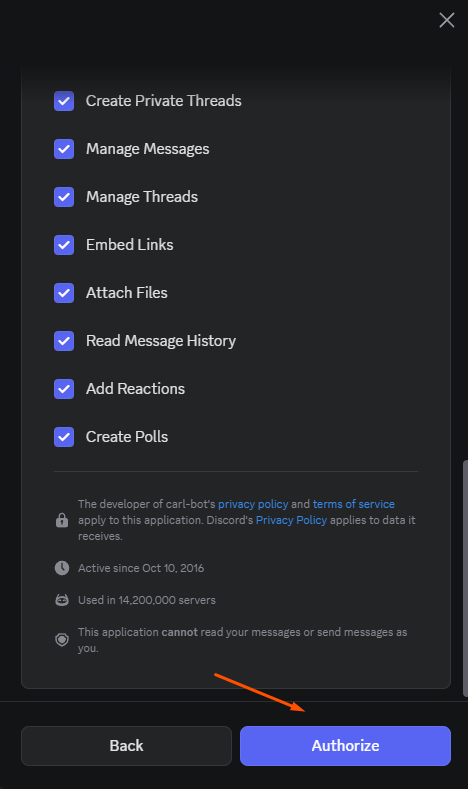
Check the permissions you want to give your bot, then click Authorize to add it to your server. Discord will ask for a code if you have two-factor authorization enabled.


Just like with a bot added from a third-party bot list, you'll see a welcome message for the bot you added.

How to interact with bots on Discord
Like the robot that vacuums my floor every night (hi, Kevin), Discord bots are made to perform very specific actions. In some cases, they work automatically, but you can also issue them commands based on what they've been programmed to do. Here's an example of what that looks like.
Open the bot's profile by tapping its name. Under Commands, you'll see some of the actions it can perform.
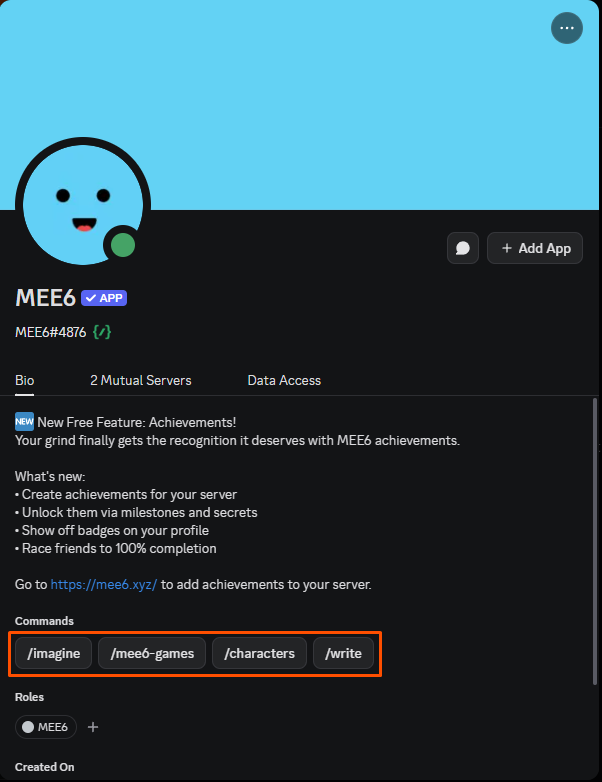
Click one of the options or type
/into the server chat. You'll see a list of additional commands.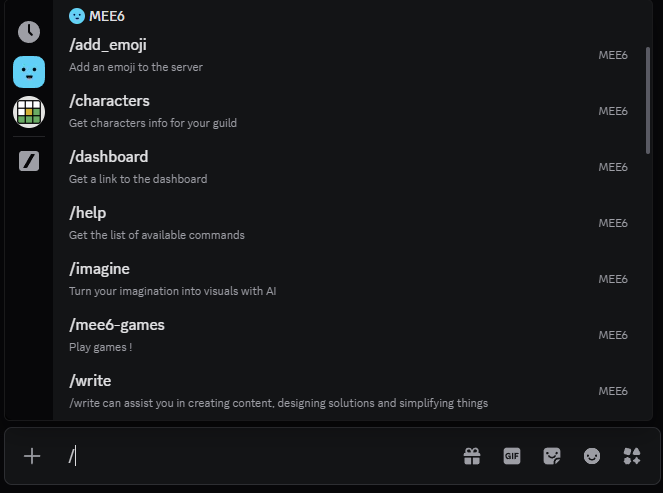
Input your command and hit Enter. Depending on the command, you may be asked to enter more information. (For the
/writecommand, I'm required to enter a prompt.)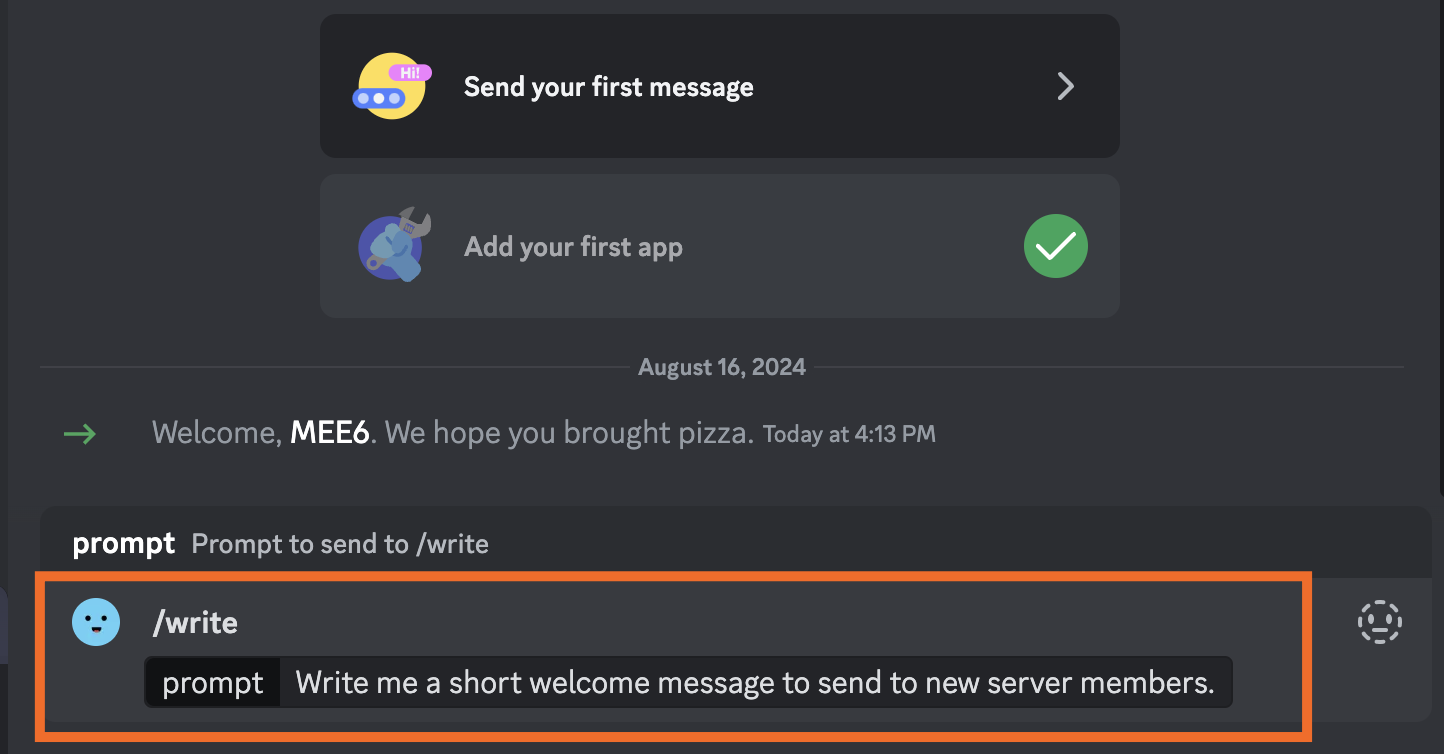
The bot will output a response or perform an action based on your input.
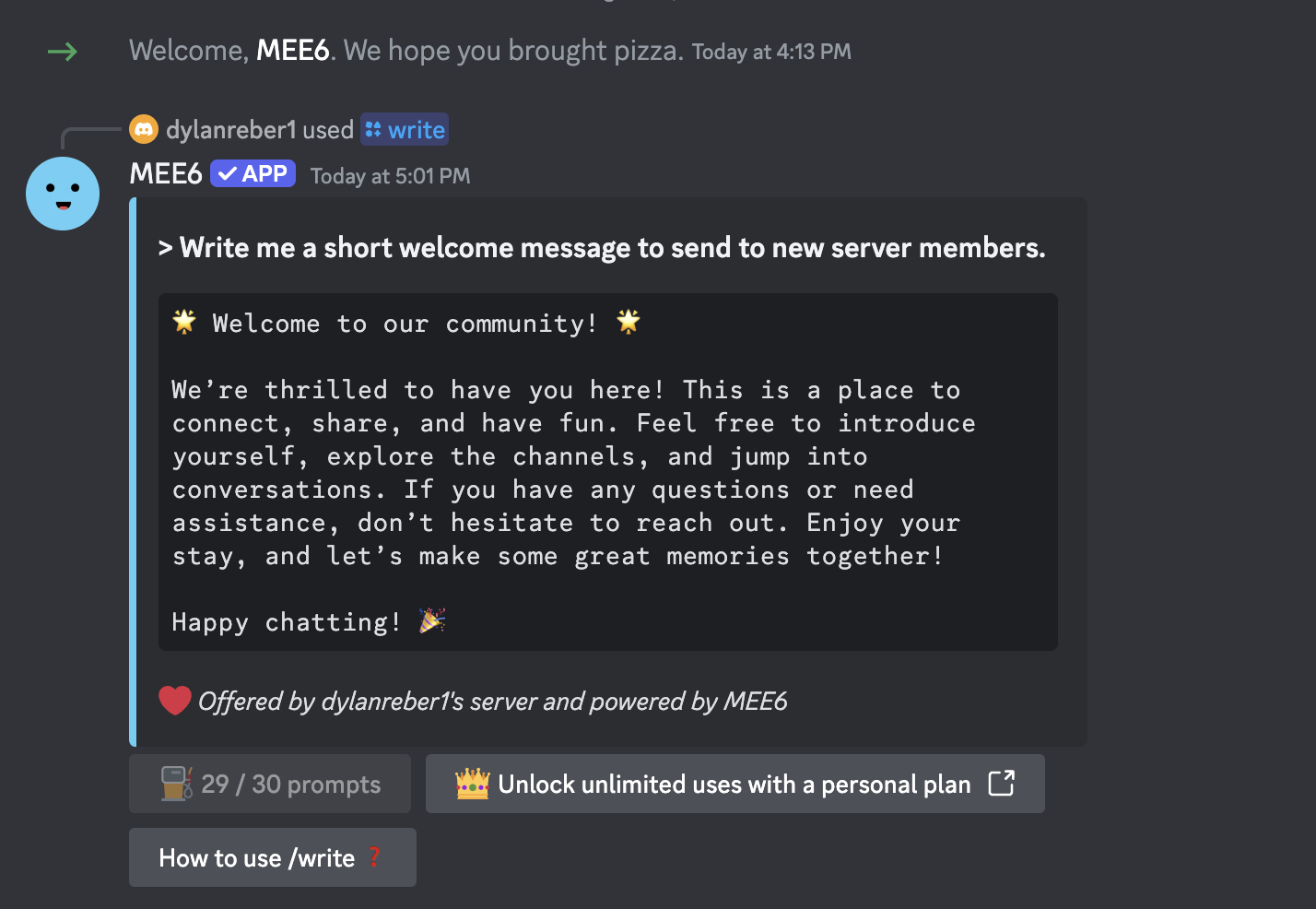


This is just one of thousands of ways to interact with Discord bots using commands, and you'll have a different set of choices depending on the specific bot you add. The fun part is experimenting to see what they can (or can't) do. To give you an idea, there are bots that can play music for your server, manage support tickets, and host trivia nights.
How to remove a bot from a Discord server
Bots don't have feelings (yet), so you can boot them from a Discord server without bruising any egos. You remove bots from a server the same way you remove people—by kicking them out.
Type
/kickin the chat on the server you want to remove the bot from.Hit Enter, and you'll be asked to select which user to kick.
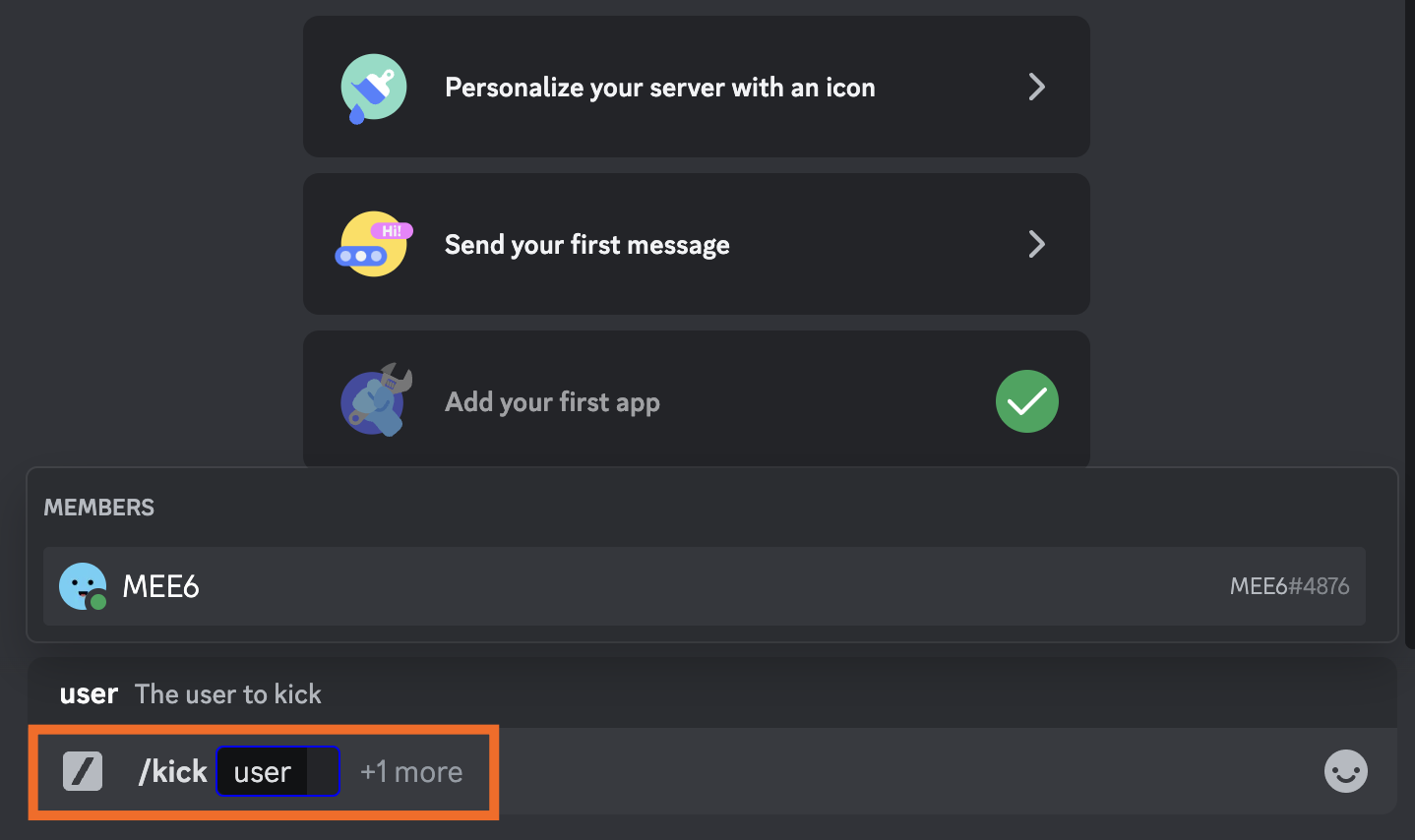
Under Members, click the bot you want removed.
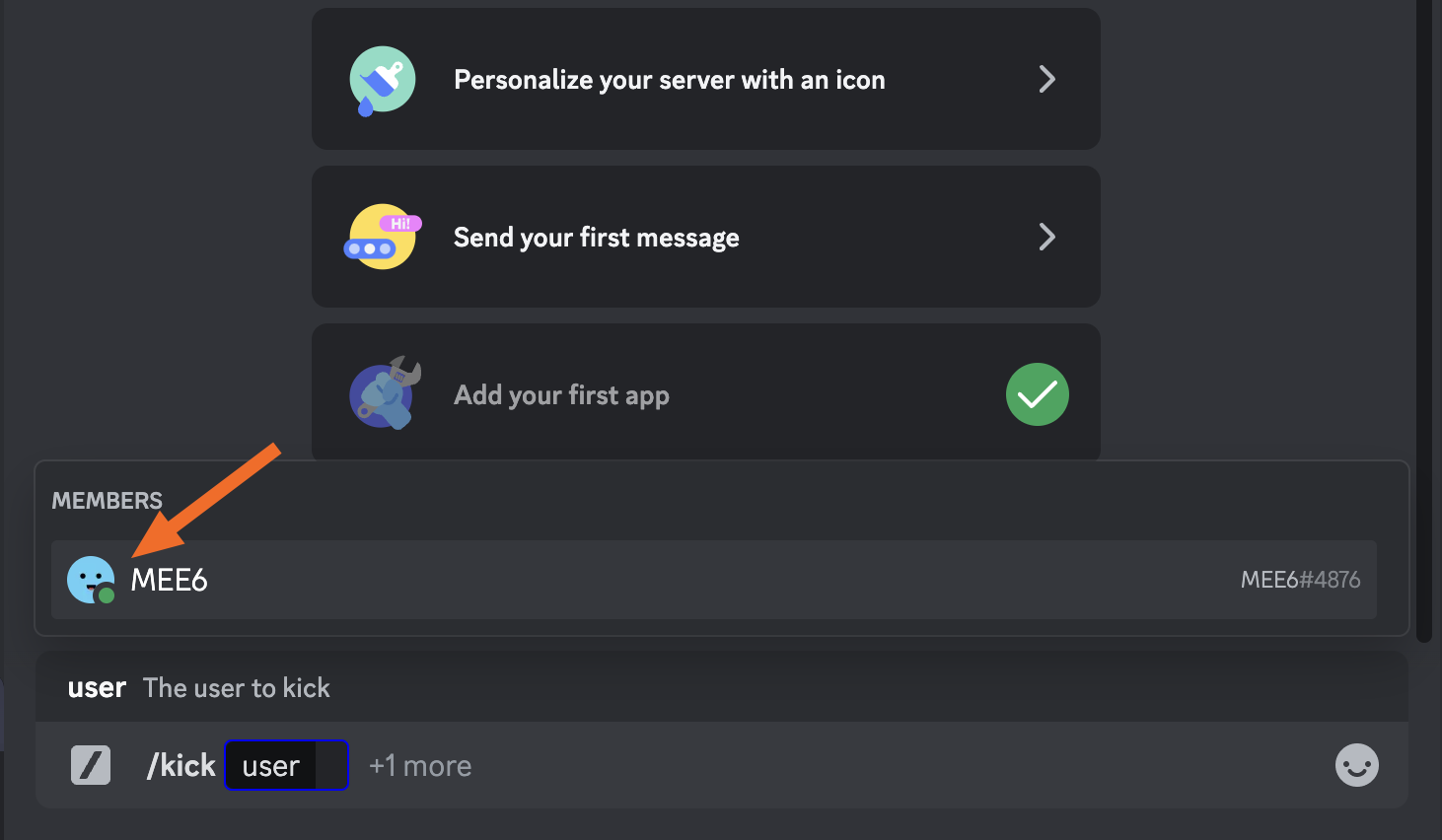
Hit Enter again.
The bot will be kicked from the server.
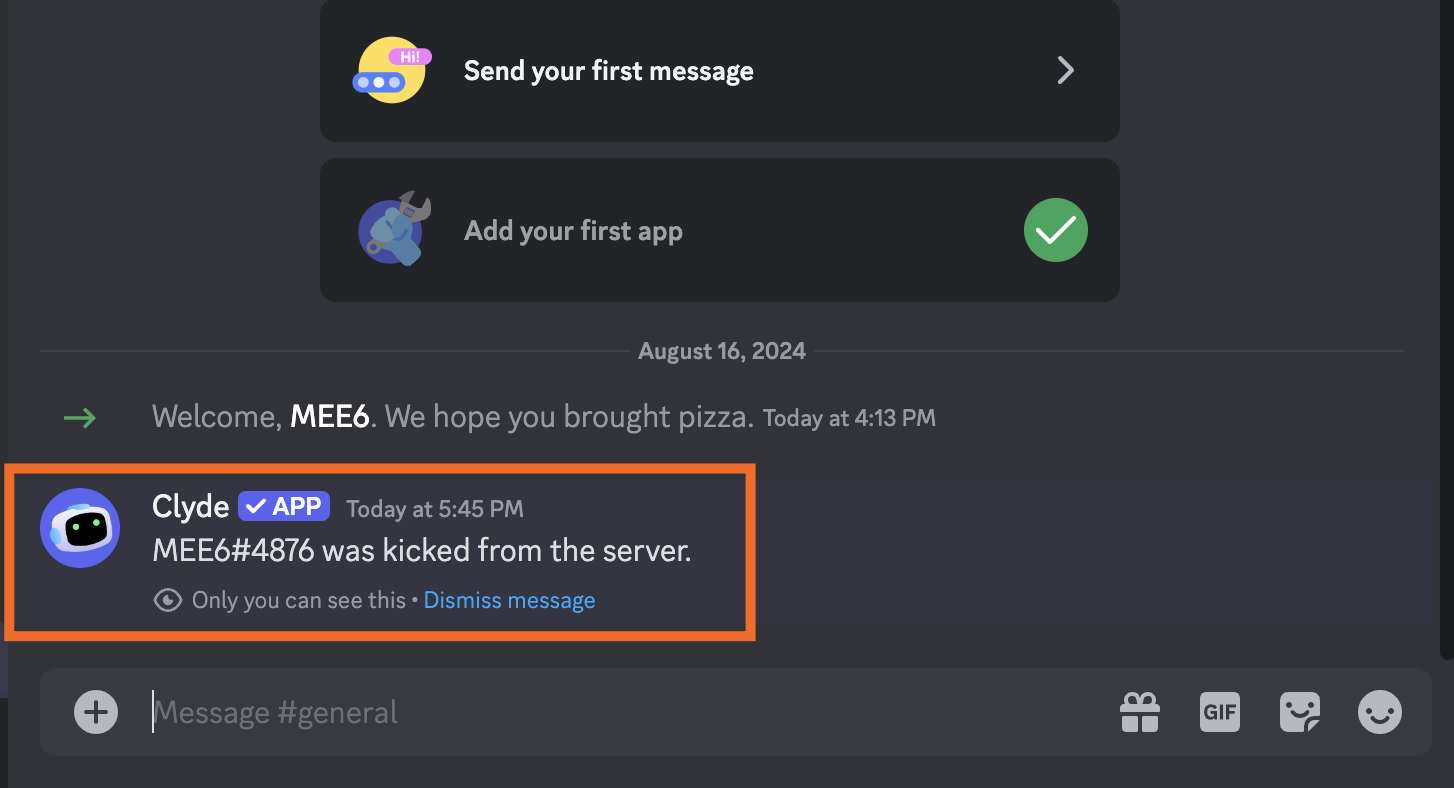


If you feel guilty about giving your artificial friend the boot, you can always add them back to your server using the same steps as before.
Automate Discord with Zapier
Bots can automate certain tasks from within your server, but if you want to get the most out of Discord, use Zapier to connect it with thousands of other apps. Zapier's Discord integrations let you do things like:
You can build these automations in Zapier's visual workflow builder, or straight from your favorite AI tool with Zapier MCP. Learn more about how to automate Discord with Zapier, or try out one of these pre-made workflows.
Send new YouTube videos in Discord channel messages




Build automations from wherever you work. Describe the outcome you want, and Zapier connects your tools, runs the steps, and stays on the job after you close the chat. Combine AI with reliable, deterministic automation across 9,000+ apps. Get started for free.
Related reading:
This article was originally published in September 2024. The most recent update, with contributions from Melissa King, was in May 2026.