As someone whose day job isn't related to numbers, there's only one good reason why I would use Excel over Google Sheets: the local college I teach part time at requires it (they live in the Microsoft universe).
Plenty of people (hi, that's why you're here) bounce between the two spreadsheet apps for reasons that have nothing to do with personal preference—like file compatibility or client requirements. Or maybe you've built out your whole spreadsheet in Google Sheets, only to realize you need to get mathy with more advanced calculations that only Excel can handle.
Whatever your reason, here's how to convert Google Sheets to Excel.
If you want to do the reverse, check out Zapier's guide on how to convert Excel to Google Sheets.
Table of contents:
How to convert Google Sheets to Excel: 2 methods
There are two main ways to convert Google Sheets to Excel. They're straightforward and similar—the main difference being where you start the process from: Google Sheets or Google Drive.
Option 1: Export Google Sheets to Excel
With this option, you're simply downloading your Google Sheets as an Excel file, and then opening your download in Excel.
Open the Google Sheet you want to convert to Excel.
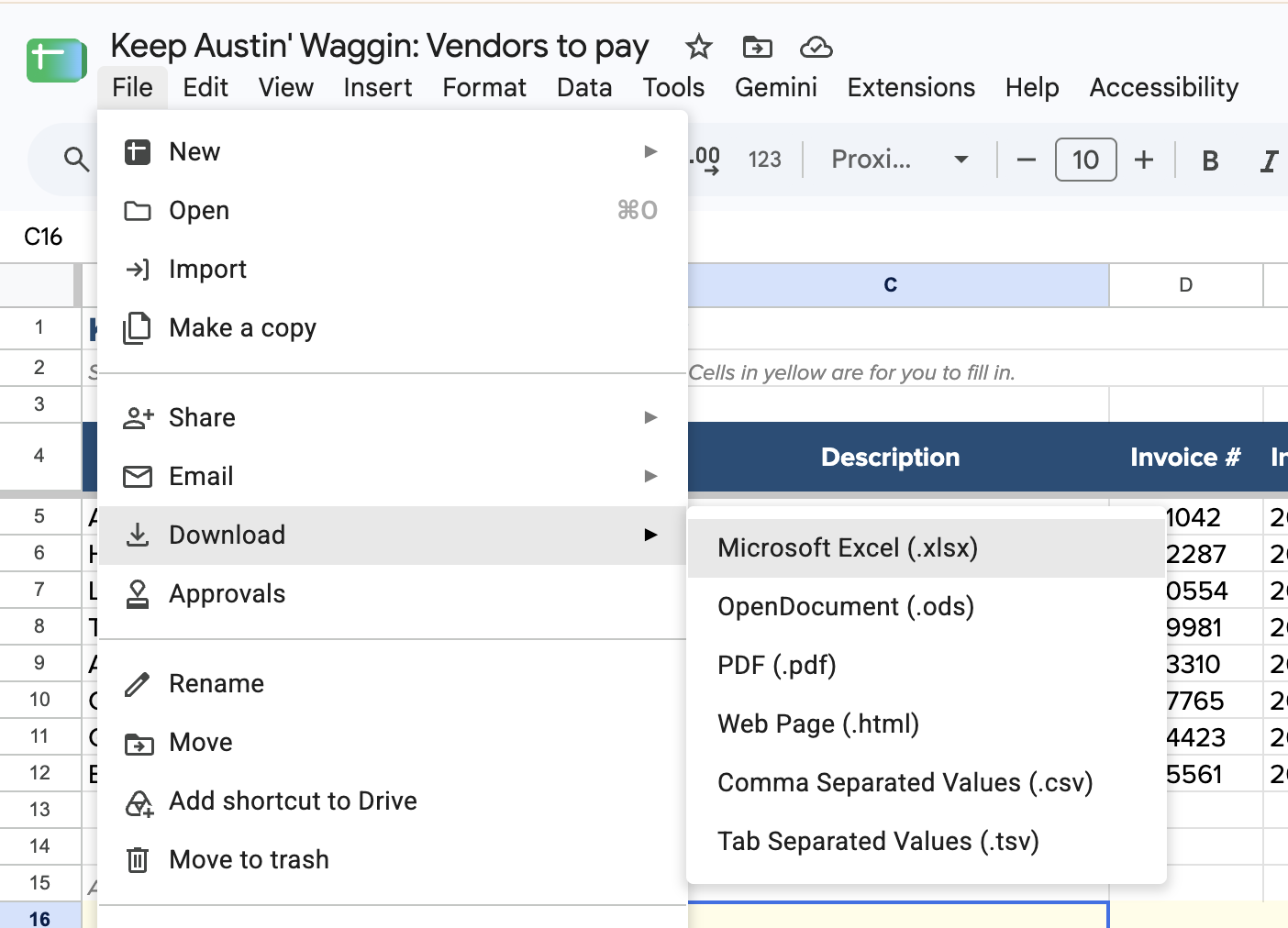
Click File > Download > Microsoft Excel (.xlsx).
Open the downloaded file in Excel. There are a few ways to do this:
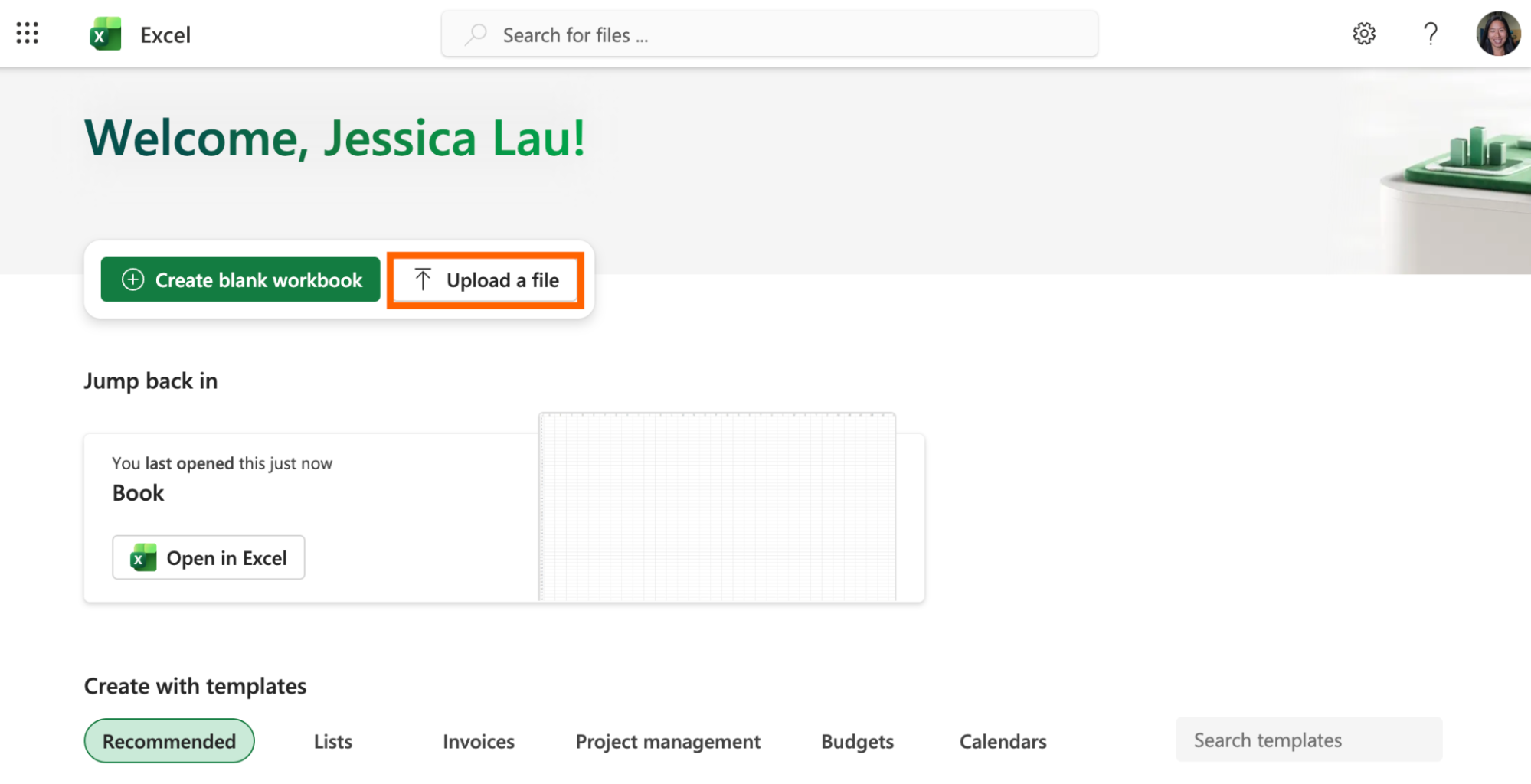
From the Excel online homepage: Open Excel online. Click Upload a file and select your downloaded file.
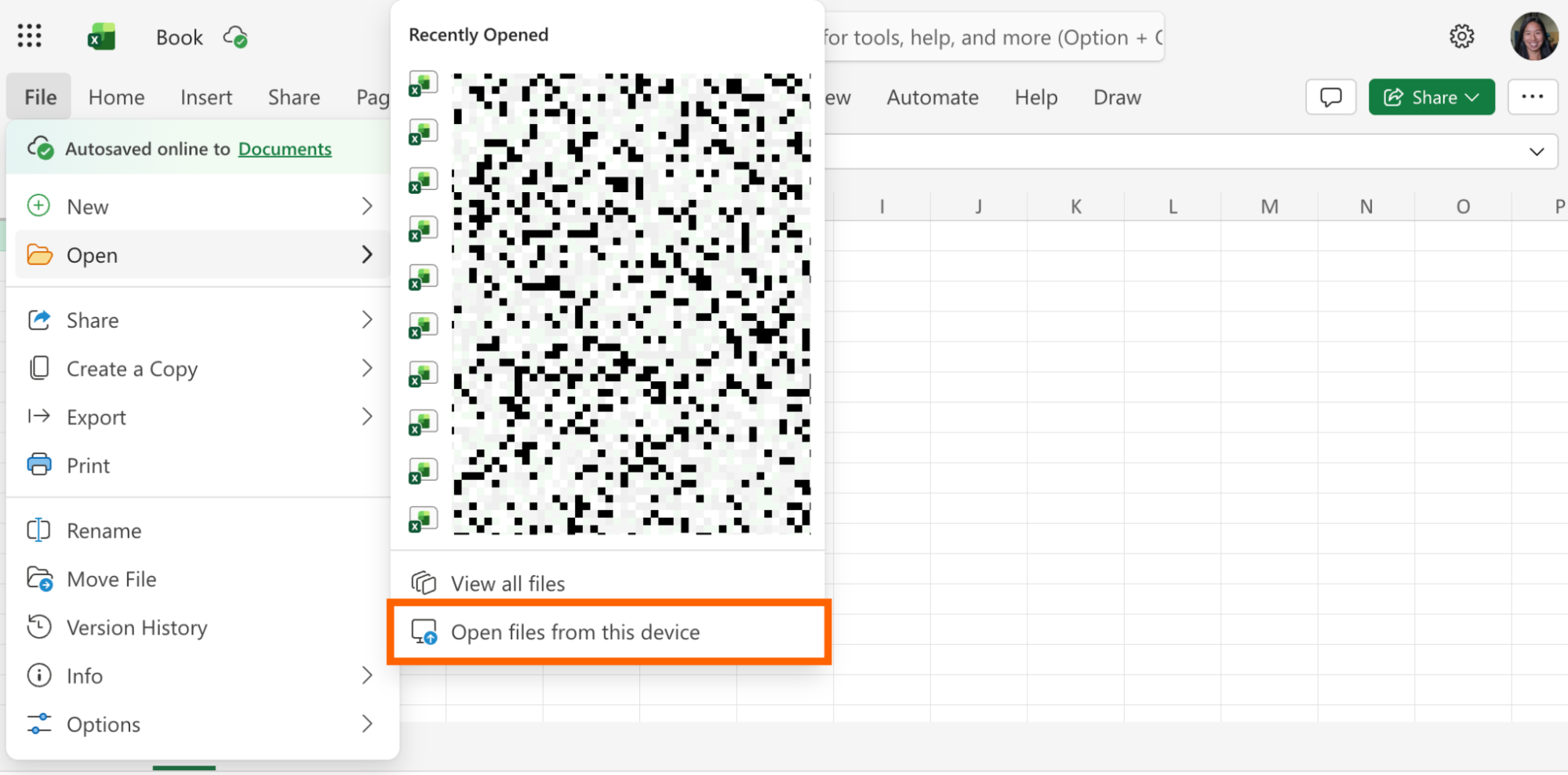
From an existing workbook: With an Excel workbook open, click File > Open > Open files from this device. Select your downloaded file and click Open. This method works for both Excel online and the desktop app.
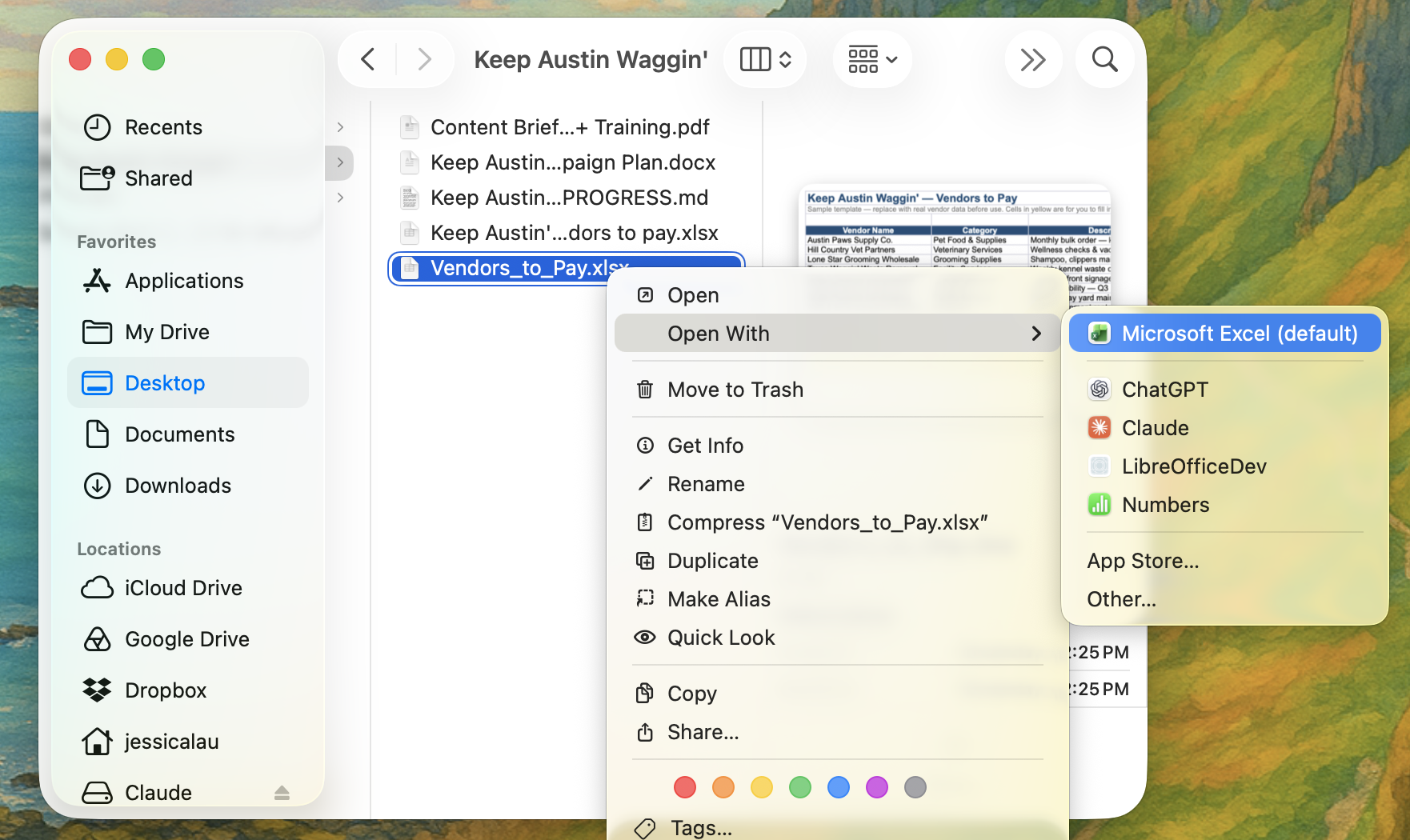
From your computer downloads: If you have the Excel desktop app installed, open your computer's Downloads folder, and open the downloaded file. If Excel is your default app, it'll open there. If not, right-click the file name > Open with > Excel.


Option 2: Download from Google Drive
This method is similar to the previous option, with one main difference: you don't need to open the Google Sheets file.
Open drive.google.com.
Navigate to the Google Sheets file you want to convert to Excel.
Right-click the file name, and select Download. By default, it'll download as an Excel file.
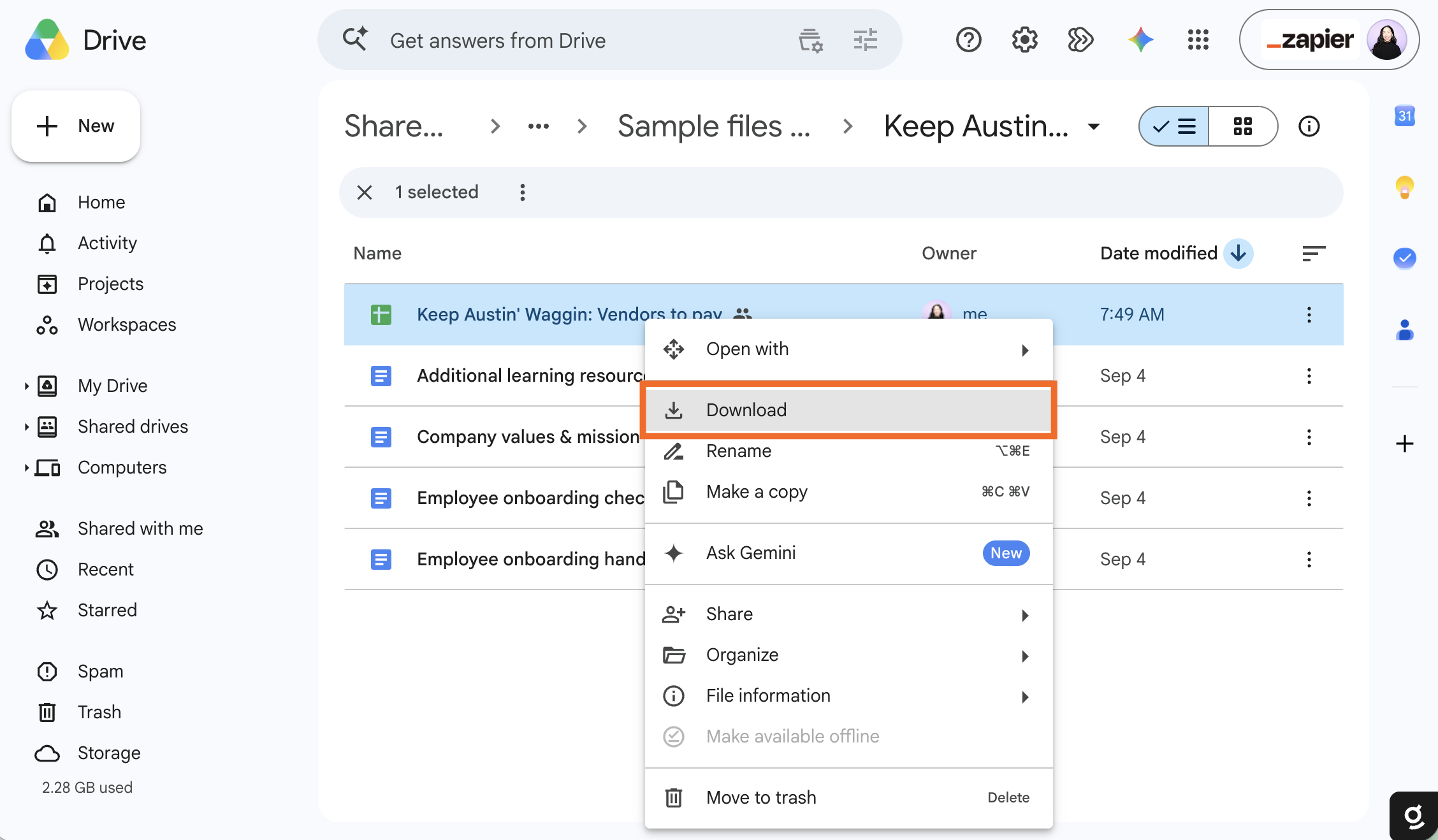
Open the downloaded file in Excel using one of the methods listed in the previous section.

Troubleshooting tips for converting Google Sheets to Excel
Converting Google Sheets to Excel is a simple process, but you may run into a few hang-ups. Most of them come down to formulas and functions not transferring correctly, so before you send that file off, run through this checklist to catch—and fix—the most common issues.
Complex formulas and functions. Google Sheets and Excel handle some functions (like array formulas) differently. If there's a #NAME? error in your converted spreadsheet, your best bet is to look up the Excel equivalent of that Sheets function and swap it in.
Custom functions. If you built a custom function in Sheets using Apps Script, it won't carry over (there's no Excel equivalent). You'll need to rebuild the same logic in Excel with Visual Basic for Apps (VBA), or replicate it using a native Excel formula.
Pivot tables. Pivot tables created in Google Sheets can lose some formatting or layout settings in the move—though Google has recently improved how well grouped fields (like custom date or numeric groupings) survive the jump to Excel. Still, click into each pivot table in Excel after converting and check that your filters, sorting, and styling look the way you expect. If not, reapply anything that didn't come through.
Styles. Custom cell styles might not transfer well between tools. Scan the converted file for any fonts or colors that look off, and then reapply your formatting using Excel's built-in formatting tools.
Automate spreadsheets with Zapier
You can manually convert Google Sheets to Excel over and over again using the process above (my thoughts are with you). Or you could use Zapier to connect the two apps and automatically sync your data across spreadsheets in real time. Whenever there's a new or updated row in Google Sheets, Zapier can automatically send that over to Excel, with no manual effort on your part.
And if you use an AI assistant like ChatGPT or Claude, Zapier can securely access both Google Sheets and Excel, and take action across your entire tech stack directly from the chat window. For example, you can ask your AI assistant questions about your spreadsheet data or get it to visualize data—and then send the answers directly to your other apps. Learn more about how to automate Google Sheets and how to automate Excel.
Build automations from wherever you work. Describe the outcome you want, and Zapier connects your tools, runs the steps, and stays on the job after you close the chat. Combine AI with reliable, deterministic automation across 9,000+ apps. Get started for free.
Related reading:
This article was originally published in January 2025 by Abigail Sims. The most recent update was in September 2026.