Present-day me isn't afraid to admit that early in my freelancing career, I quoted clients based on my memory of what I charged other clients. And when that memory failed me (which was often), I went with whatever number felt the least likely to scare a new prospect away.
A Google Sheets price list gives you one place to lock in your rates and quickly build quotes customized to your client requests without digging through old emails for your last quote or second-guessing yourself mid-call.
Here, I'll share a free Google Sheets price list template you can copy and use right away, along with a walkthrough of how to set it up and make it your own.
Table of contents:
What is a price list?
A price list is a document that details the prices for your business's products or services—which sounds obvious until you're digging through three different PDFs trying to remember what you quoted a client six months ago.
For customers, a price list gives a clear reference for what they're buying and how much it costs.
For vendors, it gives you a single source of truth to pull from when putting together quotes, proposals, or invoices.
Google Sheets price list template

Here's a Google Sheets price list template you can copy and use right away. Simply update it with your products, services, and prices, along with your company name and details, and you're good to go. (Sure, you could just as easily ask Gemini to build one, but it'll give you a formula-heavy masterpiece with three helper tabs and a data validation dropdown for currencies you'll never use. The template in this article just works.)
For step-by-step instructions on how to use the template or for more details about what's going on behind the scenes, keep scrolling.
How to use the Google Sheets price sheet template
The Google Sheets price list template has two tabs that work together:
Price list: This is where you'll list your business's offerings (products and services).
Pricing table: This uses the price list to build client-specific quotes.
Here's how to use them.
1. Make a copy of the template
If you haven't already, make a copy of the workbook. (Google Sheets will automatically copy both the price list and pricing table templates.)
2. Fill in your business details
At the top of both tabs, replace [Company name] and [Company address/contact] with your business details, and update the Effective date to reflect when your pricing goes into effect.

3. Add your products or services to the price list
In the Price list tab, starting in row 7, update the following:

Product or service name: In column A, enter the name of each product or service you offer.
Description: In column B, enter a brief description of each product or service. One short and simple sentence to provide more context is all you need.
Unit price: In column C, enter the price for one unit of that product or service. By default, the template is formatted to USD ($). To change the currency, click Format > Number > Custom currency. Select your preferred currency, and click Apply.
The Price list tab is your single source of truth. It's also what the preset formulas in your pricing table reference to build personalized quotes. Any changes made to the price list will automatically be reflected in your pricing table.
4. Update your pricing table
In the Pricing table tab, starting in row 7, update the following:

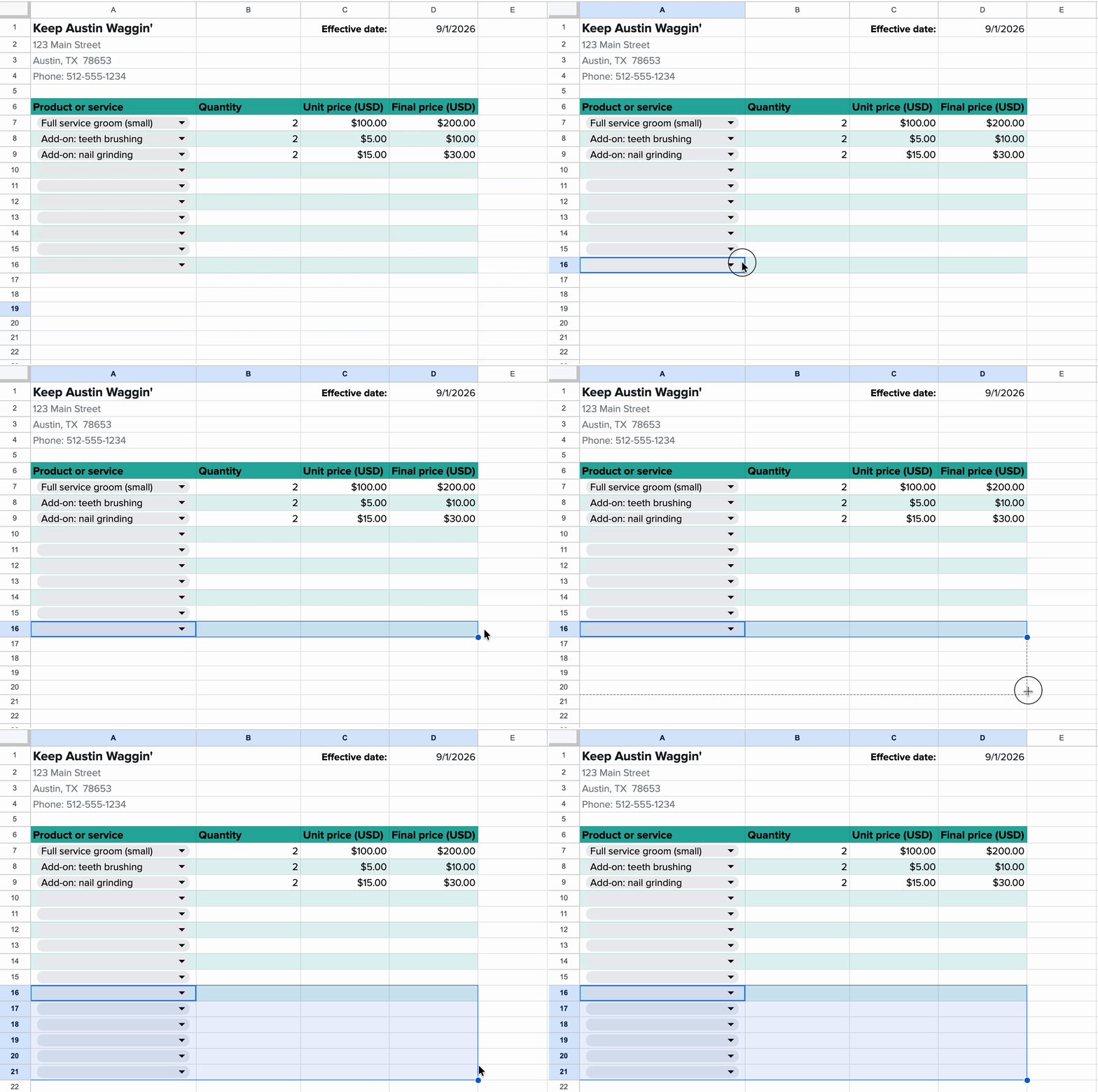
Product or service: In column A, select a product or service from the dropdown (the available options are pulled directly from your price list). If you have more products than accounted for in the template, simply highlight the last pre-filled row (in this case, that's row 16, columns A-D), and drag the fill handle down as many rows as needed. This will make sure the dropdowns and pre-filled formulas copy down, too.
Quantity: In column B, enter the number of each product or service requested or recommended.

Google Sheets will use a VLOOKUP formula to automatically populate the unit price (column C) based on the chosen product or service, as well as the final price (column D) for that line item (unit price x quantity).
If you're curious, here's what the VLOOKUP formula means:
=IF(A7<>"", VLOOKUP(A7,'Template: Price list'!$A$7:$C$12, 3, FALSE), "")
IF(A7<>"", ..., "")keeps the cell blank until you select a service from the dropdown.VLOOKUP(A7, 'Template: Price list'!$A$7:$C$12, 3, FALSE)finds the matching row in your price list and returns the value from column 3 (unit price).In column D,
=IF(C7<>"", C7 * B7, "")then multiplies that result by the quantity in column B.
5. Duplicate the pricing table for each new client quote
To create a quote for a new client, duplicate only the pricing table, and repeat step 4.
6. Export the pricing table as a PDF
Once you've updated the pricing table, you'll want to export that sheet as a PDF to share with your client.
Navigate to the tab you want to export and open it.
Click File > Download > PDF (.pdf)
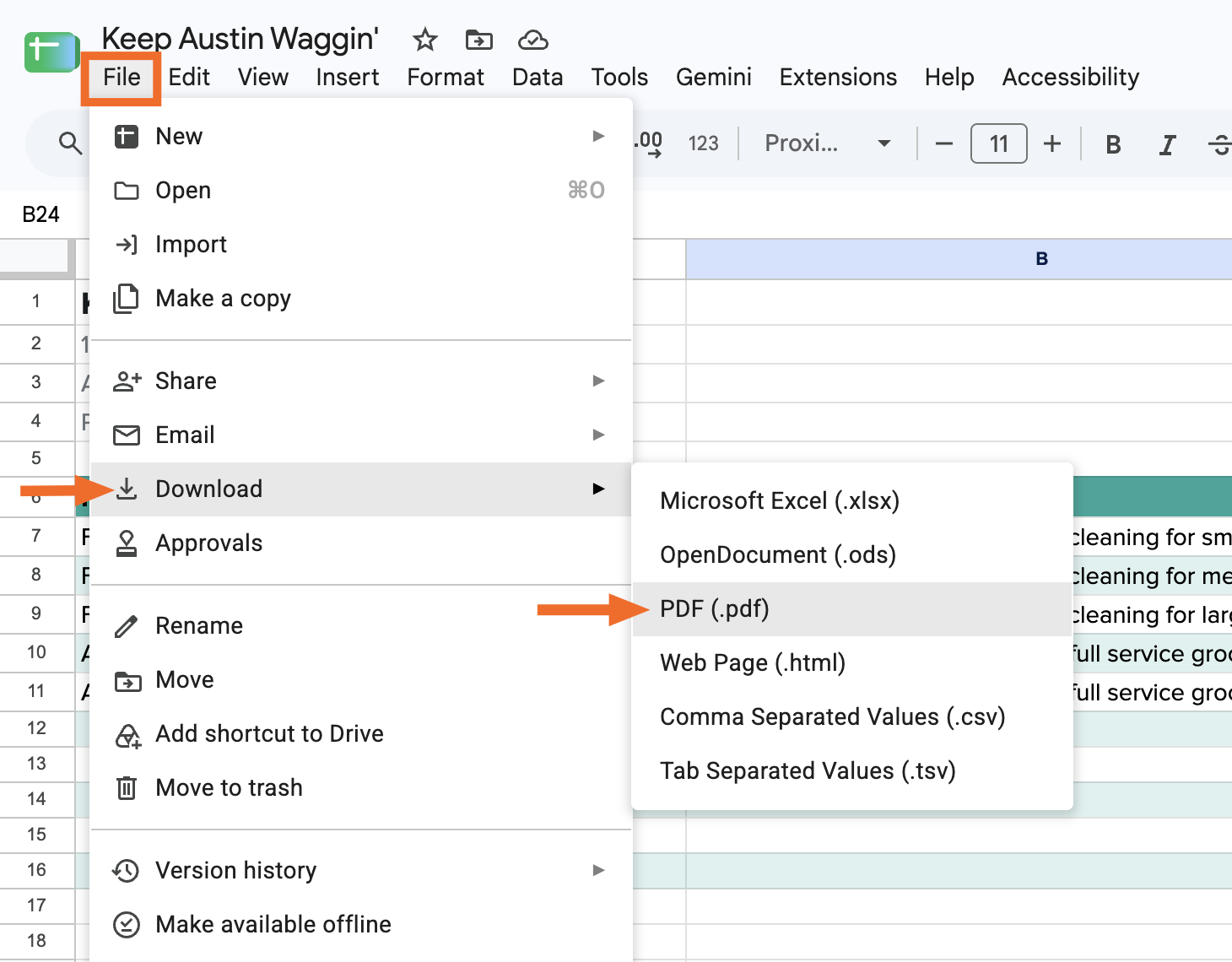
By default, it should export only the open sheet. If not, change it in the Export dropdown.
Click Export.
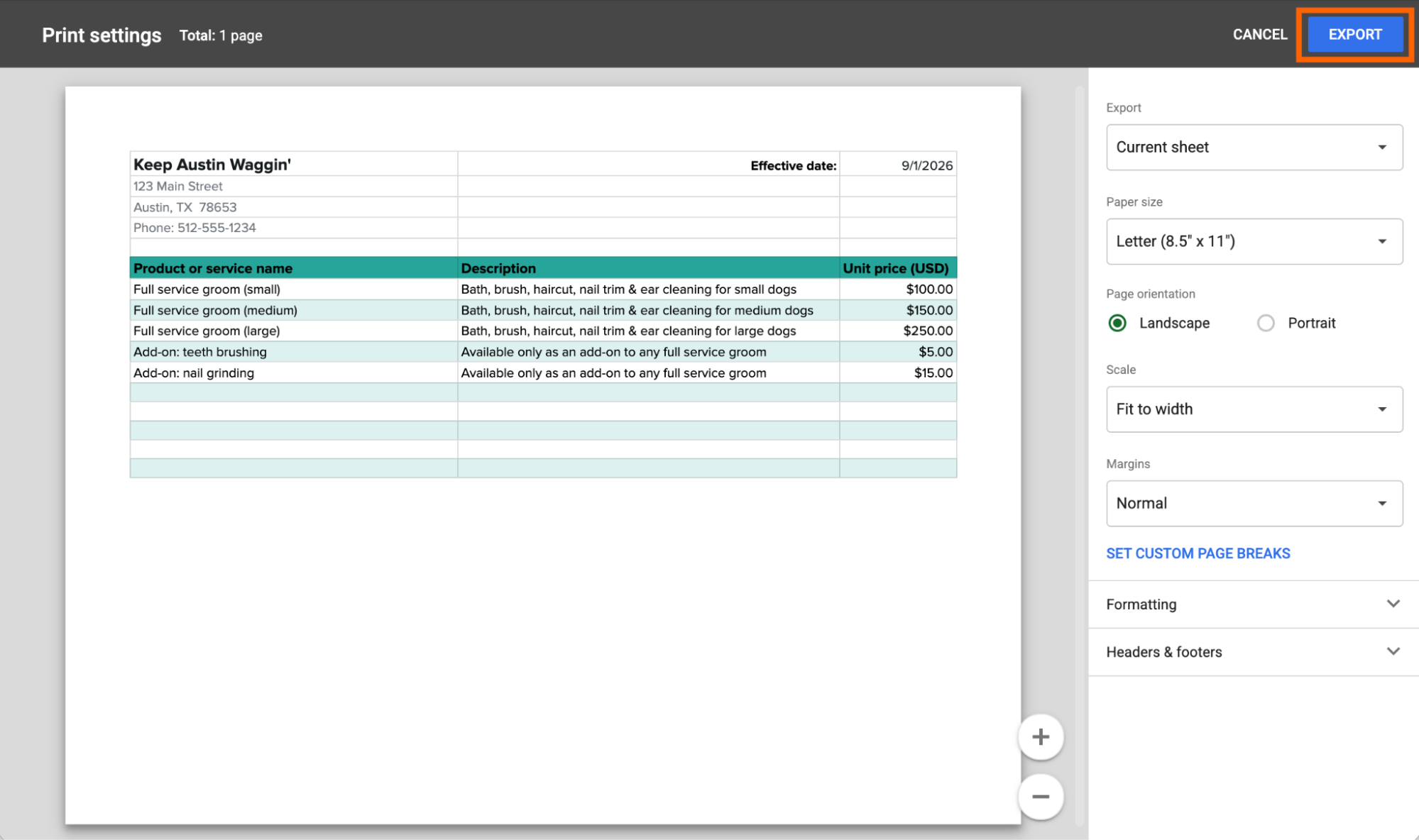


Then share it with your client as you normally would.
Automate Google Sheets with Zapier
A price list keeps your rates organized. But once a client approves a quote, you're back to doing things manually—like sending a follow-up email or copying line items into an invoice. Zapier connects Google Sheets with 9,000+ apps, allowing you to automatically kick off your entire onboarding workflow the moment you update a quote. For example, when you mark a quote as "Approved" in your pricing table, Zapier can automatically send the client a follow-up email and create a new invoice in your invoicing tool.
And if you use an AI assistant like ChatGPT or Claude, you can install Zapier and securely access and take action across your entire tech stack directly from the chat window. For example, you can ask your AI assistant to generate a pricing table based on a new form submission, and then send it via email, along with a personalized follow-up message—all without ever leaving the conversation. Learn more about how to automate Google Sheets.
Build automations from wherever you work. Describe the outcome you want, and Zapier connects your tools, runs the steps, and stays on the job after you close the chat. Combine AI with reliable, deterministic automation across 9,000+ apps. Get started for free.
Related reading:
This article was originally published in November 2024 by Nadira Bostic. The most recent update was in September 2026.