
One of the joys of remote work is that your office can be anywhere. For me, that's my living room couch, next to my dogs, and within walking distance of the kitchen snacks. There's just one problem: my monitor doesn't fit on my lap, so I have to repeatedly switch between browser tabs.
The team at Google must also have dogs and understand my predicament because they (finally) released a new Google Chrome feature to solve this: Split View.
Chrome Split View lets you view tabs side by side in a single tab. Here's how to use it.
Table of contents:
What is Chrome Split View?
Chrome Split View is a feature that lets you see two tabs at the same time. For a long time, you could do this only with a split screen Chrome extension, but now it's built right into Chrome. This feature has gone through a few iterations, so you might also hear it called Split Tabs and Side-by-Side Tabs.

How to split screen on Chrome
There are two ways to split your page view in Chrome.
How to use Chrome Split View in a new browser
Open your Chrome browser, and navigate to the first page you want to view.
Right-click the tab, and select Add Tab to New Split View.
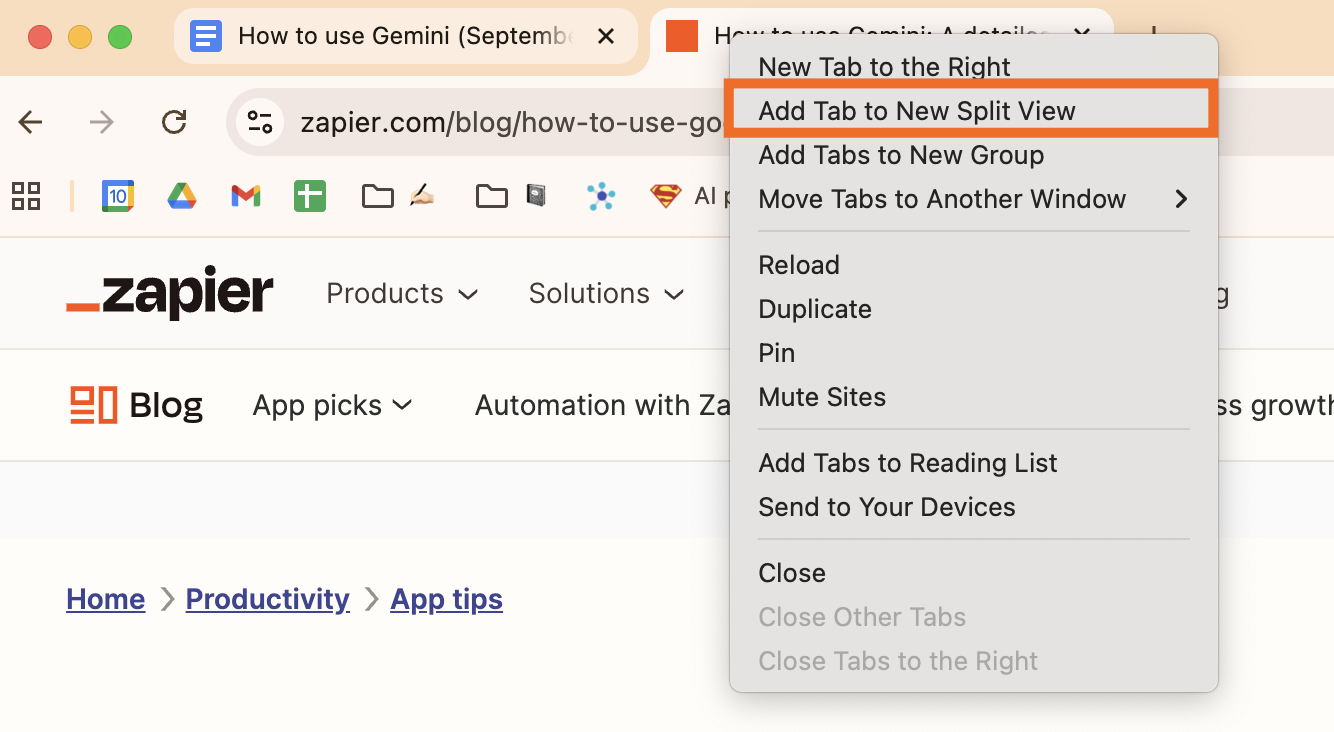
Google will automatically split your page vertically, pushing your first page to the left.
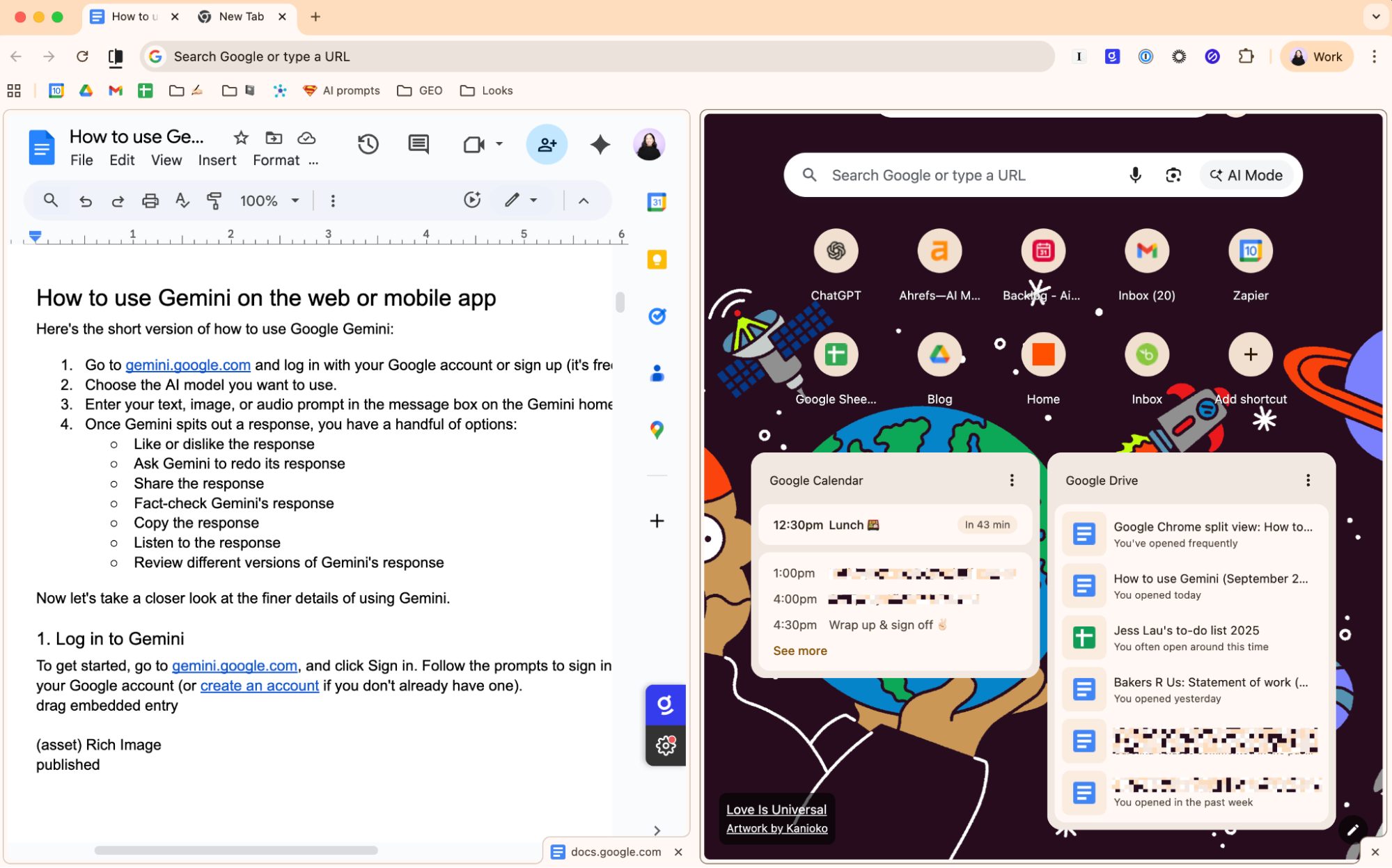
Select the other page you want to view from the list of suggestions, or enter the URL in the address bar.
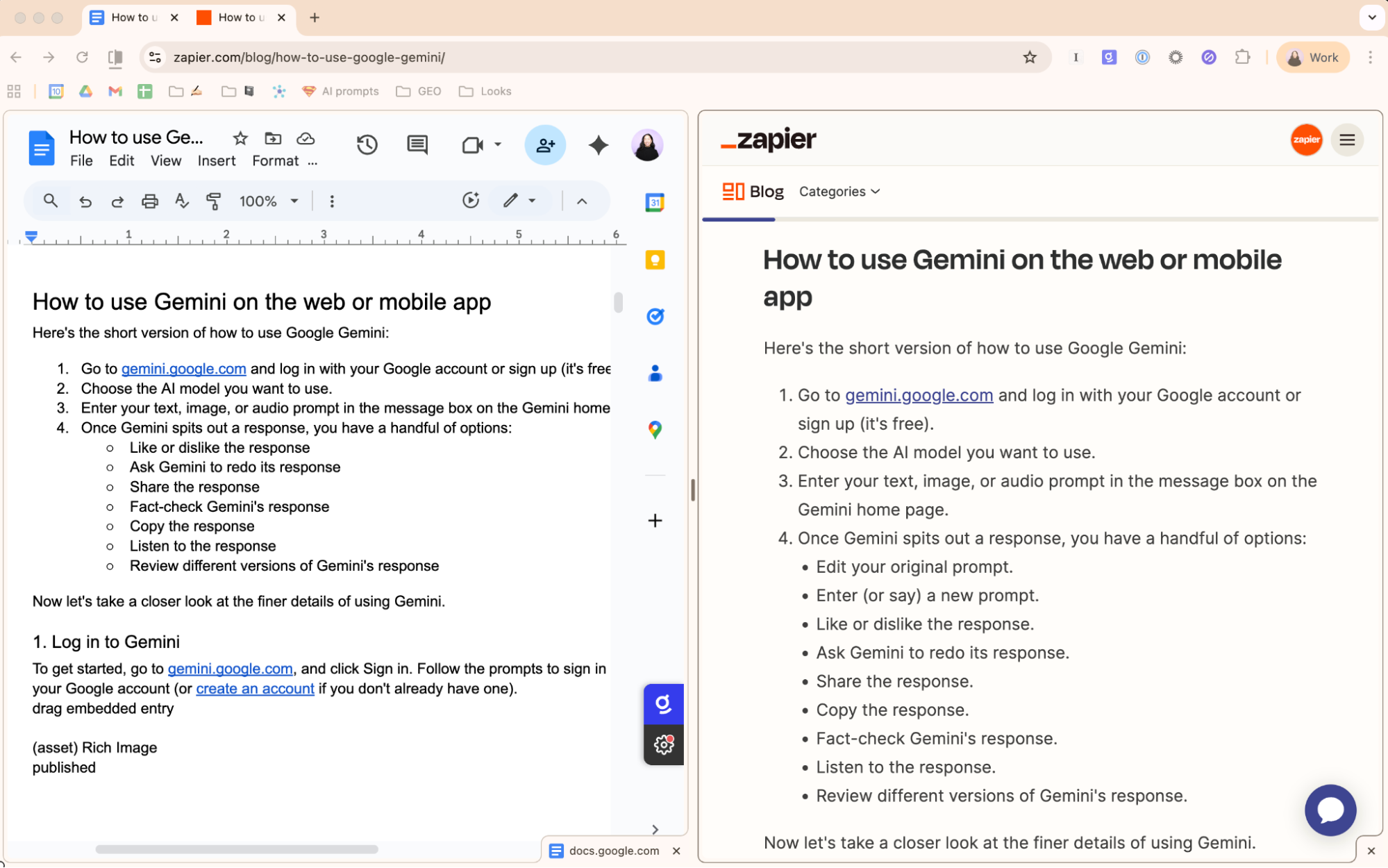
Both pages will appear side by side with their tabs merged into one at the top of your browser.
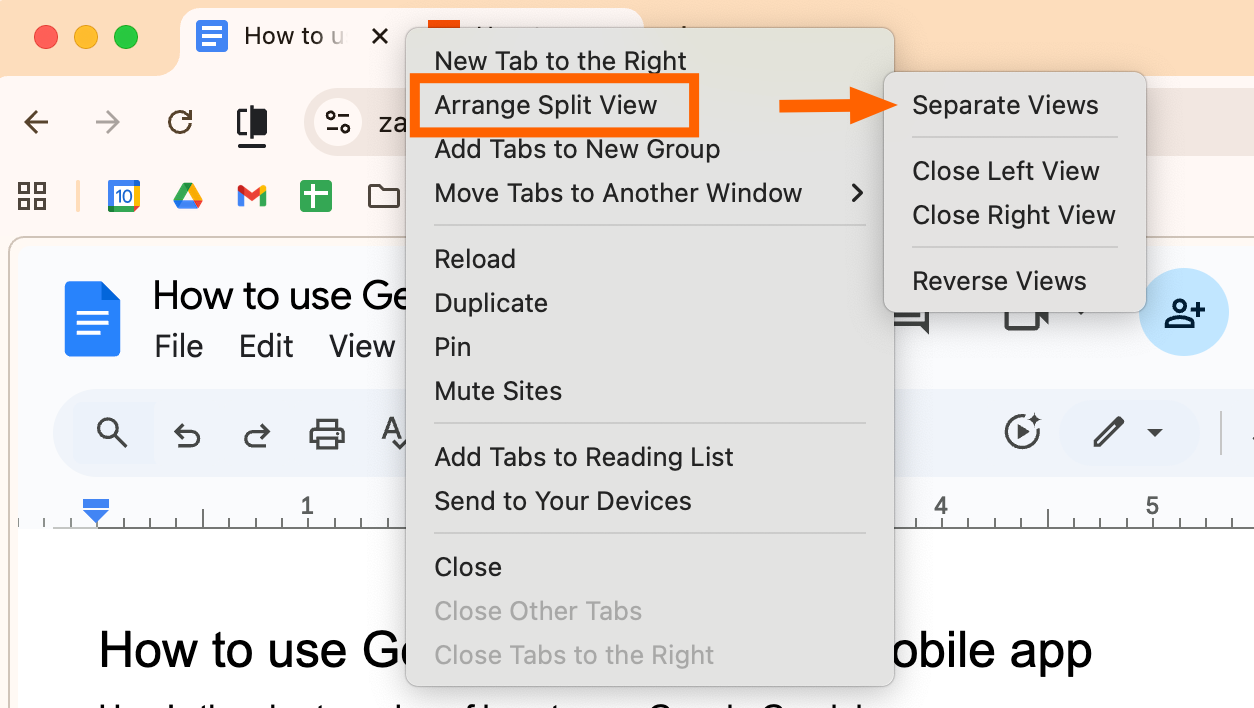
To exit Chrome's split view, right-click the merged tabs, click Arrange Split View, and then select Separate Views.


How to use Chrome Split View with existing browser tabs
If you already have the pages you want to view open as separate tabs in one window, here's how to view them side by side.
With one of the two pages you want to view open, right-click the tab of the other page you want to view.
Click New Split View with Current Tab.
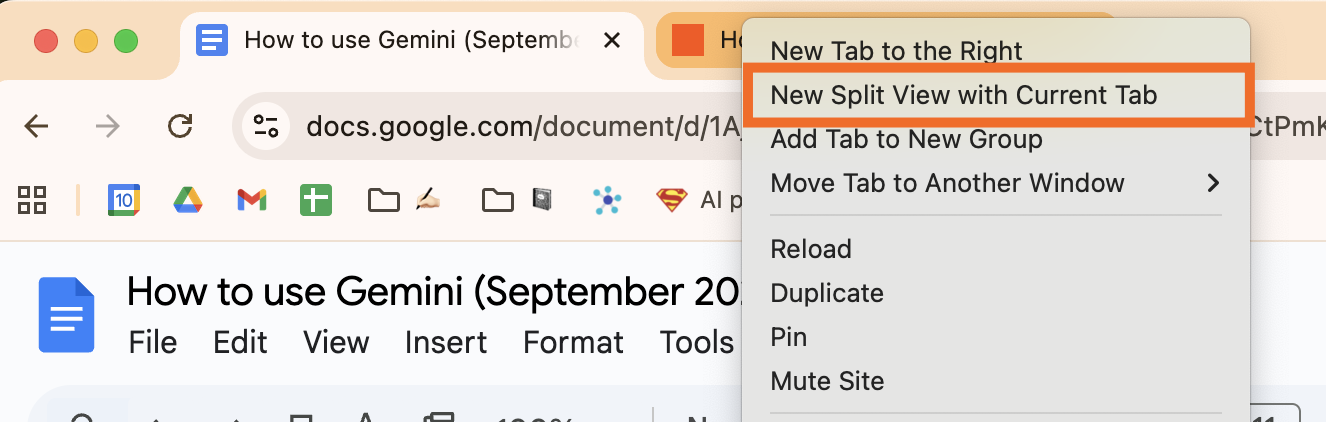
Google will automatically display your pages side by side.

How to resize and rearrange Chrome split view
How to resize panes in Chrome split view
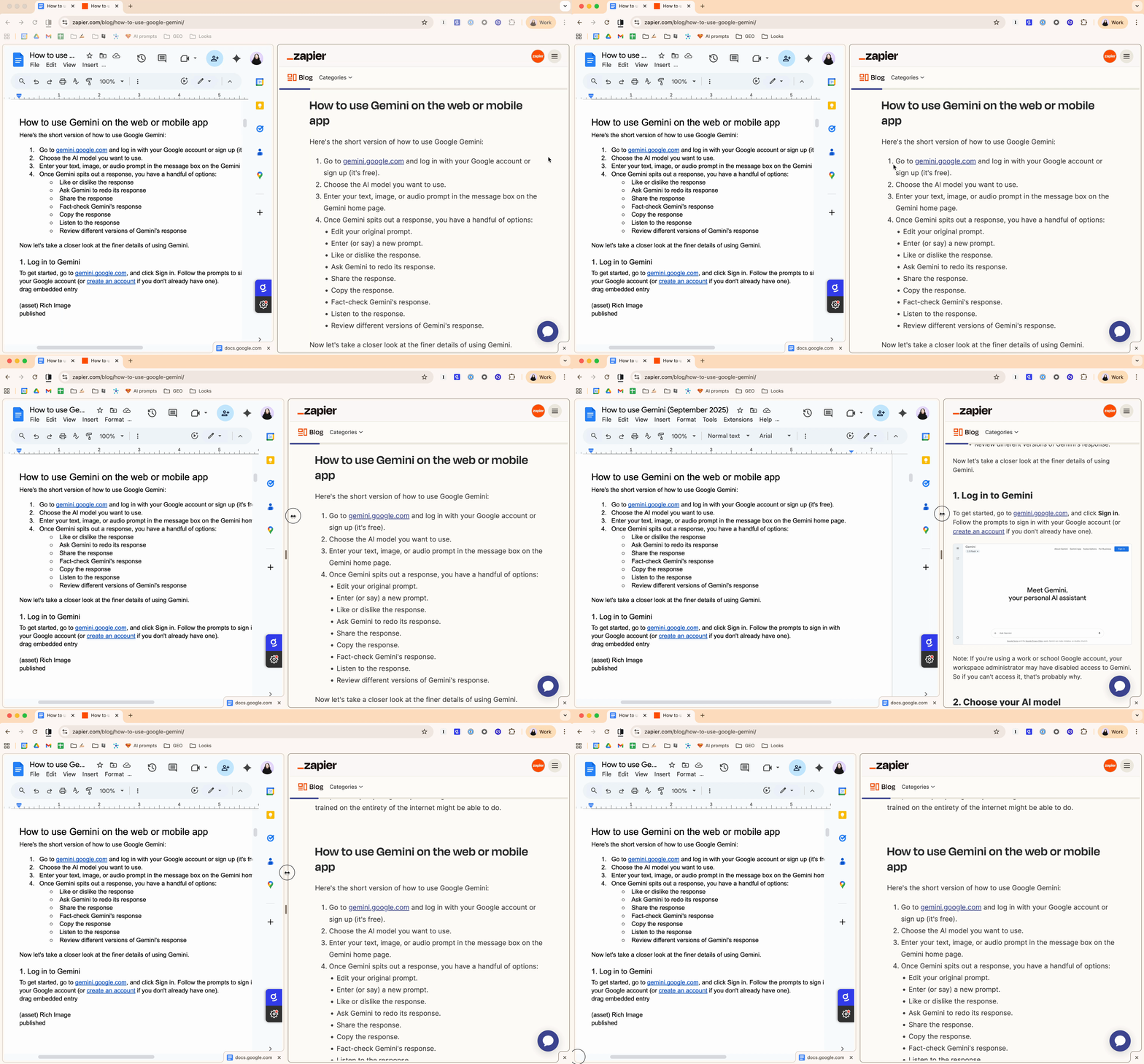
By default, Chrome will give both pages equal real estate. But you can change this.
Hover your cursor over the divider line between the two tabs.
When your cursor changes to a horizontal resize indicator (two arrows pointing in opposite directions), click and drag to adjust.

How to rearrange panes in Chrome split view
Your options for rearranging panes in the split view are limited: for now, all you can do is reverse views. To do this, right-click your merged tab, click Arrange Split View, and then select Reverse Views.

If you want to change what's displayed, click on the pane with the page you want to change, and enter a new URL in the address bar.
When to use Chrome Split View (and when to skip it)
Chrome Split View isn't perfect. For one thing, the side-by-side view can leave you with a lose-lose view where neither page displays enough of what you need at the same time, especially on a smaller screen. For another, rearranging panes or changing the page for a given pane is unnecessarily complicated. What happened to a good, old-fashioned drag-and-drop?
If you need a side-by-side view for simple pages, Split View does the trick. For anything else, I'd recommend toggling between full pages or, dare I say it, leaving your dog's side for that second screen hookup.
Related reading:



