
In your typical lead outreach workflow, someone submits a form, you call them to qualify their interest, you log the conversation in your CRM, and then you send a follow-up email. It works. But it's time-consuming, and by the time you get around to reaching out, that lead may have already moved on.
AI voice tools can transform this process. An intelligent AI voice agent can kick off outreach the moment a lead submits a form. And instead of emailing them a generic message, you can deliver one that's personalized using an AI voice message that references the conversation with the voice agent. The combination of the immediacy and personalization makes leads far more likely to engage.
Sound like something you'd like to implement? In this tutorial, I'll show you how to automate this process using a handful of apps: Zapier Forms, Zapier Tables, Synthflow AI, HubSpot, AI by Zapier, ElevenLabs, and Telnyx. You can easily swap any of these for your preferred tools, as long as they're in our app directory—the setup will be similar.
Zapier is the most connected AI orchestration platform—integrating with thousands of apps from partners like Google, Salesforce, and Microsoft. Use forms, data tables, and logic to build secure, automated, AI-powered systems for your business-critical workflows across your organization's technology stack. Learn more.
Automate the full-loop customer journey
Zapier is an AI orchestration platform that lets you streamline your work by connecting your work apps into automated workflows. These workflows are called Zaps, and they can do lots of tasks for you—including the lead outreach process, from form submission to follow-up. You can create your own Zap from scratch without any coding knowledge, but there are also lots of pre-built templates to help you get started quickly.
You can build these AI-powered outreach Zaps from scratch in the Zap editor or click the templates below to get started. The templates will save you some clicks by automatically populating your trigger and action steps. If you don't already have a Zapier account, you'll need to create one. Then just follow the directions below to set up your Zaps.
You'll need two separate Zaps for this workflow:
Zap 1 watches for new form submissions, then creates an AI-powered call
Zap 2 watches for completed calls, then updates your CRM, generates personalized voice messages, and sends follow-up text with the audio message
Create Synthflow AI calls for new Zapier Forms submissions


Update your CRM and send texts with AI audio after a Synthflow AI call

Zap 1: Trigger AI calls from form submissions
Set up your Zapier Forms trigger
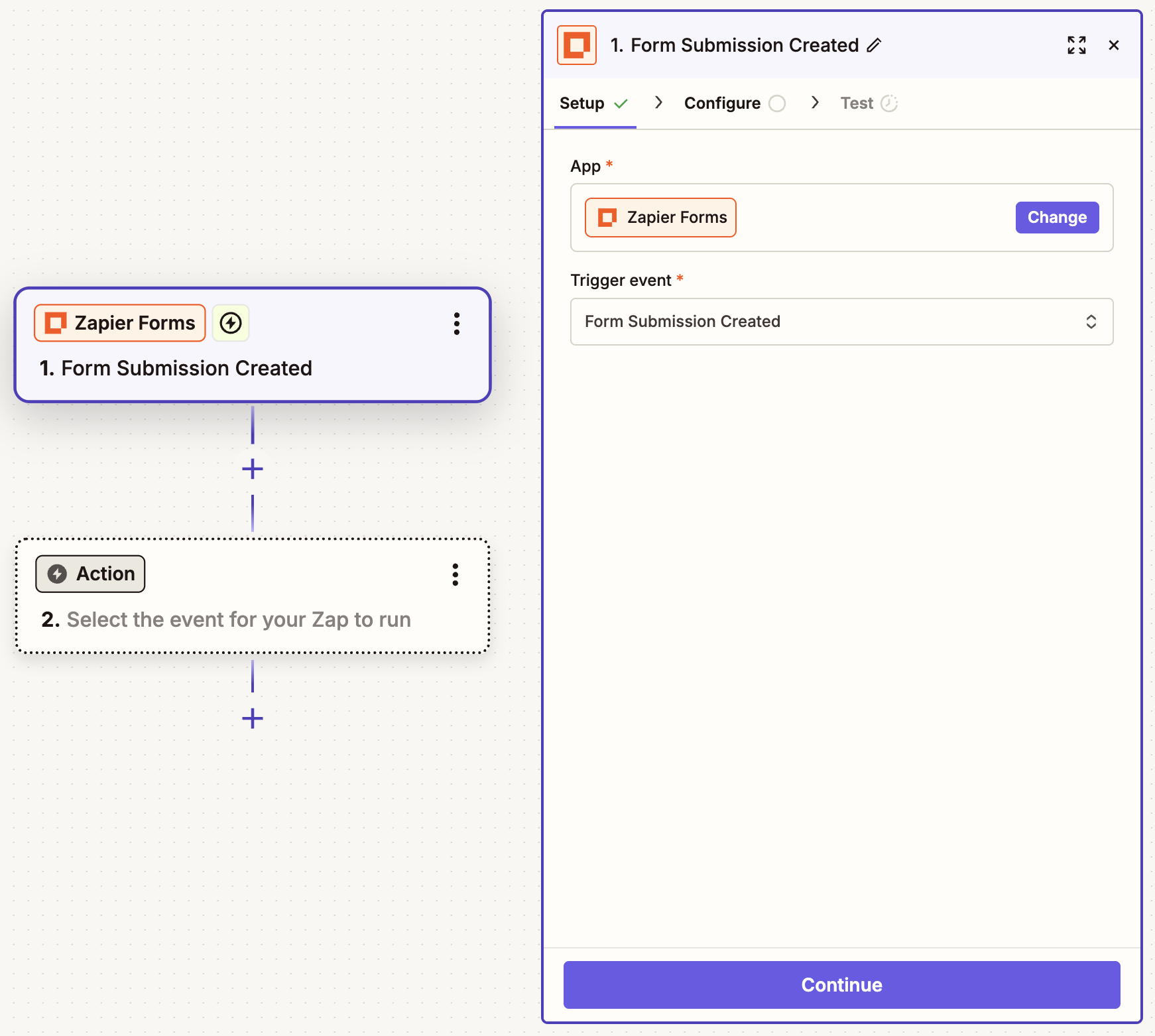
Create your trigger, choosing Zapier Forms as your app and Form Submission Created as your trigger event. If you started with the template, this will already be done for you. Click Continue.
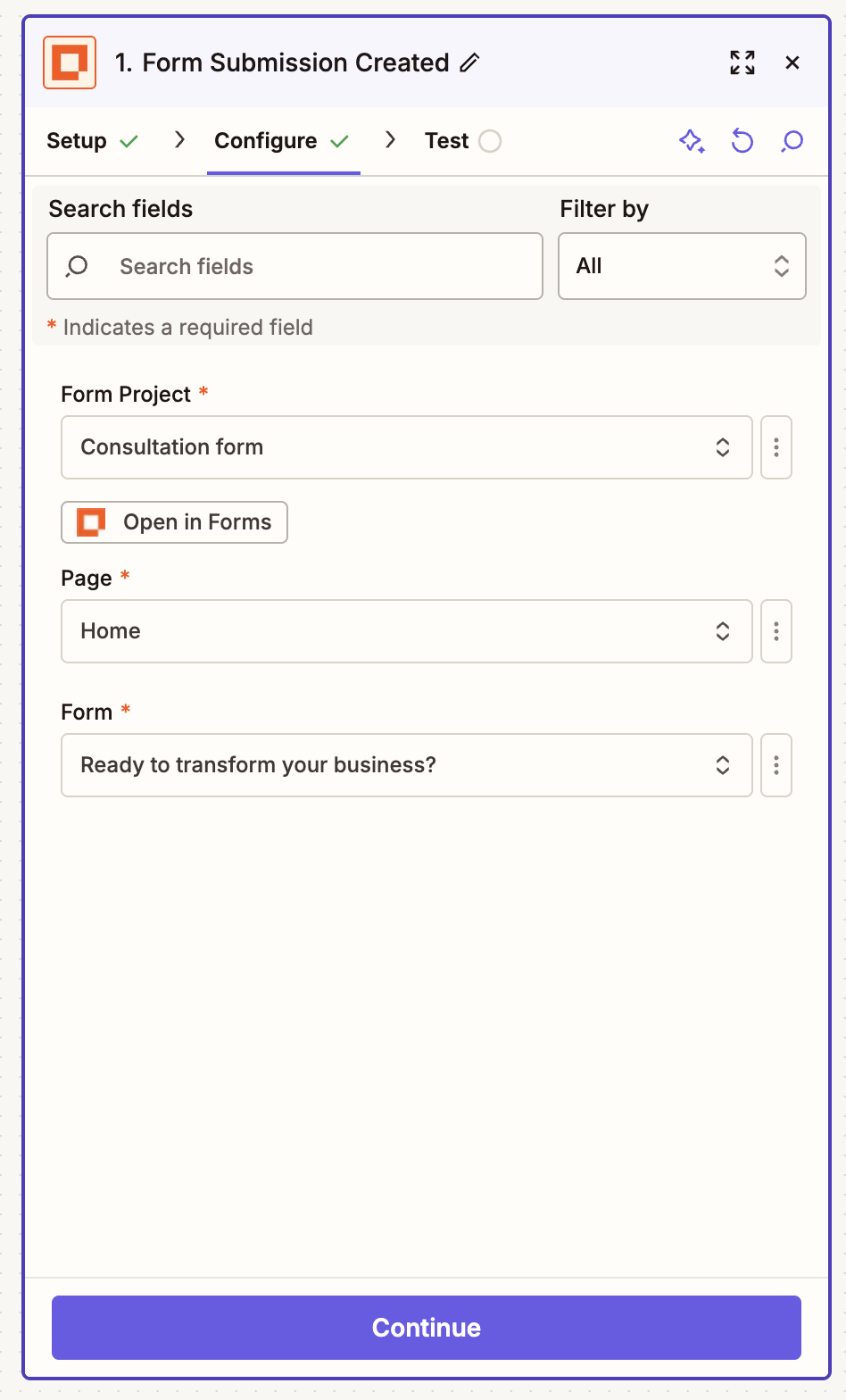
In the Configure tab, select which form you want to monitor. This should be the form you're using to collect lead information. To build one, click Create Form, then Open in Forms.
Note: Creating a Zapier form will automatically generate a Zapier table for storing responses. You can also swap Tables out for another storage app. Learn more about using Zapier Forms and Zapier Tables.
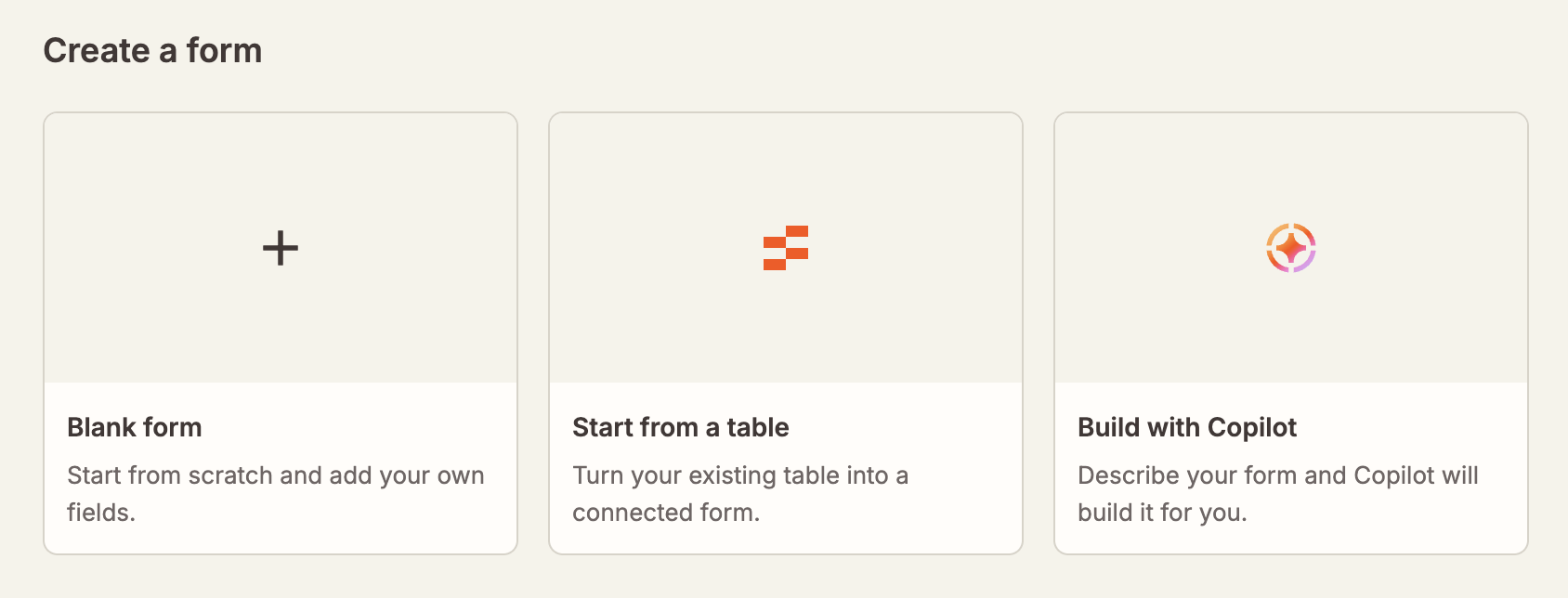
You'll be prompted to build one from scratch, from an existing table, or with Copilot, our built-in AI assistant.
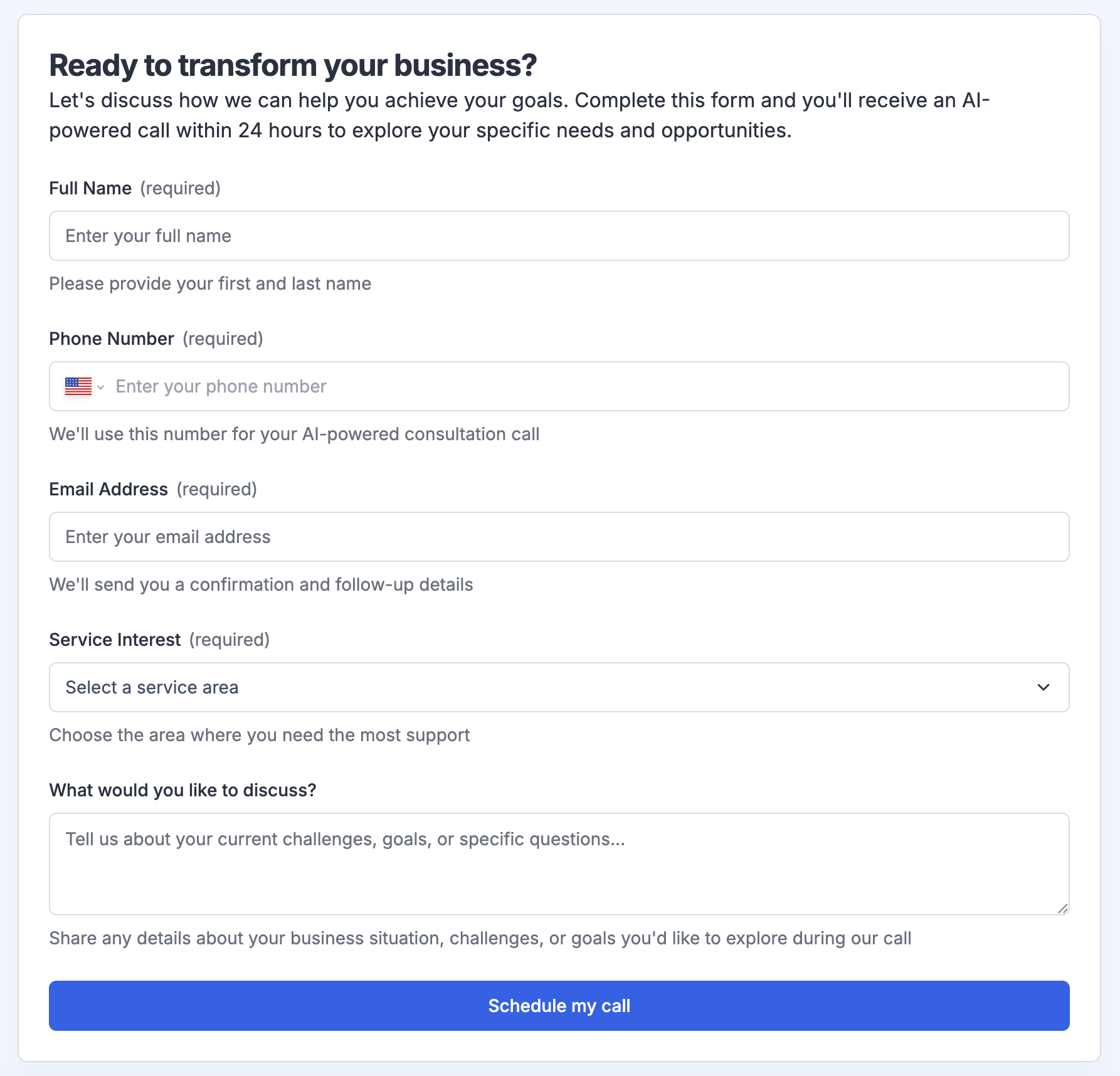
Here's a form I spun up in 30 seconds using Copilot, describing what I needed in natural language.
Back in the Zap editor, configure your other fields and click Continue.
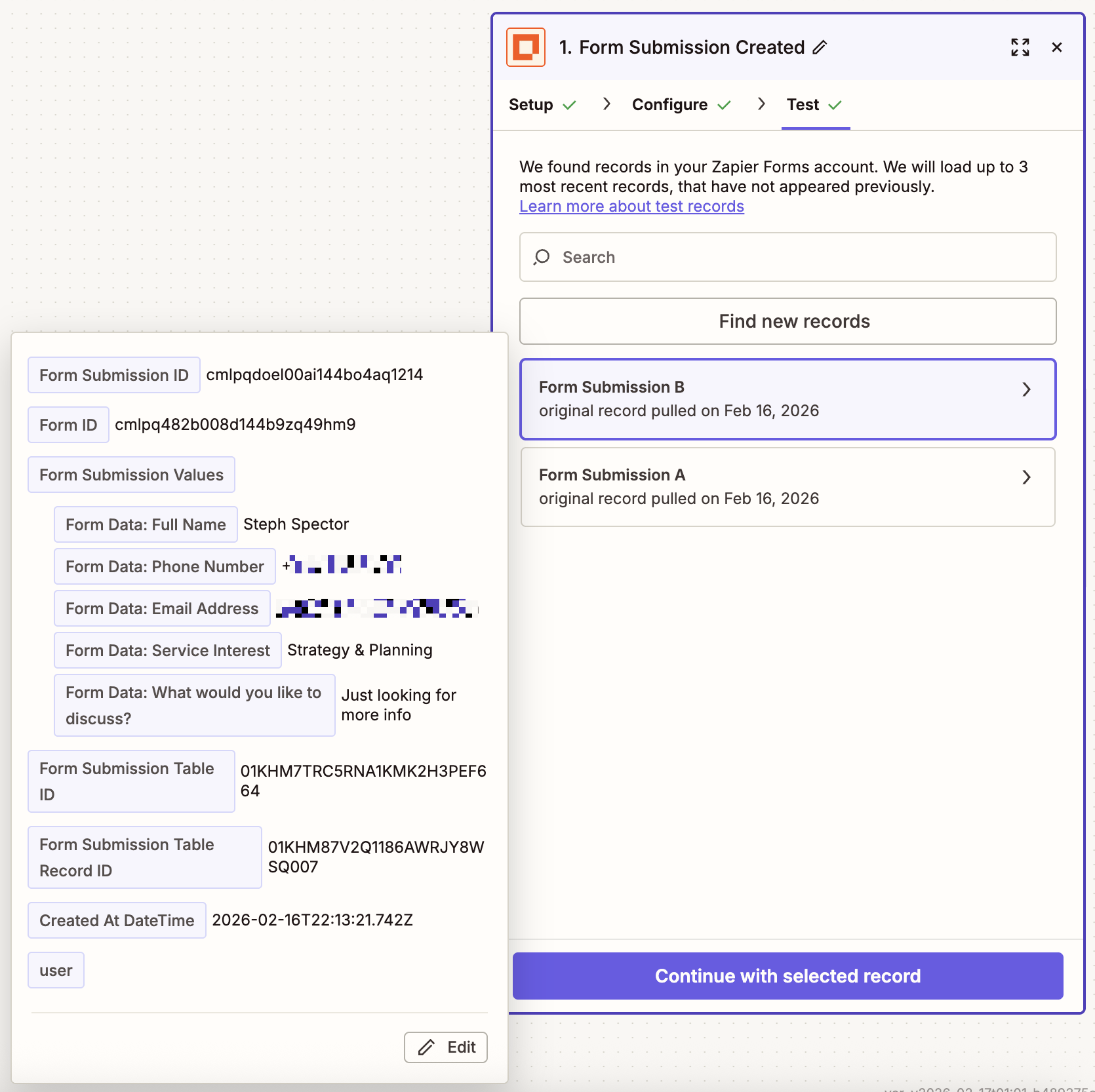
Now test this step. If you haven't already, submit a test entry to your form so Zapier can find a record. Click Test trigger, select a submission, and click Continue with selected record.


Set up your Synthflow AI action
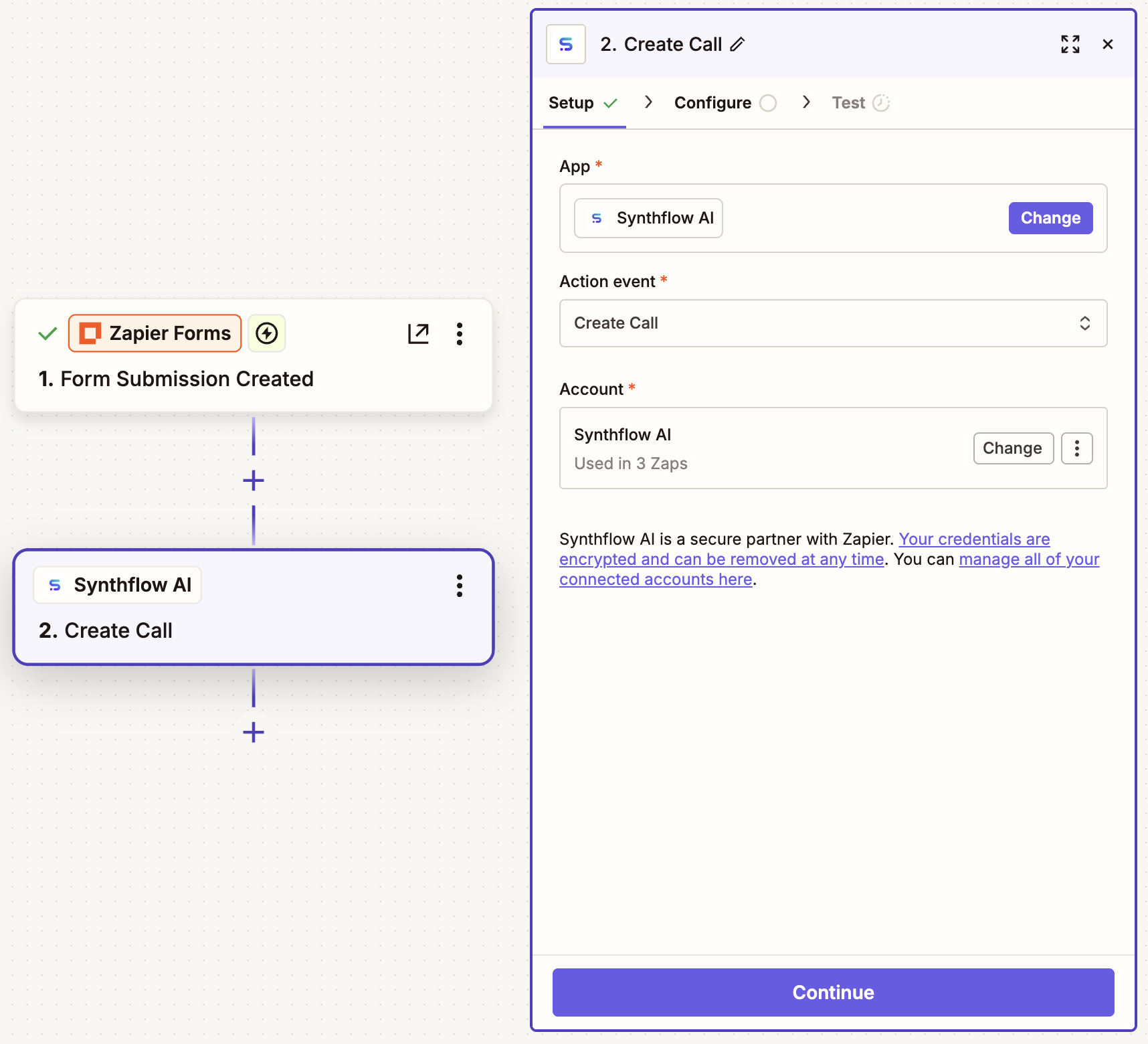
In your next step, choose Synthflow AI as your app and Create Call as the action event. Then connect your Synthflow AI account and click Continue.
In the Configure tab, enter your model ID from your Agents tab in Synthflow.
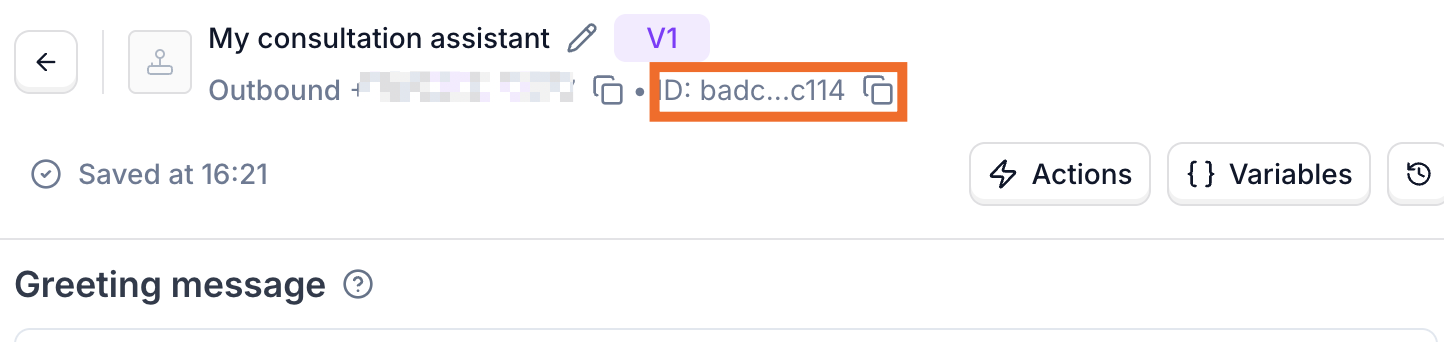
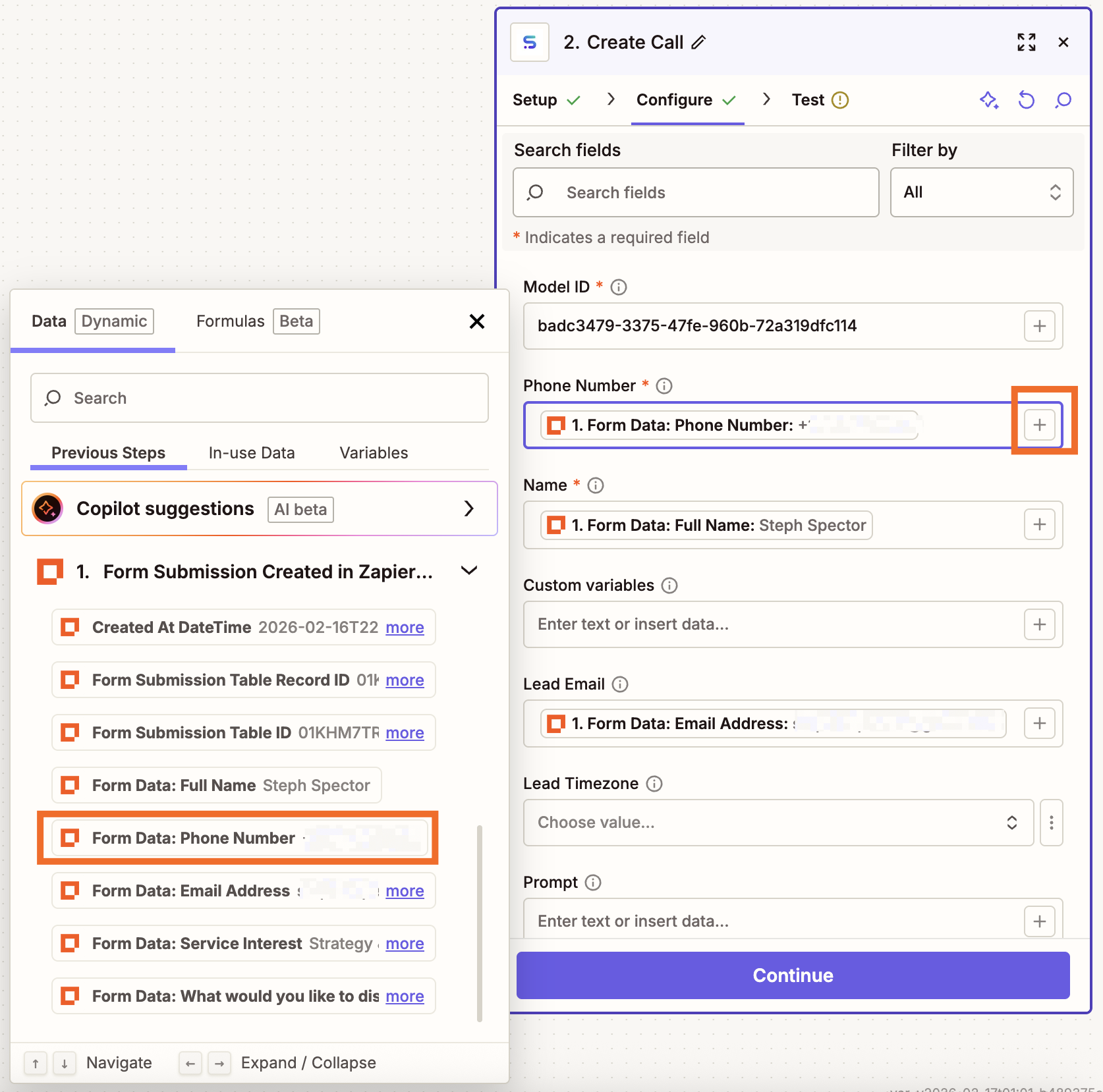
Where to find your model ID in Synthflow AI Back in the Zap editor, map information from your form submission trigger. At minimum, you'll need to provide the name and phone number to call. Click the plus sign (+) in the field to open the data picker and select the phone number from your Zapier Forms step. You may also want to map the lead's email address if you plan to add another email step to this workflow. And you can add custom variables mapped to other form responses, too, if you want your Synthflow agent to refer to other parts of the form submission during the call.
When you're done configuring, click Continue, then Test step. This will create a test call in Synthflow AI. Check your Synthflow AI account to verify the call was created successfully.
If everything looks good, click Publish to turn your Zap on.


Zap 2: Send personalized follow-ups after calls
Set up your Synthflow AI trigger
Create your trigger, choosing Synthflow AI as your app and Phone Call Completed as your trigger event. If you started with the template, this will already be done for you. Connect your account, and click Continue.
In the Configure tab, enter the ID for the agent you're using and click Continue.
Click Test trigger to find recent completed calls from Synthflow AI. Select a recent call record and click Continue with selected record.
Set up your Zapier Tables action
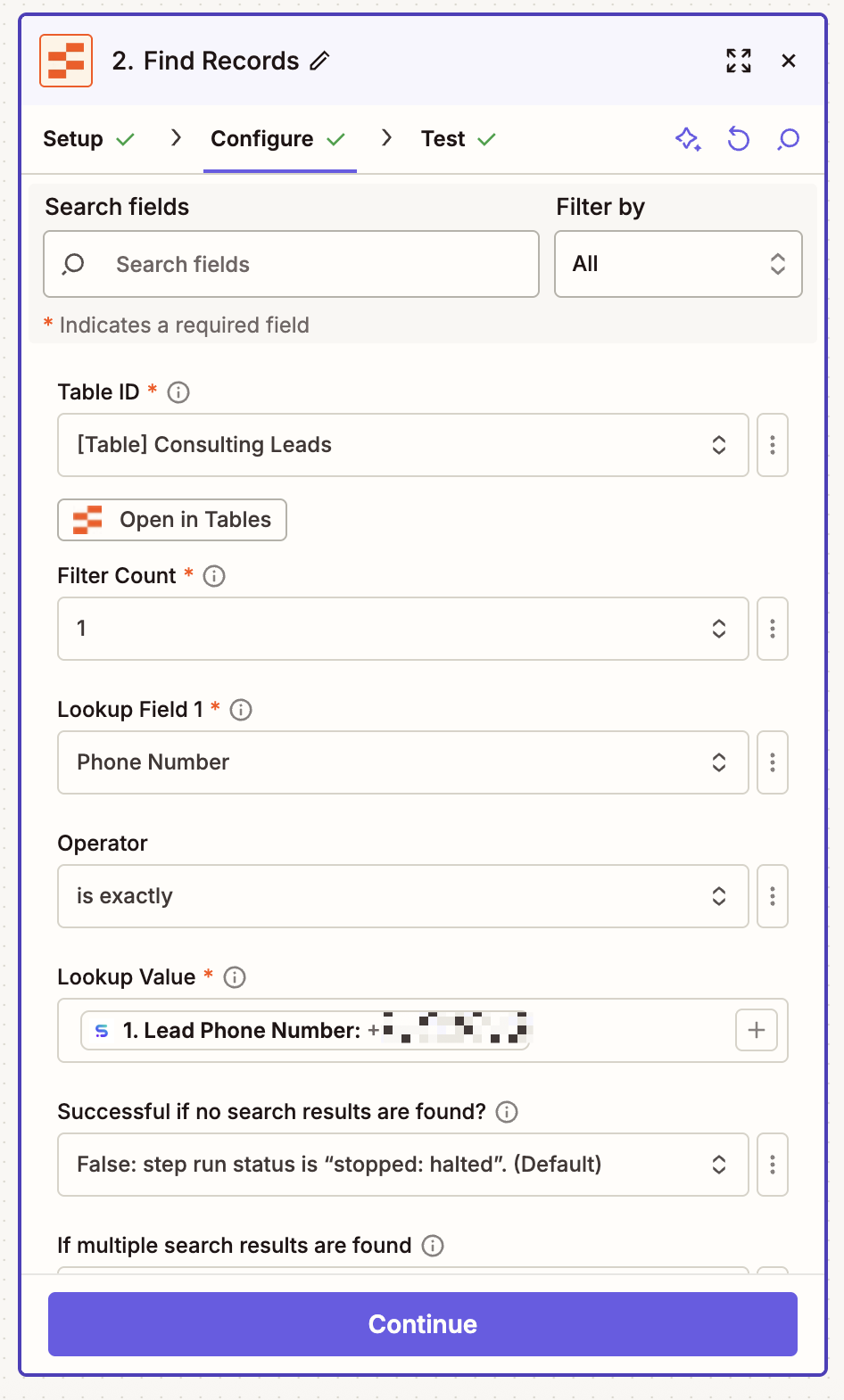
In your next step, choose Tables as your app and Find Records as the action event. Then move on to configuring your step.
Now connect the table that's storing your information, adjusting the settings to look up the lead's phone number. To do this, map the number in the Lookup Value field from your Synthflow AI trigger.
When you're done, click Continue.

Set up your HubSpot action
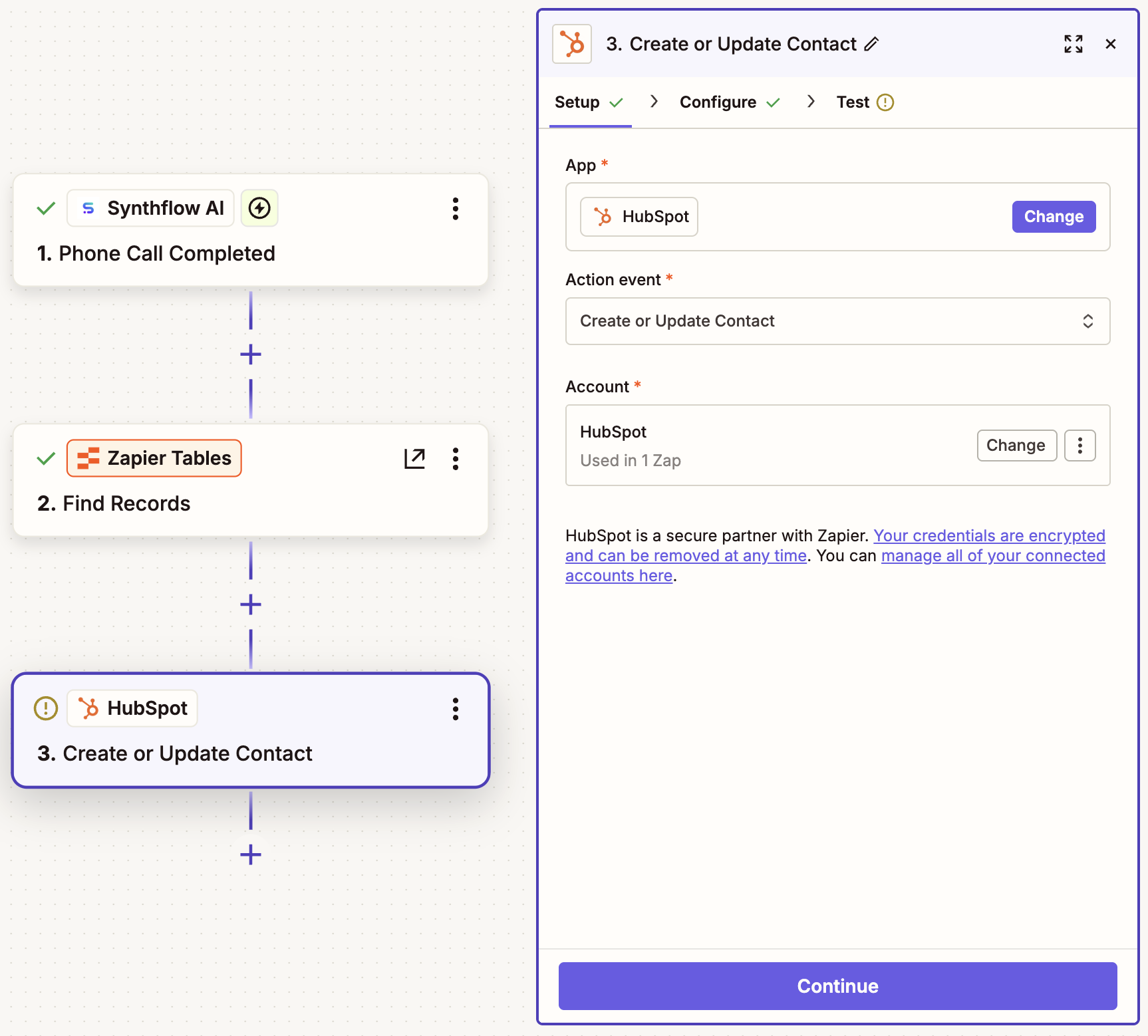
In your next step, choose HubSpot as your app and Create or Update Contact as the action event. Then connect your HubSpot account and click Continue.
In the Configure tab, map any data you'd like from the caller's Tables record to create a new record for them. If a record already exists for this person, Zapier will just update it rather than create a duplicate.
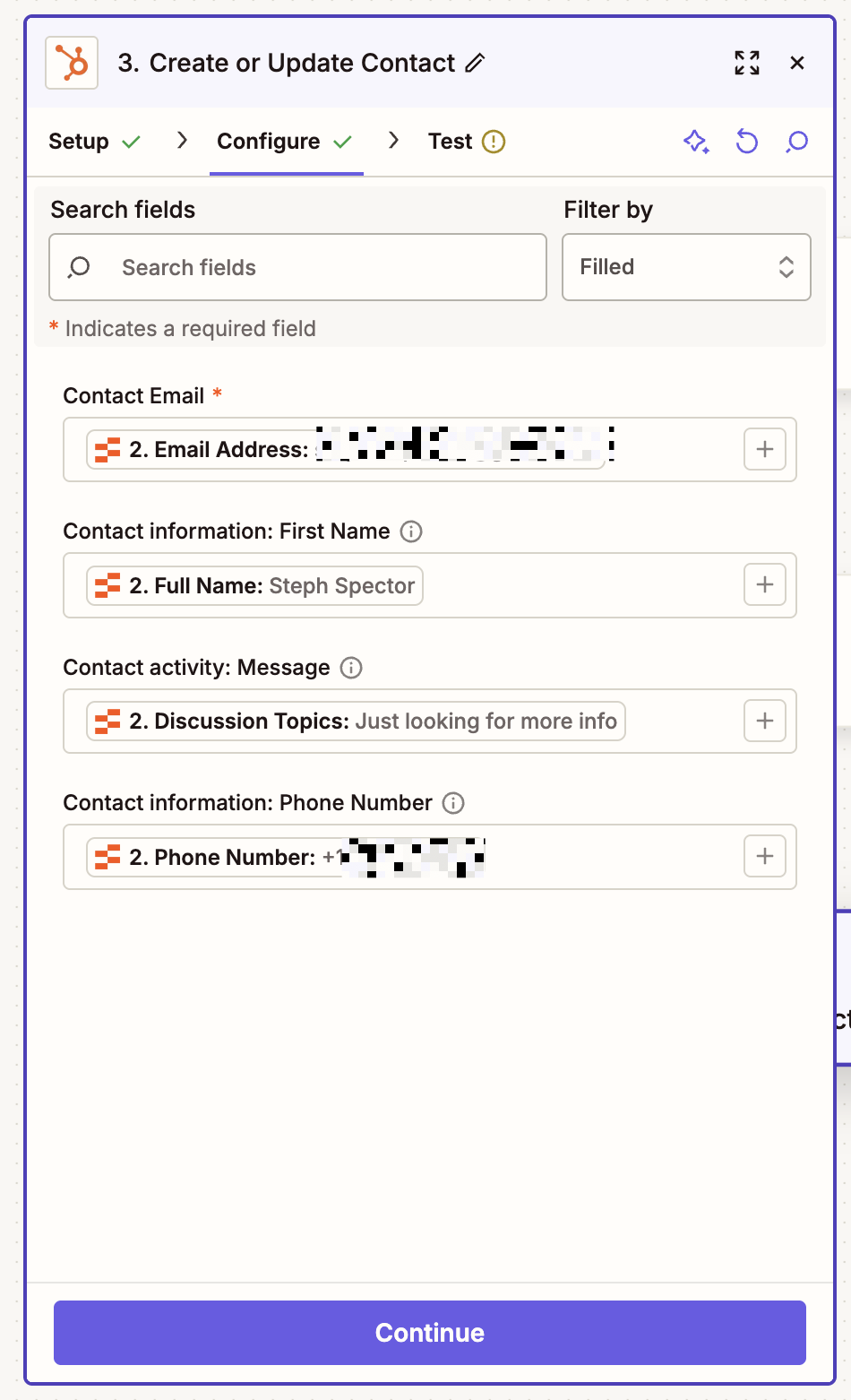
This tab contains many more fields than shown here. The view was filtered to display only the fields that have already been filled out. When you're done, click Continue, then Test step to verify that the contact gets updated correctly in HubSpot.


Set up your AI by Zapier action
Add another action step, choosing AI by Zapier as your app. This step will create a concise, personalized summary of your Synthflow AI call transcript, which will later get converted into a voice recording.
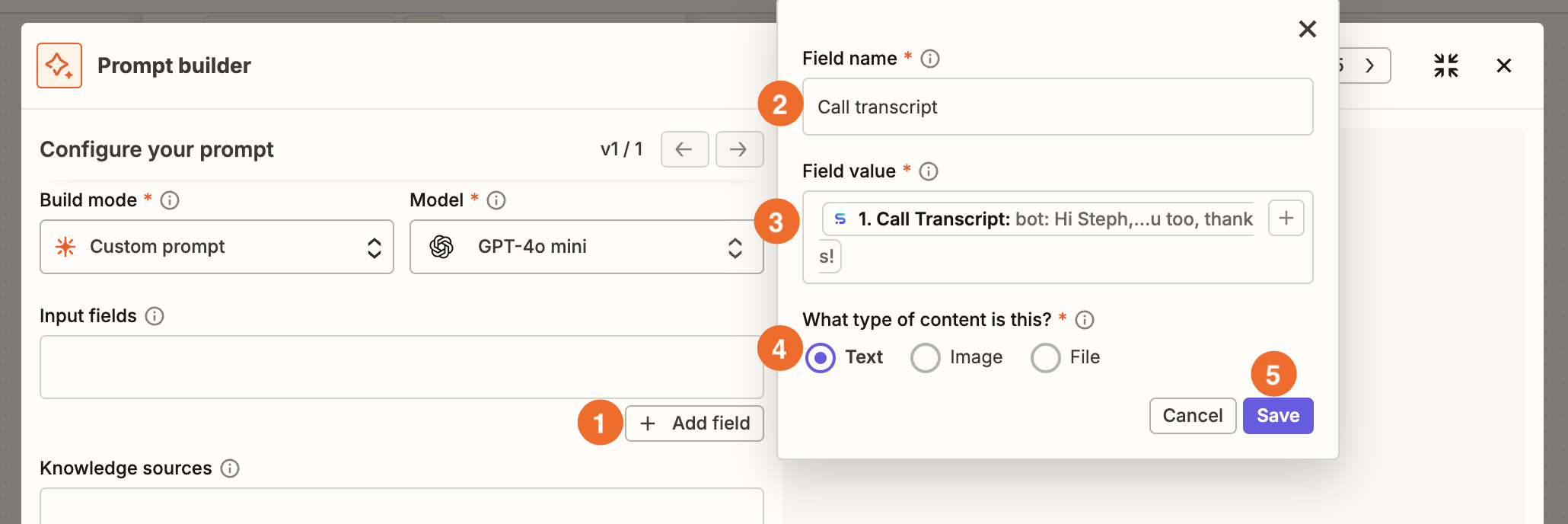
To set this up, inside the Prompt builder, map the transcript from your Synthflow AI step to Input fields. Then click Save.
Then write a prompt like the one below. Click Generate preview to see an example result, so you can evaluate it and tweak your prompt as needed.
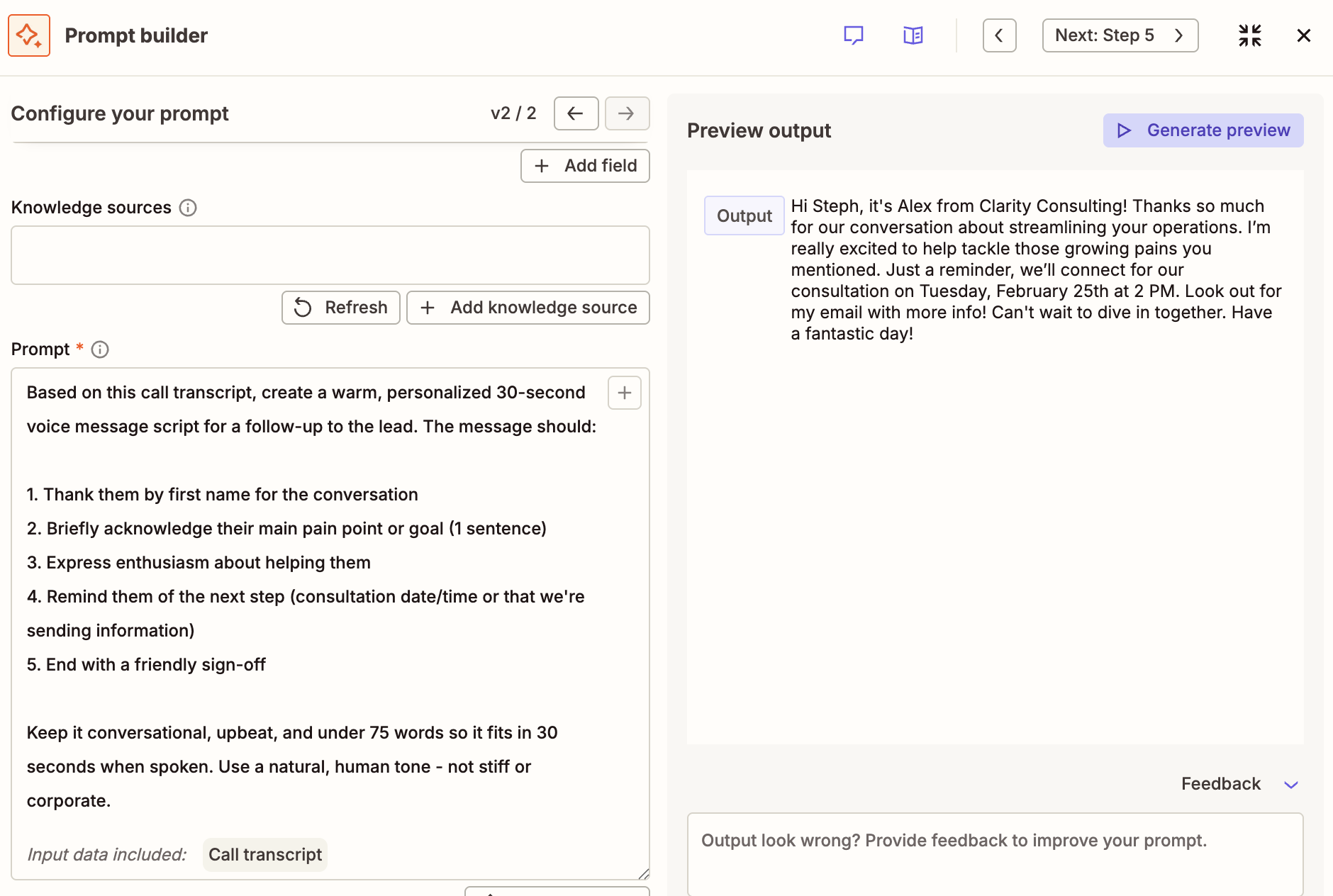
If the result looks good, click Finish.


Did you know? AI by Zapier comes with a built-in assistant to help you improve your prompts. Learn more about AI by Zapier features in our guide.
Set up your ElevenLabs action
Add another action step, choosing ElevenLabs as your app and Convert Text to Speech as the action event. Connect your ElevenLabs account and click Continue.
In the Configure tab, all you have to do is pick a voice and map the AI summary you created in the previous step to the Text field.
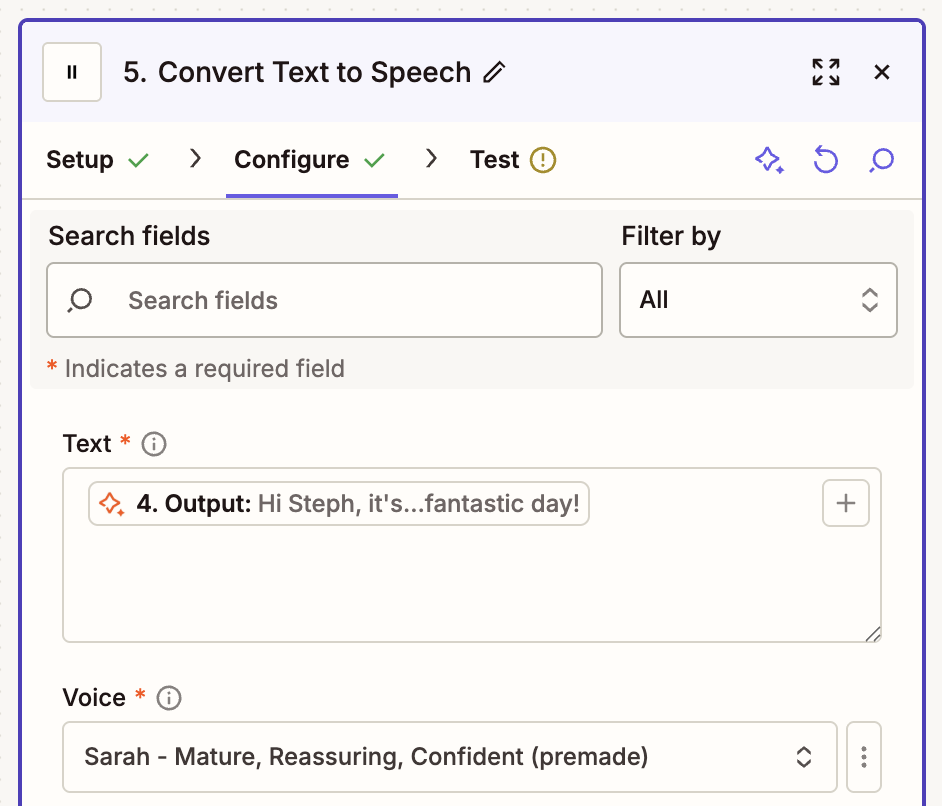
Click Continue when you're done.
Test the step to generate sample audio and verify that it sounds good to you. You can download the audio using the URL from your test results.
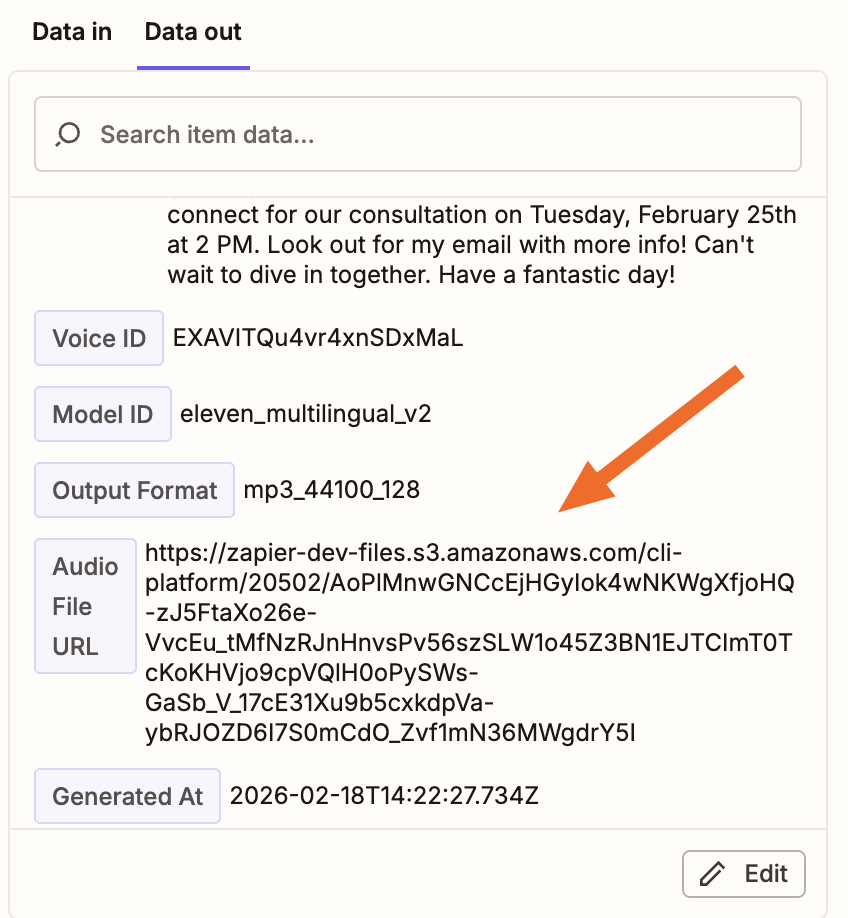
When you're ready, click Continue.


Set up your Telnyx action
For your final action, choose Telnyx as your app and Send MMS as the action event. Connect your account and click Continue.
In the Configure tab, select the Telnyx phone number you'll be sending messages from, and map the prospect's phone number in the To Number field. In Media URL, you'll also want to map the audio file URL from your ElevenLabs step.
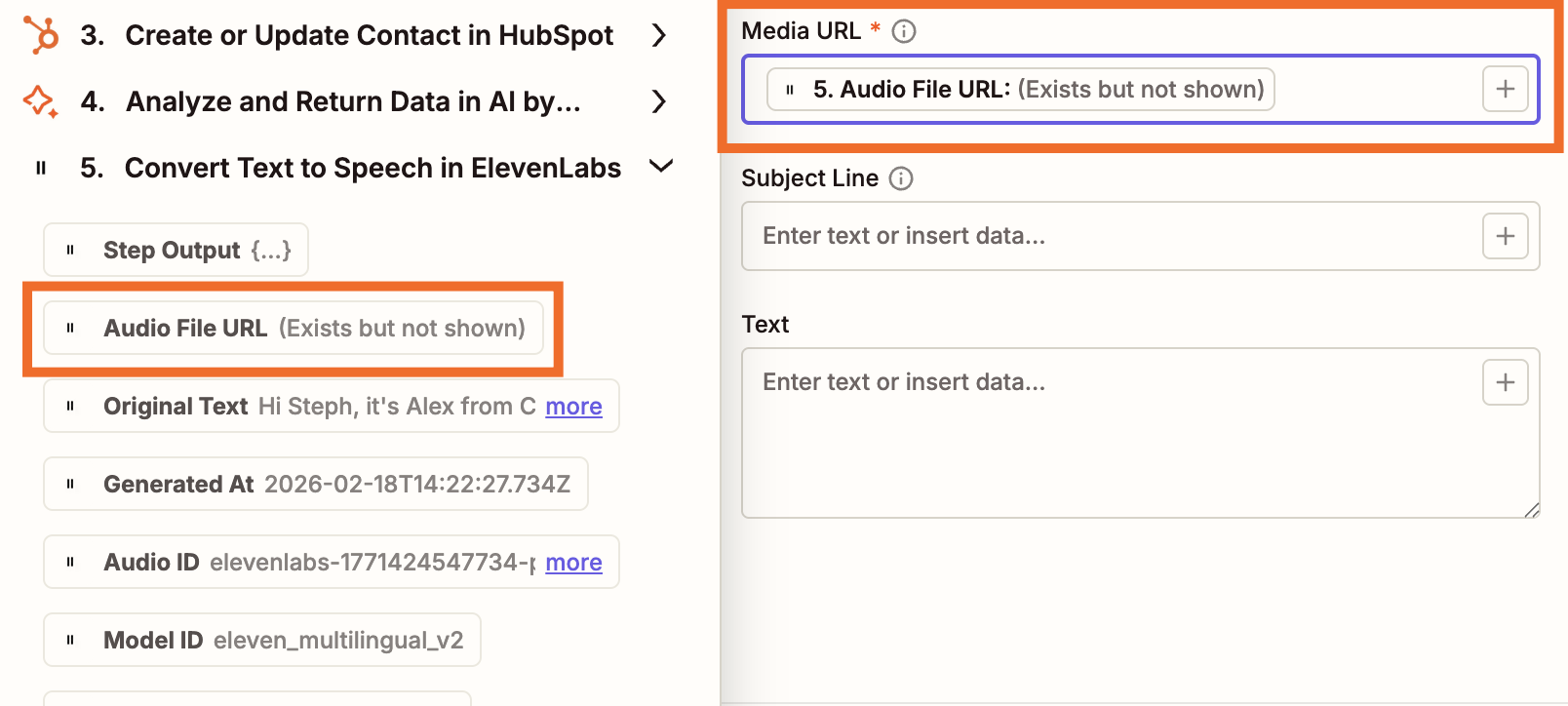
Optionally, you can add other text and a subject line to be sent along with your audio message.
When you're done, click Continue, then Test step, which should send an audio message to the number you specified.
If everything worked as expected, just click Publish to turn your Zap on.

Now sit back and enjoy as AI and automation manage your lead intake.



