Quoting someone in Slack is either the clearest thing you can do in a conversation or a passive-aggressive power move, depending on who you ask. We're not here to relitigate that debate (it's the clearest thing you can do, obviously). We're here because Slack doesn't have a built-in quote feature the way most modern chat apps do—and you'd like to know what to do about that.
There are three workarounds: you can format a message as a block quote, share one as a link, or forward it to another conversation entirely.
Here's how each one works.
Table of contents:
How to quote in Slack: 3 ways
There are three ways to quote a message in Slack threads. Here's how to use each one.
Option 1: Use blockquotes
Slack doesn't have a true quote option, but Slack blockquotes give you a similar effect by letting you highlight a specific message. Here's the simplest way to do it.
Copy the Slack message you want to quote.
Navigate to the conversation where you want to post your blockquote.
Begin typing in the message field, and when you reach the part you want to quote, press
Shift+Enterto start a new line, and then type a greater-than symbol (>).Type or paste the quote directly after the greater-than symbol, and then hit Enter to send your message.

Alternatively, you can paste your text and use your blockquote keyboard shortcut: command/Ctrl + shift + 9. Or highlight the text you want to quote, and click Blockquote in the text formatting toolbar.

Keep in mind that block quotes on Slack don't automatically link back to the original message. They're useful for emphasizing a point or mimicking a "quote"-style format, but if you need to provide context, you might want to consider sharing the original message as a link instead.
Option 2: Link to an existing Slack message
For times when you want to breathe new life into a message or cite it in another Slack channel, linking directly to the original Slack message is your best bet. Here's how.
How to link to a Slack message on desktop
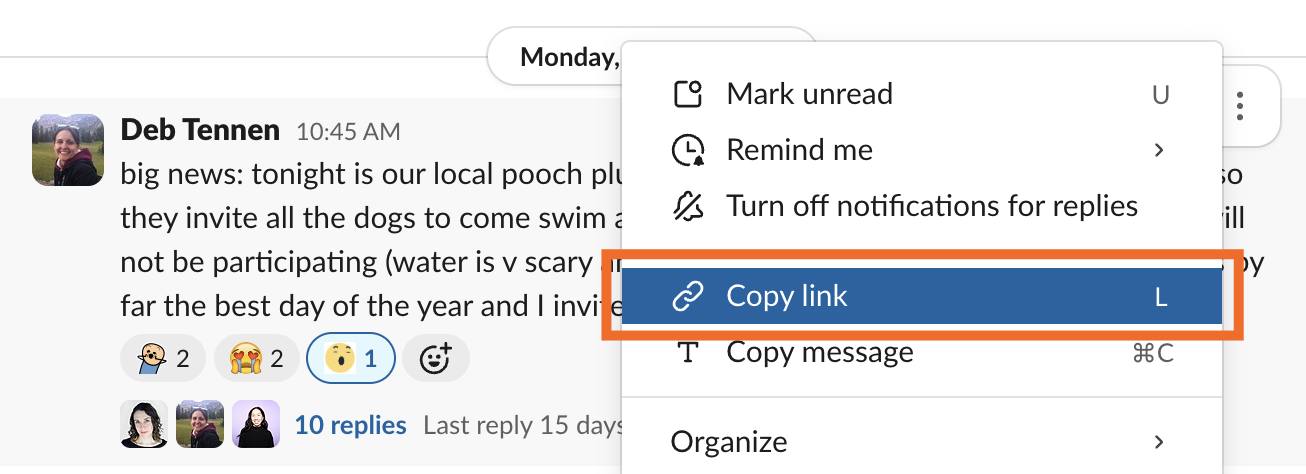
Locate the message you want to link to in your Slack conversation. Hover over it, then click the More actions icon (
⋮).Click Copy link.
Navigate to the channel or DM where you want to share the message.
Paste the link in the message field, and enter your message.
Press Enter.
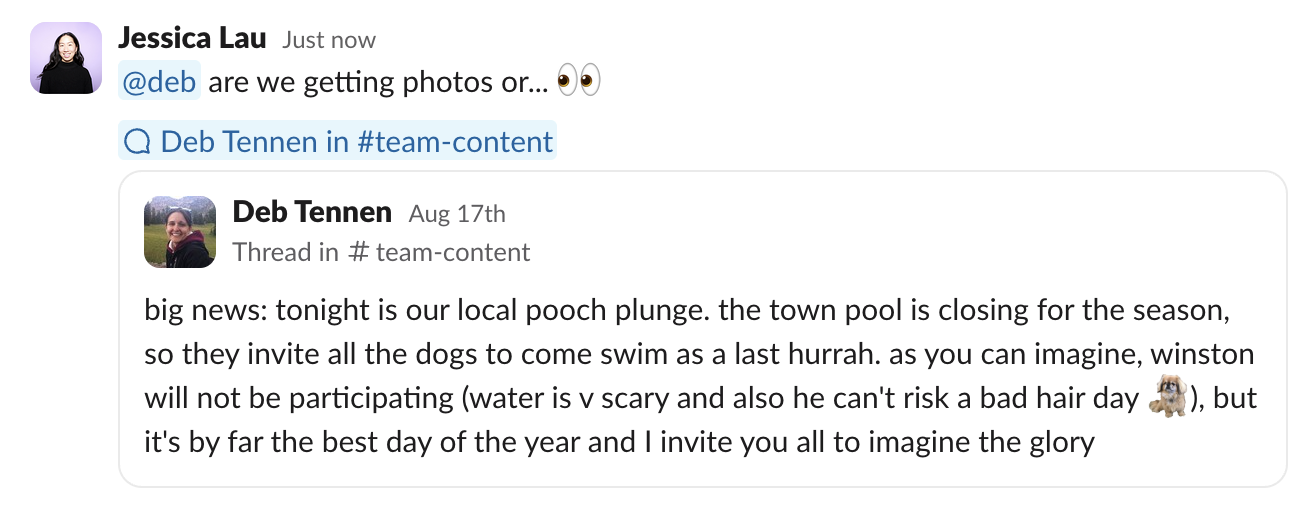


By sharing a link to a Slack message, your teammates can see a preview of the message you're quoting and can click to be taken directly to the original message, no matter how far back in the conversation it was.
How to link to an existing Slack message on mobile
The mobile process is a little different. Here's how you'll link an existing message.
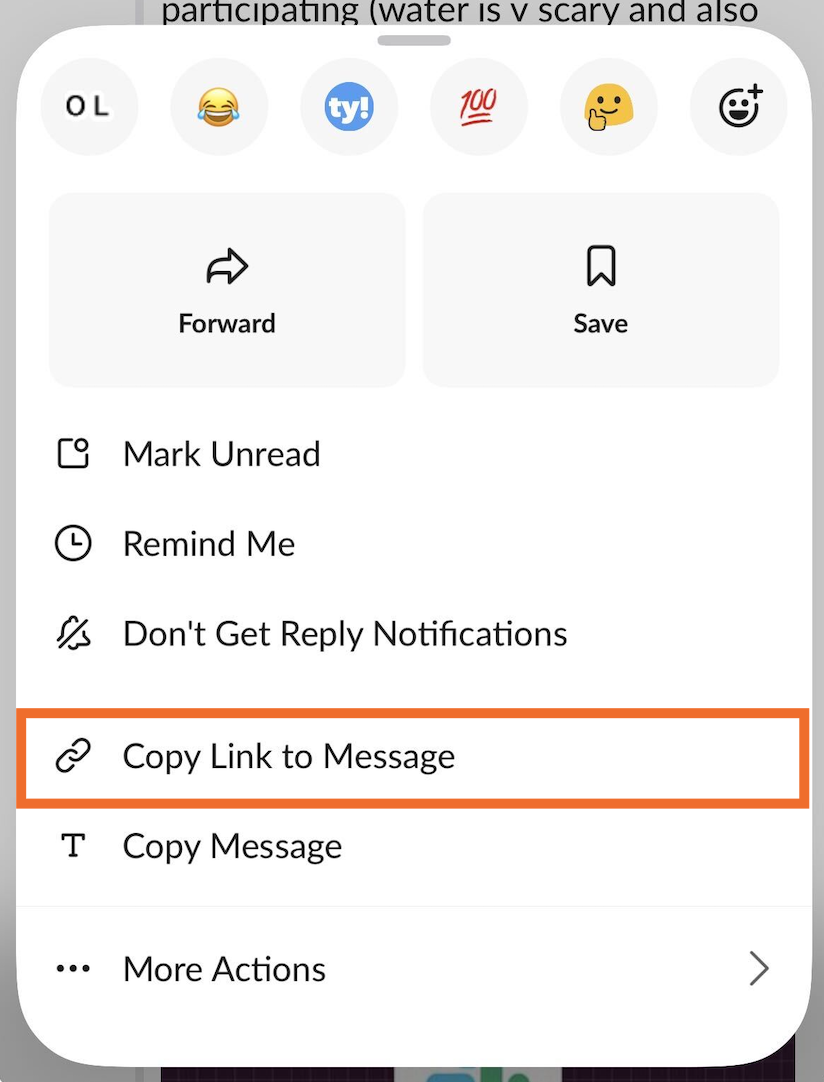
Locate the Slack message you want to quote. Hold your finger on the message, and it will give you a list of options.
Tap Copy Link to Message.
Navigate to the channel or DM where you want to share the message.
Paste the link into the message field, along with your message, and tap Enter to send.

Option 3: Forward a Slack message
If you want to share a previous message directly in a new conversation, forwarding is the quickest way to go. Here's how to use this time-saver.
How to forward a message in Slack on desktop
Find the message you want to forward in your Slack conversation.
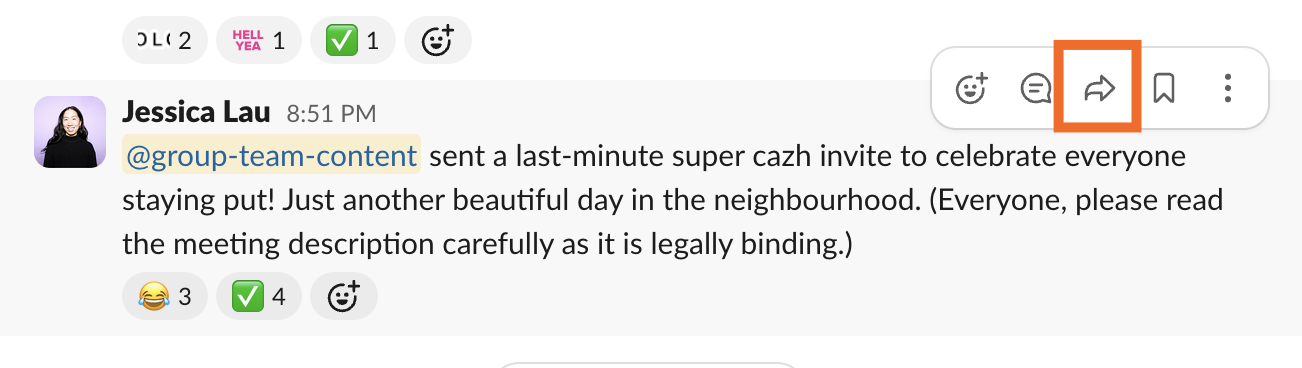
Hover over it, and click the Forward message… icon.
Add the channel or person you want to share the message with, along with any additional context or comments.
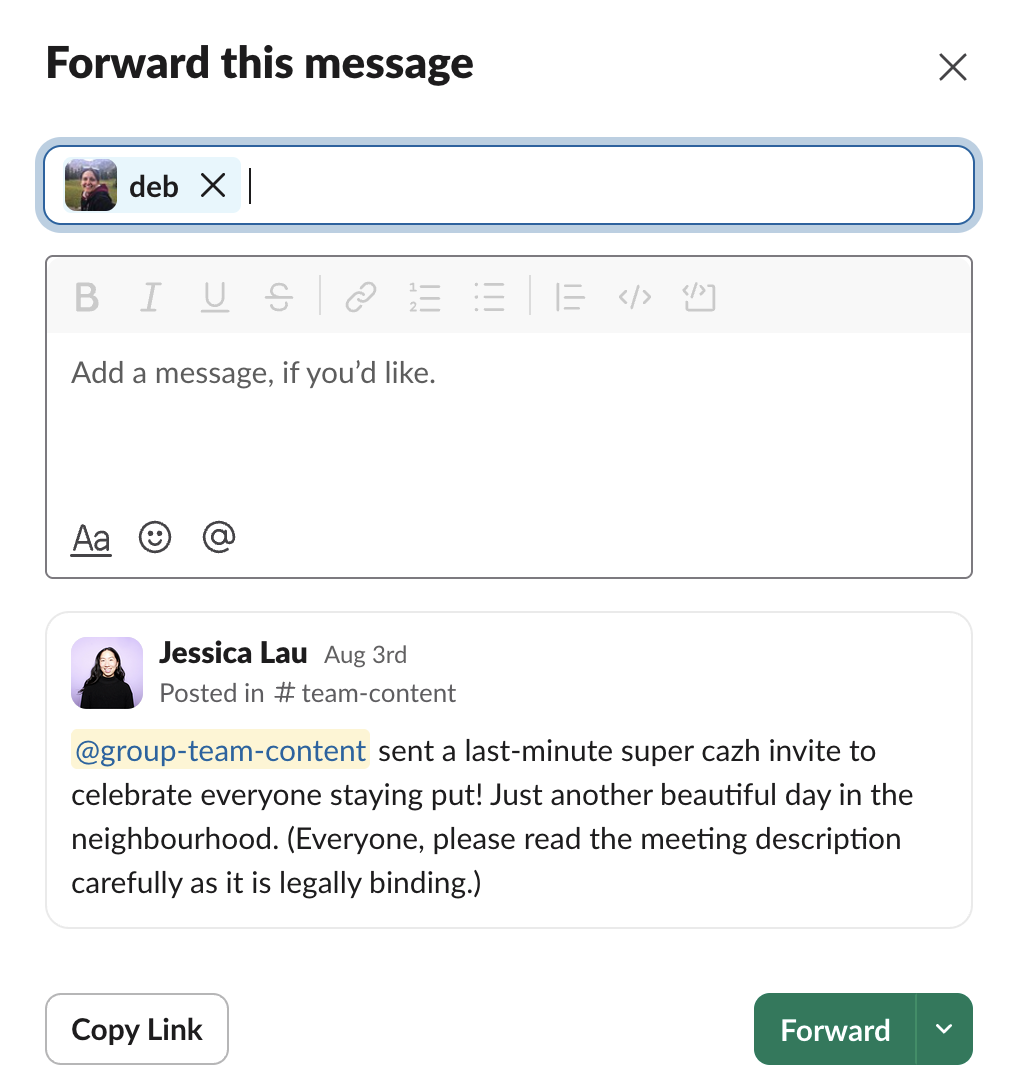
Click Forward.


Just like with linked messages, Slack will display a preview of the forwarded message, and your teammate can click the message preview to be taken back to the original thread.

How to forward a message in Slack on mobile
Like with linking, the mobile process for forwarding is a little different. Here's how you'll link a comment:
Find the message you want to forward, hold your finger on the text, and it will give you a list of options.
Tap Forward Message.
Add the person or the channel you want to share the message with, along with your message and tap Send.
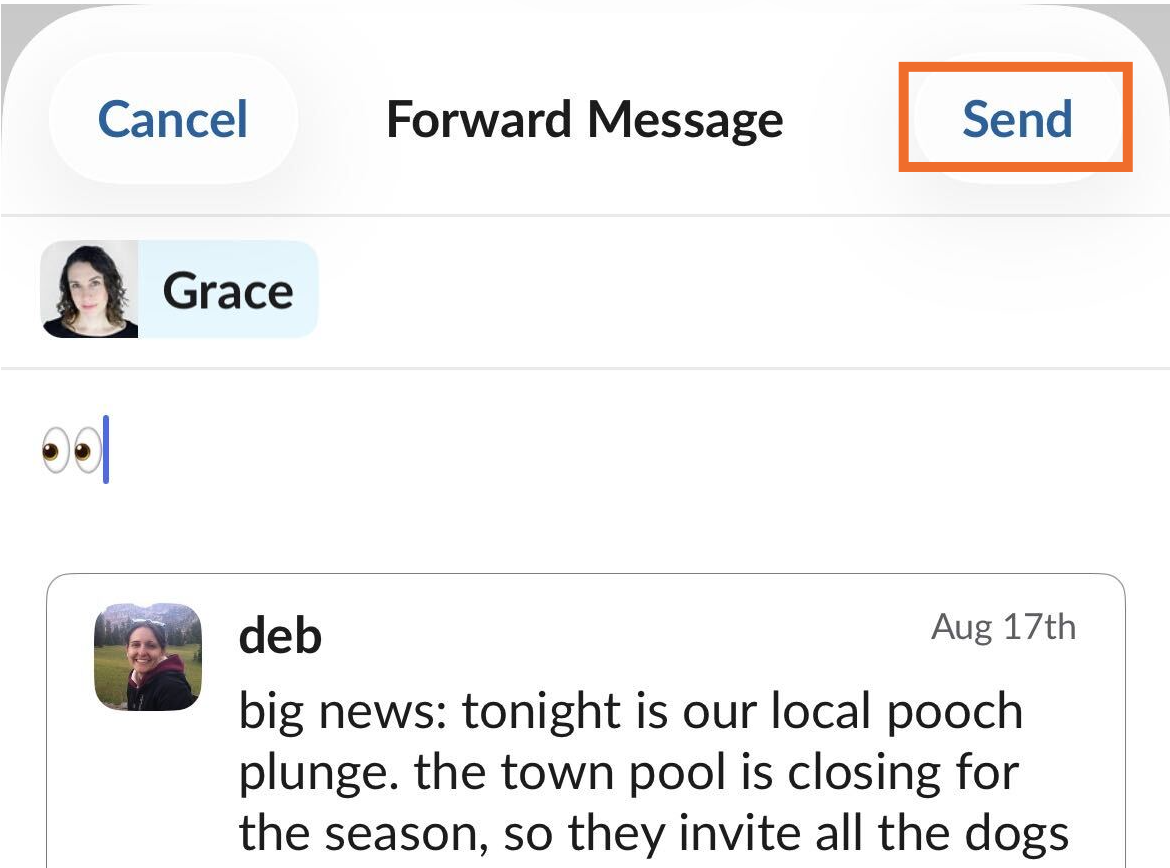

When the message is sent, the recipient or channel will be able to see the message and navigate to the conversation easily.
When should you quote a message in Slack?
We've all seen it—that one person in the channel who quotes every. single. message. While their enthusiasm for Slack functionalities is admirable, it's important to know when it's useful to quote a message and when it's overkill.
So when should you quote a message in Slack?
Make messages quicker to read: When you're dealing with lengthy messages or discussions, quoting the key points can make it easier for everyone to digest the information.
Answer common questions: Got a frequently asked question? Quoting the original response and re-sharing it can save everyone time and keep your channels less cluttered. It's the Slack equivalent of "Please see attached."
Provide more context: If you're referencing an old message or a discussion that happened a while back, quoting or linking to the original message can help paint a clearer picture for your team.
Remember, the goal isn't to become the quote ruler of your workspace, but to use quoting strategically to enhance communication, save time, and reduce confusion.
Automate Slack with Zapier
Not to be dramatic, but my entire work-lihood depends on Slack. It's where my editor notifies me about new writing assignments, where I post outlines and questions about said assignments, and—as evidenced in the screenshots above—where I get very important updates about my teammates' neighborhood dog activities.
If you, like me, live in Slack, use Zapier's Slack integration to connect it with the rest of your tech stack. This way, you can automatically do things like populate a Google Docs template based on a Slack message or get AI-generated daily digests of the latest updates in specific Slack channels. Learn more about how to automate Slack.
Build automations from wherever you work. Describe the outcome you want, and Zapier connects your tools, runs the steps, and stays on the job after you close the chat. Combine AI with reliable, deterministic automation across 9,000+ apps. Get started for free.
Related reading:
This article was originally published in August 2023 with contributions from Michael Kern and Bryce Emley. The most recent update was in September 2026.