My friend runs a small dog boarding and training business. It's not a casual side hustle, either. She has a waitlist, a roster of regulars, and the kind of five-star reviews that take years to earn. She also has a full-time job. And somehow, she remains unburdened by the common stressors that keep small business owners up at night.
So, on behalf of all of us who are barely holding it together, working just one 9-to-5 (it's me—I am "us"), I asked her how she does it all. Her answer: Claude.
And now, with the Claude for small business plugin, a package of ready-made workflows and app connections built for the way small businesses operate, you can also run a tight operation—even when your plate's already full.
Here's everything you need to know about Claude for small business.
Table of contents:
What is Claude for small business?
Claude for Small Business is a plugin that runs inside Claude that's built specifically for small business owners. It ships with over 40 pre-built workflows for the recurring tasks that tend to pile up—like payroll planning and invoice chasing—and, with Zapier, it connects Claude directly to the tools you already use, including QuickBooks, Google Sheets, HubSpot, Slack, Google Ads, and Microsoft Outlook.
The difference from regular Claude is that it's not just answering your questions about your business—it's working in it. You give it a task, it pulls live data from your connected tools, does the work, and then takes action across your tech stack (with your permission). If your stack includes apps that aren't on the native connector list, Claude can securely extend its reach via the Zapier connector, which covers 9,000+ apps from a single install.
Claude for small business pricing
Claude for small business is available only on paid tiers (starting at $20/month or $200/year for Claude Pro)—but there's no add-on charge for the plugin itself.
If you plan on using Claude to run lots of complex, multi-step tasks, you'll likely need to upgrade to at least the Max 5x plan ($100/month) since these types of tasks eat up more of your usage allocation than a standard chat.
How to use Claude for small business
Claude for small business runs directly inside Claude. For now, I recommend using Claude in the desktop app for the smoothest experience.
1. Download the Claude desktop app
Go to claude.com/download and install the desktop app for macOS or Windows.
2. Install the Claude for small business plugin
With the desktop app open, install the Claude for small business plugin.
Click your profile, and then select Settings. You can also use your keyboard shortcut:
command+,(Mac) orCtrl+,(Windows).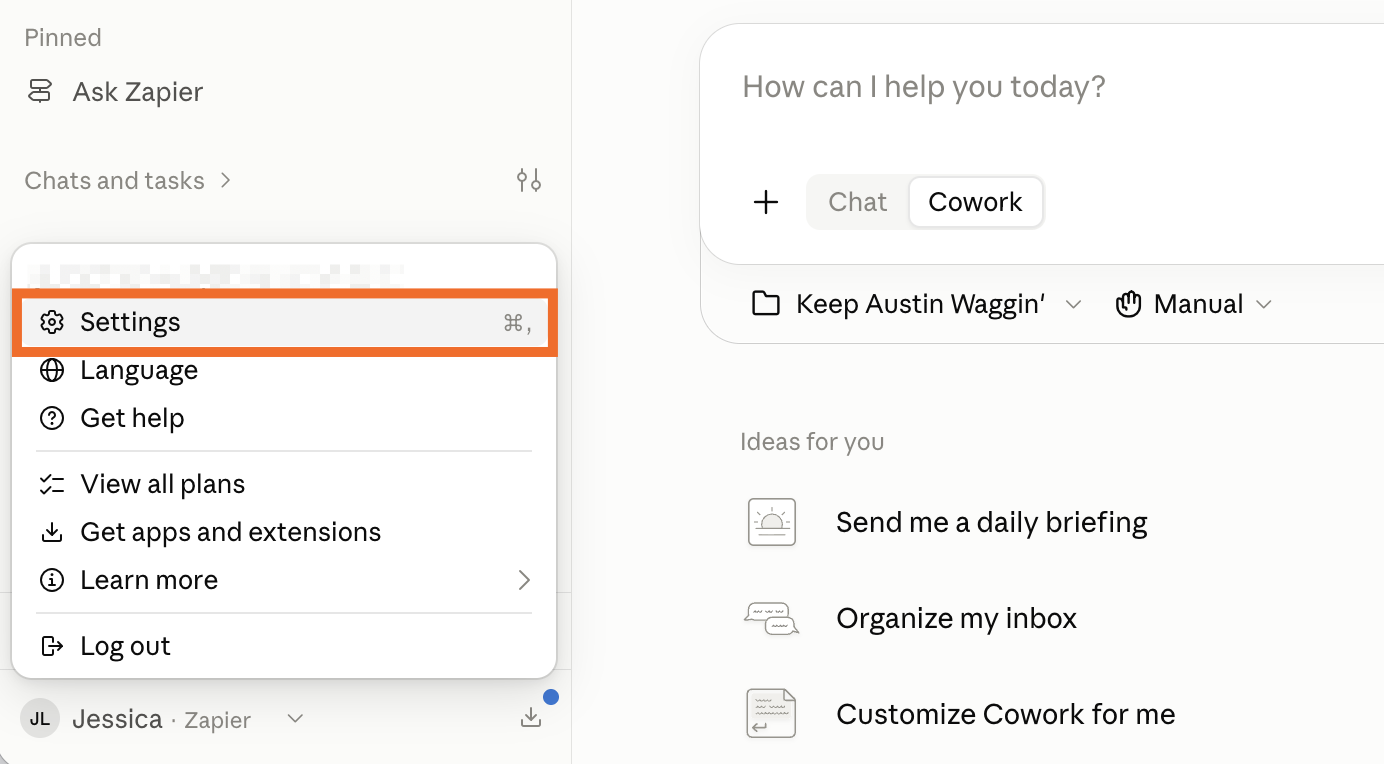
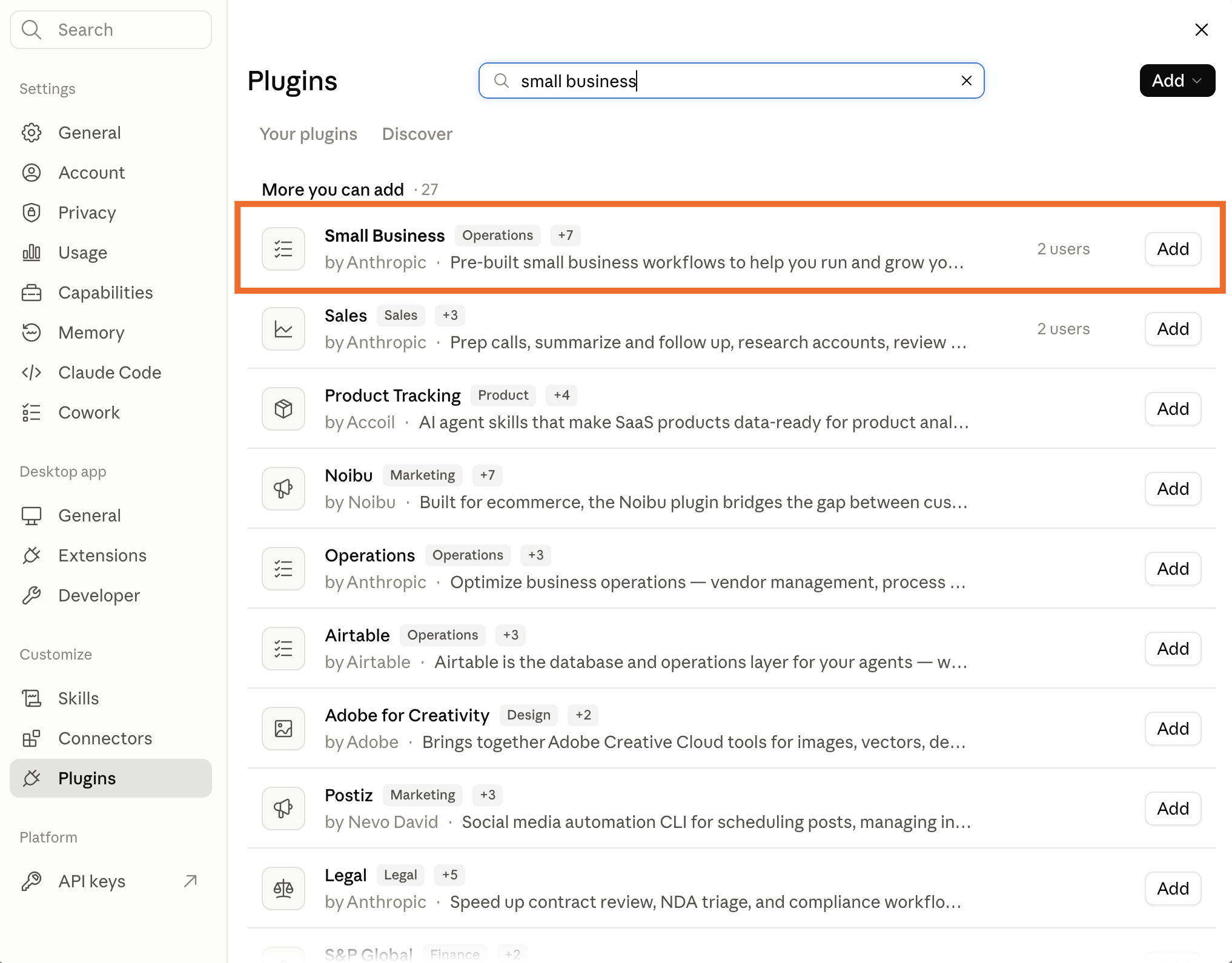
Click Plugins in the side panel, and then select Browse plugins.
Enter "small business" in the search bar, and click Add next to Small Business. If the plugin doesn't appear, make sure you're in the Discover tab (not Your plugins).


3. Connect your tools with Claude
Claude for small business natively integrates with a handful of apps most small businesses use, but you still need to connect your accounts. You have two options for doing this:
Individually connect tools in Claude. This is a good option if you want to connect to only one or two tools since you have to manually connect and authorize each one.
Securely connect to your entire tech stack via Zapier. This is one install and gives Claude secure access to 9,000+ apps at once (you decide which ones)—there's no separate setup for each app.
Open your plugins manager, click Small Business, and then select the Connectors tab.

Click Connect next to the apps you use, and follow the authorization prompts to connect them with Claude. (Your permissions in each tool carry over, meaning that if an employee can't see something in QuickBooks today, they can't see it through Claude.) Each connector authenticates through your existing login credentials.
If you use the Zapier connector, you only need to authorize once to give Claude secure access to all your apps.

(Note: If you're on an enterprise account, your organization may limit which apps you can connect to, which is why you may see an Install button instead of Connect.)
5. Give Claude a job
Once you've customized Claude, start a new chat, and tell Claude what you want it to do. The Claude for small business plugin comes pre-loaded with over 40 agent skills, so it'll automatically pull in the relevant skill (if needed) to accomplish a given task. For example, if you prompt it with "Who do I need to pay this week?" Claude will automatically use the /pay-the-bills skill to generate its response. Alternatively, you can explicitly tell it which skill to use in your prompt.

6. Let Claude run
Claude works through the task in the background and gives you a running breakdown of its logic and steps. You don't need to sit there watching it (just be sure to leave your desktop app open while it runs). When it finishes, or if it needs a decision from you mid-task, it'll surface what it needs and wait.
Claude for small business use cases
Once Claude's connected to your tools, it can handle a serious amount of the work that normally falls on you. Here are some of the most useful things you can do with it.
Draft and send client invoices. Tell Claude the client name and what to charge. It'll pull the project details from your connected apps, draft the invoice in QuickBooks or PayPal, and send it.
Flag overdue payments. Connect your accounting software, and Claude can automatically scan for outstanding balances and send personalized follow-up emails to each client—or it can hold the draft for your review if you prefer to check before anything goes out.
Create marketing content. Claude can pull your past campaigns from Canva and use them as a reference to draft new social posts or product descriptions.
Handle new client intake. When a lead comes in, Claude can draft a personalized welcome email and create a contact record in HubSpot—without you having to touch each step.
Draft contracts and proposals. Give Claude the project scope and client details, and it'll generate a first-draft proposal or contract from your template. You review and sign via Docusign without the back-and-forth of building it from scratch.
Plan for what's coming. Ask Claude to think through a price increase before you announce it—it can model the impact against your QuickBooks data and flag which clients are most rate-sensitive. (My friend uses it this way to plan annual rate increases and map out her project pipeline for the year ahead.)
Claude for small business limitations
Claude can handle a lot of small business tasks, but there are a few limitations worth knowing about before committing to letting it be your right-hand man (bot?).
The native connector list is short. Claude for small business's partner integrations list covers the most common small business tools, but they're not exhaustive. If your stack runs on something else, the Zapier connector covers the gap.
Approval-gated by default. Every action requires your sign-off before it executes, which is a good thing. But it means you can't fully step away from a task until you've built enough confidence in how Claude interprets your data to ease the review cadence.
Usage scales with complexity. Multi-step workflows eat more of your monthly Claude allocation than simple chat. If you're on Pro and running several intensive workflows daily, you'll need to monitor your usage to avoid hitting limits. You can also consider adding Claude steps to deterministic automations instead, so you're only using tokens when you really need them.
Access needs to be scoped carefully. Claude can take real action in the tools you connect—so point it at specific folders and integrations rather than handing it the keys to everything. Connecting through Zapier helps here: every app connection runs through OAuth-managed credentials with scoped permissions, so you control exactly what Claude can touch from one place.
Related reading:
This article was originally published in August 2026. The most recent update was in September 2026.