Gemini is everywhere in Google apps: it can read your emails, pull in data from your calendar, and find that file you accidentally saved to your work Drive. But no matter how much of your work is in Google, there are always other apps you'll need Gemini to access: things like your CRM, project management tool, marketing automation platform, and help desk, to name a few.
Gemini connectors add a few of those apps into the mix, and with Zapier, you can securely extend that reach to 9,000+ apps across your tech stack. Here's everything you need to know about Gemini connectors, including how to set them up, what they can do, and how to make the most of them.
Note: Gemini Enterprise connectors are different from the connected apps in the personal Gemini app. If you're a personal Google user looking to access your personal intelligence from gemini.google.com, here's a guide to Gemini apps.
Table of contents:
What are Gemini connectors?
Gemini connectors are integrations for Gemini Enterprise that pull from enterprise sources like Confluence, Jira, Salesforce, ServiceNow, Microsoft SharePoint, and dozens more. They're designed for organizations that want Gemini grounded in their internal business data—not just public information or personal accounts.
Gemini Enterprise is a paid product (separate from Google AI Pro or AI Ultra), administered by IT, and accessed through a different interface. If you're a regular Gemini user at work via Google Workspace, this likely isn't your product—unless your organization has explicitly licensed and deployed it.
What can you do with Gemini connectors?
The specifics depend on the app you're connecting to, but you're generally working in two modes:
Read (retrieve): Gemini can pull information from connected apps to give you more relevant, personalized answers. Ask it to summarize your unread emails, find a lead in your CRM, or update a ticket in your project management tool—and it'll reach in and get it, rather than asking you to paste everything in yourself. Click Connectors in the chat box to toggle which sources Gemini can draw on, or let it figure out which connected service is relevant on its own.
Write (take action): Some connectors let Gemini do things, not just read. That means you can do things like create tasks, send messages, and update records. The range varies by app—each one has a defined set of supported actions.
That means you could do something like ask Gemini to check your Gmail for a customer's latest message, draft a reply, and add a follow-up task to your project management app—all from one conversation.
How to set up Gemini connectors
Gemini connectors are set up by admins, not individual users.
In the Gemini Enterprise app admin console, click Settings & help (cog icon).
Click your team name, then select Manage team.
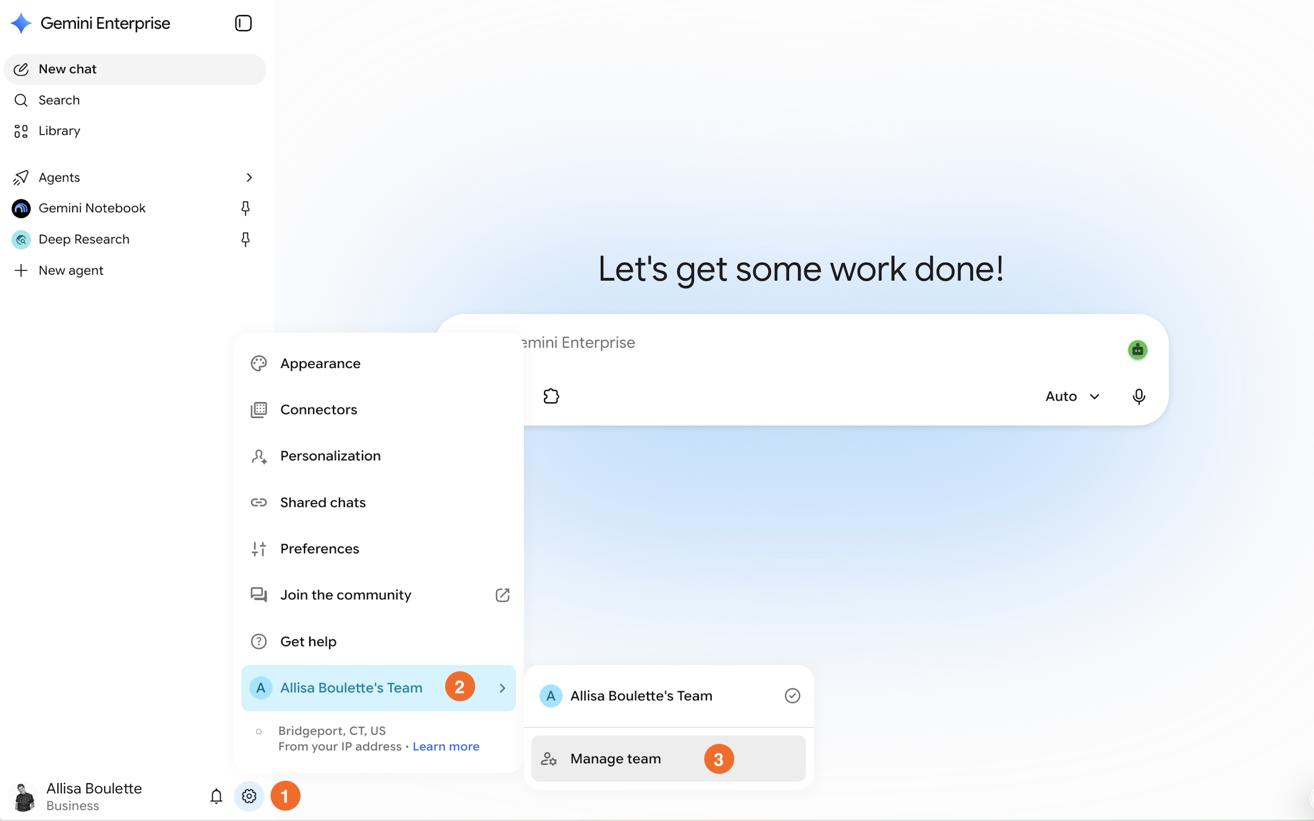
Click Connected apps.
Toggle the switch next to the app you want.
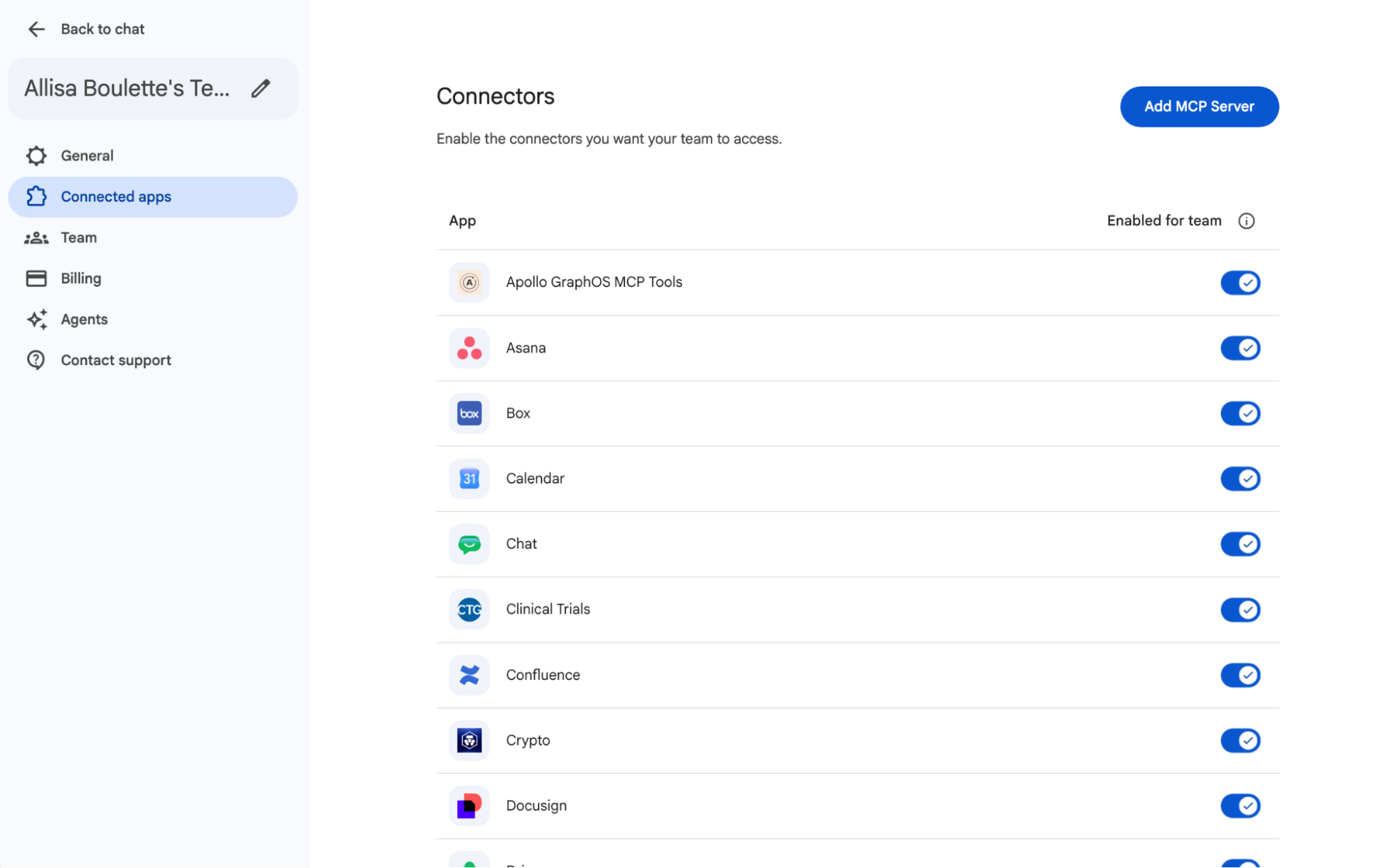
Authenticate with the source system and setting permissions when prompted.


Once an admin has configured a connector, employees can search and interact with that data through the Gemini Enterprise app interface—asking natural-language questions that draw on the connected sources while respecting each user's underlying permissions.
Gemini Enterprise currently has over 100 connectors, covering Google Workspace, Microsoft 365 (SharePoint, OneDrive, Outlook, Teams), Atlassian (Jira, Confluence), Zapier, Salesforce, ServiceNow, Slack, Zendesk, GitHub, Dropbox, and more. It also supports custom connectors for data sources outside the catalog.
If you're evaluating whether Gemini Enterprise is right for your organization, the Gemini Enterprise connectors directory has the full list, broken down by edition (Business vs. Standard/Plus).
How to add a custom connector or MCP server
In the Gemini Enterprise app admin console, click Settings & help (cog icon).
Click your team name, then select Manage team.
Click Connected apps.
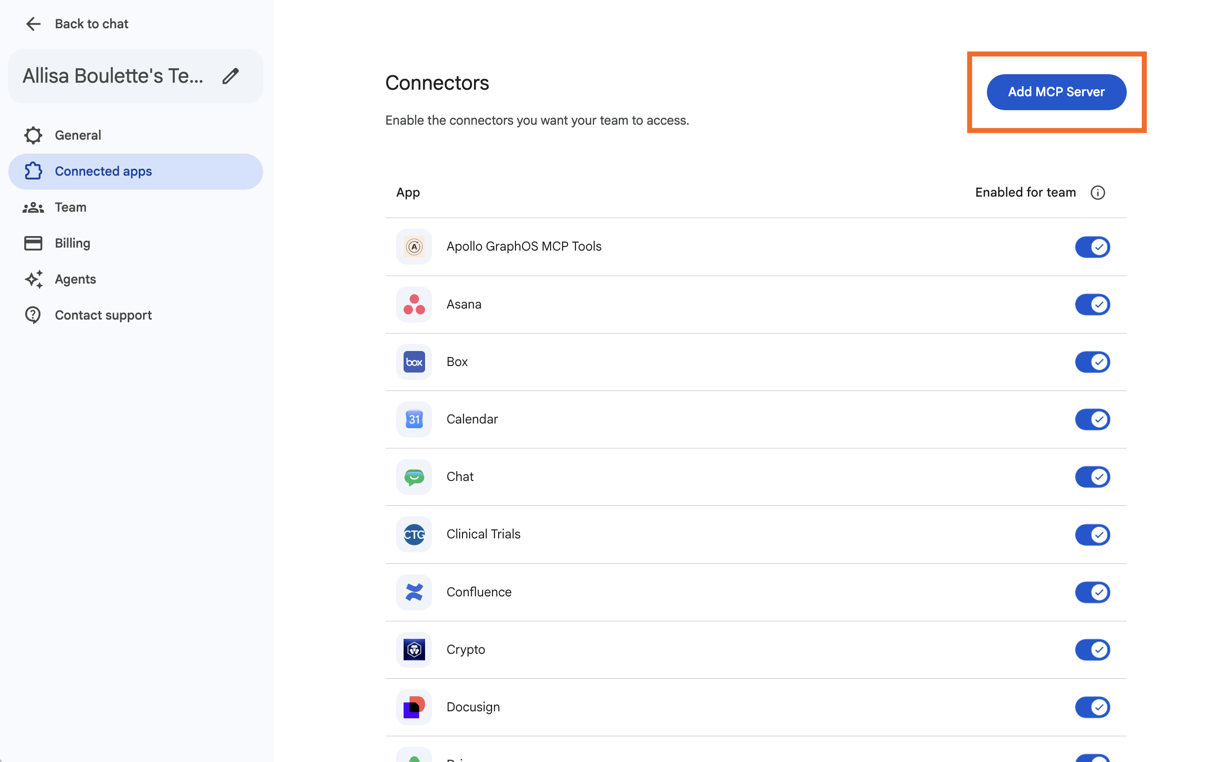
Click Add MCP Server.
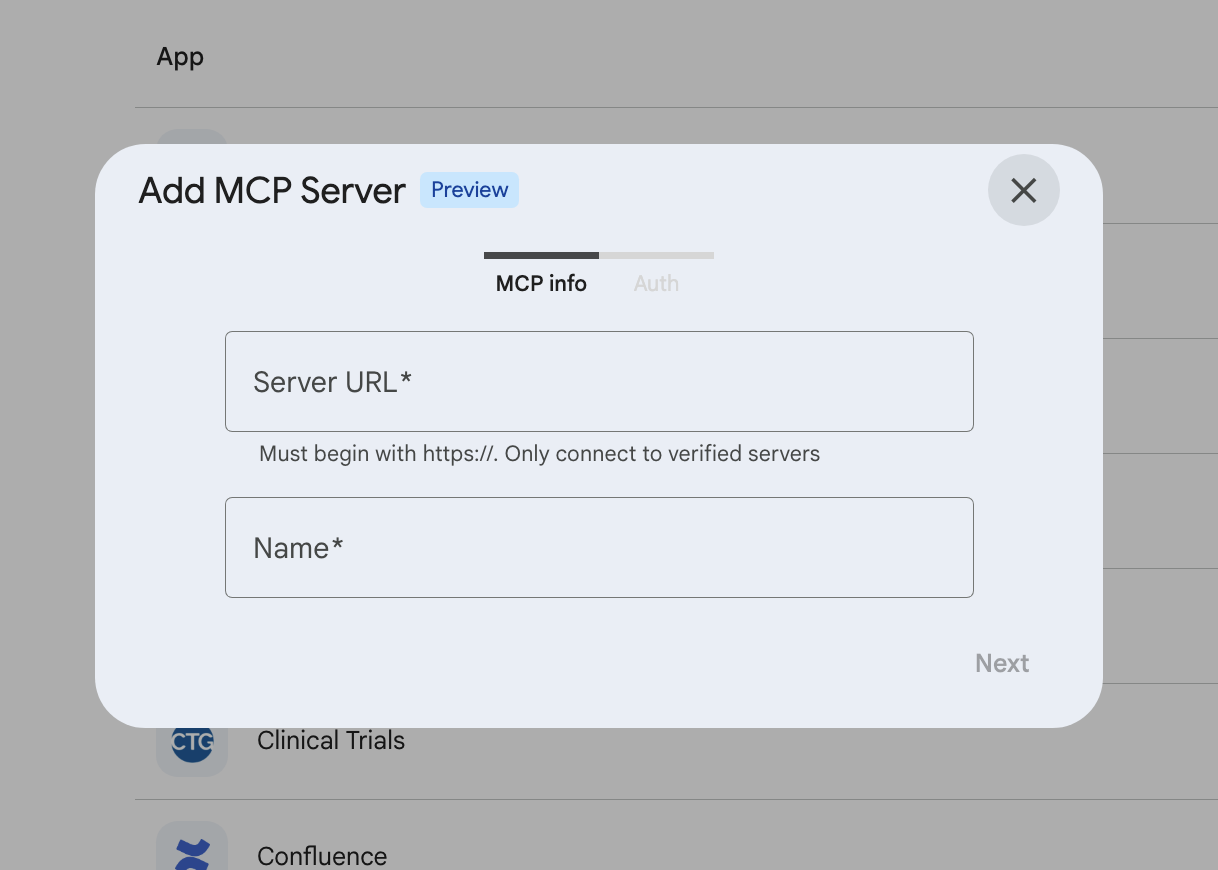
Under MCP info, enter the MCP server URL and a name.
Under Authentication settings, enter your Authorization URL, Token URL, Client ID, Client Secret, and Scopes.
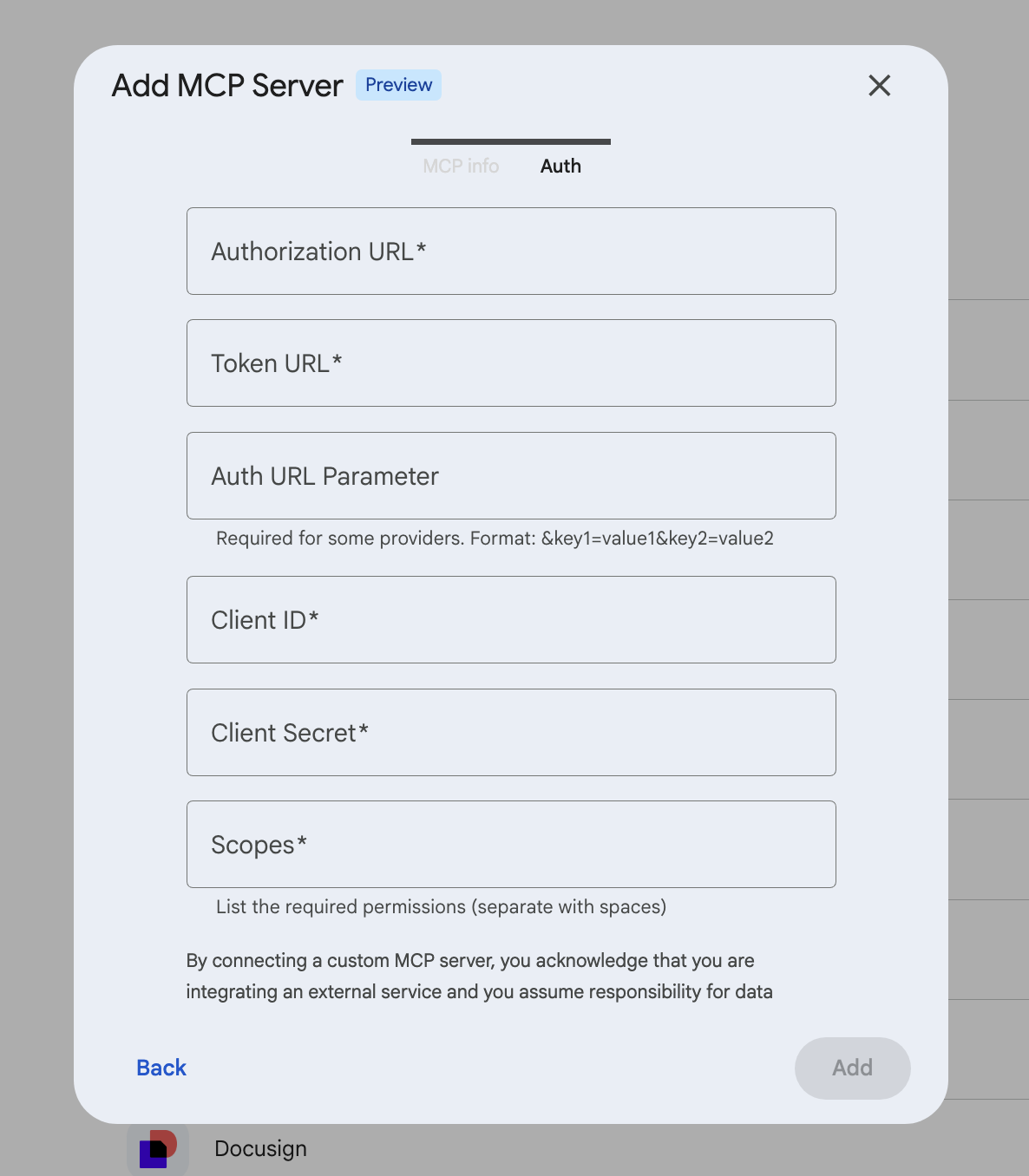
Click Add and enable the connection.


Once configured, the custom connector is available to users just like any other connector.
Connect Gemini to 9,000+ apps with Zapier
Native Gemini connectors cover a solid range of popular apps. But plenty of your stack won't be in the catalog; and even for apps that are, native connectors have limits on what they can actually do. Zapier lets you securely connect Gemini Enterprise to 9,000+ apps—and you can bring the power of Gemini straight into your existing workflows.
Build deterministic workflows and add AI only when you need it
Zapier's automation platform lets you build workflows that run in the background: a trigger event happens in one app, and Zapier automatically takes action in another app as a result. But that's the basic version. You can stack in filters, formatters, conditional paths, error handling, and other customizable nodes to build complex systems across your tech stack.
Wherever those workflows need reasoning, generation, or classification, you can use AI by Zapier to add Gemini steps to the automation—while the rest of the workflow runs without burning tokens on tasks that don't need intelligence. You can choose from a variety of Gemini models (costing Zapier tasks, not tokens), or bring your own API key.

Zapier lets you blend AI with deterministic automation, giving you the kind of precision that isn't possible with conversational connectors.
Access 9,000+ apps directly in Gemini via Zapier's Gemini connector
If you add the Zapier connector to Gemini Enterprise, you'll give your team governed access to 9,000+ apps directly from their Gemini chat window.
Some examples of what this looks like in practice:
Pull data from your CRM, analyze pipeline health, and push a summary to a Slack channel—without leaving Gemini.
Ask Gemini to catch you up on what happened across your apps while you were out, surface action items, and draft replies.
Pull project notes and transcripts from tools across your stack, generate a status update, and drop it wherever your team expects it.
You decide which apps and actions Gemini can access, so you stay in control the entire time. And you're not tied to Gemini: If you want to run the same workflow through Claude or ChatGPT next quarter, Zapier works across all of them.
Gemini connectors FAQ
Are Gemini connectors free?
No. Connected Apps (personal Gemini) are free to use with any Google account (though some third-party apps in the directory require their own paid subscription). But Gemini Enterprise connectors are part of the Gemini Enterprise plan, which is a paid enterprise product.
What's the difference between Connected Apps and Gemini Enterprise connectors?
Connected Apps are for personal Gemini (gemini.google.com)—they connect your individual accounts to apps like Spotify, Gmail, GitHub, etc. Gemini Enterprise connectors are for the Gemini Enterprise app, an enterprise platform that connects Gemini to organizational data sources like Confluence, Salesforce, and SharePoint. It's a completely different product.
How many connectors does Gemini have?
Gemini Enterprise has over 100 pre-built enterprise connectors and supports custom connectors for anything outside that list. For anything not natively covered on either side, Zapier gives you access to 9,000+ apps via a single connection.
Are Gemini connectors safe?
Yes. Gemini Enterprise enforces user-level access controls—Gemini can only surface data you're permitted to see in the connected source. If you use Zapier, you get the same OAuth-managed, governed authentication model across 9,000+ apps.
What happened to Google Agentspace?
Google Agentspace was renamed Gemini Enterprise in mid-2026. It's the same product with the same connector infrastructure—the rebrand brought it under the Gemini umbrella. Existing Agentspace customers can continue using their current setup without changes.
Related reading: