
Claude is generally considered to be the best chatbot for almost everything. Marketers will tell you it writes better than other chatbots; developers will tell you it codes better; and people who inexplicably think it's a good idea to use AI as a therapist will tell you it's kinder than other models.
It's all grounded in reality: Claude is particularly good at reasoning through hard problems, creating original content, and surfacing insights from whatever you throw at it. But if you're using it at work, you also want Claude to actually take action in your other apps, doing things like pulling in your data, creating records, and sending messages.
There are a few ways to connect Claude to your other tools. If you've already poked around and gotten confused by the terms—like connectors, plugins, or MCP—you're in good company (hi). Anthropic has rolled these features out in waves, and the naming hasn't always been intuitive. But after spending more time than I'd like to admit clicking through the docs and settings, here's everything you need to know.
Table of contents:
What are Claude connectors?
A Claude connector is a native integration that gives Claude access to an external service—apps like Google Drive, Slack, and GitHub. Connectors handle the authentication and expose the operations Claude can use: searching your files, retrieving content, and doing things inside those apps.
In practice, that means you can take action in other apps directly from your Claude chat.
Claude connectors vs. Claude plugins
Claude connectors and Claude plugins are somehow two different things. Here's what they refer to:
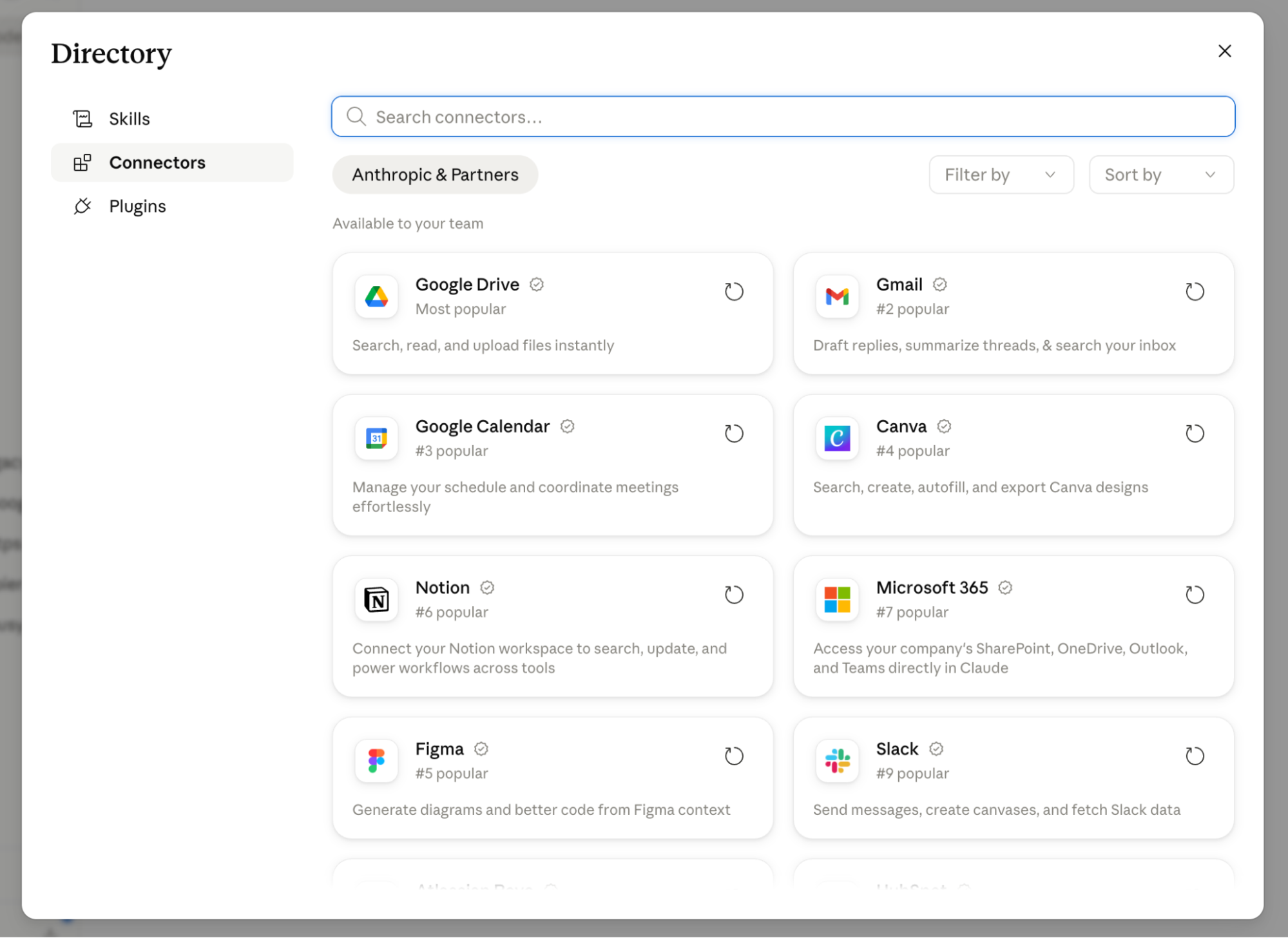
Claude connectors are the integrations themselves—the individual connections to services like Gmail, Figma, or Notion. You can browse and install them from the Connectors Directory. Connectors are available to all users on all plans (including free—but you can only use one at a time on a free plan).
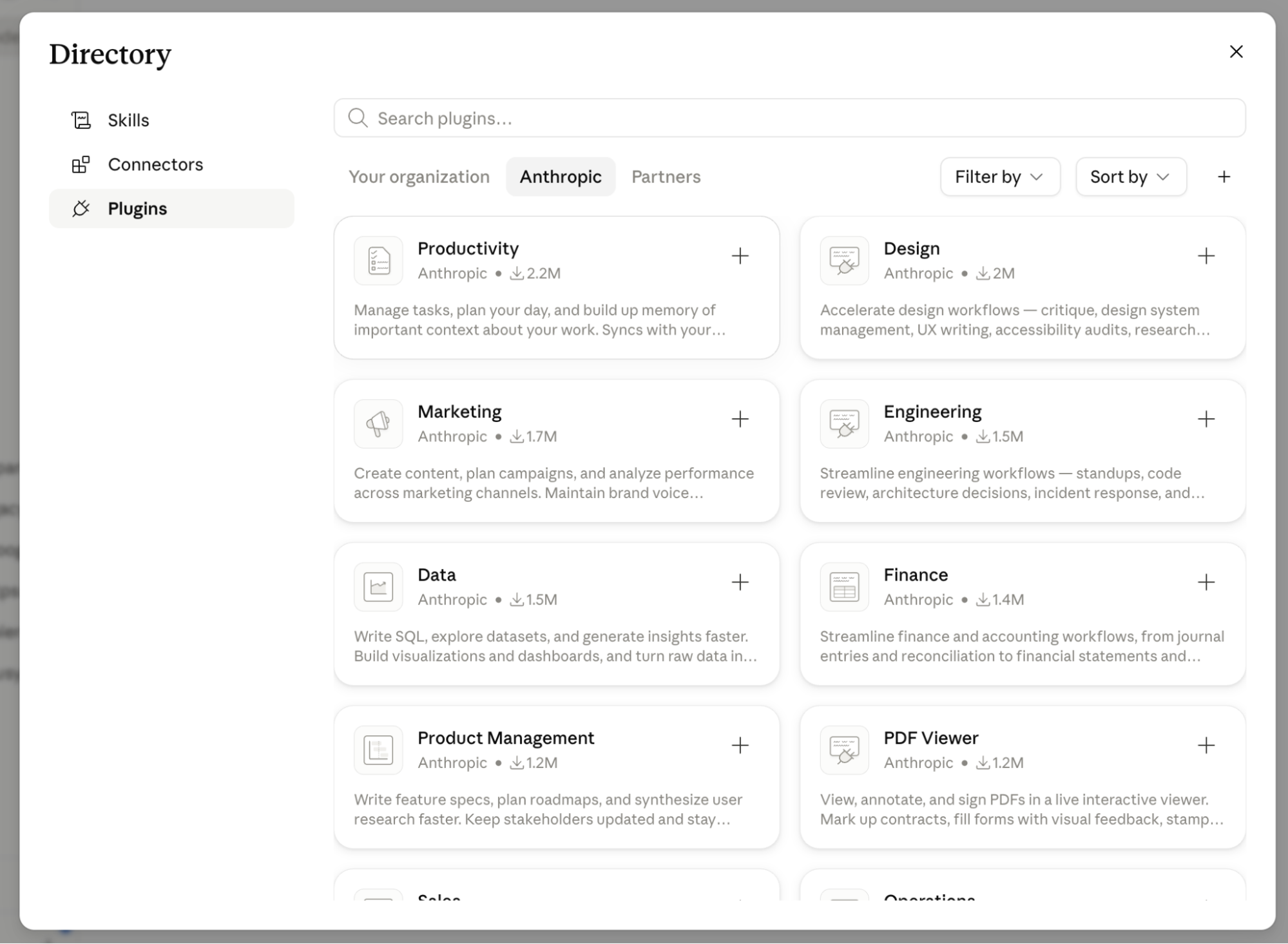
Claude plugins are installable bundles that can include connectors, but also include skills (pre-built commands) and sub-agents. Those things are then all packaged together for a specific workflow or role. Think of a plugin as a ready-to-go setup for, say, a marketing workflow or a finance research task. Plugins are only available on paid plans.


You'll also hear MCP come up a lot. MCP (model context protocol) is the open standard (developed initially by Anthropic) that's working under the hood for these connectors.
You don't really need to know the nuances here, though. Focus on figuring out the best way to get Claude connected to the apps you already use.
What can you do with Claude connectors?
What you can do with a Claude connector depends entirely on what capabilities that connector supports. But generally, you're looking at two categories:
Read (search): When Claude has access to your other apps, it can search them and read their contents. That means Claude will have live context for all your questions instead of just relying on its training data or publicly available information.
Write (take action): Claude connectors can actually do things in your other apps. That might mean creating issues in a task management app, drafting and sending messages in a chat app, updating records in your CRM, adding files to storage, or whatever the connector supports.
An example of what this might look like in practice: a project manager could ask Claude to pull all open issues from Linear, cross-reference them with notes from recent standups in Google Drive, and send a status report to stakeholders in Slack—all without leaving the chat window.
How to use Claude connectors
Here's how to use connectors in Claude:
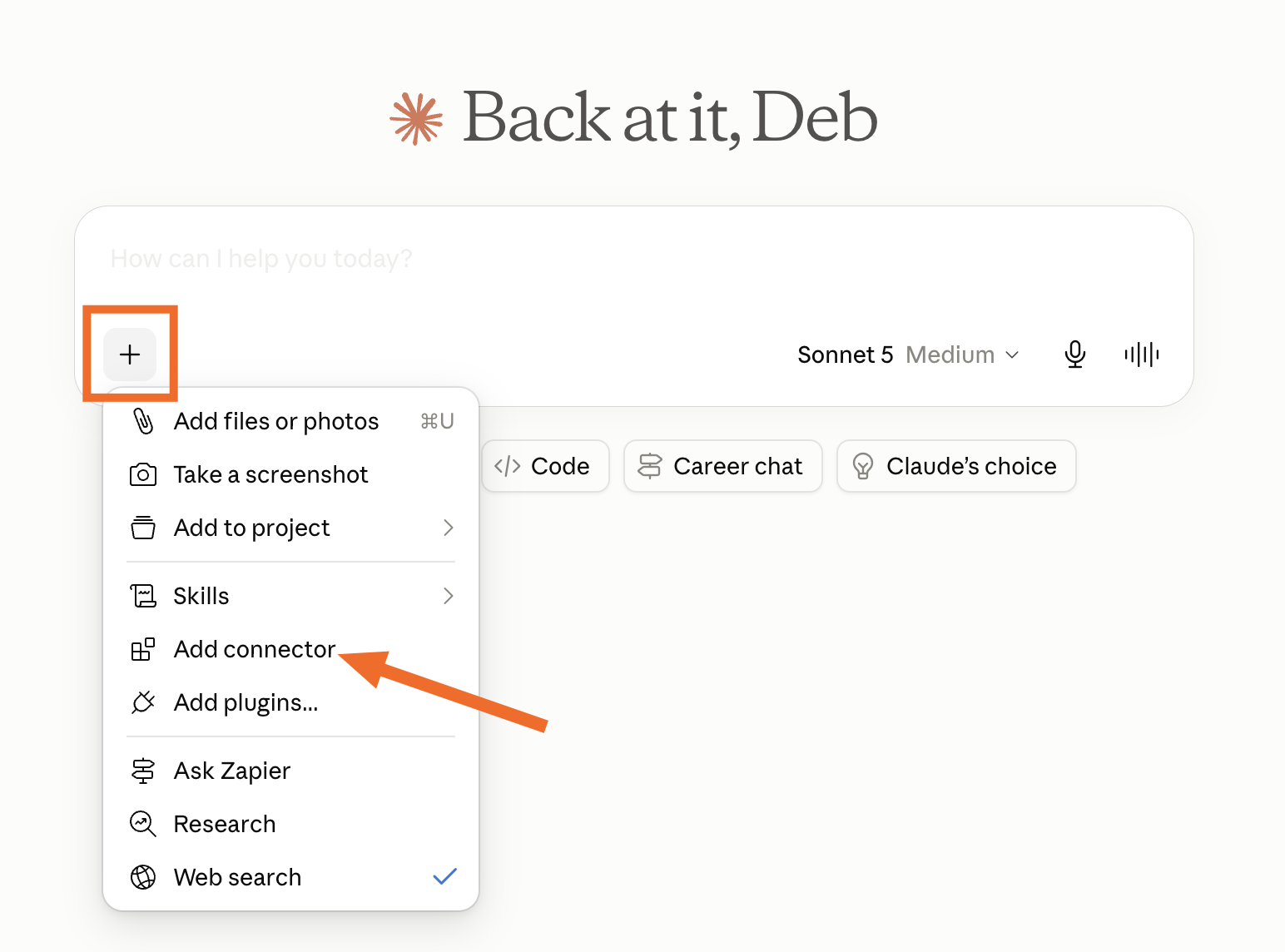
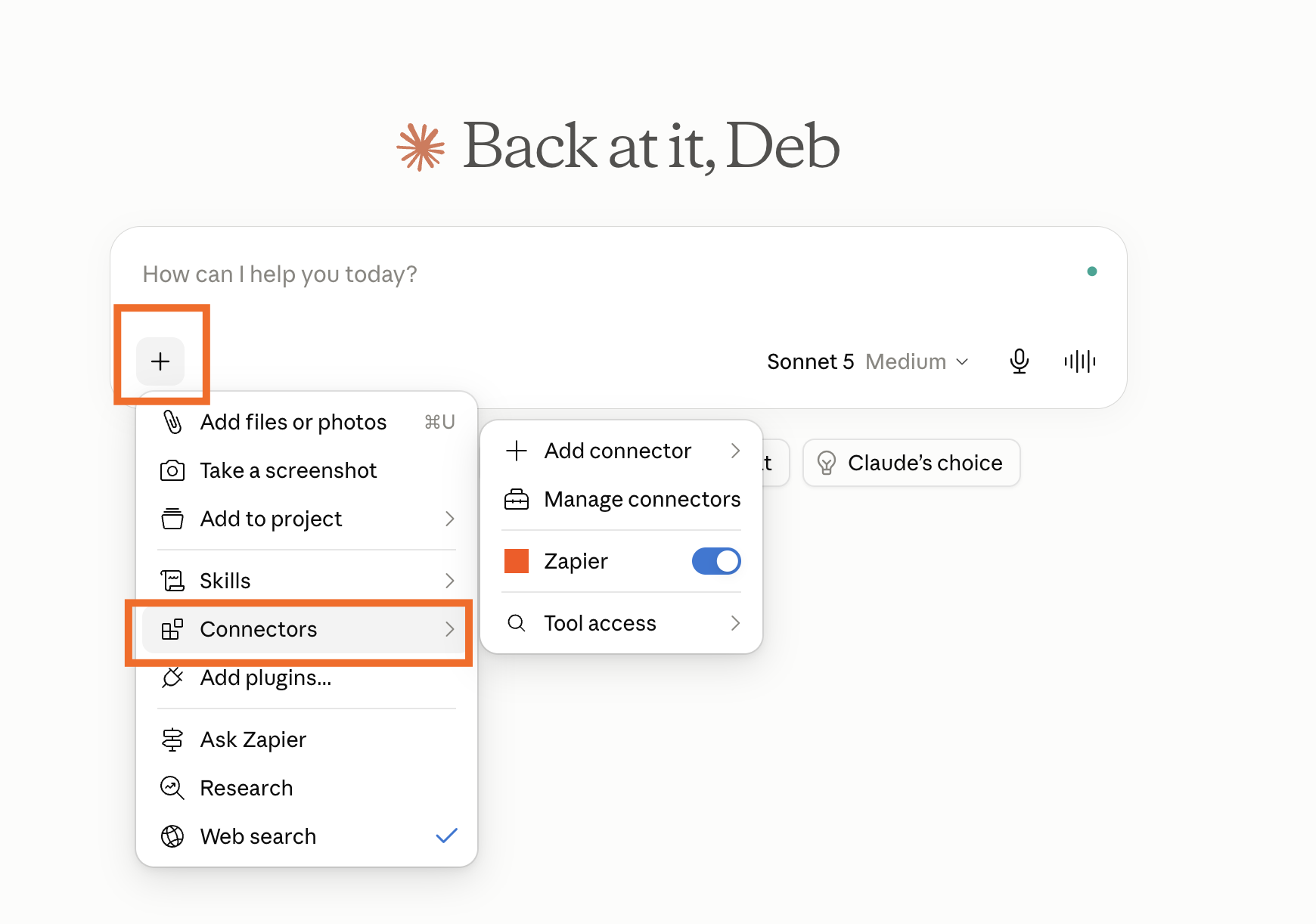
Click the plus (+) button next to the chat window, and select Add connector.
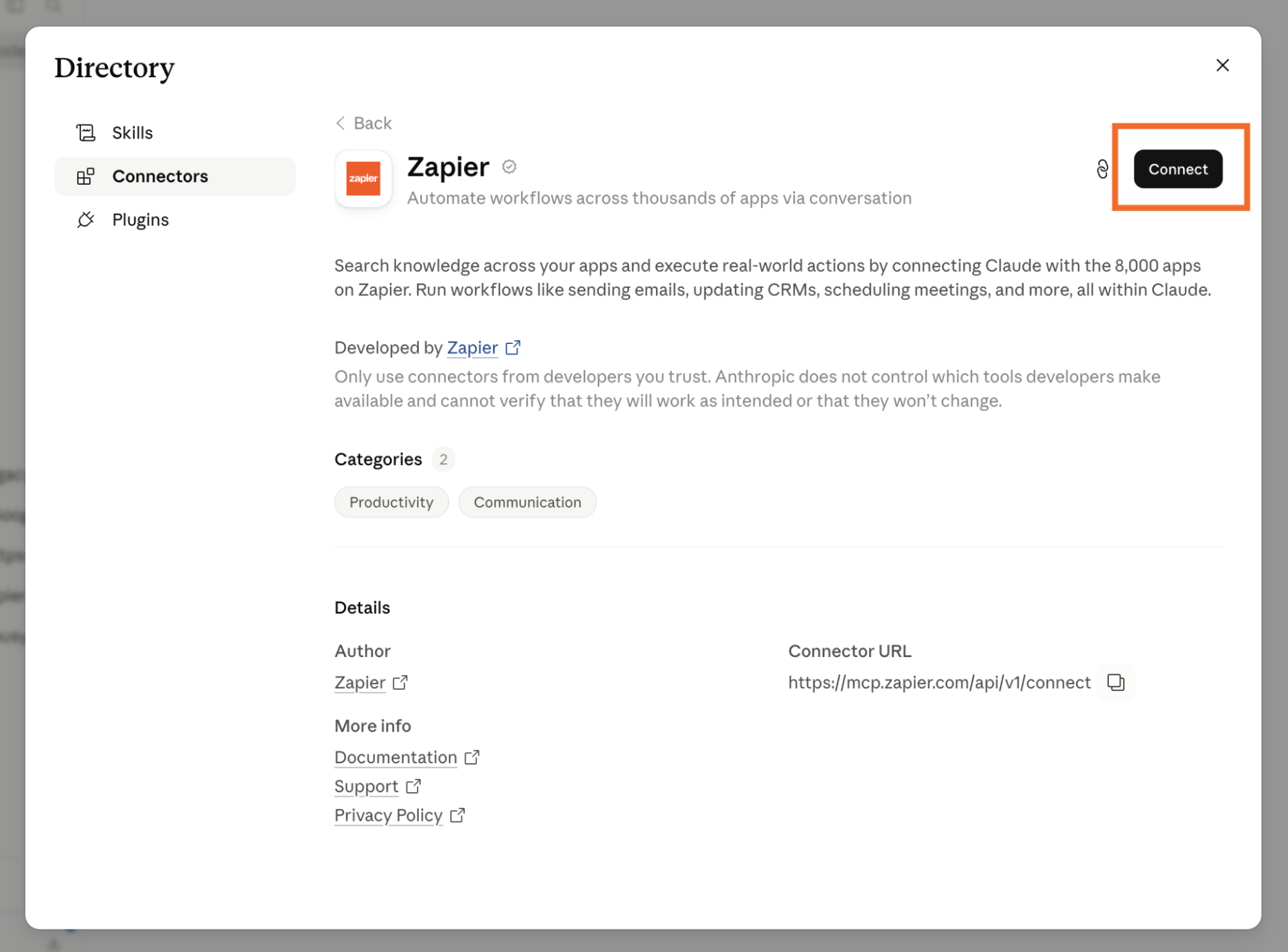
The directory will open. Filter based on what you need, or search for the service you want to connect.
Click the connector you want, review its description and capabilities, then click Connect.
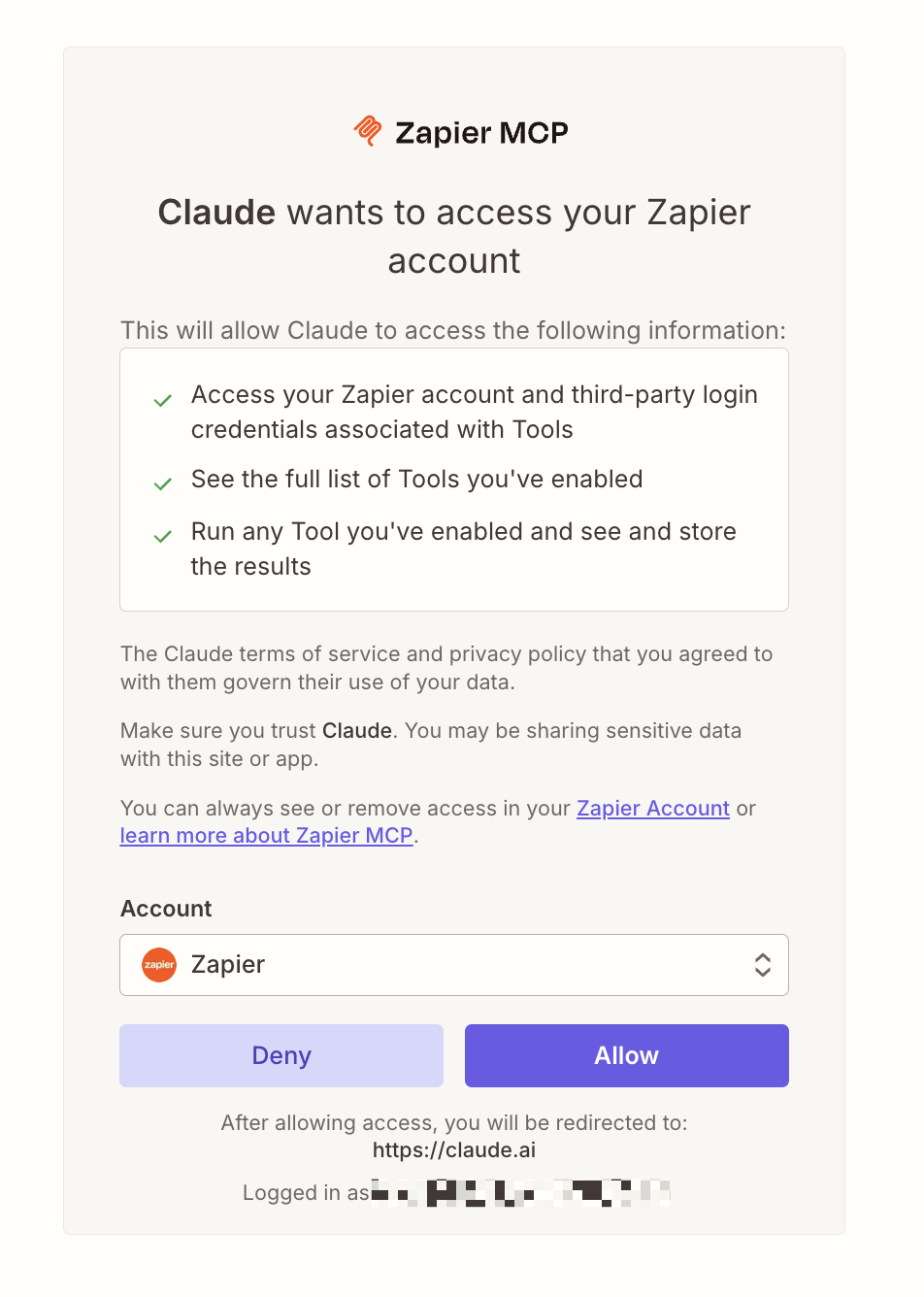
Follow the authentication prompts to grant Claude access to your account. It might open a new browser tab, and some apps offer a quickstart prompt for after installation.
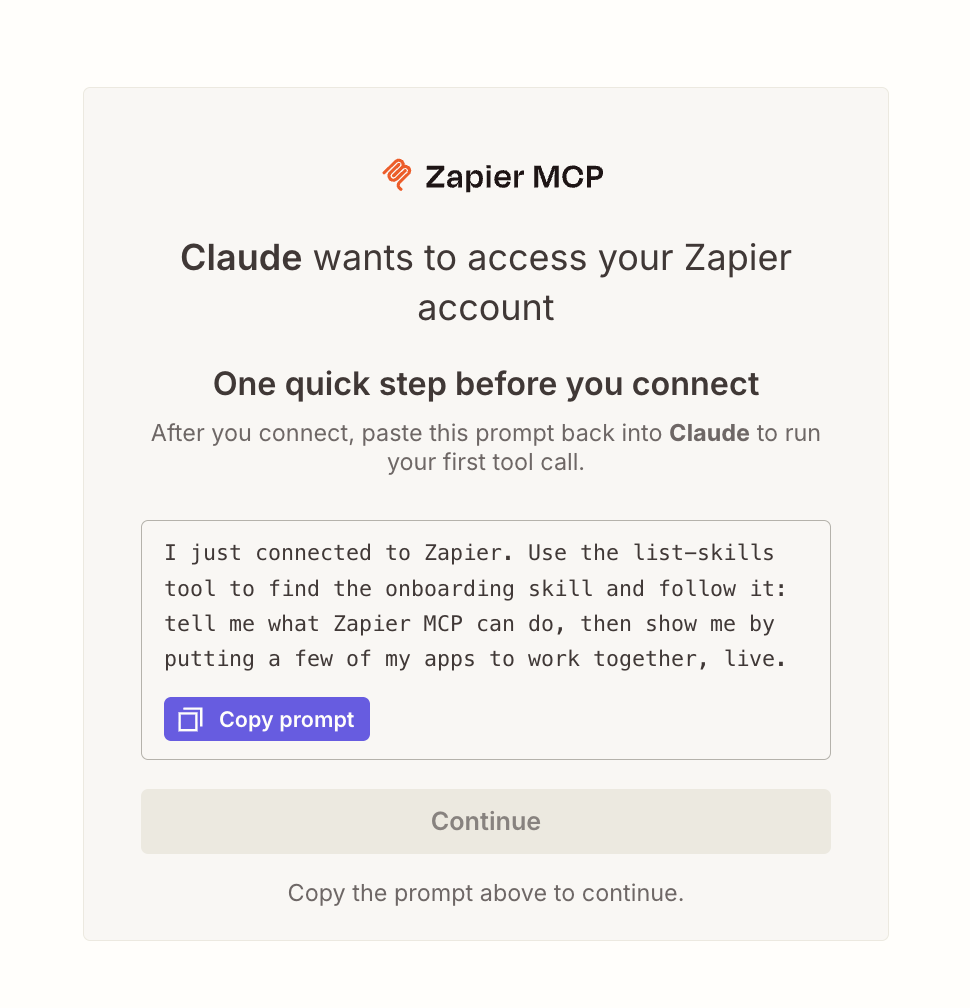
Click Allow to give Claude permission to access your account.
You'll be brought back to the Claude chat window. Now, you can click the plus sign (+) in any conversation, hover over Connectors, and toggle the connector on (though it should be on by default). Claude will also suggest connected apps on its own when they're relevant to what you're asking—you don't have to invoke them explicitly every time.


Note: On Team and Enterprise plans, an account owner needs to enable each connector at the org level (then individuals will authenticate on their own). Enterprise plans also support org-managed auth, which lets you authorize a connector once for the entire organization.
How to remove connectors from Claude
You can remove a Claude connector in a couple ways, but the easiest way is from your settings.
Click Customize in the sidebar, and then select Connectors.
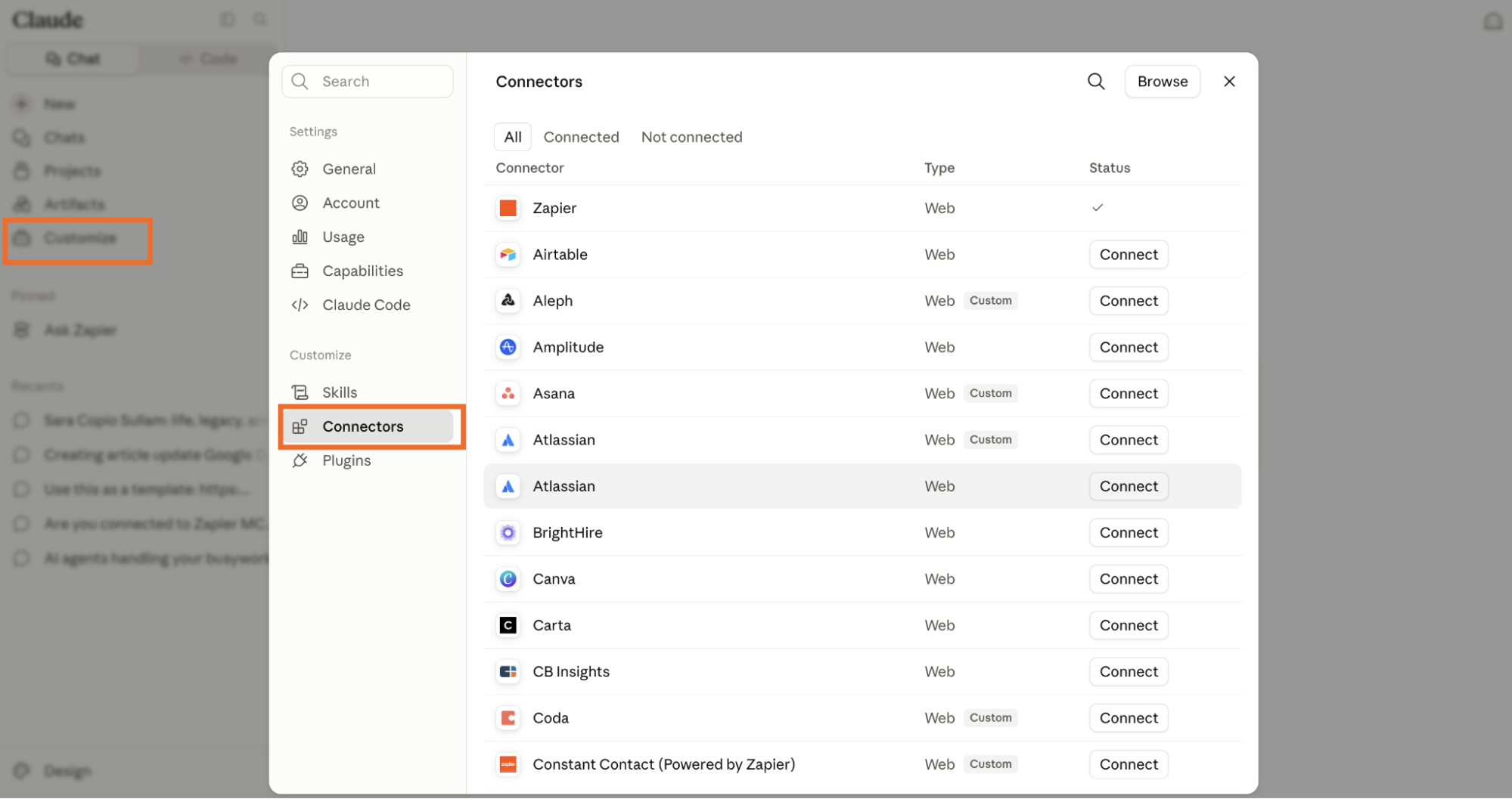
Find the connector you want to remove, and click it.
Click Disconnect.
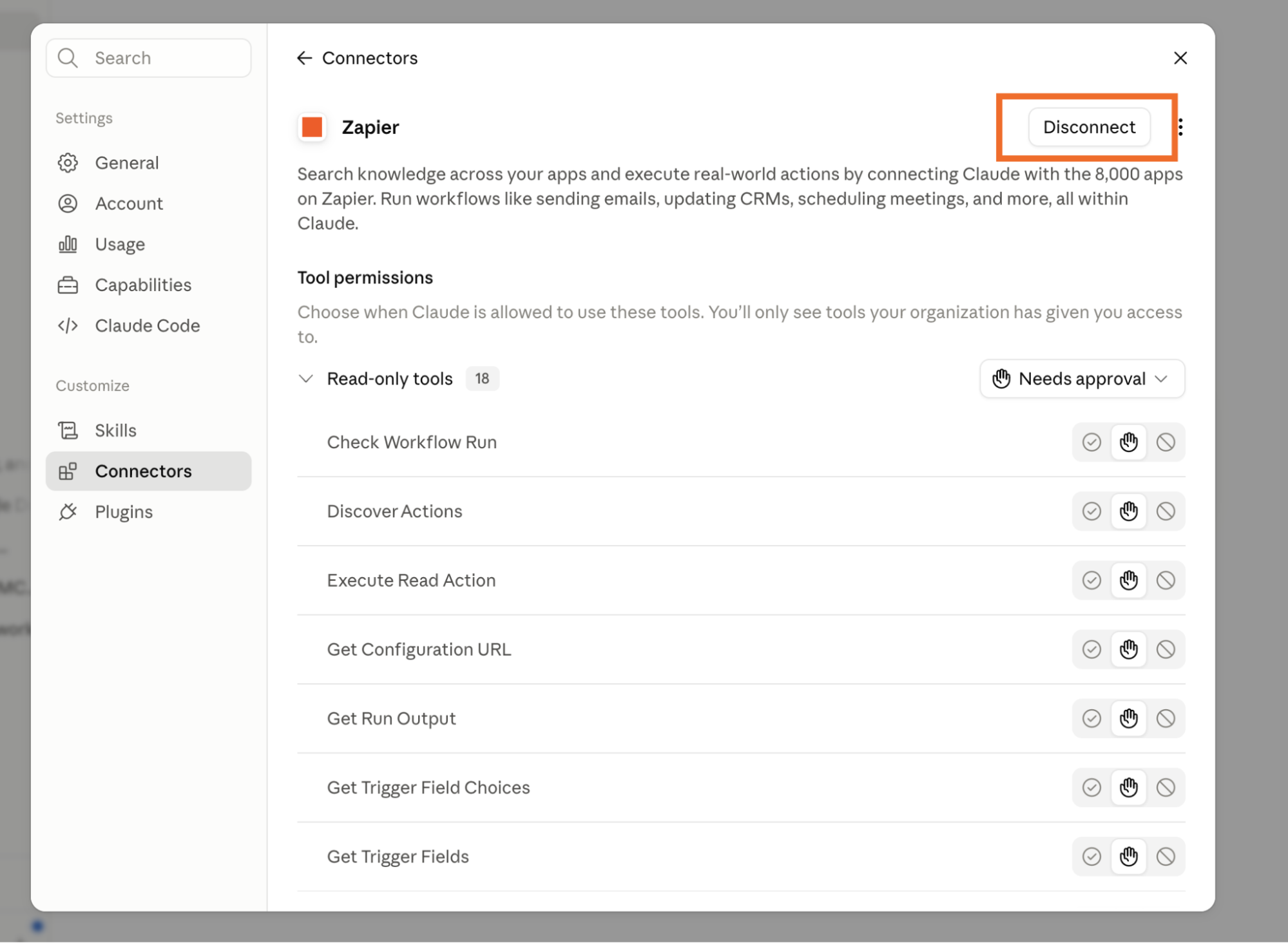
Click Disconnect again in the confirmation modal.


If you change your mind, you can always reconnect it. Also, if you just want to turn a connector off for a short time, you can use the toggle method I described earlier.
How to add Claude custom connectors (MCP servers)
If Claude doesn't natively connect to the app you need it to, or if you've built your own MCP server, you can add it as custom connector.
Note: What I'm about to show you is only possible on a personal plans. If you're on a Team or Enterprise plan, your admin will need to enable the custom connector for your entire organization, at which point, you'll be able to find it under Customize > Connectors.
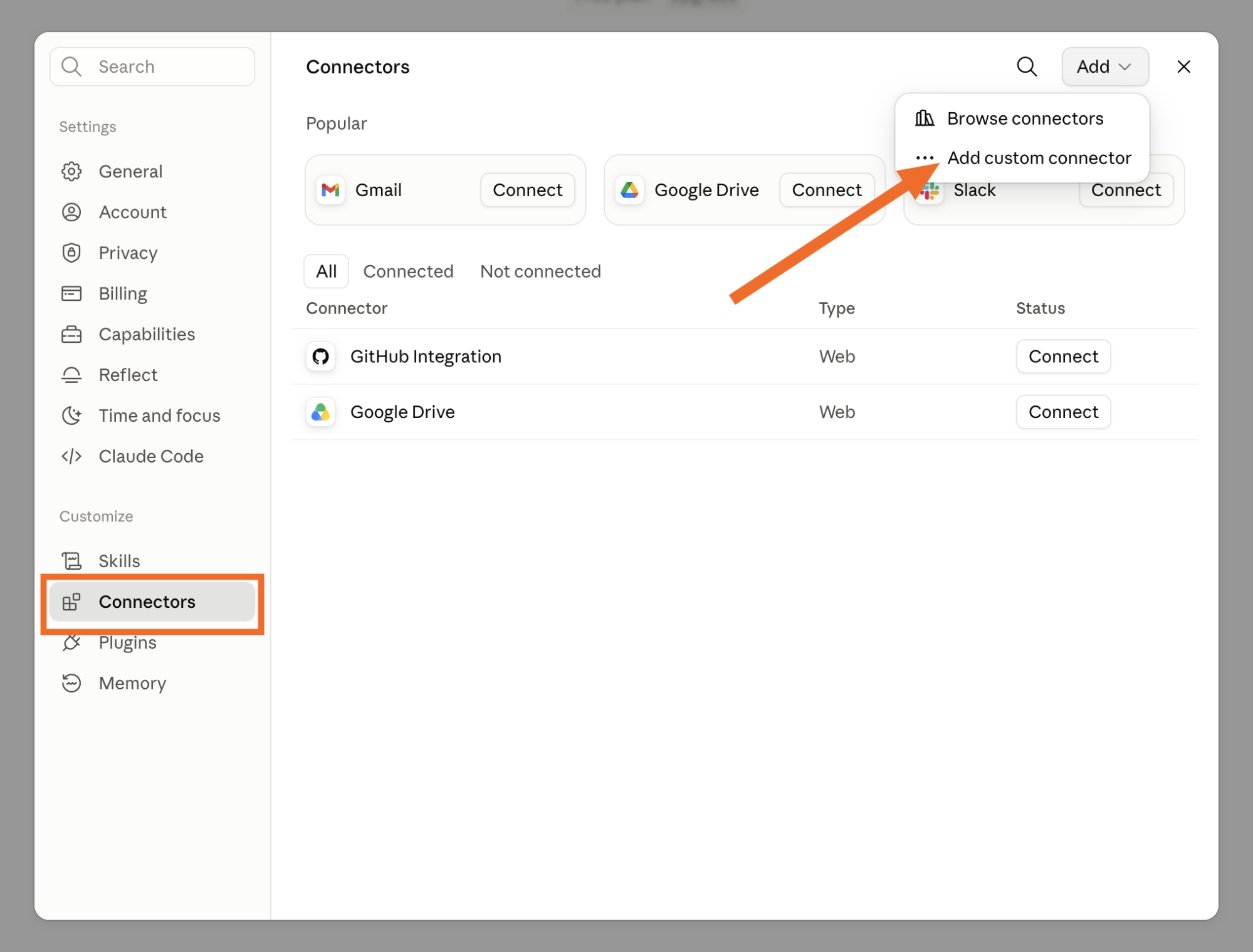
Click Customize in the sidebar, and select Connectors.
Click Add, and select Add custom connector.
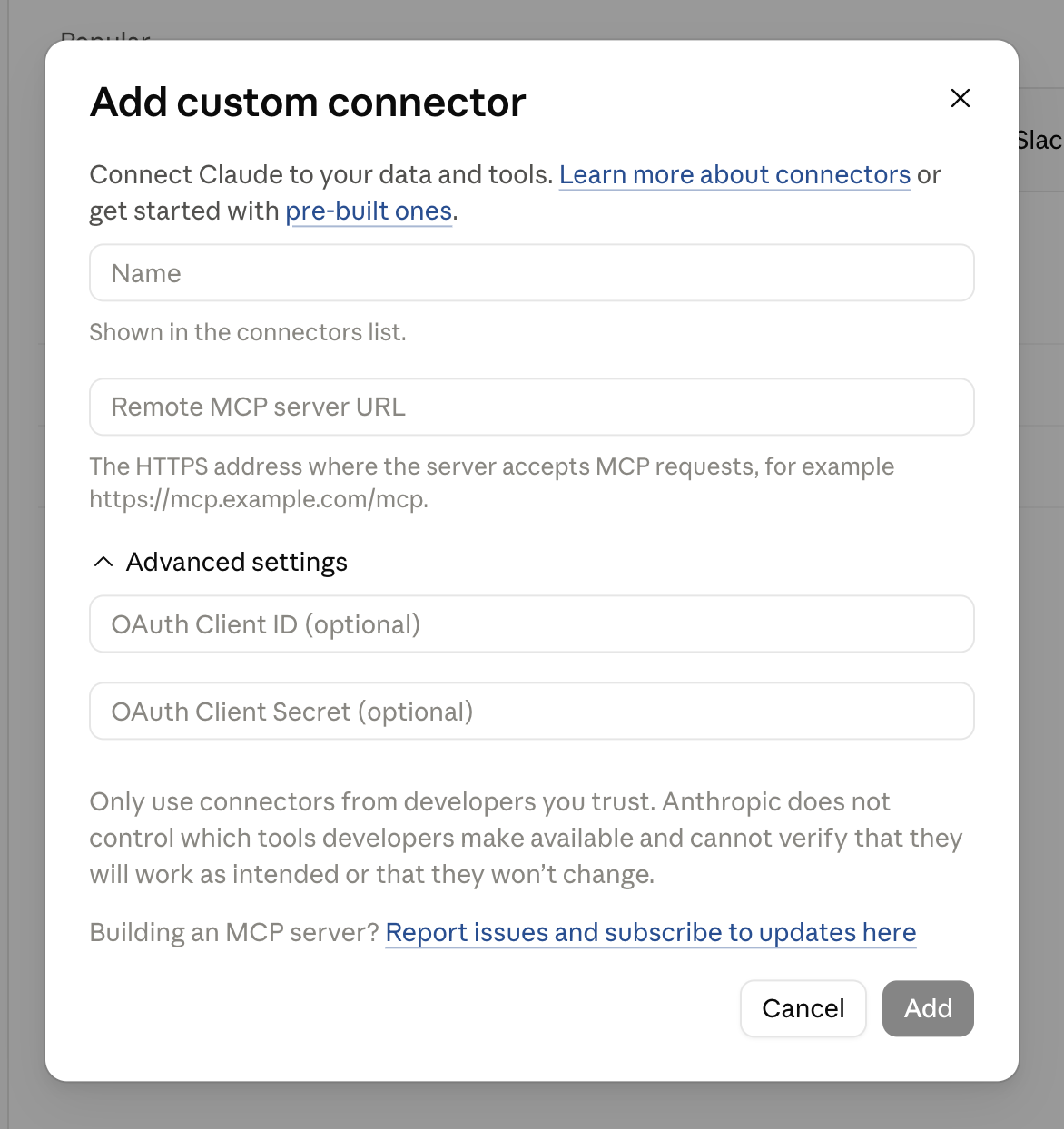
Enter the connector's name and the URL of the MCP server.
Follow the authentication prompts to grant Claude access to your account. It might open a new browser tab, and some apps offer a quickstart prompt for after installation.
Allow any permissions as needed, and click Allow.
You'll be brought back to the Claude chat window. When you click the plus sign (+) in any conversation and hover over Connectors, you can toggle the connector on (though it should be on by default). But just like with native connectors, Claude should be able to figure out when to use the custom connector without you explicitly telling it.


Connect Claude to your entire tech stack with Zapier
If you want to connect Claude to your entire tech stack, Zapier is what you're looking for. Zapier has been securely connecting apps for 15 years, and now it lets you build Claude-powered automations or take action directly from Claude in 9,000+ apps.
Build deterministic automations and add AI only when you need it
Zapier's automation platform lets you build workflows that run in the background. The baseline model is trigger → action: when something happens in one app, Zapier automatically does something else in another app as a result. But you can also add things like filters, formatters, delays, error handling, and conditional paths, and build complex, multi-step workflows connecting your entire tech stack.
Then, wherever those workflows need the reasoning or generative power of Claude, you can use AI by Zapier to add Claude steps to the automation—while the rest of the workflow runs without burning unnecessary tokens. You can choose from a variety of Claude models (costing Zapier tasks, not tokens), or bring your own API key.

With AI by Zapier, you get something native Claude connectors can't give you at all: the ability to blend AI into deterministic automation. You're not triggering a full AI conversation when you just need a row added to a table. Instead, you have a workflow that uses Claude only where it adds value—and runs automatically everywhere else.
Take action directly from Claude with Zapier MCP
Zapier MCP is a custom Claude connector that gives you governed access to 9,000+ apps directly from your Claude chat window. Install it once, give it access to the apps and actions you want Claude to work with, and then you can connect to your entire tech stack straight from your chat window.
Some examples of what this looks like in practice:
Pull your Salesforce pipeline data, calculate a weighted forecast, and push the summary to Google Sheets and Slack—without leaving Claude.
Ask Claude to catch you up on what happened in Slack while you were out of office, surface action items, and draft replies. Anything that needs a human touch can get pushed to your to-do list.
Pull meeting transcripts and call notes, draft a polished summary with decisions and next steps, and have it ready to send to clients.

It works no matter what your team's tech stack looks like, and because you can specify exactly which apps are in scope and which actions are allowed, you're not handing over the keys to your entire stack.

And that governance stays in place even if you switch from Claude to another agent harness. If someone on your team wants to use ChatGPT, Gemini, or whatever AI assistant makes sense next quarter, Zapier MCP works across all of them.
Claude connectors FAQ
Here are some answers to the questions people (rightfully) tend to be asking the most about Claude connectors.
Are Claude connectors safe?
Yes. Native connectors use OAuth, which means Claude gets scoped access to a service—it can only do what you've authorized, it can't access content you don't have permission to see, and you control what the connector can do. Remember, though, that custom connectors let you connect Claude to any service that hasn't been verified by Anthropic, so you should only connect to servers from sources you trust, and review the authentication permissions carefully. If you use Zapier MCP with Claude, you get that same OAuth-managed, governed authentication across 9,000+ apps.
Are Claude connectors free?
Connectors are available on all Claude plans, including free (free users are limited to one connector at a time). Plugins—the bundled packages that can include connectors, skills, and sub-agents—are available on paid plans only.
How many connectors does Claude have?
Anthropic's native Connectors Directory includes 2,300+ services, with more being added regularly—but most of those aren't verified by Anthropic. For anything outside that set, you can add a custom connector via MCP, or use Zapier, which covers 9,000+ apps through a single connection.
What data can Claude access through connectors?
It depends on the connector, but the important part here is that Claude can only access what you can access. For example, if you don't have edit permissions on a Google Sheet, Claude can't bypass that restriction.
Related reading:


