
We independently review and test every app we write about. When you click some of the links on this page, we may earn a commission. Learn more.
You're human. So when you look at the text Bob Tester, you quickly recognize that an individual with the first name Bob has the last name Tester. Computers, however, take everything you tell them literally. So if an app has a Full name field and you enter Bob Tester, it won't know which part is the first name and which is the last.
If you work with data that needs to be split—like separating first and last names, or splitting an address that's in one column into separate street address, city, state, and ZIP Code columns—spreadsheets will take care of it for you. Here's how to split text in Excel and Google Sheets.
How to split text in Excel
To keep this demo simple, we'll use full names, but the same steps apply no matter what type of data you're splitting.

To follow along, copy and paste the following list of names into an empty Excel spreadsheet (or you can use an existing list of names):
Bob Tester
Joe Smith
Jane Doe
Madonna
Sir Elton John
Sandra Day O'Connor
Before we get started, make sure you have a few empty columns to the right of your text. This way, Excel will have empty cells to populate your split text. Otherwise, it might end up overwriting your other data.
Select the column or cell range with the text you want to split.
In the Excel ribbon, click Data.
Click Text to Columns.

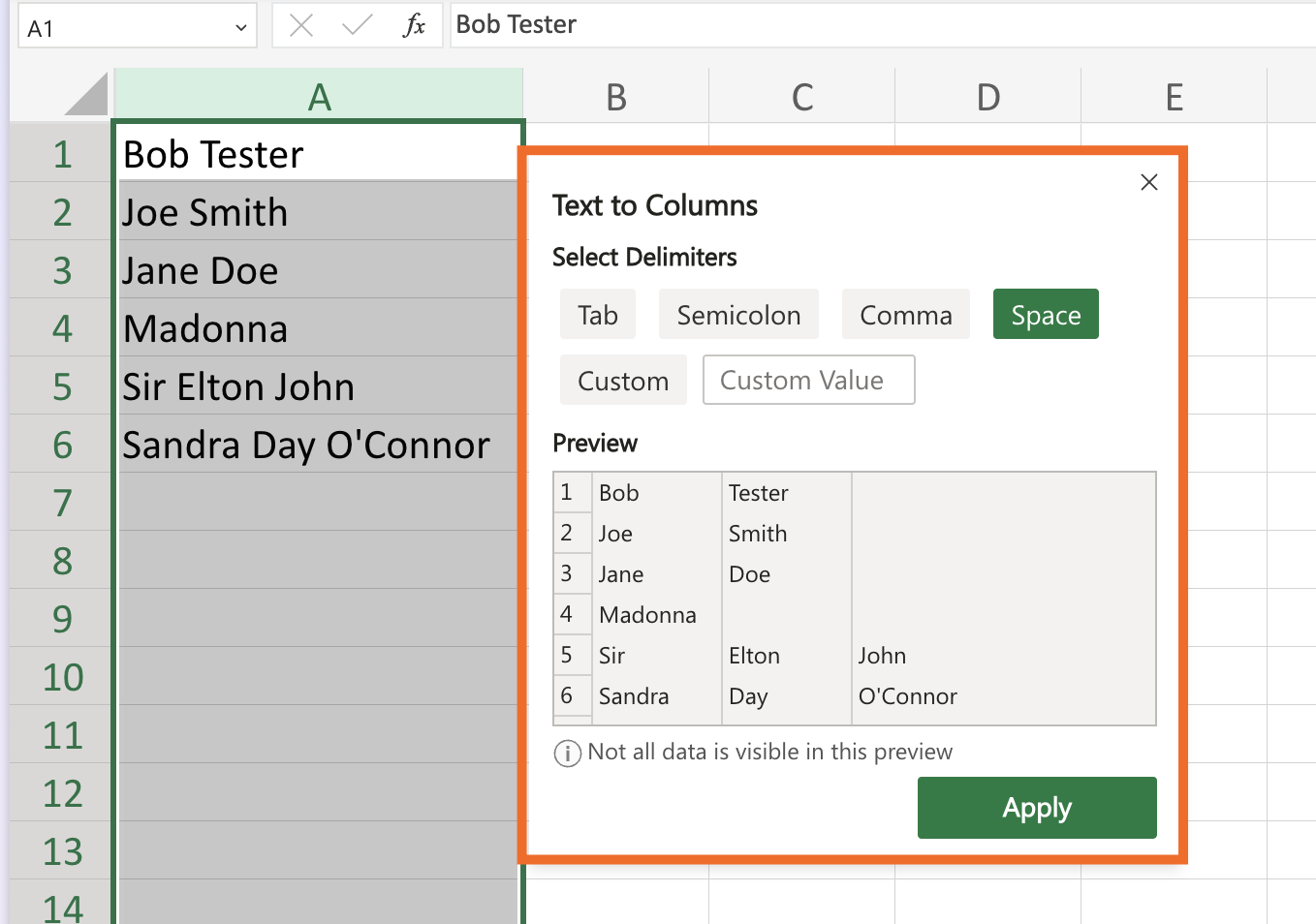
In the Text to Columns pop-up, select your delimiters (what's separating your data). In this example, the delimiter is Space because there's a space between each word. Excel will also show you a preview of how the split text will look.
If you have a list of comma-separated values, such as
123 Main Street, Toronto, Ontario, click the delimiter Comma. And if you're using a delimiter that's not listed, enter your character in the Custom Value box. Say, for instance, you want the domain names from a list of email addresses; you'd enter@as your custom value. From there, Excel would split the username and domain into separate cells.Click Apply.


That's it.
Before you hit save and call it a day, review your newly split text. If your original data don't all follow the same format, like one first name and one last name, Excel will automatically separate any extra data into extra columns. For example, Excel will split the name Sir Elton John across three columns: Sir, Elton, and John. This means you may have to do some extra data cleanup.
How to split text in Google Sheets
The process of splitting text in Google Sheets is similar to Excel. As with Excel, make sure you have a few empty columns to the right of your text before you separate your data in Google Sheets.
Select the column or cell range with the text you want to split.
Click Data, and then select Split text to columns.
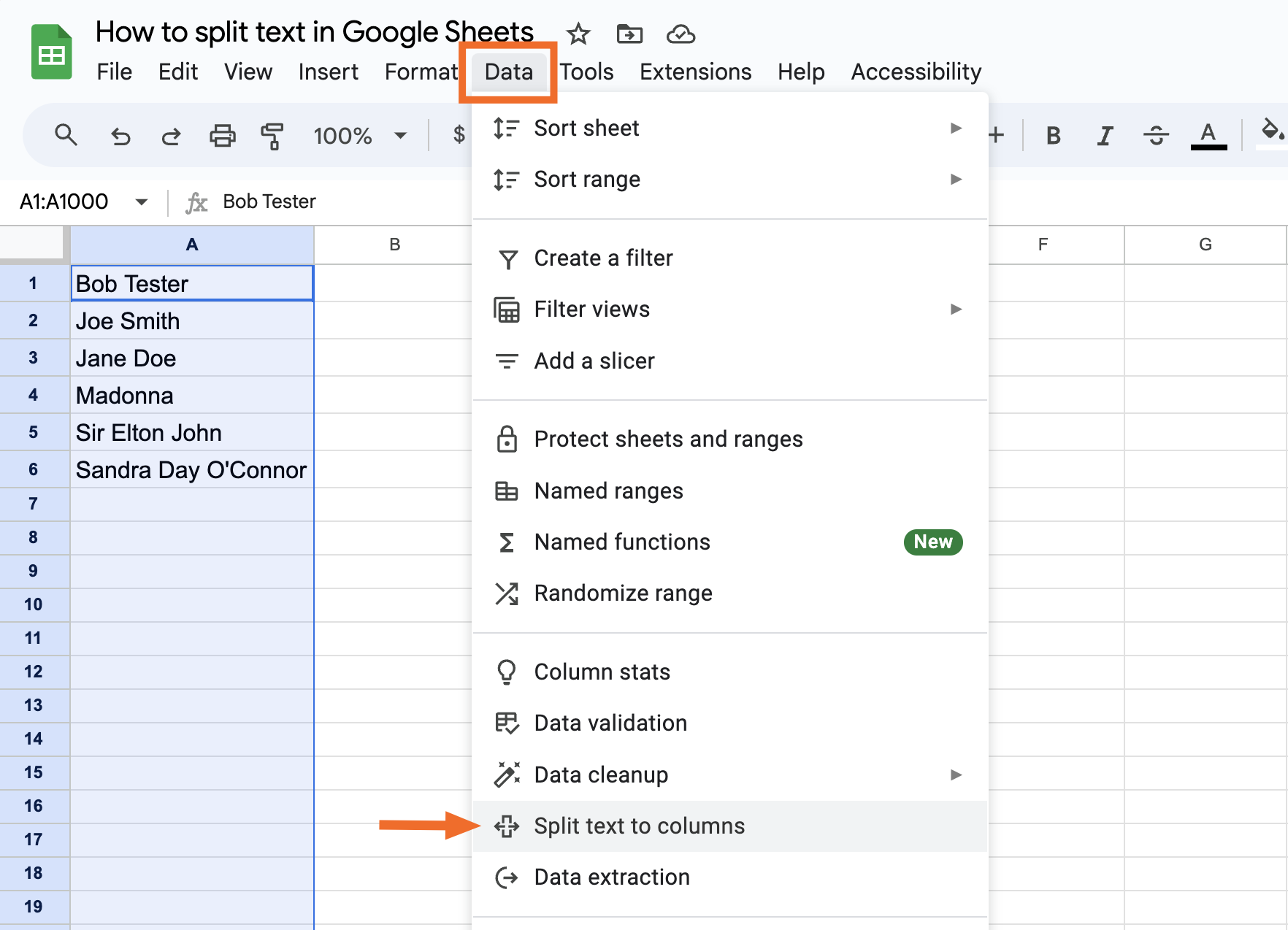
By default, Google Sheets automatically tries to guess how you want to split your data and separates the text accordingly. But in my experience, this works only if your data is split by a character like a period, comma, or semicolon—not a space.
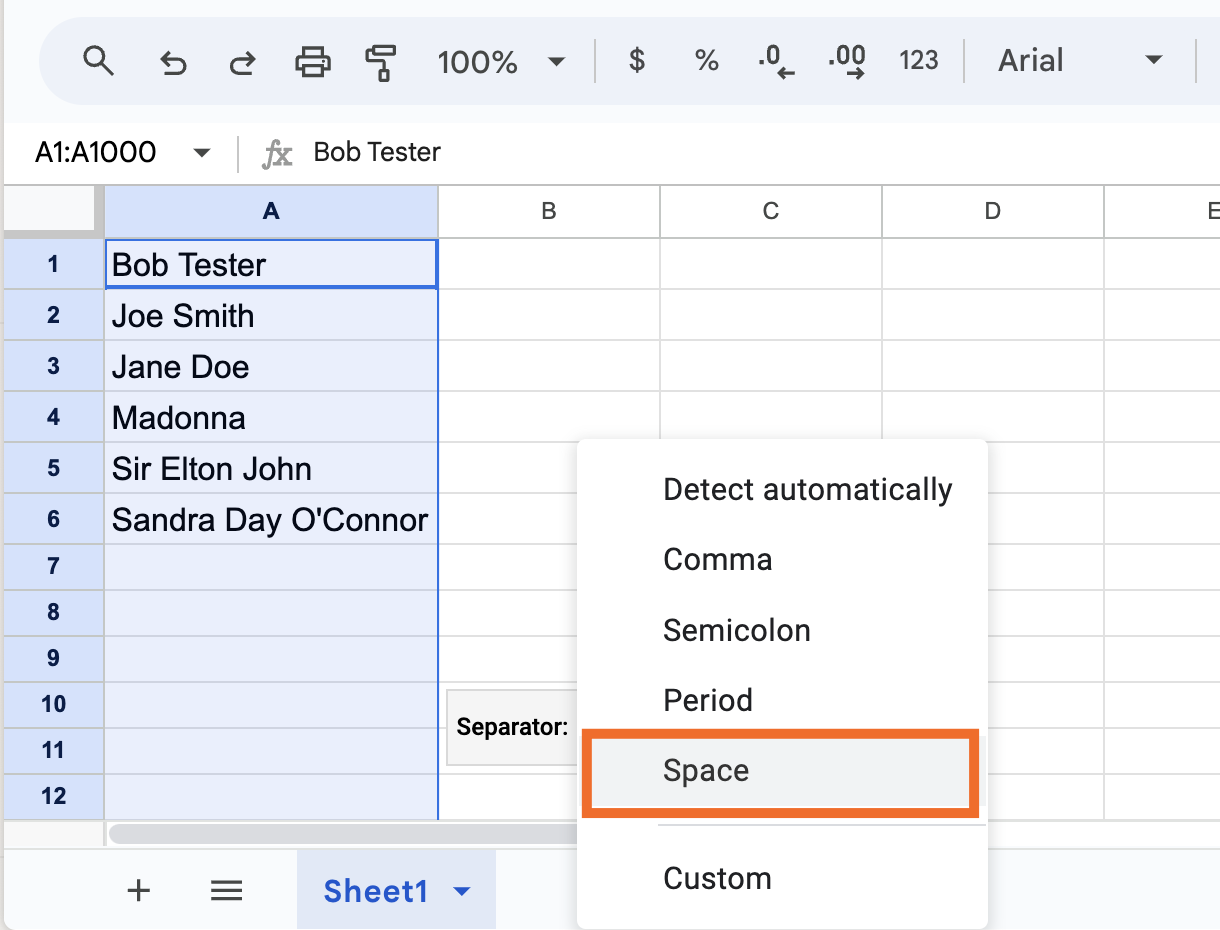
In the Separator pop-up that appears next to your selected text, click the dropdown.
Click your delimiter: Comma, Semicolon, Period, Space, or Custom. For this example, click Space.


You're all set.
Automate data organization with Zapier
Splitting text in Excel or Google Sheets is useful on its own, but most teams don't stop there. Once your data is cleaned up, it usually needs to move somewhere else, trigger another workflow, or get enriched before it's actually usable.
With Zapier, you can connect your spreadsheet with thousands of other apps to automatically orchestrate the entire workflow. For example, when new leads land in a shared Excel file, you can use Zapier to automatically split and format text, enrich each record with details from your CRM, and then send the fully structured dataset into a downstream tool like your marketing automation platform. This way, your team gets consistent, reliable data without spending hours fixing columns or moving information around.
Learn more about how to use Zapier's formatter tool, or get started with one of these pre-made workflows.


Zapier is the most connected AI orchestration platform—integrating with thousands of apps from partners like Google, Salesforce, and Microsoft. Use forms, data tables, and logic to build secure, automated, AI-powered systems for your business-critical workflows across your organization's technology stack. Learn more.
Related reading:
How to change date and time formats in your text automatically
How to find records in Google Sheets, Excel, and across apps
This article was originally published in September 2017 and has since had contributions from Elena Alston and Jessica Lau. The most recent update was in December 2025.


