
Google's product launch events have always been a quirky grab-bag of Pixel phone updates and smartwatch announcements, with celebrity hosts like Trevor Noah doing their darndest to squeeze laughs out of teleprompter-reading Google product managers. But lately, there's been a new addition to these events: Google has begun spotlighting Gemini connections to apps like Wix, Zocdoc, and Ticketmaster. You can currently find ~18 of these third-party Gemini connected apps, and there are a couple dozen more if you count Google's own apps (like Gmail) and random smartphone utility apps (like Samsung Notes).
At first glance, it all seems a bit underwhelming. Claude and ChatGPT have hundreds of MCP-based connections to other apps, and Zapier MCP connects your AI tools to 9,000+ apps. So why are we getting excited over a handful of Gemini connectors?
Google's massive reach plays a big role. A new Gemini connected app can roll out over the weekend and magically show up on a billion consumer devices. Then there's the fact that Gemini is more beginner-friendly than many alternatives. For many casual users, Gemini connected apps will be their first experience seeing AI actually take action on their behalf, rather than just answering questions.
After testing Gemini connected apps on my Pixel phone, in Gemini's web app, and in my browser, I'm here to share everything you need to know.
Table of contents:
What are Gemini connected apps?
A Gemini connected app is a native integration that gives Gemini secure, authenticated access to other apps. You can connect external apps, like Canva and Wix, as well as Google apps like Gmail, Google Drive, and Google Calendar.
Once you've connected an app to Gemini, you can access it across these interfaces:
Gemini web app
Gemini mobile app for iOS and Android
Gemini Spark, Google's autonomous agent
Chrome browser (via the Gemini in Chrome side panel)
Google originally called these "Gemini extensions," so if you see that term, just know that it's referring to the same thing.
What can you do with Gemini connected apps?
Each app has different capabilities, but they generally fall into two buckets:
Read (search): When you connect Gemini to other apps, you'll get more helpful answers since it can pull context from sources like your email, calendar, and AI meeting transcriptions.
Write (take action): Gemini can actually do things in your connected apps, like shopping for groceries or reserving a table at a restaurant.
Google's ultimate vision for Gemini is to make it a "universal assistant that's personal, proactive and powerful." Gemini connected apps are a step toward that agentic vision.
You can now use Gemini to:
Make designs in Canva
Publish and edit websites with Wix
Book travel with Viator
Buy concert tickets with Ticketmaster
Make a doctor's appointment with Zocdoc
Hire a plumber with Thumbtack
Here's the full list of Gemini connected apps. You probably won't have access to all of them: some are geo-restricted (like OpenTable), and some are regional (like Localiza, which is specifically for renting cars in Latin America).
How to enable Gemini connected apps
Here's how to add connected apps to your Gemini experience:
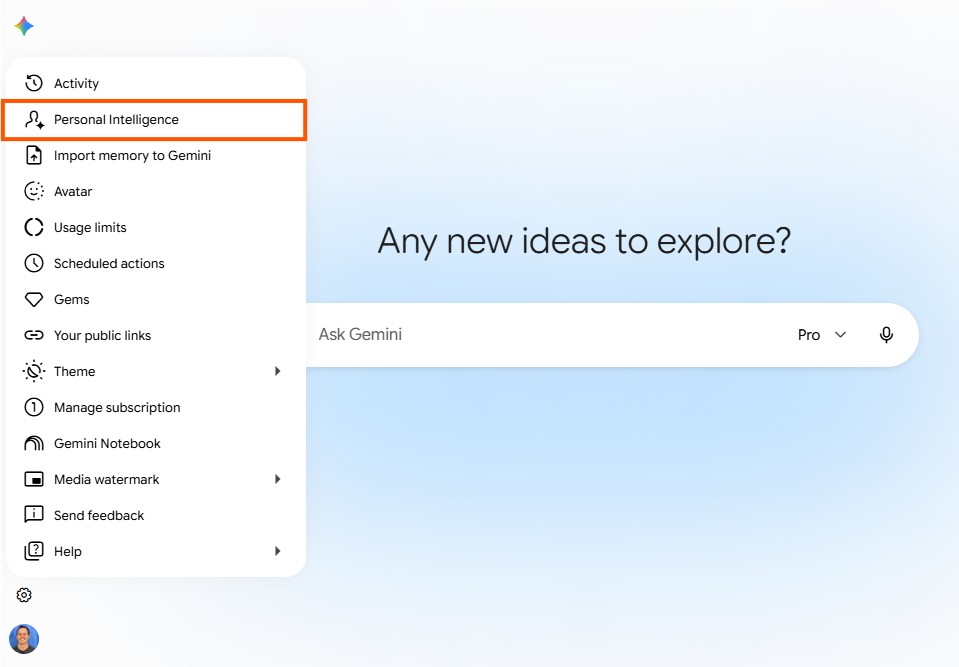
In the Gemini web app, click the Settings button in the bottom left. Then, click Personal Intelligence. (Note: depending on your region, you may see a button that says "Connected Apps" directly on the main menu. If so, click that.)
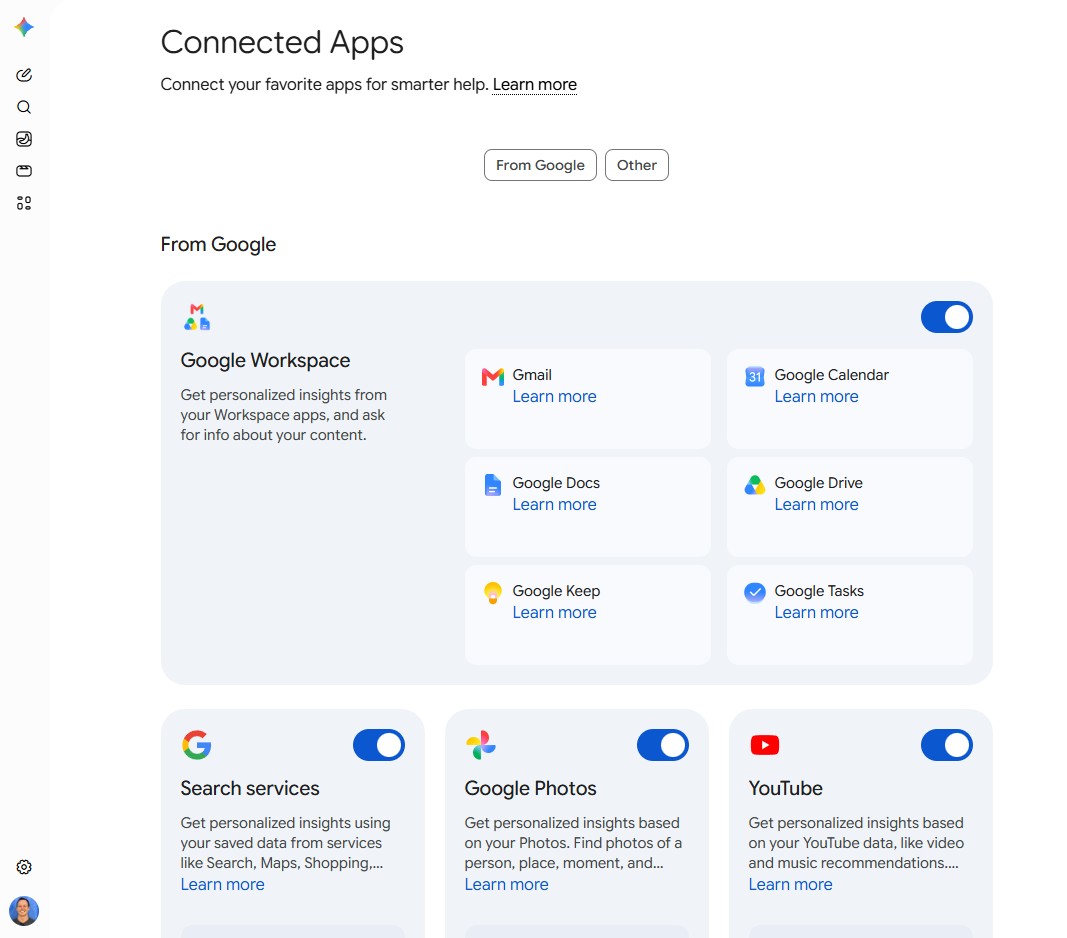
On the next screen, click Connected Apps. Then, choose the app you want to connect by toggling it on, and click Connect when prompted. Some apps, like the Google Workspace suite, can be turned on as a group and don't require you to log in for authentication, since you're already signed into Google.
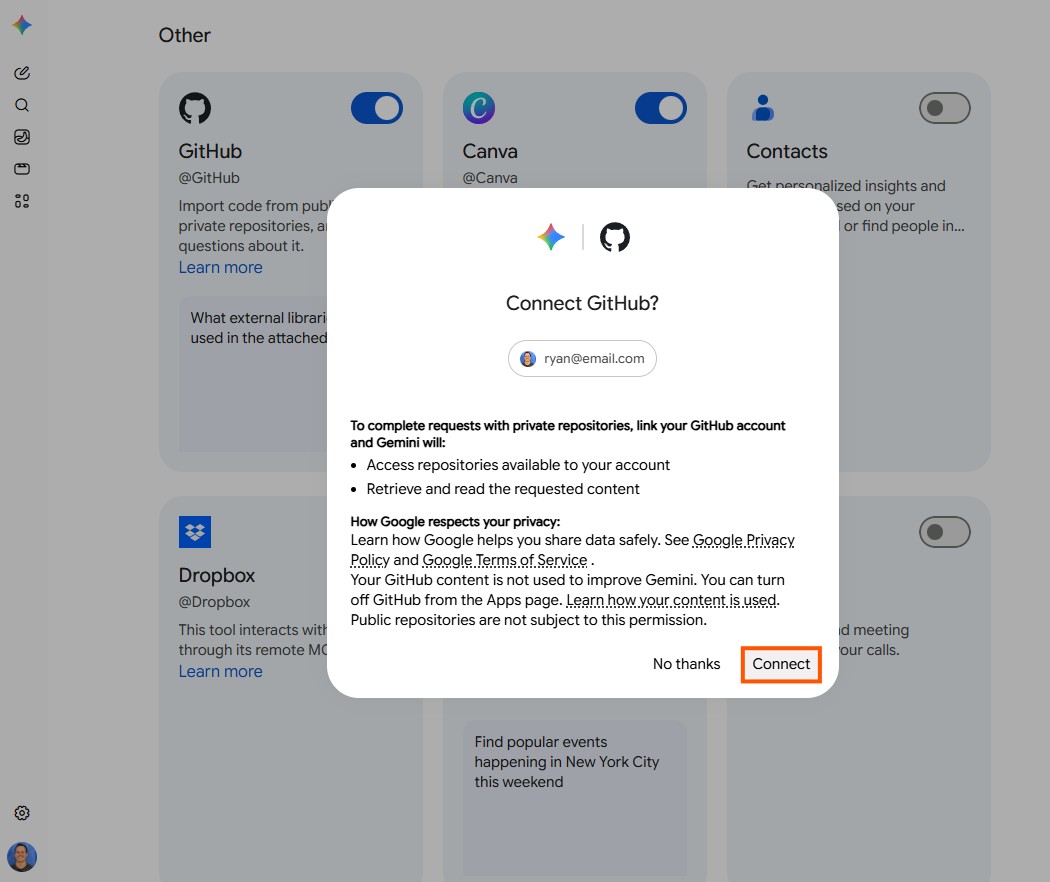
For third-party apps, you'll need to toggle them on individually and authenticate each one by clicking Connect, and then signing in to the app with your username and password.
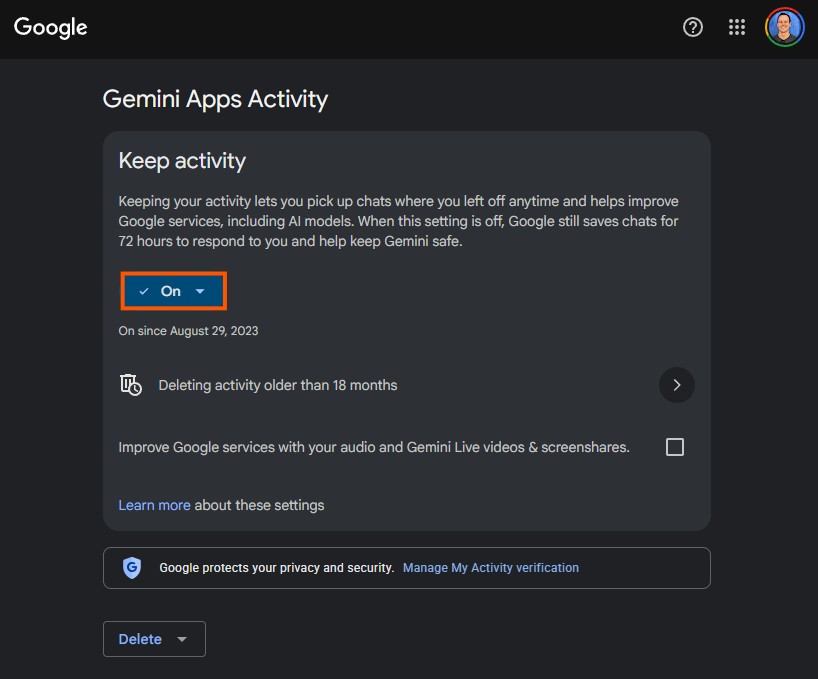
Your Gemini connected apps won't work without enabling Keep Activity, which saves your AI chat activity. You may already have this enabled, but you can double-check by going to the Gemini web app and clicking Settings > Activity. Make sure Keep Activity is set to "On," and choose whether you want to save activity for 3 months, 18 months, or 36 months.


How to use Gemini connected apps
Once you've installed your connected apps, there are a few ways to use them.
Gemini web app
Sometimes, Gemini can identify which connected apps you need based on the context of your request. In my experience, this worked pretty well for Google apps, like Gmail.
For third-party apps, I had to take the extra step of tagging the connected app with an @ while chatting with Gemini. In the example below, I tagged @Canva to help me design a series of flyers. Once my designs were ready, I did a bit more back-and-forth in Gemini before sending them to Canva for editing.

Gemini mobile app
Gemini's mobile experience helped me understand the potential of Gemini connected apps. Testing it on my Google Pixel phone, I was able to:
Press a button on my phone to pull up Gemini on my homescreen instantly
Talk to Gemini to tell it what I wanted
Ask it to complete tasks like finding tickets (via Fever) or building websites (via Wix)
In some cases, you still need to do a bit manually at the end—like actually buying the tickets or launching the website—but Gemini's connected apps do a good job of getting you 80% of the way there. And if you're looking for a more autonomous experience, there's always Gemini Spark.

Gemini Spark
Gemini connected apps also work in Gemini Spark, a personal AI agent. (Spark is currently only available to Google AI Ultra and AI Pro subscribers in certain countries, so I haven't been able to test it yet.)
Unlike with Gemini, which handles one task at a time, Gemini Spark tackles multi-step tasks across your connected apps. It's also more autonomous than Gemini's chatbot. Spark checks in with you before doing anything sensitive, like sending an email or making a purchase, but apart from that, it runs independently.

Google Chrome
Gemini connected apps also show up in Google Chrome via the "Open Gemini in Chrome" button in Chrome's menu. I was able to get Google's native connected apps to work here (like Gmail and Google Drive), but third-party connected apps didn't work in my testing.

How to remove Gemini connected apps
You can remove a Gemini connected app in the Gemini web app by going to Settings > Personal Intelligence > Connected Apps. Then, in most cases, it's a simple matter of turning the toggle from "On" to "Off" for the connected app you want to remove.
A handful of Google's apps, including Google Workspace, Search services, Google Photos, and YouTube, show a separate disclaimer before allowing you to remove them. Just click Disconnect. You can always reconnect them later if you want.

How to add custom connected apps and MCP access
If you're using the consumer version of Gemini, you're limited to whichever connected apps Google decides to make available.
But there's one exception to this: Gemini Spark, Google's AI agent. You can use Spark to connect third-party apps via MCP, which opens the door to thousands of other app connections—though as Google says in its documentation, it also means you're responsible for supervising each MCP server. Spark is currently available on the $99.99/month Google AI Ultra plan, and is also rolling out to users on the $19.99/month AI Pro plan.
Gemini connected apps FAQ
If you're using Gemini connected apps for the first time, you'll probably run into one or more of the following questions.
Which apps does Gemini integrate with?
Gemini's connected apps include most native Google apps, like Gmail, Calendar, Drive, Docs, Photos, Google Maps, Google Ads, Google Home, YouTube, and YouTube Music. There's also a growing range of third-party apps, including:
Travel and leisure: GetYourGuide, Fever, Viator, Ticketmaster, OpenTable, Localiza
Business and productivity: GitHub, Dropbox, Granola, Otter.ai, Canva, Wix
Entertainment: iHeartRadio, Spotify, Pandora
Home and everyday services: Angi, Thumbtack, Zillow, Instacart, Zocdoc
Communication: WhatsApp
Connected app availability varies by region. You'll need to log in to Gemini, head to Settings, and browse your connected apps to confirm what's available.
Where can I find connected apps on Gemini?
In the Gemini web app, go to Settings > Personal Intelligence > Connected Apps. From there, you can toggle on any apps you'd like to connect. When you're ready to use a connected app within Gemini, just tag it with @ (like @Canva or @Gmail).
How do I turn off Gemini apps activity?
In the Gemini web app, go to Settings > Activity. You can turn "Keep activity" off by selecting the dropdown, then choosing either "Turn off" or "Turn off and delete activity." However, you won't be able to use any of your Gemini connected apps unless "Keep activity" is on.
Related reading:
This article was originally published in March 2025 by Eric Ravenscraft. The most recent update was in August 2026.


