
As a content creator at mattgiaro.com, I'm always looking for ways to produce more without sacrificing my voice. ChatGPT's custom instructions and the ability to build custom GPTs made it easy for me—once I figured out how to train it to actually sound like me.
The gist is that you can use ChatGPT to analyze a few samples of your writing style, including voice, tone, and structure, and then paste those descriptors into ChatGPT's custom instructions. Here, I'll walk you through the process so you can train ChatGPT to write like you.
Table of contents:
4 key elements that make up your writing style
Broadly speaking, your writing style is made up of four key elements:
Voice refers to the way you "sound" on the page. For example, if you use a lot of colloquialisms, your voice may be informal or conversational. Or, if you use more Shakespeare-like language, your voice may be more theatrical.
Example custom instruction:
Use this voice: Conversational and direct. Sounds like a smart friend explaining something, not a textbook.
Tone refers to the attitude conveyed in your writing toward the subject or audience. If your writing is filled with a lot of rhetorical questions and irony, that might convey a sarcastic tone. Or if you include a lot of jokes and silly analogies, it may be more playful.
Example custom instruction:
Use this tone: Warm but no-nonsense. Encouraging without being cheerleader-y.
Style encompasses both voice and tone, but also includes the specific choices you make in language and sentence structure. For example, you may opt for a minimalist approach to writing—get the message across in as few words as possible.
Example custom instruction:
Use this style: Short sentences. No jargon. One idea per paragraph. Active voice always.
Structure refers to more than just the intro, body, and conclusion. It's how you organize everything in your writing, from word order to paragraph flow. For example, maybe your writing always follows a linear format (this happened, and then this happened). Or it might jump around in time.
Example custom instruction:
Use this structure: Opens with a tension or question, works through it step by step, closes with a single clear takeaway.
How to find your writing style using ChatGPT
Before you can train ChatGPT on your writing style, you need to be able to describe your writing style. Ironically, ChatGPT is the perfect partner to help you identify this. Here's how.
Gather your most you-like content. Identify three to five pieces of written content that reflect your true voice or the voice you want to train ChatGPT on. Digital copies work best since you'll feed them to ChatGPT in the next step.
Ask ChatGPT to analyze your writing. Feed ChatGPT with a copy of one of your pieces, and ask it to analyze your writing style. Here's a prompt you can use:
Example prompt
[Paste or link to your content or upload a PDF of it]
Analyze the writing voice, tone, and structure of this article. Output bullet points.
Repeat. If ChatGPT is analyzing one piece of content at a time, repeat the above steps for every article you've identified.
Review and filter. Once ChatGPT has analyzed all your articles, review the results and note any patterns. If certain descriptors come up a lot and resonate with you, jot them down in your go-to note-taking app. And for those that don't, leave them behind.
Now you're ready to add custom instructions to ChatGPT.
How to train ChatGPT to write like you using custom instructions
Custom instructions let you add background information and requirements you'd like ChatGPT to consider whenever it generates a response. For example, you can prompt it to always respond in a formal tone. Or to add an emoji at the end of every sentence (please don't).
Here's how to train ChatGPT to write like you using custom instructions.
With ChatGPT open, click your profile in the left side panel.
Click Personalization.
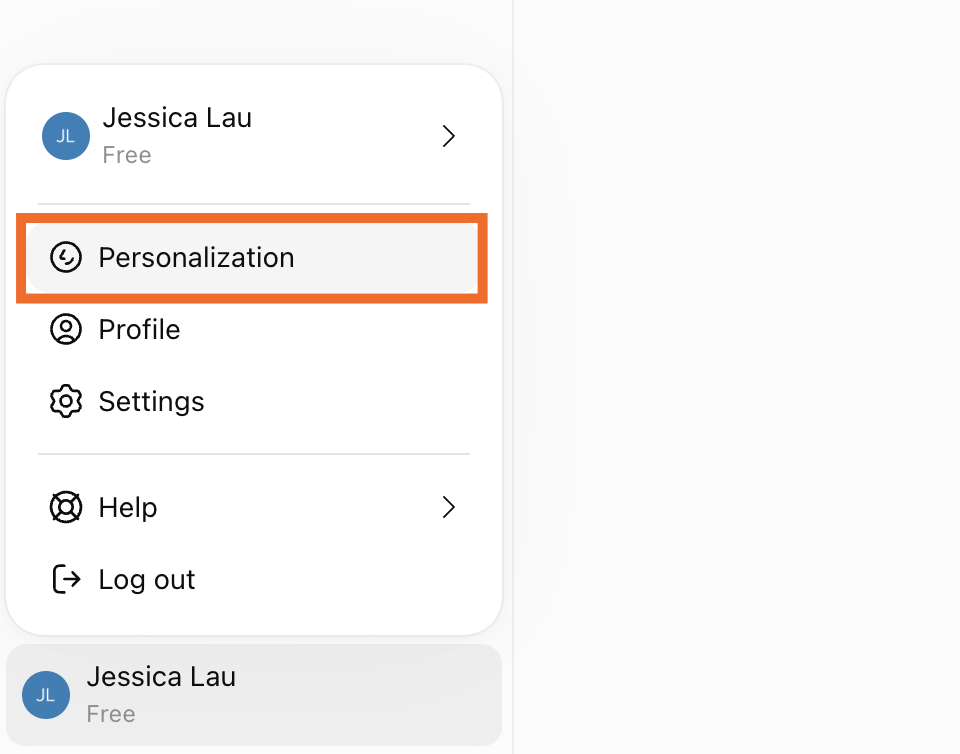
In the pop-up that appears, click the toggle next to Enable customization.
In the Custom instructions field, enter the style descriptors you extracted in the previous step, along with any other relevant details to help ChatGPT tailor its responses. Here's a template you can use to input your instructions.
Custom instructions template
Use this voice: [enter your descriptions]
Use this tone: [enter your descriptions]
Use this style: [enter your descriptions]
Use this structure: [enter your descriptions]
Click Save.
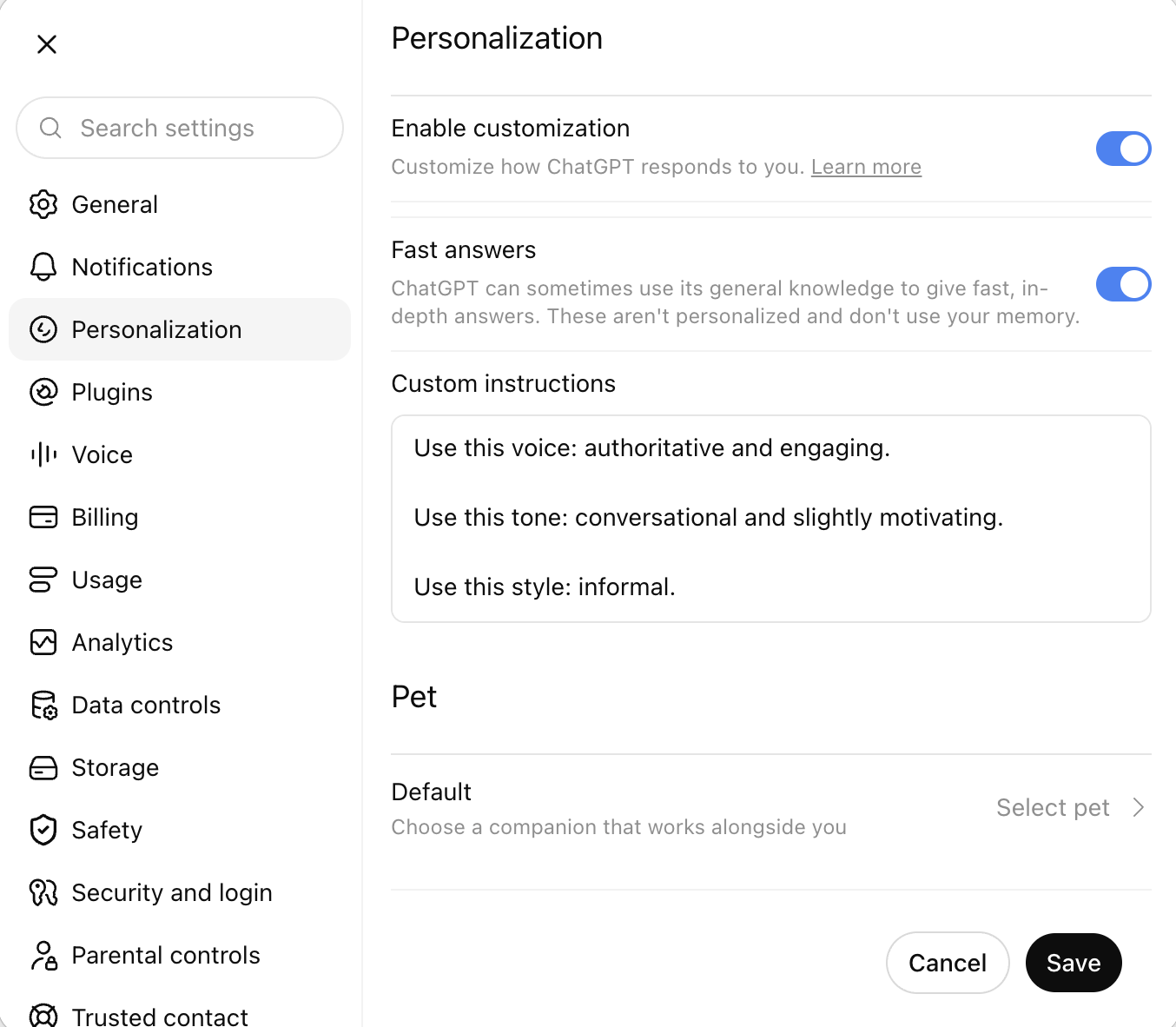


You're all set. ChatGPT will automatically keep these custom instructions in mind every time it generates a response unless you explicitly tell it otherwise or disable the feature.
Assign custom instructions to each ChatGPT project
You can also create different projects in ChatGPT and assign custom instructions within each one. This way, you can easily jump between projects and have ChatGPT context switch with you. Here's how to do it.
In the side panel, hover over the name of the ChatGPT project you want to add custom instructions to.
Click the three-dot menu (
...), and select Project settings.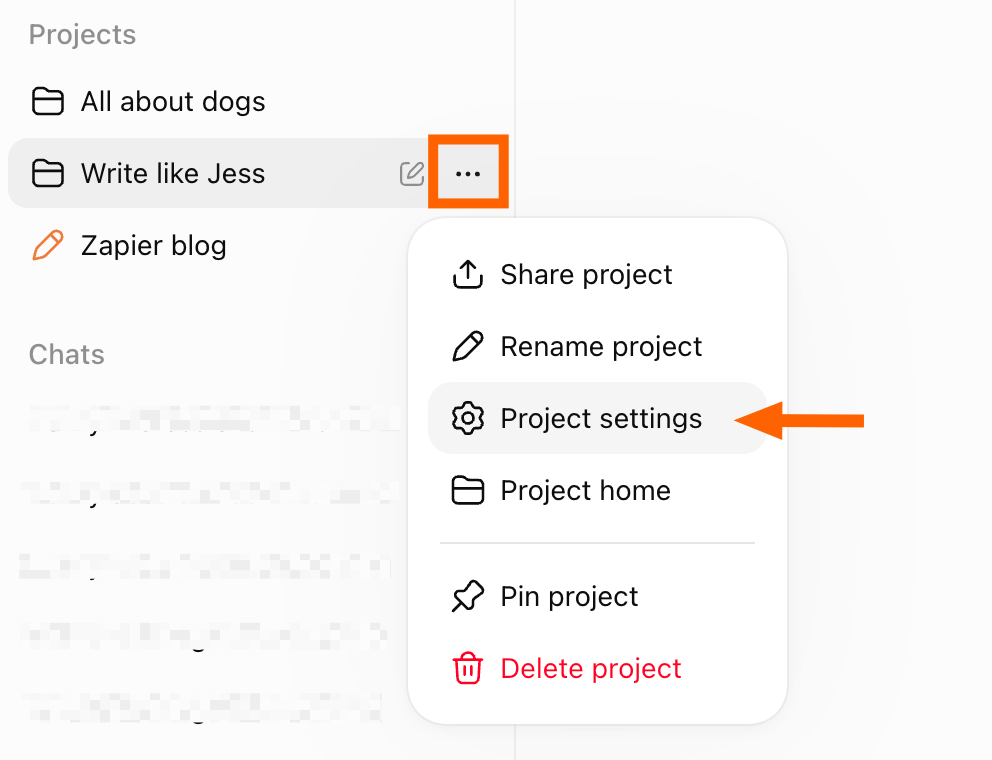
Enter your writing descriptors in the Instructions field.
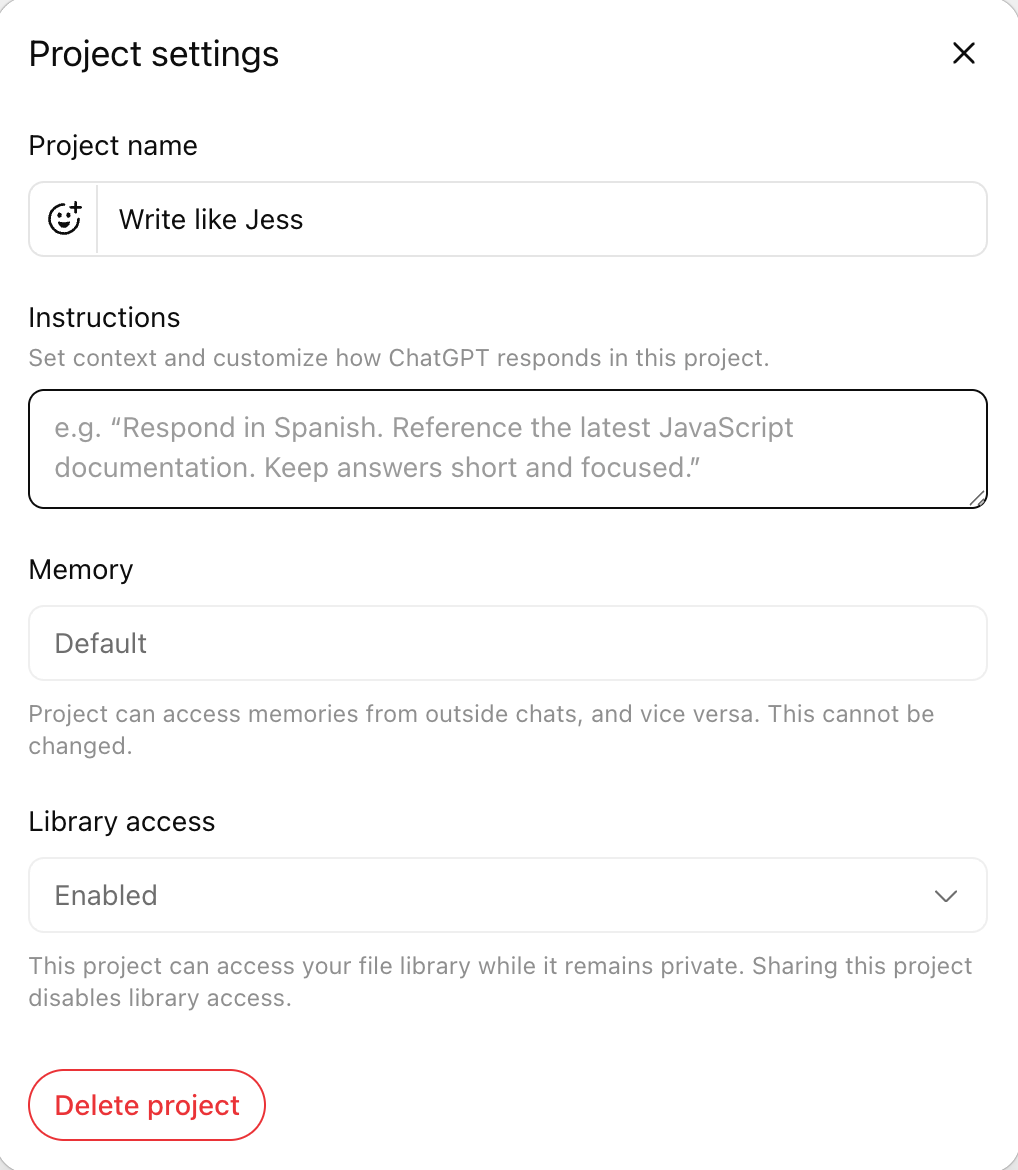
Click Save.


Use ChatGPT skills to make ChatGPT write like you
Another option worth knowing about: skills. They work similarly to custom instructions, but the key difference is that they're not always on. Instead of a writing style running in the background of every conversation, a skill loads only when your AI agent recognizes it's relevant. So if you build a "Write like Matt" skill, for example, it kicks in for the right tasks and stays out of the way for everything else.
To add new skills:
Click Plugins in the sidebar.
Click Skills in the top navigation.
Click the plus sign next to Search skills, and choose how you want to create the skill.
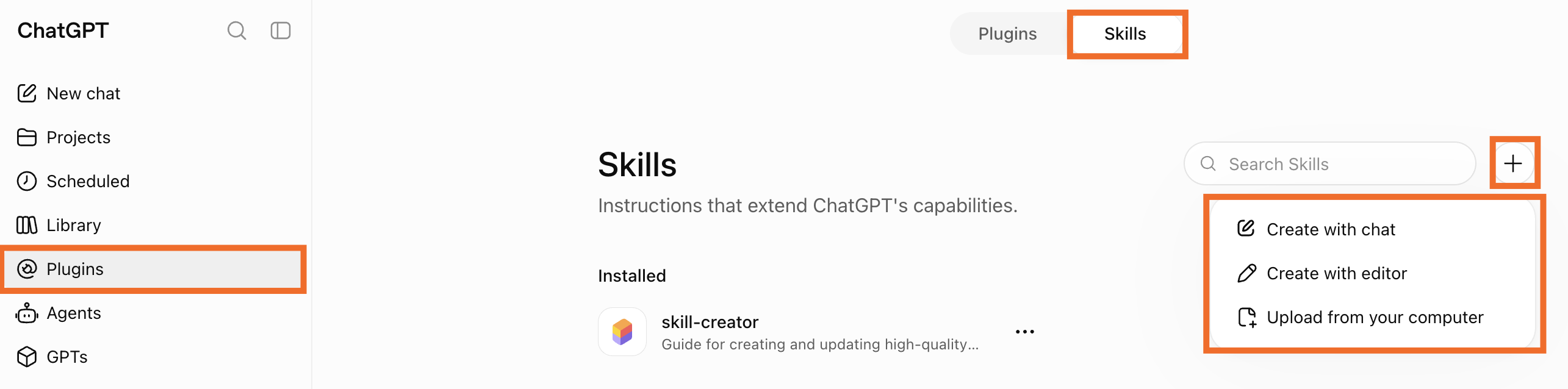

Then, every time you want to invoke the skill, just mention it in your chat.
Automate ChatGPT with Zapier
Once your voice is baked into ChatGPT via custom instructions or a skill, Zapier lets you pipe the output directly into the rest of your stack: your CMS, your newsletter tool, your notes app, or wherever your content actually lives.
Install Zapier into ChatGPT, and you can route finished copy to the right place automatically and build workflows that produce on-brand content in the background—without you babysitting every step. You control which apps ChatGPT can touch, and you can cut access from one place if anything changes. Learn more about how to automate ChatGPT.
Build automations from wherever you work. Describe the outcome you want, and Zapier connects your tools, runs the steps, and stays on the job after you close the chat. Combine AI with reliable, deterministic automation across 9,000+ apps. Get started for free.
How to train ChatGPT to write like you: FAQ
Once you start experimenting with training ChatGPT to write like you, a few questions will probably come up. Here are answers to the most common ones.
Does training ChatGPT to write like me work across all chats?
For the most part, yes. Custom instructions automatically apply to every new conversation. If you're working within a project that has custom instructions, that project's instructions will supersede your general custom instructions. Same goes if you're using a custom GPT. If you only want to trigger the writing style in certain cases, use a skill instead, and invoke the skill whenever you want.
What's the difference between custom instructions vs. custom GPTs vs. skills?
Custom instructions are a global setting. You set them once, and ChatGPT carries them into every conversation. A custom GPT is a purpose-built version of ChatGPT you configure for a specific task, with its own separate instructions, files, and capabilities. Skills sit somewhere in between: you define them for a specific, repeatable task, but instead of always being on, they load only when the agent recognizes they're relevant.
I recommend starting with custom instructions. If you find yourself wanting a separate setup for, say, client emails versus social captions, that's when a custom GPT or skills start to make sense.
Can I create custom instructions on a free ChatGPT plan?
Yes. Custom instructions are available on all plans, including free. Free and Go users can save up to 1,500 characters in their custom instructions, while Plus plans and higher get up to 5,000.
Related reading:
This was a guest post by Matt Giaro. Sign up for Matt's free AI blogging email course, or you can reach him at mattgiaro.com.
This article was originally published in October 2023. The most recent update, with contributions from Jessica Lau, was in August 2026.


