
Microsoft 365 is a massive suite of tools ranging from household names like Word and PowerPoint to more obscure apps (ever heard of Clipchamp?). Microsoft Bookings, which is included with Microsoft 365, is an alternative to better-known meeting scheduler apps like Calendly.
Let's get this out of the way: you probably haven't seen Microsoft Bookings on many best meeting scheduler lists. Rather than competing directly against powerful apps like Calendly, its raison d'être has more to do with offering essential features to get users to stay within the Microsoft ecosystem.
Microsoft 365 has hundreds of millions of paid users, and if you're comparing Microsoft Bookings to Calendly, you're probably one of them. So here's the big question: is it worth it to pay for Calendly, or can Microsoft Bookings meet your needs at no extra cost?
I've used Calendly for years, and recently tested Microsoft Bookings to compare the two products head-to-head. In this article, I'll help you sort out which option makes sense for you.
Table of contents:
Microsoft Bookings vs. Calendly at a glance
Here's a quick overview of what makes these two scheduling tools different:
Microsoft Bookings is best for Microsoft 365 users on a budget. If you're looking for a basic scheduling solution for booking one-off meetings with colleagues and clients, you'll be satisfied with Bookings.
Calendly is best for solopreneurs and teams, especially if you rely on advanced features like workflows, automation, AI notetaking, and paid bookings. It's easy to use and integrates well with tools outside of the Microsoft ecosystem (like Zoom and Google Calendar).
Microsoft Bookings | Calendly | |
|---|---|---|
Pricing | ⭐⭐⭐⭐⭐ Bookings is included in Microsoft 365, which starts at $7.20/user/month and comes with dozens of apps | ⭐⭐⭐⭐ Calendly's starting cost of $12/month is reasonable, but its per-user pricing adds up fast, and most teams will need the $20/user/month plan; its free plan can meet basic scheduling needs |
Ease of use | ⭐⭐⭐ Setup is easy for Microsoft 365 users, but the user experience is relatively clunky, and there's no mobile app | ⭐⭐⭐⭐⭐ A reliable and polished user interface full of time-saving features, plus a convenient mobile app |
Advanced features | ⭐⭐ Bookings is a much more basic tool than Calendly; it's missing features essential for many users, like paid bookings and workflows | ⭐⭐⭐⭐⭐ Calendly's workflows, automations, routing forms, AI notetaker and assistant, and paid bookings make it a serious productivity tool |
Features for teams | ⭐⭐⭐ No groundbreaking features, but big companies using Microsoft 365 can use Bookings to easily schedule meetings (especially internally) | ⭐⭐⭐⭐⭐ Calendly offers team-friendly features like round robin events, cross-organizational analytics, and custom event types |
Integrations | ⭐⭐⭐ Integrates natively with Microsoft Outlook, Teams, and Exchange; Power Automate can extend this somewhat, but there are lots of limitations | ⭐⭐⭐⭐⭐ 150+ integrations; integrates with thousands more apps via Zapier |
Microsoft Bookings is more affordable
Picking software isn't just a matter of choosing the lowest-cost option. (If it were, we'd all just do some quick math and be done with it, rather than scrolling through comparisons like this one.) But price is a big factor, and here's what the math says: Microsoft Bookings is a lot cheaper than Calendly.
For Microsoft Bookings, you'll pay as little as $7.20/month per user. This fee also includes access to the rest of the Microsoft 365 family of apps, like Teams, OneDrive, Outlook, Word, Excel, PowerPoint, and dozens more. Calendly costs $12/user/month for the Standard plan, which covers individuals and small businesses, or $20/user/month for the Teams plan. That means a 30-person team will pay $600/month to use Calendly, while the same team using Microsoft Bookings will pay as little as $216/month—while getting access to a broader set of Microsoft tools.
Having said that, Calendly does have a robust free plan, while Microsoft Bookings (via Microsoft 365) only offers a one-month free trial. But if you're already using Microsoft tools, then Bookings is effectively free anyway.
Calendly is easier to use
Microsoft Bookings is a much more basic tool than Calendly, so you'd think its smaller feature set would give it a usability advantage. But in most cases, Calendly is the easier-to-use tool.
Let's start with an area of strength for Microsoft Bookings: integration with other Microsoft products. If you already have a Microsoft 365 subscription and rely on Outlook for your email and calendar, setting up Bookings is easy.
If you're not already a Microsoft customer, good luck. It's a clunky process: you'll need to sign up for Microsoft 365, and once you've done so, it's entirely unclear how to get to Bookings. (Eventually, I found out that clicking the unlabeled dots in the top-left corner brings you to a list of Microsoft apps that includes Bookings.)

Once you make it to Microsoft Bookings, you'll see a simple welcome screen. It's got the basics—a short onboarding checklist and a way to create multiple meeting types—but overall, you're on your own.

Trying to find your way to the settings is particularly confusing: I kept ending up on a screen with global Microsoft 365 settings rather than anything Bookings-specific.
Calendly has a cleaner (and less dated) interface, and a clearer set of steps to guide you toward getting started. Plus, adjusting settings is way simpler since each event type has an intuitive sidebar showing all your options.

As you move through the Bookings setup process, it becomes clear that you're deep in Microsoft Land, a magical place where it's assumed that people only want to use Microsoft products. (Presumably, Internet Explorer and the Microsoft Zune MP3 player are still popular here.) Want to connect your Outlook calendar to avoid double-booking meetings? No problem. Want to also connect your personal Google Calendar so you don't book a meeting when you're supposed to be picking your kid up from school? Sorry, no luck. Calendly, on the other hand, allows you to connect up to six calendars—work and personal—from Google, Microsoft, and Apple.
Apart from those gripes, Microsoft Bookings gets the basics right. If you're a die-hard Microsoft user, you can get up and running fast. You also get useful appointment booking options, like the ability to customize appointment duration, how far in advance people can book, and how much buffer time you'd like between appointments.

Still, Calendly offers all of that and more, and its features are packaged into a more intuitive and reliable piece of software. For example, the Calendly mobile app sends you convenient push notifications when someone books or cancels a meeting. Meanwhile, the Microsoft Bookings iOS and Android apps were abruptly retired a few years ago due to low usage, to the surprise (and frustration) of users.
Many tasks are simply easier with Calendly. For example, I struggled to embed a Microsoft Bookings calendar into my website; when I finally found the code, it was an old-school iframe embed that didn't adapt well to different devices.
Calendly's calendar embeds are slick and adapt nicely to different screen sizes, and you also have the option to let visitors book a meeting using a popup widget or popup text.

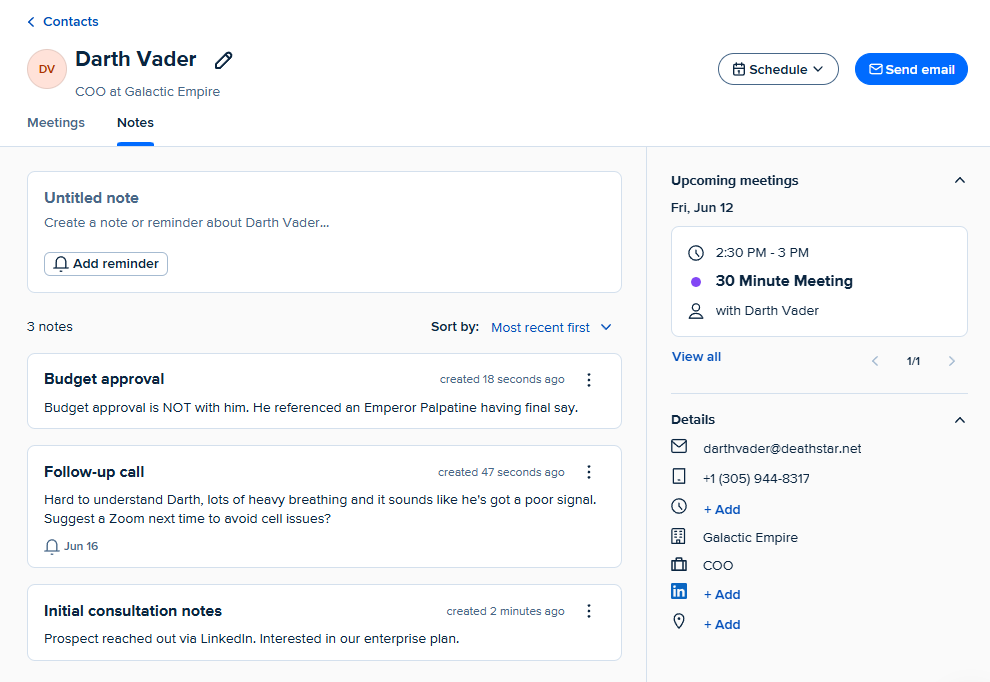
Calendly’s Contacts feature makes it easy to find records of anyone you've ever booked a meeting with. You can select basic filters, like "No meetings in next 30 days," to identify people you might need to follow up with. There's also an advanced search function that lets you set conditions and search by field.

Contacts works like a lightweight CRM: by clicking on a name, you can quickly surface all the past meetings you've had along with any notes you've taken. You can review past conversations, set reminders to follow-up, and send emails, all without leaving Calendly.
Calendly has more advanced features
Microsoft 365 users with simple meeting needs will probably do fine with Bookings. You get a customizable booking page, automatic email and mobile reminders, integration with other Microsoft tools (like Outlook and Teams), and the ability to allow multiple bookings for group events.
But for anything more than just the basics, you'll need Calendly. One missing Microsoft Bookings feature that's a big deal for many business owners is paid bookings. Calendly integrates with Stripe, so you can charge users when they book a meeting. Calendly also supports multi-session bundles, custom payment links, discounts, coupon codes, and multiple currencies, giving you lots of flexibility to charge for your time.
Plenty of consultants and coaches have built their businesses using paid bookings, but it's also useful for anyone who needs to manage the flow of people who want to "pick their brain" for 30 minutes. The fact that Microsoft Bookings doesn't offer this limits its usefulness for many solopreneurs and small businesses.

Automations and workflows are another big difference. With Microsoft Bookings, you can add reminder emails before your meeting and follow-up emails after, but Calendly's workflows are in a whole different league. You can easily deploy automations by clicking on prebuilt workflows like Email reminder to host or Request follow-up meeting. Calendly also lets you create your own workflows. Here's one I created that reduces no-shows by emailing attendees to ask them to double-confirm their attendance.

You can create up to 50 of these workflows. Calendly pulls them all into a single overview screen, making it easy to assign unique combinations of workflows to each event type. You can even create workflows at the admin level so automations are consistent across your team. If you want to standardize your customer experience and avoid no-shows across your organization, managed workflows open up a world of possibilities.
Calendly recently expanded its AI capabilities significantly with two new products: Notetaker and Callie. Notetaker joins your meetings, records them, creates a transcript, and summarizes action items—and it works across Zoom, Google Meet, and Microsoft Teams, even for meetings that weren't originally scheduled through Calendly. (Microsoft 365 has a comparable notetaker built into Teams, though it only works within the Microsoft ecosystem.)
Callie is an AI scheduling assistant that handles the work before and after meetings. You cc callie@calendly.com on an email thread, and it finds mutual availability, proposes times, and books the meeting for you. After the meeting, you can ask Callie to pull up decisions or action items from past meeting recaps—handy if you're the type who sends a follow-up email three days later trying to remember what was actually decided. While neither product has all the bells and whistles of a dedicated AI meeting assistant. Both features are available on Standard Plus and Teams Plus plans, which run $8-12/user/month depending on your billing cycle.

Even if your needs aren't particularly advanced, you might still run into walls with Microsoft Bookings. For example, what if you like to block colleagues from pulling you into meetings during your lunch break and deep work sessions, but you still want to leave those windows open for client calls? Calendly lets you add free/busy rules to specify when certain event types can override other meetings. (Microsoft Bookings doesn't have this feature.)

Calendly has even partnered up with LinkedIn to bring integrated appointment-booking to your LinkedIn profile, posts, messages, and search results. Given that Microsoft owns LinkedIn, it's notable that there's not a similar integration for Microsoft Bookings.

Calendly's features for teams are more robust
If you're a current Microsoft 365 user and you have a big team, you have a tough choice to make. Calendly has much better features for teams, but even a 10-person team using Calendly will cost you thousands of dollars per year.
Here's what Microsoft Bookings gets right: it's perfect for booking intra-company meetings, or sending prospects to your page to book a one-off meeting on Teams. And bigger companies will appreciate that with Microsoft Bookings, you can create event types that are only bookable by members of your organization (something that Calendly can't do).

Sales and customer service teams will quickly run up against limitations with Microsoft Bookings, though. Calendly offers sophisticated ways to route customers to the right representative: for example, with Calendly's round robin event type, you can randomly distribute meetings to your team based on their availability. By adjusting your round robin settings, you can prioritize certain team members over others, or instruct Calendly to balance your team's workload so that no single person ends up with too many meetings.

Here's an example of round robin booking in action: after someone books a demo on your company's website, Calendly can reference your CRM (if you've integrated it) to see whether they're a current customer or a prospect. For current customers, you can route them to their assigned point of contact on the customer success team for the demo; if that person isn't available, you can randomly assign them to someone in the broader pool of customer success reps. For new prospects requesting a demo, you can set up a round robin system that distributes meetings to your sales team based on their availability.
Using Calendly's routing forms feature, you can take this a step further and screen prospects before they're invited to book a meeting. You can offer a booking option only to prospects who meet your criteria, or gather more information (like industry or company size) so you can route them to the best-fit sales rep.

While Microsoft Bookings does let you distribute appointments to a group, that's where your options end: there aren't many options to fine-tune your team's workload or route certain appointment types to certain teams.
It's also worth mentioning Calendly's cross-organizational analytics dashboard, which is way more powerful than anything Microsoft Bookings offers. You can quickly gauge what's happening in meetings across your business: how long they are, when they happen, and how many are rescheduled or canceled. If an unusual number of Friday meetings are being canceled, for example, Calendly's analytics will highlight that trend so you can address it.

Calendly offers far more integrations; Microsoft Bookings syncs with other Microsoft apps
For Microsoft users, Bookings offers a seamless experience. If your team uses Outlook, Teams, and Exchange, the level of native integration you'll get is unbeatable. Within Microsoft Teams, you can even schedule and manage Microsoft Bookings appointments directly within the chat interface.
Need to integrate with non-Microsoft apps? Your options are sparse. You can use Microsoft Power Automate to hack your way to a solution, but there are serious limitations. For example, you can only create five workflows per Bookings mailbox, and only admins can create appointment triggers.
Calendly, on the other hand, offers over 150 integrations, including popular apps that Microsoft doesn't support. (Want to use Zoom or Google Calendar? Go with Calendly.) You also get access to Calendly MCP, which lets you schedule and adjust meetings directly from AI chatbots like Claude or ChatGPT.
With Zapier, you can go even further by tapping into an ecosystem of 9,000+ prebuilt app connections.
Microsoft Bookings vs. Calendly: Which should you choose?
You can save hundreds or thousands of dollars per year by choosing Microsoft Bookings over Calendly (especially if you're already a Microsoft 365 customer). But there are trade-offs. If you're still unsure which to choose, consider these guidelines.
Go with Microsoft Bookings if you're a Microsoft 365 customer and have basic scheduling needs. Bookings integrates automatically with Outlook and Teams, and you and your team get access to a reliable meeting scheduler at no extra cost.
Go with Calendly if you want advanced scheduling features, especially if you run a sales or customer service team (or if you use non-Microsoft tools like Zoom). You'll pay more, but the value of Calendly's workflows, robust team options, and productivity features easily justify the cost.
Related reading:
This article was originally published in March 2024. The most recent update was in June 2026.


