
You've generated picture-perfect images in ChatGPT. Now what? Download them one by one, open your file storage app, and manually upload every single file? Sure, that's doable. But it's also slow and heavy on the clicking.
Since you're already leveraging AI to work smarter, connect ChatGPT to Zapier MCP—our built-in tool that gives AI assistants the power to act on your behalf. With it, you can generate images and save them directly to Google Drive without ever leaving your chat window. You'll also unlock access to more than 30,000 other automated actions from Zapier's secure integration library.
Ready to set this up? I'll walk you through it below.
Skip ahead:
How to add AI-generated images to Google Drive from ChatGPT
In this tutorial, I'm using ChatGPT, but you can also build a Zapier MCP-powered AI assistant with other platforms, like Claude and Cursor.
Note: ChatGPT only supports MCP tools in developer mode. Read about developer mode on the OpenAI site.
Step 1: Set up your Zapier MCP server in ChatGPT
Log in to Zapier and head to the Zapier MCP dashboard.
Click +New MCP Server and choose ChatGPT as the client.
At the top of the window, click Connect. After reading the message about developer mode, click I Understand to reveal the instructions for connecting ChatGPT. Then click Copy URL.
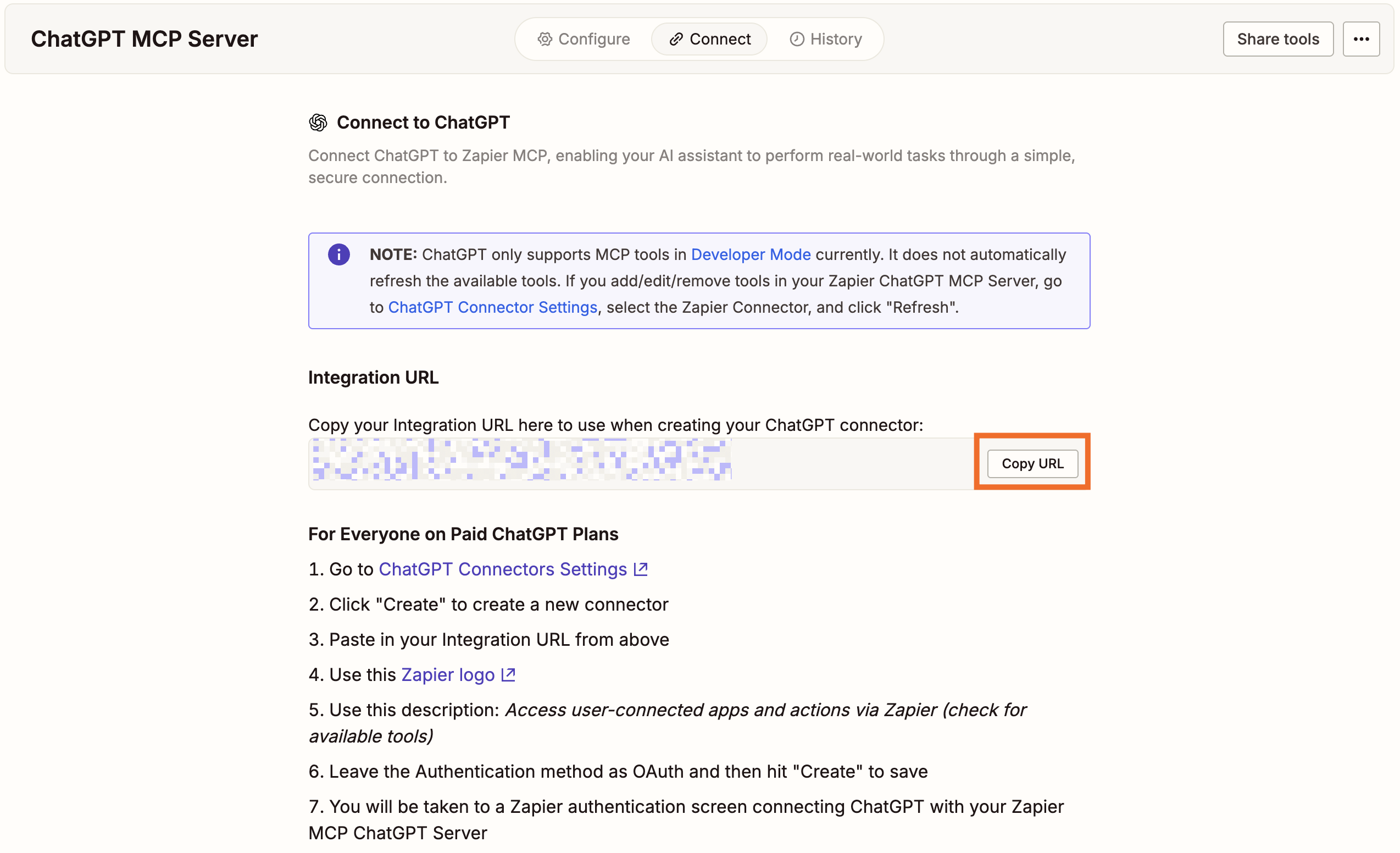
Depending on which ChatGPT plan you're on, follow the correct set of instructions below the Copy URL button. (In this process, you'll paste that URL you just copied.)

Step 2: Enable the necessary Google Drive action
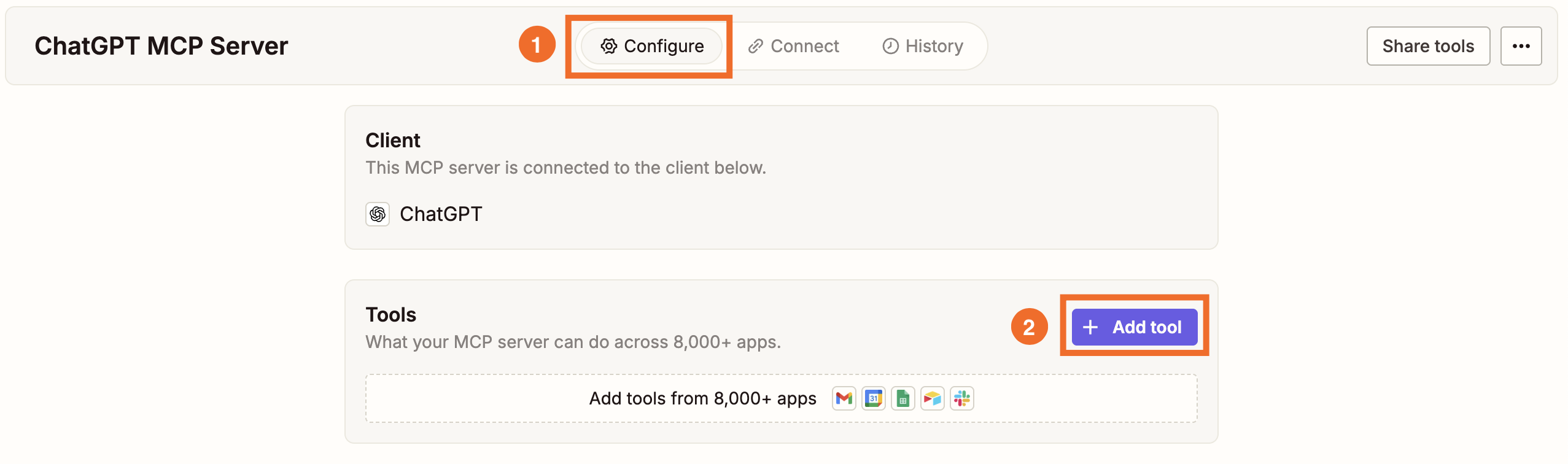
After you connect Zapier MCP, return to the Configure tab in the Zapier MCP dashboard and click + Add tool.
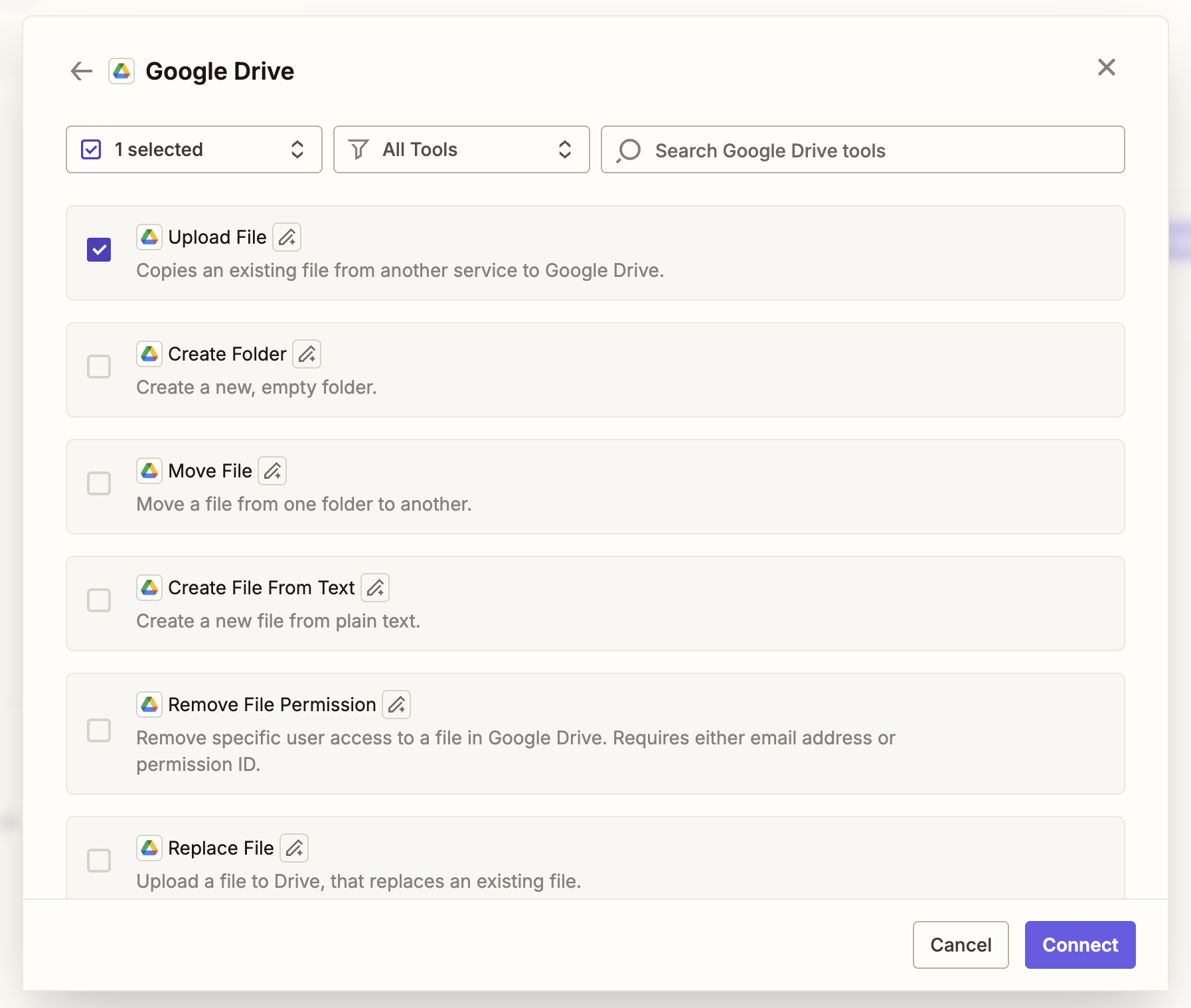
Search for Google Drive and check the Upload File action—or pick whichever storage tool you want for holding your AI-generated images. Then click Connect.


Step 3: Trigger the Google Drive action in ChatGPT
Start a new conversation in ChatGPT.
Ask ChatGPT to generate an image.
Continue to prompt ChatGPT, refining the image until you're happy with it, and when you're ready, give it a prompt like this:
"Save this version to my Google Drive."Verify that the file was saved to your drive.
Pro tip: Extend this workflow by enabling a Google Drive search action plus actions from your favorite team chat tools, like Slack, Discord, and Telegram. That way, you can ask ChatGPT to retrieve a Google Drive file URL and send it to your teammates—all in a single prompt.
A frictionless way to store your AI-generated files
You're already moving at the speed of AI. Don't let manual file management interrupt your flow. With Zapier MCP, you can auto-store any AI-generated images you create without ever leaving the ChatGPT window. Visit the Zapier MCP dashboard to start building your customized server today.



