It feels like it was only last week when spotting an AI-generated video was easy peasy. All you had to do was look for the very obvious tells—like when a dog spawned a mysterious fifth limb mid-run or crowds of people walked through an otherwise lively city like they were loading in (it's exactly as unnerving an image as you're picturing).
Those seams are getting harder to find. For better or worse, AI video models can now produce really good videos, and Gemini Omni—Google's latest model—is no exception.
Here's everything you need to know about Gemini Omni.
Table of contents:
What is Gemini Omni?

Gemini Omni is Google's AI model for generating and editing videos in Gemini (the chatbot), Google Flow (the creative platform), YouTube (only to create or remix YouTube Shorts), and Google AI Studio. It has strong prompt adherence, so it can reliably create videos from text prompts or images, complete with matching dialogue and sound effects.
Note: The specific model version is Gemini Omni 1.1 Flash, but that'll probably change by the time you read this.
Gemini Omni vs. Google Veo: What's the difference?
Google has two video models: Gemini Omni and Google Veo. Gemini Omni is the newer, default video model. It's what you'll use if you're creating and editing videos in Gemini, Google Flow, or YouTube. Google Veo is the older model that Google says is better geared for specific video editing tasks—like extending a scene or fine-tuning a final render. Up until very recently, you could access Veo via the Gemini API, but it's since been deprecated. Google has also said Omni will replace Veo in the Gemini app.
What can Gemini Omni do?
Before we dive into how to use Gemini Omni, here's a quick glance at what it can do really well:
Video generation from multiple inputs (text prompts, images, and frames) with natural-sounding speech and background noise or music. You can even describe the camera moves, lighting, and dialogue you want in the scene, and Omni does a pretty impressive job of sticking to the script.
First-and-last-frame control lets you tell Gemini how the clip starts and ends, and then the AI model figures out the in between.
Short clips. Omni-generated clips are anywhere between four to 10 seconds in 360p (for lightweight video previews), 720p, 1080p, and, on higher paid tiers, 4k. These specs are good enough if you're looking for short clips to post on social or, say, to tease a new product release. But anything longer means stitching clips together or extending an existing scene (up to 40 seconds, in 10-second increments). That's likely a non-issue if you're on a Google AI Pro plan or higher ($19.99/month), but you'll probably hit usage limits pretty quickly on a free or Google AI Plus plan.
Gemini Omni is still a far ways away from creating Oscar-worthy films, though. Case in point: every video is capped at 10 seconds, which severely limits storytelling possibilities. You can't develop complex narratives or showcase detailed processes. Plus, in my testing, Omni struggled to keep characters and environments consistent across scenes (as shown in the screenshot below). But at the rate Google's developing its models, the gap will probably be infinitely smaller by the time you're reading this.

Gemini Omni pricing
Anyone with a free personal plan can use Gemini Omni, but if you're making more than the one-off video to see what it would look like for your weenie dog to parkour off impossibly high fire hydrants, you'll want to upgrade to a Google AI plan (from $4.99/month for Google AI Plus).
How to use Gemini Omni: a step-by-step guide
There are a handful of ways to use Gemini Omni. You can choose what platform you create from (Gemini, Google Flow, YouTube, or the Gemini API). I recommend using Google Flow for the most user-friendly experience. Here's how to get started with your first video.
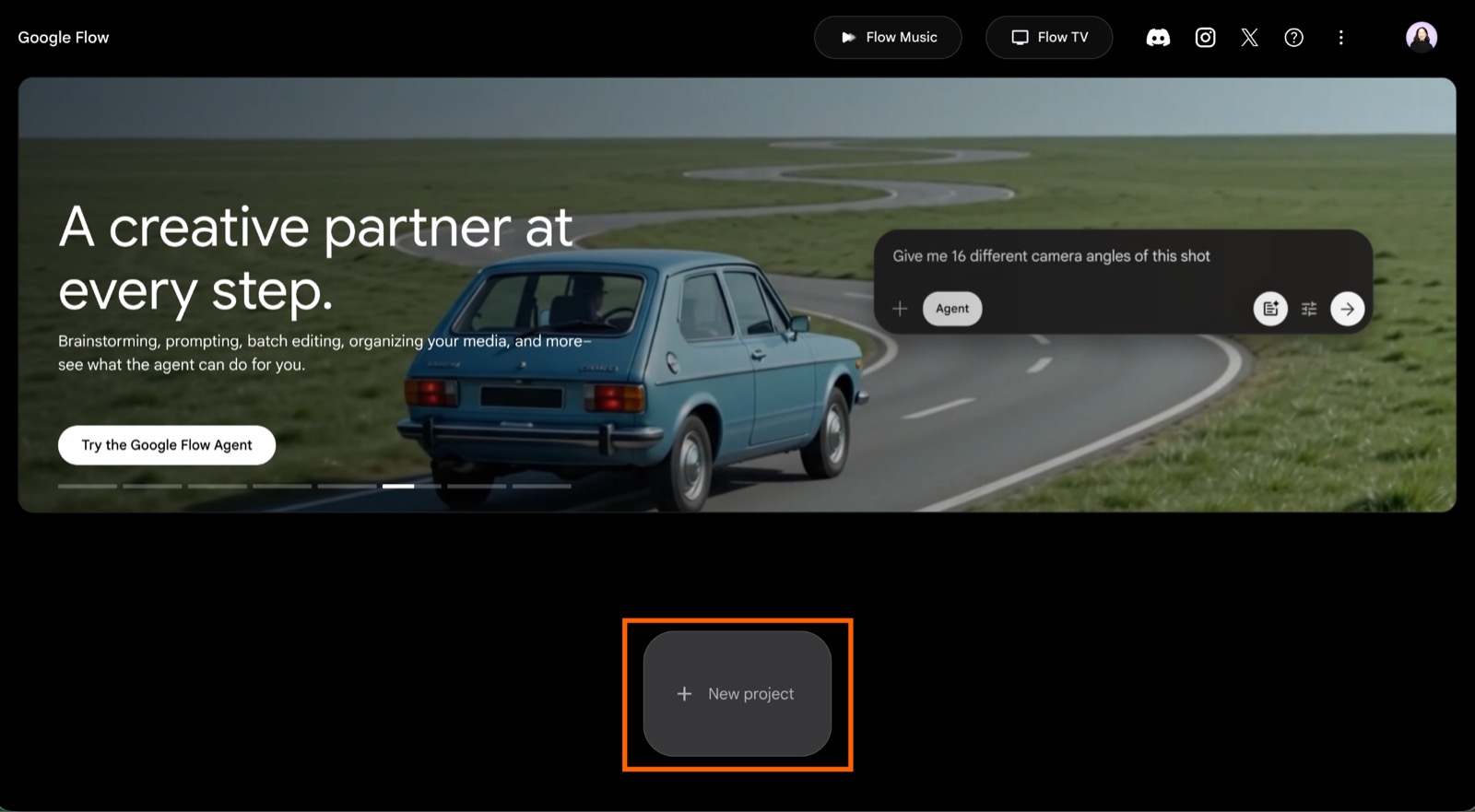
Go to flow.google.com and log in with your Google account.
Click New project.
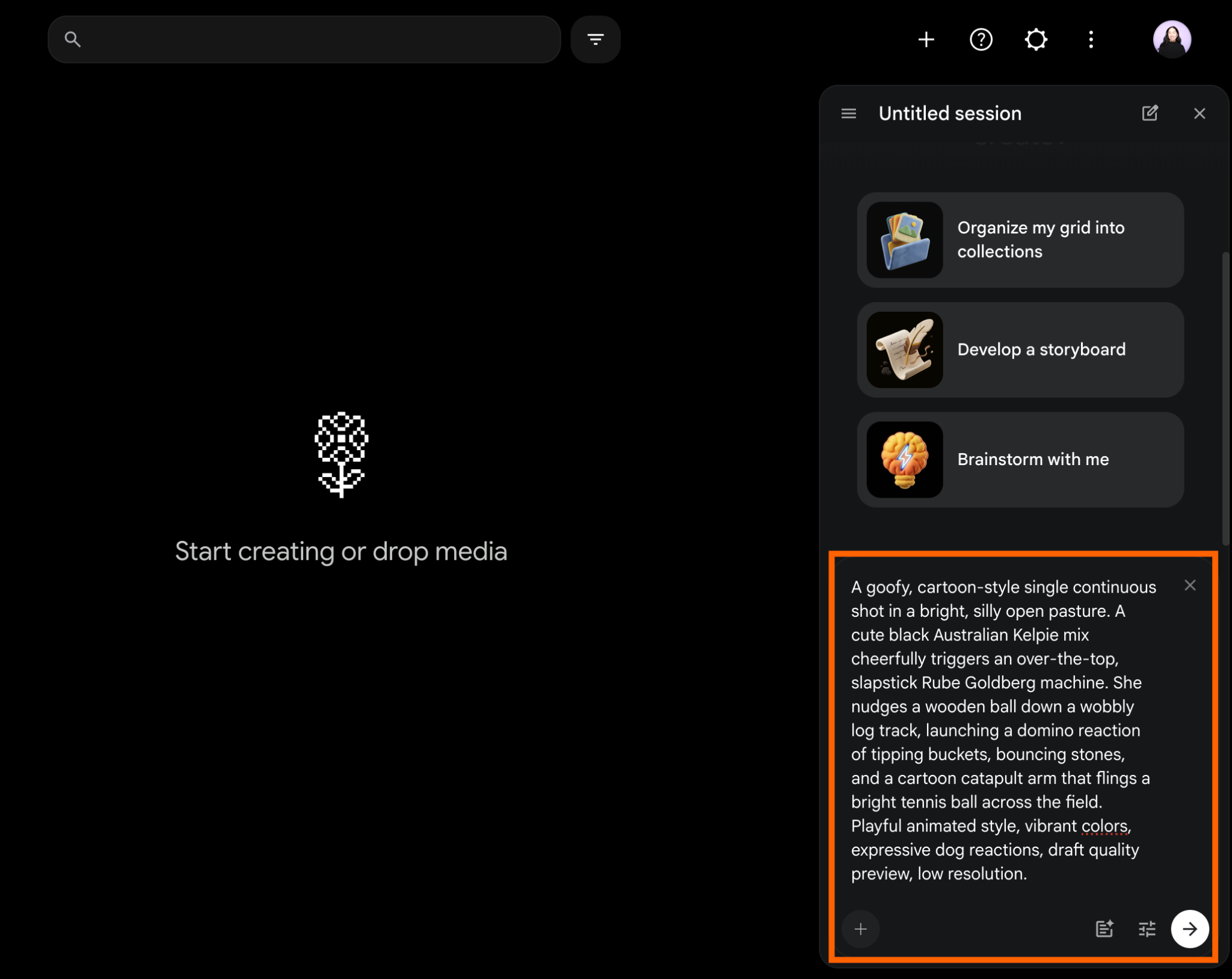
Enter your prompt in the chat. You can also drag and drop reference images—like a background scene or a mockup of a scene that you want to build from—into the main area. Note: There's a fine line between a specific prompt and a too-specific prompt that can "confuse" the AI model. I'll get into prompting tips in a bit (but you can jump ahead).
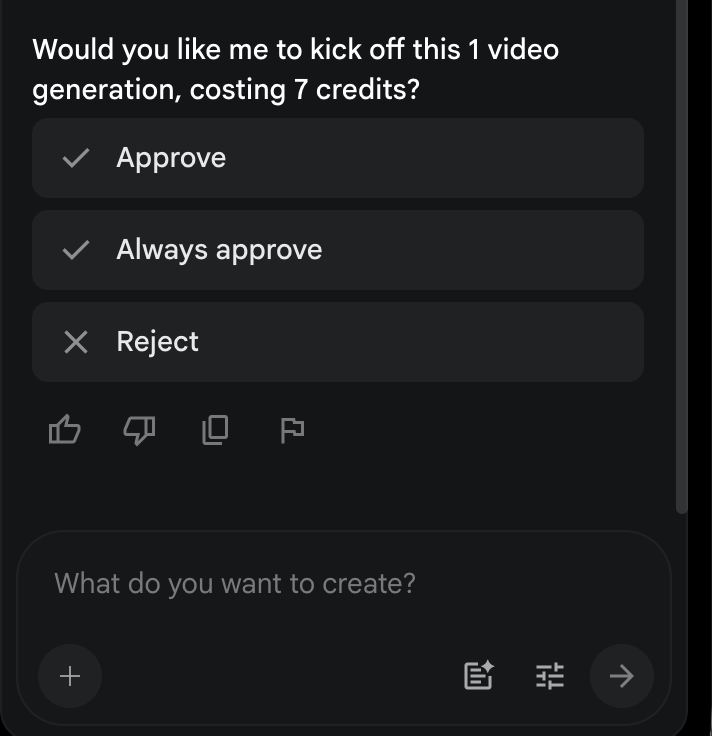
By default, you'll be prompted to confirm if you want to generate the video using credits. Click Approve. (If you'd like to throw caution to the wind, you can click Always approve—but I'd advise against that. Visibility into your AI usage is always a good thing.)
Wait for your video to render and appear in the main area. This can take anywhere between a few seconds to a few minutes, depending on the complexity of your prompt.
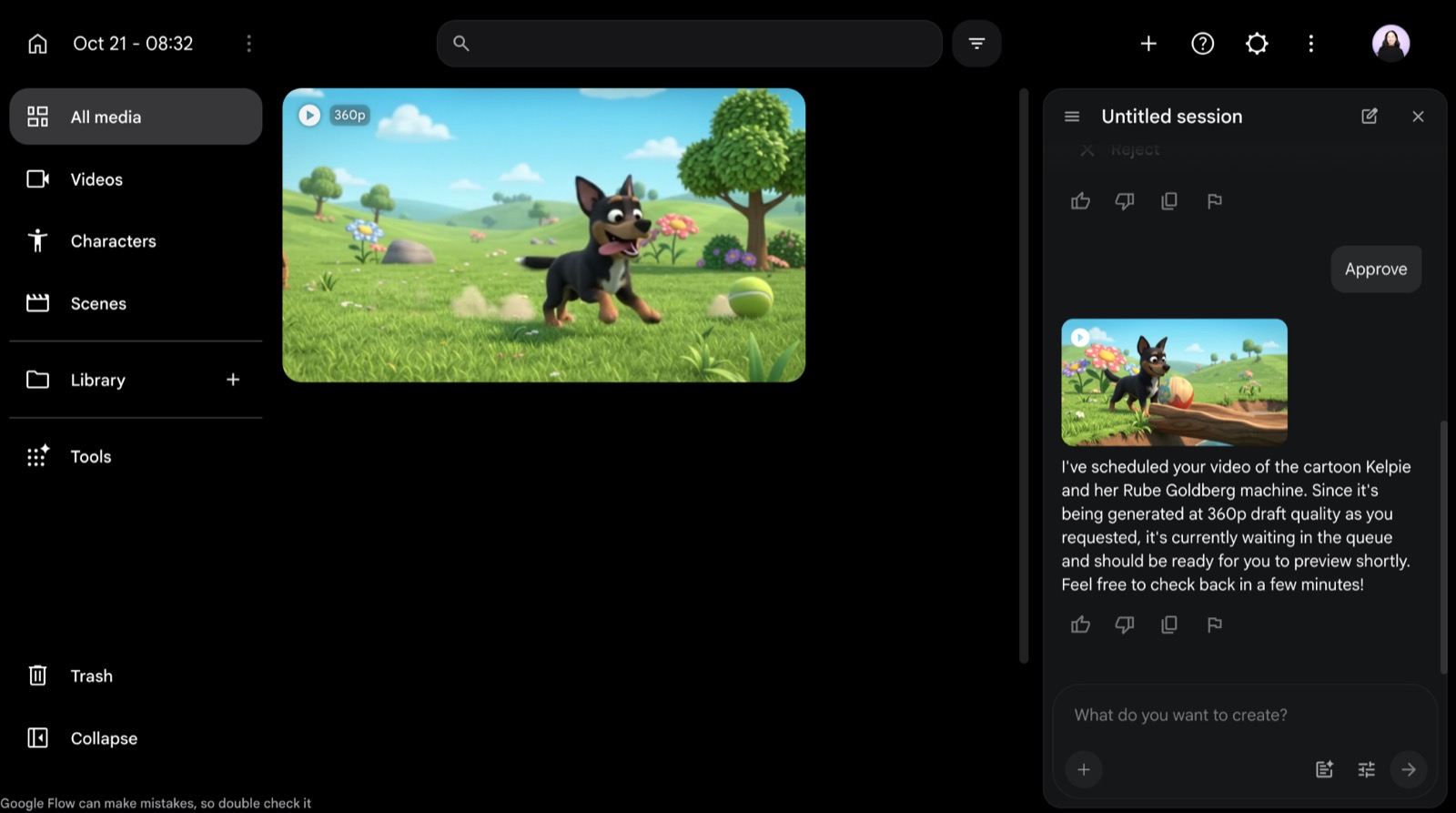
Once your video's ready, you have a number of options (you may have to click
⋮in the floating toolbar to access them):Preview the video. Hover over the video clip to preview it.
Edit the video. Click the video you want to edit, and tell Flow what you want to change just like you normally would. If you want to edit only specific elements—like a camera angle or a character's outfit—be sure to include
Keep everything else the same, otherwise, Flow will output an entirely new clip.Generate a new video. You can also try the same prompt again to get a new result. Hover over the video thumbnail, and click the Reuse prompt icon (it looks like a curved arrow) in the floating toolbar.
Once you're happy with the video, click the Download scene icon, which looks like an arrow pointing down at a box. Or, if you're viewing all of your media, hover over the video you want to download, click ⋮, and then select Download.


AI prompt tips for better video results
Here are a few AI prompt tips that make Omni's outputs noticeably better.
Make a base clip first, and then edit in layers. Start with a simple prompt covering the subject, setting, and motion. For example: "A grey Lurcher sprinting along a cliffside beach in a single continuous tracking shot, waves crashing in the background." Then refine with follow-up edits instead of cramming everything into one prompt.
Keep edit prompts short and specific. Overly detailed edit requests can lead to unintended changes elsewhere in the shot. Try things like "Make this video anime," or "Change the lighting to be more dramatic."
Use reference photos for consistency. If you want the same character or product across clips, upload photos instead of describing them in words. Note: Your mileage may vary with this tip, but it does produce more consistent results than if you just described your character or product in words.
Avoid using all caps for audio emphasis. If you want a character to yell something, describe that in words. For example: "The owner yells, 'Get back here!' at the top of her lungs, her voice cracking as the dog bolts down the beach." (Writing yelled words in all caps tends to confuse audio generators.)
Automate your Google apps with Zapier
If you're making videos with Omni, there's a good chance the rest of your workflow lives in Google, too. Zapier connects Google apps—and everything else in your stack—so those pieces stop living in separate tabs and start working together.
Start in the AI tool you already use, and what you build becomes a workflow that keeps running on Zapier, even after you close your laptop. Zapier uses fixed, predictable steps wherever it can and adds AI only where a step needs judgment, so the workflow stays reliable. If a run fails, an agent diagnoses the problem and prepares a fix—and you set what it can change on its own.
Say you finish a video and drop the file into a shared Drive folder. Zapier can:
Log it in your content calendar in Google Sheets, with the title, date, and file link
Use AI to draft a title, description, and summary from your script in Google Docs
Post a note in Slack so your team knows it's ready for review
Email the draft to your approver in Gmail
Add a review session to Google Calendar
You can see what happened in every run, step by step, along with the version history of your workflow. And it connects to 9,000+ apps beyond Google too.
Build automations from wherever you work. Describe the outcome you want, and Zapier connects your tools, runs the steps, and stays on the job after you close the chat. Combine AI with reliable, deterministic automation across 9,000+ apps. Get started for free.
Gemini Omni: FAQ
Here are answers to commonly asked questions about Gemini Omni.
Does Gemini Omni have an API?
Yes, you can generate and edit videos with Gemini Omni through the Gemini API.
How long can Gemini Omni videos be?
If you're stitching together multiple clips generated by Gemini Omni, there's no limit. But each clip is capped at a max of 40 seconds (edited in 10-second increments). Note: You'll need a Google AI plan to extend scenes.
Are Gemini Omni videos watermarked?
Yes, every Omni-generated video carries an AI watermark. The watermark is mainly to let AI detection tools know that the video is AI-generated—users can't see it.
Related reading: