Managing multiple Google Calendars—one for work, another for your personal life, maybe a third for side projects—is common. But it can be annoying to keep them all aligned. Plus, if you forget to manually copy an event to another calendar, you might get double-booked, miss an appointment, or have a colleague schedule over time you've already blocked off.
To prevent all that fuss, let Zapier automate the process. Set up a Zap (that's our word for an automated workflow) to instantly copy new events from one calendar to another. Below, I'll show you how to set this up—and I'll show you how to do a manual, one-time import of all existing events from one calendar to another, too.
Zapier is the most connected AI orchestration platform—integrating with thousands of apps from partners like Google, Salesforce, and Microsoft. Use forms, data tables, and logic to build secure, automated, AI-powered systems for your business-critical workflows across your organization's technology stack. Learn more.
Skip ahead
Automatically copy events from one Google Calendar to another
Manually export and import events from one Google Calendar to another
Automatically copy new events from one Google Calendar to another
You can create your own Zap from scratch without any coding knowledge, but we also offer quick templates to get you started.
If you'd like to start with a Zap template, click the button below, and you'll be taken to the Zapier editor. You'll need to create a Zapier account if you don't already have one. Then, follow the directions below to set up your Zap.
Copy new Google Calendar events to another Google Calendar

If you'd rather take a more hands-on approach, you can go straight to the Zap editor.
Set up your Google Calendar trigger
First, set up your trigger—the event that starts your Zap. Search for and select Google Calendar for your trigger app and New Event for the trigger event. If you're using the Zap template, these will already be selected for you. Then connect your Google account, if you haven't already, and click Continue.

Next, select the correct calendar in the Calendar field, then click Continue.

Now you need to test your trigger. Zapier will find recent calendar events, which will be used to set up the rest of your Zap. Click Test trigger, select a record, then click Continue with selected record.
Set up your Google Calendar event
Now set up your action—the event your Zap will perform once it's triggered. If you're using the Zap template, Google Calendar will already be selected as your action app and Create Detailed Event as your action event. Connect the Google account for the calendar you want to copy events to, then click Continue.

Now it's time to set the details of the copied event. Start by selecting the correct calendar. Then, include the summary, description, and location of the new event.
You can type in text or pull data from your previous trigger step by clicking on the plus sign (+) in the field or typing a forward slash (/) and selecting the data you'd like to use, like the event summary. Next, select the start and end times for your copied event.

Next, choose if you want the event to be added as an all-day event. You can also specify a color for the event and if you want to automatically add attendees.

Set the visibility of the copied events and decide if you want to use the reminders that are already set for your Google Calendar account. If you want to set different reminders than your default settings, select No and fill in the Reminders and Minutes Before Reminders fields. Choose if you want to be shown as Free or Busy, if guests can modify your event, and the event type for categorization purposes.

When you're done, click Continue and test your action. When you click Test step, Zapier will send a calendar event to the calendar account you connected.
If everything looks good, just remember to publish your Zap.
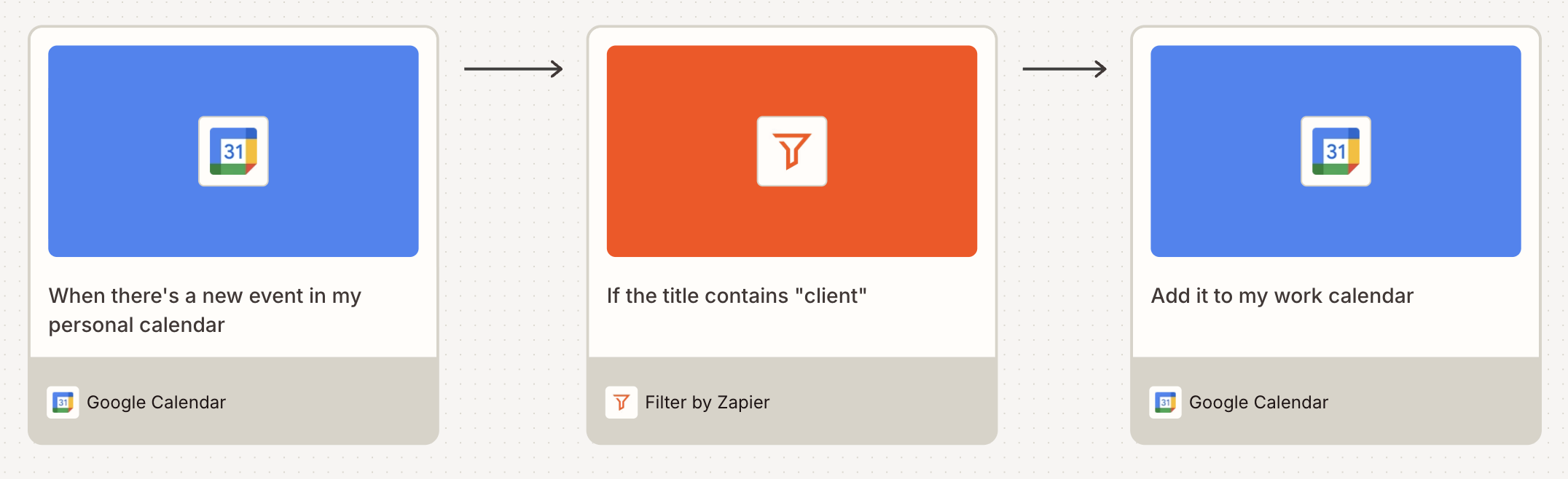
Pro tip: Want more control over which events get copied? Add a Filter by Zapier step to this workflow. This will copy events only if they meet your criteria—for example, if the event contains a keyword in the title, the duration is longer than an hour, or you're not the organizer. Learn more about using filter steps.

Export and import all appointments from one Google Calendar to another
You can also manually export an entire Google Calendar, then import all the events to another calendar—or even another account.
To get started, open Google Calendar using the Google account that includes the events you want to copy. Next, hover over the calendar you want to export. A kebab menu (⋮) will appear.

Click the kebab menu, then click Settings.

Now click the Import & Export tab, and then click the Export button.

Your browser will download a .zip file, which you should open in order to find an .ics file. If you exported multiple calendars, make sure to select the correct file from within the .zip download.
Next, open Google Calendar using the account that includes the calendar you want to copy your events to. Click the gear button in the top menu bar, then click Settings.

Click Import & Export. That's where you'll find the Import option.

Select the file you just exported from the other calendar, then choose the calendar you'd like to import the dates to. You've now imported all your events.
Related reading:
This article was originally published in July 2019, written by Justin Pot with previous contributions by Ellie Huizenga, Hannah Herman, and Khamosh Pathak. It was most recently updated in February 2026.