Top companies trust Zapier to automate work that solves their unique business problems—no coding required.
How Zapier works
Zapier makes it easy to integrate Google Contacts with Microsoft Teams - no code necessary. See how you can get setup in minutes.
100%
Help
Google Contacts
Google Contacts
1. Choose trigger event
Microsoft Teams
Microsoft Teams
2. Choose action
1. Select the event
Setup
Test
Google Contacts
Choose a trigger event
Choose a trigger
A trigger is the event that starts your Zap—like a "New or Updated Contact" from Google Contacts.
Add your action
An action happens after the trigger—such as "Create Channel" in Microsoft Teams.
You’re connected!
Zapier seamlessly connects Google Contacts and Microsoft Teams, automating your workflow.
Supported triggers and actions
Zapier helps you create workflows that connect your apps to automate repetitive tasks. A trigger is an event that starts a workflow, and an action is an event a Zap performs.
Create a new record or update an existing record in your app.
Chat
Required
Message
Required
Message Text
Required
Message Text Format
Action
This is an event a Zap performs.
Write
Create a new record or update an existing record in your app.
Team
Required
Channel
Required
Message ID
Required
Message Text Format
Reply Content
Required
Action
This is an event a Zap performs.
Write
Create a new record or update an existing record in your app.
Team
Required
Public Channel
Required
Message Text
Required
Message Text Format
Action
This is an event a Zap performs.
Write
Create a new record or update an existing record in your app.
Chat
Required
Message Text Format
Message Text
Required
Action
This is an event a Zap performs.
Write
Create a new record or update an existing record in your app.
Availability
Required
Duration (Minutes)
Action
This is an event a Zap performs.
Write
Create a new record or update an existing record in your app.
Info
Chat
Required
Message
Required
Message Text
Card Type
Required
Disable Buttons
Status Text
Action
This is an event a Zap performs.
Write
Create a new record or update an existing record in your app.
Api_docs_info
Stop on error
Required
HTTP Method
Required
URL
Required
Query string parameters
Additional request headers
Body
Action
This is an event a Zap performs.
Write
Create a new record or update an existing record in your app.
Team
Required
Channel
Required
Message ID
Required
Action
This is an event a Zap performs.
Search
Find existing data in your app
Chat ID
Required
Message ID
Required
Action
This is an event a Zap performs.
Search
Find existing data in your app
Team
Required
Channel Name
Required
Include Archived Channels
Action
This is an event a Zap performs.
Search
Find existing data in your app
For AI agents & developers
Use Google Contacts and Microsoft Teams with AI agents and code
Beyond Zap workflows. Call Google Contacts and Microsoft Teams actions directly from your AI client or your codebase, using the same 9,000+ app integrations Zapier already runs.
No code
Connect via Zapier MCP
Expose Google Contacts and Microsoft Teams actions as tools in any MCP client. Authenticate once, then call them in natural language.
Example actions on this page
Add Contact to Groups
Create Channel
Works with
Claude · ChatGPT · Cursor · any MCP-compatible client
There is no Python package yet. SDK is TypeScript-only (@zapier/zapier-sdk). The MCP server URL is personal to your account; get it at zapier.com/mcp.
Zapier is the automation platform of choice for 87% of Forbes Cloud 100 companies in 2023
93%
Customers who say using Zapier has made them better at their job
25m
Customers have created over 25 million Zaps on the platform
6 mins
The average user takes less than 6 minutes to set up a Zap
Connect Google Contacts and Microsoft Teams to integrate crucial parts of your business
With Zapier, you can integrate everything from basic data entry to end-to-end processes. Here are some of the business-critical workflows that people automate with Zapier.
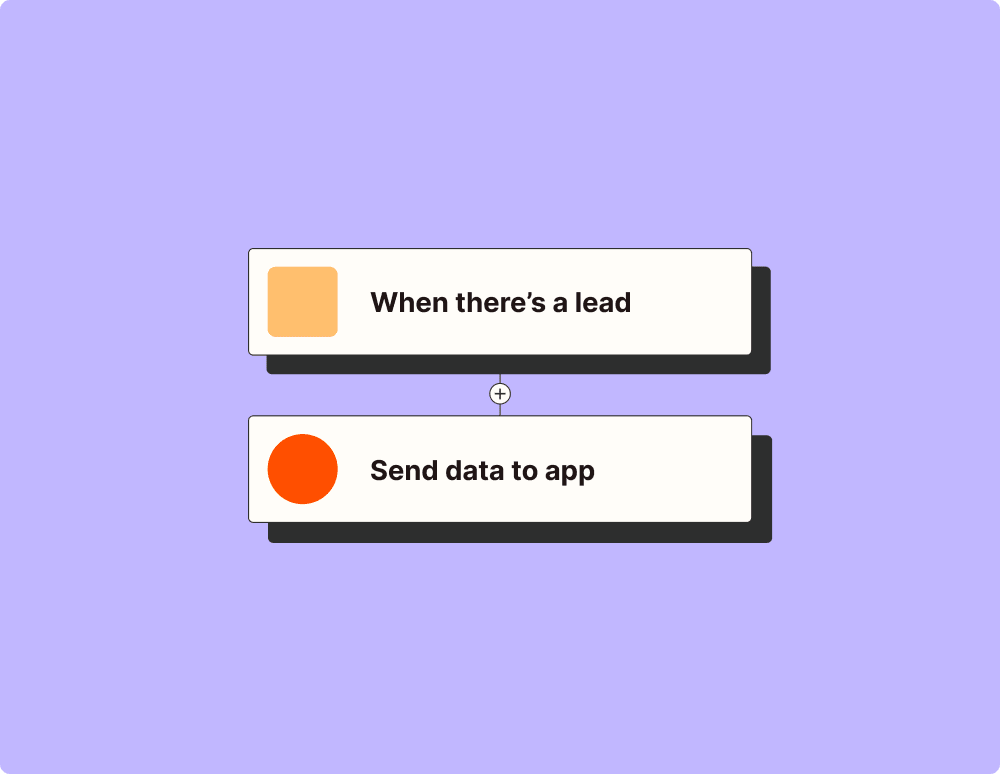
Automate your lead management and improve conversions
With Zapier, you can automate every part of your lead funnel and give yourself the best chance at converting leads. Automate everything from lead capture to outreach to reporting—and close more deals as a result.
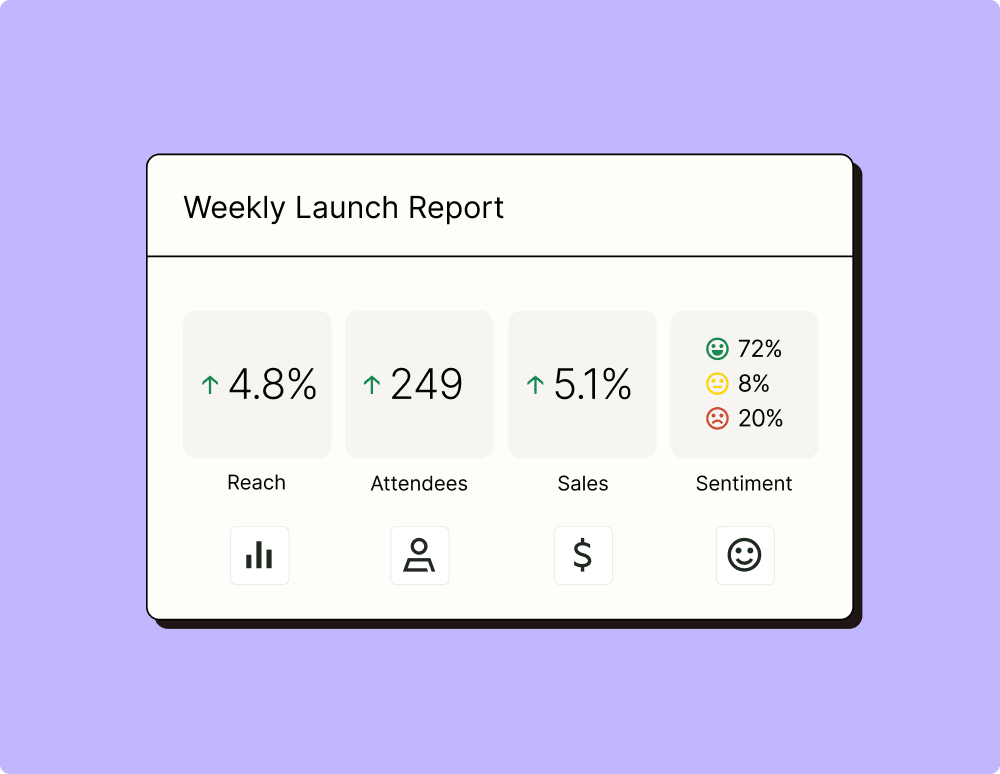
Create more impactful campaigns with automation
Measuring campaign performance across platforms can get chaotic. Plus, digging up the right metrics costs you precious time and effort. With Zapier, you can create a centralized view of your performance, skillfully manage your lists, and ensure your campaigns drive ROI across the business.
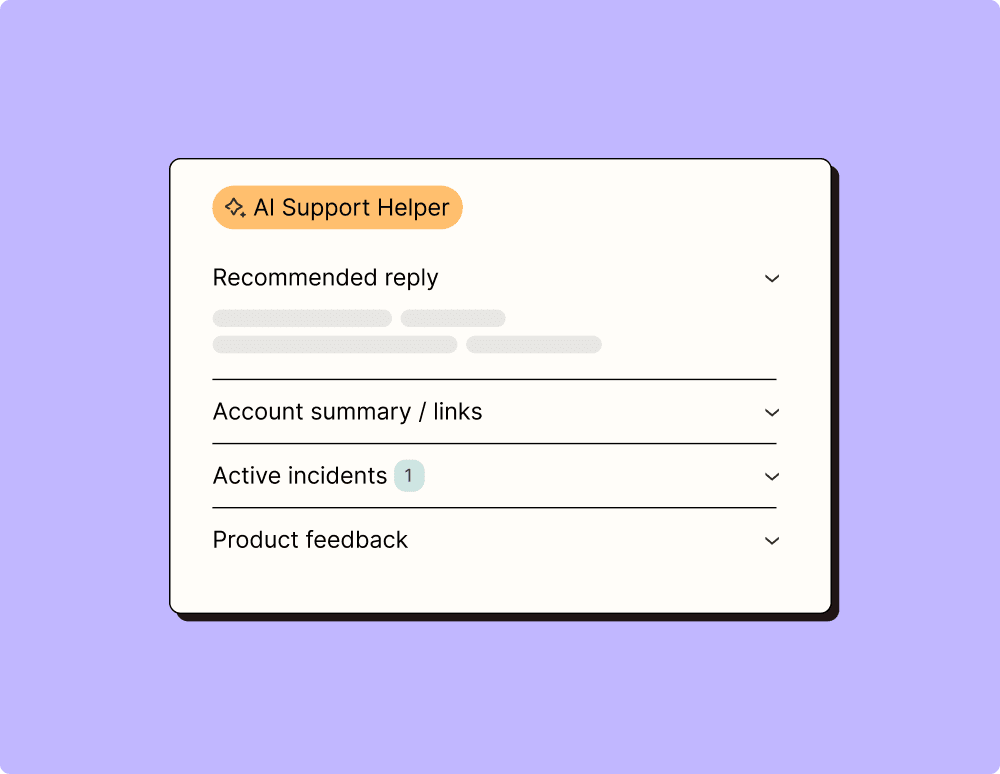
Provide world-class support with a little help from automation
Support reps can't be productive when they have to track down crucial information for every incident or ticket. With Zapier, you can automatically send your reps the context they need to resolve tickets quickly and create a seamless customer experience.
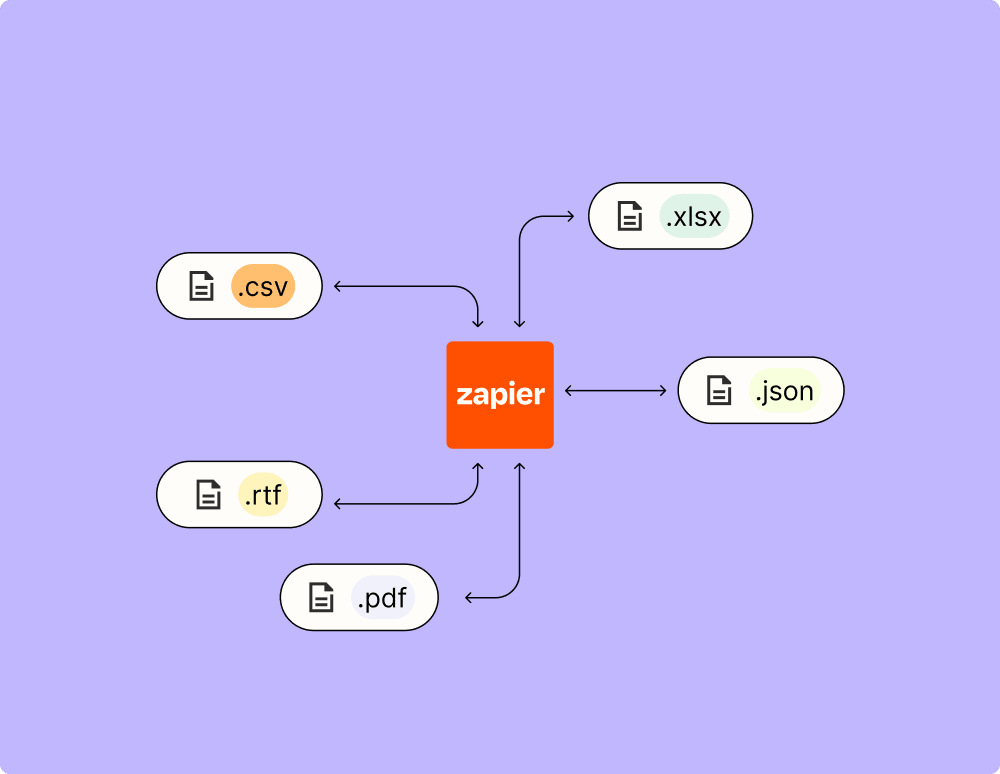
Automate your way to actionable, up-to-date data
The days of manually exporting and importing data are over. With Zapier, you can send data where it needs to go, in the format you need it—so you can centralize your data and unlock more insights.
Resolve incidents faster with automation
Your technical support team wants to focus on tech tickets rather than admin work. With Zapier, you can automate everything from ticket creation to routing to inter-team communication—eliminating friction from incident management and increasing speed to resolution.
Learn how to automate Google Contacts on the Zapier blog
Learn how to automate Microsoft Teams on the Zapier blog
Make work flow with AI
Level up your Google Contacts to Microsoft Teams integration with AI. Extract, summarize, and transform your integration data with leading AI models like OpenAI, Anthropic, and more.
Frequently Asked Questions about Google Contacts + Microsoft Teams integrations
New to automation with Zapier? You're not alone. Here are some answers to common questions about how Zapier works with Google Contacts and Microsoft Teams
How can I integrate Google Contacts with Microsoft Teams using our platform?
To integrate Google Contacts with Microsoft Teams, you can use our automation platform to create workflows that connect the two applications. You start by selecting Google Contacts as the trigger app and choosing an event such as 'New Contact Added.' Then, link it to a Microsoft Teams action like 'Post Message in Channel' to automate updates whenever a new contact is added.
What triggers are available for Google Contacts in our integration system?
Our system allows you to use several triggers for Google Contacts, such as 'New Contact Added' or 'Updated Contact.' These triggers help automate workflows by initiating actions in connected applications like Microsoft Teams when specific changes occur in your Google Contacts.
Can I customize the data sent from Google Contacts to Microsoft Teams?
Yes, you can customize the data sent from Google Contacts to Microsoft Teams. When setting up your integration, you'll have the option to map specific fields from your contacts, such as name, email, and phone number, into predefined fields or message templates in Microsoft Teams.
Is it possible to sync contacts between Google Accounts and multiple Microsoft Teams channels?
Yes, with our automation platform, you can set up multiple integrations where changes in your Google Contacts can trigger different actions across various Microsoft Teams channels. Each workflow can be tailored so that adding or updating a contact could lead to messages being posted simultaneously across selected channels.
How do we handle duplicates when integrating contacts from Google Contacts into Microsoft Teams?
We offer features that help manage duplicates during integration. You can set conditions within your workflow that check for existing entries before posting a new message in Microsoft Teams. This ensures that only unique contact information gets communicated across apps.
Which actions in Microsoft Teams can be triggered from changes in Google Contacts?
When changes occur in Google Contacts, you can trigger various actions within Microsoft Teams using our platform. For example, when a contact is created or updated, you could post a new message in a channel or even create a task associated with a specific team member's tasks list.
Do I need technical skills to set up an integration between Google Contacts and Microsoft Teams using your tools?
No technical skills are required to set up integrations between Google Contacts and Microsoft Teams using our tools. Our user-friendly interface guides you through selecting triggers and actions with easy drag-and-drop options for mapping data between applications.
About Google Contacts
Google Contacts, the address book built into Gmail, lets you keep track of all your contacts, see when you last interacted with them, and more.
Microsoft Teams is the hub for teamwork in Office 365 that integrates all the people, content, and tools your team needs to be more engaged and effective.