Top companies trust Zapier to automate work that solves their unique business problems—no coding required.
How Zapier works
Zapier makes it easy to integrate QuickBooks Online with SQL Server - no code necessary. See how you can get setup in minutes.
100%
Help
QuickBooks Online
QuickBooks Online
1. Choose trigger event
SQL Server
SQL Server
2. Choose action
1. Select the event
Setup
Test
QuickBooks Online
Choose a trigger event
Choose a trigger
A trigger is the event that starts your Zap—like a "New Account" from QuickBooks Online.
Add your action
An action happens after the trigger—such as "Create Custom Query" in SQL Server.
You’re connected!
Zapier seamlessly connects QuickBooks Online and SQL Server, automating your workflow.
Supported triggers and actions
Zapier helps you create workflows that connect your apps to automate repetitive tasks. A trigger is an event that starts a workflow, and an action is an event a Zap performs.
Create a new record or update an existing record in your app.
Table
Required
Lookup Column
Required
Lookup_value
Required
Action
This is an event a Zap performs.
Search
Find existing data in your app
Query
Required
Action
This is an event a Zap performs.
Search
Find existing data in your app
For AI agents & developers
Use QuickBooks Online and SQL Server with AI agents and code
Beyond Zap workflows. Call QuickBooks Online and SQL Server actions directly from your AI client or your codebase, using the same 9,000+ app integrations Zapier already runs.
No code
Connect via Zapier MCP
Expose QuickBooks Online and SQL Server actions as tools in any MCP client. Authenticate once, then call them in natural language.
Example actions on this page
Attach File(s) or Note
Create Custom Query
Works with
Claude · ChatGPT · Cursor · any MCP-compatible client
There is no Python package yet. SDK is TypeScript-only (@zapier/zapier-sdk). The MCP server URL is personal to your account; get it at zapier.com/mcp.
Zapier is the automation platform of choice for 87% of Forbes Cloud 100 companies in 2023
93%
Customers who say using Zapier has made them better at their job
25m
Customers have created over 25 million Zaps on the platform
6 mins
The average user takes less than 6 minutes to set up a Zap
Connect QuickBooks Online and SQL Server to integrate crucial parts of your business
With Zapier, you can integrate everything from basic data entry to end-to-end processes. Here are some of the business-critical workflows that people automate with Zapier.
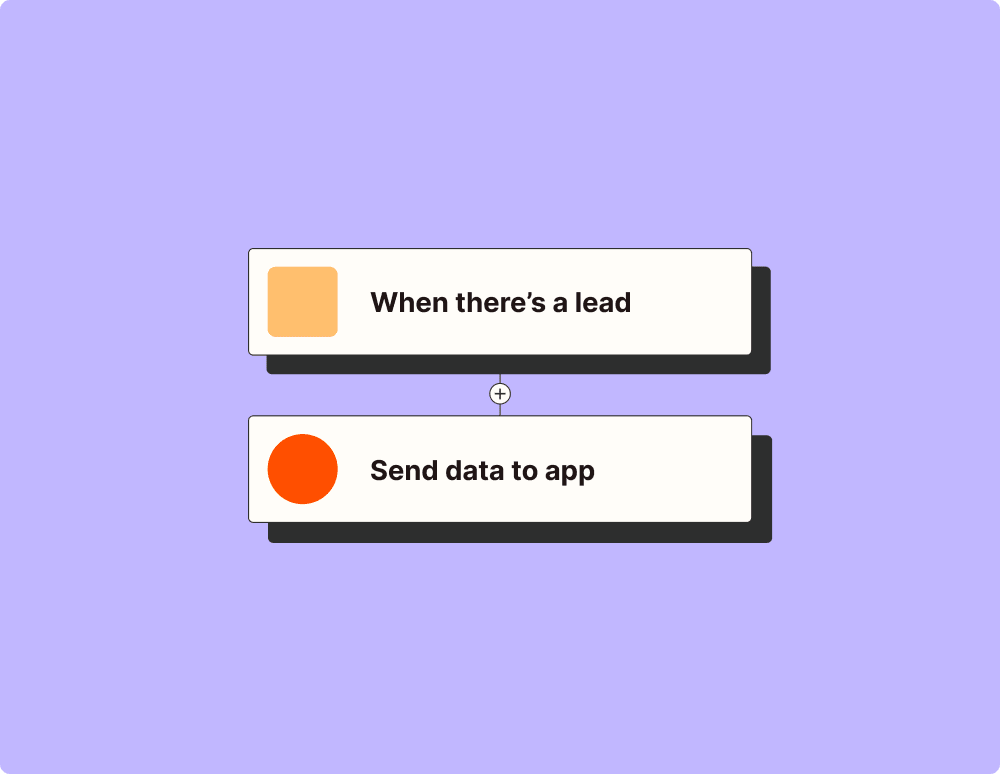
Automate your lead management and improve conversions
With Zapier, you can automate every part of your lead funnel and give yourself the best chance at converting leads. Automate everything from lead capture to outreach to reporting—and close more deals as a result.
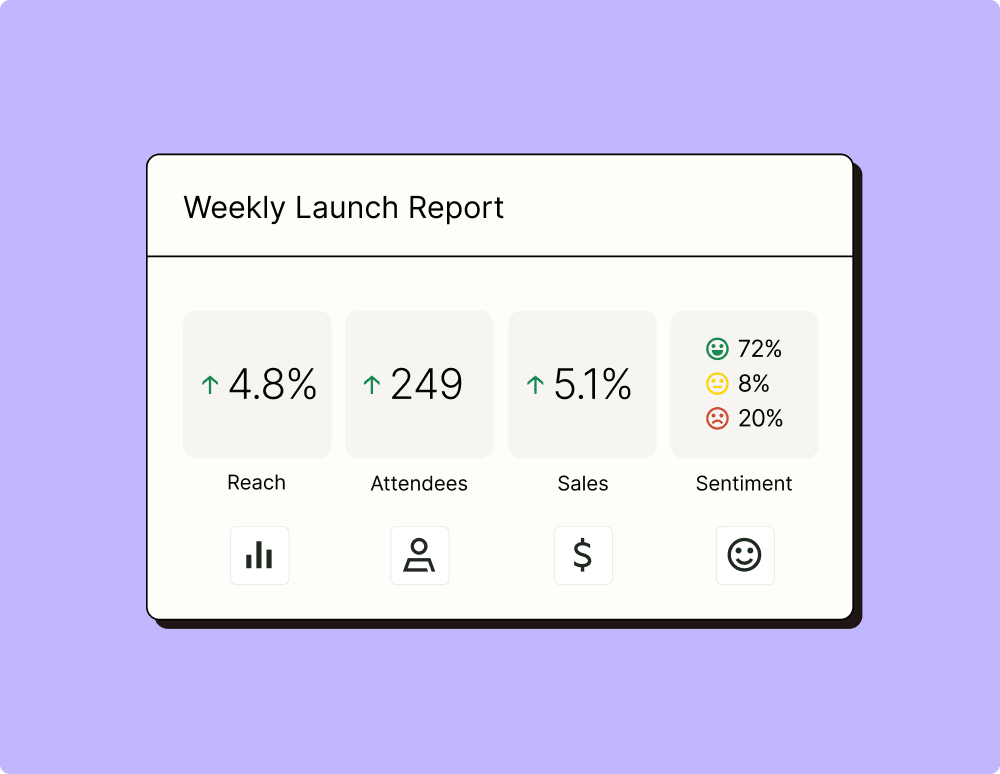
Create more impactful campaigns with automation
Measuring campaign performance across platforms can get chaotic. Plus, digging up the right metrics costs you precious time and effort. With Zapier, you can create a centralized view of your performance, skillfully manage your lists, and ensure your campaigns drive ROI across the business.
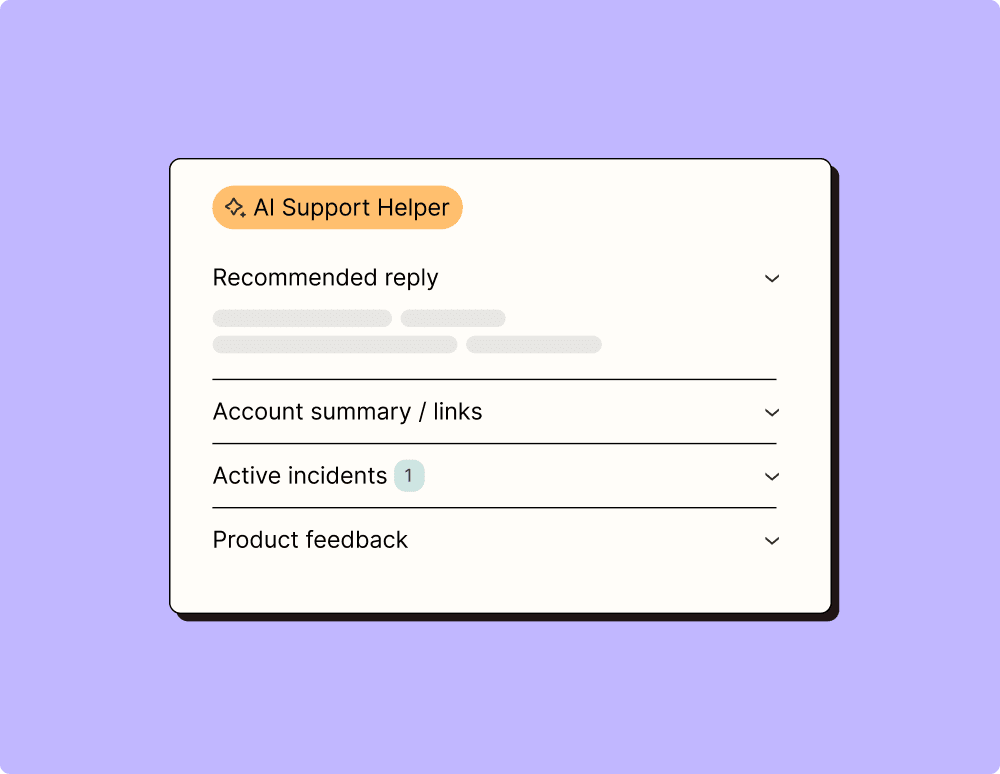
Provide world-class support with a little help from automation
Support reps can't be productive when they have to track down crucial information for every incident or ticket. With Zapier, you can automatically send your reps the context they need to resolve tickets quickly and create a seamless customer experience.
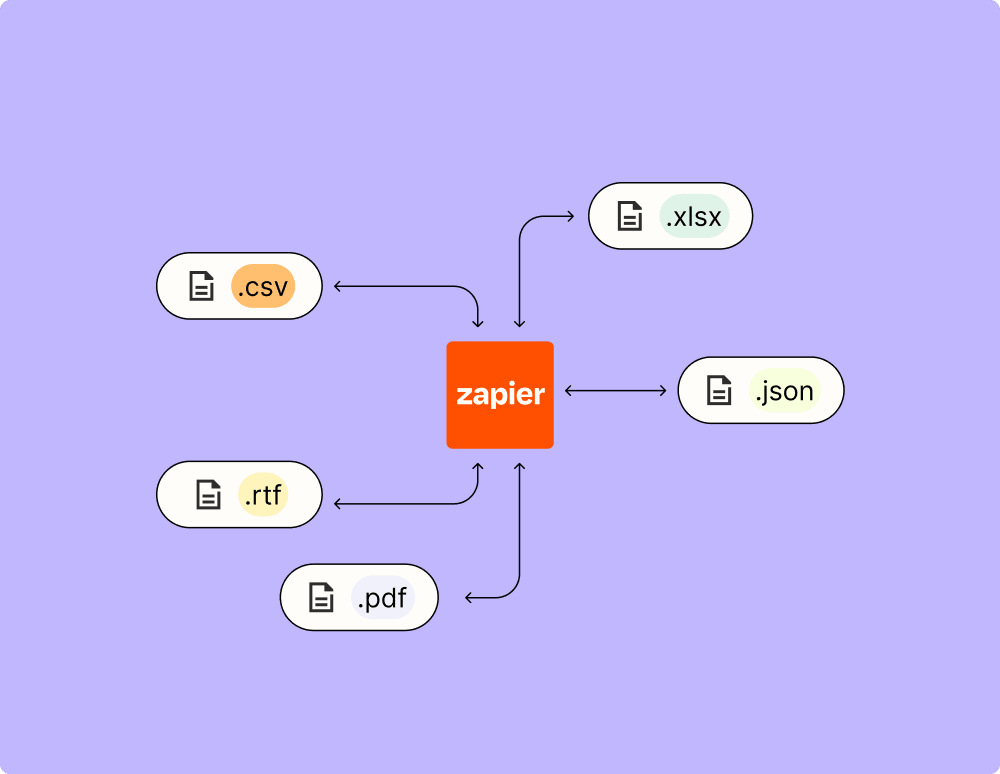
Automate your way to actionable, up-to-date data
The days of manually exporting and importing data are over. With Zapier, you can send data where it needs to go, in the format you need it—so you can centralize your data and unlock more insights.
Resolve incidents faster with automation
Your technical support team wants to focus on tech tickets rather than admin work. With Zapier, you can automate everything from ticket creation to routing to inter-team communication—eliminating friction from incident management and increasing speed to resolution.
Learn how to automate QuickBooks Online on the Zapier blog
Learn how to automate SQL Server on the Zapier blog
Make work flow with AI
Level up your QuickBooks Online to SQL Server integration with AI. Extract, summarize, and transform your integration data with leading AI models like OpenAI, Anthropic, and more.
Frequently Asked Questions about QuickBooks Online + SQL Server integrations
New to automation with Zapier? You're not alone. Here are some answers to common questions about how Zapier works with QuickBooks Online and SQL Server
How do I integrate QuickBooks Online with SQL Server?
We provide a streamlined way to set up connections between QuickBooks Online and SQL Server using triggers and actions. You can automate workflows by selecting a trigger in our platform, such as a new invoice in QuickBooks, which then performs an action like updating a record in your SQL Server database.
What are triggers and actions in the context of this integration?
Triggers are specific events that start a workflow, while actions are the tasks performed after a trigger occurs. For example, when a new customer is added in QuickBooks Online (the trigger), creating an entry for that customer in SQL Server would be the action.
Can I customize the data fields that are synced between QuickBooks and SQL Server?
Yes, during setup you can map fields from QuickBooks Online to SQL Server according to your needs. This allows you to control which data fields from QuickBooks should be matched with specific columns in your SQL database.
Are there any limitations on the number of records that can be synced at one time?
While you can generally sync batches of records, be aware that large volumes may affect performance depending on server capacity and network stability. It's advised to process data during low-traffic periods or break down large syncs into smaller batches.
What should I do if data isn't syncing correctly between QuickBooks Online and SQL Server?
Ensure that all mapped fields are correctly paired and review any conditions set within your triggers and actions. Debugging logs can also provide insights into any issues occurring during data transfer.
I received an error message during synchronization. How can I troubleshoot this issue?
Begin by checking your connection settings for both QuickBooks Online and SQL Server. Look over log files for specific error codes or messages that could help pinpoint the problem area within either platform's integration settings.
How frequently does the sync occur once I've set up an integration?
The frequency depends on how you've configured your triggers. You can set real-time updates for immediate synchronization as every relevant event occurs or schedule periodic checks at intervals best suited to your operational needs.
About QuickBooks Online
QuickBooks Online is the web version of the popular accounting packages QuickBooks. Use any Zapier integration to connect QuickBooks Online to hundreds of other apps.