Connect Google Calendar and Week Plan to power AI-driven automation
- No-code AI automation
- Full audit trails and controls
- SOC 2 and GDPR compliant
- Easy visual workflow builder
- 9,000+ apps, 450+ AI tools
- Free tier available
Launch your first automated workflow
Start with a template that brings Google Calendar and Week Plan together. Build enterprise-grade automation in minutes.
Our most popular template


How Zapier works
Zapier makes it easy to integrate Google Calendar with Week Plan - no code necessary. See how you can get setup in minutes.

Choose a trigger
A trigger is the event that starts your Zap—like a "New Calendar" from Google Calendar.
Add your action
An action happens after the trigger—such as "Create Role" in Week Plan.
You’re connected!
Zapier seamlessly connects Google Calendar and Week Plan, automating your workflow.
Supported triggers and actions
Zapier helps you create workflows that connect your apps to automate repetitive tasks. A trigger is an event that starts a workflow, and an action is an event a Zap performs.
- New Calendar
Triggers when a calendar is created.
Try ItTriggerPolling - CalendarRequired
- Search_term
Try ItTriggerPolling- CalendarRequired
- Expand Recurring Events
Try ItTriggerInstant- CalendarRequired
- Search_termRequired
- Trigger on newly created events only?
Try ItTriggerPolling
- CalendarRequired
Try ItTriggerPolling- CalendarRequired
- Time Before
- Time Before (Unit)
- Search_term
Try ItTriggerPolling- CalendarRequired
Try ItTriggerInstant- CalendarRequired
- EventRequired
- Attendee/sRequired
ActionWrite
For AI agents & developers
Use Google Calendar and Week Plan with AI agents and code
Beyond Zap workflows. Call Google Calendar and Week Plan actions directly from your AI client or your codebase, using the same 9,000+ app integrations Zapier already runs.
Connect via Zapier MCP
Expose Google Calendar and Week Plan actions as tools in any MCP client. Authenticate once, then call them in natural language.
Example actions on this page
Works with
Claude · ChatGPT · Cursor · any MCP-compatible client
Call from code with the Zapier SDK
Trigger Google Calendar and Week Plan actions from backend services, scripts, or agent code.
Install
# TypeScript / Node
npm install @zapier/zapier-sdk
Run an action
import { createZapierSdk } from '@zapier/zapier-sdk';

const zapier = createZapierSdk();
await zapier.runAction({ /* google-calendar / week-plan action */ });There is no Python package yet. SDK is TypeScript-only (@zapier/zapier-sdk). The MCP server URL is personal to your account; get it at zapier.com/mcp.
Zapier is the automation platform of choice for 87% of Forbes Cloud 100 companies in 2023




93%
Customers who say using Zapier has made them better at their job
25m
Customers have created over 25 million Zaps on the platform
6 mins
The average user takes less than 6 minutes to set up a Zap
Connect Google Calendar and Week Plan to integrate crucial parts of your business
With Zapier, you can integrate everything from basic data entry to end-to-end processes. Here are some of the business-critical workflows that people automate with Zapier.
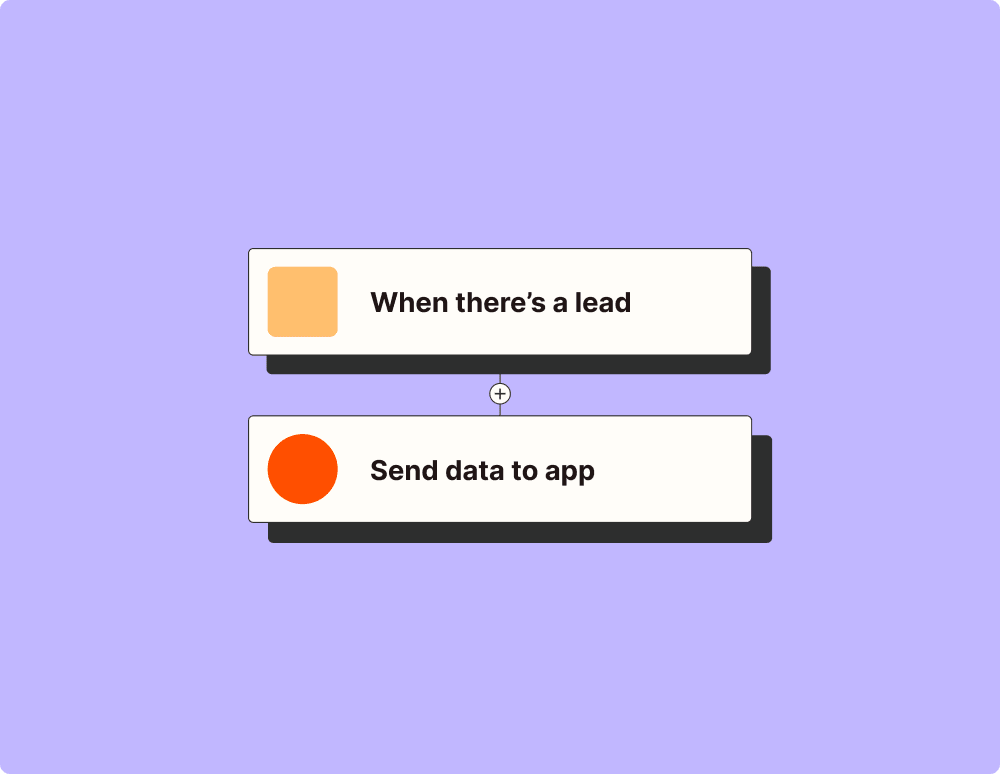
Automate your lead management and improve conversions
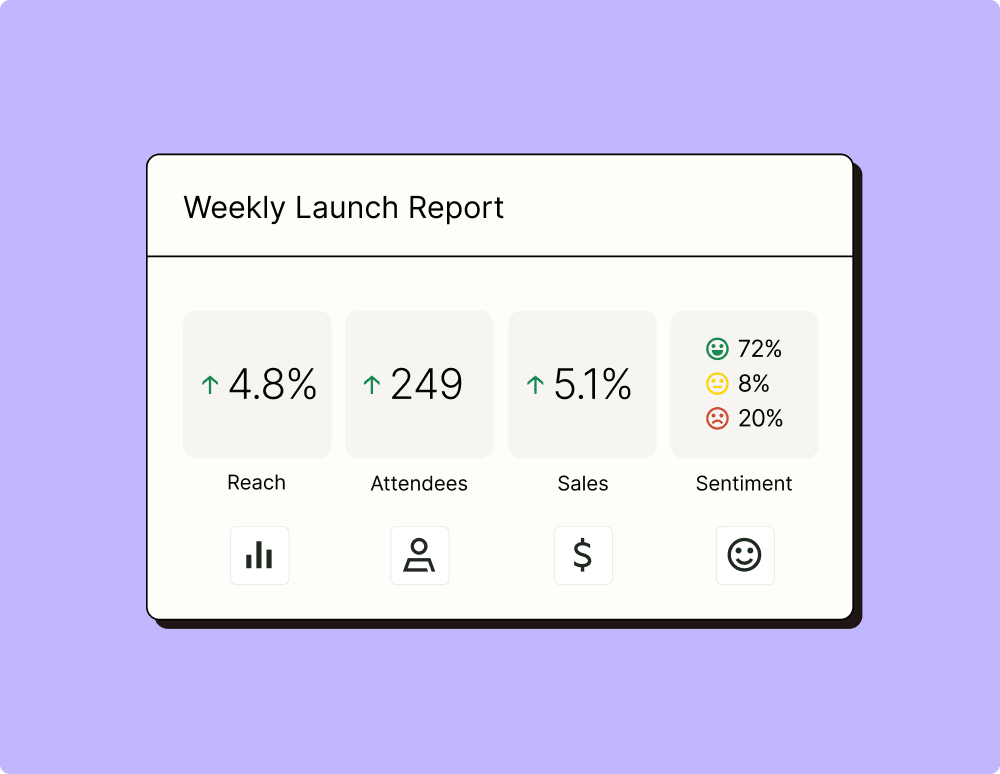
Create more impactful campaigns with automation
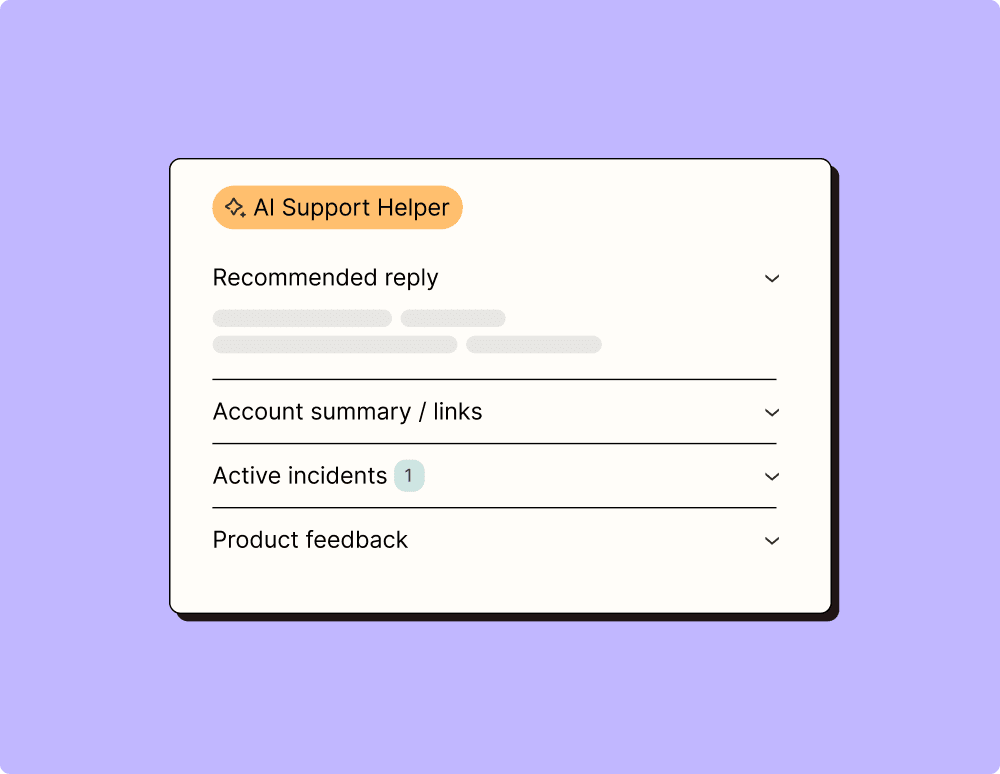
Provide world-class support with a little help from automation
Automate your way to actionable, up-to-date data
Resolve incidents faster with automation
Learn how to automate Google Calendar on the Zapier blog
Make work flow with AI

Frequently Asked Questions about Google Calendar + Week Plan integrations
New to automation with Zapier? You're not alone. Here are some answers to common questions about how Zapier works with Google Calendar and Week Plan
How can I connect my Google Calendar with Week Plan?
To connect Google Calendar with Week Plan, you will need to use our integration feature. Simply log into your Week Plan account, navigate to Integrations, and select Google Calendar. Follow the prompts to authorize the connection.
What kind of triggers can I set up when integrating Google Calendar with Week Plan?
When integrating Google Calendar with Week Plan, you can set up triggers such as 'New Event Created' or 'Event Updated' in Google Calendar, which will automatically sync the information with your Week Plan tasks.
Are there any actions that occur automatically in Week Plan after a calendar event is added in Google Calendar?
Yes, once you've set up the integration, adding a new event in Google Calendar can automatically create a task in your Week Plan based on the predefined settings you choose during integration.
Can I customize which events are synced between Google Calendar and Week Plan?
Absolutely! You can choose specific calendars from your Google account to sync with Week Plan. This customization helps keep your task list organized and relevant to your priorities.
Does integrating Google Calendar with Week Plan affect existing calendar events?
Integrating does not alter any existing events in your Google Calendar. It only creates corresponding tasks in Week Plan as new events are created or updated according to the triggers you've set.
Is it possible to disable the integration between Google Calendar and Week Plan temporarily without losing data?
Yes, you can disable the integration at any time by managing your settings within the Integrations tab on Week Plan. Disabling it temporarily pauses syncing but retains all data if you wish to re-enable it later.
What happens if there's an error while syncing between Google Calendar and Week Plan?
If an error occurs during syncing, we recommend checking both applications for connectivity issues first. If it's persistent, consult our support team for assistance via chat or email for troubleshooting steps.