Connect Microsoft Excel and Google Chat to power AI-driven automation
- No-code AI automation
- Full audit trails and controls
- SOC 2 and GDPR compliant
- Easy visual workflow builder
- 8,000+ apps, 450+ AI tools
- Free tier available
How Zapier works
Zapier makes it easy to integrate Microsoft Excel with Google Chat - no code necessary. See how you can get setup in minutes.


Choose a trigger
A trigger is the event that starts your Zap—like a "New Row" from Microsoft Excel.
Add your action
An action happens after the trigger—such as "Create Message" in Google Chat.
You’re connected!
Zapier seamlessly connects Microsoft Excel and Google Chat, automating your workflow.
Supported triggers and actions
Zapier helps you create workflows that connect your apps to automate repetitive tasks. A trigger is an event that starts a workflow, and an action is an event a Zap performs.
- Plan Restrictions
- Storage_source
- Folder
- WorkbookRequired
- WorksheetRequired
Try ItTriggerPolling- Plan Restrictions
- Storage_source
- Folder
- WorkbookRequired
Try ItTriggerPolling- Plan Restrictions
- Storage_source
- Folder
- WorkbookRequired
- WorksheetRequired
ActionWrite- Plan Restrictions
- Storage_source
- Folder
- WorkbookRequired
- WorksheetRequired
- TableRequired
ActionWrite
- Plan Restrictions
- Storage_source
- Folder
- WorkbookRequired
- WorksheetRequired
- TableRequired
Try ItTriggerPolling- Plan Restrictions
- Storage_source
- Folder
- WorkbookRequired
- WorksheetRequired
- Trigger Column
Try ItTriggerPolling- Plan Restrictions
- Storage_source
- Folder
- WorkbookRequired
- WorksheetRequired
ActionWrite- Plan Restrictions
- Storage_source
- Folder
- WorkbookRequired
- Worksheet IDRequired
- RangeRequired
- Apply To
ActionWrite
Zapier is the automation platform of choice for 87% of Forbes Cloud 100 companies in 2023




93%
Customers who say using Zapier has made them better at their job
25m
Customers have created over 25 million Zaps on the platform
6 mins
The average user takes less than 6 minutes to set up a Zap
Connect Microsoft Excel and Google Chat to integrate crucial parts of your business
With Zapier, you can integrate everything from basic data entry to end-to-end processes. Here are some of the business-critical workflows that people automate with Zapier.
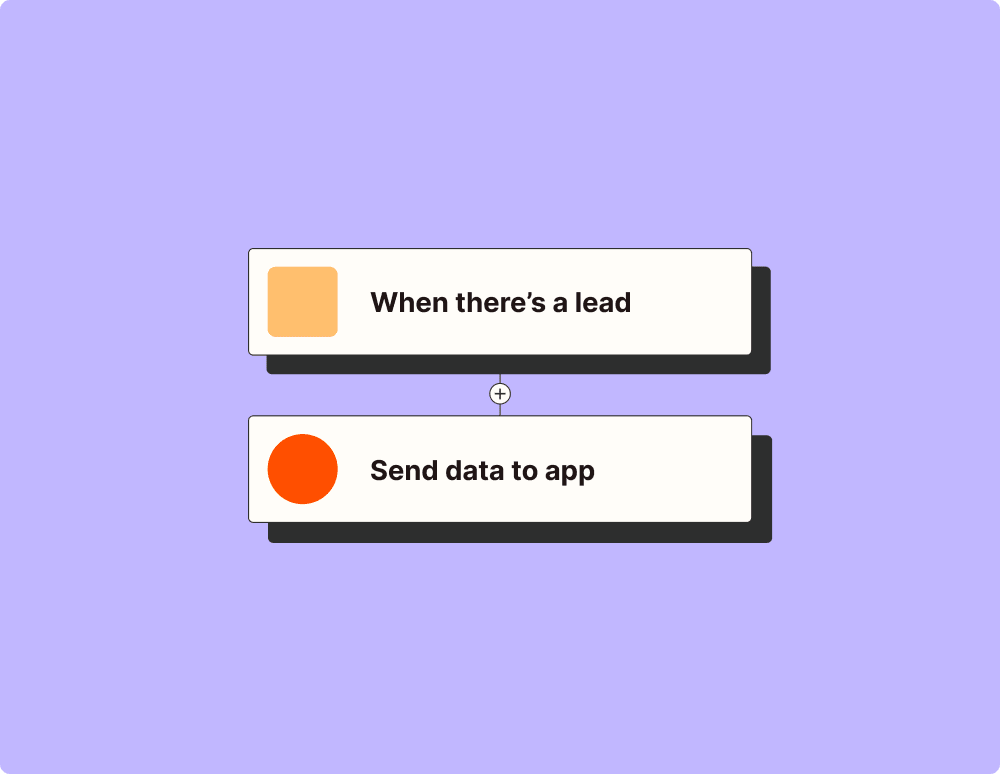
Automate your lead management and improve conversions
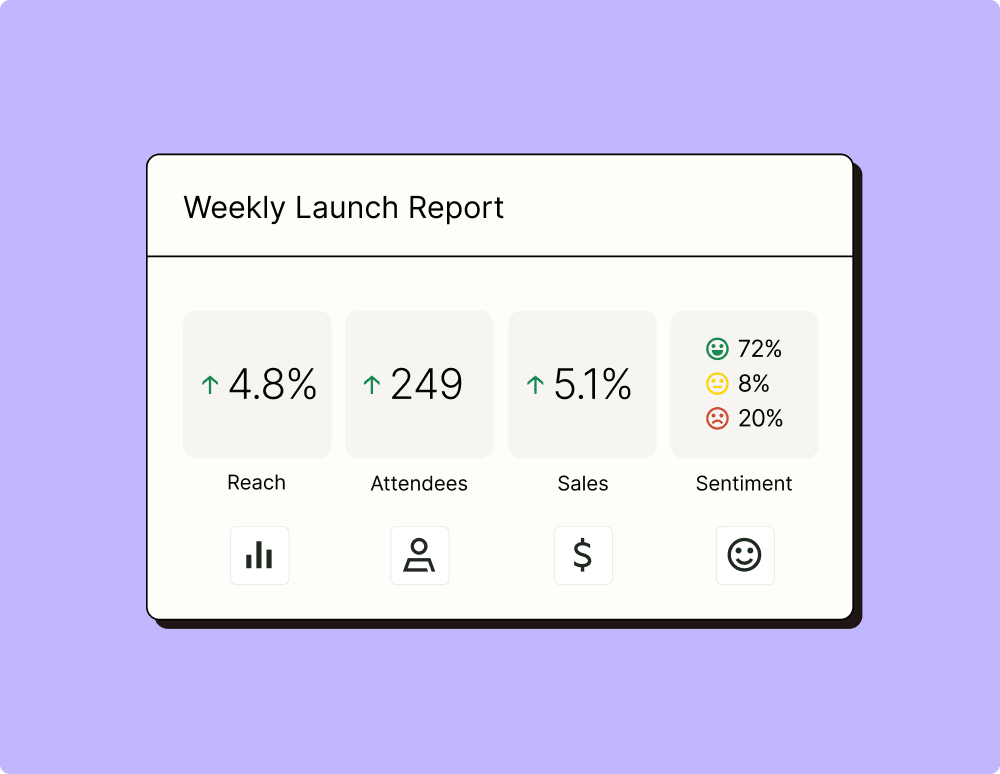
Create more impactful campaigns with automation
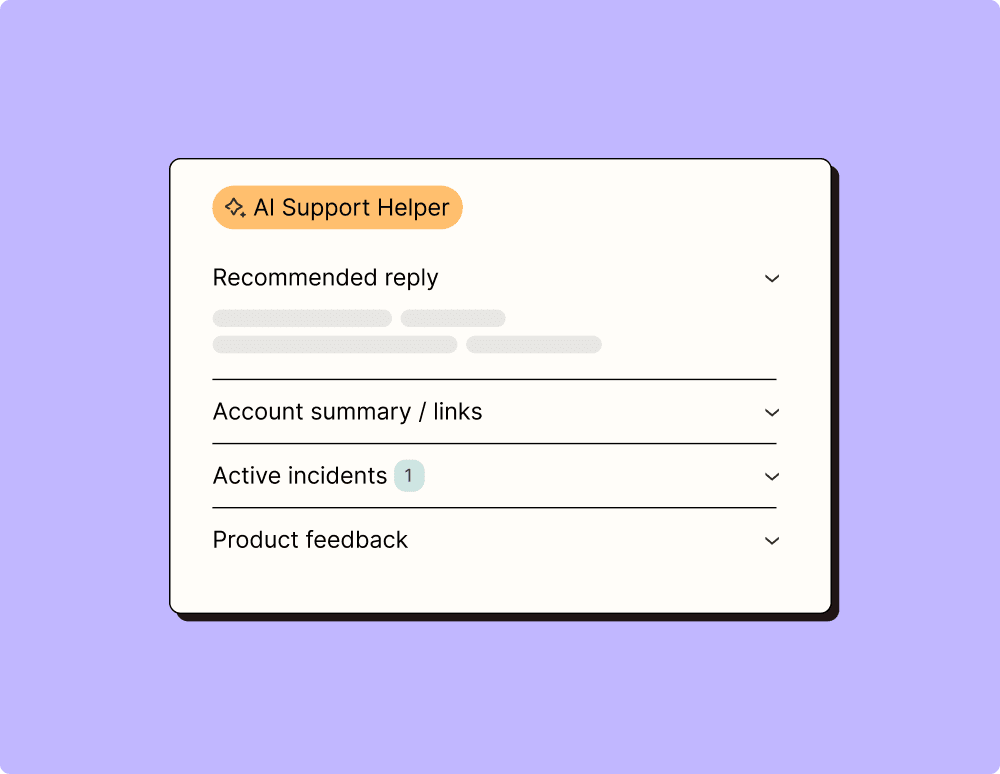
Provide world-class support with a little help from automation
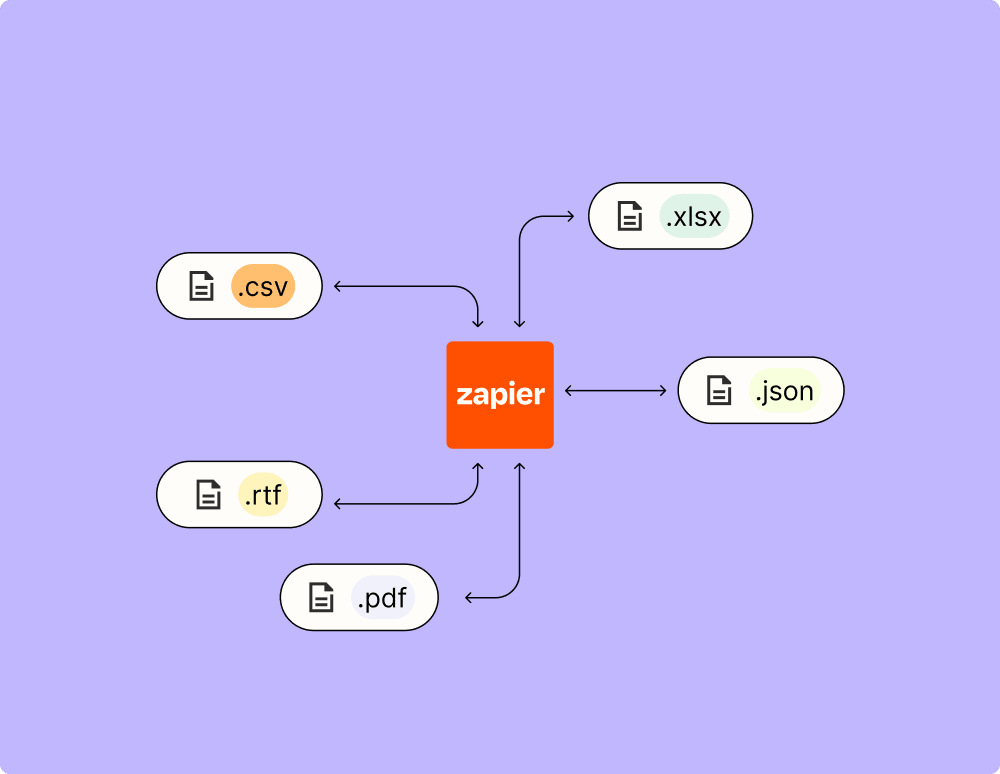
Automate your way to actionable, up-to-date data
Resolve incidents faster with automation
Learn how to automate Microsoft Excel on the Zapier blog
Learn how to automate Google Chat on the Zapier blog

Frequently Asked Questions about Microsoft Excel + Google Chat integrations
New to automation with Zapier? You're not alone. Here are some answers to common questions about how Zapier works with Microsoft Excel and Google Chat
What can I automate by integrating Microsoft Excel with Google Chat?
By integrating Microsoft Excel with Google Chat, you can automate notifications for updates or changes in your spreadsheets. For example, when a new row is added or an existing row is updated in Excel, you can receive an instant message in a Google Chat room.
How do I set up a trigger for an update in Excel to notify me in Google Chat?
To set up a trigger, configure your integration to monitor certain events like 'New Row' or 'Updated Row' in your Microsoft Excel sheet. Once these events are detected, our service will automatically send a notification message to your specified Google Chat room.
Can I customize the message sent to Google Chat from Excel?
Yes, you can customize the content of the message sent from Microsoft Excel to Google Chat. You have control over which data from the spreadsheet appears in the chat notification and how it is formatted.
Is it possible to include data from multiple columns in my chat message?
Absolutely, you can include data from multiple columns of your spreadsheet into a single chat message. This allows you to create detailed and informative notifications that capture all relevant spreadsheet changes.
Can I filter which updates trigger notifications in Google Chat?
Yes, you can apply filters based on specific criteria such as values within certain columns. This ensures that only relevant updates will trigger notifications, helping reduce noise and keep communication focused.
Do I need special permissions to integrate Excel with Google Chat?
You need permission access both for the Excel file you're working with and for posting messages into the designated Google Chat room. Make sure that you have been granted these permissions by your administrators if necessary.
How are errors handled during an automation process between Excel and Google Chat?
In case of errors during automation, our system logs them and attempts retries where applicable. You'll also receive error notifications either through email or directly within the integration interface so issues can be addressed promptly.


