Supercharge Evernote: Find and Tag Notes


Evernote is a favorite for many of us because of its flexibility: it's used to organize everything from meeting minutes to receipts to article annotations.
By pairing Evernote with Zapier, the app becomes even more dynamic: you can trigger an automated workflow based on events that happen in Evernote or automatically perform actions in Evernote. Automating your Evernote workflows with Zaps helps you stay organized and eliminate manual data transferring from your workday.
Here are two new ways you can automate your Evernote workflows using Zaps: automatically tag notes and dynamically search for notes.
Dynamically Find Notes in a Multi-Step Zap
Thanks to Zapier's Search Actions feature, you can now dynamically search for Evernote notes using a Zap then use the results from that search in the subsequent step of the Zap. If the Zap doesn't find the note you're looking for, the Zap will automatically create one.
For example, if you want to create a note for each customer, then log every email you receive from that customer in the same note. With the “Find a Note” Action, Zapier can automatically search through your customer notebook to find the note titled with the customer’s name—or create a new note if it doesn’t find one. Then you can use a second action—“Append to Note”—to log the customer’s message in the correct place.
This Zap is useful if you want to save client updates for your team members that don't have access to your email account. By automatically adding starred messages from clients to Evernote, you can keep them archived for team reference down the line.
You can also use the “Find a Note” Action to send your Evernote data to other apps. Search for meeting notes in Evernote, then place a link to that note into your CRM. Take advantage of a Zap like this whenever you have a new client: the Zap automatically searches Evernote for the notes from the initial client meeting, then saves the note URL to the new client's record in your CRM.
Tag Notes for Ultra Organization
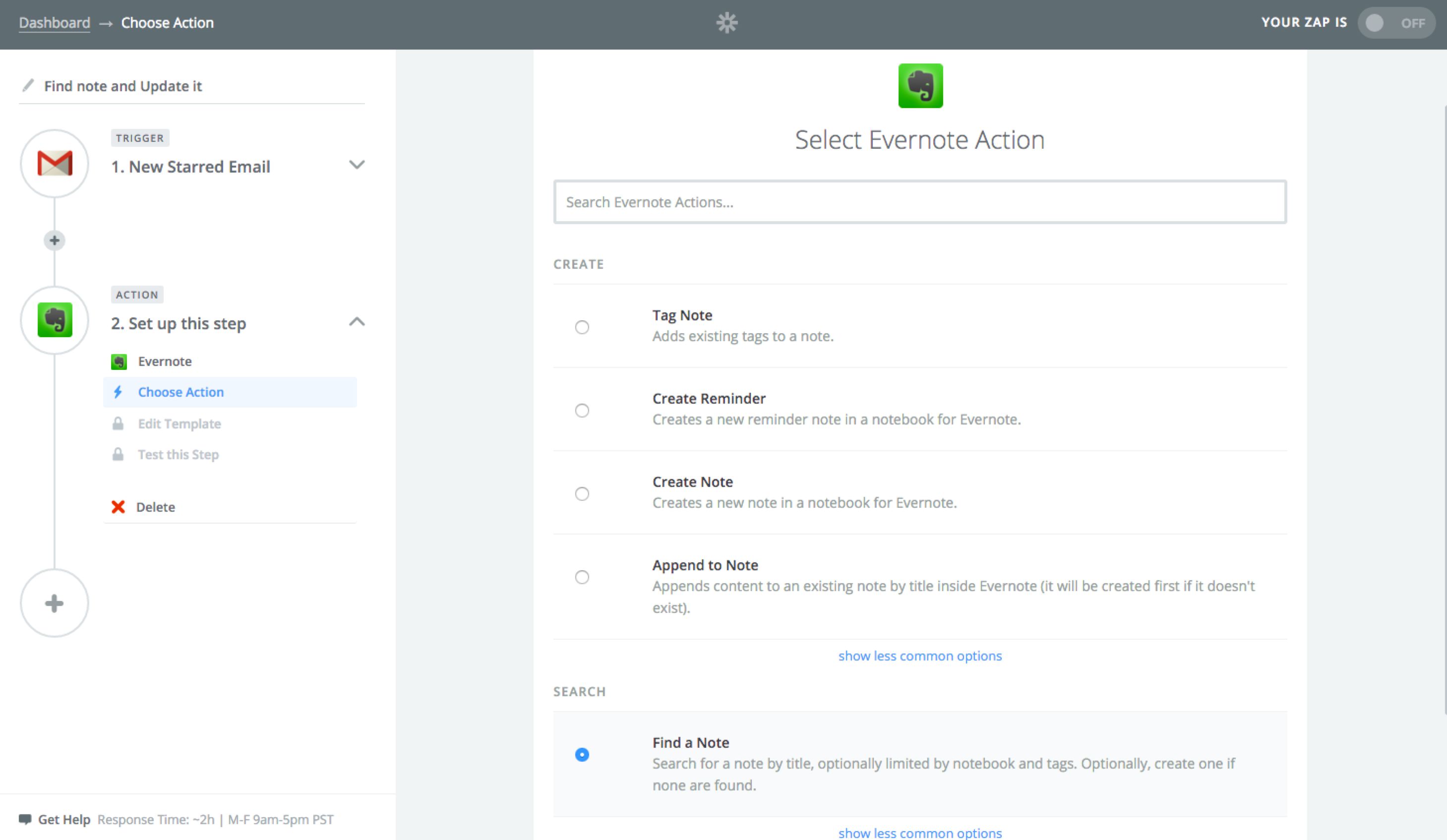
The new "Tag Note" Action for Evernote allows you to automatically add existing tags to notes. This action could come in handy if you find yourself repeatedly tagging notes that fit the same description. For example, if you always tag notes with a "Completed" tag whenever you complete the task that the notes are related to, use a Zap to automate that process. So if you complete a Todoist task called "Send Documents to Carlos," the Zap will automatically look for an Evernote note with the same title, then tag the note as "Completed."
How To Use This Integration:
- Sign up for an Evernote account, and also make sure you have a Zapier account.
- Connect your Evernote account to Zapier.
- Check out pre-made Evernote integrations.
- Or create your own from scratch in the Zap Editor.