Connect Apollo and Google BigQuery to power AI-driven automation
- No-code AI automation
- Full audit trails and controls
- SOC 2 and GDPR compliant
- Easy visual workflow builder
- 9,000+ apps, 450+ AI tools
- Free tier available
How Zapier works
Zapier makes it easy to integrate Apollo with Google BigQuery - no code necessary. See how you can get setup in minutes.


Choose a trigger
A trigger is the event that starts your Zap—like a "Account Updated" from Apollo.
Add your action
An action happens after the trigger—such as "Create Row" in Google BigQuery.
You’re connected!
Zapier seamlessly connects Apollo and Google BigQuery, automating your workflow.
Supported triggers and actions
Zapier helps you create workflows that connect your apps to automate repetitive tasks. A trigger is an event that starts a workflow, and an action is an event a Zap performs.
- Account Updated
Triggers when an existing Account is updated.
Try ItTriggerInstant - New Account
Triggers when a new Account is created.
Try ItTriggerInstant - NameRequired
- Domain
- Phone Number
- Raw Address
ActionWrite- nameRequired
- amountRequired
- Owner ID
- Opportunity Stage Id
- Closed Date
ActionWrite
- Contact Updated
Triggers when an existing Contact is updated.
Try ItTriggerInstant - New ContactTry ItTriggerInstant
- First NameRequired
- Last NameRequired
- Organization NameRequired
- Title
- Email AddressRequired
- Address
- Website Url
ActionWrite- NoteRequired
- Contacts IDsRequired
- PriorityRequired
- TypeRequired
- Due DateRequired
- Assigned ToRequired
ActionWrite
For AI agents & developers
Use Apollo and Google BigQuery with AI agents and code
Beyond Zap workflows. Call Apollo and Google BigQuery actions directly from your AI client or your codebase, using the same 9,000+ app integrations Zapier already runs.
Connect via Zapier MCP
Expose Apollo and Google BigQuery actions as tools in any MCP client. Authenticate once, then call them in natural language.
Example actions on this page
Works with
Claude · ChatGPT · Cursor · any MCP-compatible client
Call from code with the Zapier SDK
Trigger Apollo and Google BigQuery actions from backend services, scripts, or agent code.
Install
# TypeScript / Node
npm install @zapier/zapier-sdk
Run an action
import { createZapierSdk } from '@zapier/zapier-sdk';

const zapier = createZapierSdk();
await zapier.runAction({ /* apollo / google-bigquery action */ });There is no Python package yet. SDK is TypeScript-only (@zapier/zapier-sdk). The MCP server URL is personal to your account; get it at zapier.com/mcp.
Zapier is the automation platform of choice for 87% of Forbes Cloud 100 companies in 2023




93%
Customers who say using Zapier has made them better at their job
25m
Customers have created over 25 million Zaps on the platform
6 mins
The average user takes less than 6 minutes to set up a Zap
Connect Apollo and Google BigQuery to integrate crucial parts of your business
With Zapier, you can integrate everything from basic data entry to end-to-end processes. Here are some of the business-critical workflows that people automate with Zapier.
Automate your lead management and improve conversions
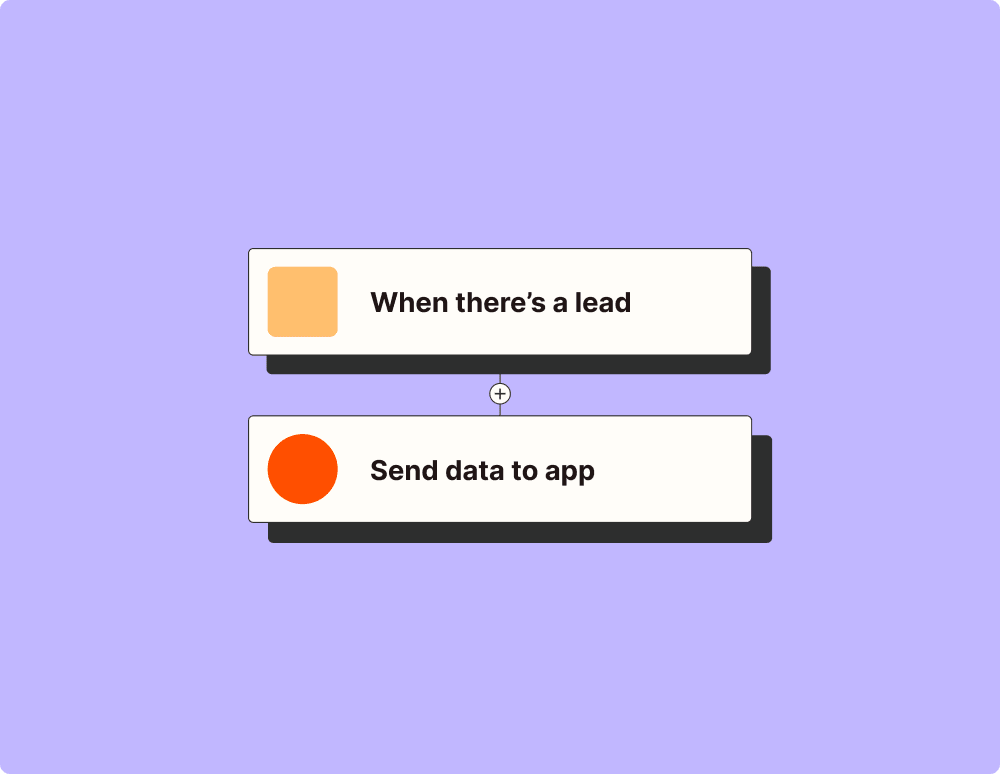
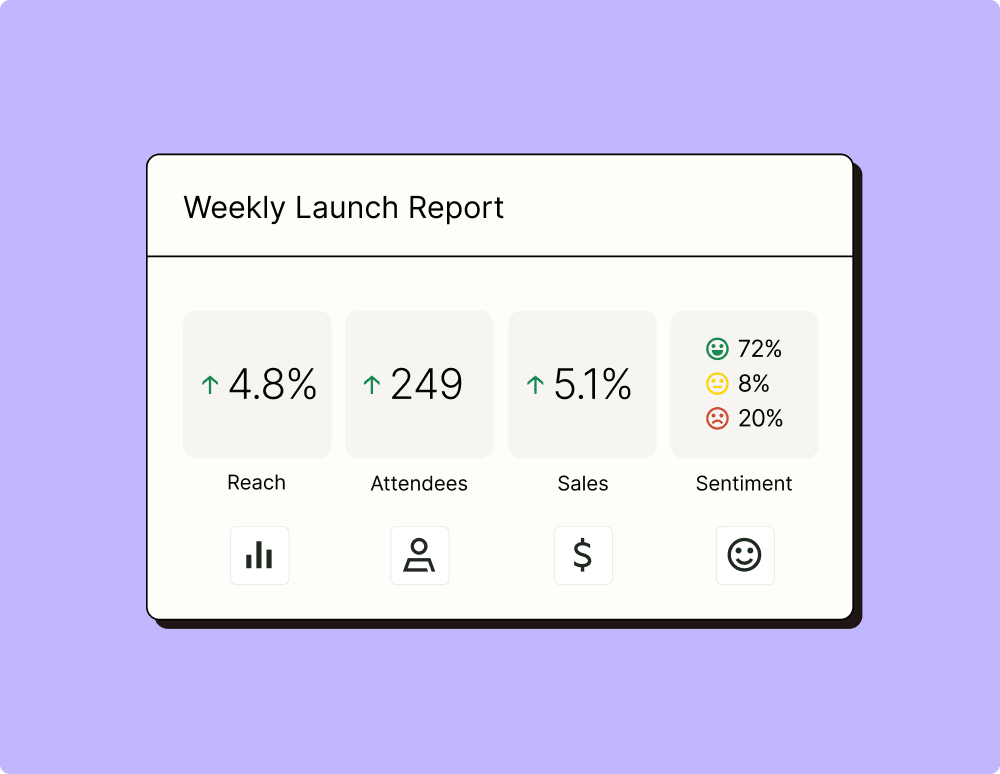
Create more impactful campaigns with automation
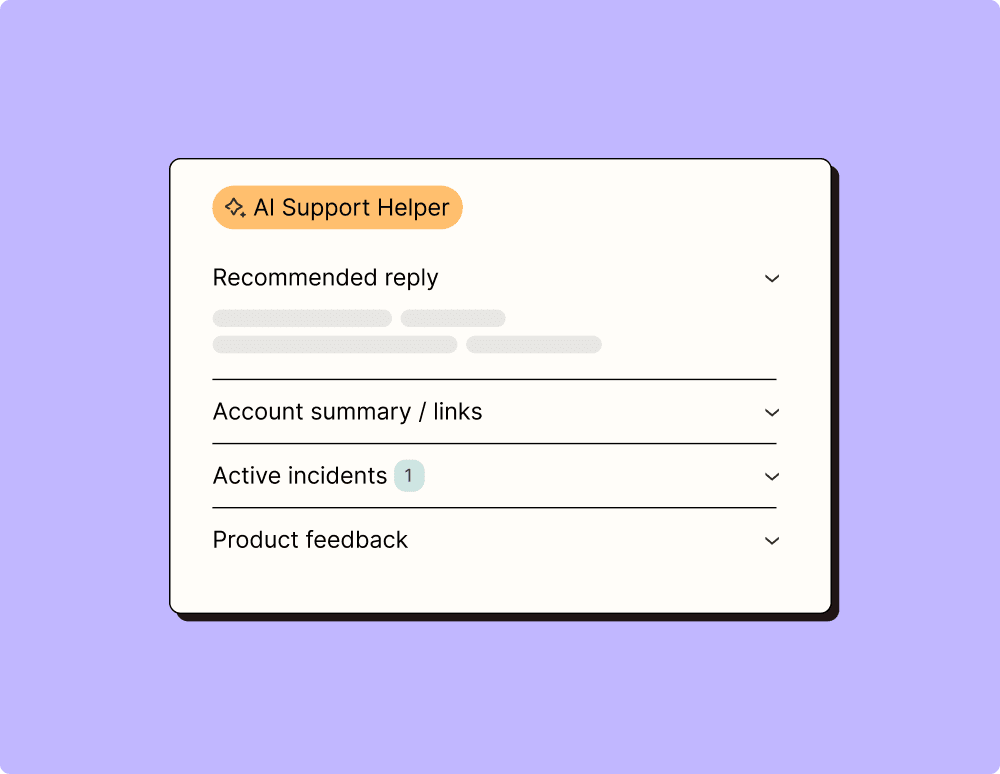
Provide world-class support with a little help from automation
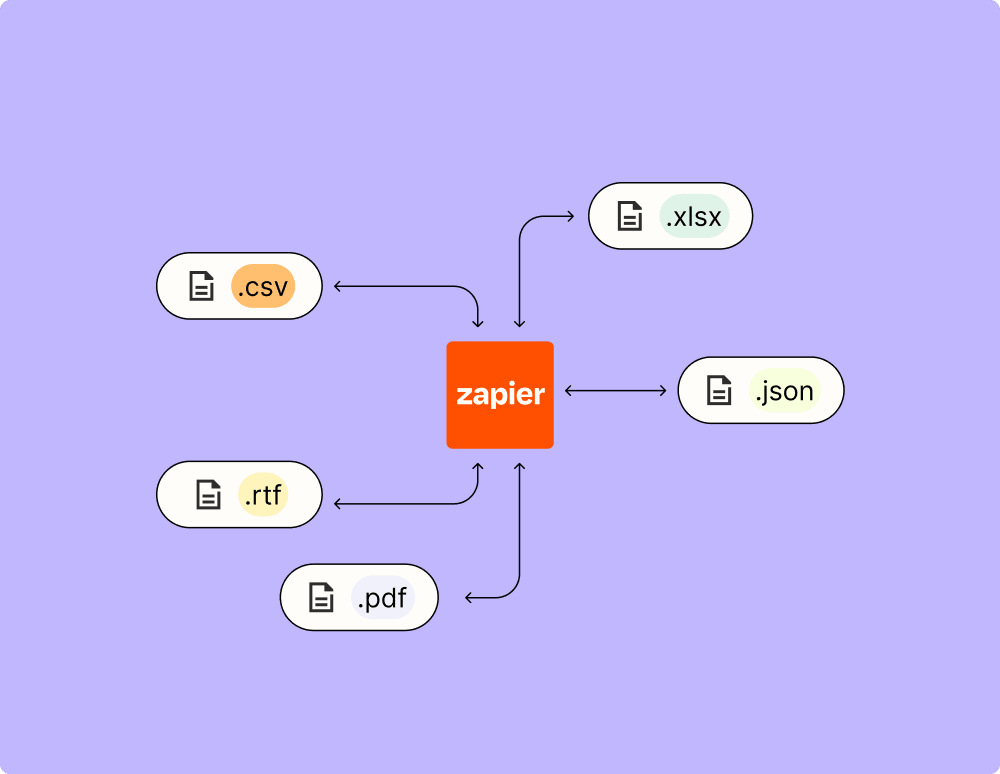
Automate your way to actionable, up-to-date data
Resolve incidents faster with automation
Learn how to automate Apollo on the Zapier blog
Learn how to automate Google BigQuery on the Zapier blog
Make work flow with AI

Frequently Asked Questions about Apollo + Google BigQuery integrations
New to automation with Zapier? You're not alone. Here are some answers to common questions about how Zapier works with Apollo and Google BigQuery
How do I set up an integration between Apollo and Google BigQuery?
To set up the integration, you will need to create a new Zap and select Apollo as your trigger app. Then, choose a trigger event such as 'New Contact Added'. After setting up the Apollo trigger, choose Google BigQuery as your action app and select an action event like 'Insert Row', configuring your BigQuery dataset accordingly.
Can I customize the data transferred from Apollo to Google BigQuery?
Yes, you can customize the data transferred by mapping the fields from Apollo to the corresponding columns in your Google BigQuery table. This allows for specific data points, like contact name or email address, to be inserted into designated columns in your dataset.
What are some common triggers available for Apollo in this integration?
Some common triggers available for Apollo include 'New Contact Added', 'Contact Updated', and 'Task Completed'. These allow you to automatically move information between systems when specific events occur within Apollo.
How frequently does the data sync occur between Apollo and Google BigQuery?
Data sync frequency depends on how often triggers occur and how you've configured them in your Zap. Triggers like 'New Contact Added' are typically processed in near real-time when the event occurs in Apollo.
Do I need any special permissions to integrate with Google BigQuery?
Yes, you'll need permission to access both your Apollo account and your Google BigQuery project. Specifically, ensure that you have write permissions for adding data into your selected BigQuery tables.
Is it possible to update existing records in Google BigQuery through this integration?
Our integrations focus on creating new entries rather than updating existing records. For managing updates, you might need additional logic or scripts within your Google BigQuery setup outside of our service.
What kind of support is available if I run into issues with my integration?
We offer extensive documentation and support resources online. If you encounter specific challenges setting up or running your integration, our customer support team is ready to assist you.


