Wir überprüfen und testen unabhängig jede Anwendung, über die wir schreiben. Wenn Sie auf einige der Links auf dieser Seite klicken, erhalten wir möglicherweise eine Provision. Weitere Informationen,
Jedes Jahr unterrichte ich dieselben drei Kurse nebenbei an einem örtlichen College. Das bedeutet, dass ich für jedes Semester dieselben Lehrmaterialien und Unterrichtsfolien wiederverwende. Und kurz vor jedem Semester beklage ich, dass Google Drive trotz seiner vielen Innovationen immer noch keine integrierte Möglichkeit bietet, einen Ordner und alle seine Dateien schnell zu duplizieren.
Aber zumindest gibt es eine nicht allzu schlimme Umgehung. So macht man eine Kopie eines Ordners in Google Drive.
Inhalt:
So kopierst du einen Ordner in Google Drive für das Web
So erstellt man eine Kopie eines Ordners im Google Drive für das Web.
Geh zu Google Drive und öffne den Ordner mit den Dateien, die du kopieren willst.
Wählen Sie alle Dateien aus (verwenden Sie die Tastenkombination).
command+Aauf einem Mac oderCtrl+Aunter Windows).Klicken Sie mit der rechten Maustaste auf Ihre Auswahl und wählen Sie "Mach eine Kopie". Dadurch wird eine Kopie jeder dieser Dateien im selben Ordner erstellt. Alternativ kannst du deine Tastenkombinationen nutzen, um die Dateien im Ordner zu kopieren und einzufügen.
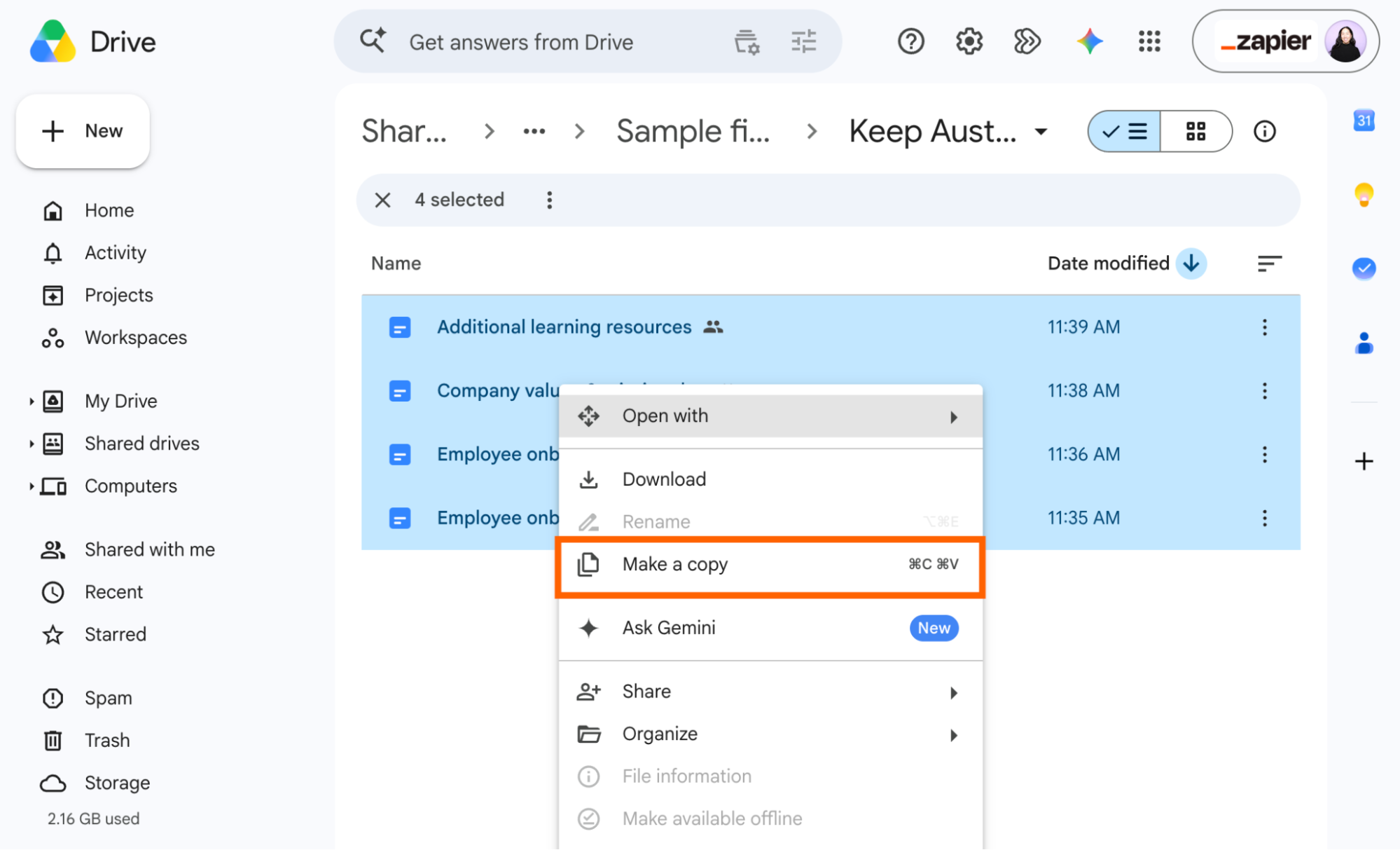
Jetzt wählst du alle
Kopien derDateien aus (klick auf die erste, haltdie Umschalttastegedrückt und klick dann auf die letzte).Klicken Sie auf das Verschieben-Symbol in der Symbolleiste, das über Ihrer Dateiliste erscheint.
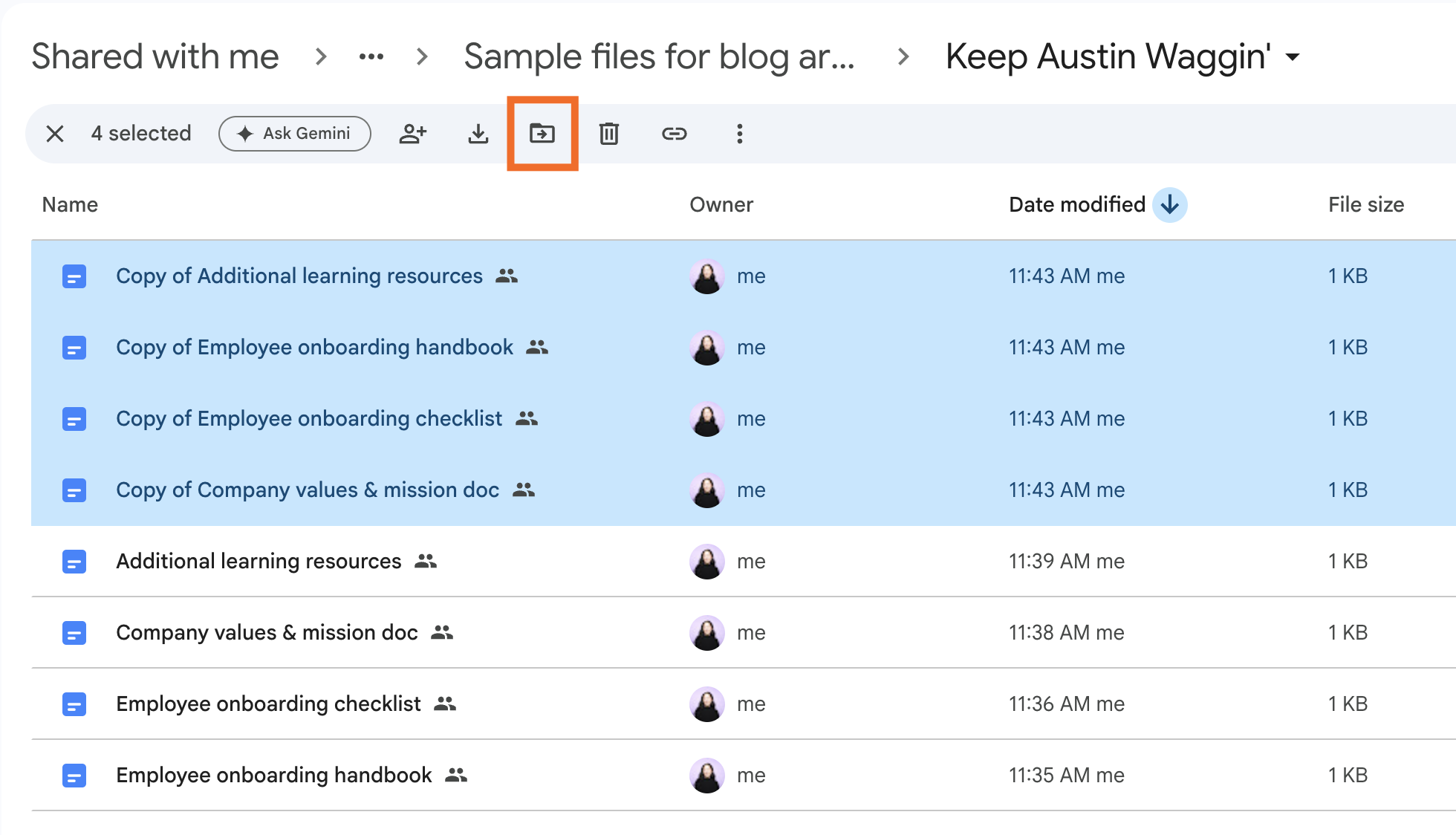
Im Pop-up-Fenster fahren Sie mit der Maus über den Namen des Ordners, in dem Sie Ihren neu kopierten Ordner speichern möchten, und dann auf das Symbol Content anzeigen (
>) Klick.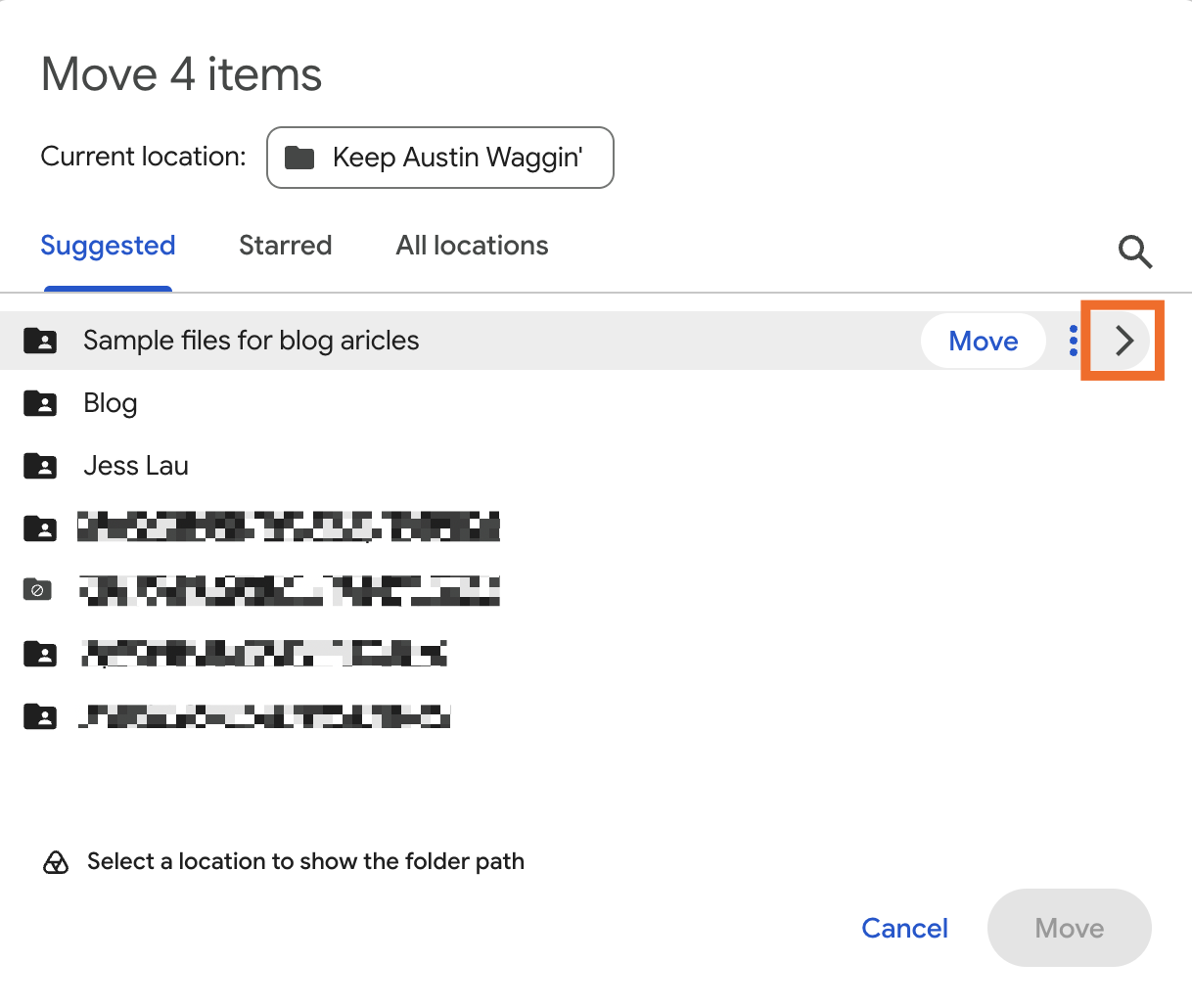
Klicken Sie auf Neuer Ordner.
Gib einen Ordnernamen ein und klicke auf Erstellen.
Klick auf „Verschieben“.
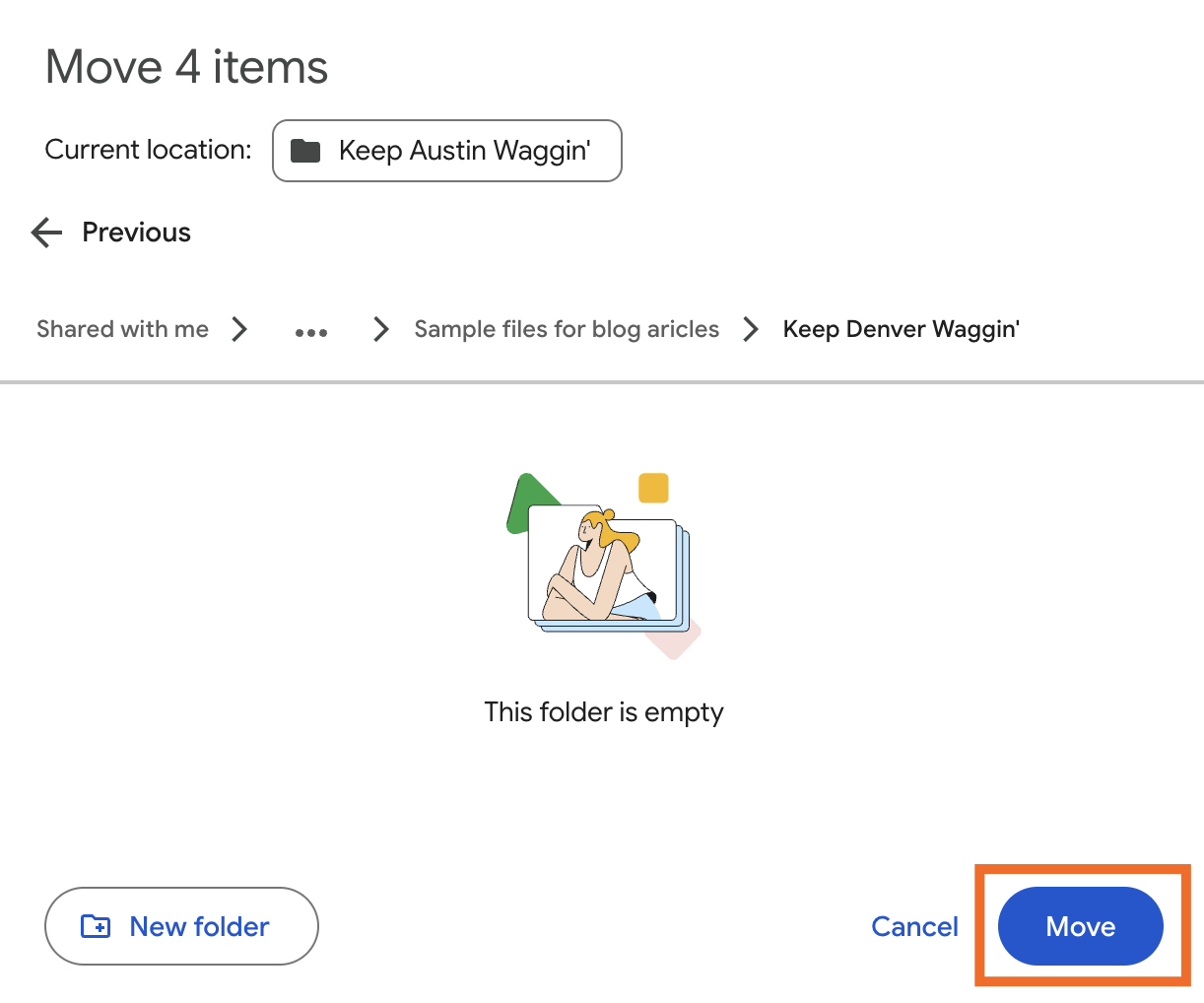


Da hast du es. Neun Schritte, um etwas zu tun, das Google leicht in einen Ein-Klick-Prozess (maximal zwei) verwandeln könnte. Du solltest auch alle deine Dateien umbenennen. (Ja – dieser Vorgang ist genauso manuell.)
So kopierst du einen Ordner in der Google Drive-Desktop-Anwendung
Wenn du die Google Drive Desktop-Anwendung hast, ist es viel bequemer, einen ganzen Ordner mit allen Dateien zu kopieren. Stelle zuerst sicher, dass deine Desktop-Anwendung so eingerichtet ist, dass sie dein Drive im Web spiegelt .
Öffnen Sie den Finder (auf einem Mac) oder den Explorer (unter Windows).
Klicke auf Google Drive (unter Standorte) und dann auf Mein Laufwerk.
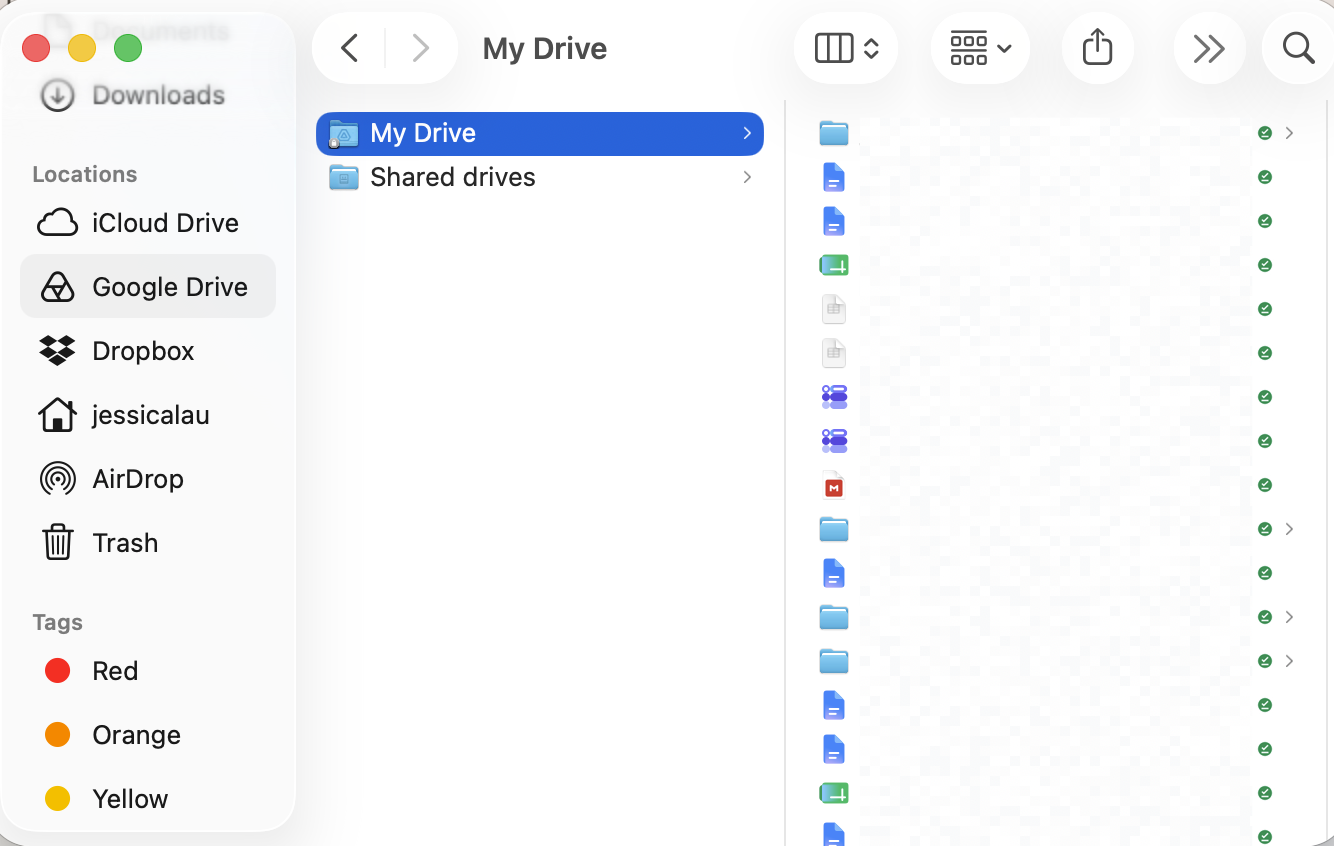
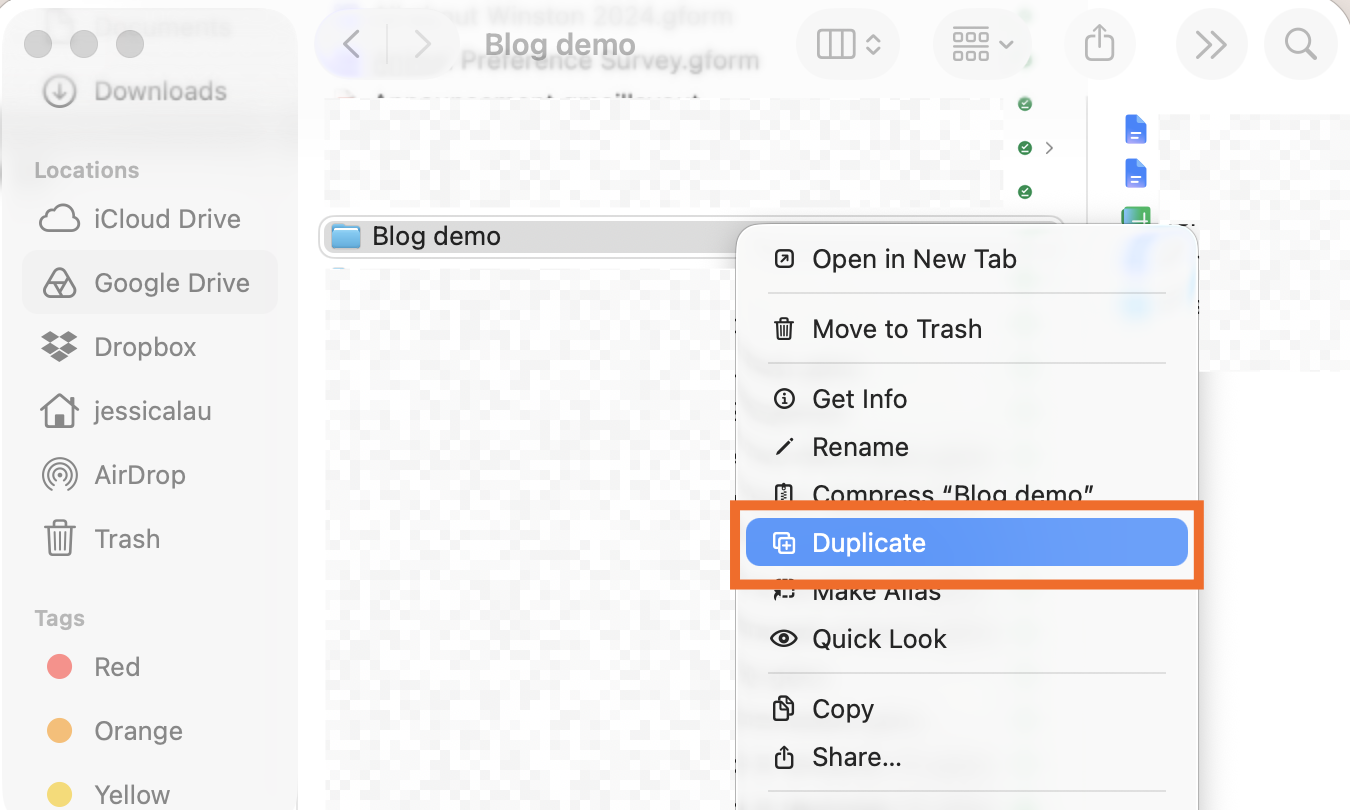
Klick mit der rechten Maustaste auf den Ordner mit den Dateien, die du kopieren willst, und wähl dann „Duplizieren“.
Im Gegensatz zum Kopieren von Drive-Dateien im Web wird am Ende des Dateinamens nur der übergeordnete Ordner mit Kopieren markiert – nicht die Dateien. Benenne den kopierten Ordner wie gewohnt um.
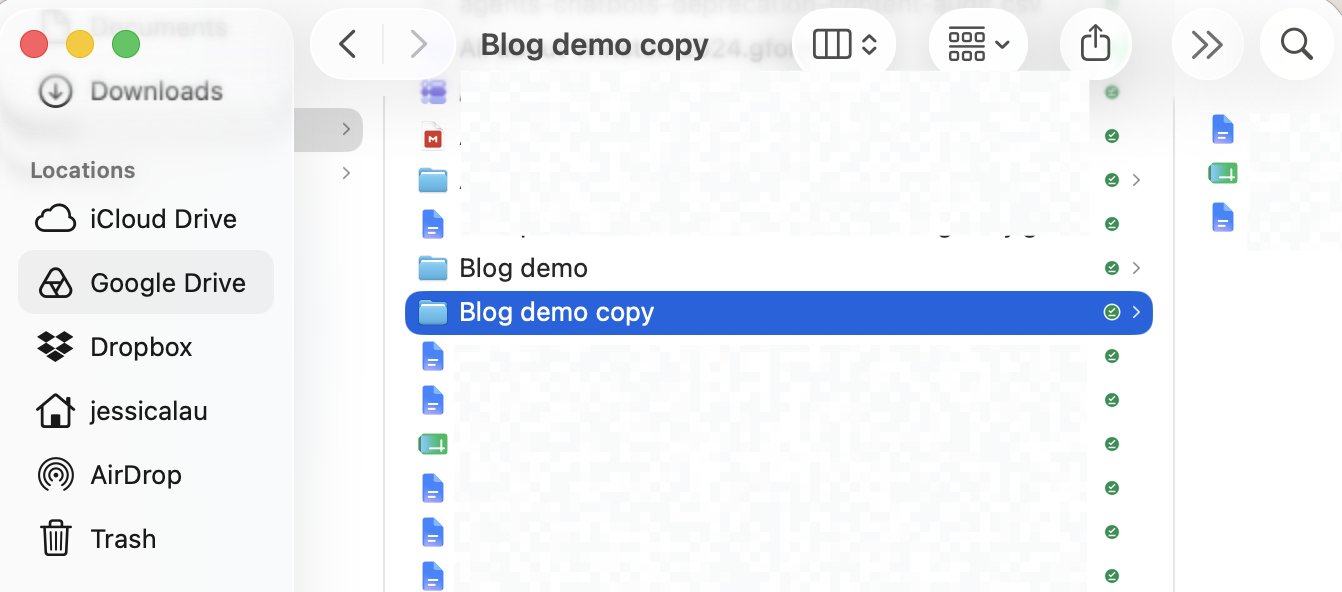


Dein Drive im Internet zeigt automatisch alle Änderungen an, die du in deiner Desktop-Anwendung machst.
Tipp: Wenn Sie nicht jederzeit Zugriff auf alle Ihre Drive-Dateien oder Offlinezugriff auf alle Ihre Dokumente benötigen, wechseln Sie von der Spiegelung zum Streamen Ihrer Dateien. Insgesamt ist das eine bessere Synchronisierungsoption und braucht viel weniger Speicherplatz auf der Festplatte.
So benennen Sie mehrere Dateien in einem Ordner gleichzeitig auf einem Mac um
Angenommen, du möchtest am Anfang jedes Dateinamens in deinem kopierten Ordner einen Kunden- oder Projektnamen hinzufügen. Wenn du deine Dateien direkt in Google Drive für das Web kopierst, müsstest du sie manuell einzeln hinzufügen. Aber wenn du Ordner mit der Google Drive Desktop-Anwendung kopierst, kannst du mehrere Dateien gleichzeitig in Finder umbenennen. Solange du dein Drive noch spiegelst, erscheinen die Änderungen in deiner Desktop-Anwendung automatisch in der Web-Anwendung.
Hinweis: Windows-Benutzer können auch mehrere Dateien gleichzeitig im Explorer umbenennen, aber Sie haben weniger Kontrolle über die Namenskonvention, sodass dies nicht so nützlich ist.
Mit geöffnetem Finder wähle alle Dateien aus, die du umbenennen möchtest.
Klick mit der rechten Maustaste auf deine markierte Auswahl und wähl dann „Umbenennen“.
Wähle im Pop-up aus, wie du Text ersetzen, hinzufügen oder formatieren möchtest.
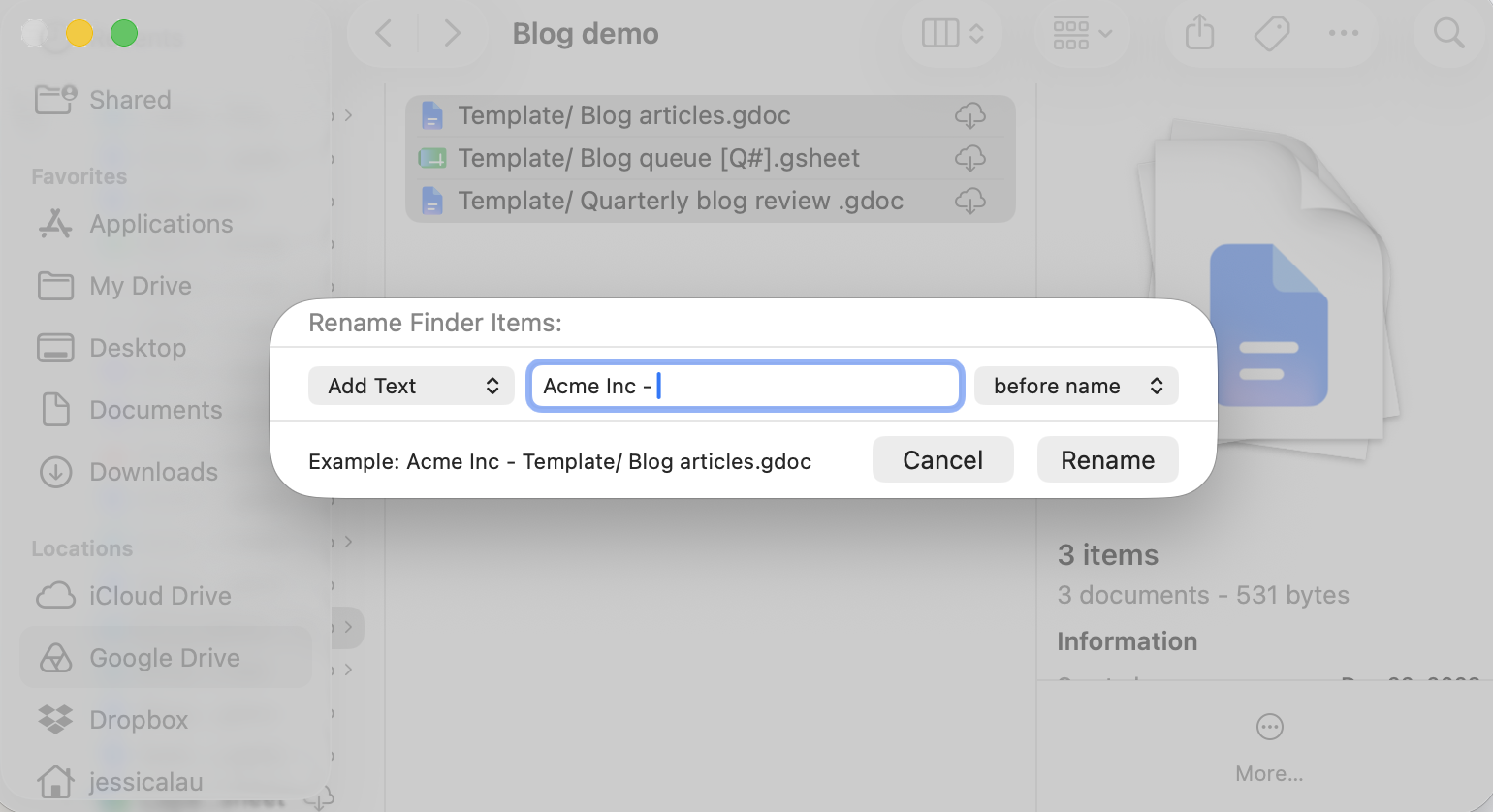
Klick auf „Umbenennen“.
Deine Dateien in deinem Dateimanager und in Google Drive werden sofort aktualisiert – allerdings musst du Drive im Web möglicherweise ein paar Mal neu laden, damit die Änderungen angezeigt werden.

Google Drive mit Zapier automatisieren
Die Verwaltung deiner Google Drive-Dateien ist das eine. Das Durchwühlen von Dateien, um das zu finden, was Sie brauchen – besonders, wenn Sie keine feste Routine für das Entrümpeln Ihres digitalen Arbeitsbereichsfestgelegt haben – ist ein weiteres Beispiel.
Mit Zapier können Sie Google Drive verbinden mit 9,000+Anwendungen, damit Sie Ihre digitale Dateiverwaltung ohne zusätzlichen Aufwand optimieren können. Kopiere, erstelle oder verschiebe Dateien automatisch basierend auf Ereignissen, die in deinen anderen Anwendungen stattfinden. Oder, wenn du bereits in einem KI-Assistenten wie ChatGPT oder Claude arbeitest, ermöglicht Zapier der KI, sicher auf deinen gesamten Tech-Stack zuzugreifen und Aktionen durchzuführen. So können Sie das Graben, Ordnererstellen und Dateirouting direkt aus Ihrem Chatfenster erledigen.
Bauen Sie Automatisierungen von Ihrem Arbeitsplatz aus. Beschreiben Sie das gewünschte Ergebnis, und Zapier verbindet Ihre Tools, führt die Schritte durch und bleibt nach dem Schließen des Chats an der Arbeit. Kombinieren Sie KI mit zuverlässiger, deterministischer Automatisierung über 9,000+ Anwendungen. Fang kostenlos an.
Verwandte Lektüre:
So kannst du gelöschte Google Drive-Dateien wiederherstellen
So richtest du ein freigegebenes Laufwerk in Google Drive ein
Dieser Artikel wurde ursprünglich im Januar 2022 von Matthew Guay veröffentlicht. Das letzte Update war im September 2026.