私たちは書くすべてのアプリを独自にレビューし、テストしています。このページのリンクをクリックすると、私たちはコミッションを得ることがあります。 詳細情報.
私は毎年、地元の大学で同じ3つのコースを非常勤講師として教えています。つまり、私は同じ教材や授業用スライドを各学期ごとに再利用しているということです。そして、毎学期が始まる直前になると、数々の革新的な機能が搭載されているにもかかわらず、Google Driveにはフォルダとその中のすべてのファイルを素早く複製する組み込み機能がまだないことを嘆くのである。
しかし、少なくともそれほどひどくない回避策はある。Googleドライブでフォルダのコピーを作成する方法は次のとおりです。
目次:
ウェブ版Googleドライブでフォルダをコピーする方法
Googleドライブのフォルダをウェブ用にコピーする方法は以下のとおりです。
Google ドライブに移動し、コピーするファイルがあるフォルダを開きます。
すべてのファイルを選択してください(キーボードショートカットを使ってください)
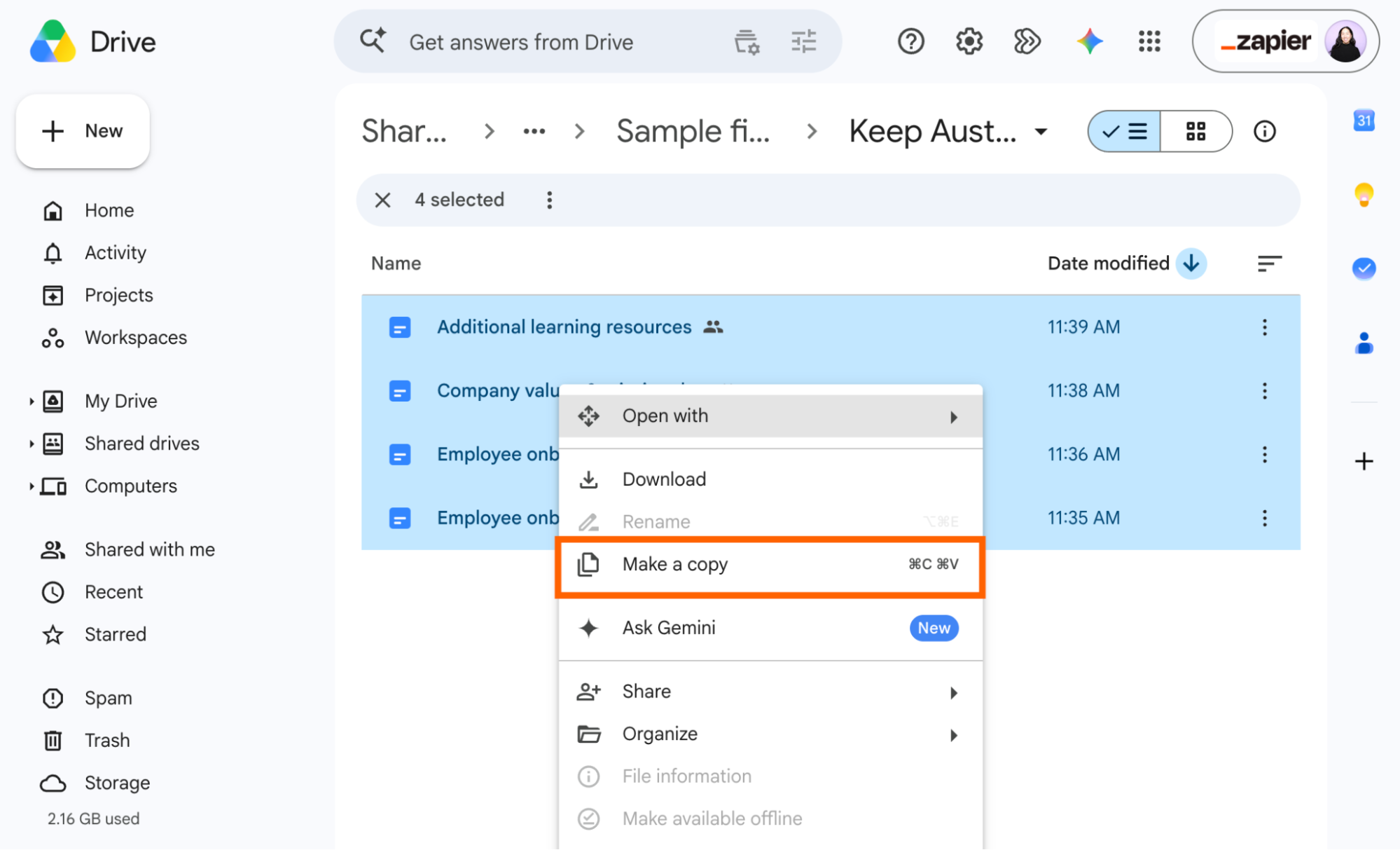
commandMacでは+A、WindowsではCtrl+A)。選択範囲を右クリックして、 「コピーを作成」を選択します。これにより、それらのファイルそれぞれのコピーが同じフォルダ内に作成されます。または、キーボードショートカットを使ってフォルダ内のファイルをコピー&ペーストすることもできます。
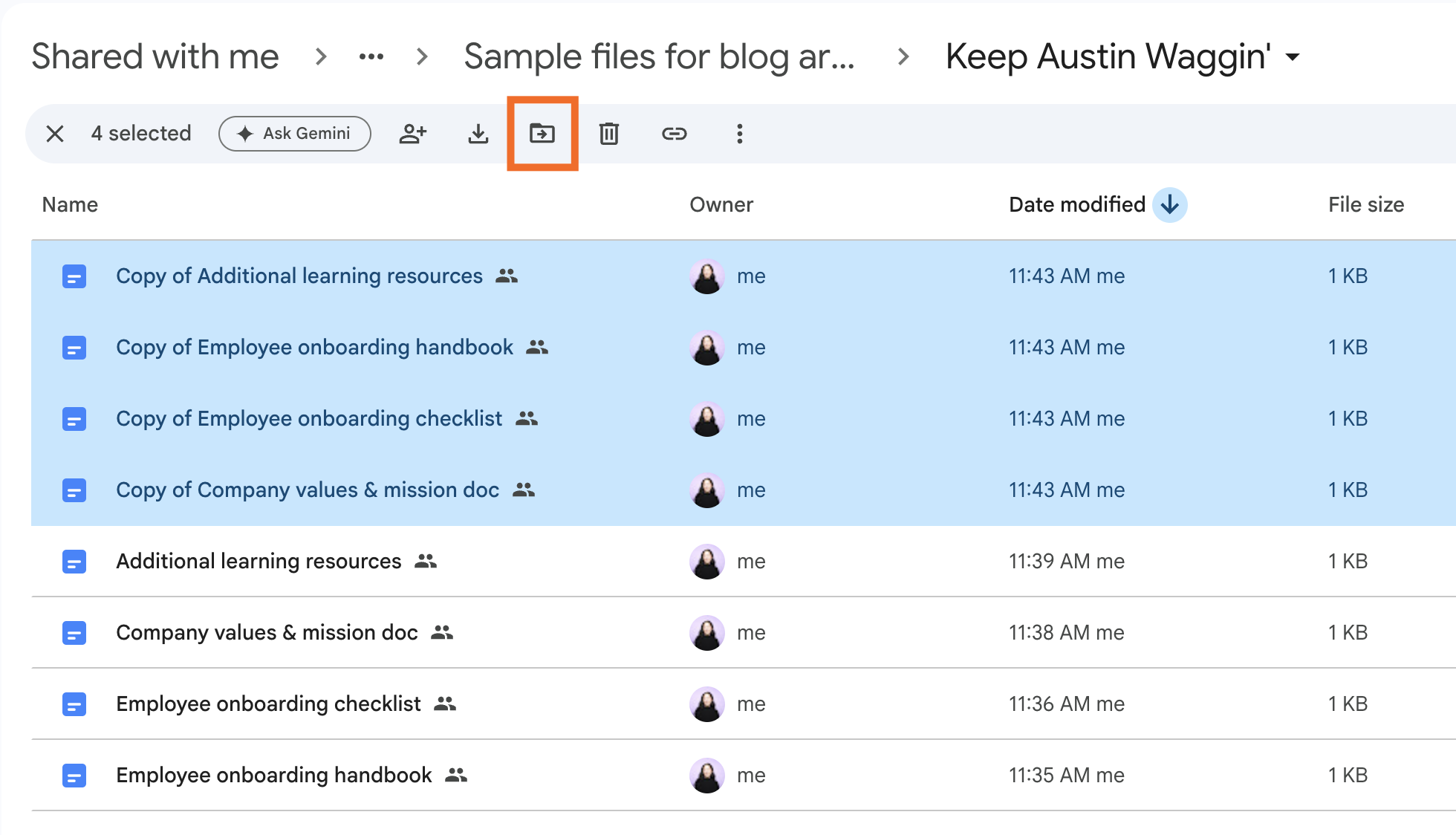
次に、すべてのファイル
Copy ofを選択します (最初のファイルをクリックし、Shiftを押しながら最後のファイルをクリックします)。ファイル一覧の上部に表示されるツールバーの「移動」アイコンをクリックしてください。
ポップアップウィンドウで、新しくコピーしたフォルダーを保存したいフォルダーの名前にカーソルを合わせ、次に「コンテンツを表示」アイコン(
>)をクリックします。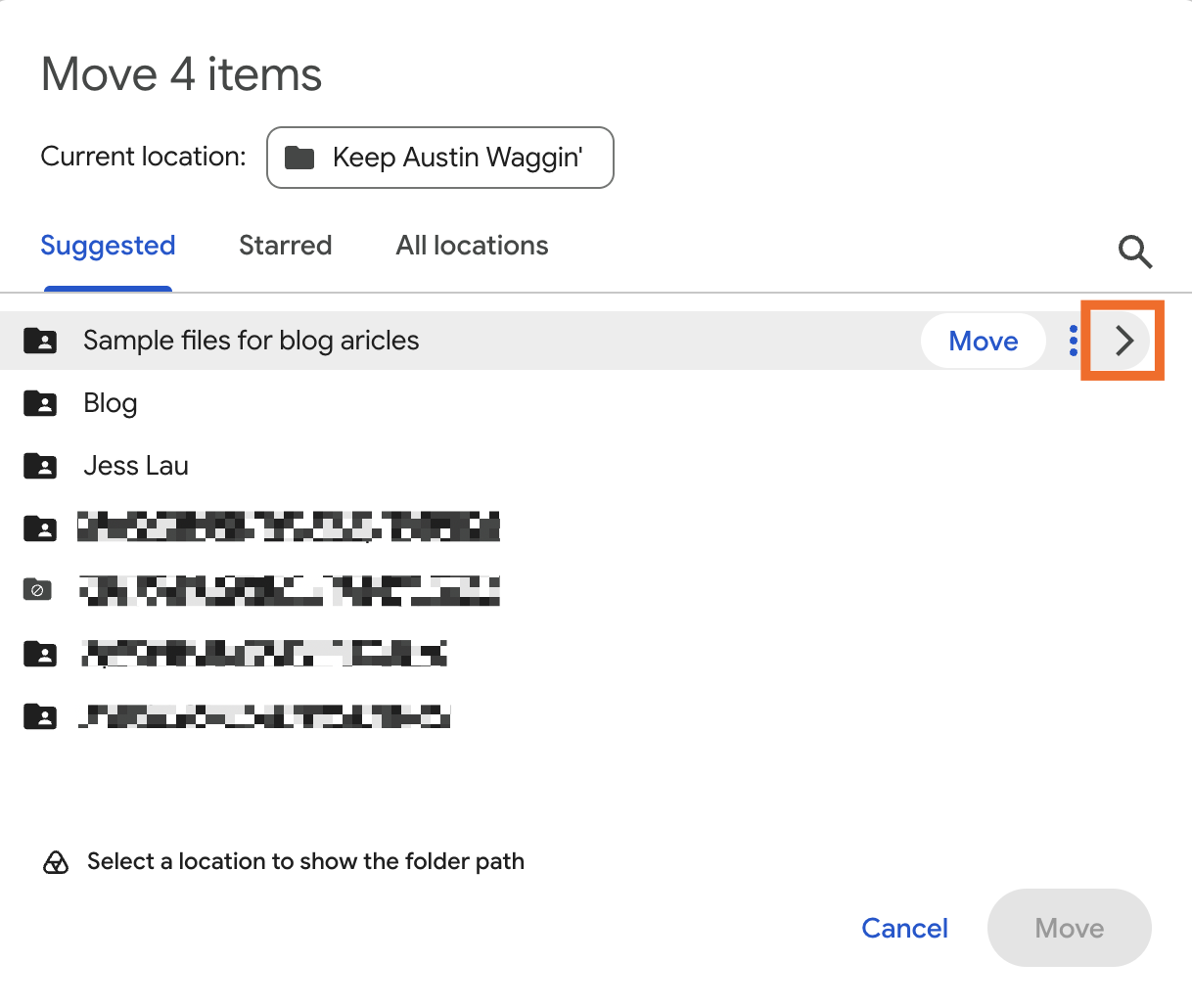
「新しいフォルダー」をクリックします。
フォルダ名を入力し、 「作成」をクリックします。
[移動]をクリックします。
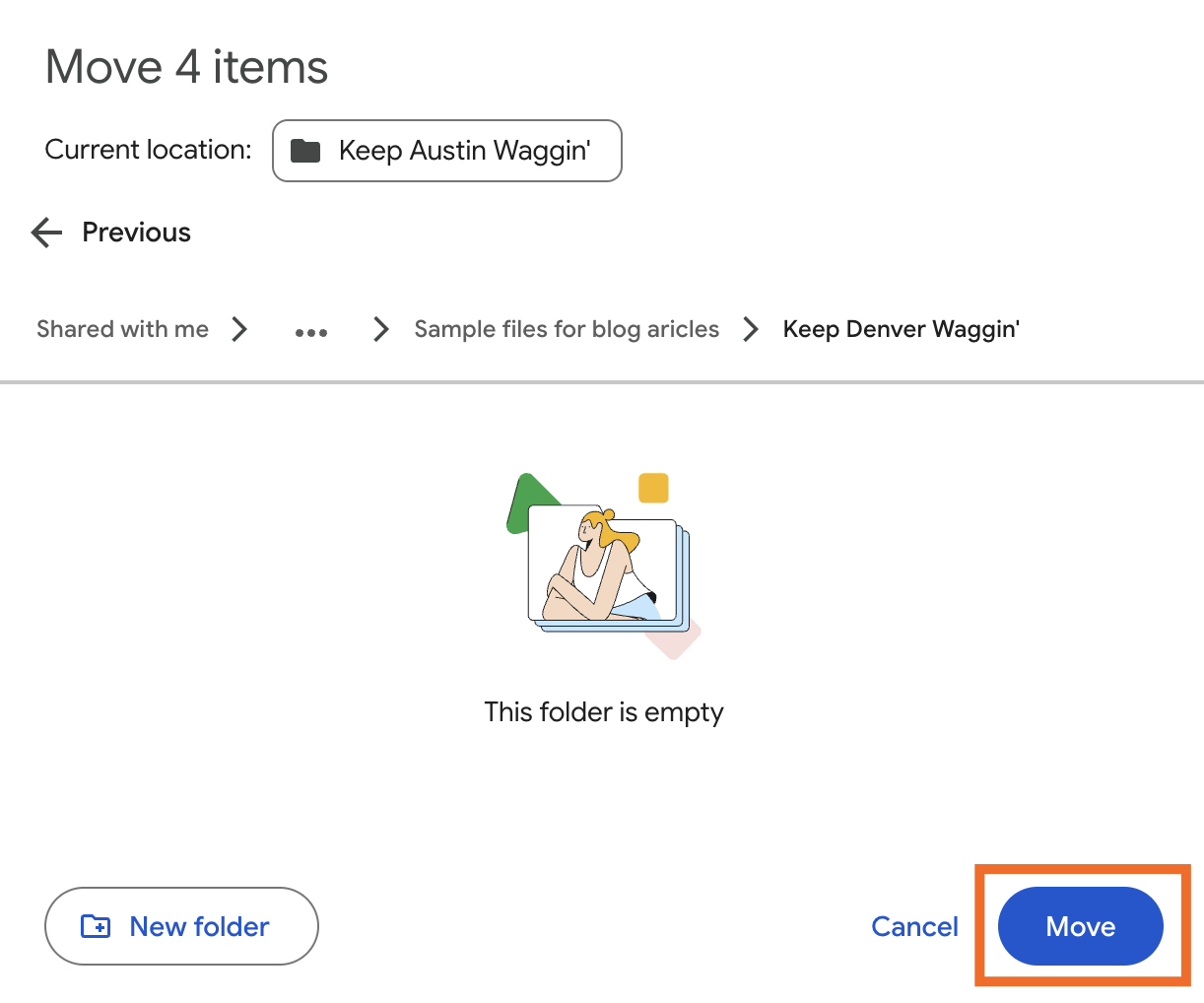


はい、どうぞ。Googleなら簡単にワンクリック(せいぜいツークリック)で済むようなことを、9つのステップでやらなければならない。また、すべてのファイルの名前を変更することをお勧めします。(ええ、そのプロセスも全く同じくらい手作業です。)
GoogleドライブデスクトップGoogleアプリでフォルダをコピーする方法
Googleドライブのデスクトップアプリをお持ちであれば、フォルダ全体とその中のすべてのファイルをコピーするのがはるかに簡単です。まず、デスクトップアプリがウェブ上のドライブをミラーリングするように設定されていることを確認してください。
Finder (Mac の場合) またはエクスプローラ (Windows の場合) を開きます。
「場所 」の下にある 「Google ドライブ」 をクリックし、次に 「マイ ドライブ」を クリックします。
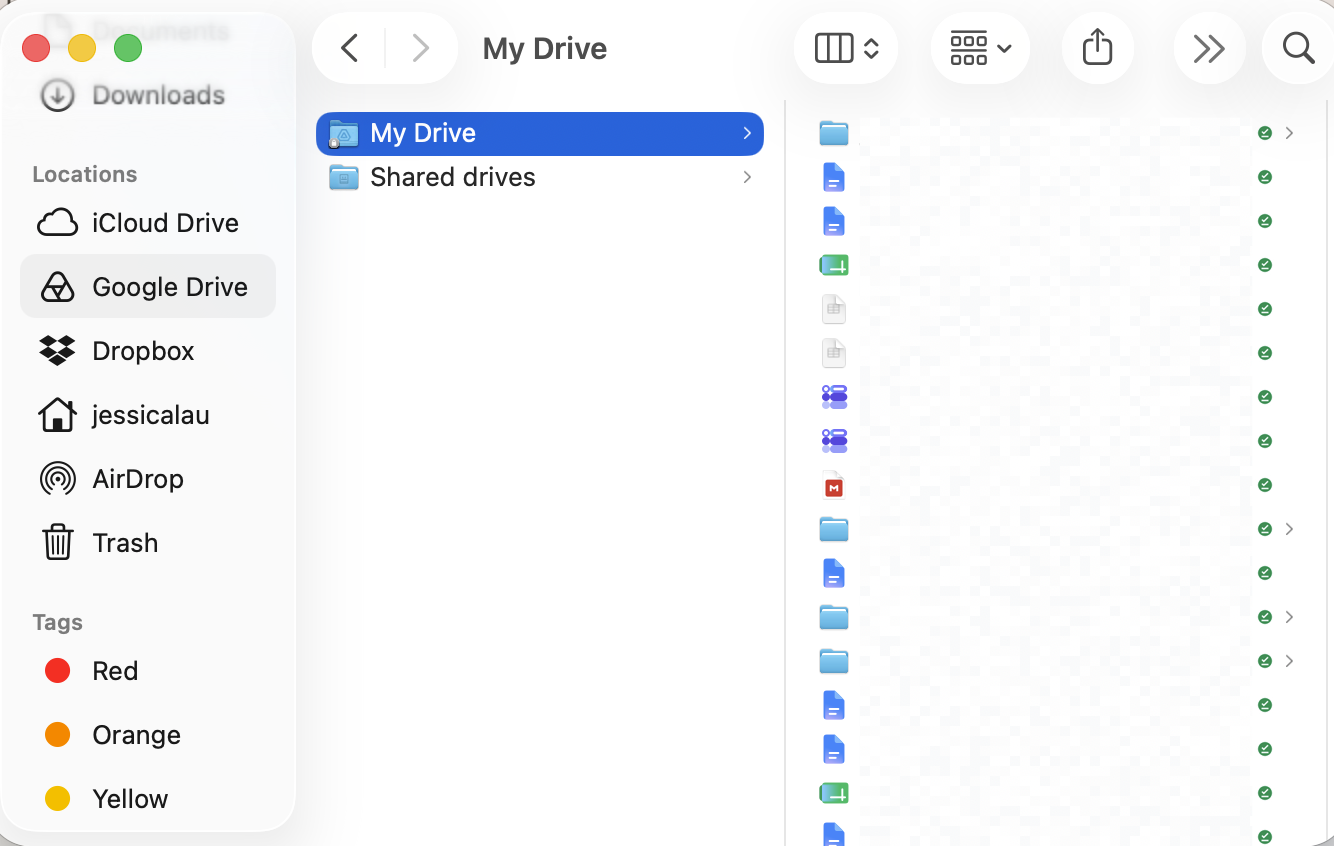
コピーしたいファイルがあるフォルダーを右クリックし、 [複製]をクリックします。
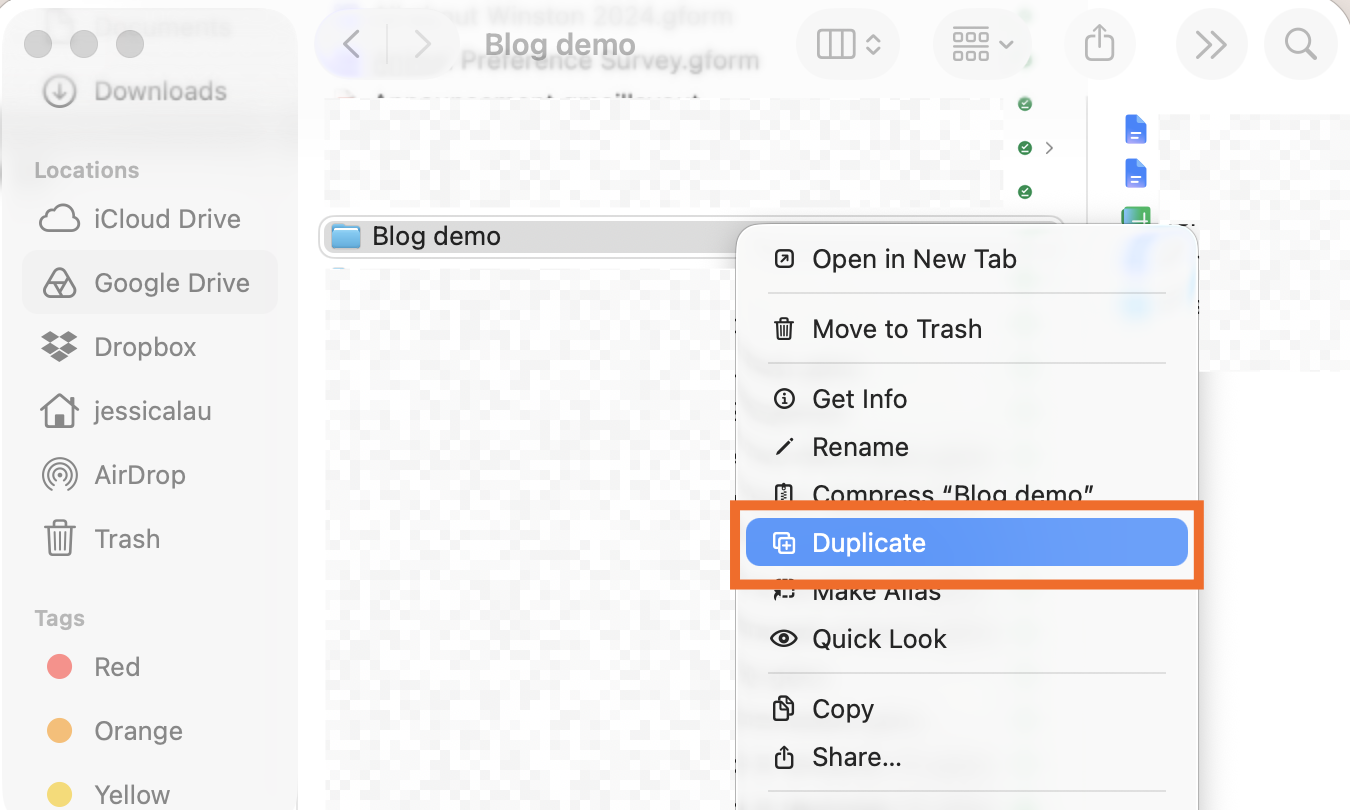
ウェブ上でドライブファイルをコピーする場合とは異なり、ファイル名の末尾に「copy」というタグが付くのは親フォルダのみで、ファイル自体には付いていません。コピーしたフォルダの名前は、通常どおり変更してください。
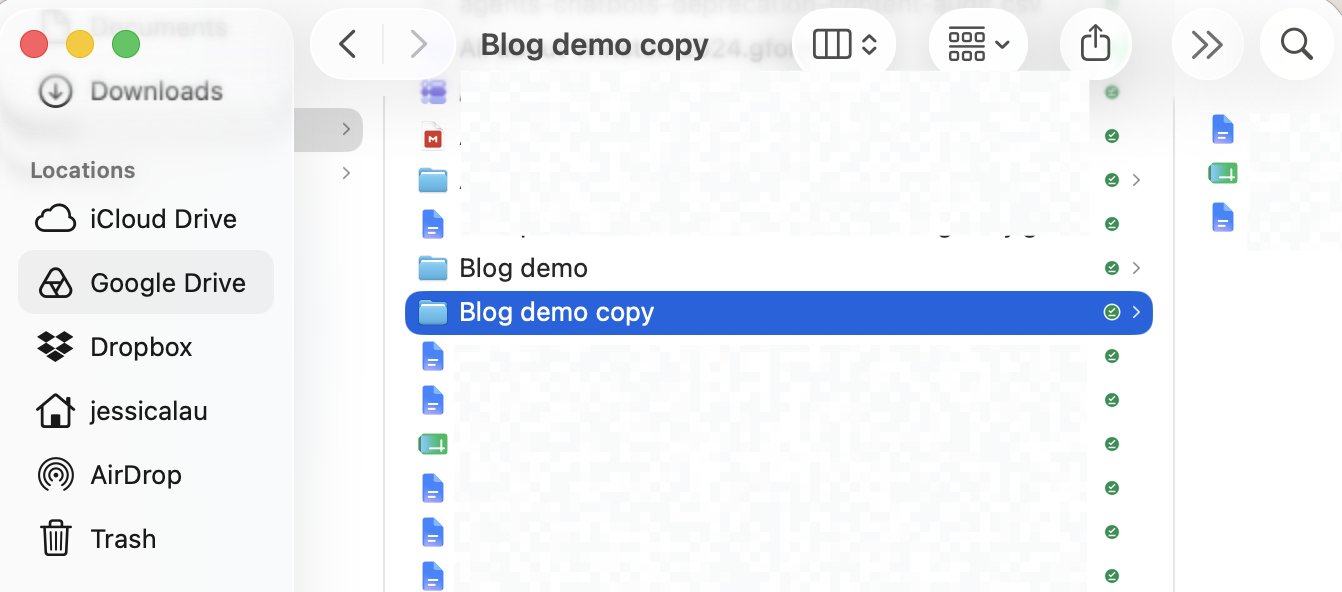


ウェブ上のドライブには、デスクトップ アプリで行った変更が自動的に反映されます。
ヒント: ドライブのすべてのファイルに常時アクセスする必要がある場合や、すべてのドキュメントにオフラインでアクセスする必要がある場合は、ファイルのミラーリングからストリーミングに切り替えてください。これは全体的に優れた同期オプションであり、占有するハードドライブ容量も大幅に少なくなります。
Mac でフォルダー内の複数のファイルの名前を一度に変更する方法
コピーしたフォルダ内のすべてのファイル名の先頭に、クライアント名またはプロジェクト名を追加したいとしましょう。ウェブ版Googleドライブにファイルを直接コピーした場合、ファイルを一つずつ手動で追加する必要があります。しかし、Googleドライブのデスクトップアプリを使ってフォルダをコピーすると、Finderで複数のファイルを一度に名前変更できます。ドライブのミラーリングが有効になっている限り、デスクトップアプリで行った変更は自動的にウェブアプリにも反映されます。
注: Windows ユーザーの場合、エクスプローラで複数のファイルの名前を一度に変更することもできますが、命名規則を制御できる範囲が少ないため、あまり役に立ちません。
Finderを開き、名前を変更したいファイルをすべて選択します。
強調表示された選択範囲を右クリックし、 [名前の変更]をクリックします。
表示されるポップアップで、テキストの置換、追加、または書式設定の方法を選択します。
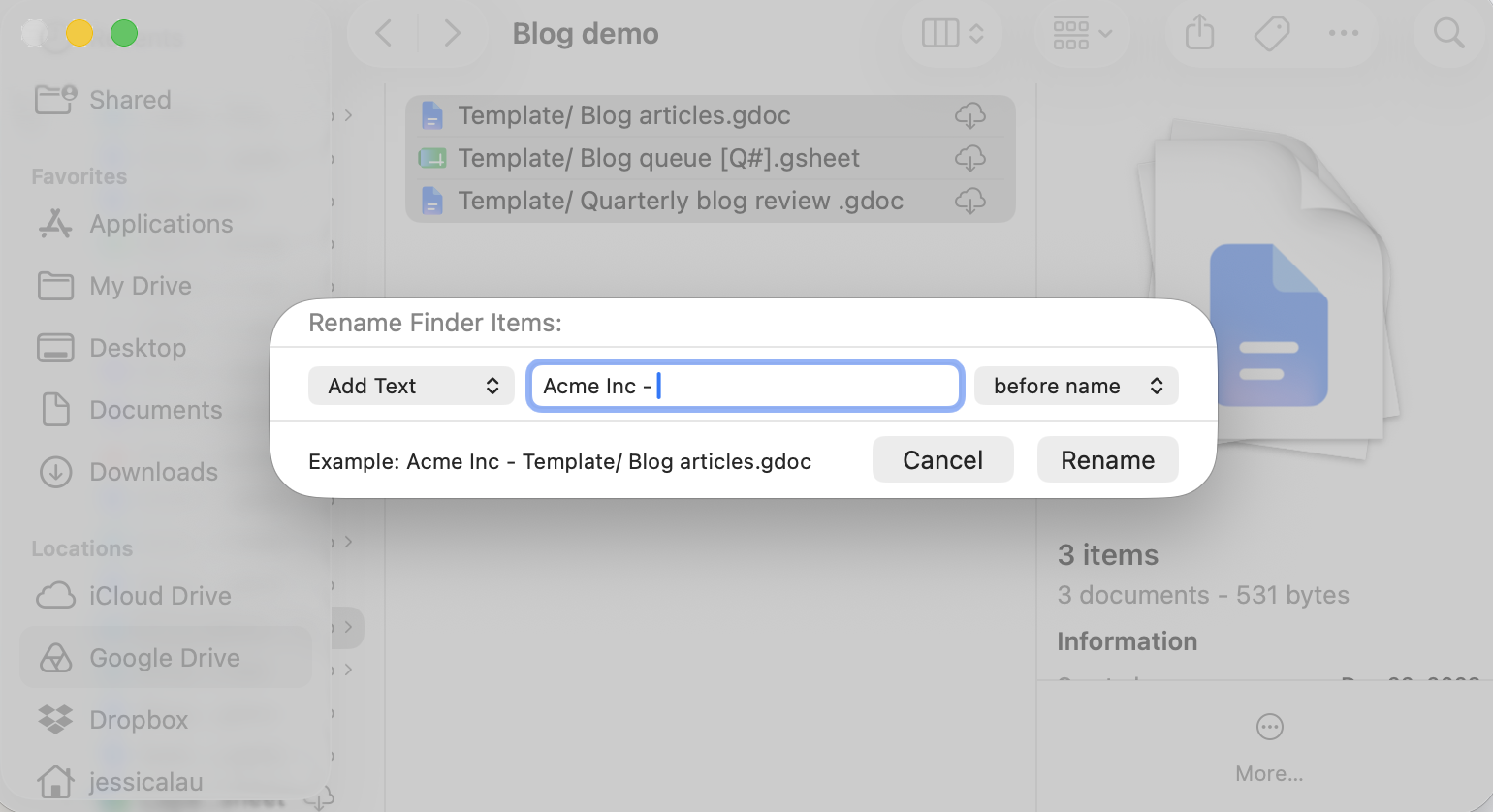
名前の変更をクリックします。
ファイル マネージャーと Google ドライブ内のファイルはすぐに更新されますが、変更が反映されるまでウェブ上のドライブを数回更新する必要がある場合があります。

Zapierを使ってGoogleドライブの自動化を
Googleドライブのファイルを管理することは一つのことです。必要なものを見つけるためにファイルを掘り起こすのも、特にデジタルワークスペースを整理するための規則的なルーティンを確立していない場合は、別の問題です。
Zapier を使用すると、 Google Drive を接続できます。9、000 + アプリを 使えば、余計な手間をかけずにデジタルファイルの管理を効率化できます。他のアプリで発生したイベントに基づいて、ファイルを自動的にコピー、作成、または移動します。あるいは、ChatGPTやClaudeのようなAIアシスタントを既に利用している場合は、 Zapier使うことで、AIが安全にシステム全体にアクセスし、様々な操作を実行できるようになります。そうすれば、チャットウィンドウから直接、ファイルの検索、フォルダの作成、ファイルのルーティングを行うことができます。
どこからでも自動化を構築できます。望む結果を説明すれば、Zapierがツールを接続し、ステップを実行し、チャットを閉じた後も作業を継続します。AI と、 9 、 000 + アプリ全体にわたる信頼性の高い決定論的な自動化を組み合わせます。無料で始められます。
関連資料:
この記事は元々、マシュー・グアイによって2022年1月に公開されました。最新の更新は9月2026でした。